
01Who this is for
- Marketing managers who need to organize target groups for campaign segmentation.
- Ad creators who require quick access to custom or lookalike audiences while building ads.
- Business owners who want to keep their audience library tidy and up to date.
02Audiences tab, explained
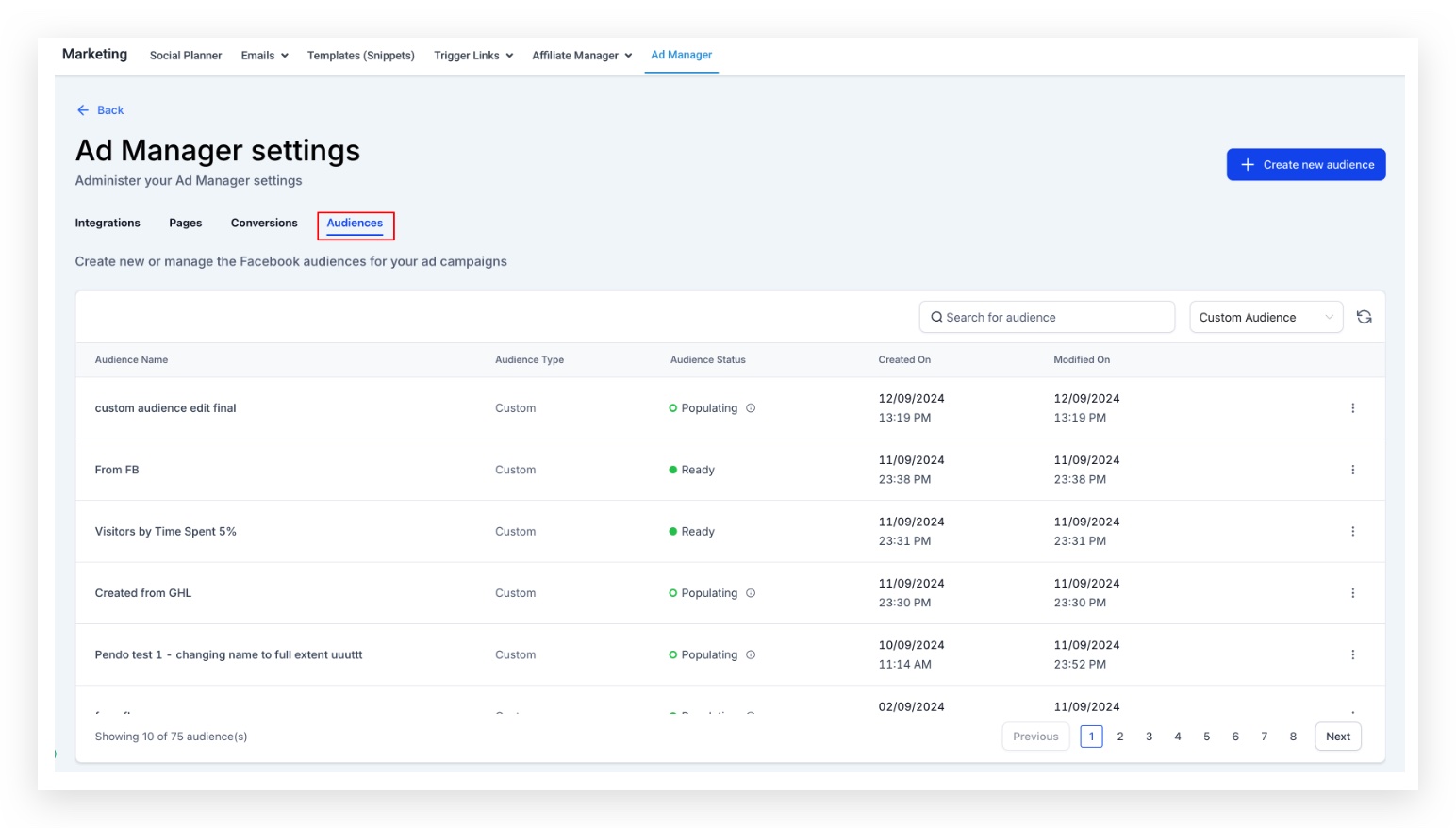
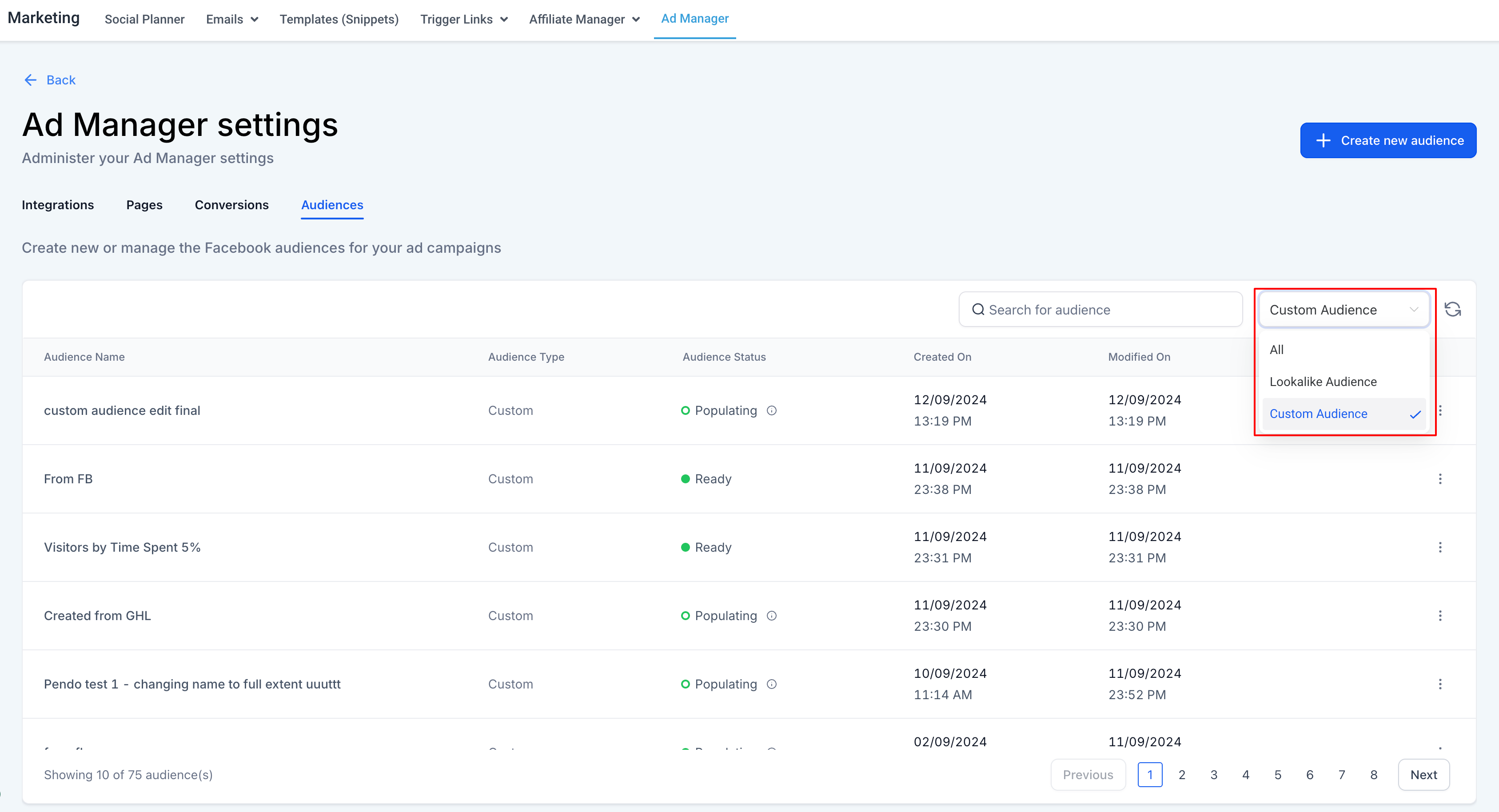
The Audiences tab resides under Ad Manager settings. It shows every audience created in the platform and any audiences pulled from a connected Meta account. The view can be filtered to All, Custom, or Lookalike audiences, and a search box lets you find a specific audience by name.
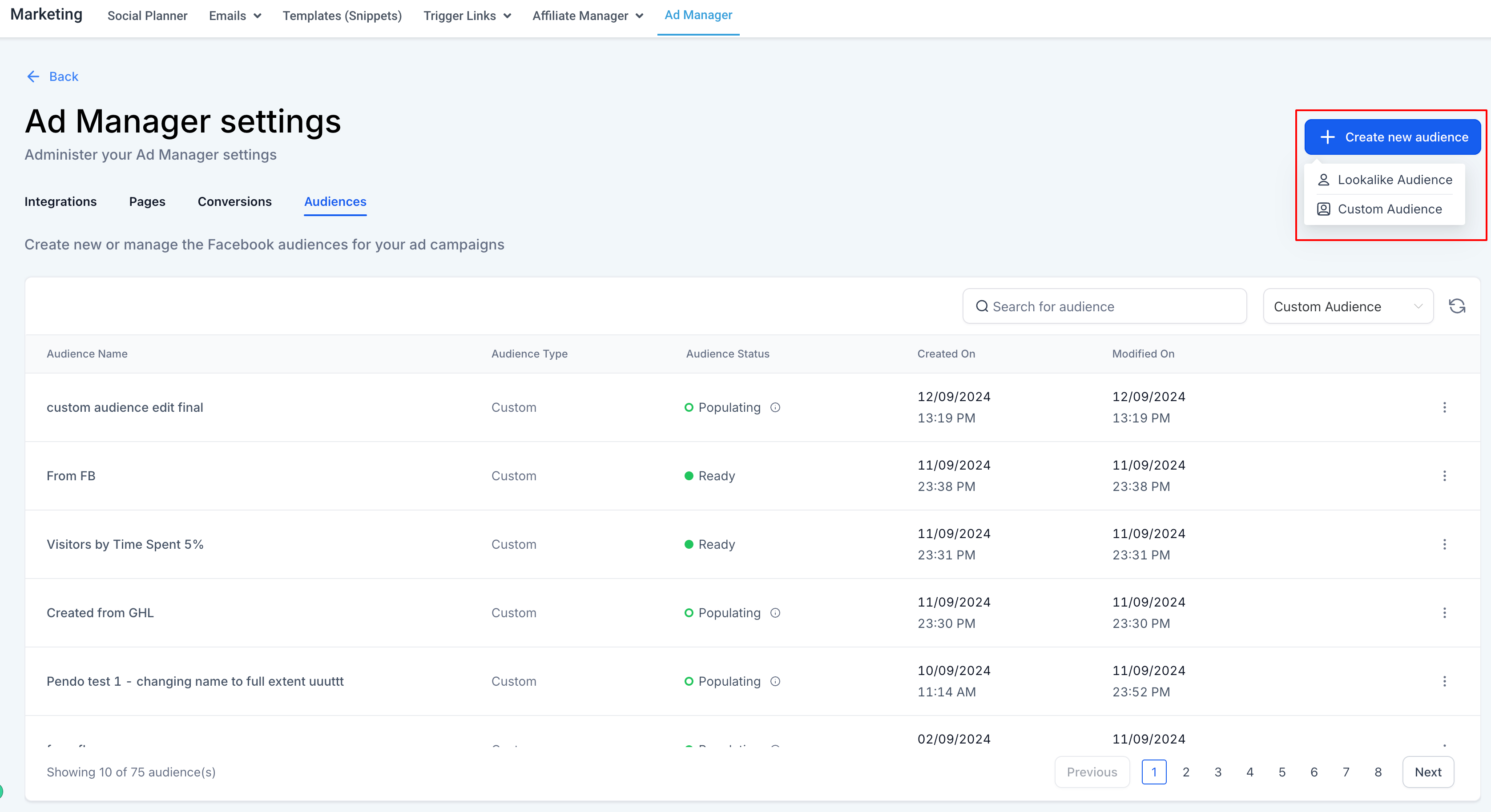
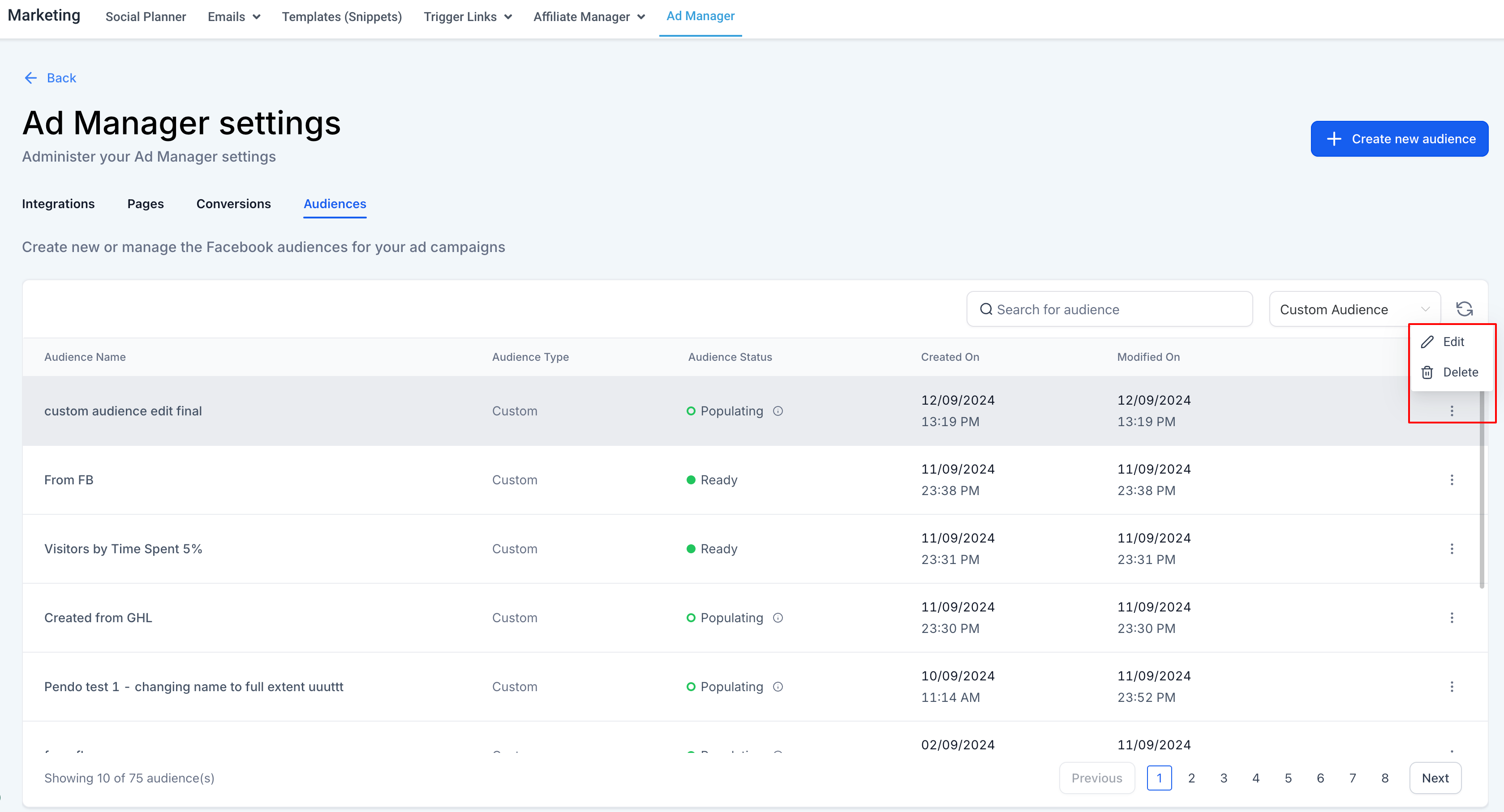
From this tab you can create new audiences, rename or re describe existing ones, and delete audiences that are no longer needed. Creation starts by clicking a button that offers Lookalike or Custom Audience options, and each type follows its own flow. Editing and deletion are accessed via an ellipsis menu next to each audience.
03How businesses use audiences tab
- Ecommerce store. The store owner opens the Audiences tab, filters for Custom audiences, and creates a new audience for recent purchasers. They later edit the description to note the purchase window and delete the audience once the promotion ends.
- Local service provider. A service business searches for a Lookalike audience that mirrors its best customers, updates the audience name to reflect a new service launch, and removes an old Lookalike audience that is no longer relevant.
- Digital marketing agency. The agency accesses the audience list, uses the search box to locate a client’s custom audience, edits the description to include campaign dates, and deletes a duplicated audience after confirming it is not tied to any active ads.
04The numbers and rules that matter
- There is no specific limit to the number of audiences you can create.
05How to set up and use audiences tab in HighLevel
Locate the list of audiences
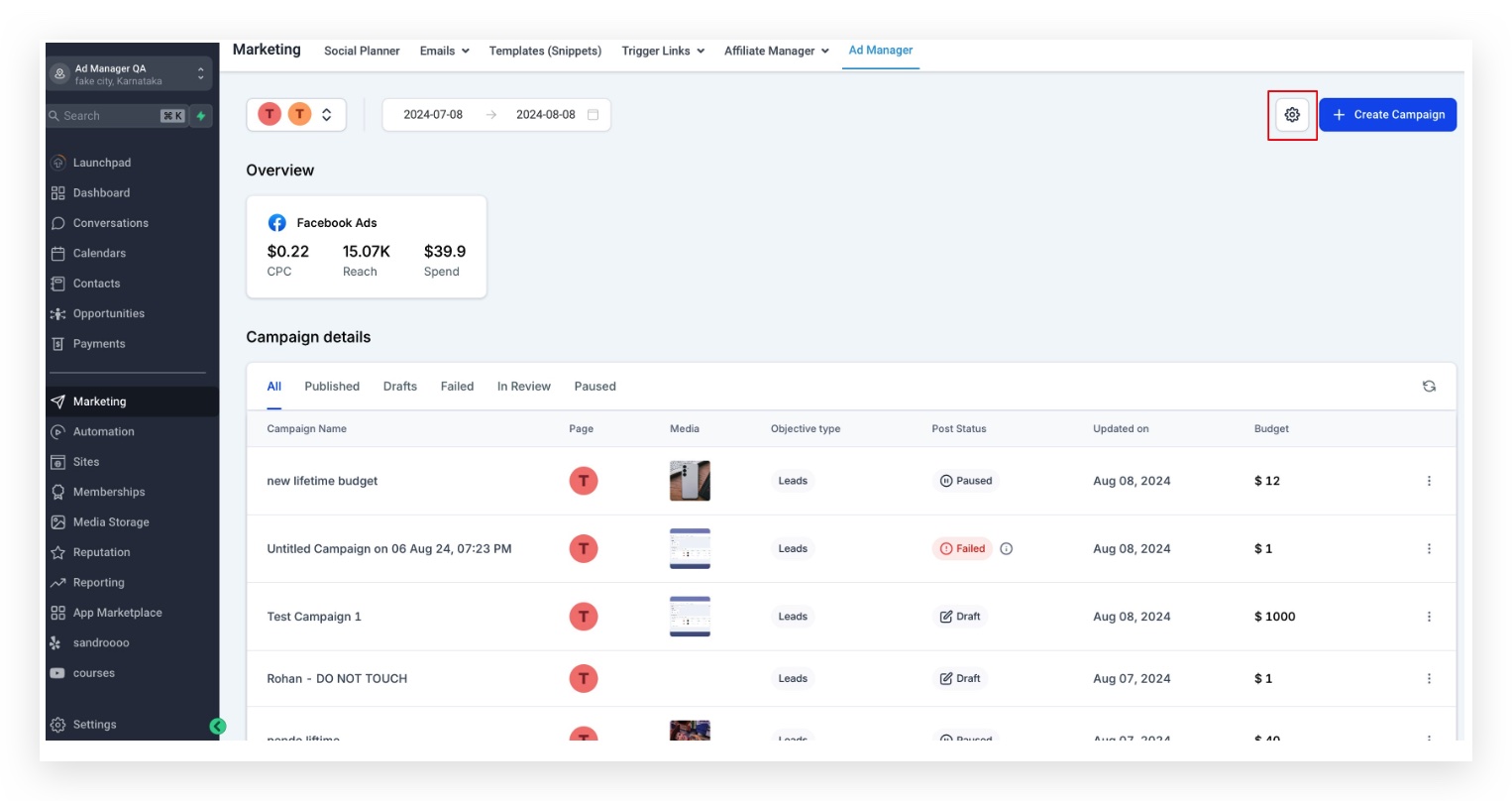
- Click the settings icon on the Ad Manager home page.
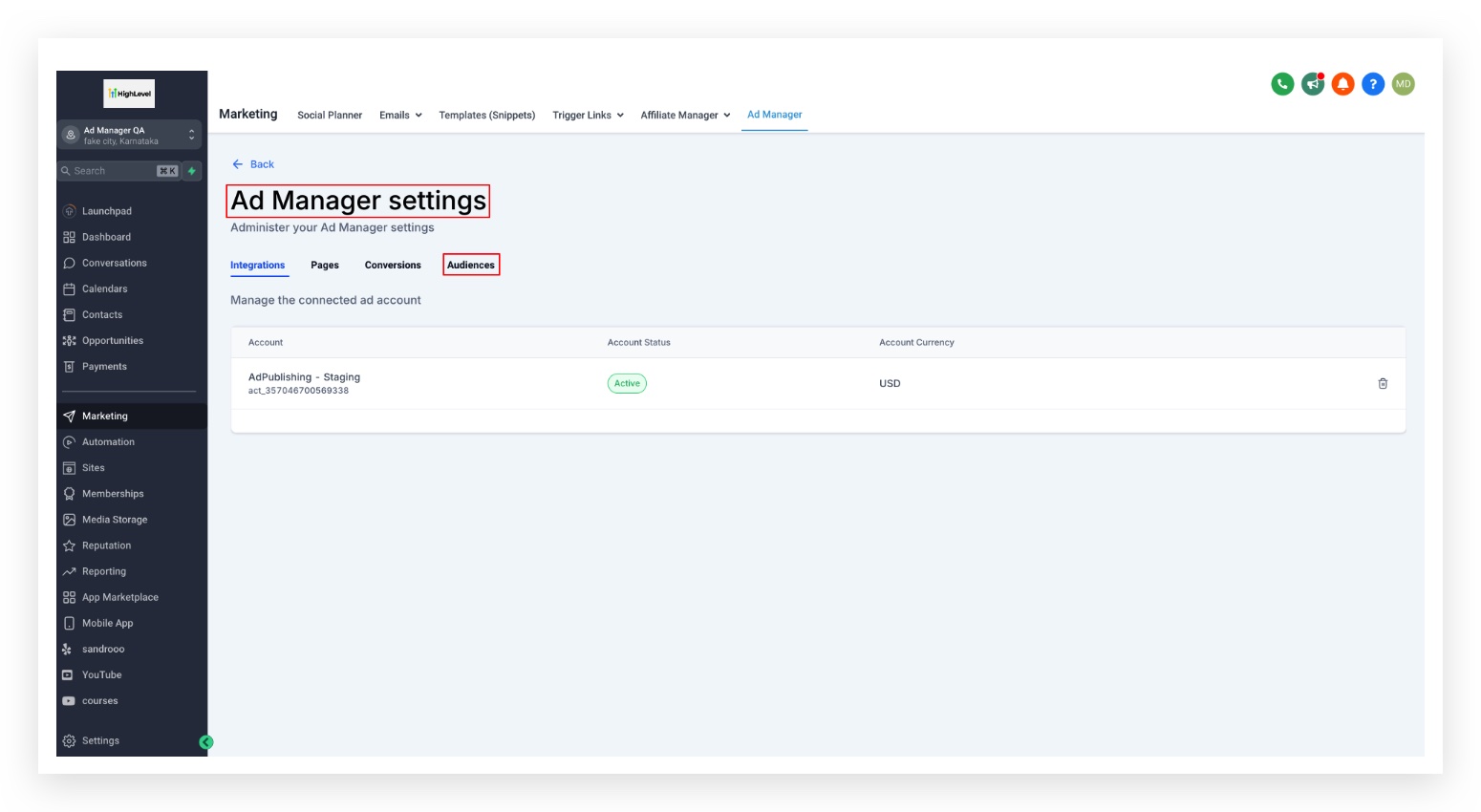
- Select the Audiences tab among the four available tabs.
- Review the displayed list of custom and lookalike audiences.
Create a new audience
- In Ad Manager settings, open the Audiences tab.
- Press the “Create new audience” button.
- Choose either Lookalike or Custom Audience from the presented options.
- Follow the specific creation flow for the selected audience type.
- Verify the new audience appears in the audience list.
Edit an existing audience
- Locate the audience you want to change in the Audiences list.
- Click the ellipsis icon aligned with that audience.
- Select the Edit option from the dropdown menu.
- Update the name and/or description in the dialog box that appears.
- Save the changes and confirm the updated information in the list.
Delete an audience
- Find the audience you wish to remove in the Audiences list.
- Click the ellipsis icon next to that audience.
- Choose the Delete option.
- If a validation message appears about active campaigns, pause those campaigns first.
- If an error mentions an associated lookalike audience, delete the lookalike audience beforehand.
- Confirm the deletion and ensure the audience no longer shows in the list.
06What it looks like in HighLevel
07Things to know before you rely on it
- The article does not specify a hard limit on the number of audiences; keeping the list organized is recommended.
- An audience cannot be deleted while it is linked to an active campaign; all related campaigns must be paused first.
- A custom audience that has been used to generate a lookalike audience must have that lookalike removed before the custom audience can be deleted.
- Deleted audiences cannot be recovered.
08If something goes wrong
- Attempting to delete an audience that is part of an active campaign. Pause all campaigns that use the audience before trying to delete it.
- Trying to delete a custom audience that underlies a lookalike audience. Remove the associated lookalike audience first, then delete the custom audience.
09How it connects to the rest of HighLevel
- How to connect your Facebook account for ad campaigns Connect Facebook
- Get started with Meta campaigns in Ad Manager Meta campaigns guide
- Set a default Facebook page for Ad Manager Default Facebook page
Michael's take

I recommend treating the tab as a live control center. Rename audiences for clarity, prune unused ones, and always make sure any active campaigns using the audience are paused before you hit delete.
If I were setting up a new client, the first step would be to audit the existing audiences, rename anything vague, and remove any stray lookalikes.