
01Who this is for
- Founders launching limited time promotions need automatic routing to keep offers current.
- Marketing managers running webinars benefit from directing registrants after deadlines to waitlist pages.
02Countdown timer redirection links, explained
Countdown Timer Redirection Links are conditional URLs that check the state of a timer at click time. If the timer has not yet expired, the link forwards the contact to the Active destination; once the timer ends, the same link redirects to the Expired destination. This behavior removes the need to swap URLs manually.
The three parts, Active Link, Expired Link, and Redirection Link, work together inside HighLevel. The Active and Expired Links store the final pages, while the Redirection Link is the static address placed on buttons, images, or text. HighLevel evaluates the timer whenever the Redirection Link is clicked.
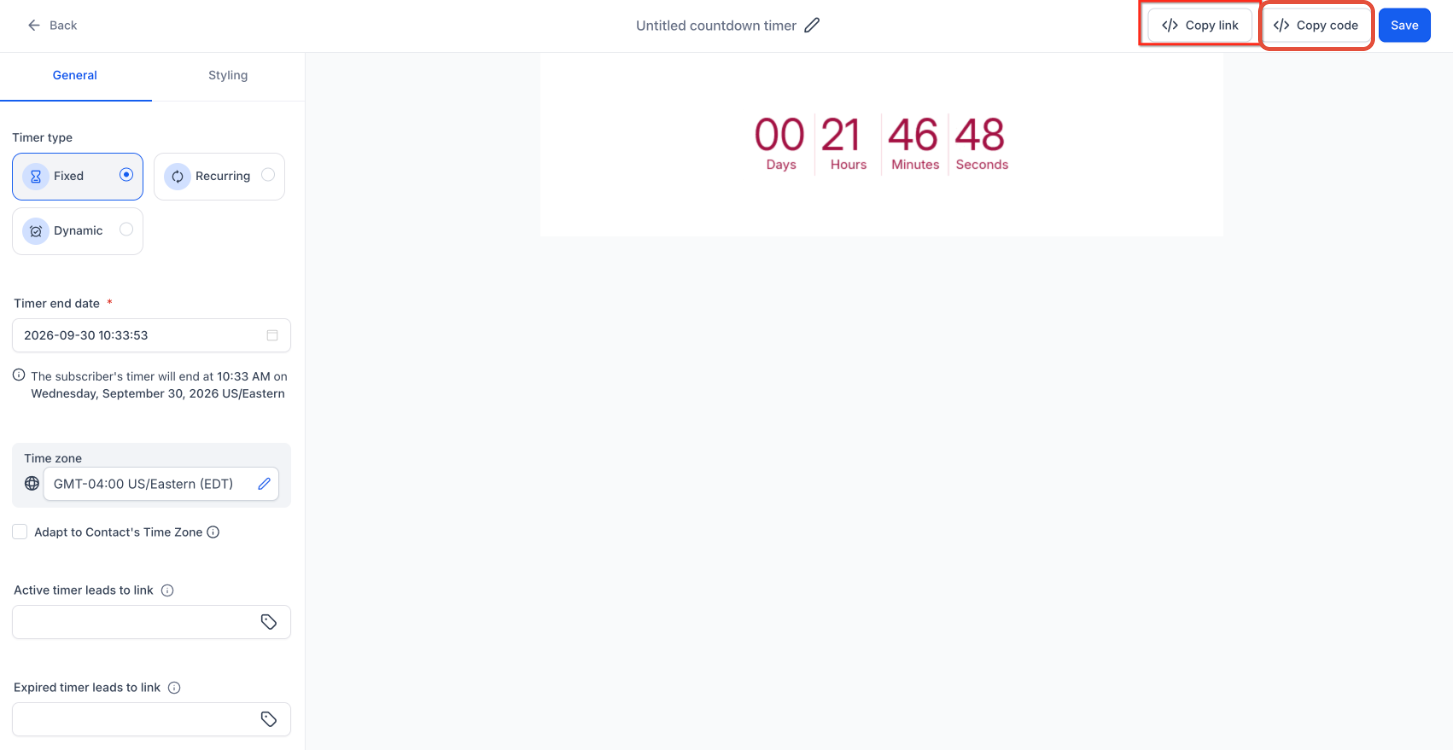
You set up these links in the Marketing > Countdown Timers section. After creating or editing a timer, you add the timer to an email, funnel, or website, copy the generated Redirection Link, and attach it to any supported CTA element.
03How businesses use countdown timer redirection links
- Ecommerce store. The shop adds a countdown timer to a promotion email and places the timer's Redirection Link on the "Buy Now" button. While the timer runs, shoppers reach the sale page; after expiration, the button leads to an out of stock or alternate offer page.
- Online course platform. A course provider includes a timer in an enrollment email. The "Enroll Now" CTA uses the Redirection Link, sending prospects to the registration form while seats are open and to a waitlist page once enrollment closes.
- Medical clinic. The clinic embeds a timer on a reminder email for a limited time health package. The same "Book Appointment" CTA uses the Redirection Link, routing patients to the booking page during the offer and to a follow up information page after the deadline.
04Before you start
- You must first create a timer in Marketing > Countdown Timers before you can set up redirection links.
05How to set up and use countdown timer redirection links in HighLevel
Set up countdown timer redirection
- Open the Marketing > Countdown Timers menu.
- Start a new timer or edit an existing one.
- Set the timer type, length, and expiration options as needed.
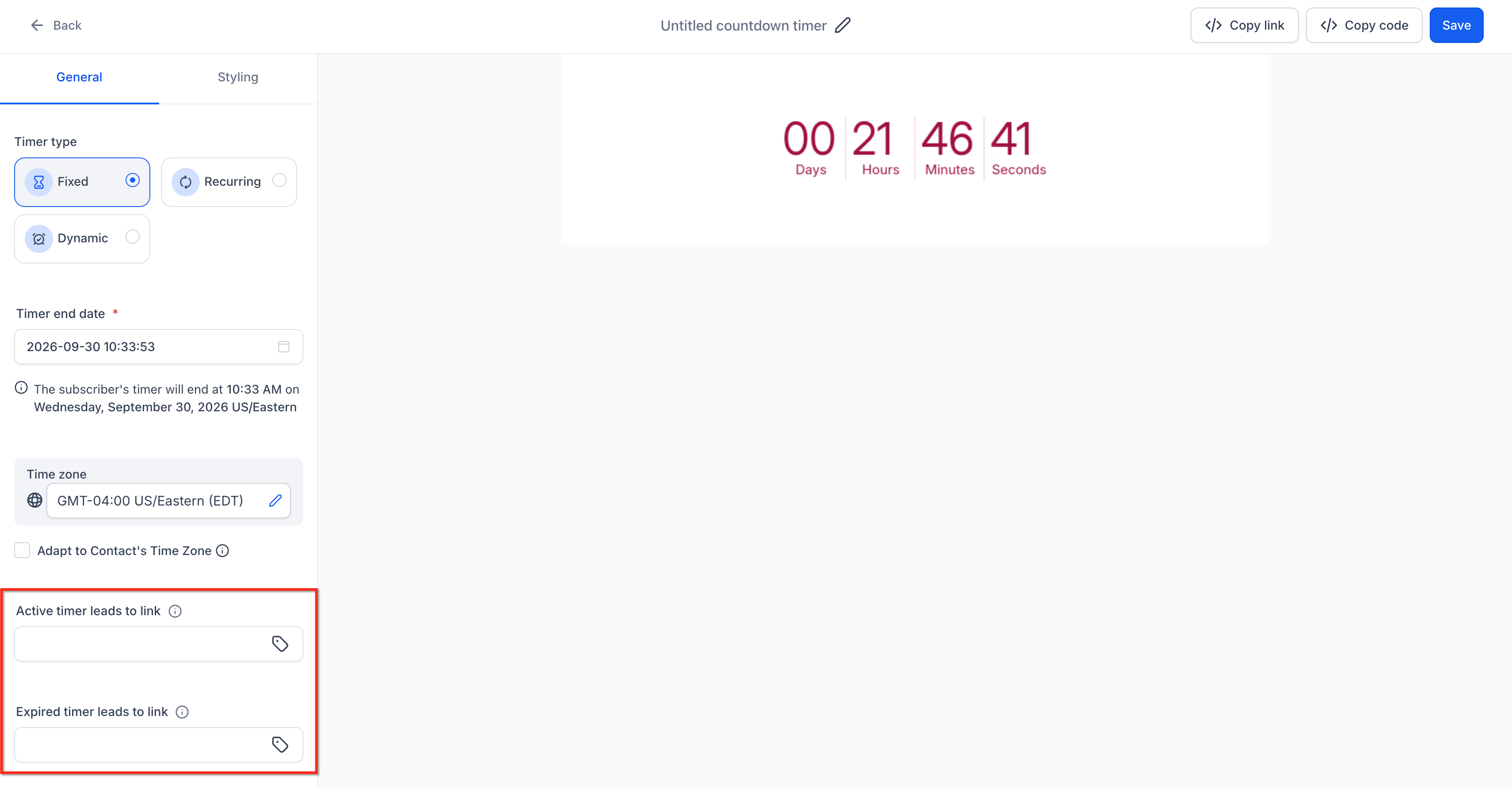
- Enter the URL that contacts should reach while the timer runs as the Active Link.
- Enter the URL for contacts after the timer ends as the Expired Link.
- Save the timer configuration.
- Insert the timer into the desired email, funnel page, or other supported campaign.
- Copy the timer's Redirection Link from the timer or builder settings.
- Attach that Redirection Link to the intended button, image, or text link.
- Click the CTA while the timer is still active to confirm it opens the Active Link.
- After the timer expires, click the same CTA to verify it now opens the Expired Link.
06What it looks like in HighLevel
07Settings that matter
- Active Link. Specifies the destination page contacts reach while the countdown is still counting down.
- Expired Link. Specifies the destination page contacts reach after the countdown has finished.
- Redirection Link. A static URL that HighLevel evaluates at click time to send the contact to either the Active or Expired Link.
08Things to know before you rely on it
- Redirection Links work only on supported clickable elements such as buttons, images, and linked text.
- Recurring timers may treat the wait period between cycles as an expired state, so the Expired Link should handle that scenario.
09How it connects to the rest of HighLevel
- Get started with a basic countdown timer. Getting started with countdown timer
- Learn how to add a countdown timer to email campaigns. Countdown timers in emails
- Set up a recurring timer for cycles of active and wait periods. Recurring countdown timer
Michael's take

Countdown timer redirection links are useful when you need a single CTA to point to different pages before and after a deadline.