
01Who this is for
- Marketing managers, can reorder email sections quickly without dragging each block.
- Small business owners, can adjust templates with one click, reducing design errors.
- Email designers, can fine tune layout positions precisely.
02Arrow controls, explained
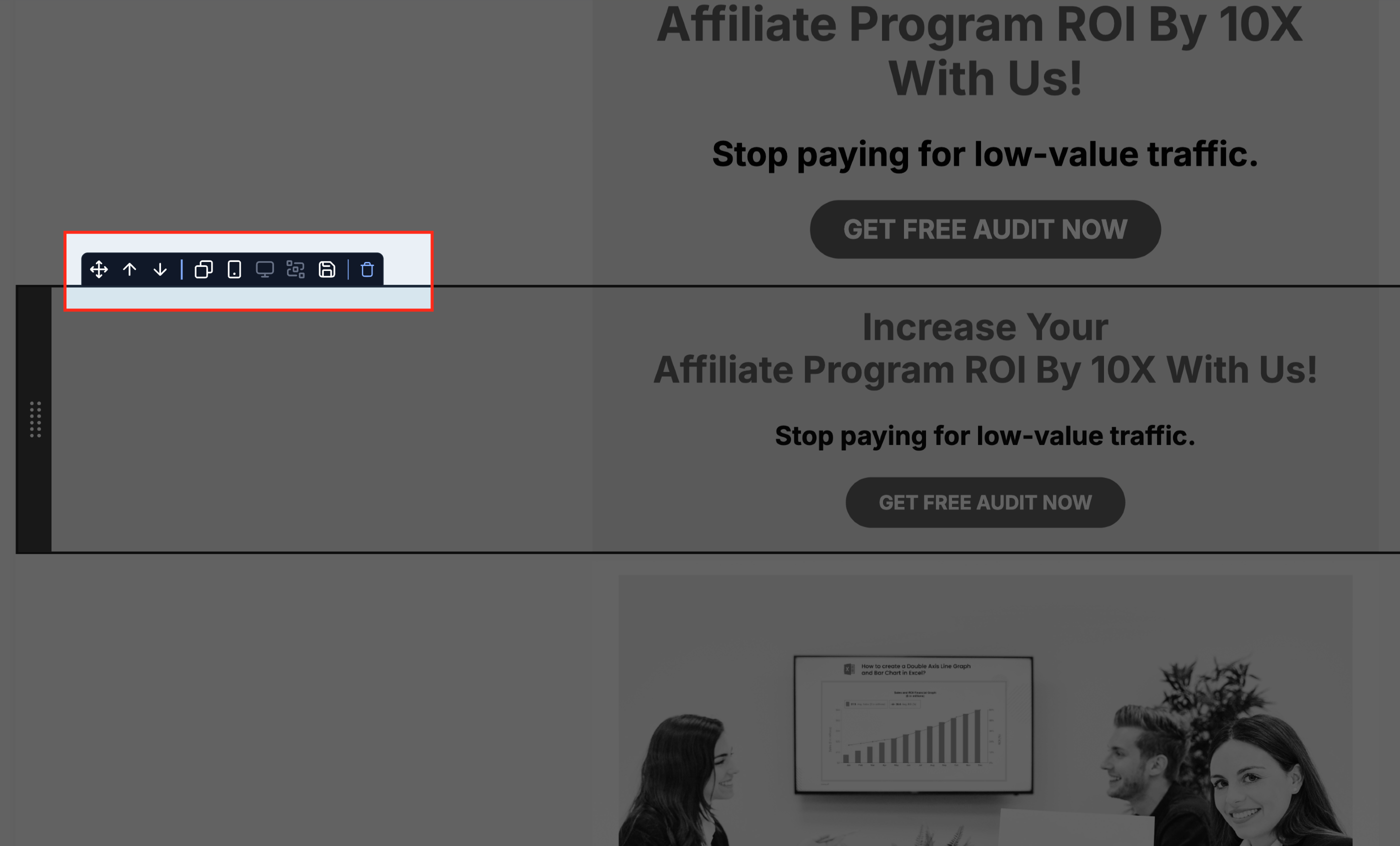
The Arrow Control feature adds small up and down icons to each element and layout block inside the Email Builder. Clicking an arrow moves the selected item one position higher or lower in the email structure.
The controls appear when you hover over a text, image, button, or an entire section such as header or footer. The movement happens right away and the change is saved automatically. The feature works on desktop browsers and coexists with the existing drag and drop capability.
03How businesses use arrow controls
- Real estate agency. A realtor opens a property newsletter template, hovers over the featured listing block, and clicks the down arrow to push it below a client testimonial. The block moves right away, keeping the design tidy.
- Online course provider. The course marketer selects the call to action button element in a launch email, hovers to reveal the arrows, and clicks the up arrow to place it higher in the email flow. The new position saves automatically.
- Event promotion company. An event planner edits a weekend event invitation, hovers over the footer layout, and uses the down arrow to move the footer beneath a new sponsor section. The layout reorders without needing drag and drop.
04How to set up and use arrow controls in HighLevel
Rearrange elements or layouts with arrow controls
- Navigate to Email Marketing from the left hand menu.
- Open an existing template or create a new campaign.
- Hover over the element or layout block you want to move.
- Click the up (↑) or down (↓) arrow that appears near the top left of the section.
05What it looks like in HighLevel

06Things to know before you rely on it
- Arrow controls are optimized for desktop use and do not appear on mobile devices.
- The arrows are visible only when the mouse pointer hovers directly over a movable element or layout.
07If something goes wrong
- Arrows do not appear on the element or layout.. Make sure the mouse is hovering directly over a movable element or layout. If the arrows still do not show, refresh the editor or check for browser updates.
08How it connects to the rest of HighLevel
- Move the Email Builder edit panel for better workspace Edit panel guide
- Send or schedule a regular email campaign after rearranging Send or schedule campaign
Michael's take

Most people try to fight the drag and drop interface for every tiny shuffle, and they end up wasting time hunting for the right spot. I would simply hover over the block, tap the up or down arrow, and let the Email Builder handle the reordering.
That single click lets you clean up a layout in seconds, so you can move on to testing subject lines or polishing copy.