
01Who this is for
- Event managers who need to track each participant in corporate bookings, because the system records unique attendee data per ticket.
- Conference planners who sell tickets to multiple delegates in a single checkout, as the feature separates every delegate’s details.
- Workshop hosts registering teams, since the copy function reduces repetitive entry while keeping each participant identifiable.
02MultiAttendee Registrations, explained
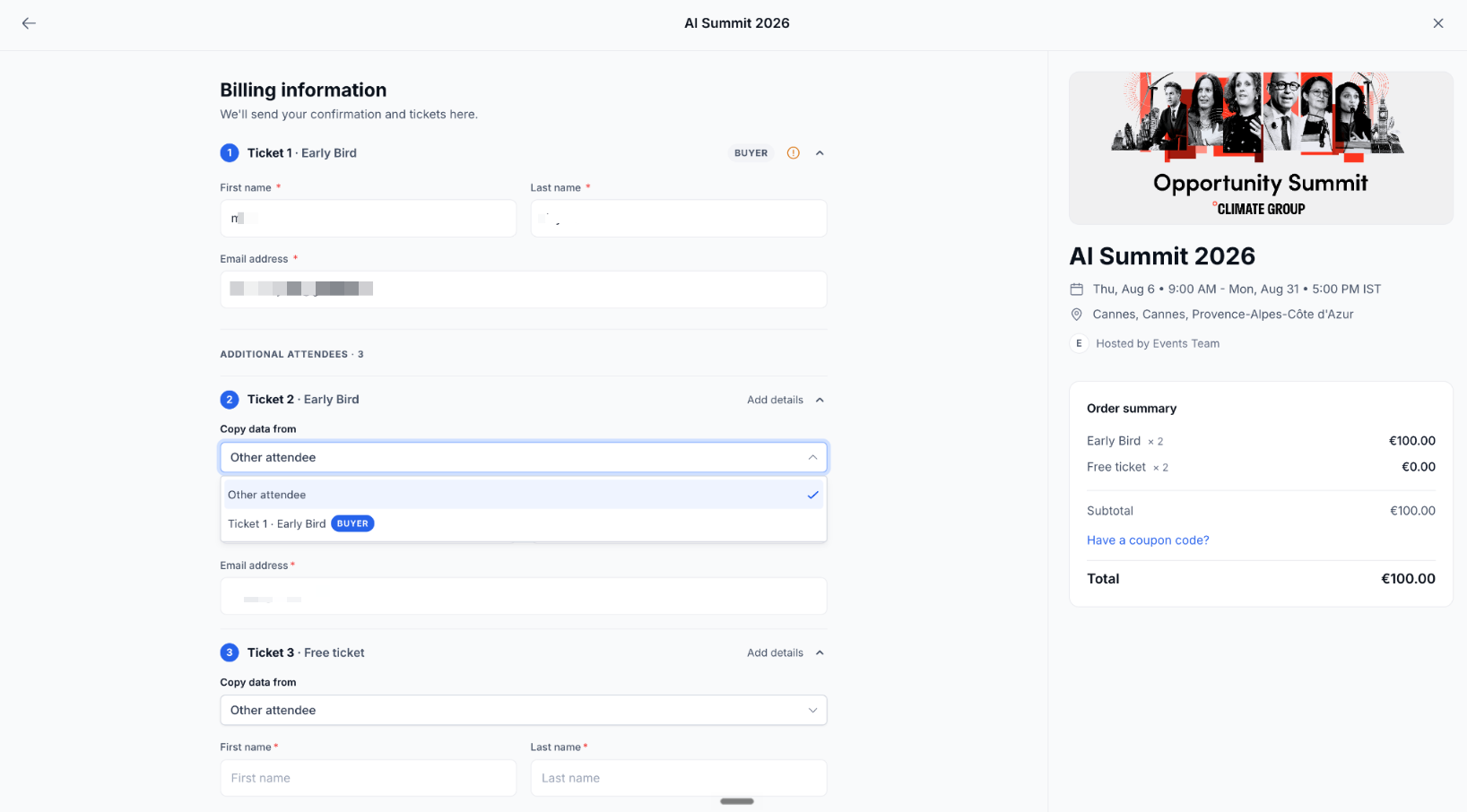
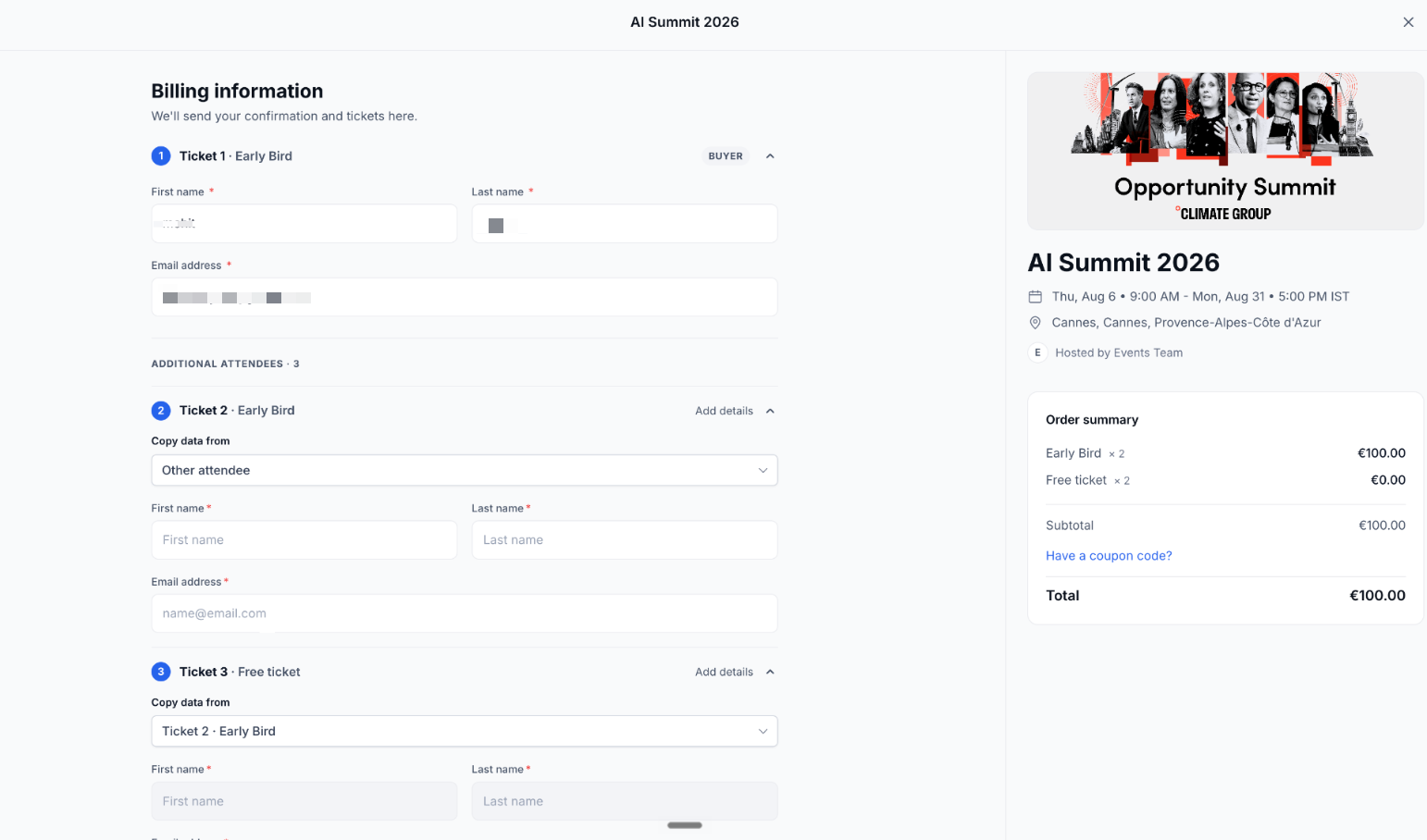
When a buyer selects more than one ticket, HighLevel automatically asks for attendee information for every ticket. The first ticket is marked as BUYER and linked to the purchaser. Each subsequent ticket presents fields for first name, last name and email, and a dropdown to copy data from any already completed ticket.
The copy dropdown appears on each extra ticket line. Selecting a prior attendee fills the fields right away, yet every field stays editable, allowing quick adjustments. Organizers can also add custom checkout fields for event specific data, which appear alongside the core fields.
All of this lives inside the event checkout flow. The settings for ticket types, quantities, pricing and checkout fields are defined when the event is created, and the multi ticket logic runs automatically during the buyer’s checkout session.
03How businesses use individual attendee details
- Corporate training provider. The provider creates a training event, adds ticket types, and lets a manager purchase seats for several employees. The manager fills the first employee’s details, then uses the copy dropdown for the remaining seats, editing only names that differ.
- Conference organizer. During checkout, a sponsor buys tickets for a group of attendees. The sponsor enters the primary contact information for the first ticket, then selects that entry as the source for other tickets, updating only the required fields for each delegate.
- Workshop facilitator. A small business registers a team for a hands on workshop. After entering the first team member’s data, the facilitator copies the information to the other team tickets and changes only the email addresses that vary.
04The numbers and rules that matter
- Primary buyer is automatically treated as the first attendee and is associated with Ticket 1.
- Ticket 1 shows a "BUYER" badge during checkout.
- Core checkout fields are first name, last name, email; Custom Fields can be added per event.
05Before you start
- Create the event in HighLevel and publish it.
- Define ticket types, set quantities, pricing, and availability.
- Configure the checkout fields, including any custom fields required for the event.
06How to set up and use individual attendee details in HighLevel
Complete a multi ticket registration with individual attendee details
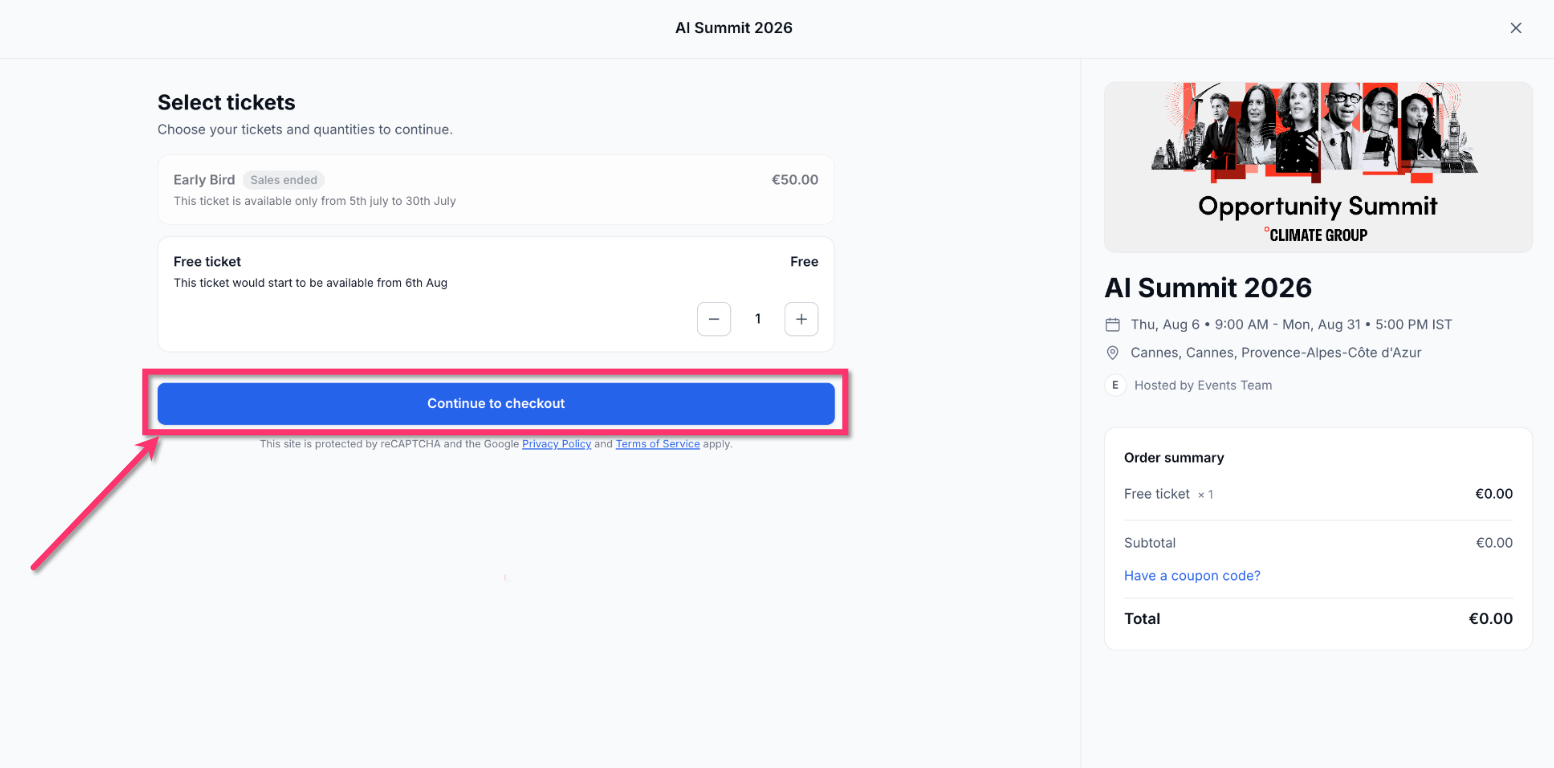
- Open the event page and select the desired number of tickets, mixing types if needed.
- Click the button to move to the checkout stage.
- Enter first name, last name and email for Ticket 1, which is automatically labeled BUYER.
- For Ticket 2, either type the attendee’s data manually or open the copy dropdown.
- Choose a previously completed ticket from the dropdown to fill the fields automatically.
- If the copied data needs changes, edit any field that differs for the current attendee.
- Repeat the copy or manual entry steps for each additional ticket in the order.
- When all tickets have attendee information, verify the order summary for accuracy.
- Proceed through any remaining billing steps to finalize the purchase.
- Confirm the registration completion screen appears, indicating all tickets are recorded.
07What it looks like in HighLevel
08Settings that matter
- Copy data from. Controls which previously entered attendee’s information is duplicated into the current ticket’s fields.
09How it connects to the rest of HighLevel
- Create and manage events in HighLevel Event setup guide
- Integrate events with workflows Event workflow integration
- Embed HighLevel event pages on a website Embedding events
Michael's take

MultiAttendee Registrations feel like a convenient way to reduce data entry when a client books for a whole team. The copy and paste style feature lets a buyer reuse information across attendees while still creating a separate record for each participant.
A corporate training firm that runs quarterly workshops could have an HR contact register all attendees, copy the baseline information, and then adjust names and emails for each employee, giving the organizer a ready to use list for follow up emails.