
01Who this is for
- Digital marketers who need granular control over spend across multiple ad sets and want Meta to balance budgets automatically.
- Local service businesses that prefer a single daily or lifetime budget for an entire campaign to simplify reporting.
- Ecommerce owners who want to test different bid strategies while limiting how much budget each ad set can draw.
02Meta campaign budget optimizer, explained
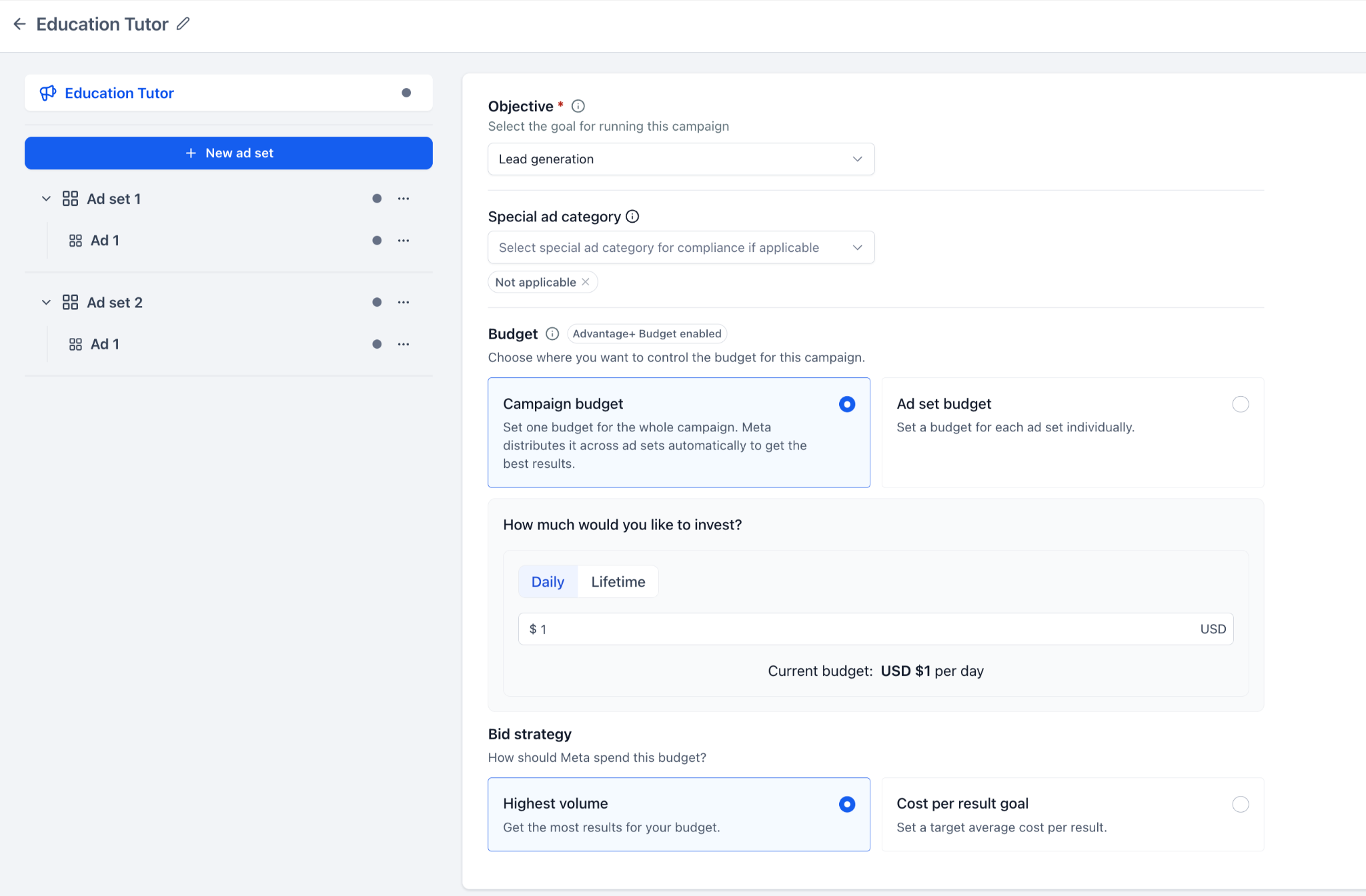
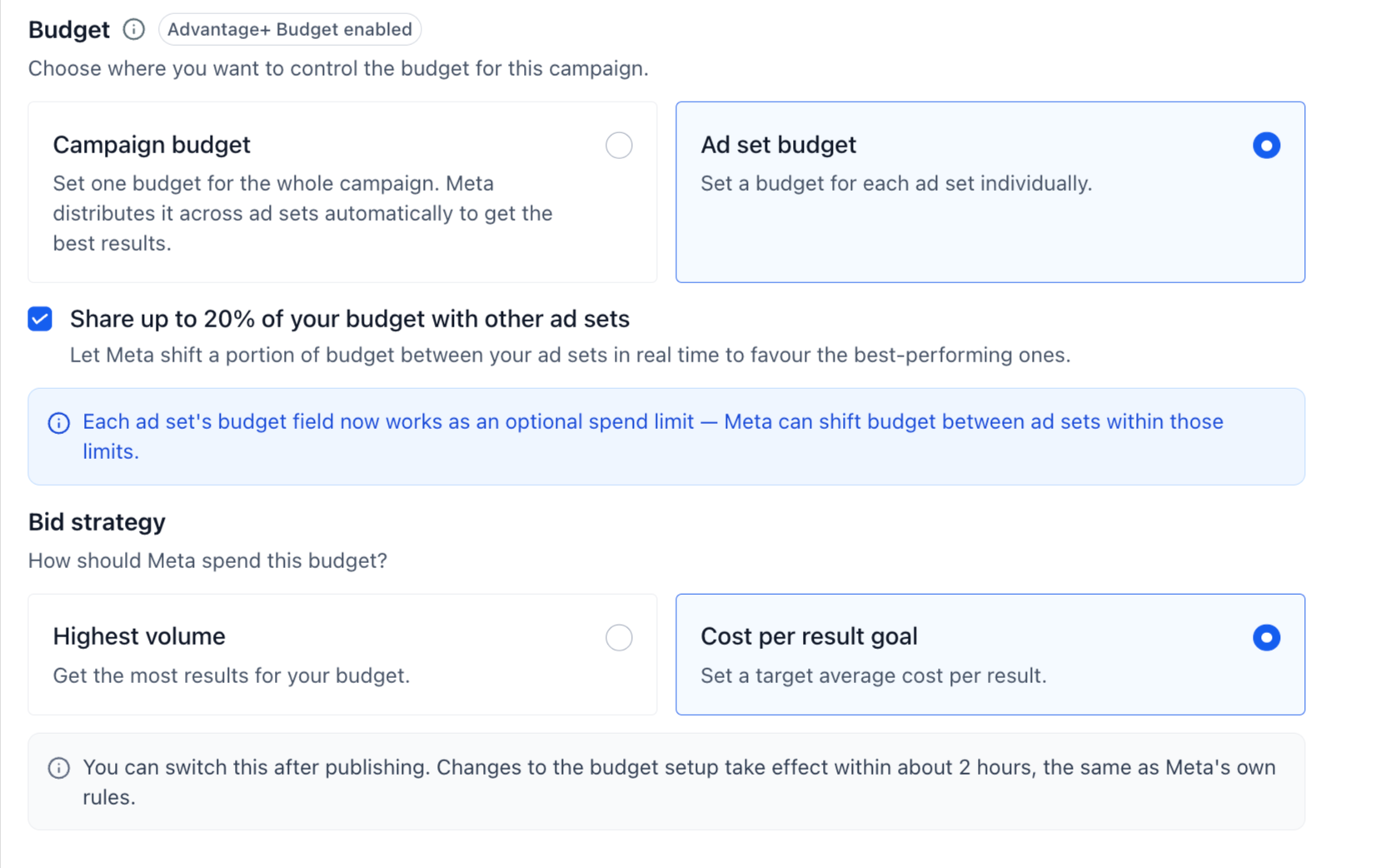
The optimizer adds two budget modes to a Meta campaign: a Campaign budget that applies a single amount to the whole campaign, and an Ad set budget that lets you set separate amounts for each ad set. In either mode you can select a daily or a lifetime budget and choose a bid strategy, such as Highest volume or Cost per result goal.
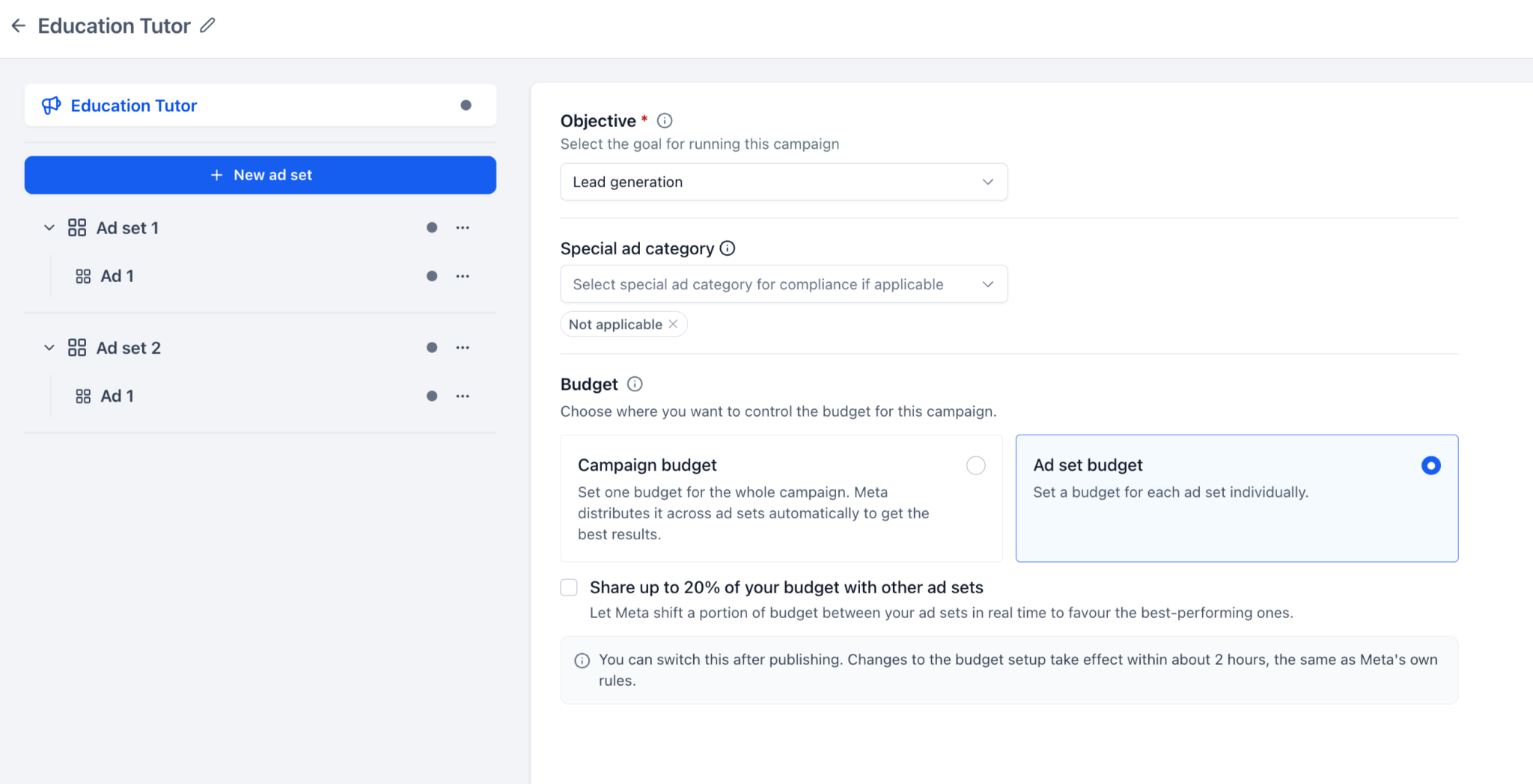
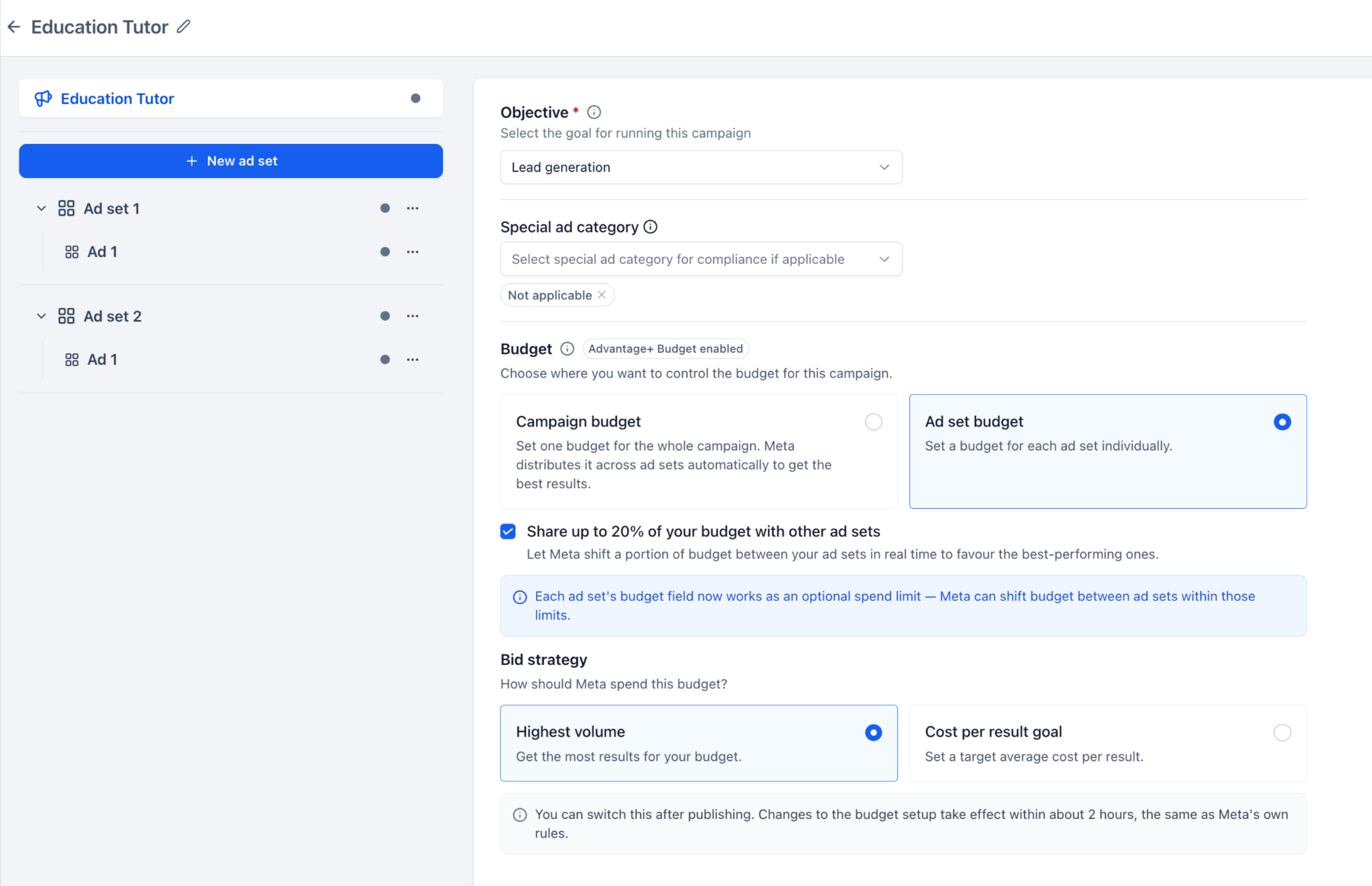
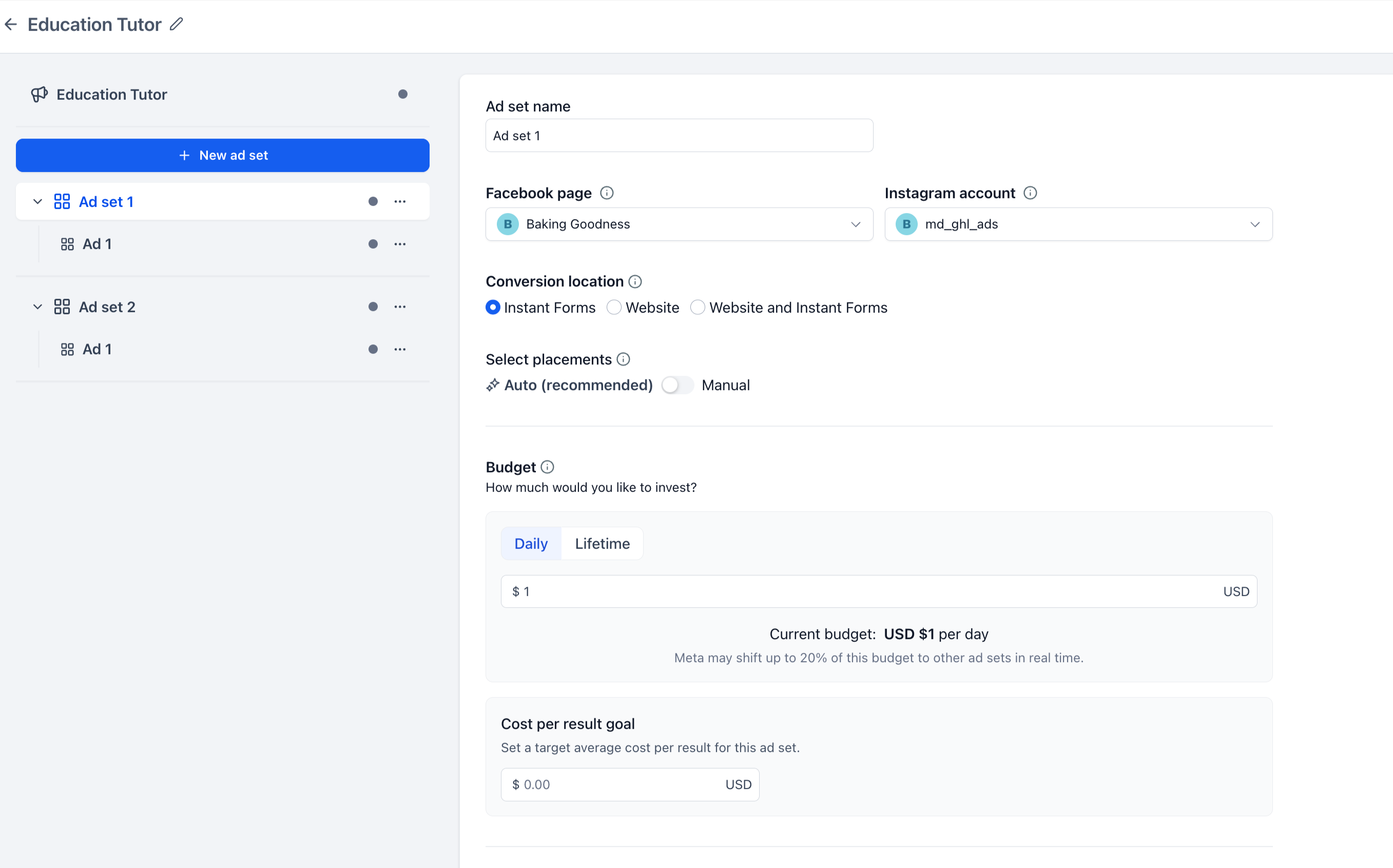
These options appear in the Budget section of the campaign editor. When you select Ad set budget, each ad set shows its own Budget panel where you can set the amount, schedule, and optional Cost per result goal. An additional toggle lets you enable sharing of up to 20% of an ad set’s budget with other eligible ad sets.
03How businesses use Meta campaign budget optimizer
- Ecommerce store. The store picks Ad set budget to allocate different amounts to product specific ad sets, then enables the 20% sharing toggle so Meta can shift spend toward higher performing products automatically.
- Local service provider. The provider selects Campaign budget with a daily amount to keep overall spend predictable, and chooses the Highest volume bid strategy to maximize leads within that limit.
- Real estate agency. The agency uses Ad set budget for each property listing, sets a Cost per result goal for each ad set, and optionally shares up to 20% of the budget to promote listings that generate quicker inquiries.
04The numbers and rules that matter
- Meta can shift up to 20% of the budget between eligible ad sets.
- Example daily budget: USD $10 per day (per HighLevel's help center, checked November 2026).
05How to set up and use Meta campaign budget optimizer in HighLevel
Choose budget setup
- Open the campaign level Budget section.
- Select either Campaign budget or Ad set budget.
- If you pick Campaign budget, configure the budget at the campaign level; if you pick Ad set budget, open each ad set to set its budget individually.
Configure campaign budget
- Select Campaign budget in the campaign level Budget section.
- Choose Daily or Lifetime as the budget type.
- Enter the desired budget amount.
- Pick a bid strategy such as Highest volume or Cost per result goal.
Configure ad set budget
- Select Ad set budget in the campaign level Budget section.
- Open the ad set you want to edit.
- Navigate to that ad set’s Budget section.
- Choose Daily or Lifetime as the budget type.
- Enter the budget amount for the ad set.
- Set the start and end schedule for the ad set.
- If required, input a Cost per result goal.
Enable budget sharing
- Confirm that Ad set budget is selected for the campaign.
- Open the Budget section of an individual ad set.
- Toggle the option “Share up to 20% of your budget with other ad sets”.
Change budget setup after publishing
- Open the published Meta campaign.
- Enter edit mode for the budget setup.
- Switch between Campaign budget and Ad set budget as needed.
- Provide any required budget amounts for the new configuration.
- Save the changes, noting that Meta may restrict further changes for approximately two hours.
06What it looks like in HighLevel
07Settings that matter
- Campaign budget. Applies a single budget amount to the entire Meta campaign and lets Meta distribute it across ad sets.
- Ad set budget. Allows you to set a separate budget for each ad set within the campaign.
- Daily budget. Defines the amount that can be spent each day.
- Lifetime budget. Defines the total amount available over the scheduled duration of the campaign or ad set.
- Bid strategy. Controls how Meta bids for results, offering options like Highest volume or Cost per result goal.
- Share up to 20% of your budget with other ad sets. Enables Meta to move up to 20% of an ad set’s budget to or from other eligible ad sets based on performance.
- Cost per result goal. Sets a target average cost per result when the selected bid strategy requires it.
08Things to know before you rely on it
- Budget sharing can move a maximum of 20% of an ad set’s budget to other eligible ad sets.
- After changing the budget setup, Meta may temporarily block additional budget changes for approximately two hours.
- All post publish budget adjustments must still comply with Meta’s eligibility and editing rules.
09How it connects to the rest of HighLevel
- Learn how to configure campaign budgets and enable sharing in HighLevel. budget sharing guide
- Explore Meta recommendations that can complement budget choices. meta recommendations
- Integrate campaign creation and reporting via HighLevel’s public APIs. public APIs
Michael's take

Wondering if you really need the flexibility to manage budgets at both the campaign and ad set level? The optimizer gives you that choice, so you can keep things simple with one budget or get granular control when you need it.
If I were setting up a new campaign, I’d start with the budget level that matches my reporting style, then flip on the 20% sharing option if I notice certain ad sets consistently outperforming others.