
01Who this is for
- Marketers who use WhatsApp for customer conversations can launch Engagement ads directly from a phone number.
- Teams that publish Facebook or Instagram content can promote those posts as ads without re uploading assets.
02Ad manager breadcrumbs, explained
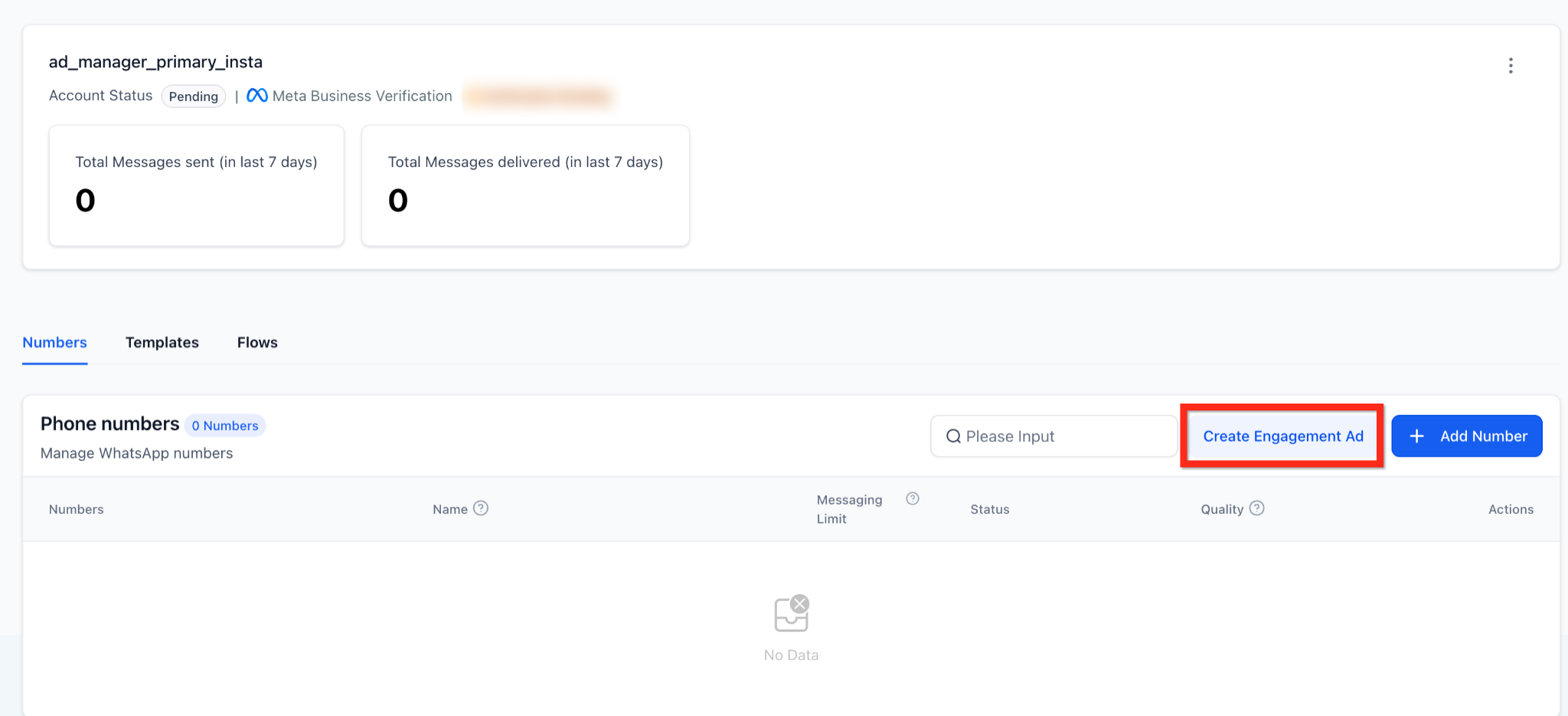
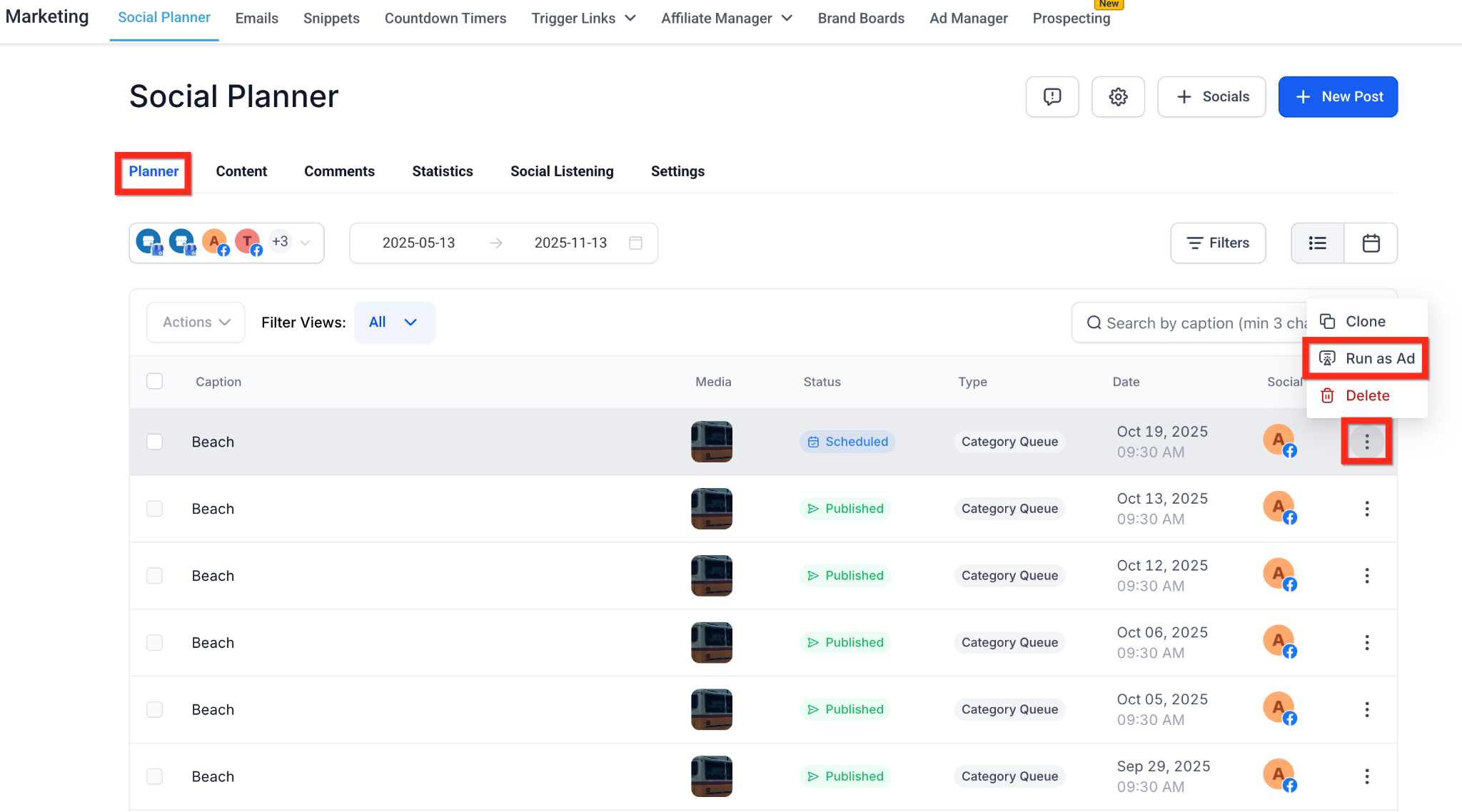
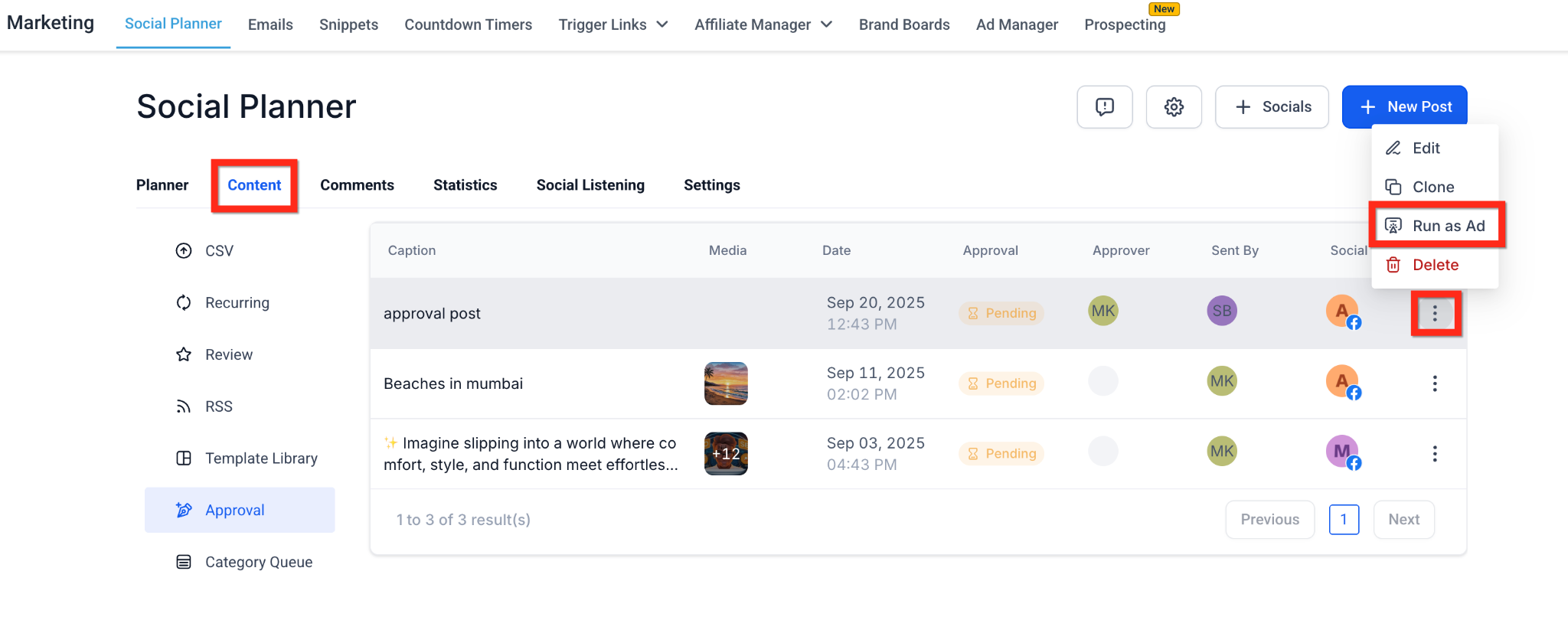
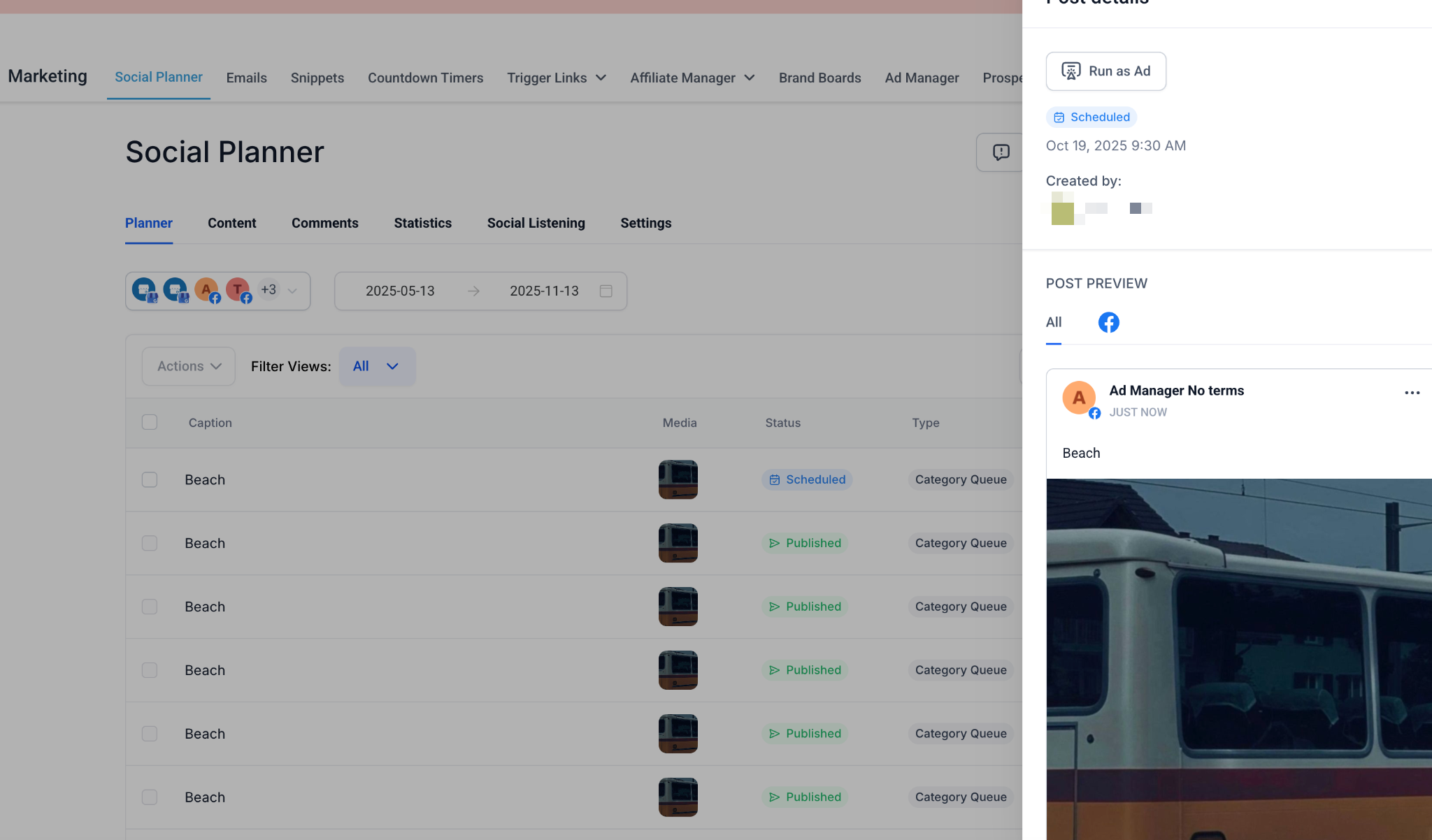
The feature adds two new buttons inside the platform. In WhatsApp, a “Create Engagement Ad” button appears on the Numbers tab next to “Add Number.” Clicking it opens Ad Manager with the Engagement objective and WhatsApp as the destination pre selected. In Social Planner, a “Run as Ad” option is available from the three dot menu on a post row, on the post detail sidebar, and in the Approval view. Selecting it opens Ad Manager pre filled with the post’s media and caption, ready for a Google or Meta campaign. Both buttons act as deep links that bypass the usual multi step ad creation flow, but the budget, audience and creative remain editable. A confirmation modal appears each time and cannot be skipped. The feature is free, though the subaccount must have an active Ad Manager subscription or a pay as you go plan.
03How businesses use ad manager breadcrumbs
- Consulting firm. The firm clicks the Create Engagement Ad button next to a WhatsApp number, confirms the modal, and then adjusts targeting in Ad Manager before launching the campaign.
- Ecommerce retailer. From the Social Planner list, the retailer selects a scheduled Instagram post, chooses Run as Ad, confirms the modal, picks Meta as the platform and finalizes the ad to drive product awareness.
- Fitness studio. The studio opens a published Facebook post in Social Planner, uses the three dot menu to Run as Ad, reviews the pre filled media and caption in Ad Manager, and then publishes the ad to promote a new class.
04The numbers and rules that matter
- Supported post statuses: Published, Scheduled, In Review (not Draft or Recurring).
- Button locations in Social Planner: Marketing > Social Planner > Planner tab > 3 dot action menu on list row; Marketing > Social Planner > Content tab > Approval tab > 3 dot action menu on list row; Marketing > Social Planner > post detail sidebar.
05Before you start
- The subaccount must have an active Ad Manager subscription or be on a pay as you go plan.
- WhatsApp must be enabled for the account’s location, and the user must have standard permissions to access the Numbers tab.
06How to set up and use ad manager breadcrumbs in HighLevel
Create engagement ad from WhatsApp
- Open Settings and select WhatsApp.
- Choose the Numbers tab.
- Locate the Create Engagement Ad button next to Add Number.
- Click the button.
- If a subscription benefits modal appears, acknowledge it; if a Connect Account button appears, click it to link an Ad Account.
- Ad Manager opens with the Engagement objective and WhatsApp destination pre filled.
- Edit budget, audience and creative as needed.
- Publish the campaign.
Run a Social Planner post as an ad
- Navigate to Marketing and open Social Planner.
- Select the Planner tab or the Content > Approval view.
- Find the desired post row and open its three dot action menu.
- Choose Run as Ad from the menu.
- Confirm the modal that appears (it cannot be bypassed).
- Select Google or Meta as the ad platform.
- Ad Manager opens with the post’s media and caption pre filled.
- Adjust remaining settings and launch the ad.
07What it looks like in HighLevel
08Things to know before you rely on it
- The feature is free, but it requires an active Ad Manager subscription or a pay as you go plan.
- Run as Ad works only for Facebook and Instagram posts that are Published, Scheduled or In Review; Draft and Recurring posts are not supported.
- The breadcrumb buttons cannot be used for TikTok or LinkedIn content.
- Changes made to a post in Social Planner after creating an ad do not sync to the live ad; edits must be made inside Ad Manager.
- The confirmation modal cannot be bypassed.
09If something goes wrong
- Create Engagement Ad button not visible in WhatsApp. Verify you are on the Numbers tab, that WhatsApp is enabled for your location, and that you have standard user permissions.
10How it connects to the rest of HighLevel
- HighLevel pricing and plans Pricing
- Start a 30 day HighLevel trial Free trial
- Using AskAI for Ad Manager in HighLevel AskAI for Ad Manager
Michael's take

In my experience, the one click breadcrumbs make it faster to turn a WhatsApp conversation or a Social Planner post into an ad, because the objective and destination are already set.
If you rarely move from organic to paid, or need to advertise on platforms like TikTok or LinkedIn, the feature may not add much value.