
01Who this is for
- Digital marketers who need to verify ad appearance before publishing, ensuring each placement looks correct.
- Agencies managing multiple client campaigns who must share exact ad previews with clients for approval.
- Small business owners who want a quick way to show a live ad preview without leaving the HighLevel interface.
02Advanced preview and shareable preview links, explained
Advanced Preview is a feature in the Ad Manager that displays the selected Meta ad as it would appear on every placement Meta currently supports. It is accessed from the ad’s preview pane and shows rendering messages when a placement cannot display the creative.
A Shareable Preview Link is a URL that, when clicked, opens the same ad inside Meta’s native preview tool. The link is generated only for ads that meet eligibility criteria and when the shareable link control appears in the preview area.
Both options are reached from the Campaign > Ad Set > Ad hierarchy inside a HighLevel Subaccount, keeping the workflow inside the platform.
03How businesses use advanced preview and shareable preview links
- Ecommerce store. Open the ad in Advanced Preview to confirm product images render correctly on Instagram Feed, Stories and Marketplace. If the client requests a live view, copy the shareable link and send it in the approval email.
- Local service business. Use Advanced Preview to verify that the call to action button appears on Facebook News Feed and right column placements. Generate a shareable link to let the business owner view the ad in Meta’s preview without accessing HighLevel.
- Event promotion agency. Check placement rendering for event ads across Facebook and Instagram placements. When the ad meets eligibility, copy the preview link and include it in the event’s marketing brief for stakeholder review.
04Before you start
- Be in a HighLevel Subaccount view.
- The Meta campaign must already be published to generate a shareable preview link.
- The ad must be eligible for a shareable link; the control appears only when available.
05How to set up and use advanced preview and shareable preview links in HighLevel
Access Advanced Preview
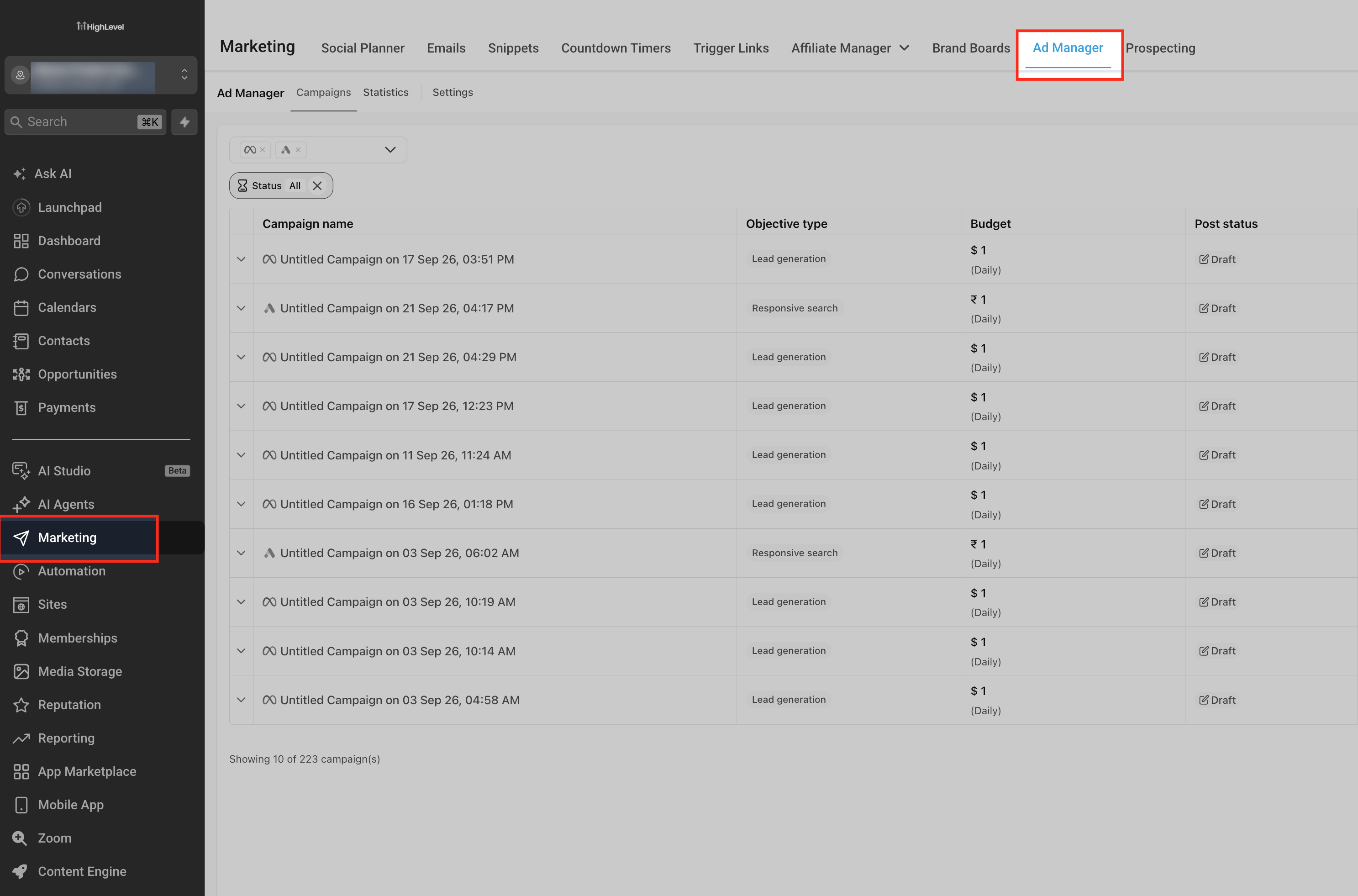
- Navigate to the Subaccount view and click Marketing in the left navigation.
- Select Ad Manager from the Marketing submenu.
- Open the desired Meta campaign.
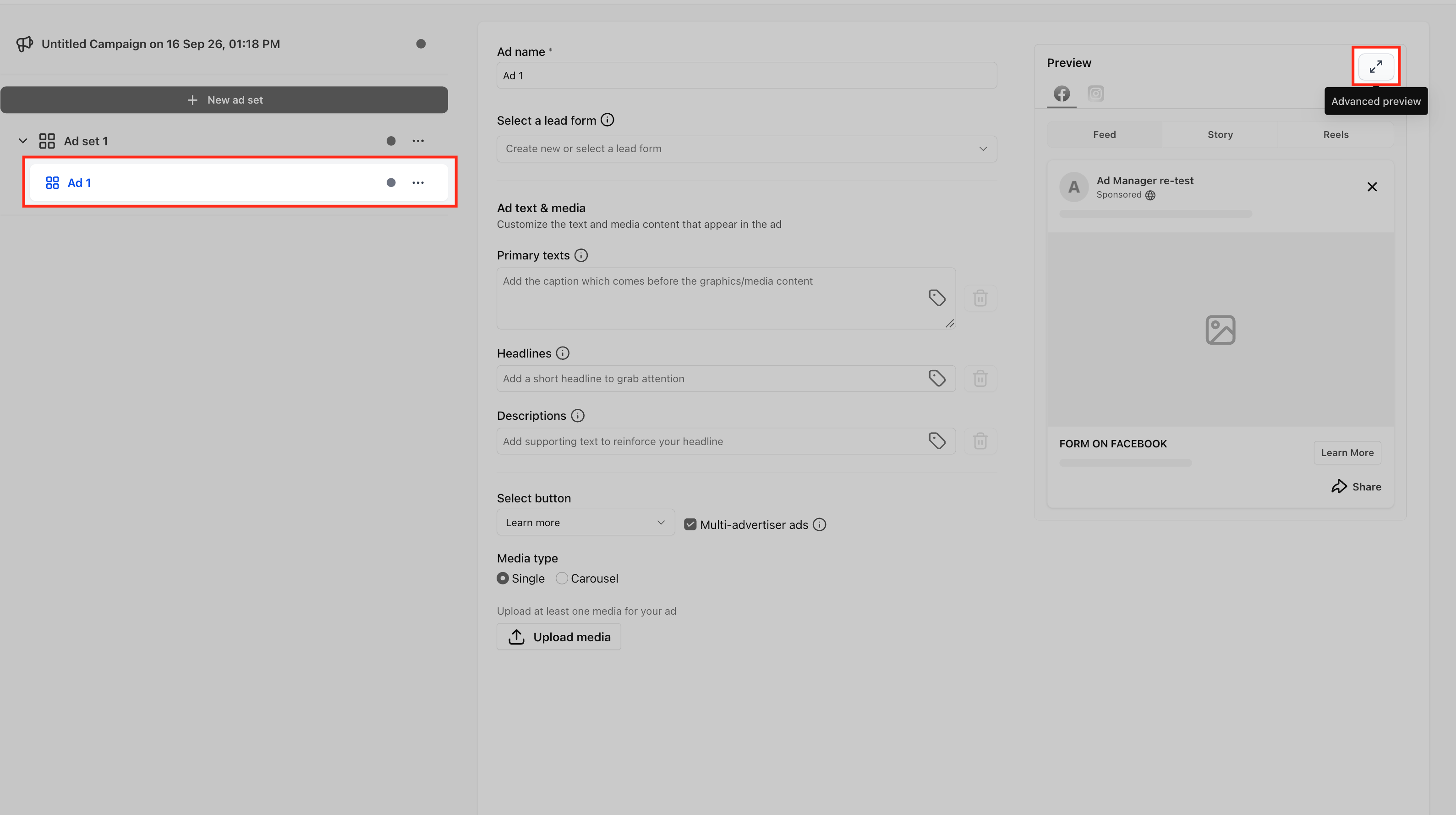
- Enter the Ad Set that contains the target ad.
- Click on the specific Ad to preview.
- Find the preview pane on the right side of the builder.
- Press the Advanced Preview control.
Copy a Shareable Preview Link
- From the Subaccount view, choose Marketing in the left navigation.
- Open Ad Manager.
- Open the published Meta campaign that holds the ad you want to share.
- Select the appropriate Ad Set.
- Click the Ad you wish to generate a link for.
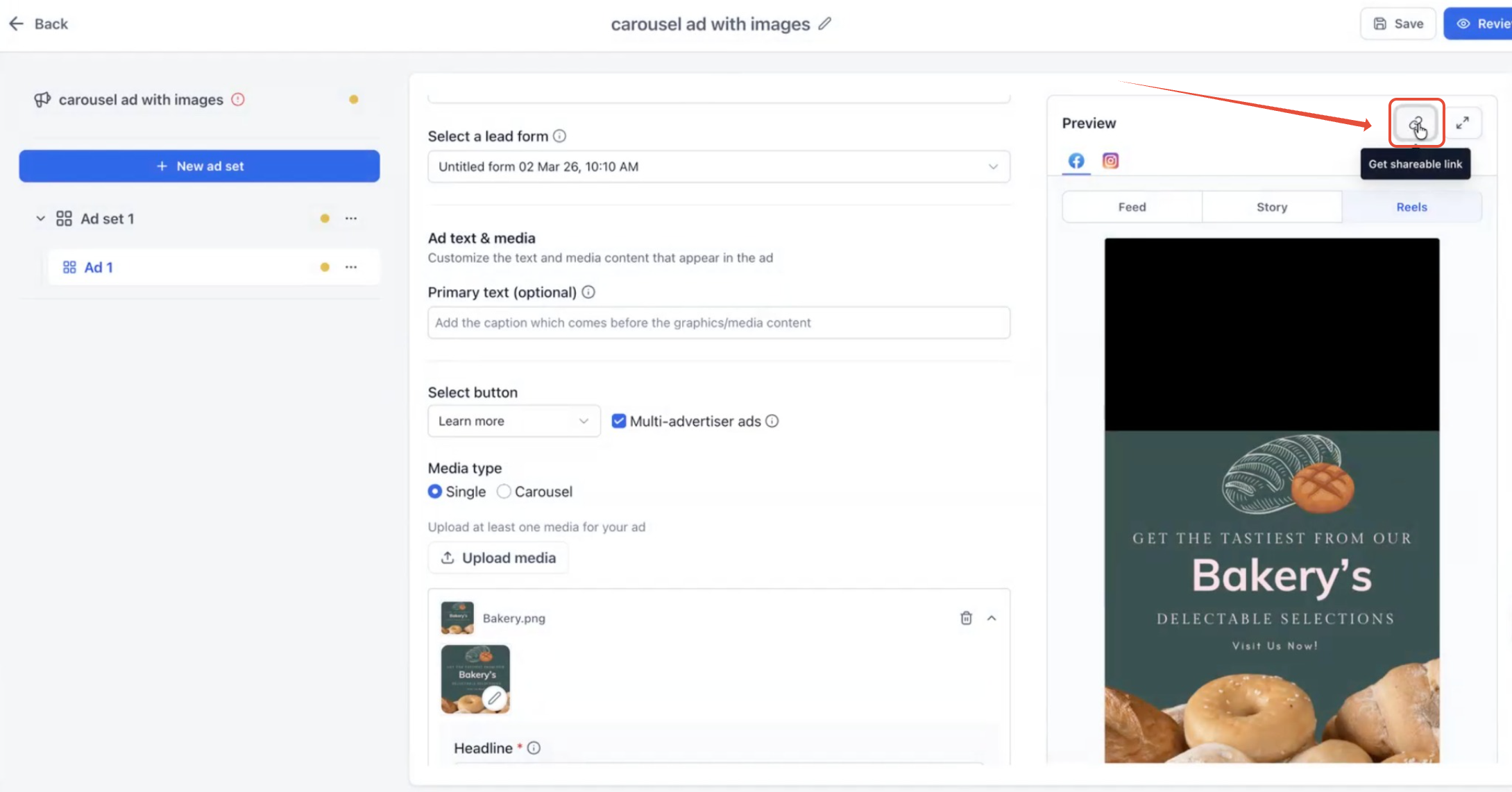
- Locate the preview area on the right side of the builder.
- Click the link control located next to the Advanced Preview button.
- Paste the copied URL wherever the preview link is needed.
06What it looks like in HighLevel
07Settings that matter
- Advanced Preview control. Triggers the display of placement rendering for the selected Meta ad.
- shareable link control. Enables the creation of a URL that opens the ad in Meta’s external preview tool when the ad is eligible.
- link control beside Advanced Preview. Copies the shareable preview URL to the clipboard.
08Things to know before you rely on it
- Advanced Preview works only for ads that Meta supports across placements; unsupported placements show a Meta provided message.
- A Shareable Preview Link can be generated only for eligible ads and when the shareable link control appears.
- The ad’s campaign must be published before a shareable link can be copied.
09How it connects to the rest of HighLevel
- Create ads from WhatsApp and Social Planner using breadcrumb buttons WhatsApp and Social Planner
- Use Ad Manager public APIs for campaign creation and reporting Ad Manager APIs
- Review HighLevel pricing and plan options Pricing
Get More InformationOpens on HighLevelPublished November 2, 2026 · Updated November 17, 2026