
01Who this is for
- Digital marketers who run multiple Google ads benefit because they can resolve all missing fields in one pass, reducing repeated publish attempts.
- Small business owners managing LinkedIn carousel ads gain clarity by seeing which card lacks a headline or destination URL.
- Agency teams handling mixed platform campaigns save time by fixing validation errors before the ads leave the platform.
02Campaign publishing checks, explained
The publishing checks run automatically when you hit the Publish button in Ad Manager. They examine the campaign for common gaps such as absent headlines, descriptions, URLs, keywords, dates, and creative assets. If any gap is found, the process stops and shows a list of all detected issues.
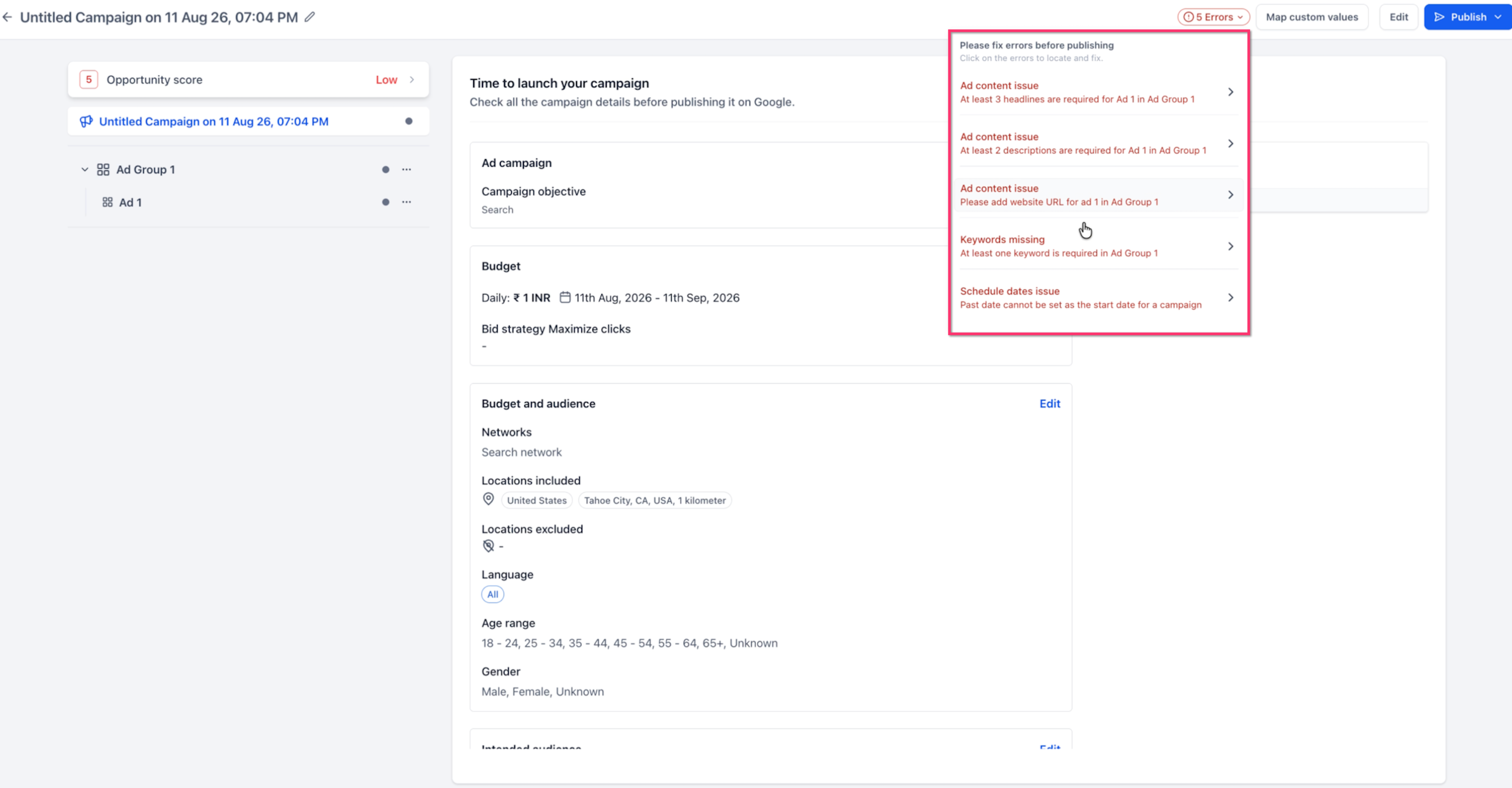
The error list groups every problem together. Each entry is clickable; selecting one moves you directly to the relevant field or section within the campaign, ad group, ad, or carousel card. After you correct the information and save, the platform re runs the checks to confirm the issue has cleared.
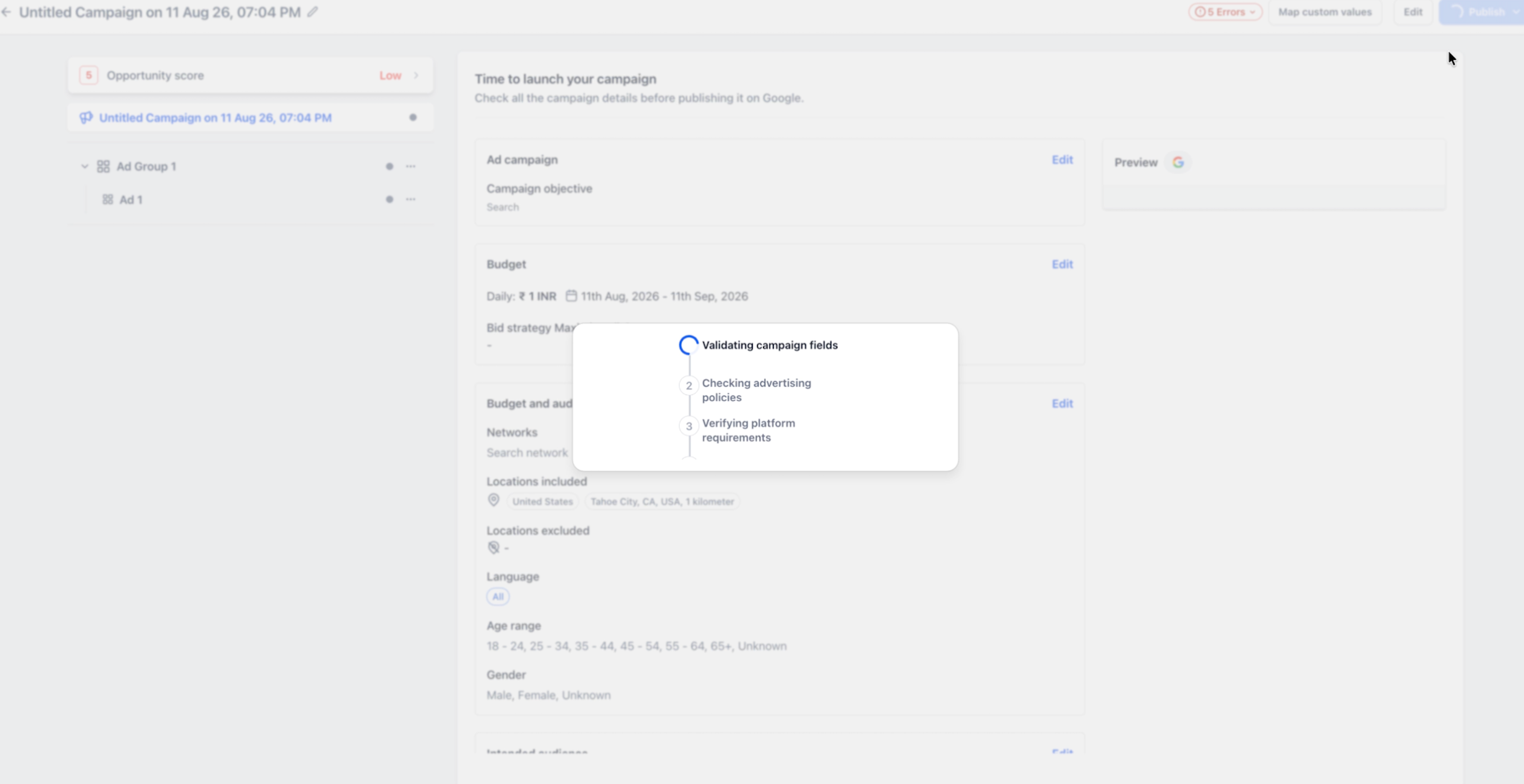
For Google campaigns, the system adds extra validation steps that verify campaign fields, advertising requirements, and platform rules before the data is sent. LinkedIn carousel errors also indicate the specific card that needs a headline or URL.
03How businesses use campaign publishing checks
- Ecommerce retailer. The retailer opens a new Google Search campaign, clicks Publish, and views a list showing missing headlines and URLs. By clicking each error, the retailer is taken to the exact ad slot, fills in the missing copy, and republishes the campaign without additional trial and error.
- Professional services firm. The firm creates a LinkedIn carousel ad, initiates publishing, and receives a single list that flags a missing headline on one carousel card. Using the shortcut, the firm jumps to that card, adds the required headline, saves, and completes the publishing process.
- Real estate agency. When setting up a Google Demand Gen campaign, the agency clicks Publish and sees errors for missing images, logos, and video assets. The agency follows each link, uploads the needed files, and then publishes once all checks pass.
04How to set up and use campaign publishing checks in HighLevel
Publish campaign with pre publish checks
- Complete all sections of the campaign you intend to run.
- Press the Publish button.
- Allow HighLevel to analyze the setup.
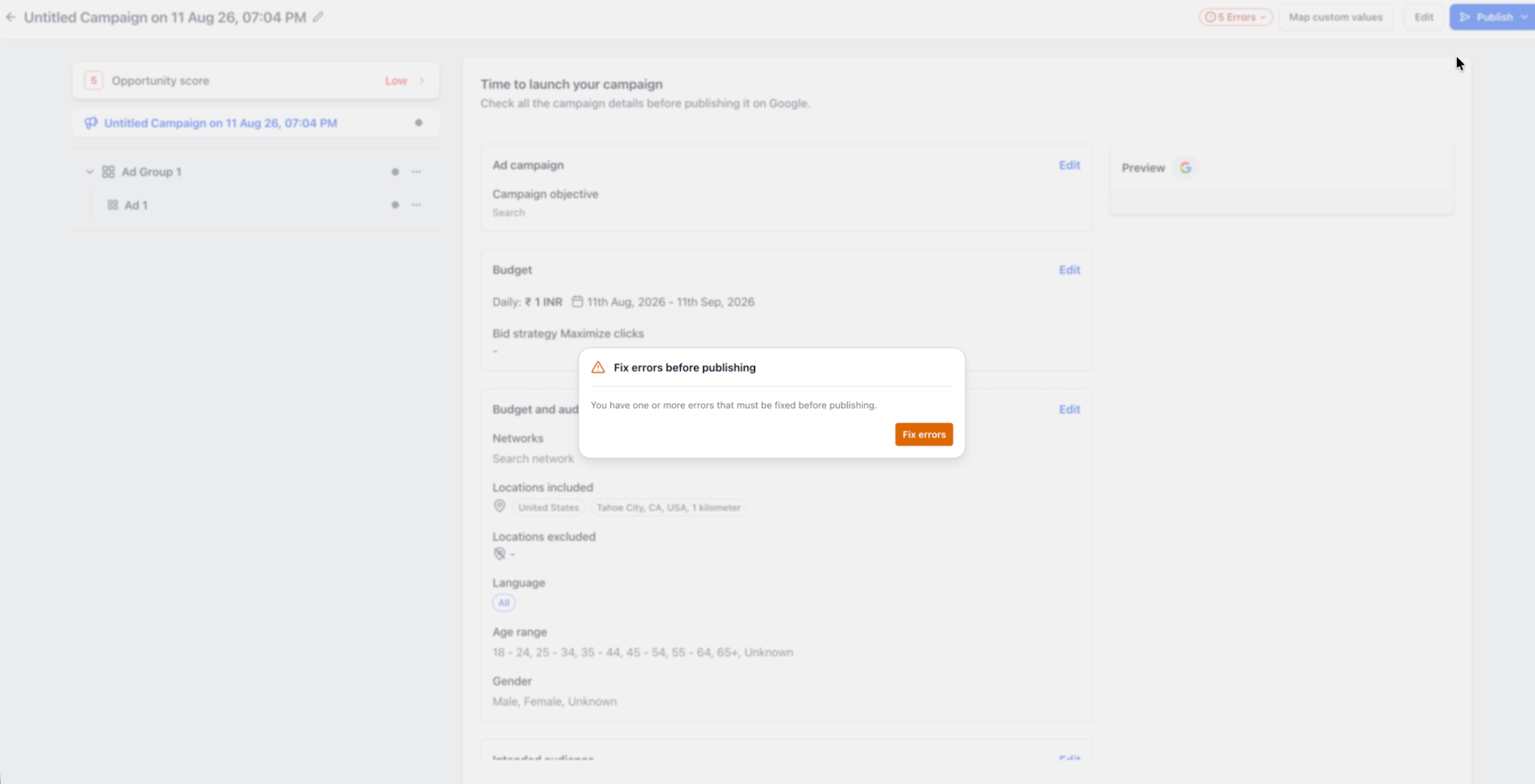
- If any problems appear, a prompt to fix errors is shown.
- Open the displayed error list.
- Read through each identified issue.
- Update the fields that are flagged.
- Press Publish again.
Fix campaign publishing errors
- Open the targeted Google or LinkedIn campaign inside Ad Manager.
- Inspect the campaign, its ad groups or sets, and the individual ads.
- Click the Publish button.
- When a dialog appears, choose the Fix errors option.
- Open the list of errors that HighLevel provides.
- Examine every listed problem.
- Select an error to be taken directly to the related field.
- Enter the correct information for that field.
- Continue this cycle until no required errors remain.
05What it looks like in HighLevel
06Things to know before you rely on it
- The checks only catch validation problems; Google or LinkedIn may still reject a campaign after submission.
- Multiple errors are displayed together, but each must be addressed before publishing can continue.
- The feature does not guarantee that platform policies are satisfied.
07If something goes wrong
- The Publish button does not complete the campaign. Open the error list and verify that all required fields have been filled.
- I fixed an error, but it still appears. Save the changes and run the publishing checks again so the list refreshes.
- I see several errors for one ad. Address each listed problem on that ad individually.
- Google or LinkedIn rejected the campaign after HighLevel showed no errors. Examine the rejection feedback returned by the advertising platform.
- A LinkedIn carousel error does not make sense. Check the specific carousel card mentioned and validate its headline and destination URL.
- My campaign start date is in the past. Change the schedule to a current or future start date before publishing again.
08How it connects to the rest of HighLevel
- Learn how HighLevel’s ad manager integrates with WhatsApp and Social Planner for quick ad creation. Ad manager integration
- Review the public APIs that let you automate campaign creation and reporting. Ad manager APIs
- Check pricing plans if you need to upgrade to a tier that includes full Ad Manager capabilities. HighLevel pricing
Michael's take

Why bother with a prepublish error list? It catches the obvious blanks and format problems before you waste a submission on Google or LinkedIn. I like that HighLevel now bundles every missing headline, URL or creative into one view and lets me hop straight to the field that needs fixing.
If I were rolling out a new ad set, I would run through the error list first, clear every red flag, and then hit Publish with confidence. A quick sanity check inside HighLevel lets me address issues before submission.