
01Who this is for
- Marketers using HighLevel Ad Manager can catch missing settings early and launch with more confidence.
- Agencies managing multiple client campaigns can quickly see which areas need attention across platforms.
02Opportunity Score, explained
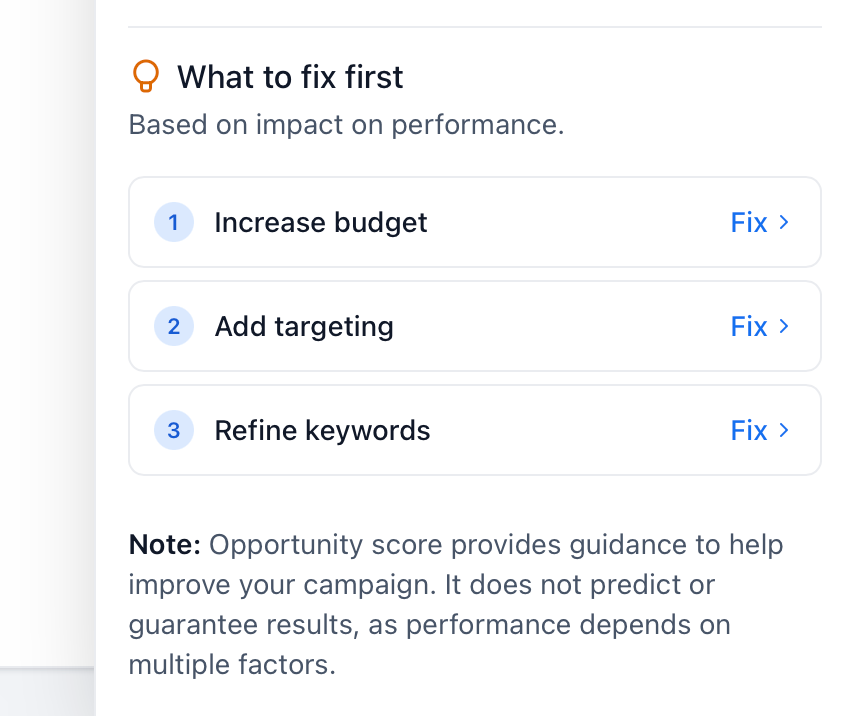
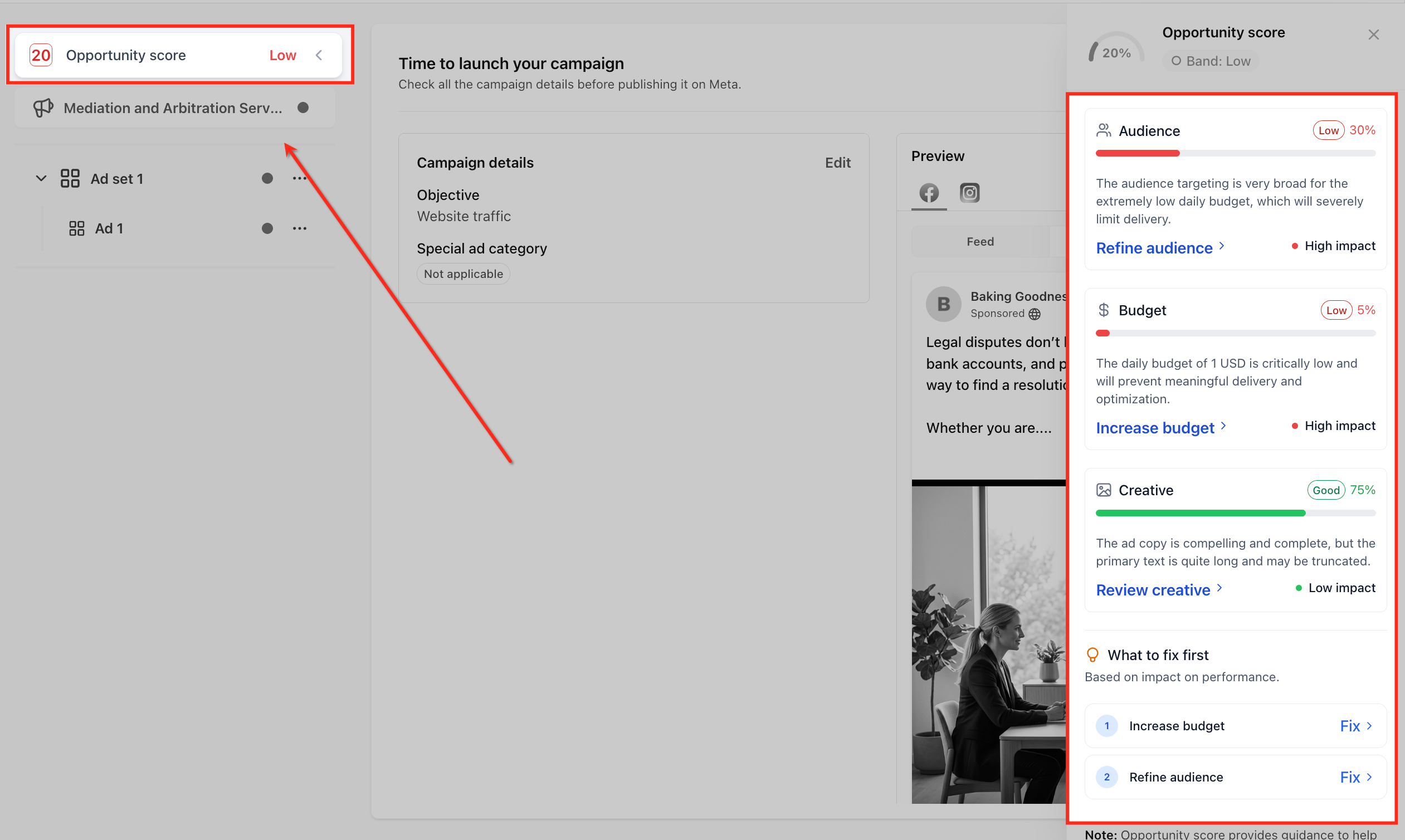
Opportunity Score appears on the Review screen of a campaign in HighLevel Ad Manager. It calculates a score from zero to one hundred and assigns a band such as Low, Medium or High. The panel also shows category cards, impact labels and a prioritized list of suggested fixes.
The feature works for Meta, Google and LinkedIn campaigns. It only evaluates the settings that apply to the chosen platform, objective, campaign type, ad format and configuration, so two campaigns may show different recommendation groups. Recommendations cover audience, budget, creative, tracking and, for Google, keywords.
Users can click any recommendation or the Fix link to jump directly to the related section of the campaign builder, make the change, then return to the Review screen to see an updated score.
03How businesses use Opportunity Score
- Ecommerce retailer. The retailer opens the Opportunity Score panel to see if audience targeting is too broad. By clicking the Fix link, they adjust location and interest filters in the audience section before publishing the ad.
- Real estate agency. The agency reviews the budget recommendation card, notes a high impact suggestion to increase the daily budget, and updates the budget field in the campaign builder via the provided link.
- Fitness studio. The studio checks the creative recommendations, adds missing media assets and updates the call to action text by following the Fix link, then verifies the updated score.
04The numbers and rules that matter
- Score range: 0, 100.
- Supported platforms: Meta, Google, LinkedIn.
- Recommendation categories may include: Audience, Budget, Creative, Tracking, Keywords.
05Before you start
- Create a new campaign or open an existing draft that has not been published.
- Complete all required campaign setup fields such as audience, budget, creative, tracking or keywords.
06How to set up and use Opportunity Score in HighLevel
Review and improve Opportunity Score
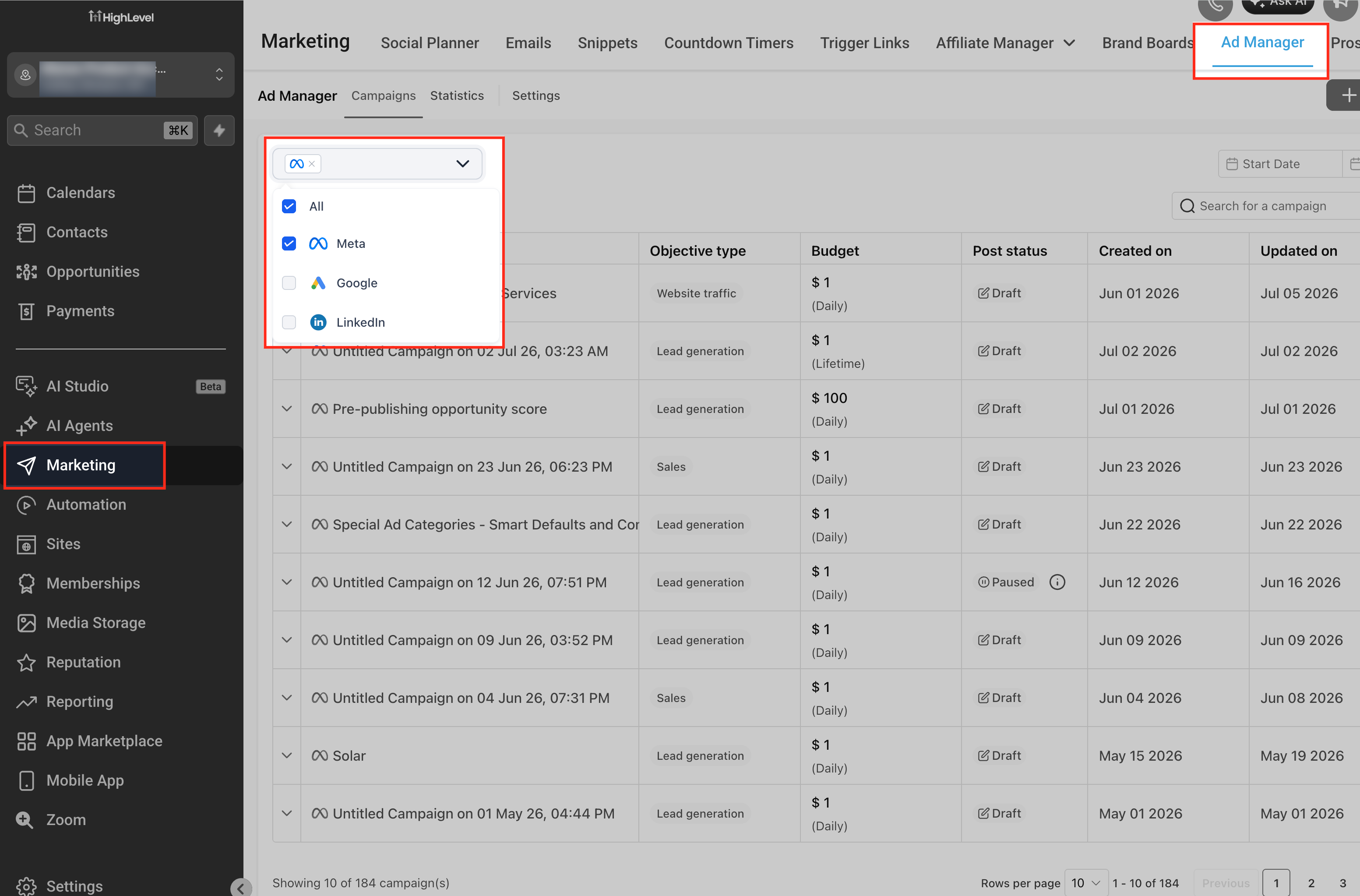
- Open Marketing > Ad Manager.
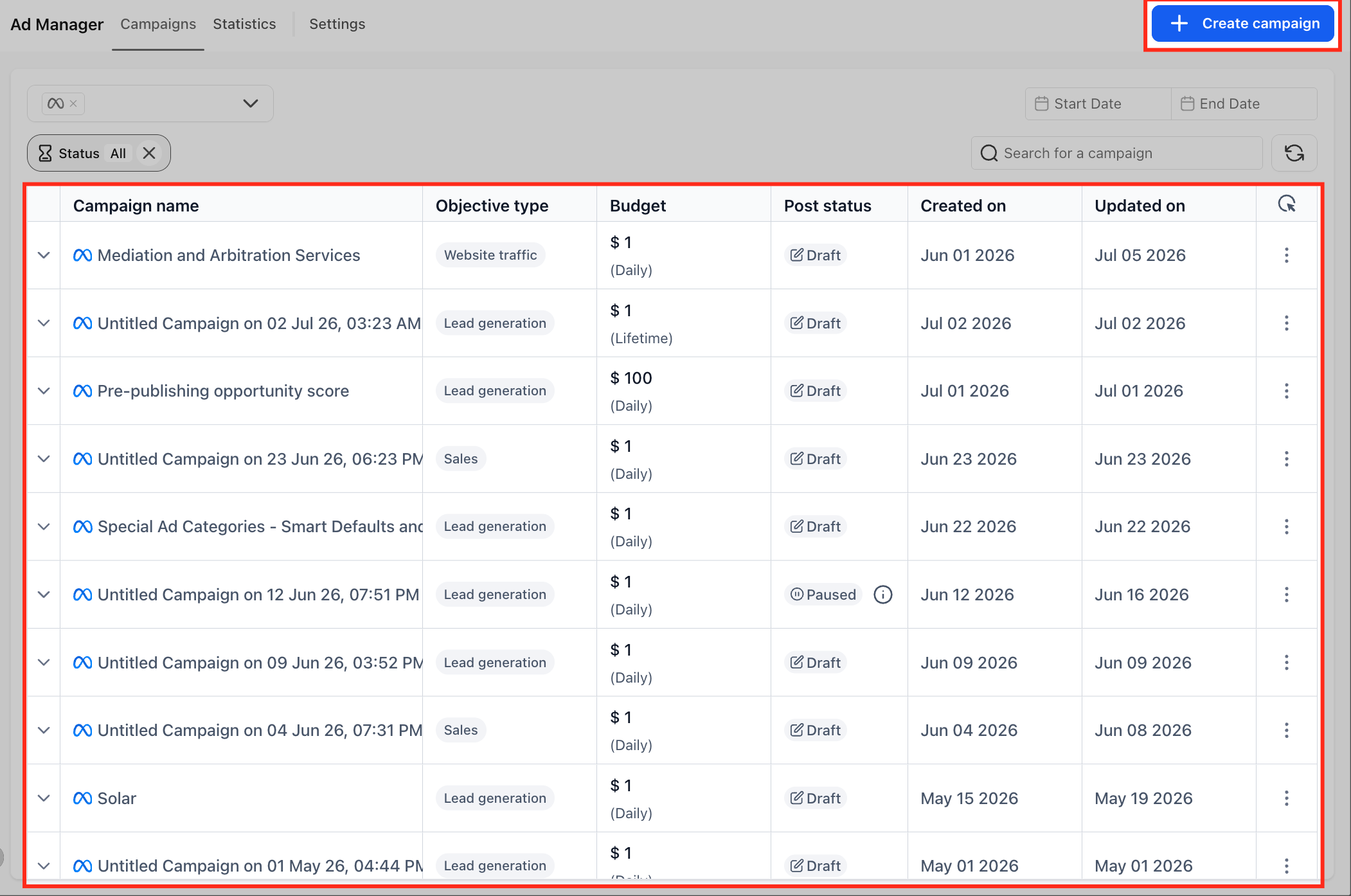
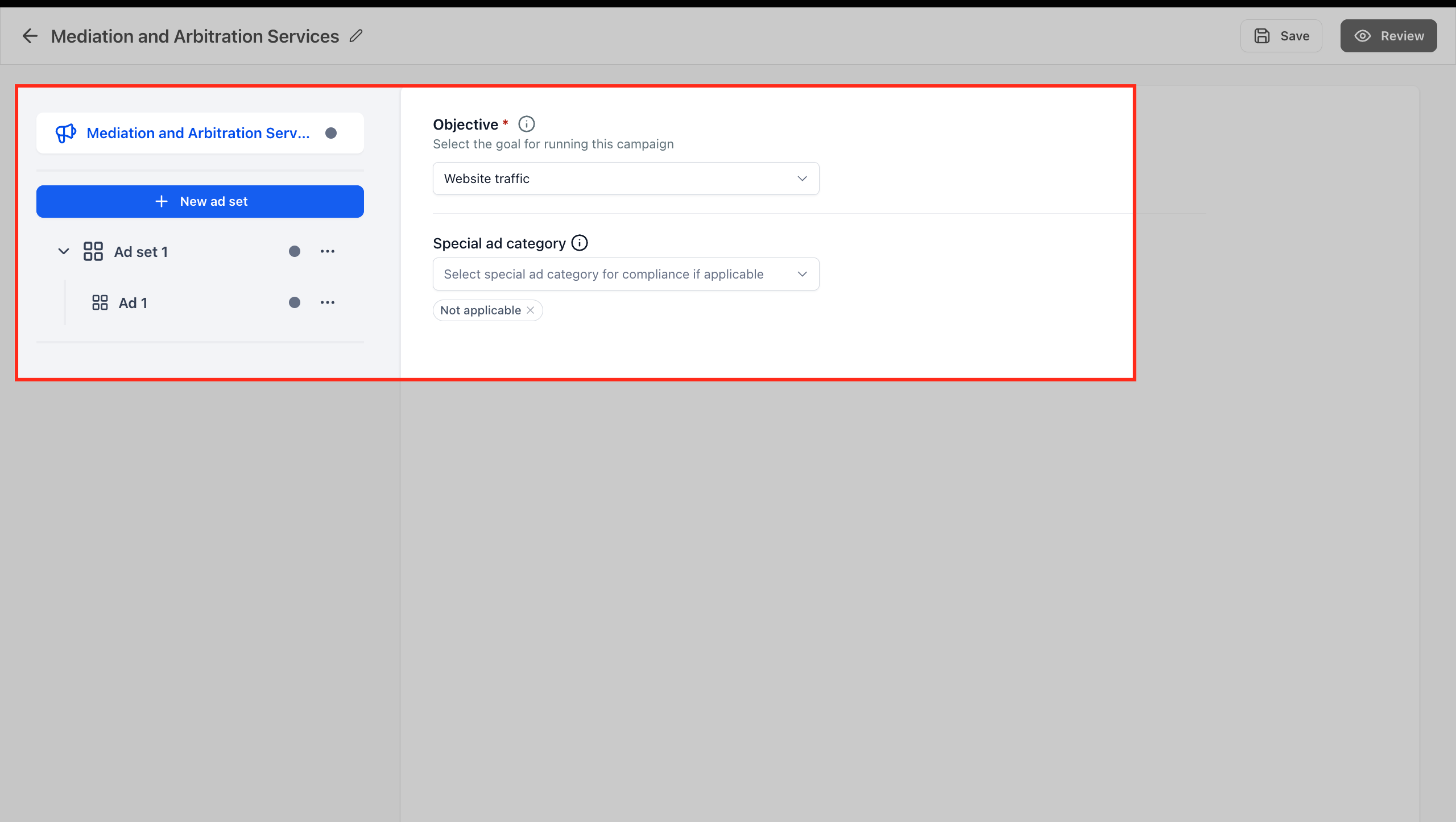
- Start a new campaign or open an eligible draft.
- Enter all required details for audience, budget, creative, tracking and any other applicable fields.
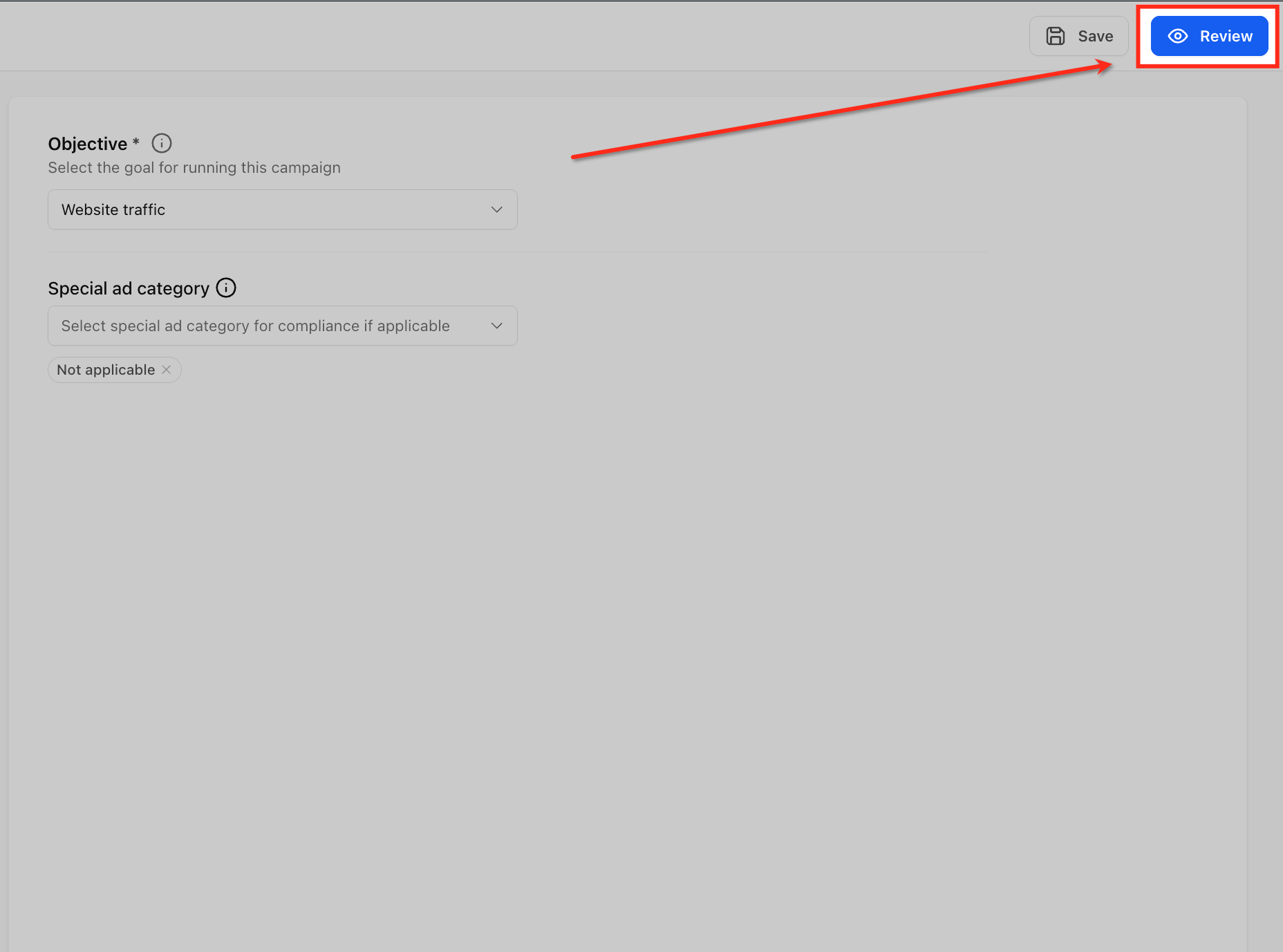
- Navigate to the Review screen.
- Click the Opportunity Score area to display the score panel.
- Look at the numeric score and the accompanying band label.
- Examine each category card that appears in the panel.
- Read the impact label attached to each recommendation.
- Scroll through the What to fix first list for prioritized items.
- Select a recommendation or its Fix link to move to the related builder section.
- Apply the suggested change in that section, if it fits the campaign goal.
- Return to the Review screen and check the updated score.
- When satisfied, publish the campaign.
07What it looks like in HighLevel
08Settings that matter
- Opportunity Score. Determines the calculation of the campaign readiness score and the display of related recommendations.
09Things to know before you rely on it
- The tool only evaluates settings that apply to the selected platform and campaign configuration; categories may differ between campaigns.
- A low score does not block publishing, but it signals that recommended improvements are available.
- Recommendations are guidance only and do not automatically modify any campaign settings.
10How it connects to the rest of HighLevel
- Fix common errors before publishing a campaign Campaign publishing checks
- View advanced preview links for Meta ads Meta ad preview
- Use Ad Manager APIs for campaign creation and reporting Ad Manager APIs
Michael's take

Opportunity Score is a useful safety net for anyone who wants a quick sanity check before launching ads.
If you are running ultra simple, single ad campaigns and already know every setting, you can skip it.