
01Who this is for
- Users who build emails can verify personalization without creating test contacts.
- Users who need to ensure address fields display correctly can avoid broken merge tags that might affect deliverability.
02Custom Fields preview, explained
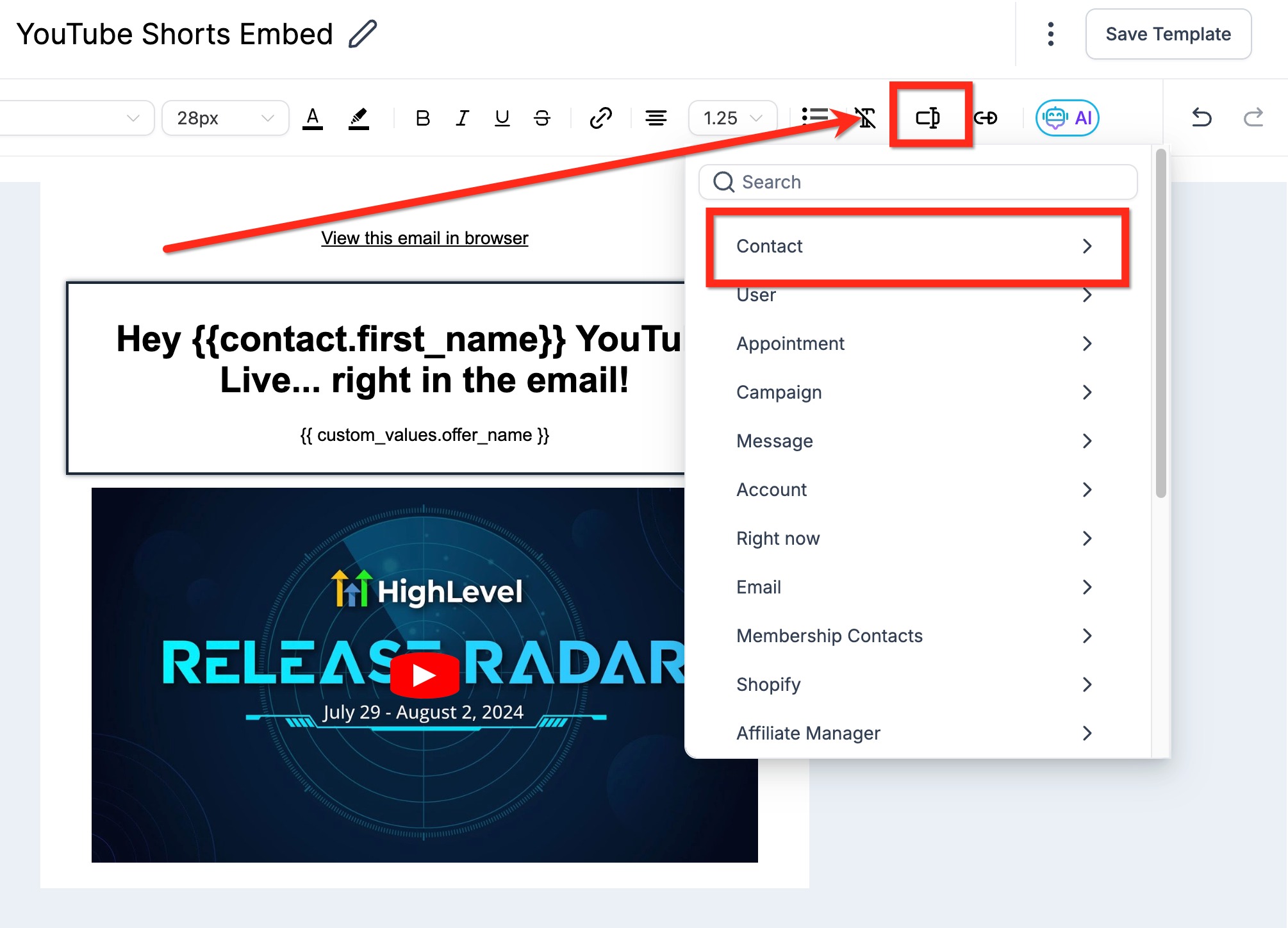
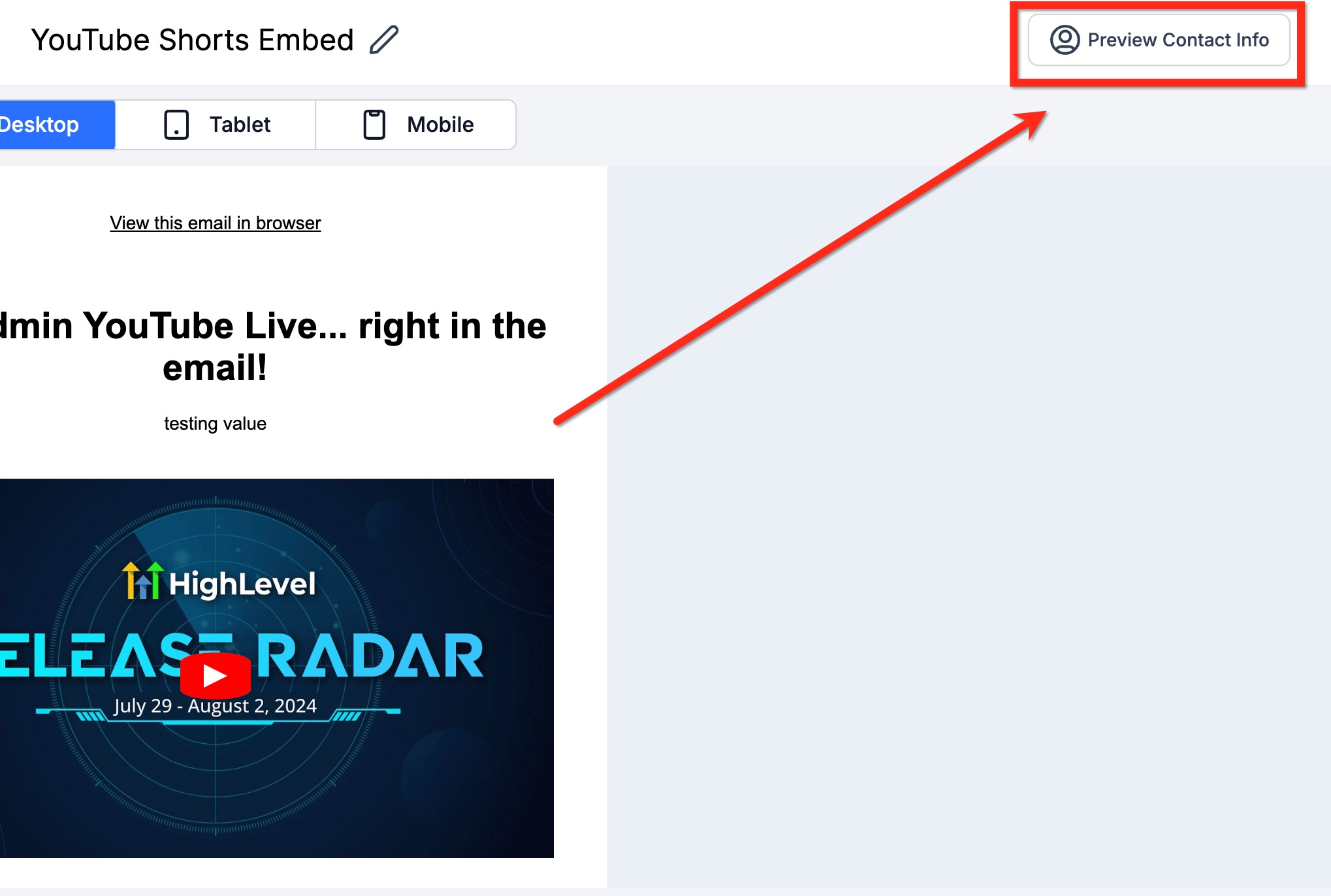
The preview option displays a live rendering of an email with all custom fields resolved. When you click Preview, the platform substitutes merge tags such as {{first_name}} with the actual contact data and shows the result directly in the editor. This preview appears right away and does not require opening additional menus.
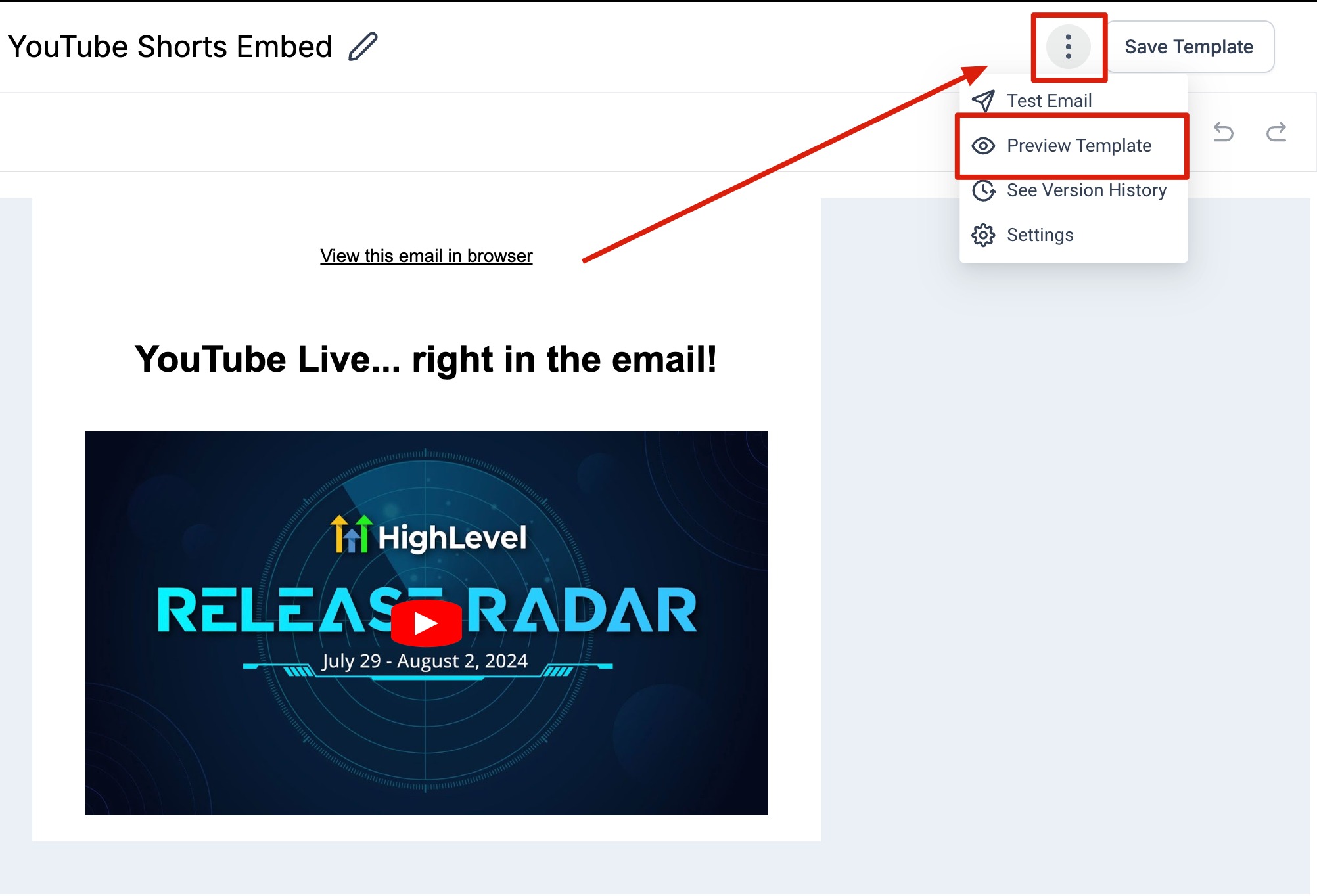
The feature is located in the top menu bar of the Email Builder, next to the Save button. It replaces the older three dot menu method, giving one click access. You can reopen Preview as many times as needed while editing the email.
03How businesses use Custom Fields preview
- Real estate agency. The agency opens its newsletter in the Email Builder, clicks Preview, and checks that the {{contact.full_address}} field shows the correct property address before sending the listing update.
- Online course provider. The provider previews an enrollment reminder email, confirming that {{first_name}} displays each student's name correctly, then finalizes the content for the upcoming batch.
- Health clinic. The clinic reviews an appointment reminder email, ensuring that the {{contact.full_address}} merge field matches the patient’s stored address before scheduling the campaign.
04How to set up and use Custom Fields preview in HighLevel
Preview custom fields before sending
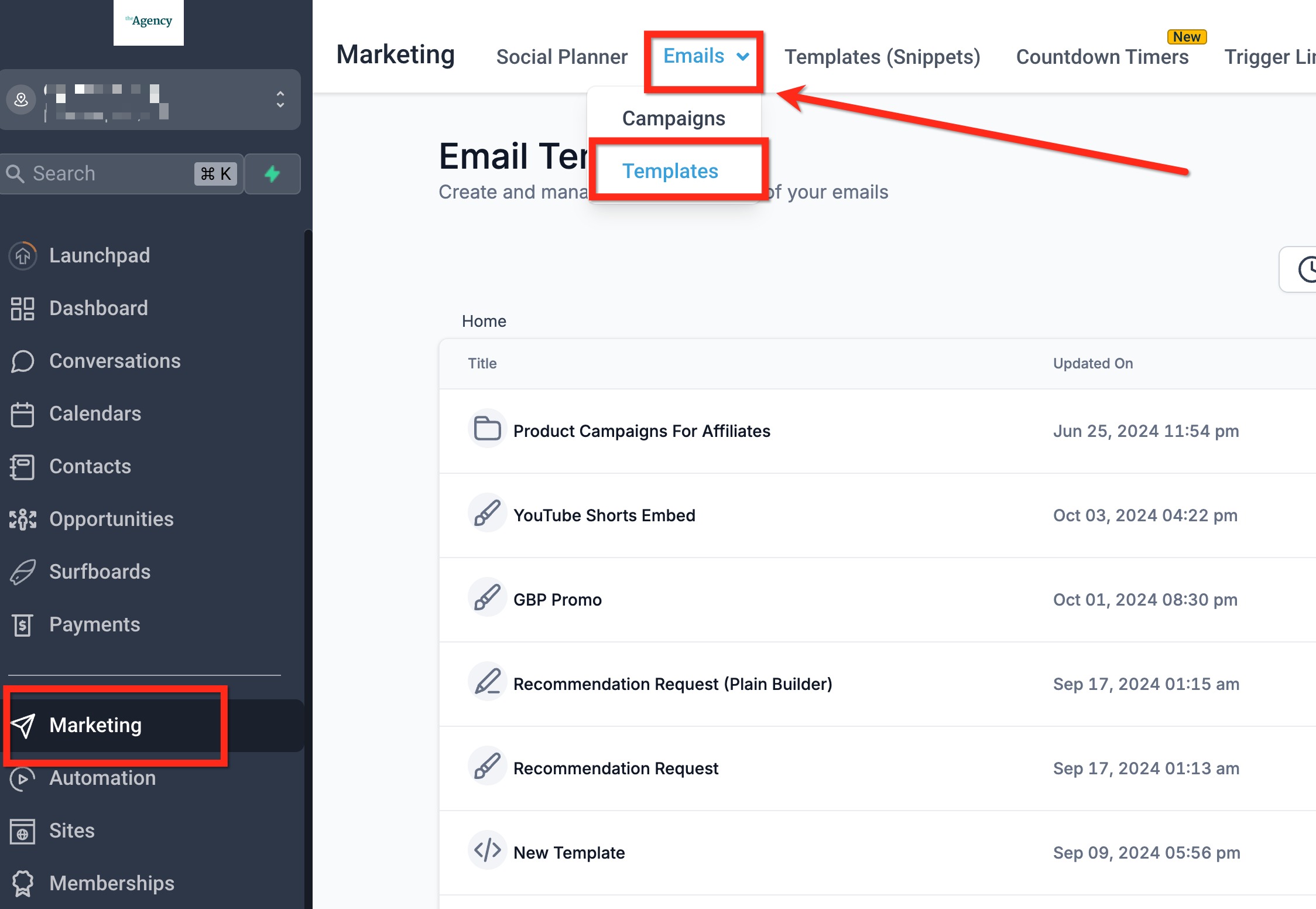
- Open the email you want to test in Email Builder.
- Locate the top menu bar inside the editor.
- Click the Preview button that sits next to the Save option.
- Examine the displayed custom fields and verify they show the expected values.
- If the preview looks incorrect, close it, adjust the content or test data, and click Preview again.
- When the preview meets expectations, continue editing or send or schedule the email.
05What it looks like in HighLevel
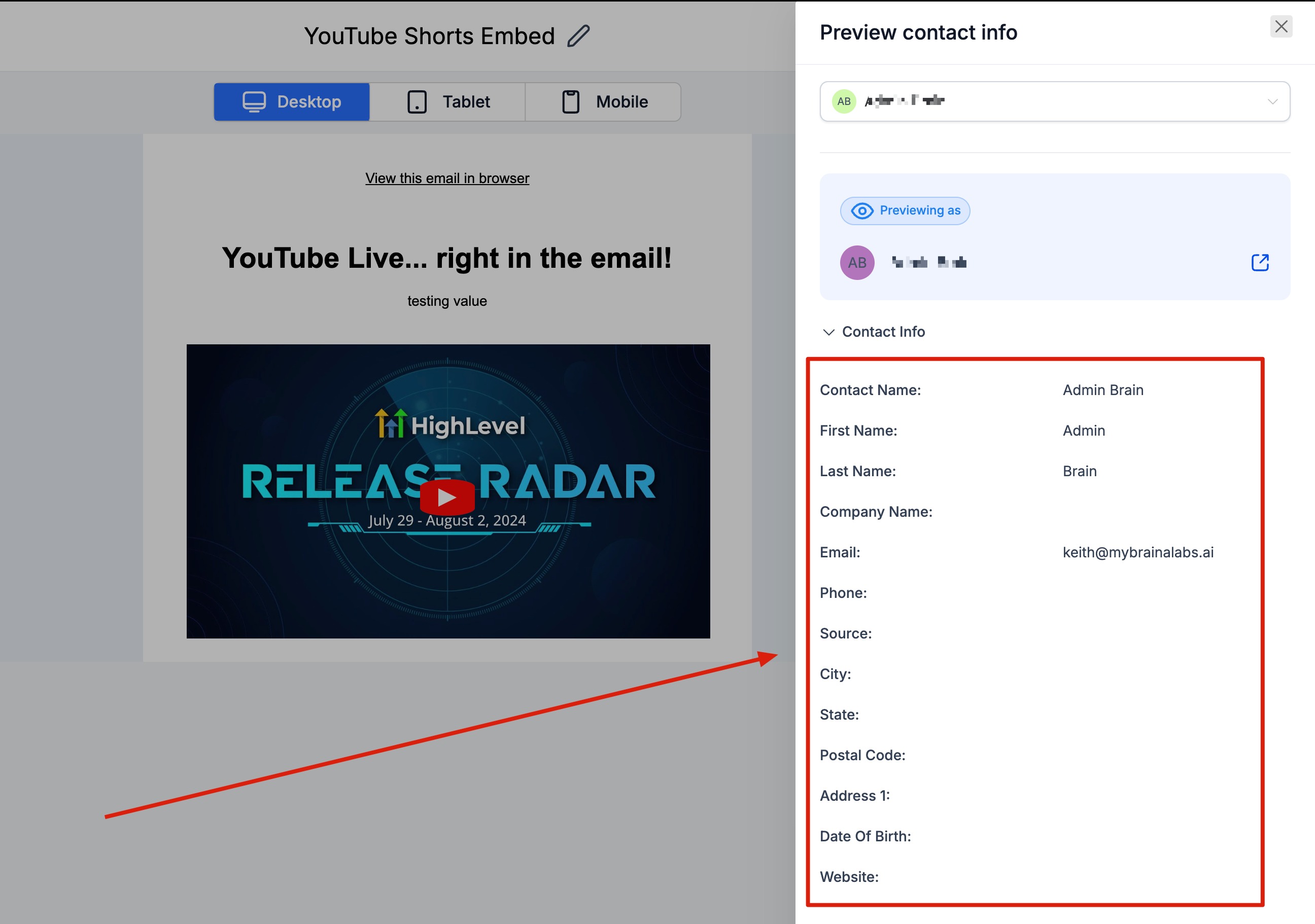
06How it connects to the rest of HighLevel
- Learn how to move the Email Builder edit panel for better workspace layout. Move Email Builder panel
- Find out how to send or schedule a regular email campaign after previewing. Send or schedule email
- Explore adding custom fonts to enhance the look of emails you preview. Custom fonts in email builder
Michael's take

Michael ReimerFounder of CRM Pros, HighLevel Commander and Certified Admin
The convenience of a one click preview removes the guesswork of personalization and helps keep campaigns on track.
Get More InformationOpens on HighLevelPublished November 2, 2026 · Updated November 16, 2026