
01Who this is for
- Marketing agencies benefit by quickly cloning client emails from other platforms into HighLevel without manual rebuilding.
- SaaS Founders gain faster onboarding by turning high performing newsletters from tools like Mailchimp into reusable HighLevel templates.
- Small business owners can import plain text or HTML emails from any inbox, saving time on redesign work.
02Import email templates, explained
The feature creates a dynamic import email address inside HighLevel. When you forward or send an email to that address, the platform’s AI parses the content, reconstructs the layout, and produces a new template. The template appears under Marketing > Emails > Templates, just like any manually built template.
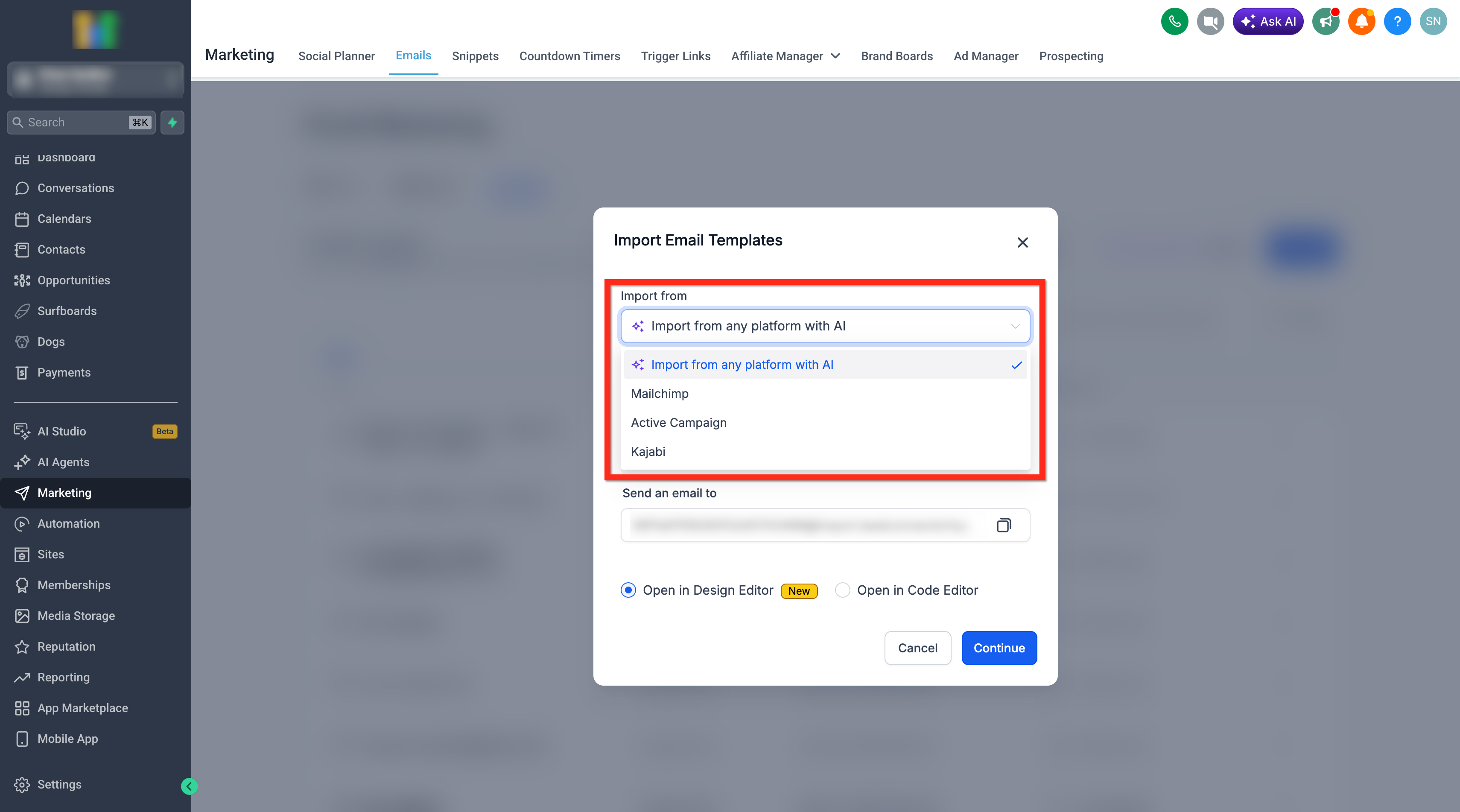
During import you choose the source type, either a specific platform such as Mailchimp, Active Campaign, or Kajabi, or a generic "Import from any platform with AI" for inbox based emails. After the AI finishes, you decide whether the result opens in the visual Design Editor or the HTML focused Code Editor, then you can edit and save the template for future use.
03How businesses use import email templates
- Dental practice. The practice forwards a patient reminder email received from a prior provider to the import address. HighLevel rebuilds the layout, allowing the staff to adjust wording in the Design Editor and schedule the template for future appointment reminders.
- SaaS startup. The startup exports a product update newsletter from Mailchimp, sends it to the import address, selects the Mailchimp option, and opens the result in the Code Editor to fine tune HTML snippets before adding it to automated onboarding sequences.
- Real estate agency. An agent forwards a property listing email received in their inbox to the dynamic address, chooses the generic import option, and uses the Design Editor to replace images and personalize merge fields for their own listings.
04The numbers and rules that matter
- Supported import options: Import from any platform with AI, Mailchimp, Active Campaign, Kajabi.
05How to set up and use import email templates in HighLevel
Import an email template with Email AI
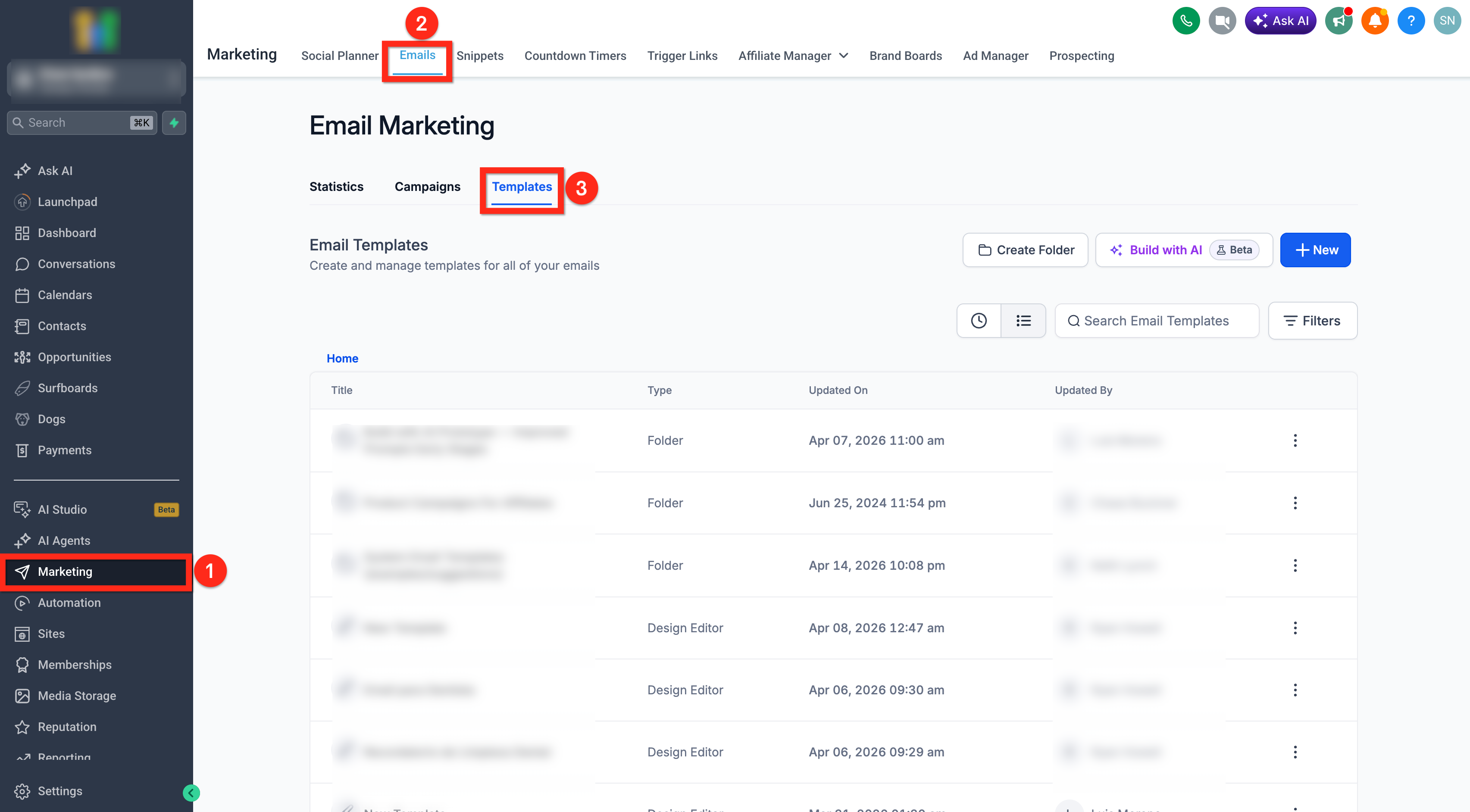
- Navigate to Marketing in the left navigation menu.
- Select Emails from the top navigation bar.
- Open the Templates tab.
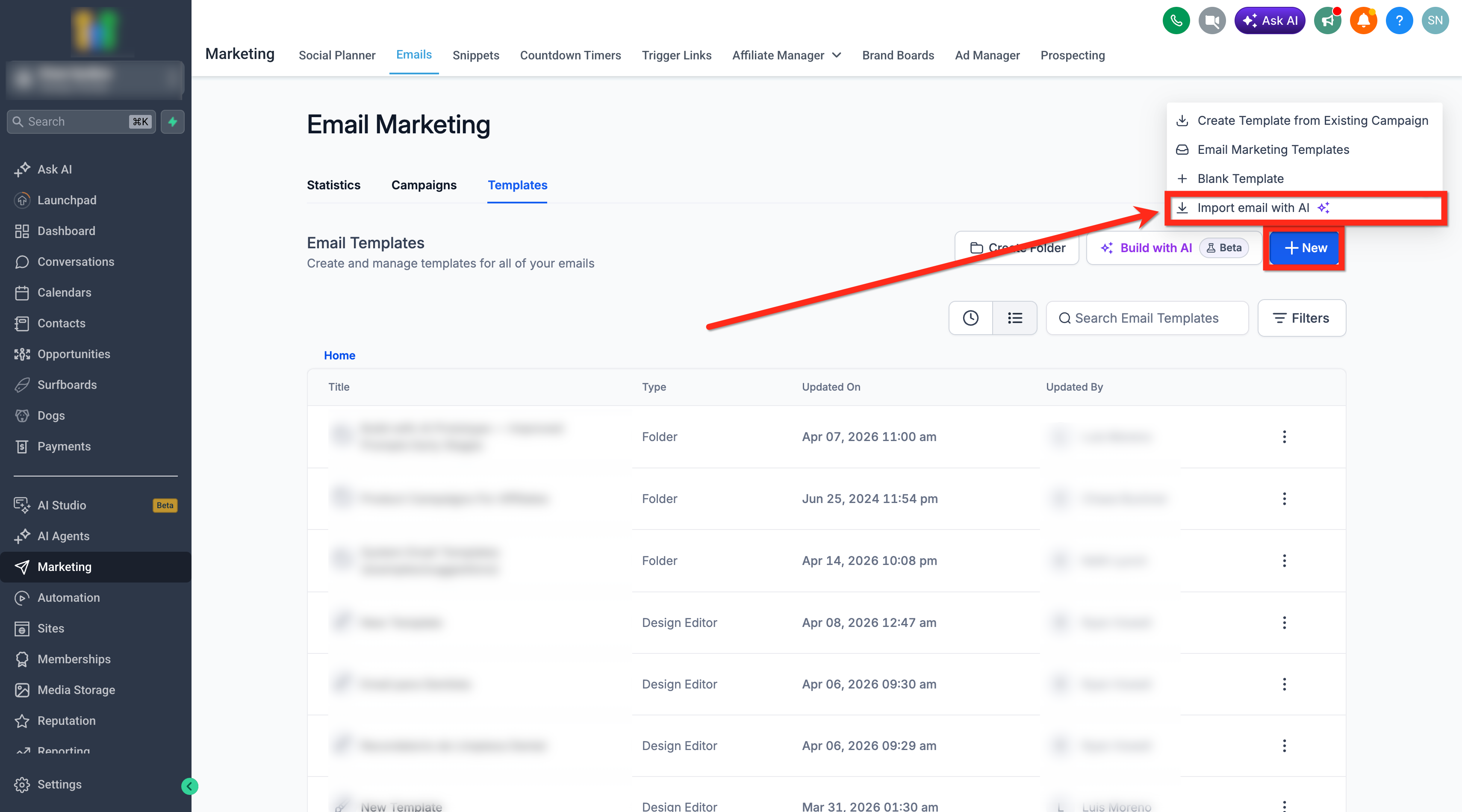
- Click the + New button.
- Choose Import Email with AI from the options.
- In the modal, pick the source of the email you will import.
- Select Import from any platform with AI for inbox or unsupported sources.
- Select a listed platform such as Mailchimp, Active Campaign, or Kajabi when appropriate.
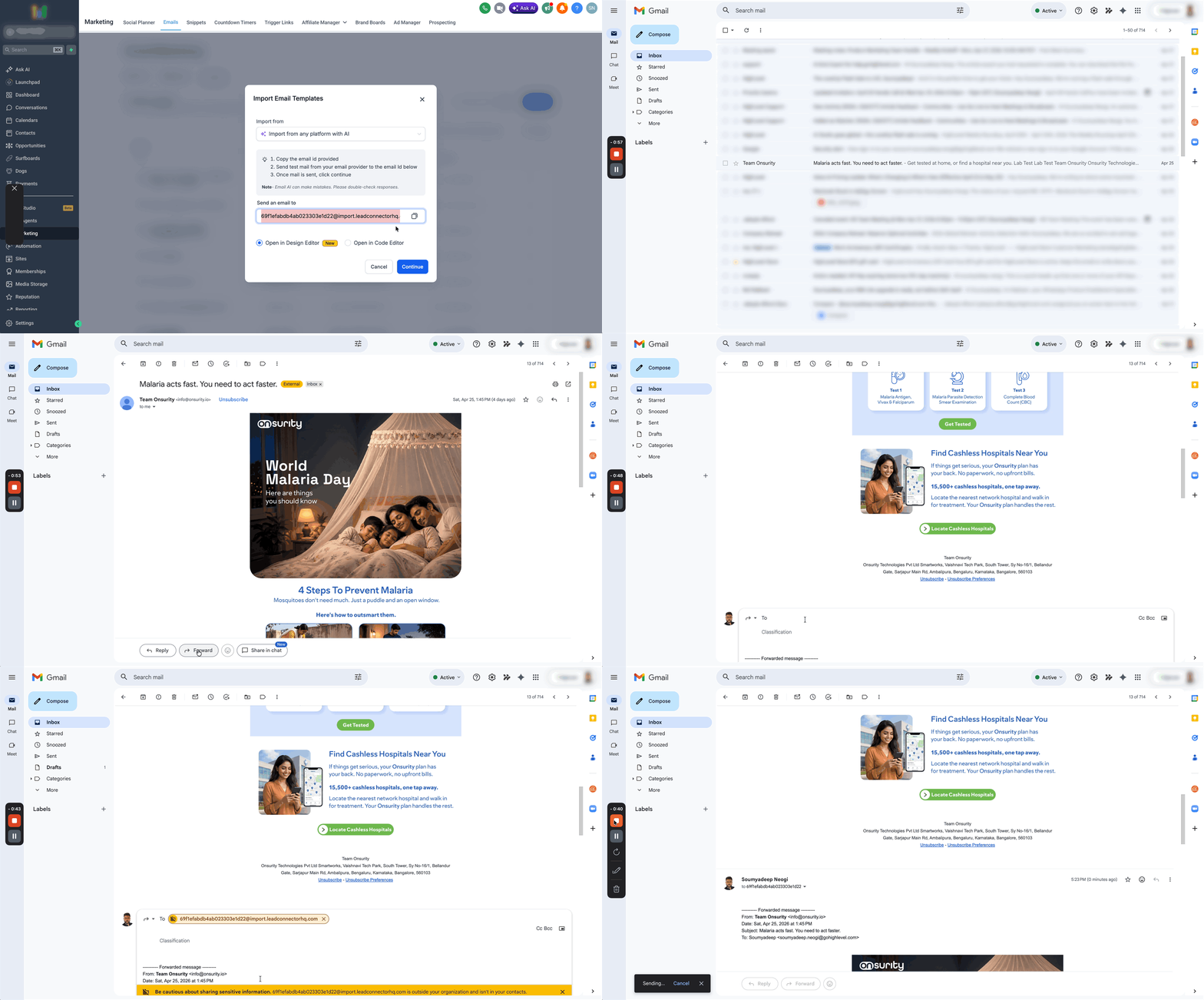
- Copy the dynamic email ID displayed under "Send an email to".
- From your inbox or prior platform, forward or send the email to the copied address.
- Important: Email AI can make mistakes. Always review the imported template before using it in a live campaign.
- Return to the Email Import screen after the email is sent.
- Decide whether to open the converted template in the Design Editor or the Code Editor.
- Click Continue to complete the import.
- Review the imported email and make any needed edits before saving or using it in a campaign.
06What it looks like in HighLevel
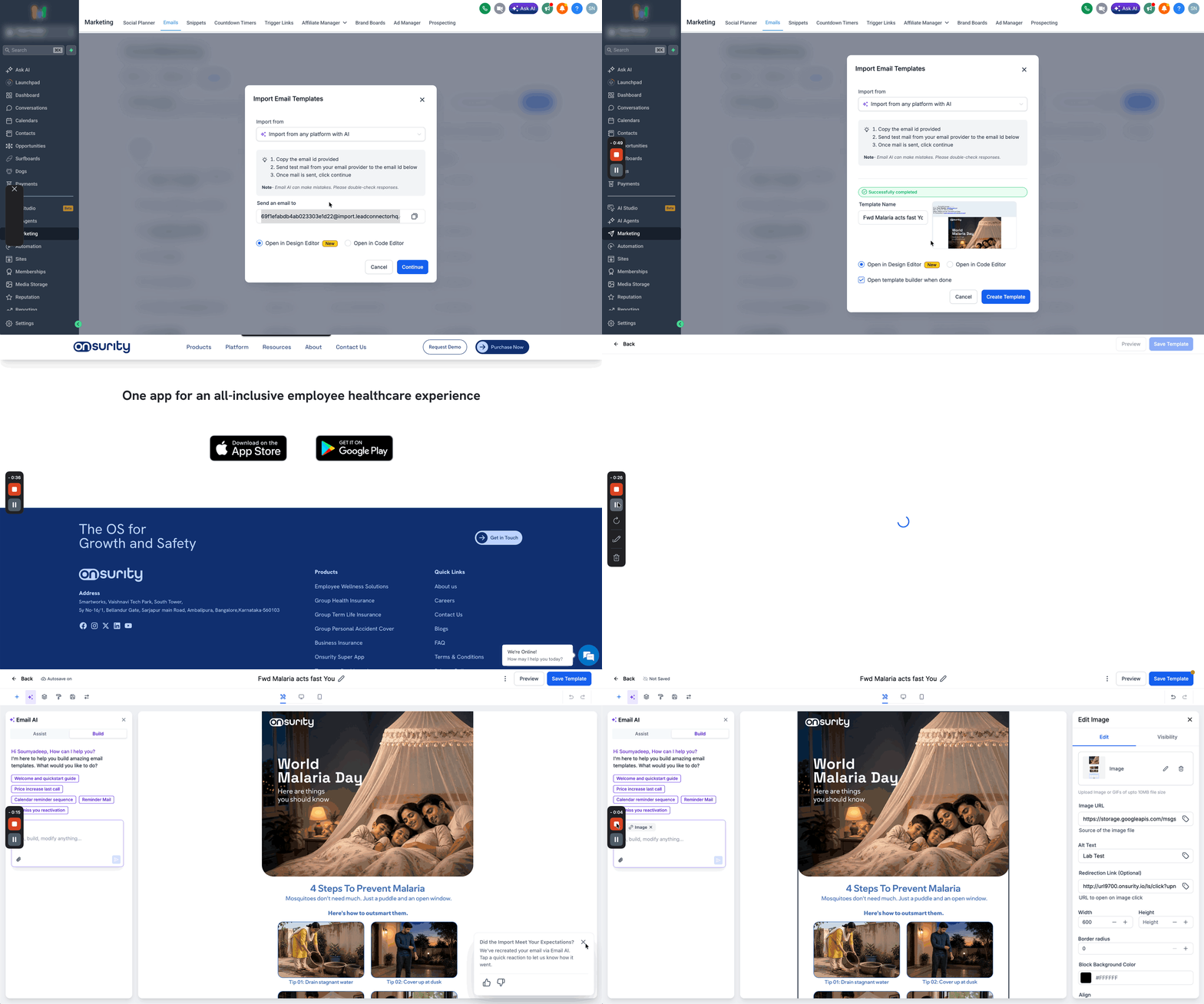
07Settings that matter
- Import from any platform with AI. Tells Email AI that the incoming email originates from an inbox or a provider not listed, giving the broadest context for conversion.
- Mailchimp. Provides platform specific context when the email comes from Mailchimp, helping AI preserve layout details.
- Active Campaign. Indicates the email was created in Active Campaign, allowing AI to map elements accurately.
- Kajabi. Signals that the source email originated in Kajabi, guiding AI during the reconstruction.
- Open in Design Editor. Opens the imported template in the visual editor for drag and drop style adjustments.
- Open in Code Editor. Opens the imported template in the HTML editor for direct code manipulation.
08Things to know before you rely on it
- Email AI may misinterpret some elements; always review the imported template before sending.
- Plain text emails are supported, though the Code Editor is recommended for HTML rich messages.
- Imported templates appear under Marketing > Emails > Templates like any other template.
09How it connects to the rest of HighLevel
- Send or schedule a regular email campaign in HighLevel Email campaign basics
- Preview and test email campaigns in HighLevel Preview and test
- Access and understand email statistics in HighLevel Email statistics
Michael's take

Importing emails can feel risky if you don’t double check what AI produces. The conversion isn’t perfect, so a quick visual audit helps. You get a template you can edit in either the Design Editor or the Code Editor, which lets you focus on messaging rather than rebuilding layouts.