
01Who this is for
- Marketing managers who run recurring webinars can reuse event layouts and reduce setup time.
- Event coordinators at training firms can copy ticket structures across similar workshops.
- Small business owners hosting product launches can replicate branding across multiple launch events.
02Event duplication, explained
Event duplication creates a fresh draft that mirrors the selected parts of an existing event. The platform always carries over core details such as name, date, location, cover image and organizer information. You can optionally include design elements, page text, checkout configuration, ticket types, schedules and speakers.
The feature lives inside the Events area of the Memberships section. From the event list you can open a three dot menu and choose Duplicate, then set new dates, pick which optional parts to copy and preview the outcome before confirming. Individual ticket types can be duplicated from the Tickets tab, and page design can be copied via the Pages & Design tab using the Copy from another event option.
03How businesses use event duplication
- Fitness studio. The studio opens an existing class event, selects Duplicate, and copies the class layout, instructor schedule and ticket pricing. It then adjusts the dates and publishes the new class offering without rebuilding the page.
- Software training company. The company opens a ticket type for a premium workshop, uses the Duplicate action, and modifies the price and availability for a new session while keeping the same structure and description.
- Restaurant hosting pop up dinners. The restaurant opens a destination event, goes to Pages & Design, clicks Copy from another event, selects design and checkout settings, and applies them to keep the branding consistent across pop up events.
04The numbers and rules that matter
- Event name, short summary, description, cover image, date, time, location, and organizer information are always included.
05How to set up and use event duplication in HighLevel
Duplicate an event
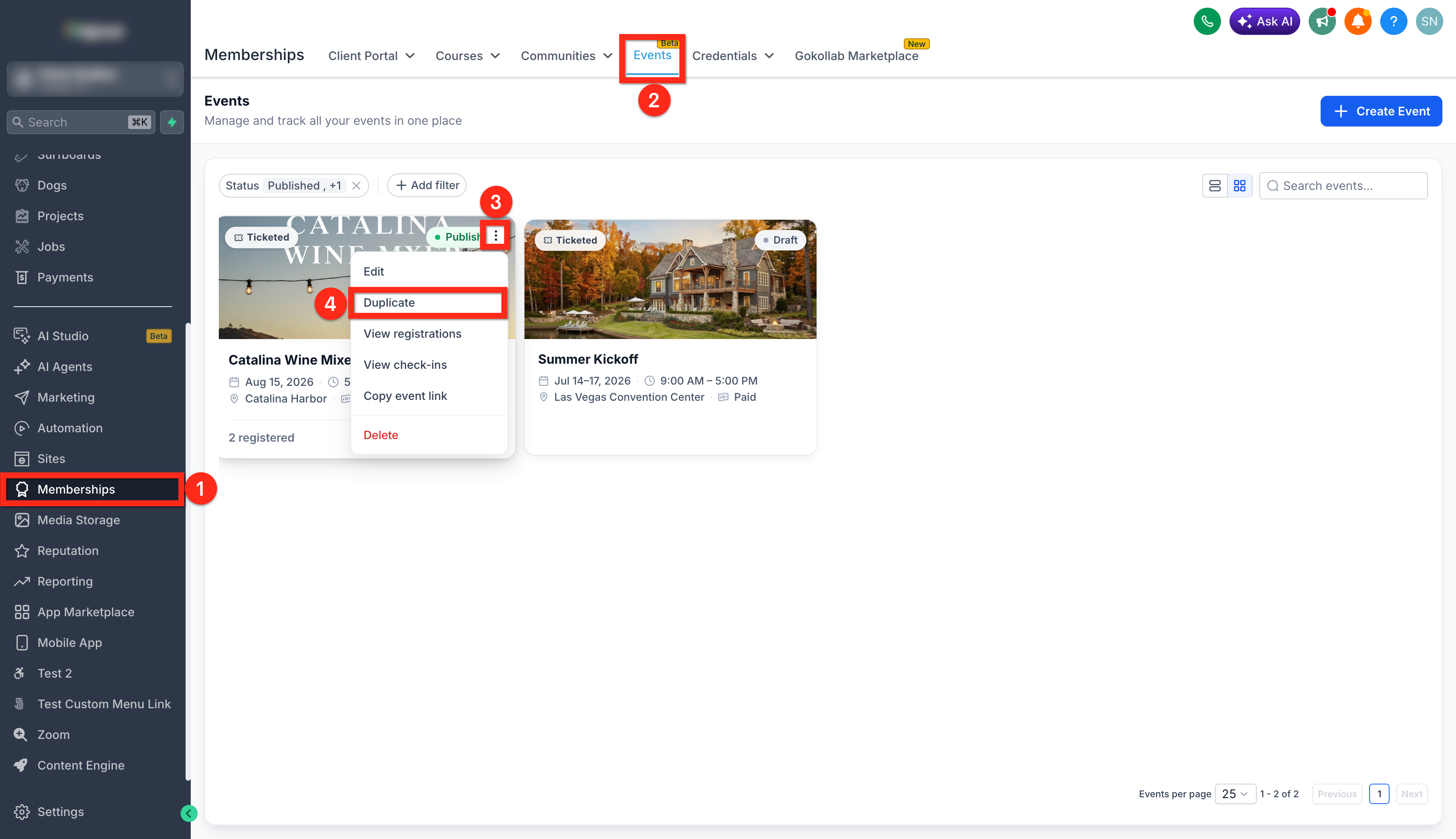
- Go to Memberships > Events.
- Hover over the event you want to duplicate.
- Click the three dot menu on the event card.
- Click Duplicate.
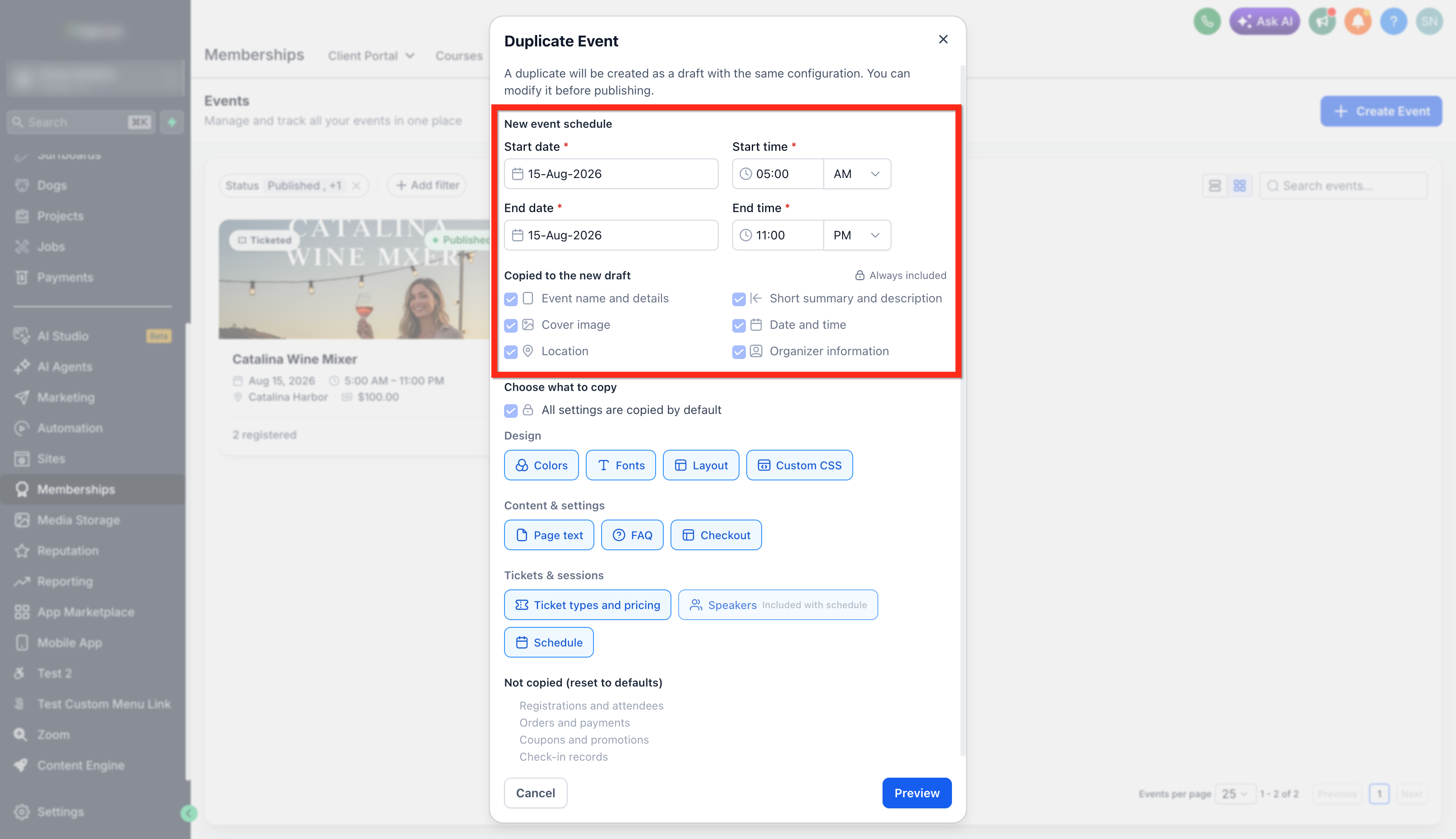
- In the Duplicate Event window, set the start date, start time, end date and end time.
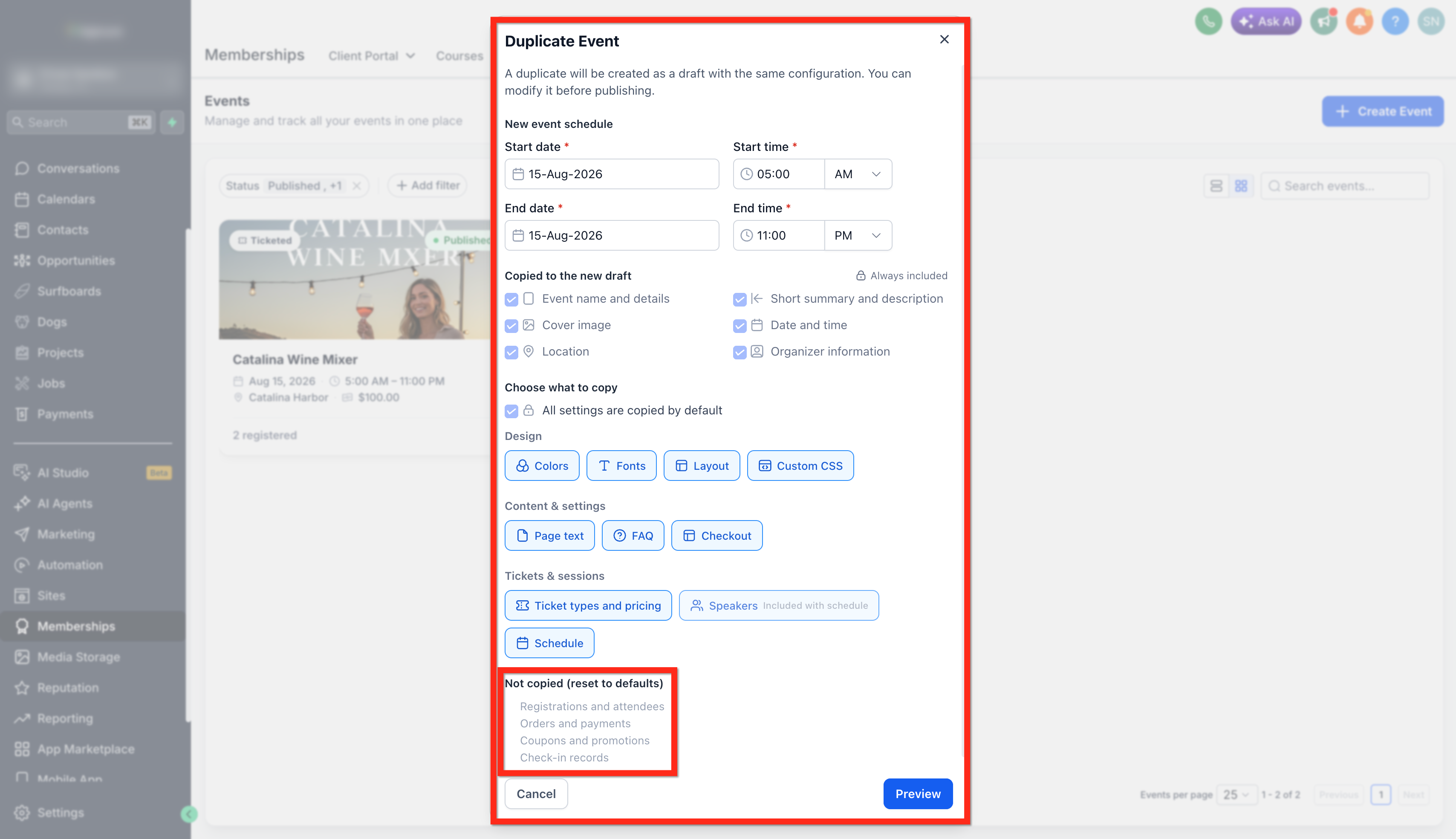
- Review the information being copied to the new draft. (Always Included)
- Under Choose what to copy, select or deselect the supported elements you want to duplicate.
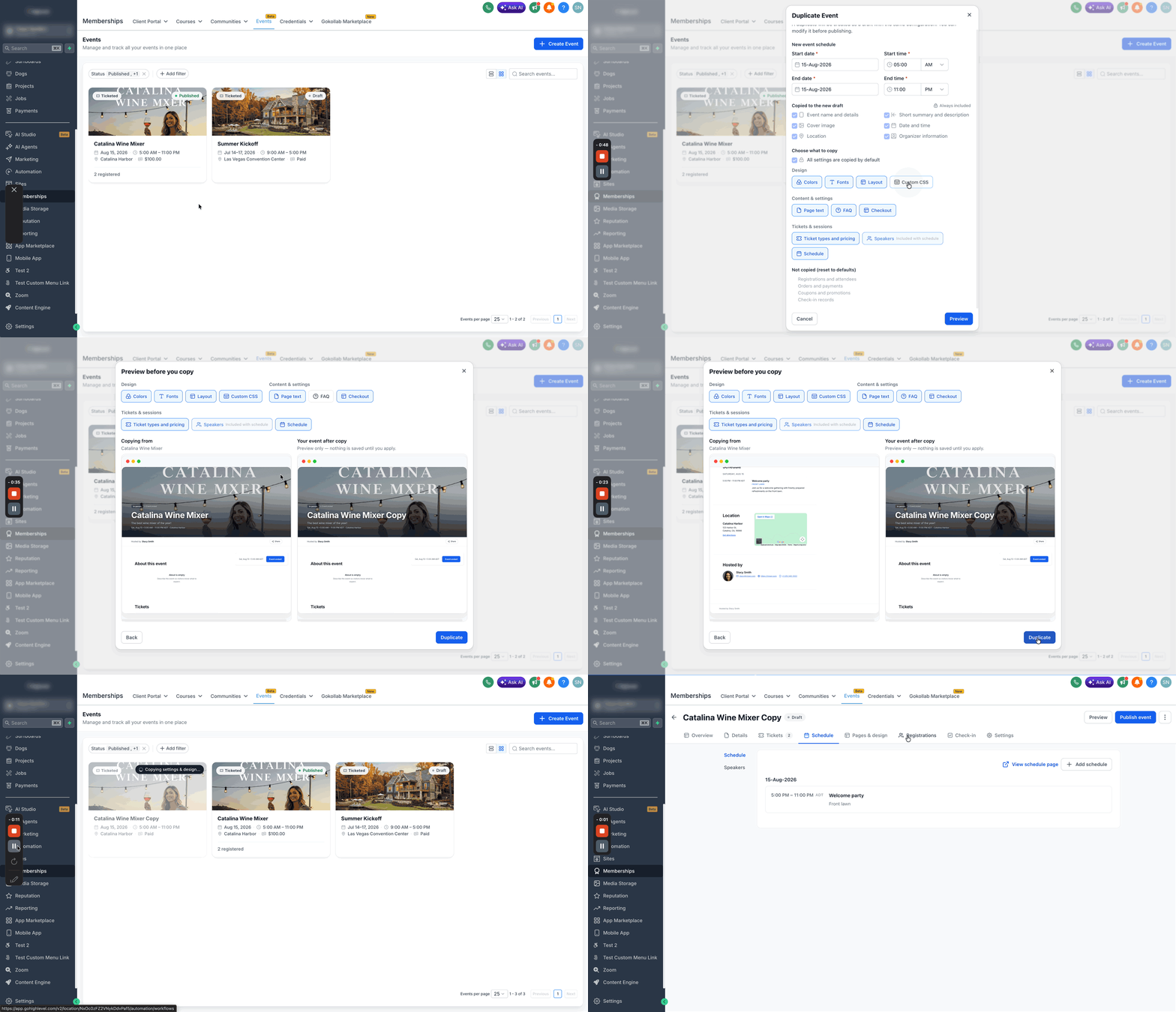
- Click Preview.
- Review the Copying from and Your event after copy views side by side.
- Adjust the selected elements if needed.
- Click Duplicate to create the new draft.
- Open the duplicated event to make any additional changes before publishing.
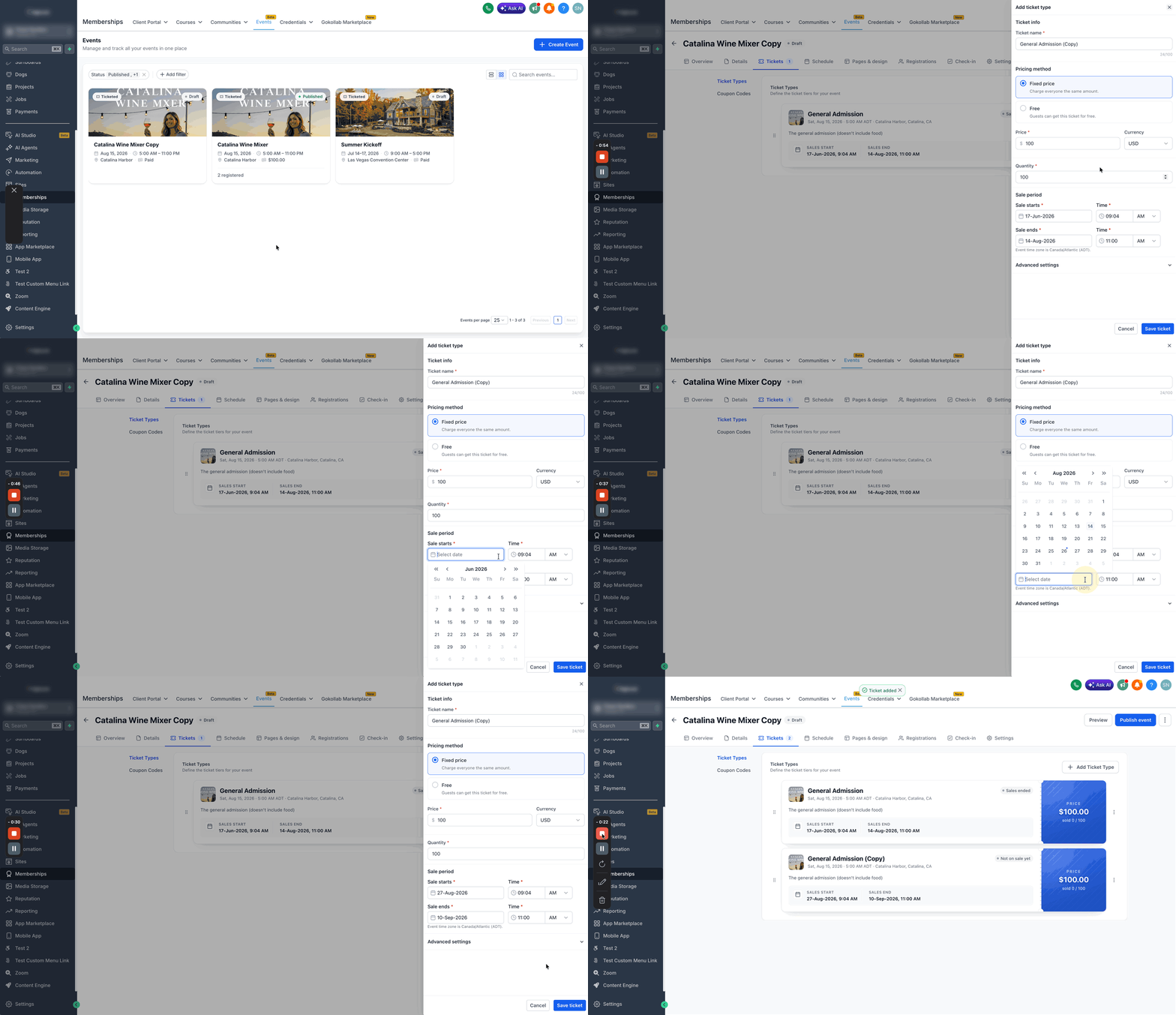
Duplicate a ticket type
- Open the event.
- Go to Tickets.
- Find the ticket type you want to duplicate.
- Click the three dot menu beside the ticket type.
- Click Duplicate.
- Review and update the duplicated ticket settings as needed, including ticket name, pricing method, price, currency, quantity, sale period, sale start and end date or time, short description and visibility.
- Click Save Ticket.
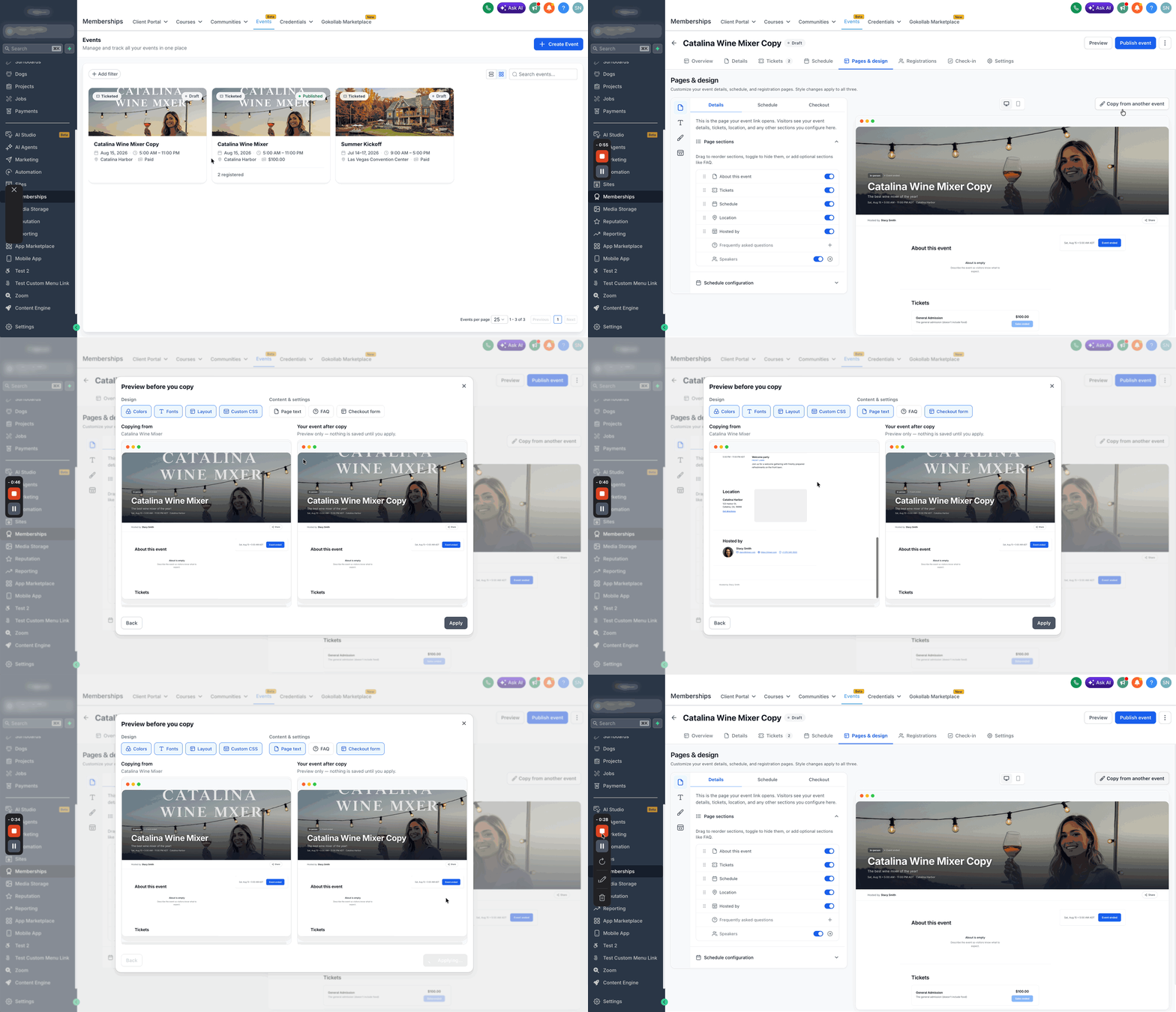
Copy page design and settings from another event
- Open the destination event.
- Go to Pages & Design.
- Click Copy from another event.
- Select the event you want to copy from.
- Choose the elements you want to copy.
- Review the preview.
- Click Apply to copy the selected settings into the current event.
06What it looks like in HighLevel
07Settings that matter
- Choose what to copy. Controls which optional design, content, ticket and schedule elements are transferred to the duplicated event draft.
- Copy from another event. Specifies which design and content settings are imported into the current event’s pages.
08Things to know before you rely on it
- Core event information such as name, dates, location and organizer always copies to the new draft.
- Registrations, attendees, orders, payments, coupons and check in records are not carried over and are reset for the new draft.
- Speakers are only included when the schedule is duplicated.
- The duplicated event is created as a draft; it does not publish automatically.
09How it connects to the rest of HighLevel
- Create and manage events in HighLevel Event creation guide
- Set up event and workflow integration Workflow integration
- Embed HighLevel event pages on any website Embed events
- HighLevel pricing and plans Pricing
- Start a 30 day HighLevel trial Free trial
Michael's take

I would begin with treating the duplicate as a fresh draft, confirming only the design and ticket settings you truly need, then double check the preview before publishing. That way you keep the branding consistent but avoid pulling over any old attendee data.