
01Who this is for
- Agency owners can provide their staff the ability to run client ads without leaving the platform.
- Marketing managers benefit from a single place to manage subscriptions and Google connections for multiple client accounts.
02Google Ads integration, explained
Ad Manager is a module inside HighLevel that lets subaccounts run Google ad campaigns after a monthly subscription is paid. The subscription is billed through the agency's Stripe account, while campaign spend is charged to the payment method attached to the connected Google Ads account. Users first need the Ad Manager permission, then they subscribe, and finally they link a Google Ads account.
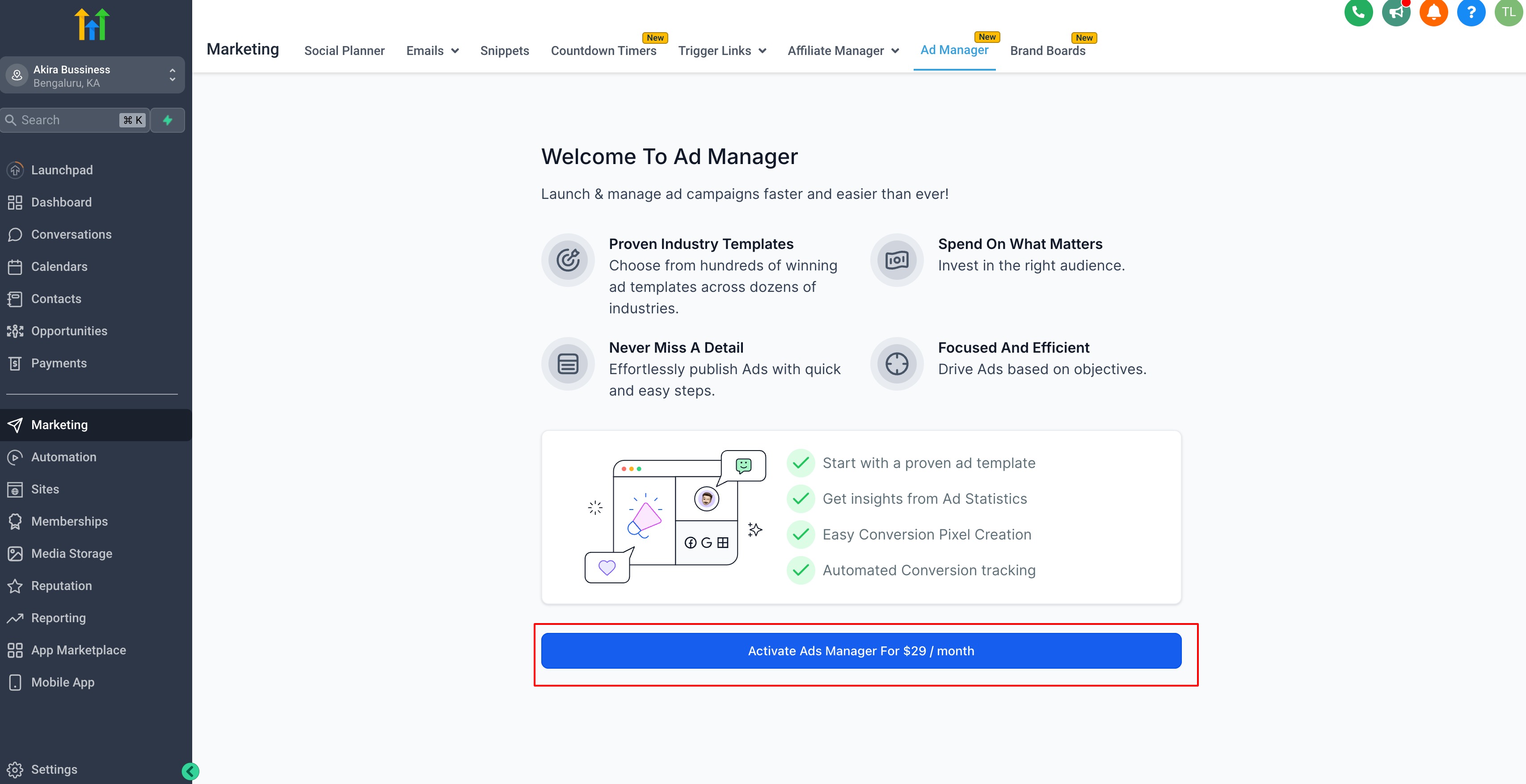
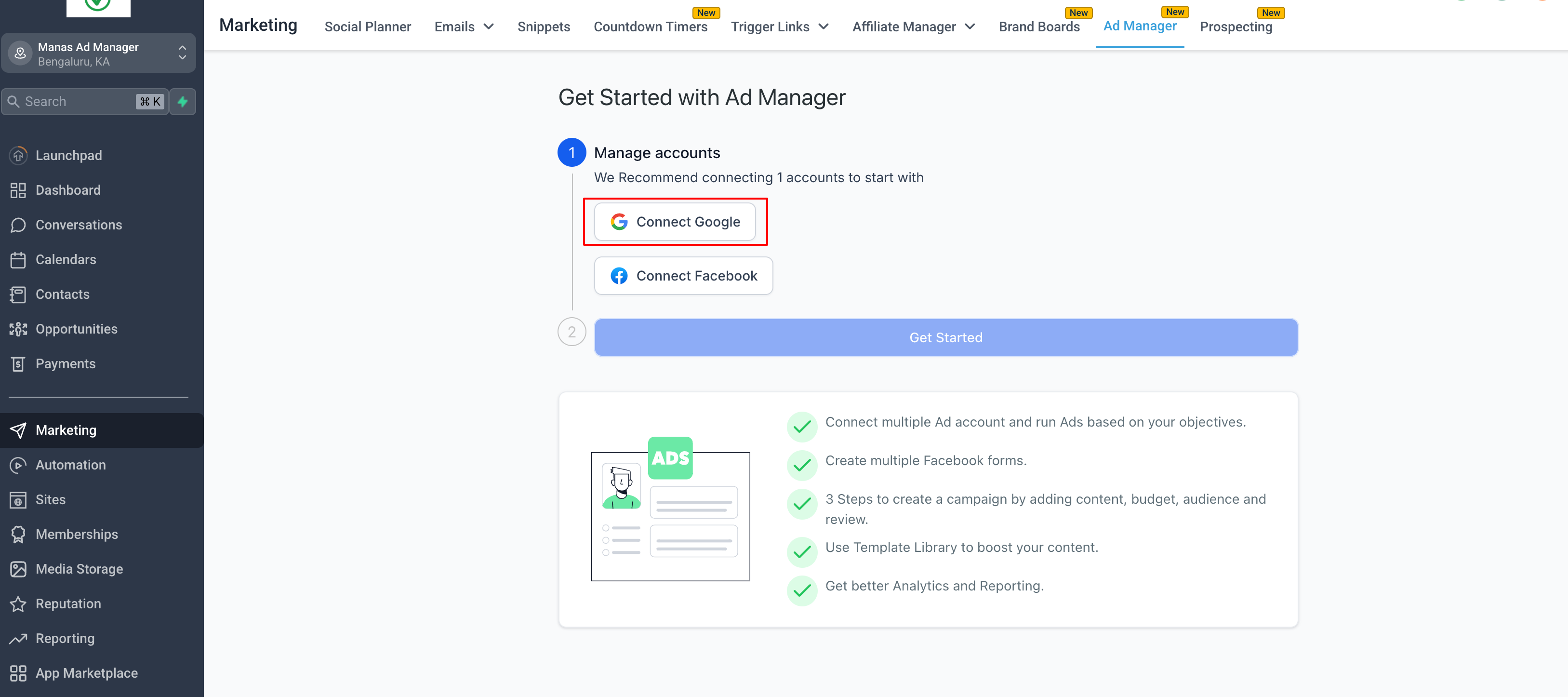
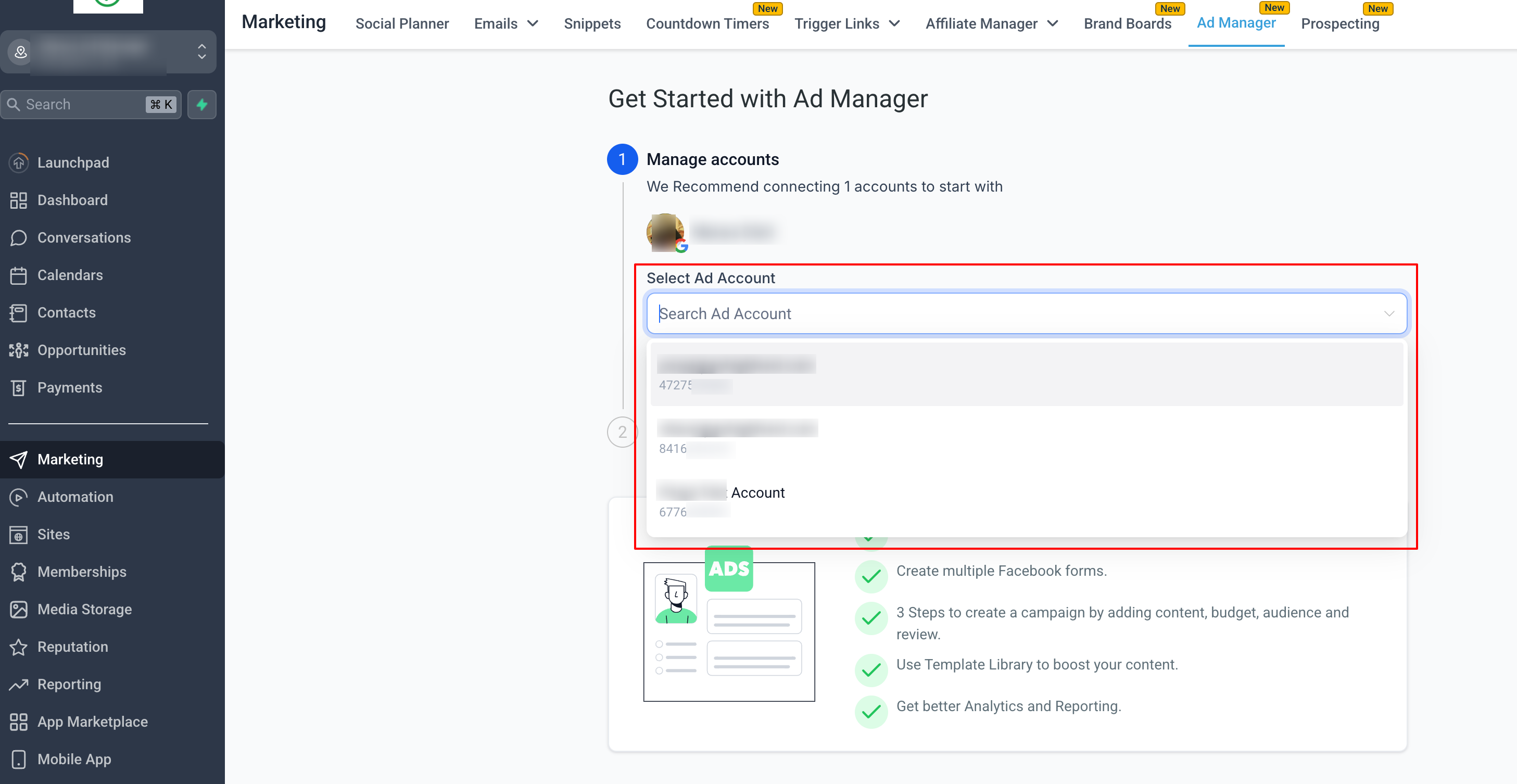
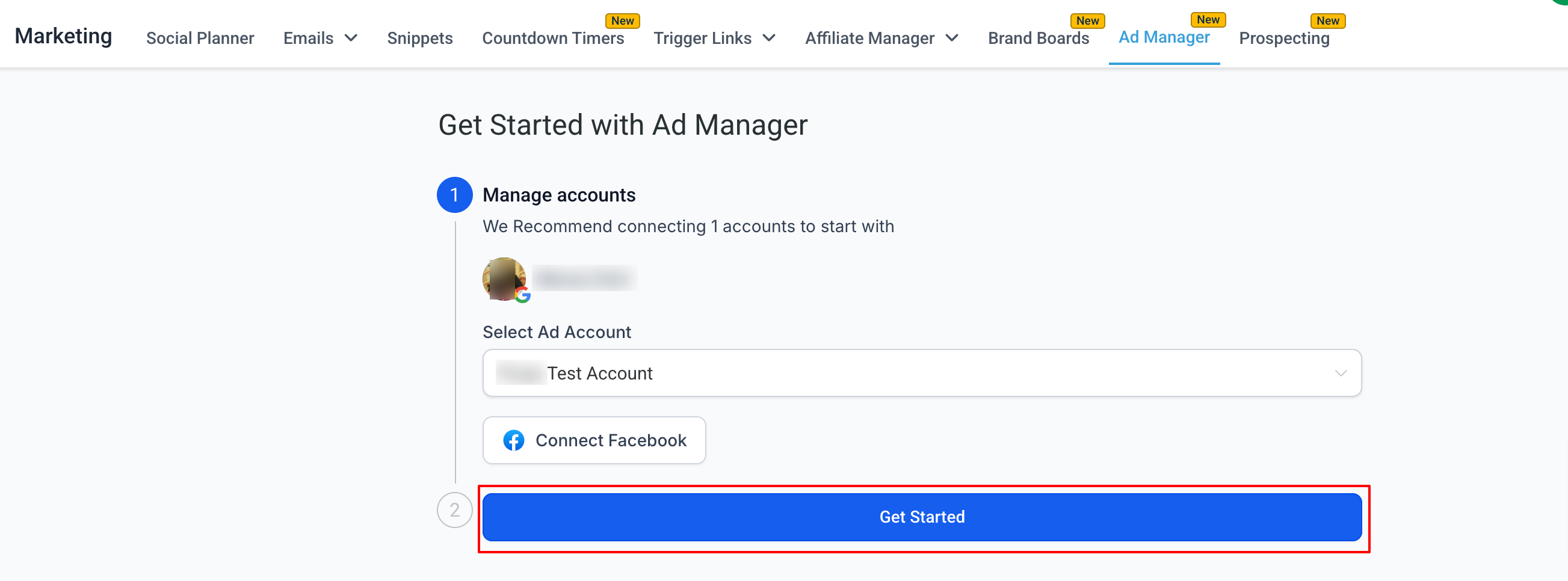
The permission is toggled in Settings > Teams, where a team member’s role can have the Ad Manager box checked. Subscription begins by pressing the Activate Ad Manager button found under the subaccount’s Marketing > Ad Manager tab. After paying, the onboarding flow starts. To link Google, users click Connect Google, grant LeadConnector all permissions, pick an eligible Google Ads account from a dropdown, and press Get Started to move to campaign creation.
03How businesses use Google Ads integration
- Digital marketing agency. The agency enables the Ad Manager permission for a media buyer, the buyer subscribes under a client subaccount, and then connects the client’s Google Ads account to start building campaigns directly in HighLevel.
- Real estate brokerage. The broker grants the marketing coordinator the Ad Manager role, pays the monthly fee for each office subaccount, and links the office’s Google Ads account to launch property promotion ads without external tools.
- SaaS startup. The Founder assigns Ad Manager rights to the growth lead, activates the subscription for the startup’s subaccount, and connects the company’s Google Ads account so the growth team can create acquisition campaigns inside HighLevel.
04Before you start
- An agency must enable the Ad Manager checkbox for the user in Settings > Teams.
- The user must have a Google account that owns at least one eligible Google Ads account.
05How to set up and use Google Ads integration in HighLevel
Subscribe for Ad Manager
- Open Settings > Teams, edit the team member, and tick the Ad Manager checkbox.
- Navigate to the subaccount, then go to Marketing > Ad Manager and click Activate Ad Manager.
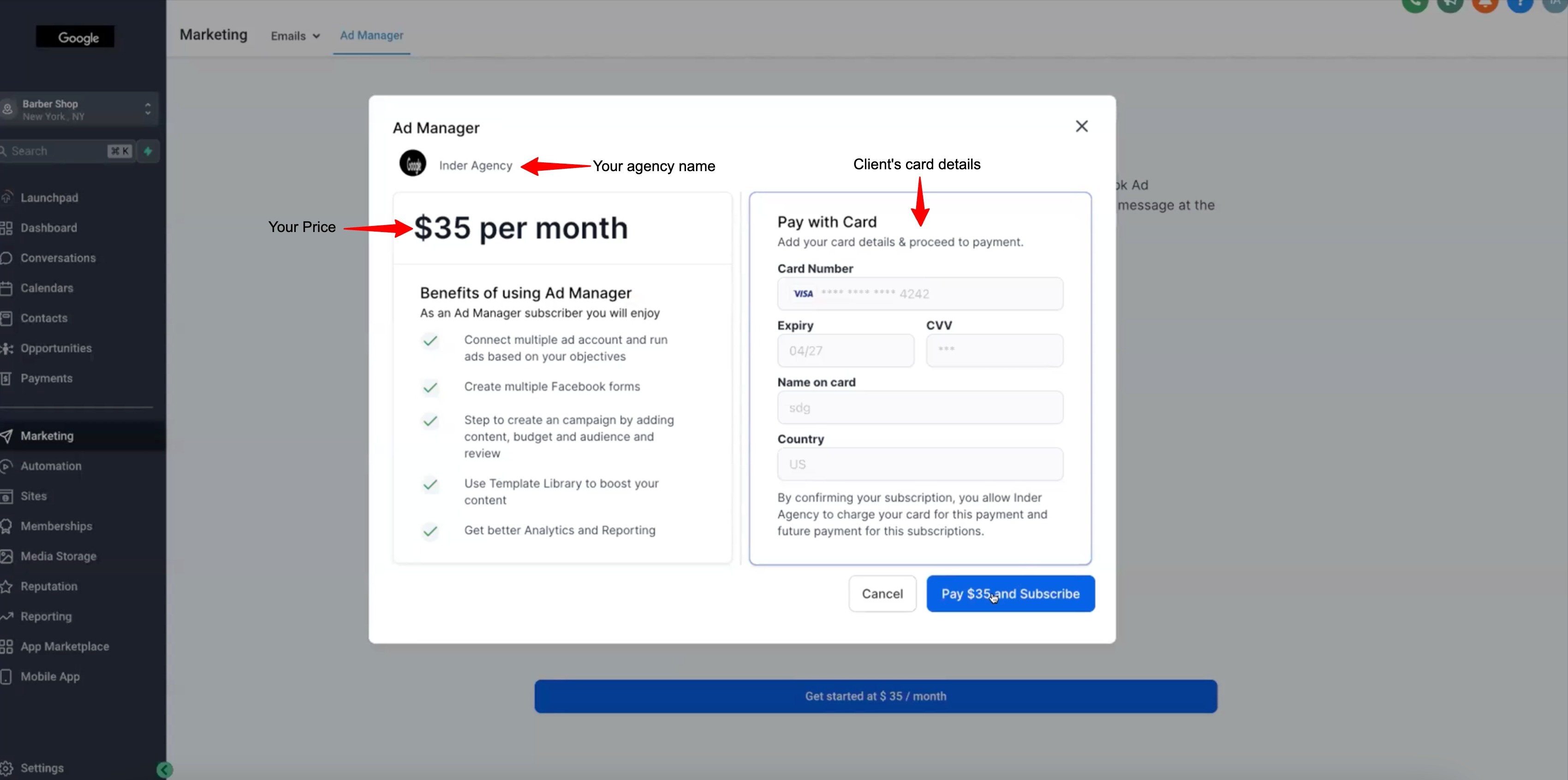
- Press the Pay and Subscribe button to create the subscription and process payment.
- After payment, the system routes the user to the Ad Manager onboarding flow.
Connect Google with Ad Manager
- Select the Connect Google button, choose the Google email, and approve all LeadConnector permission requests.
- Confirm that every permission request is accepted.
- From the Select Ad Account dropdown, choose an eligible Google Ads account linked to the connected Google profile.
- Click Get Started to proceed to campaign creation.
06What it looks like in HighLevel
07Settings that matter
- Ad Manager (checkbox in Roles and Permission). Controls whether a team member can access the Ad Manager module and subscribe to run Google ad campaigns.
08Things to know before you rely on it
- The subscription is billed monthly and is separate from any ad spend charges.
- Campaign charges are taken from the payment method saved under the connected Google Ads account, not from the Ad Manager subscription.
- Agencies can offer a custom price or waive the fee for selected subaccounts.
- Only Google Ads accounts that are eligible appear in the dropdown after connection.
09If something goes wrong
- LeadConnector permissions were not granted during Google connection.. Reopen the Connect Google flow and ensure all requested permissions are allowed.
- No Google Ads accounts appear in the Select Ad Account list.. Verify that the connected Google account owns an eligible Google Ads account and that permissions were fully granted.
10How it connects to the rest of HighLevel
- Create a new Google Search ad campaign after linking your account. Google Search ad campaign
- Set up multiple ad groups and ads for a Google Ads account within HighLevel. Multiple ad groups
- Review agency pricing plans that include the Ad Manager subscription. Pricing plans
Michael's take

You’re trying to run Google campaigns for a client but can’t get the two systems to talk. The first thing I’d get right is the permission set. Make sure the LeadConnector app has every permission it asks for, otherwise the connection will stall.
Once the permissions are solid, the rest flows smoothly. With the subscription and billing already handled through your agency Stripe, you can focus on picking the right Google Ads account and launching ads without juggling multiple logins.