
01Who this is for
- Digital marketers can separate product lines into dedicated ad groups, keeping keywords and landing pages aligned.
- Small ecommerce owners benefit from comparing ad performance without launching separate campaigns for each category.
- Agencies managing many client accounts can duplicate ad group structures quickly, maintaining consistent settings across campaigns.
02Multiple ad groups and ads, explained
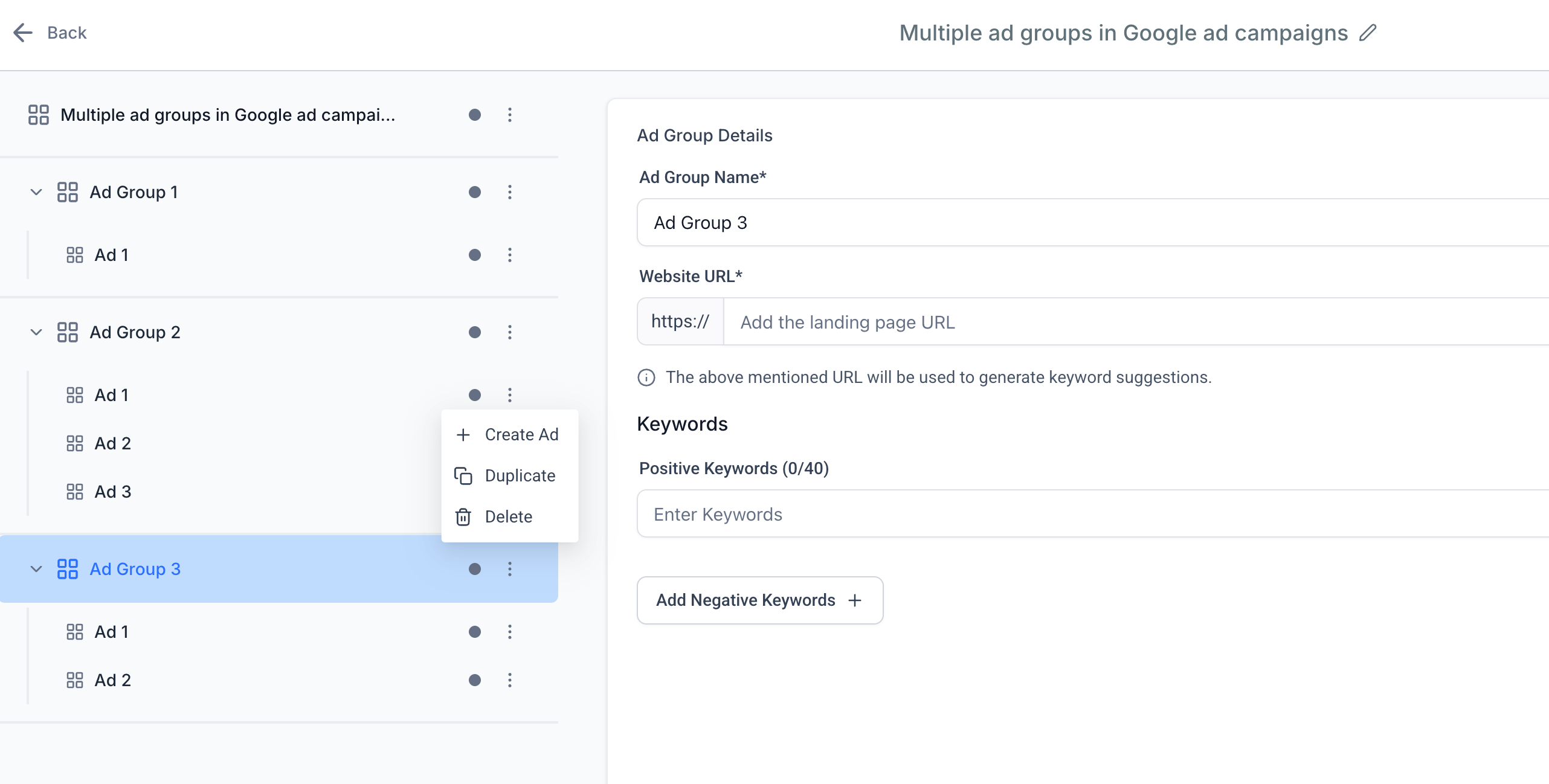
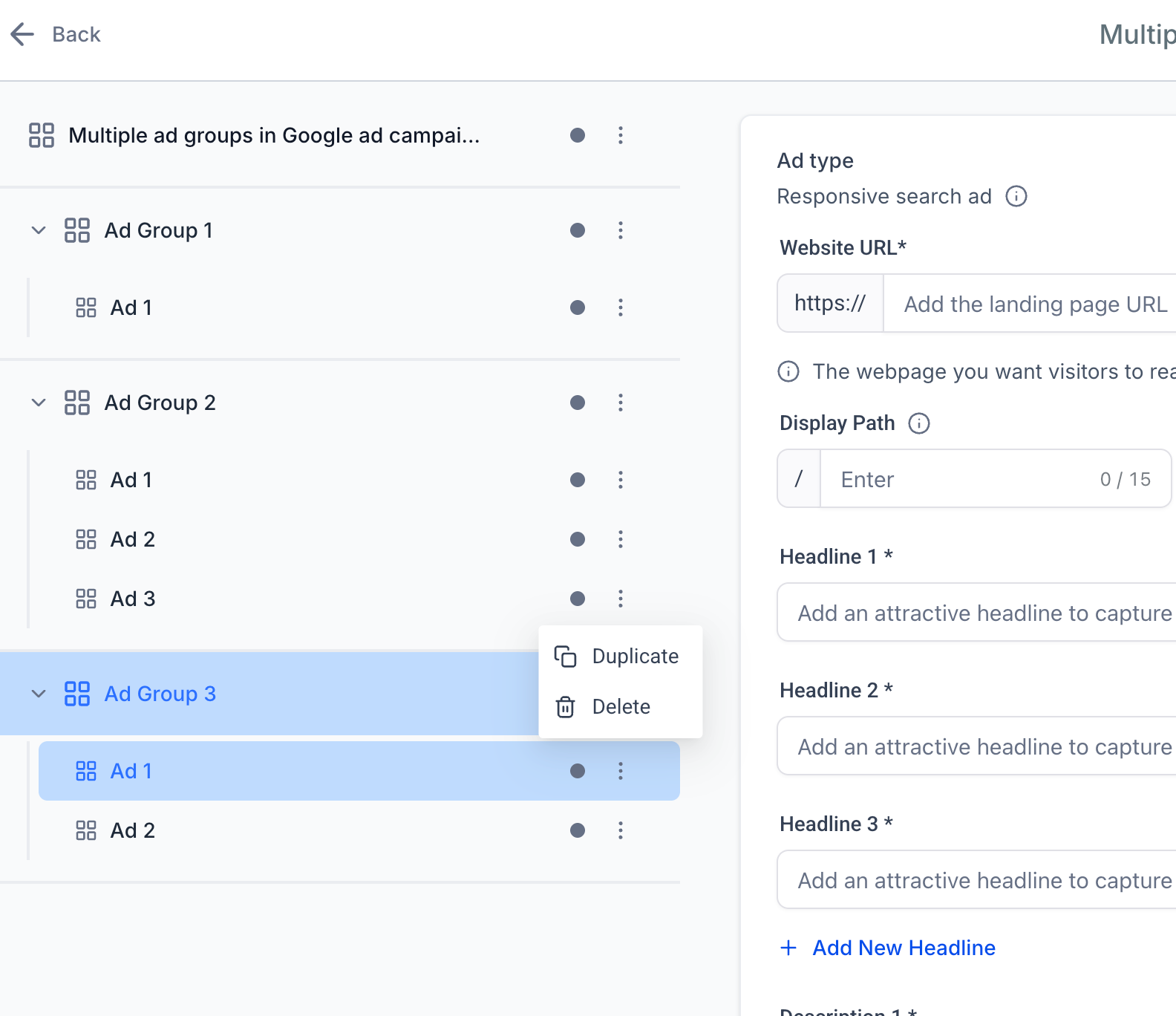
The feature creates a three tier structure: Campaign > Ad Group > Ad. At the campaign level you set the budget, bid strategy, schedule and audience. Each ad group holds its own base website URL, positive and negative keywords, and match types. Within an ad group you can add up to three responsive search ads, each with headlines, descriptions, final URLs and optional display paths.
All settings are entered in the Ad Manager builder. The hierarchy ensures every ad inherits the campaign wide controls while allowing keyword level targeting and creative variation at the ad group level. A review screen checks the complete structure before the campaign is sent to Google for delivery.
03How businesses use multiple ad groups and ads
- Law firm. The firm creates one campaign for legal services, then adds separate ad groups for criminal defense, family law and personal injury. Each group uses its own landing page base URL and lists keywords specific to that practice, while testing three ad variations per group.
- Restaurant chain. The chain builds a campaign to promote its menus, adding ad groups for breakfast, lunch and dinner. Each group points to the appropriate menu page as the base URL and includes location specific keywords, with three responsive ads to rotate headlines and descriptions.
- SaaS startup. The startup launches a campaign for its software, creates ad groups for free trial, pricing and feature overview, assigns distinct landing pages, and uploads up to three responsive ads per group to experiment with different calls to action.
04The numbers and rules that matter
- Up to 10 ad groups per campaign.
- Up to 3 ads per ad group, with at least 1 ad required in each group.
- Each keyword can contain up to 80 characters.
- Up to 15 headlines per ad, 30 character limit per headline.
- Up to 4 descriptions per ad, 90 character limit per description.
- Two display path segments are supported, up to 15 characters each.
- At least 1 ad group is required per campaign.
- The previous limit of 40 positive and 40 negative keywords per ad group has been removed.
05Before you start
- Ad Manager must be enabled for the subaccount and the user creating the campaign.
- A Google Ads account that is eligible and connected to Ad Manager must be selected.
- The connected Google Ads account needs a valid payment method for ad spend.
- A base landing page URL for each planned ad group should be prepared.
- Related positive and negative keywords should be grouped beforehand.
- Responsive search ad headlines and descriptions should be ready for entry.
06How to set up and use multiple ad groups and ads in HighLevel
Start a Google search campaign
- Open Marketing > Ad Manager.
- Click Create Campaign.
- Select Google and then click Next.
- Choose Start from Scratch or pick an available Ad Manager template.
Configure campaign level settings
- Enter a clear campaign name.
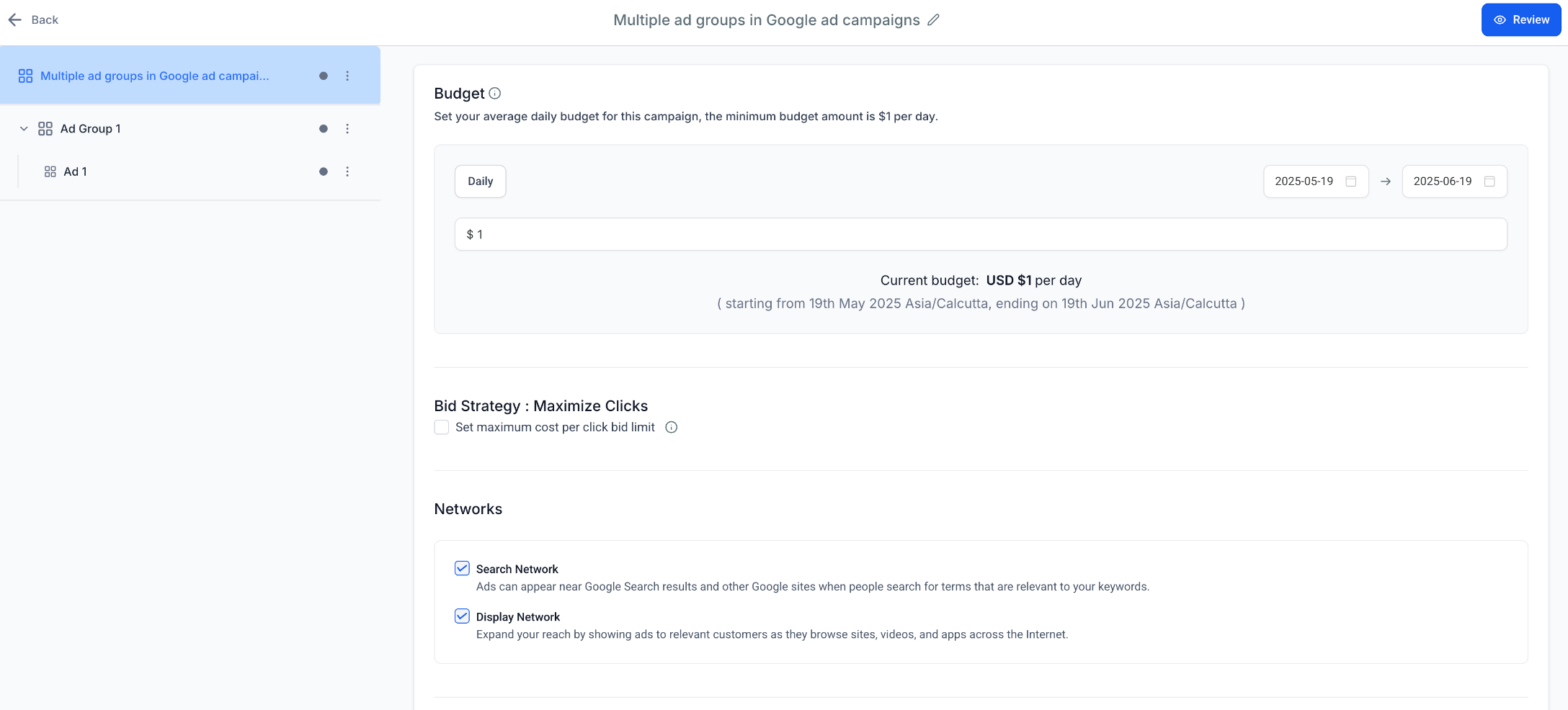
- Review the Maximize Clicks bid strategy and set a maximum CPC limit if needed.
- Enter the daily budget and define the campaign date range.
- Choose the network settings that will be used.
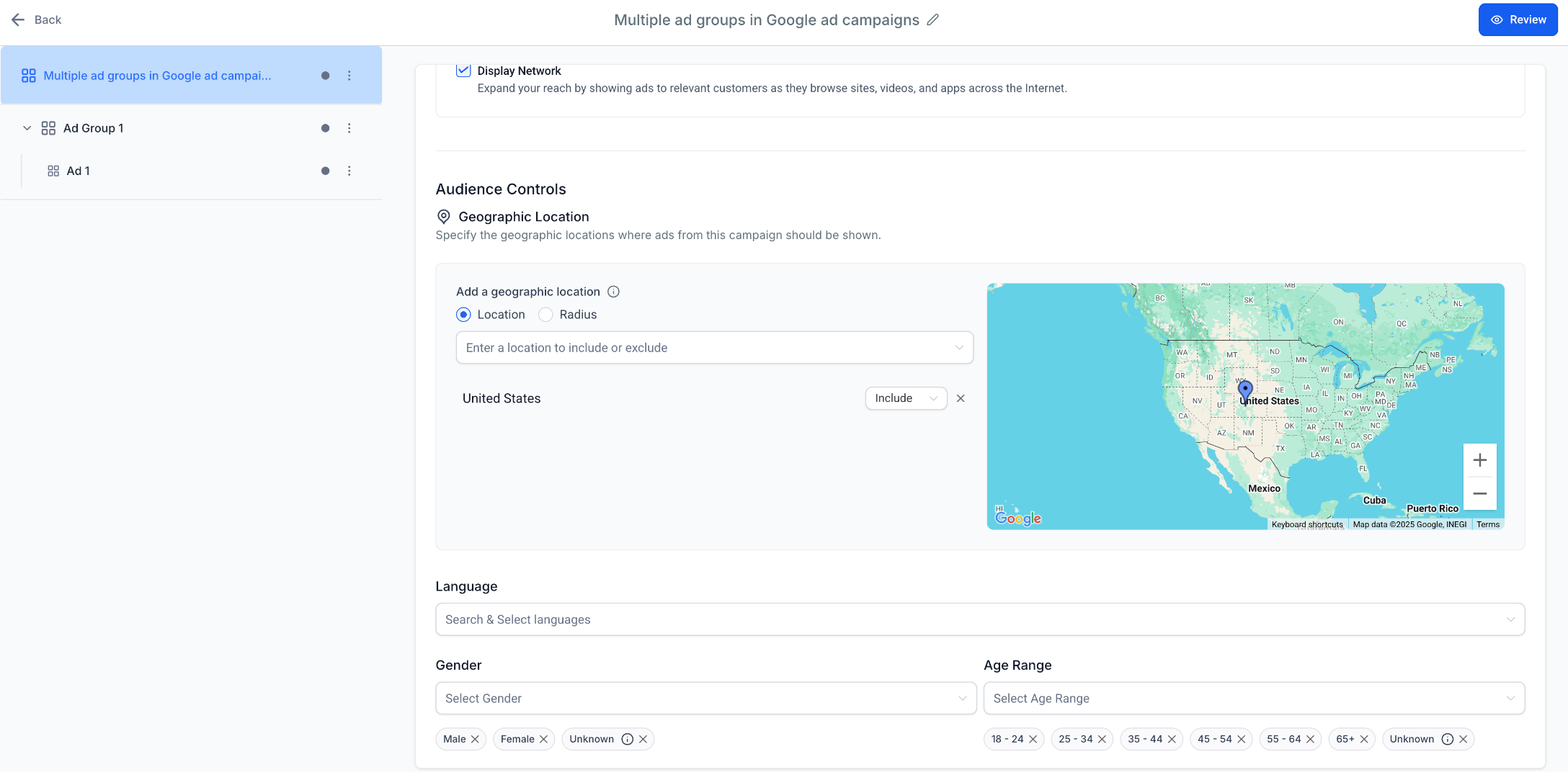
- Set geographic locations, languages and optional age or gender selections.
- Complete any other required campaign level declarations or assets shown.
Configure the first ad group
- Select the ad group within the campaign hierarchy.
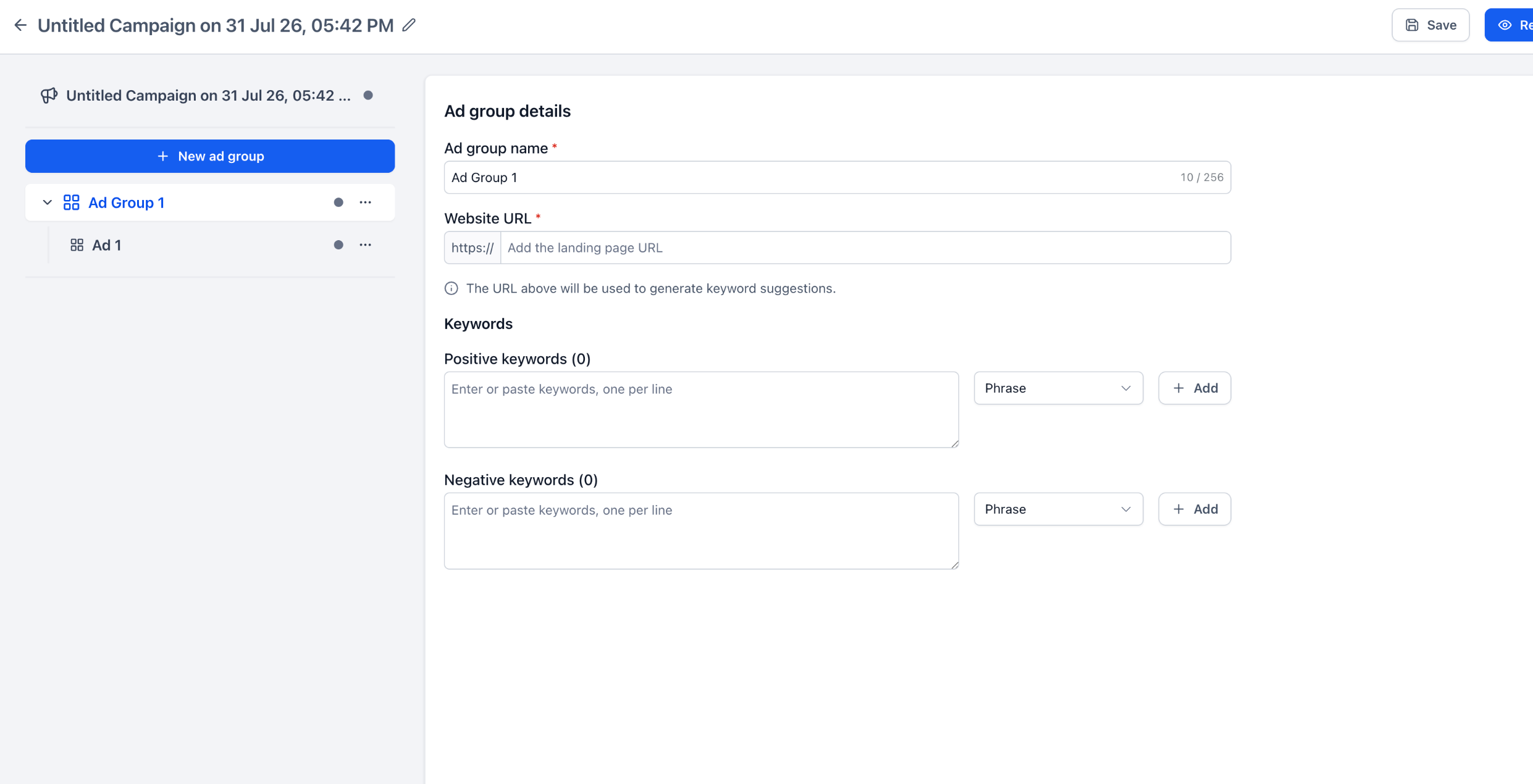
- Enter the Ad Group Name.
- Enter the landing page in the Website URL field.
- Add positive keywords by typing or pasting them, separated by commas or new lines.
- Select the match type for each keyword (Broad, Phrase, or Exact) and click Add.
- Add negative keywords using the same method; duplicates and empty entries are removed automatically.
Create the ad
- Select the ad that belongs to the chosen ad group.
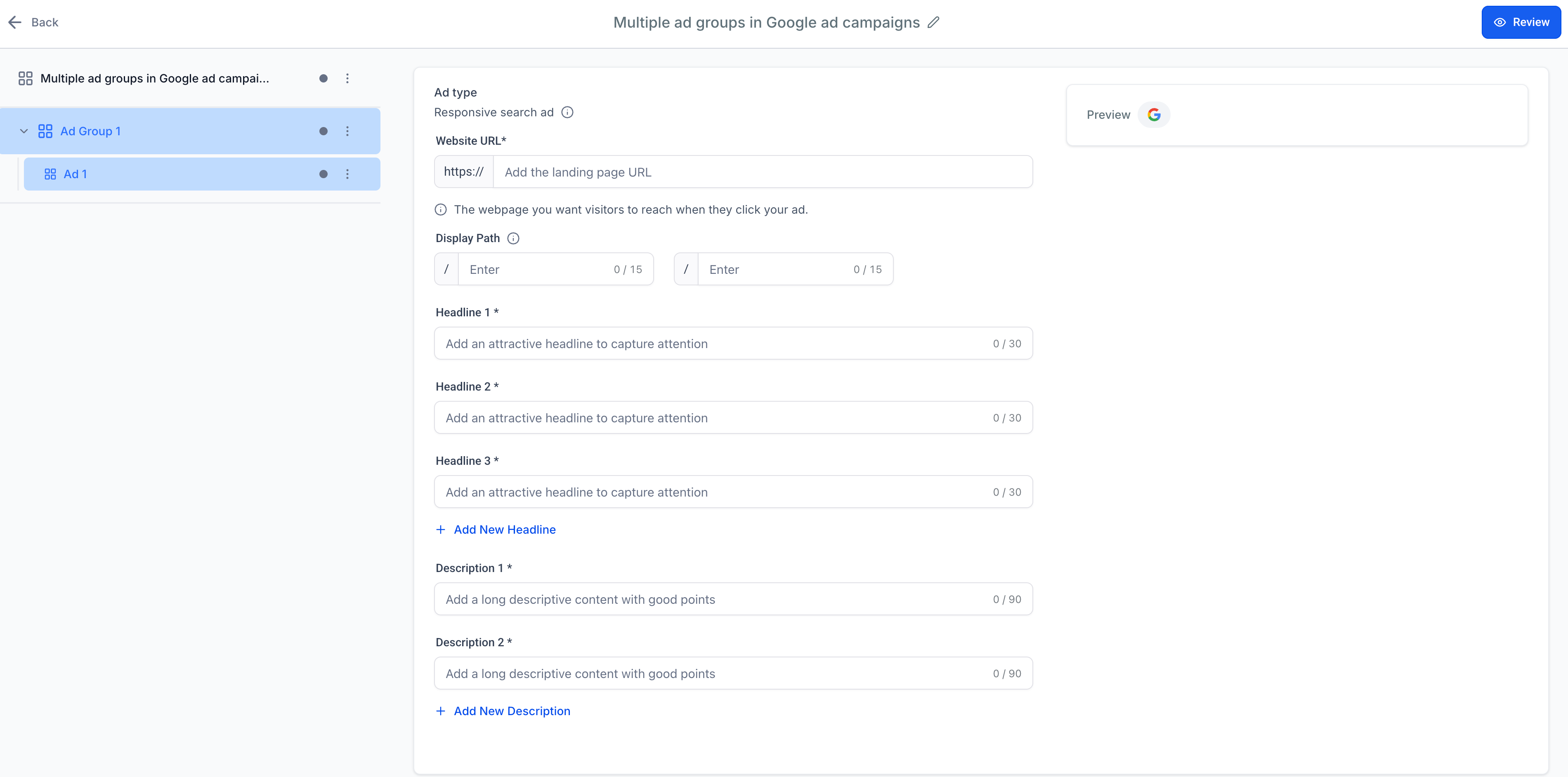
- Enter the final website URL, which must use the ad group’s common base URL.
- Add optional display paths.
- Fill in the required headline fields, then add additional headlines up to the limit.
- Fill in the required description fields, then add additional descriptions up to the limit.
- Review the ad preview displayed by the builder.
Review and publish the campaign
- Click Review in the campaign builder.
- Check the budget, schedule, bid strategy, networks, locations, language, age and gender settings.
- Inspect each ad group and ad in the hierarchy for completeness.
- Return to any level that shows missing or inaccurate information and correct it.
- Click Publish when the campaign is ready.
07What it looks like in HighLevel
08Settings that matter
- Campaign name. Defines the identifier for the campaign within HighLevel and Google.
- Maximize Clicks bid strategy. Sets the automated bidding approach that aims to get the most clicks within the budget.
- Maximum CPC limit. Caps the cost per click when using Maximize Clicks bidding.
- Daily budget. Limits the amount spent on the campaign each day.
- Campaign date range. Specifies the start and end dates for the campaign's activity.
- Network settings. Determines which Google networks (Search, Display, etc.) the ads will appear on.
- Geographic locations. Targets the regions where the ads will be shown.
- Languages. Filters the audience by language.
- Age or gender selections. Optional demographic filters applied at the campaign level.
- Ad Group Name. Labels the ad group for organization and reporting.
- Website URL. Sets the base landing page URL that all ads in the group will share.
- Positive Keywords. Keywords that trigger the ads when a user’s search matches them.
09Things to know before you rely on it
- A campaign can contain a maximum of 10 ad groups.
- Each ad group can hold up to 3 responsive search ads, with at least one required.
- At least one ad group must exist before a campaign can be published.
- Each ad may include up to 15 headlines (30 characters each) and up to 4 descriptions (90 characters each).
- Two display path segments are allowed per ad, each up to 15 characters.
- Keywords can be up to 80 characters long; there is no longer a limit of 40 positive or 40 negative keywords per ad group.
- An ad’s final URL must share the base URL defined for its ad group.
- The final ad group or final ad cannot be deleted because a campaign requires at least one of each.
10If something goes wrong
- Google is unavailable during campaign creation. Confirm Ad Manager access, the Google connection, required permissions, and selection of an eligible Google Ads account.
- Keyword suggestions do not appear. Make sure a complete, accessible website URL has been entered for the ad group; you can still add keywords manually.
- An ad URL is rejected. Verify that the ad uses the same base URL set for its ad group and that the final landing page is valid.
- Delete is unavailable or blocked. A campaign must keep at least one ad group, and every ad group must keep at least one ad.
- The Review screen shows incomplete information. Open the highlighted campaign, ad group, or ad level and complete every required field before publishing.
- Statistics are empty after publishing. Confirm the campaign and date range, then allow time for Google delivery and reporting data to populate.
11How it connects to the rest of HighLevel
- How to connect Google Ads to Ad Manager Connect Google
- Create a Google Search campaign in Ad Manager Create campaign
- View Google Ads campaign statistics in Ad Manager View stats
Michael's take

Multiple ad groups and ads give a small business the ability to keep its Google search ads tidy, test a few headline combos and see which keyword theme performs best without juggling separate campaigns.
Don’t forget that each ad group must always keep at least one ad, otherwise the delete button will be blocked.