
01Who this is for
- Marketing managers who run multiple ad groups benefit from a single place to upload branding assets.
- Small business owners looking to keep their Google Ads visuals consistent across campaigns.
- Ad specialists who need to add several phone numbers or sitelinks without editing each ad group.
02Google ads additional assets, explained
The feature adds optional assets, business logo, image assets, call extensions and sitelinks, to a Google Ads campaign inside HighLevel Ad Manager. Once set, the assets are considered for every ad in the campaign, while Google decides which ones are eligible to display.
You find the configuration in the campaign builder under Marketing > Ad Manager > Create Campaign, select Google, and locate the Additional Assets section. The builder validates format, size and ratio rules and shows warnings for any issues.
03How businesses use Google ads additional assets
- Local restaurant. The restaurant uploads a square logo and a set of food images in the campaign. It also adds a call extension with its reservation phone number and a few sitelinks to the menu, reservation page and directions. All assets are attached once for the campaign and may appear with its search ads.
- Online fitness trainer. The trainer creates a campaign for a new workout program, adds landscape and square images of the program, adds a call extension for direct inquiries, and sets sitelinks to pricing, schedule and a free trial page. The assets stay linked to the campaign regardless of how many ad groups are built.
- Home services company. The company adds its branded logo, multiple service related images, several phone numbers for different regions, and sitelinks to each service page. The campaign level setup saves the need to repeat these steps for each ad group that targets a specific city.
04The numbers and rules that matter
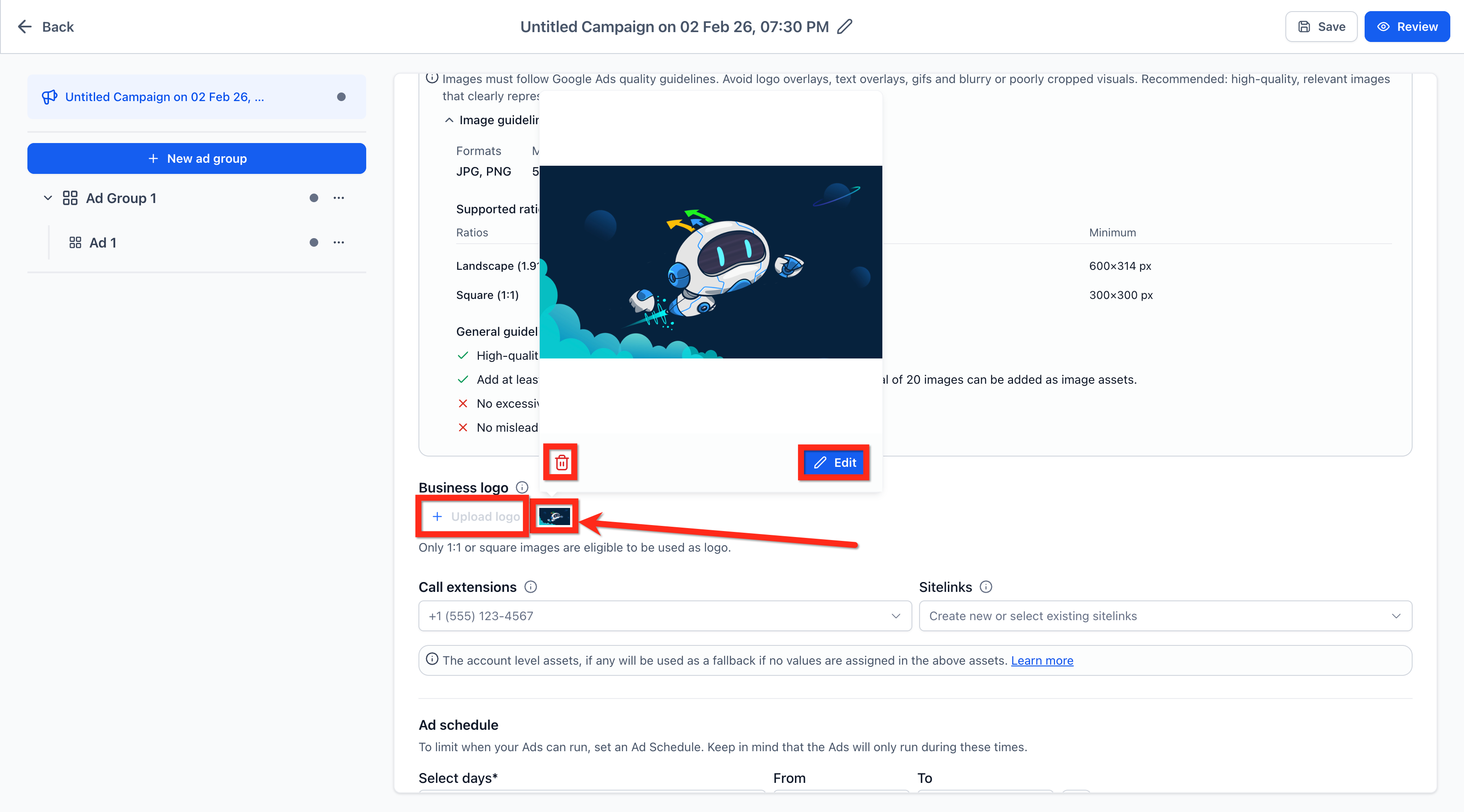
- Business Logo: 1 logo per campaign, JPG or PNG, 1:1 (square) format.
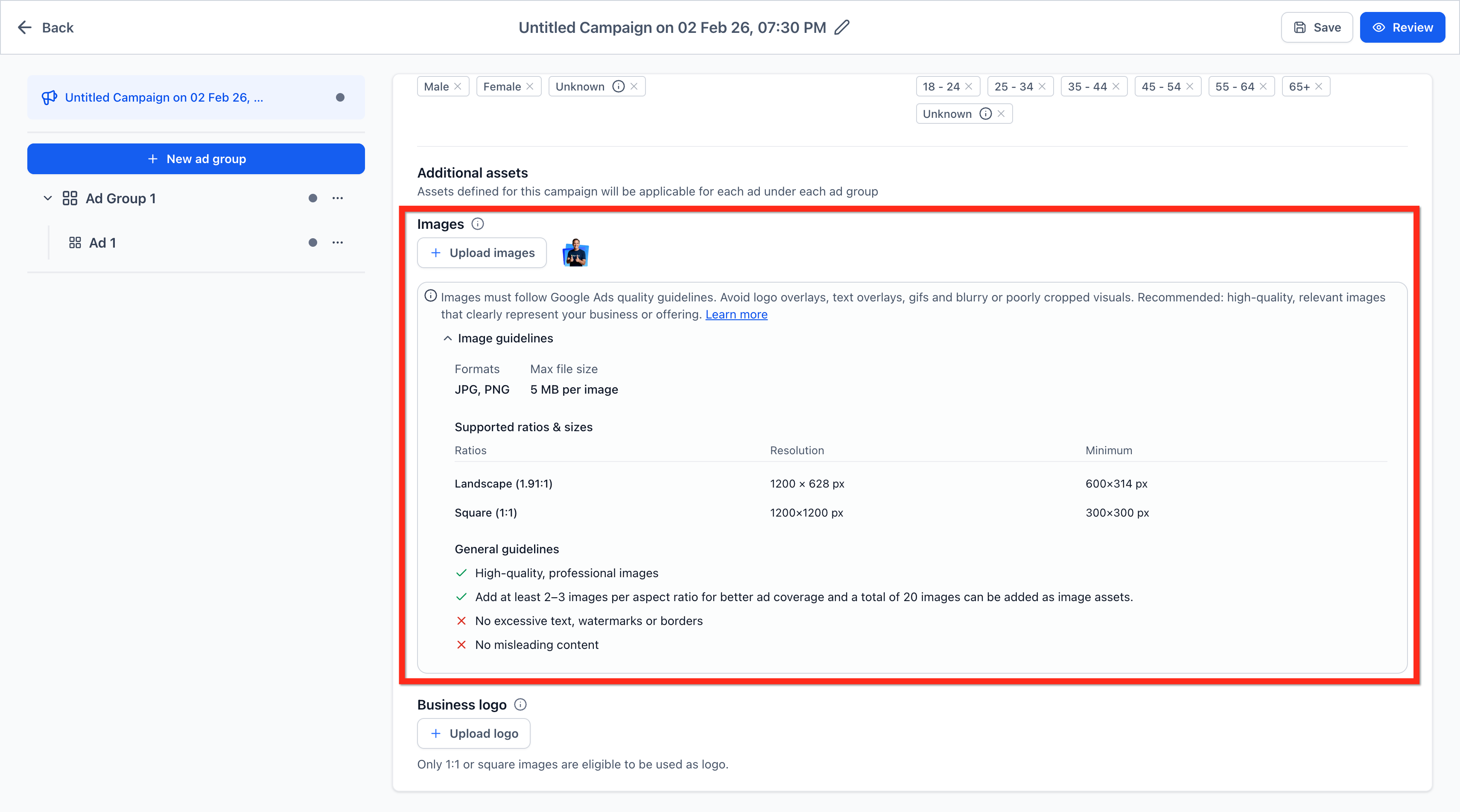
- Image Assets: Up to 20 images per campaign, JPG or PNG, 1:1 (square) or 1.91:1 (landscape), max file size 5 MB per image.
- Sitelinks: 2, 20 per campaign, recommended 4, text up to 25 characters plus optional descriptions.
05Before you start
- Ad Manager must be enabled for the subaccount.
- An eligible Google Ads account must be connected.
06How to set up and use Google ads additional assets in HighLevel
Add image assets
- In the Additional Assets area, click Upload Images.
- Select one or more files from the media library or upload new ones.
- Confirm that the campaign can hold up to 20 images.
- Ensure each file is JPG or PNG, uses a 1:1 or 1.91:1 ratio, and does not exceed 5 MB.
- For Search campaigns, include at least four distinct images covering both ratio types.
Add business logo
- Click + Upload Logo.
- Choose an existing image or upload a new file from the media library.
- After the upload, click the logo to open cropping and editing options.
- Crop to a 1:1 square if needed and save the logo.
Configure call extensions
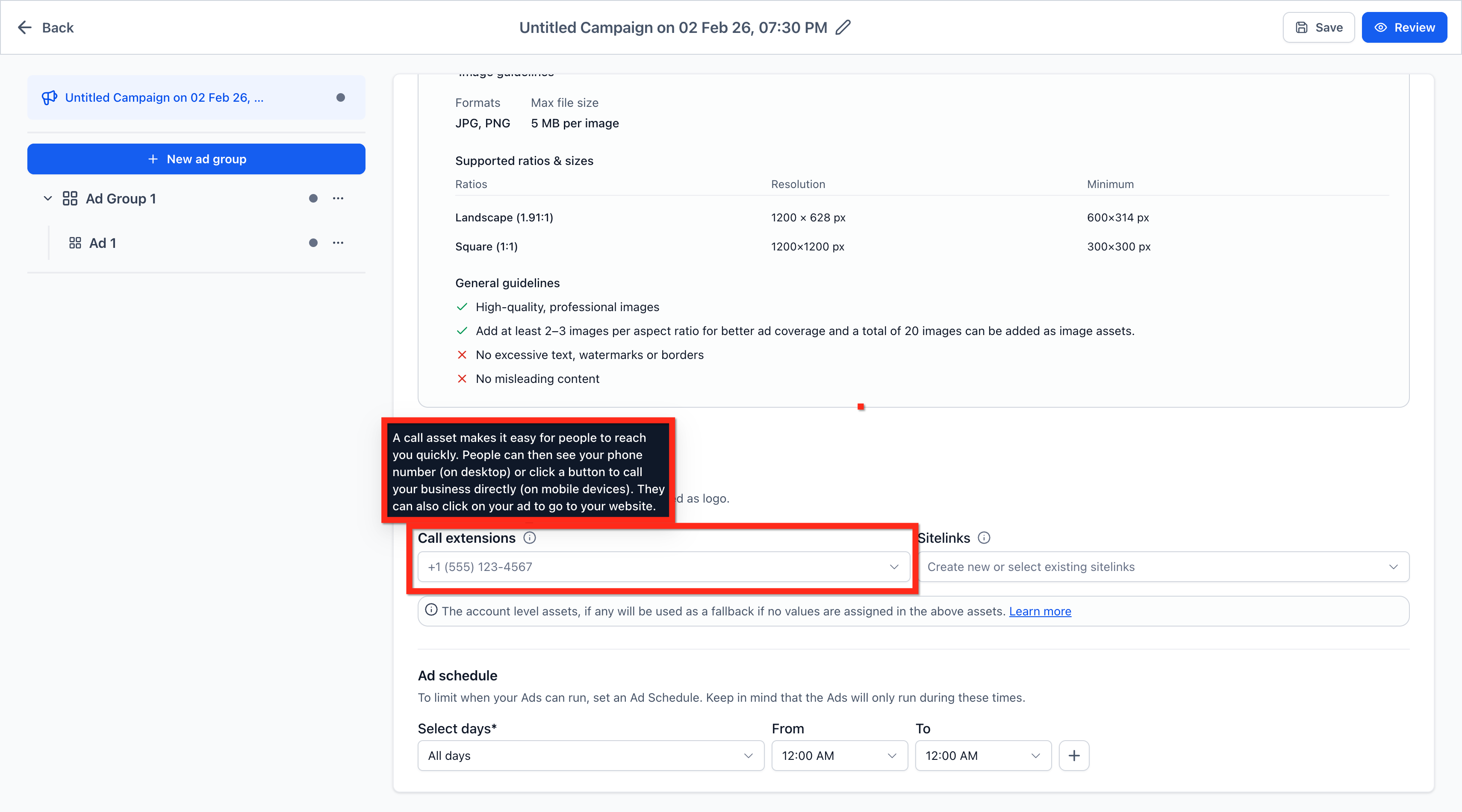
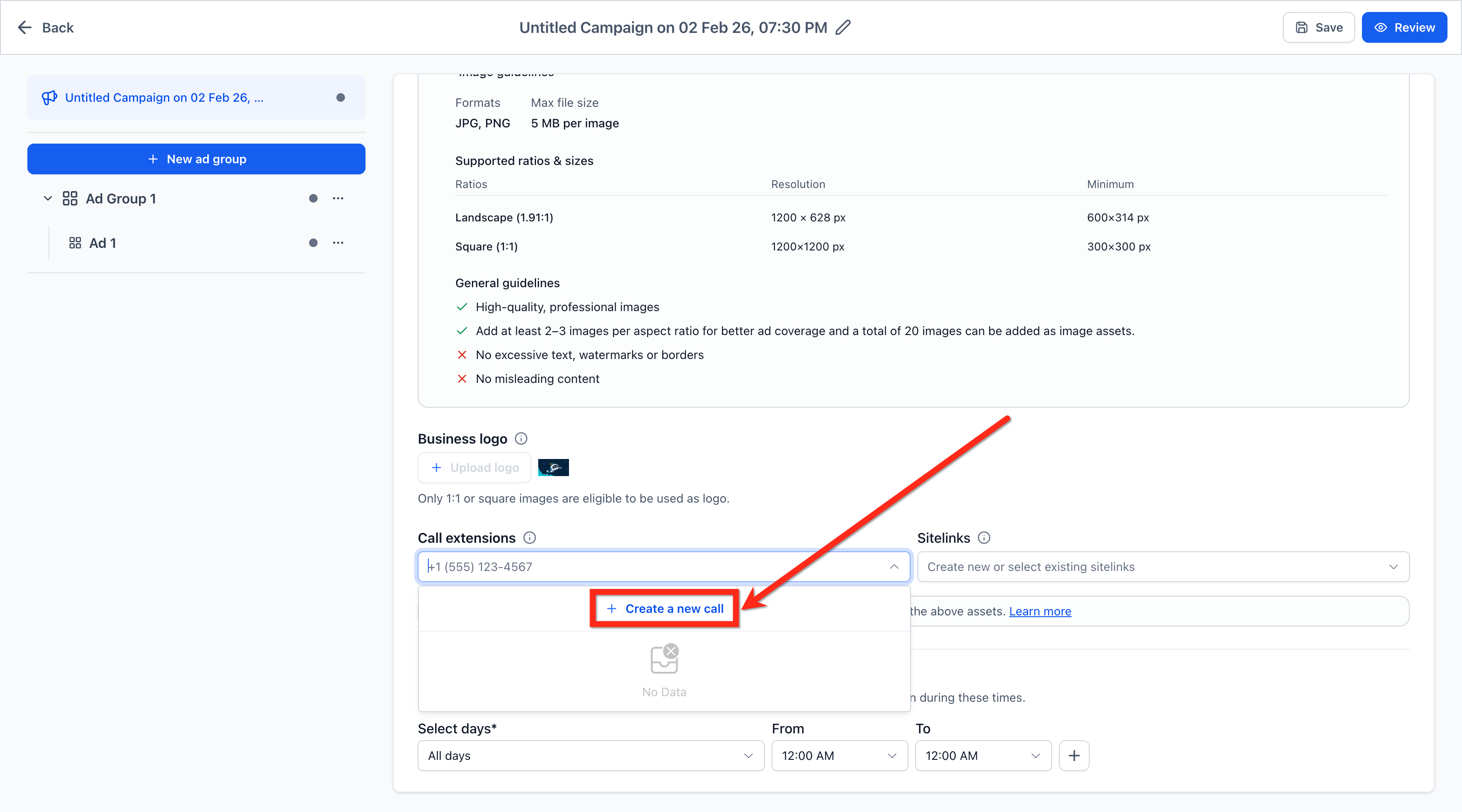
- Open the Call Extensions dropdown.
- Select one or more phone numbers that were previously added.
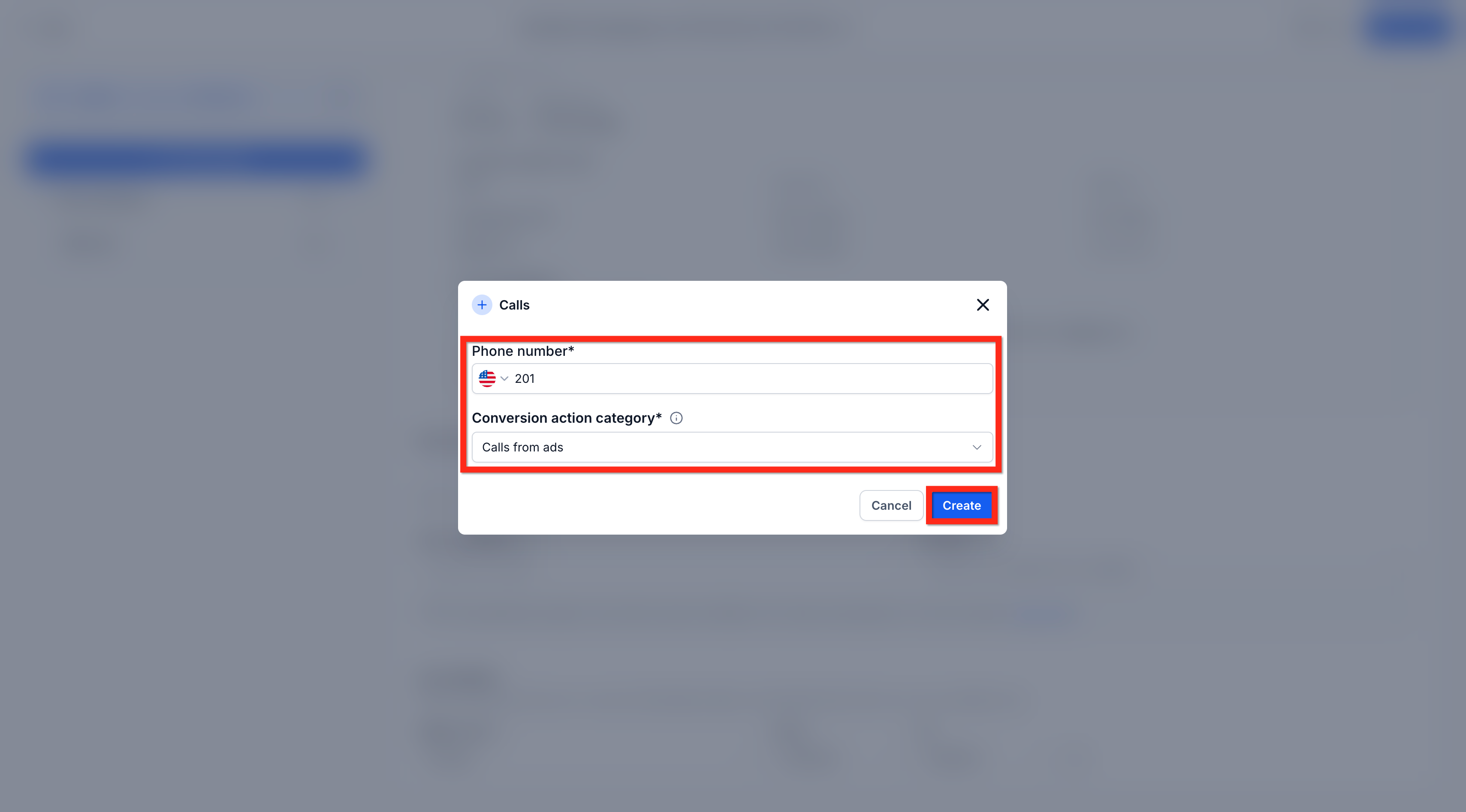
- Or click + Create a New Call, set the country, enter a valid number, and click Create.
Configure sitelinks
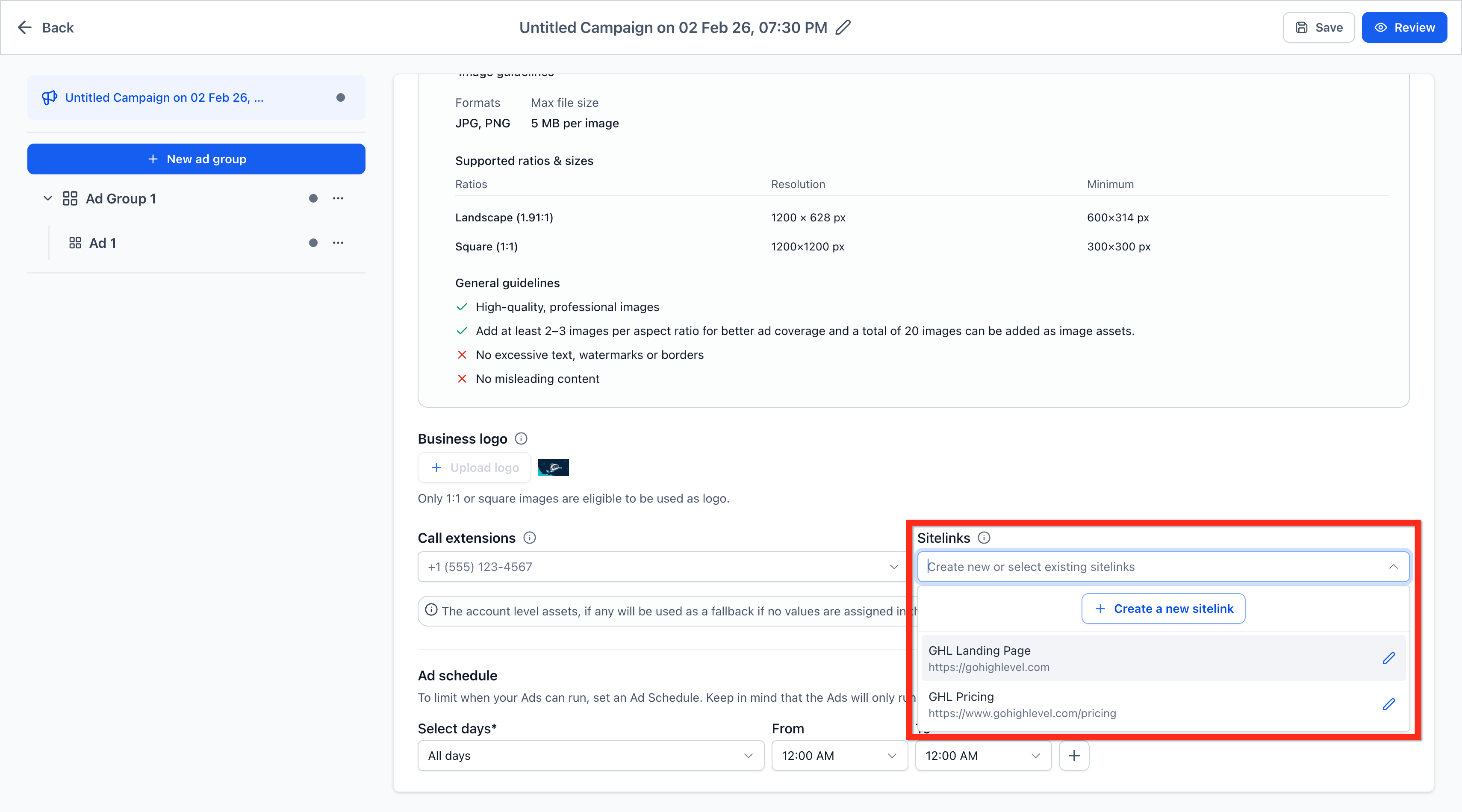
- Open the Sitelinks dropdown.
- Pick one or more existing sitelink entries.
- Click + Create a new sitelink and fill in the text (max 25 characters), optional description lines, and the final URL.
- Press Create to add the new sitelink.
07What it looks like in HighLevel
08Settings that matter
- Business Logo. Sets a single square logo that may appear with eligible Search ads in the campaign.
- Image Assets. Allows up to 20 images in square or landscape ratios to be considered for ad placements.
- Call Extensions. Adds one or more phone numbers that Google can show as call options on eligible ads.
- Sitelinks. Defines between 2 and 20 link texts and URLs (recommended 4) that can appear alongside ads.
09Things to know before you rely on it
- Business Logo: only one logo per campaign, must be JPG or PNG, 1:1 ratio; display is not guaranteed.
- Image Assets: up to 20 images, JPG or PNG, 1:1 or 1.91:1 ratios, maximum 5 MB each; Google recommends at least four unique images for Search.
- Call Extensions: can add multiple numbers, each must be approved by Google.
- Sitelinks: can add 2 to 20 sitelinks, each text limited to 25 characters; descriptions are optional.
10If something goes wrong
- Unsupported aspect ratio warning. Crop or resize the image to 1:1 or 1.91:1 as prompted by the builder.
- Failed image upload error. Invalid images are skipped; the campaign still publishes with any valid assets.
- Call extension marked Disapproved. Ensure the number follows Google Ads policies, includes the correct country code, and matches required formatting.
11How it connects to the rest of HighLevel
- Enable Ad Manager and link a Google Ads account Connect Google Ads
- Create a Google Search campaign in Ad Manager Build Search campaign
- View campaign statistics after assets are added View stats
Michael's take

Most people try to upload every logo they have and expect it to appear on every search ad. The system only shows one square logo, and it isn’t guaranteed to run. Instead, pick a single, clean 1:1 logo that meets Google’s policies and let the platform decide where it fits.
If I were setting up a new campaign, I would load a handful of high quality images. Two to three per required ratio. And add a couple of call numbers that cover all contact options. After that I would double check the sitelinks for relevance and let Google handle the rest.