
01Who this is for
- Marketing managers benefit because they can set up offline conversion tracking without leaving the HighLevel interface.
- Sales teams gain a single place to align offline deals with advertising performance, keeping attribution consistent.
02Google Ads offline conversions, explained
The feature adds a Conversions tab under Google Ads in the Ad Manager settings. From there you can create new offline conversion actions, edit existing ones, or remove actions that are no longer needed. Each action represents a type of offline event you want Google Ads to count.
When you save an action, HighLevel calls the Google Ads API and creates the corresponding conversion in the linked Google Ads account. The action itself does not record any events; you must still send conversion data using a workflow step such as Add to Google Ads or another supported import method.
All conversion actions appear in the same list, regardless of whether they were created in HighLevel or imported from Google Ads. The view updates as the connected account synchronizes.
03How businesses use Google Ads offline conversions
- Real estate agency. The agency creates an offline conversion action called "Closed Sale" in HighLevel. Agents trigger the Add to Google Ads workflow after a sale closes, sending the event to Google Ads for reporting.
- Dental practice. The practice defines an action named "New Patient Appointment". When a patient books an appointment in the HighLevel booking system, the workflow sends the conversion to Google Ads, linking the ad click to the offline appointment.
- Software consulting firm. The firm sets up a conversion called "Qualified Lead, Discovery Call". After a lead completes a discovery call, the team uses the Add to Google Ads workflow to push the conversion data, enabling optimization of lead gen campaigns.
04The numbers and rules that matter
- Conversion Count options: Many per click, One per click.
- Conversion Window selectable values include 30, 60, 90 days or a custom duration.
05Before you start
- Connect your Google account and the specific Google Ads account to HighLevel using the dedicated connection guide.
06How to set up and use Google Ads offline conversions in HighLevel
Create a new offline conversion action
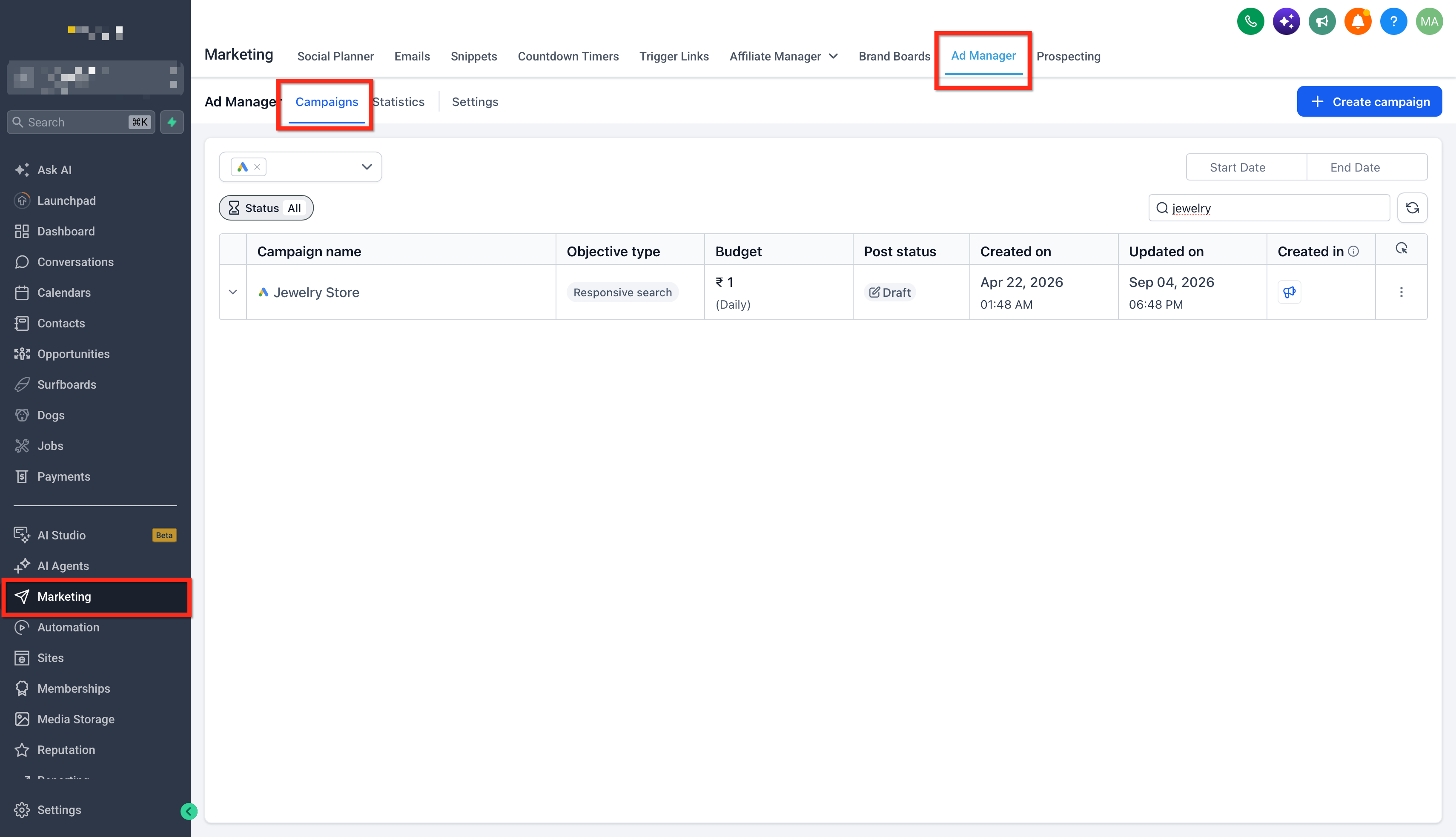
- Open the Marketing section from the left navigation.
- Select Ad Manager from the top navigation bar.
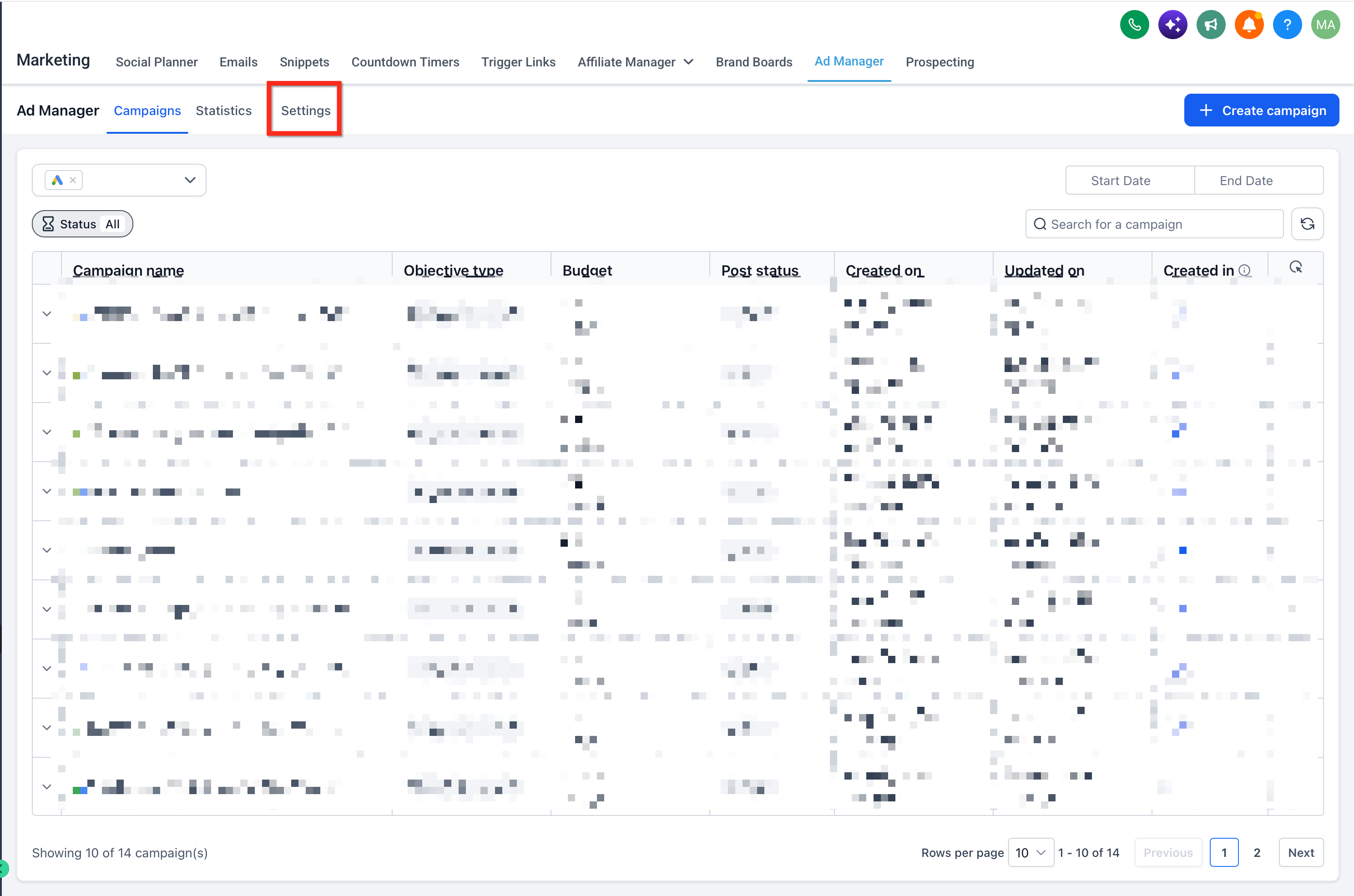
- Click the Settings gear icon next to the Create Campaign button.
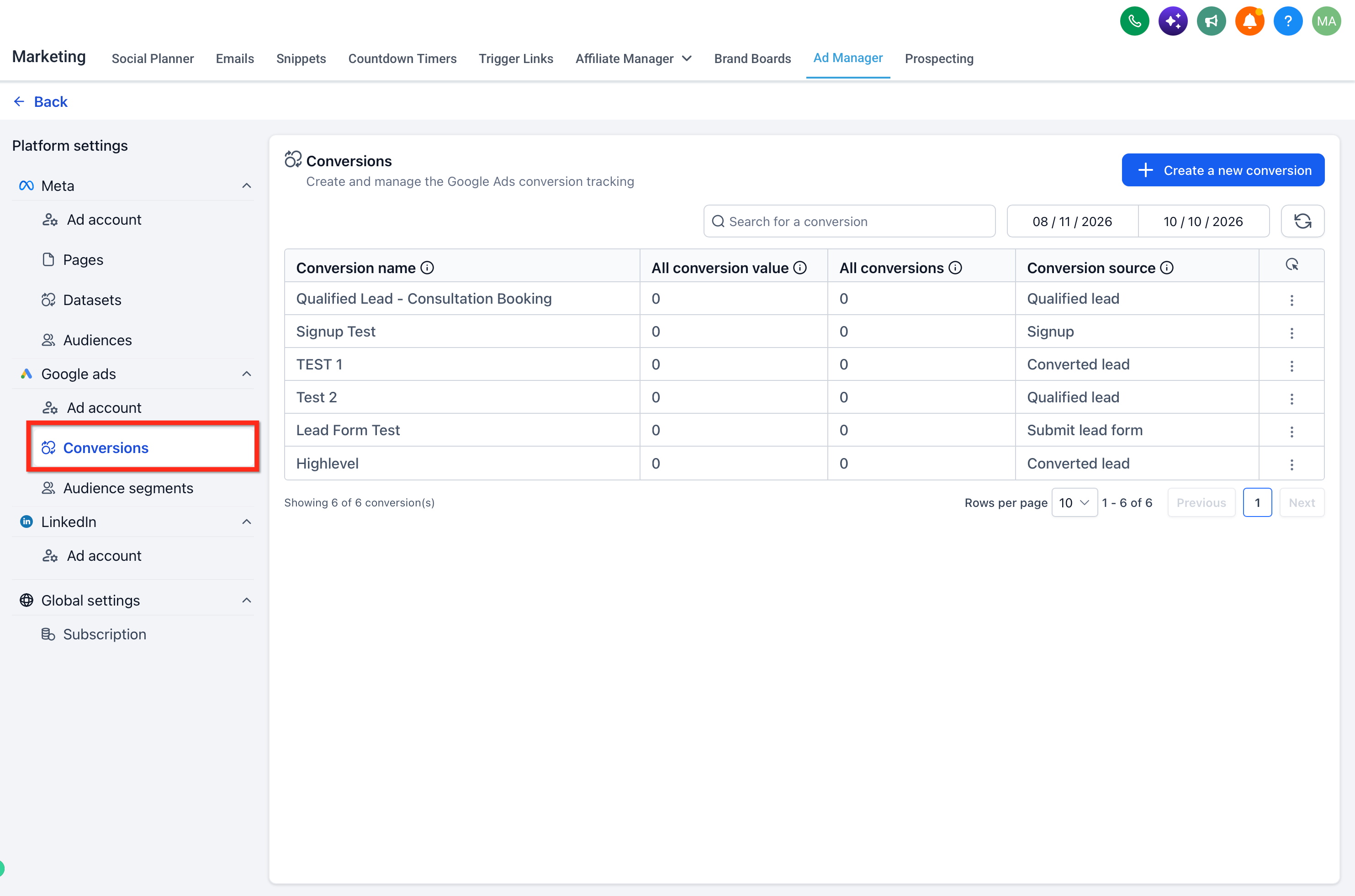
- Choose Google Ads under Platform Settings.
- Switch to the Conversions tab.
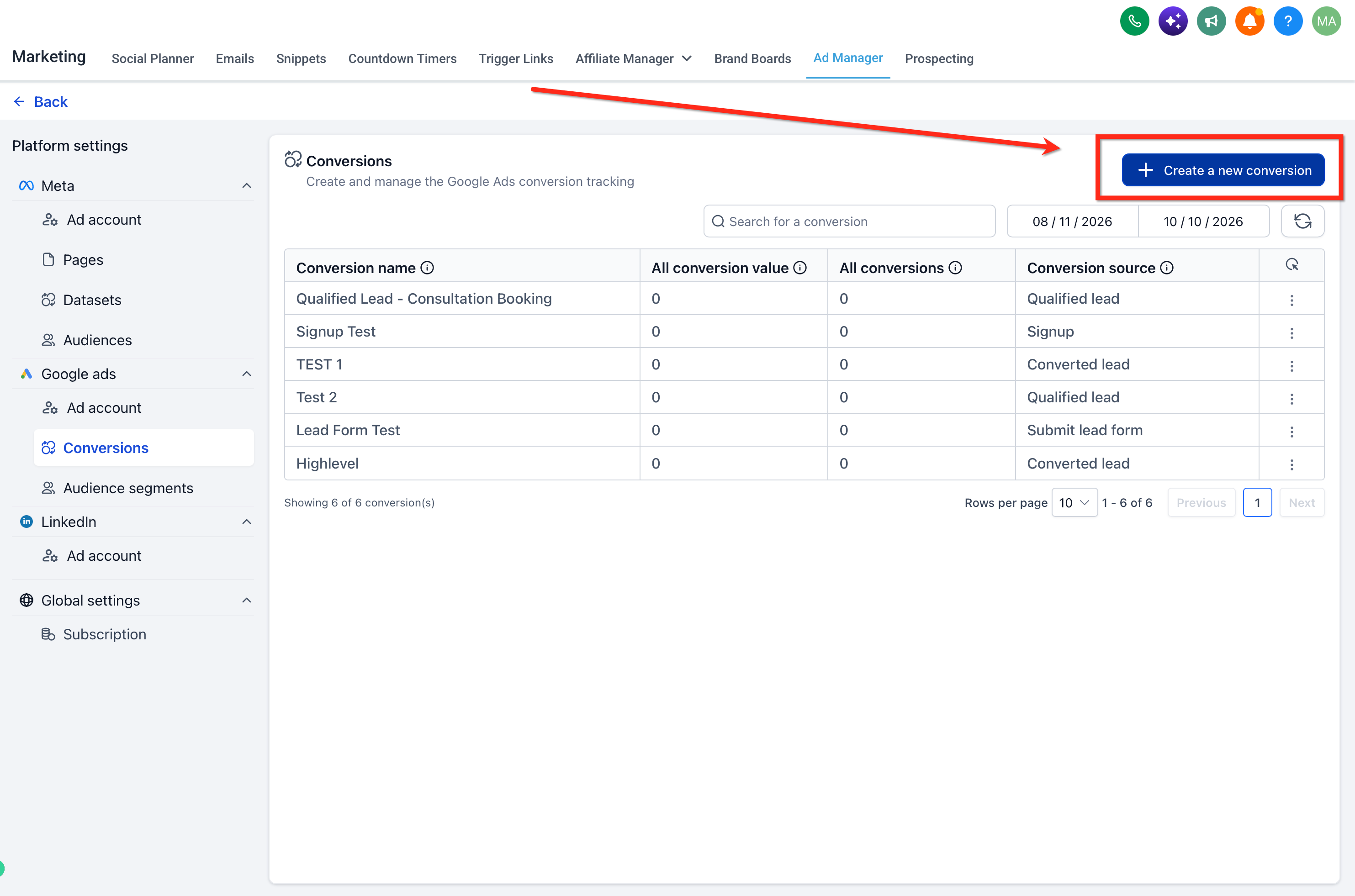
- Press the “+ Create a new conversion” button.
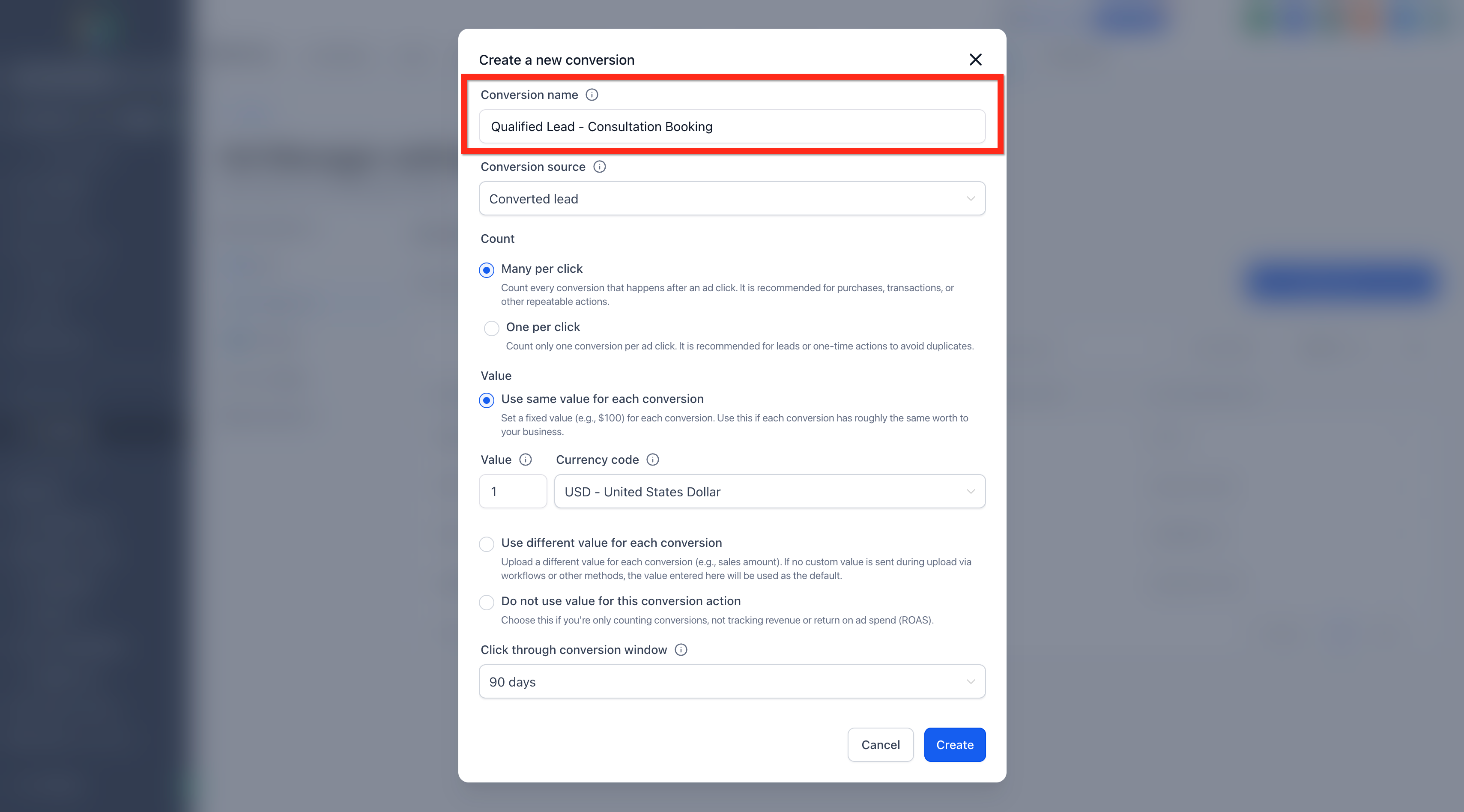
- Enter a clear, descriptive name for the conversion.
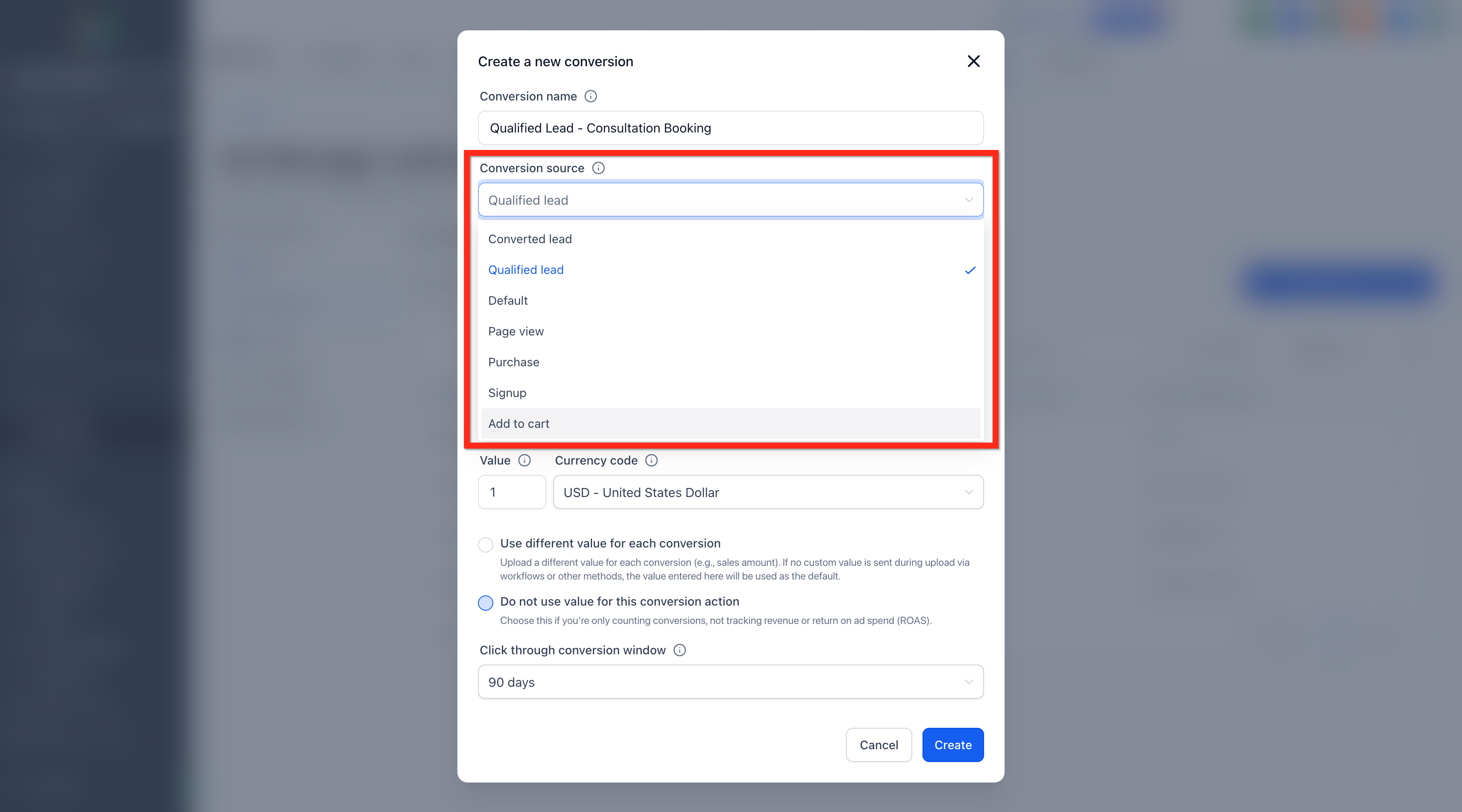
- Pick a conversion source from the dropdown list.
- Set the conversion count to Many per click or One per click.
- Define conversion value handling, fixed value, variable value, or no value, and provide any required amount and currency.
- Select a conversion window period and click Create to save the action.
- Note: Creating the action does not automatically record conversions; you must configure a workflow such as Add to Google Ads to send event data.
Edit or delete a conversion
- Click the three dot menu next to the conversion you wish to modify.
- Choose Edit to change the details or Delete to remove the action.
- Confirm the operation if a confirmation prompt appears.
- Warning: The attribution model is Data driven and cannot be changed in this flow.
07What it looks like in HighLevel
08Settings that matter
- Conversion Source. Specifies the category of offline event, such as Converted lead, Qualified lead, Purchase, or Signup.
- Conversion Count. Determines whether each ad click can generate many conversions or only one conversion for this action.
- Conversion Value. Controls whether a fixed monetary amount, varying amounts, or no monetary value is attached to each conversion.
- Conversion Window. Sets the period after an ad click during which conversions will be counted.
09Things to know before you rely on it
- Only offline conversion actions can be created; website conversions require separate setup.
- The attribution model is fixed to Data driven and cannot be changed within this flow.
- Only actions created through HighLevel can be edited or deleted from this view; actions made directly in Google Ads may have limited options.
- Creating an action does not automatically send conversion events; a workflow or other import method must be configured to transmit data.
- The conversion action is generated via the Google Ads API, so manual creation in Google Ads is not needed.
10How it connects to the rest of HighLevel
- Connect Google Ads to Ad Manager Google Ads connection guide
- Create a Google Search Ad Campaign in Ad Manager Search ad campaign setup
- HighLevel pricing and plans Pricing page
Michael's take

When you have a steady flow of leads or sales that happen outside of your website, setting up offline conversion actions in HighLevel keeps everything inside the platform.
If your business runs entirely online and all conversions happen on your site, you may prefer focusing on direct website conversion tracking.