
01Who this is for
- Email marketers can target contacts that meet specific engagement or tag criteria without manual list building.
- Sales teams can ensure that outreach emails automatically reach only the contacts who have recently interacted with the brand.
- Small business owners can reuse saved audience groups across multiple campaigns, reducing setup effort.
02Recipient segments, explained
Recipient Segments let you define dynamic contact groups using filters like tags, contact fields, email activity, or engagement. The filters determine which contacts belong to the segment at any moment.
The segment updates automatically whenever a contact’s data changes, entering or leaving the group as conditions are met or no longer met. After you save a segment, it can be selected for any future email campaign.
You build a segment while creating an email campaign. Open Marketing > Email > Campaigns, start or edit a campaign, and in the Email Builder’s Recipient (To) area choose Build Segments to configure the filters.
03How businesses use recipient segments
- Dental practice. The practice creates a segment that includes contacts tagged "Patient" and who have opened an email in the last 7 days. The saved segment is selected when sending reminder emails about upcoming appointments.
- Ecommerce store. The store builds a segment combining the tag "VIP" with the pre built segment "Contacts Engaged in Last 7 Days" to target recent shoppers with a promotional email. The segment is saved for future sales blasts.
- Coaching business. A coach adds an OR filter to capture contacts either tagged "WebinarAttendee" or who clicked a link in a previous email. The resulting segment is saved and applied when sending a follow up course offer.
04How to set up and use recipient segments in HighLevel
Build a recipient segment for an email campaign
- Navigate to Marketing > Email > Campaigns.
- Create a new campaign or open an existing one.
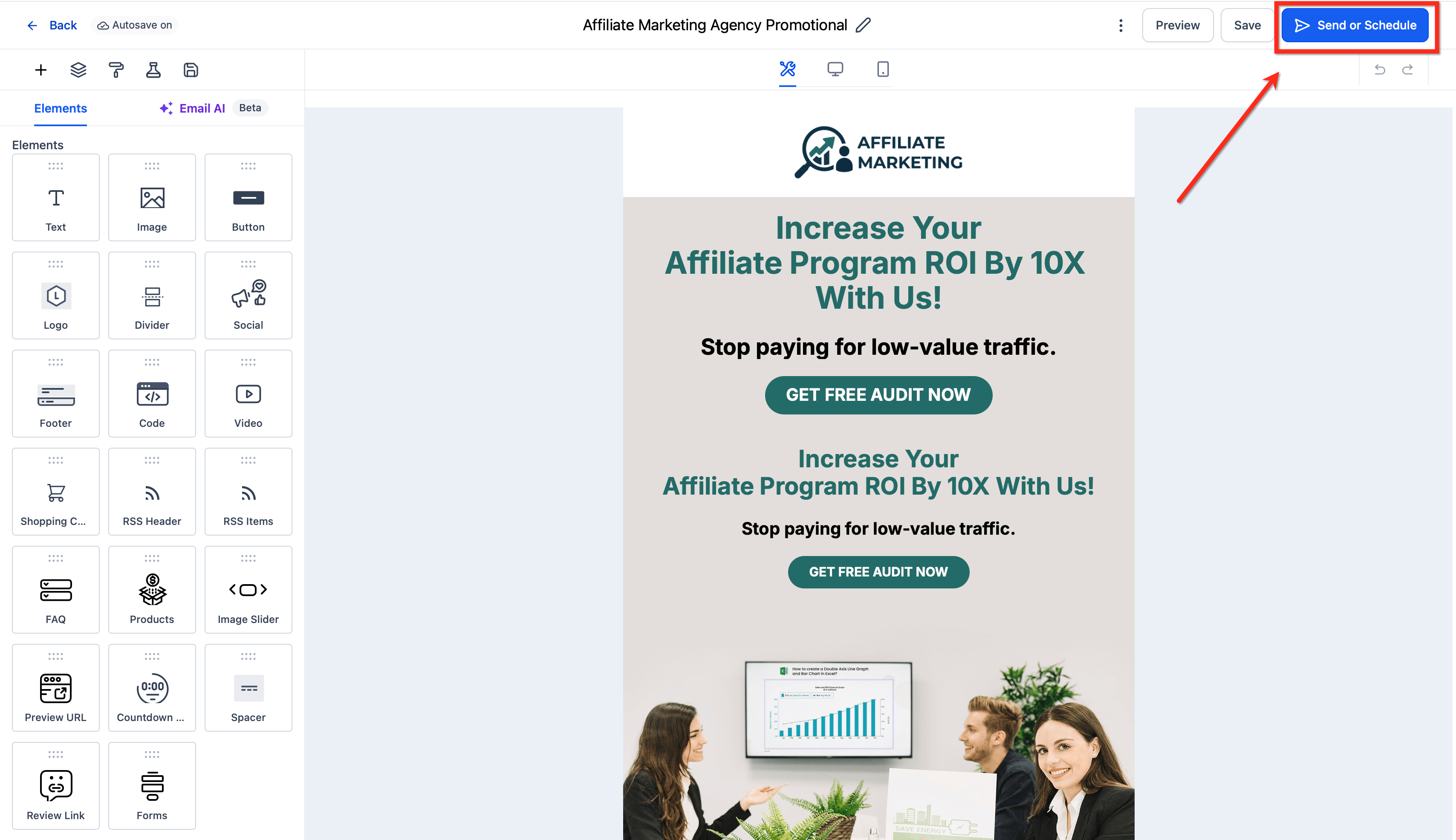
- In the Email Builder, click the Send or Schedule button.
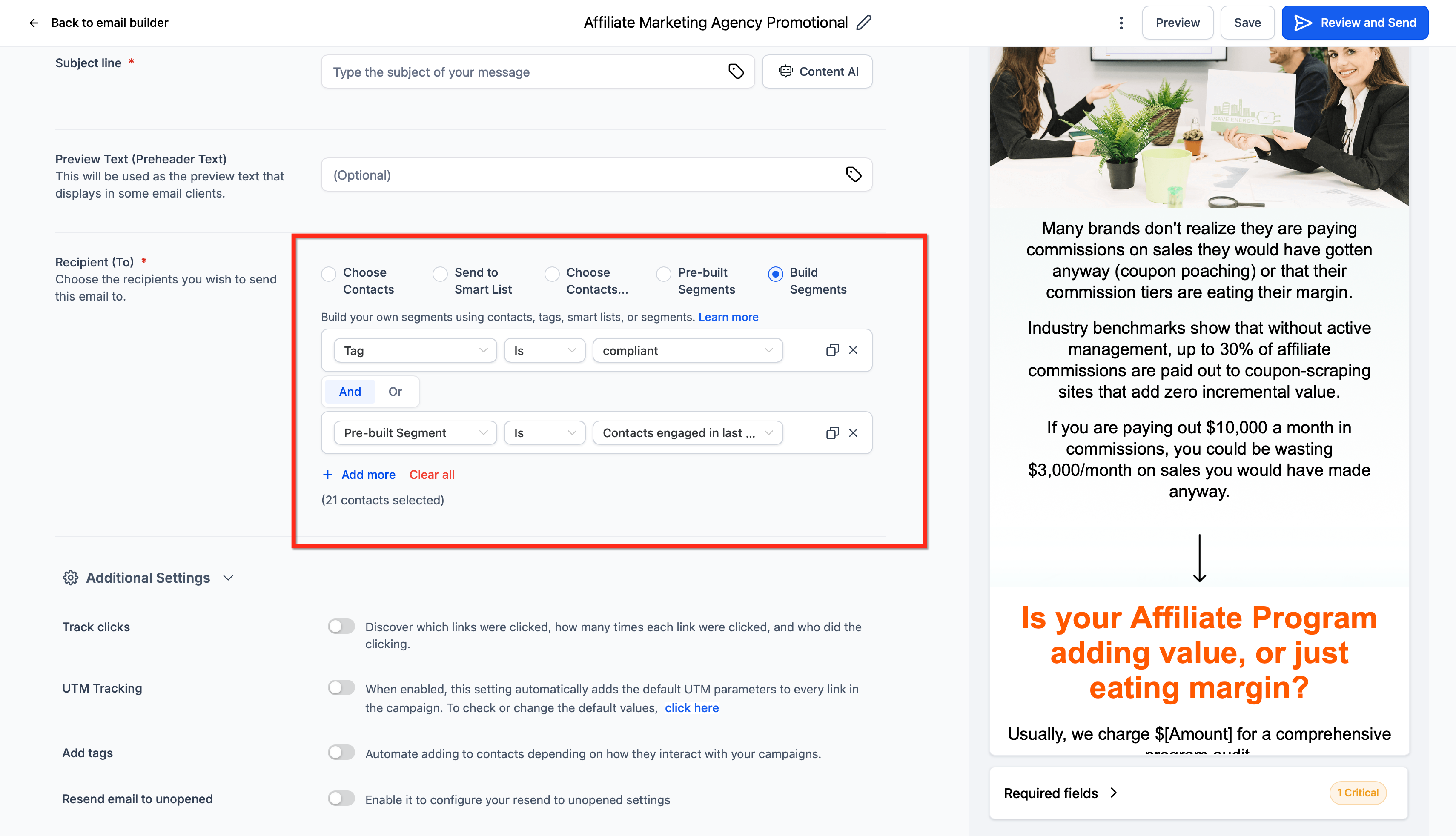
- In the Recipient (To) area, select Build Segments.
- Choose filter conditions such as a tag or a pre built segment.
- Add more conditions with Add Filter or create alternate groups with Add OR Filter.
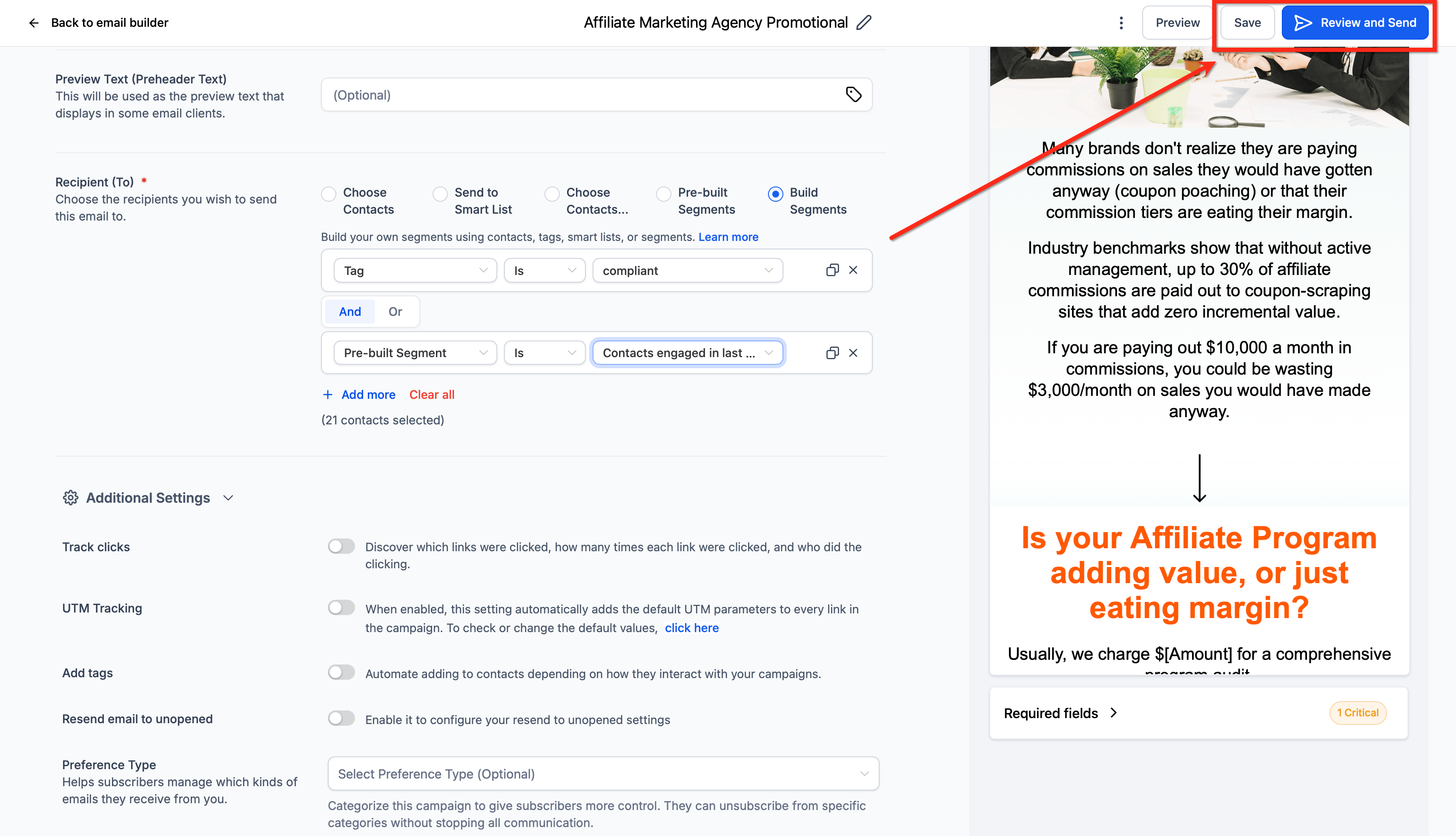
- Click Save to store the segment for future use, or continue to Review and Send.
05What it looks like in HighLevel
06Settings that matter
- Tag is. Filters contacts that have a specific tag applied.
- Pre Built Segment is. Filters contacts that belong to a predefined audience, such as Contacts Engaged in Last 7 Days.
- Add Filter. Adds another condition to the current filter group using AND logic.
- Add OR Filter. Creates an alternate condition group that is ORed with existing filters.
07How it connects to the rest of HighLevel
- Send or schedule the email once the segment is built Send or schedule email
- Preview and test your email template before sending Preview and test email
- View engagement metrics for emails sent to the segment Email statistics
Michael's take

Recipient segments give you a dynamic list that changes as your contacts do, and you can save a segment to reuse it across campaigns.
I’d set up a segment that pulls in anyone tagged as a recent buyer and who opened an email in the past week, then save it and reuse it across product launch emails.