
01Who this is for
- Event organizers who host in person gatherings; they can provide digital tickets that attendees can save to their phones.
- Marketing teams that send registration confirmations; they can embed wallet links to simplify the attendee experience.
02Event ticket wallet passes, explained
The feature creates a digital wallet pass for every ticket purchased for an in person event. The pass shows the event name, date, venue, ticket type, attendee name, and the QR code staff scan at the door. Attendees access the pass by tapping an Apple Wallet or Google Wallet badge in the ticket PDF or by clicking a wallet link in a confirmation message.
Wallet links are added through the event notification editor. Organizers edit the registration confirmation email, SMS, or WhatsApp message and insert the merge field {{event.ticket.wallet_links}}. The platform then inserts a unique link for each ticket, which displays the appropriate wallet badge. The same badges appear on the PDF that HighLevel can attach to the confirmation email.
03How businesses use add event tickets to Apple Wallet and Google Wallet
- Fitness studio. The studio adds the wallet merge field to its registration confirmation email so members can save their class passes to Apple or Google Wallet. Attendees open the email, tap the badge, and store the pass for quick check in at the studio.
- Conference organizer. The organizer enables the PDF attachment with wallet badges and includes the wallet link merge field in the confirmation SMS. Attendees receive the PDF, tap the badge on their phone, and have a digital pass ready for venue entry.
- Wedding planner. The planner creates a multi ticket registration for a wedding ceremony. Each guest receives an individual wallet link, ensuring the correct guest name and ticket type appear on each saved pass.
04Before you start
- The event must be set as an in person event.
- Attendees must complete a ticket purchase or registration.
- Apple Wallet is used on iPhone when that option is selected.
- Google Wallet is used on Android when that option is selected.
05How to set up and use add event tickets to Apple Wallet and Google Wallet in HighLevel
Add wallet links to registration confirmation notifications
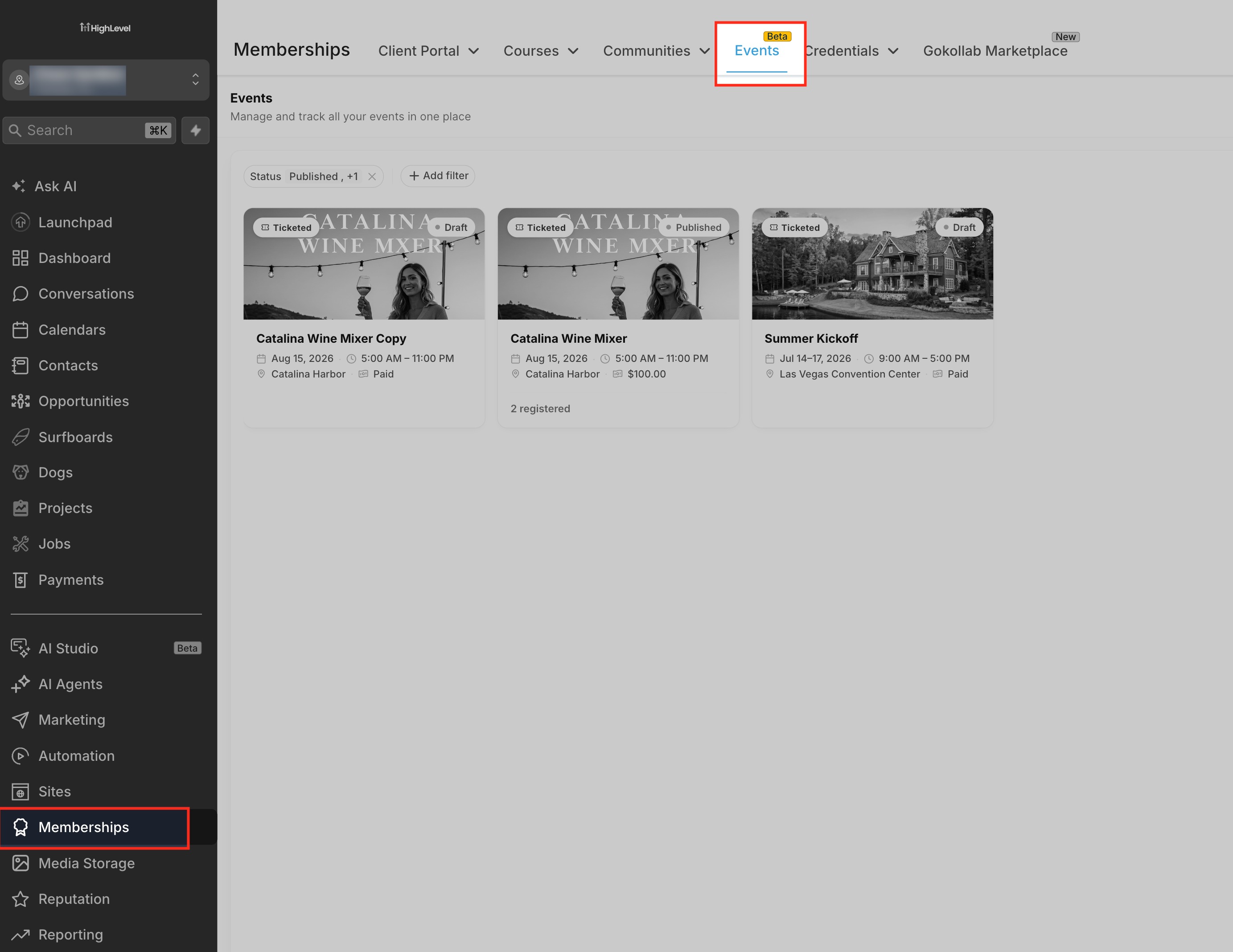
- From the Subaccount view, select Memberships in the left sidebar.
- Select Events from the top navigation.
- Open the applicable in person event.
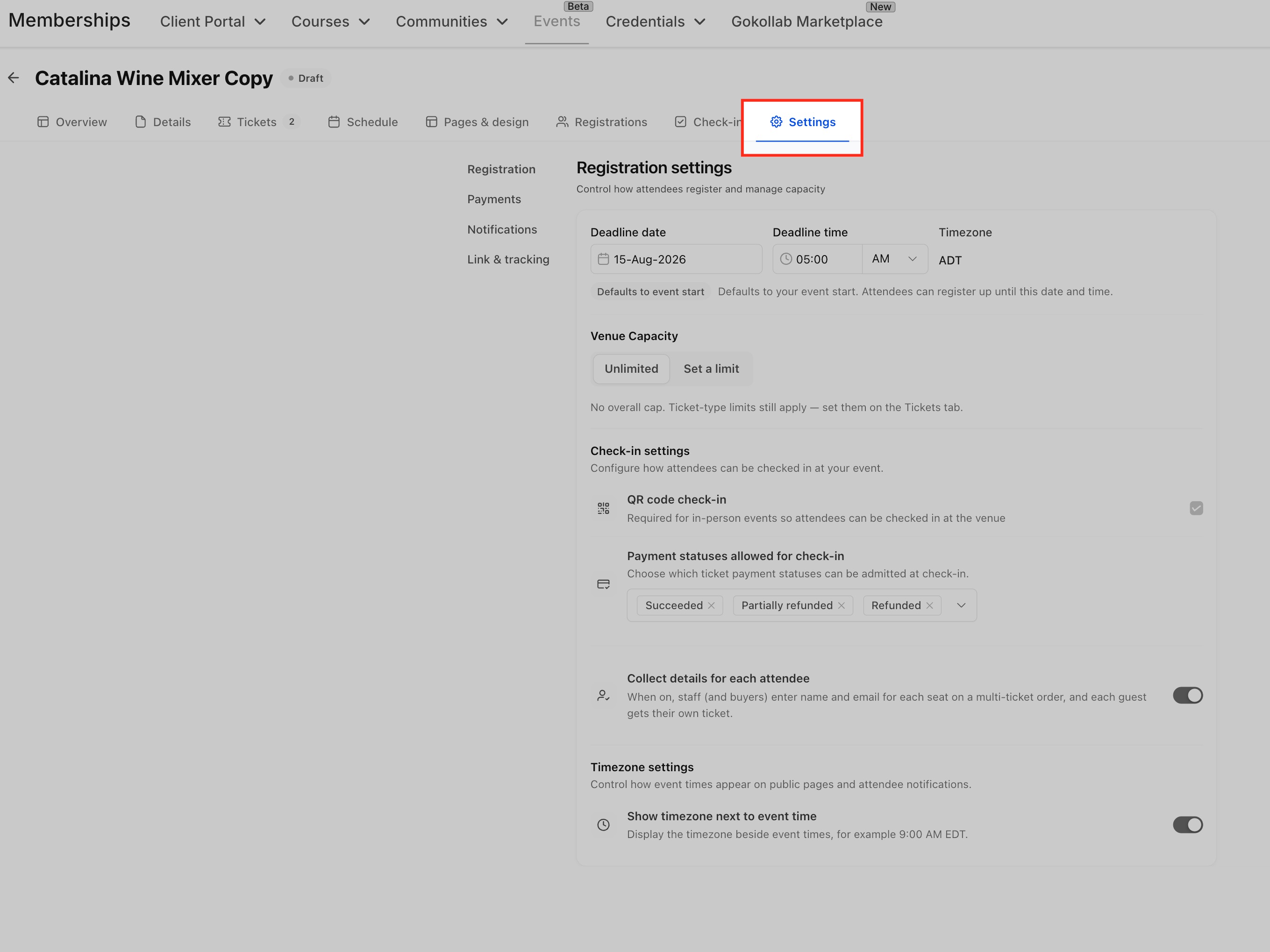
- Select Settings from the event navigation.
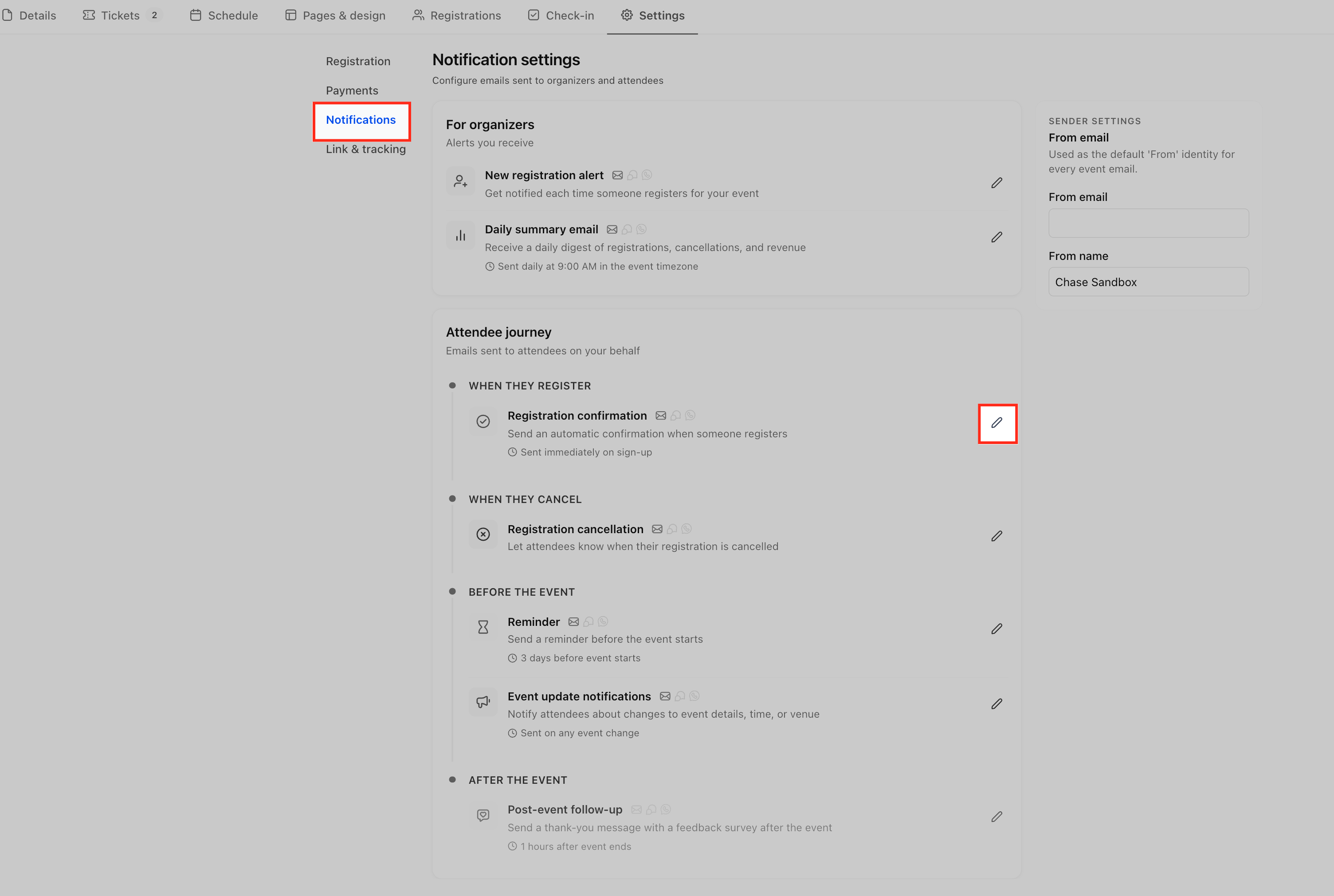
- Select Notifications from the Settings menu.
- Under Attendee journey, locate Registration confirmation beneath WHEN THEY REGISTER.
- Click the pencil icon on the right side of Registration confirmation.
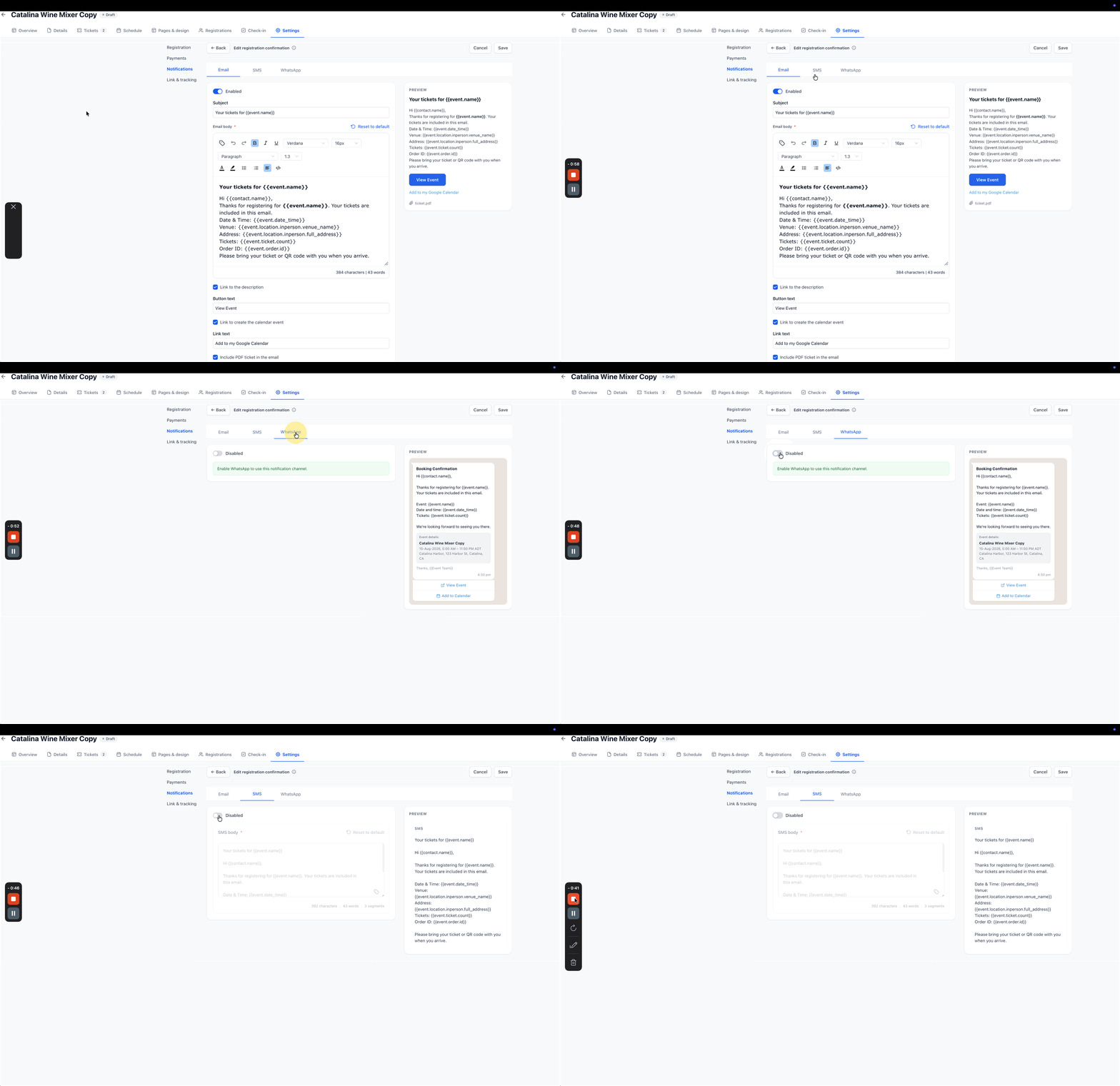
- Select the Email, SMS, or WhatsApp tab for the notification you want to update.
- Add the Wallet Links merge field to the message content: {{event.ticket.wallet_links}}.
- Click Save in the top right corner.
Save ticket from the PDF
- Open the event ticket PDF received with the registration.
- Locate the Apple Wallet or Google Wallet badge.
- Use the appropriate wallet option for the attendee's device.
- Follow the device prompts to save the pass.
Register and add ticket to a wallet
- Register for or purchase a ticket to an in person event.
- Complete the required registration or checkout steps.
- On the post registration screen, select the wallet option for the device.
- On iPhone, tap the Apple Wallet badge to save the ticket.
- On Android, tap the Google Wallet badge to save the ticket.
- On other supported devices, use the generic Add to Wallet option.
- Open the saved pass when arriving at the venue.
- Present the QR code on the pass for event check in.
06What it looks like in HighLevel
07Settings that matter
- Wallet Links merge field. Inserts a unique wallet URL for each ticket into the selected notification, allowing attendees to open a pass in Apple or Google Wallet.
- Include PDF ticket in the email. When enabled, the confirmation email attaches the ticket PDF that contains the Apple and Google Wallet badges.
08Things to know before you rely on it
- Wallet passes work only for in person events; online events do not generate passes.
- The feature does not specify minimum iOS or Android versions required.
- Device specific behavior beyond iPhone and Android is not documented; other devices show a generic Add to Wallet option.
09How it connects to the rest of HighLevel
- Create and manage events in HighLevel Create events
- Check in attendees with the HighLevel event app Check in guide
- Embed event pages on any website Embed events
Michael's take

Adding wallet passes gives in person attendees a ticket that works with the existing check in flow.
Don’t forget to add the wallet merge field in your confirmation messages so attendees can receive the wallet link.