
01Who this is for
- Founders who manage Facebook ad spend need a quick way to correct mistakes without pausing and recreating campaigns.
- Marketing managers in agencies benefit from updating client creatives while keeping the original campaign structure intact.
- Small business owners running lead generation ads can adjust form selections or website URLs on live campaigns.
02Editing published meta campaigns, explained
The feature opens a campaign that is already Published or In Review and presents the campaign builder so eligible fields can be changed. Editable fields include the campaign name, CTA button, lead generation form, website URL, special ad category, placements, ad text and media, budget, geographic location, target audience, and end date. Fields such as campaign objective, Facebook page, start date, and budget type stay locked after the campaign is submitted.
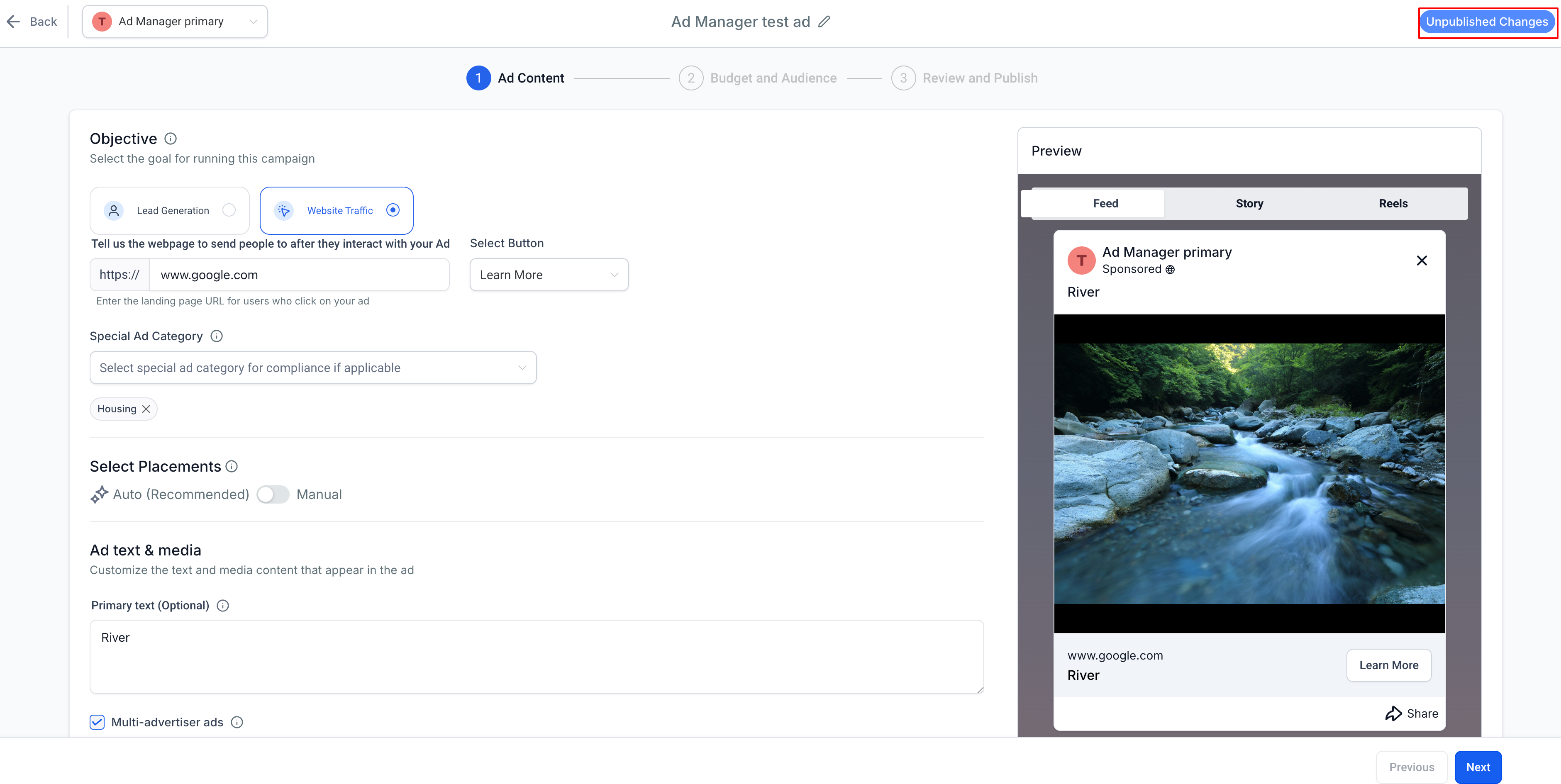
When any change is made, HighLevel marks the campaign with an “Unpublished Changes” tag. The updates remain hidden from Meta until you click Publish Ad Now. After confirmation, the campaign moves to an In Review state where Meta evaluates the edits. If Meta approves, the campaign goes live again; if errors are detected, the status changes to Failed and a tooltip explains the issue.
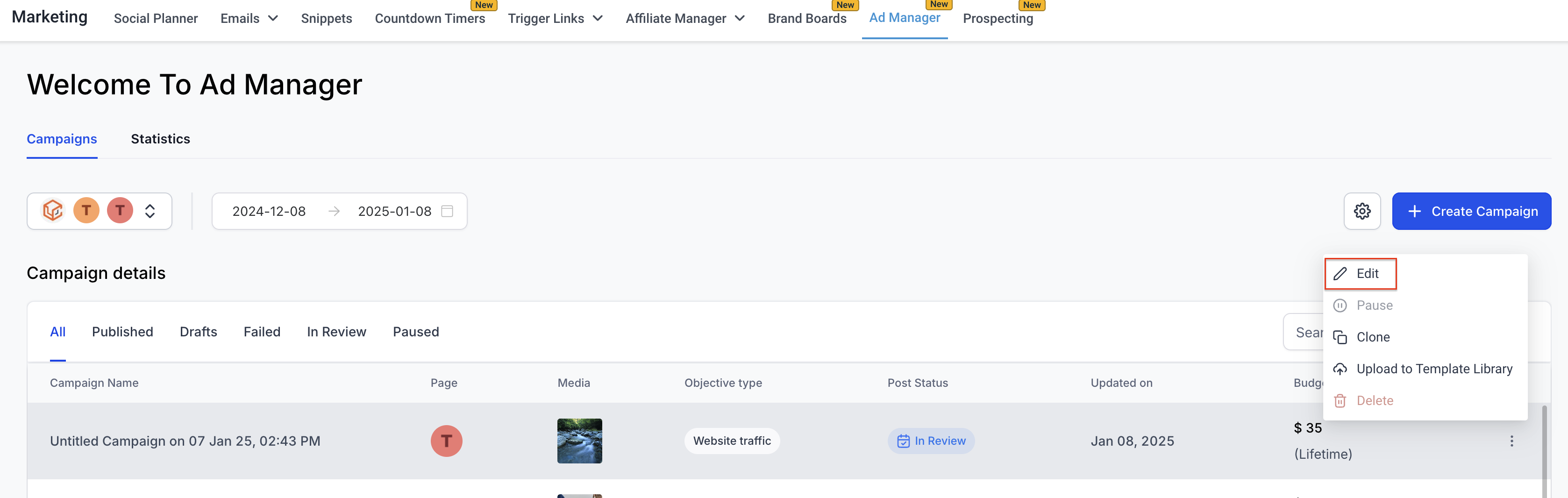
The editing workflow is accessed from the Ad Manager home page, where all campaigns are listed. The edit option appears in the inline ellipsis menu for each campaign, and the same builder interface is used for both new and edited campaigns.
03How businesses use editing a published or in review meta campaign
- Ecommerce store. The owner opens a live sales drive campaign, swaps the product image in the Ad Text and Media fields, and republishes. The change is submitted for Meta review without recreating the ad set.
- Real estate agency. An agent edits the website URL in a campaign targeting property seekers, then publishes the update. The revised link directs leads to a newly added listing page.
- Dental practice. The practice changes the CTA button from “Learn More” to “Book Appointment” in a lead generation campaign, discards any other edits, and saves the change for Meta approval.
04Before you start
- A Meta campaign must already be in the Published or In Review state.
- The user must have access to the HighLevel Ad Manager.
05How to set up and use editing a published or in review meta campaign in HighLevel
Open campaign for editing
- Navigate to the Ad Manager home page where all campaigns are listed.
- Locate the live or in review campaign you want to edit.
- Click the Edit option in the inline ellipsis menu for that campaign.
- The campaign builder opens and an “Unpublished Changes” tag appears once you begin editing.
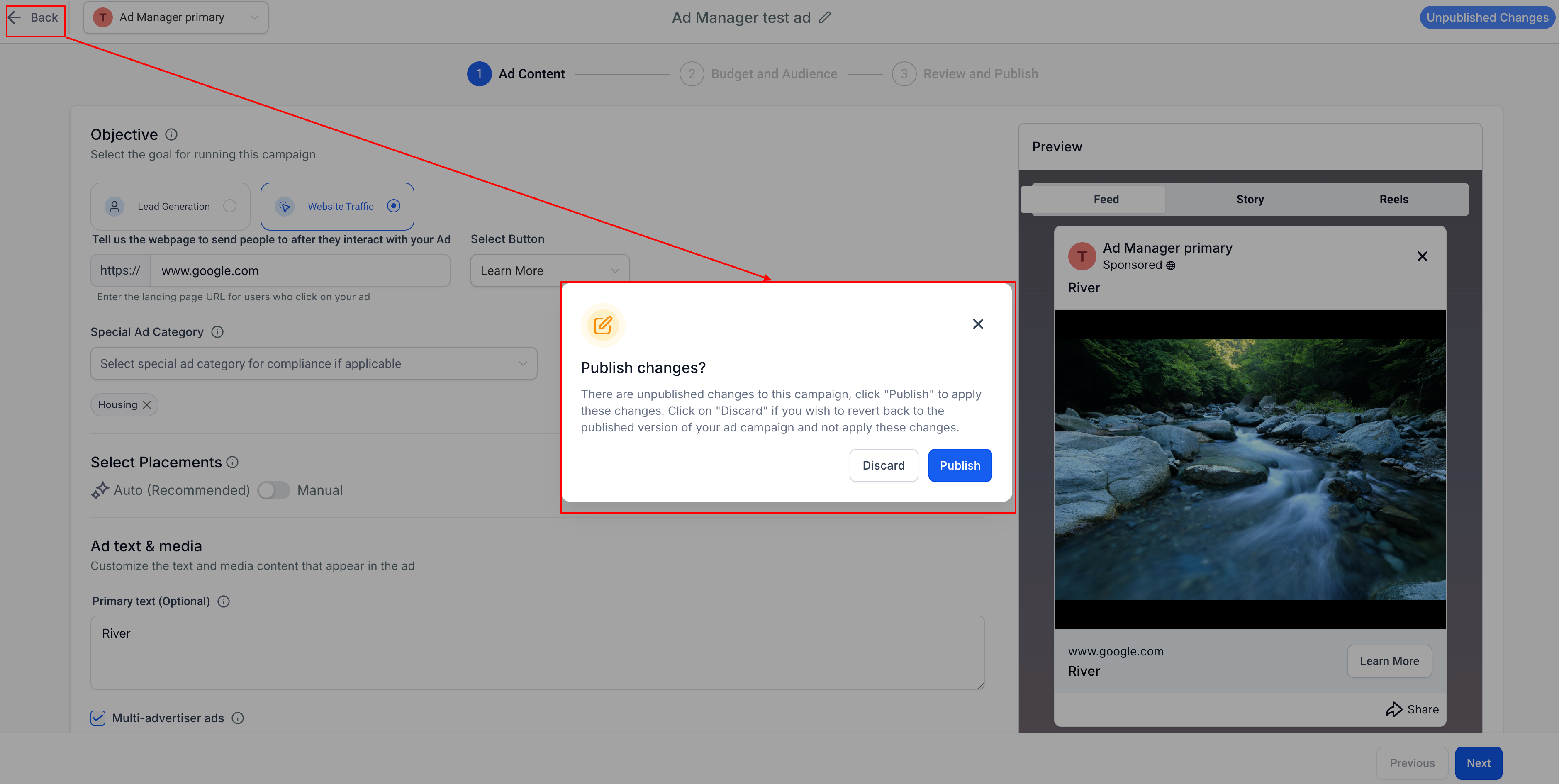
Discard changes
- Click the Back button at the top left of the campaign builder screen.
- When the prompt appears, select the Discard option.
- The editor closes and the original campaign remains unchanged.
Publish updated campaign
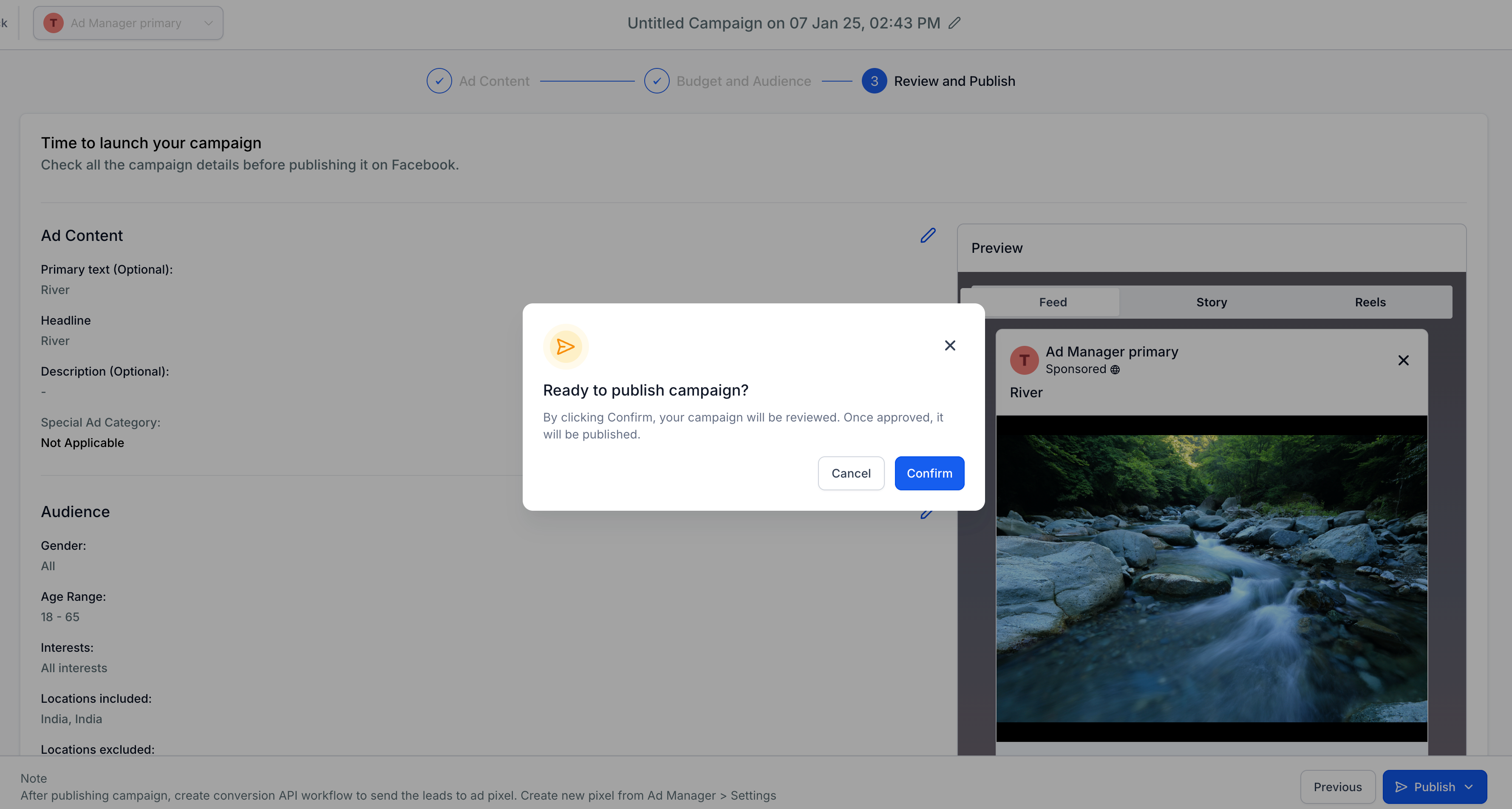
- After editing, click the Publish Ad Now button on the review page.
- Confirm the action in the dialog that follows.
- The campaign status changes to In Review while Meta reviews the changes.
- If Meta approves, the campaign goes live; if errors occur, a Failed status with a tooltip explains the reason.
06What it looks like in HighLevel
07Settings that matter
- Campaign Name. Controls the title of the campaign as shown in reports and the Ads Manager.
- CTA Button. Sets the call to action label displayed on the ad.
- Lead Generation Form. Allows switching to a different lead form or creating a new one when the campaign objective is Lead Generation.
- Website. Specifies the destination URL for campaigns with a Website Traffic objective.
- Special Ad Category. Adds or changes the required special category such as Housing, Employment, or Credit.
- Placements. Updates the locations where the ad will appear; Instagram Explore Feed is no longer selectable for new edits.
- Ad Text and Media. Replaces the headline, description, images, or video used in the ad.
- Budget. Alters the amount of money allocated to the campaign while keeping the same budget type.
- Geographic Location. Modifies the targeted countries, regions, or cities.
- Target Audience. Changes interests, lookalike, or retargeting parameters for the ad set.
- End Date. Updates the campaign’s end date when a lifetime budget is used.
08Things to know before you rely on it
- Instagram Explore Feed placement cannot be added to edited campaigns; existing campaigns that already use it continue to run.
- Campaign Objective, Facebook Page, Start Date, and Budget Type are locked and cannot be altered after publication.
- Changes remain unpublished until the user clicks Publish Ad Now; they are then subject to Meta review.
- If edited fields cause errors, the campaign status will change to Failed and a tooltip will show the reason.
09If something goes wrong
- Campaign shows Failed status after publishing changes. Hover over the tooltip next to the Failed status to view the error reason, correct the indicated field, and attempt to publish again.
10How it connects to the rest of HighLevel
- Create a new Facebook ad campaign in HighLevel Create new Facebook ad
- Set geographic and audience targeting for Meta ads Audience controls
- View, filter, and export ad campaign statistics Ad manager statistics
- Explore pricing and plan options for HighLevel Pricing
Michael's take

Editing a live Meta campaign in HighLevel is worth the effort for any small business that wants to keep ad spend effective without recreating ads from scratch. It lets you fix targeting or creative mistakes quickly.
Don’t assume you can change the campaign objective after it’s published.