
01Who this is for
- Advertisers who run campaigns in HighLevel Ad Manager and need performance insight.
- Marketing teams that track ad metrics to optimise spend and targeting.
02Statistics of ad campaigns, explained
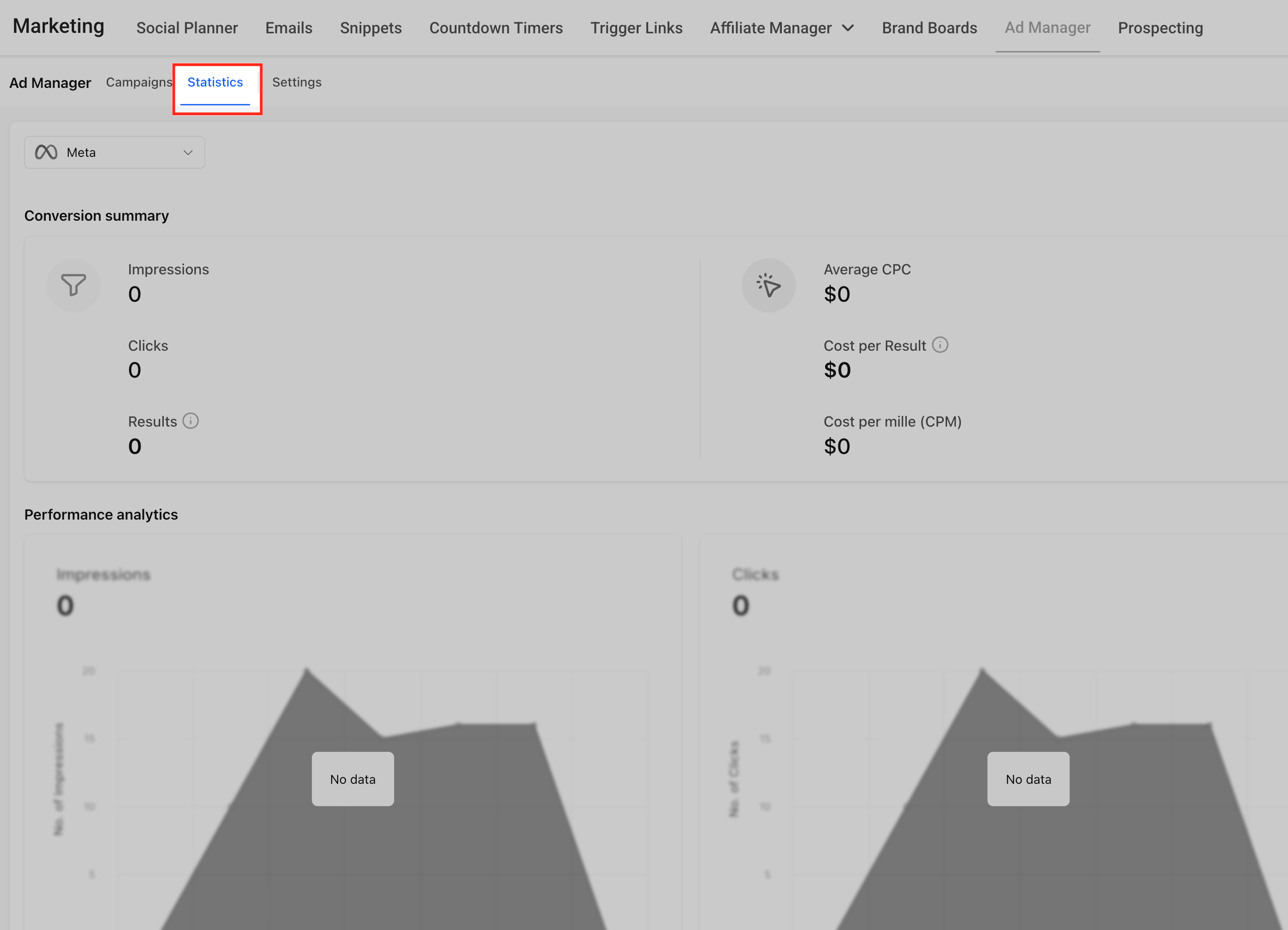
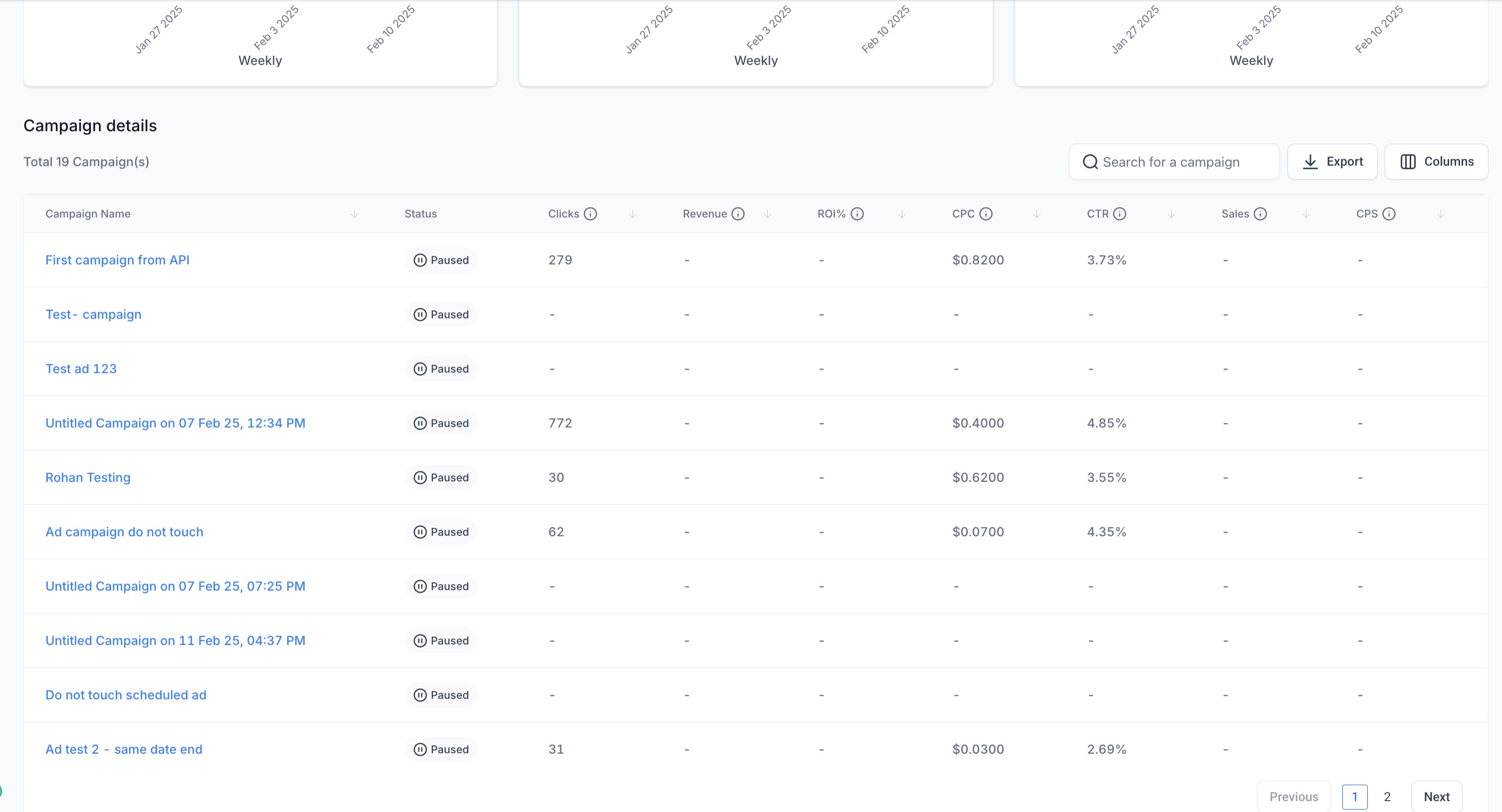
In HighLevel the Statistics tab lives on the Ad Manager home screen alongside the Campaigns tab. Selecting it opens a dashboard that aggregates metrics for every published or paused campaign. The view includes clicks, spend, ROI, CPC, CTR, leads, sales and other key numbers.
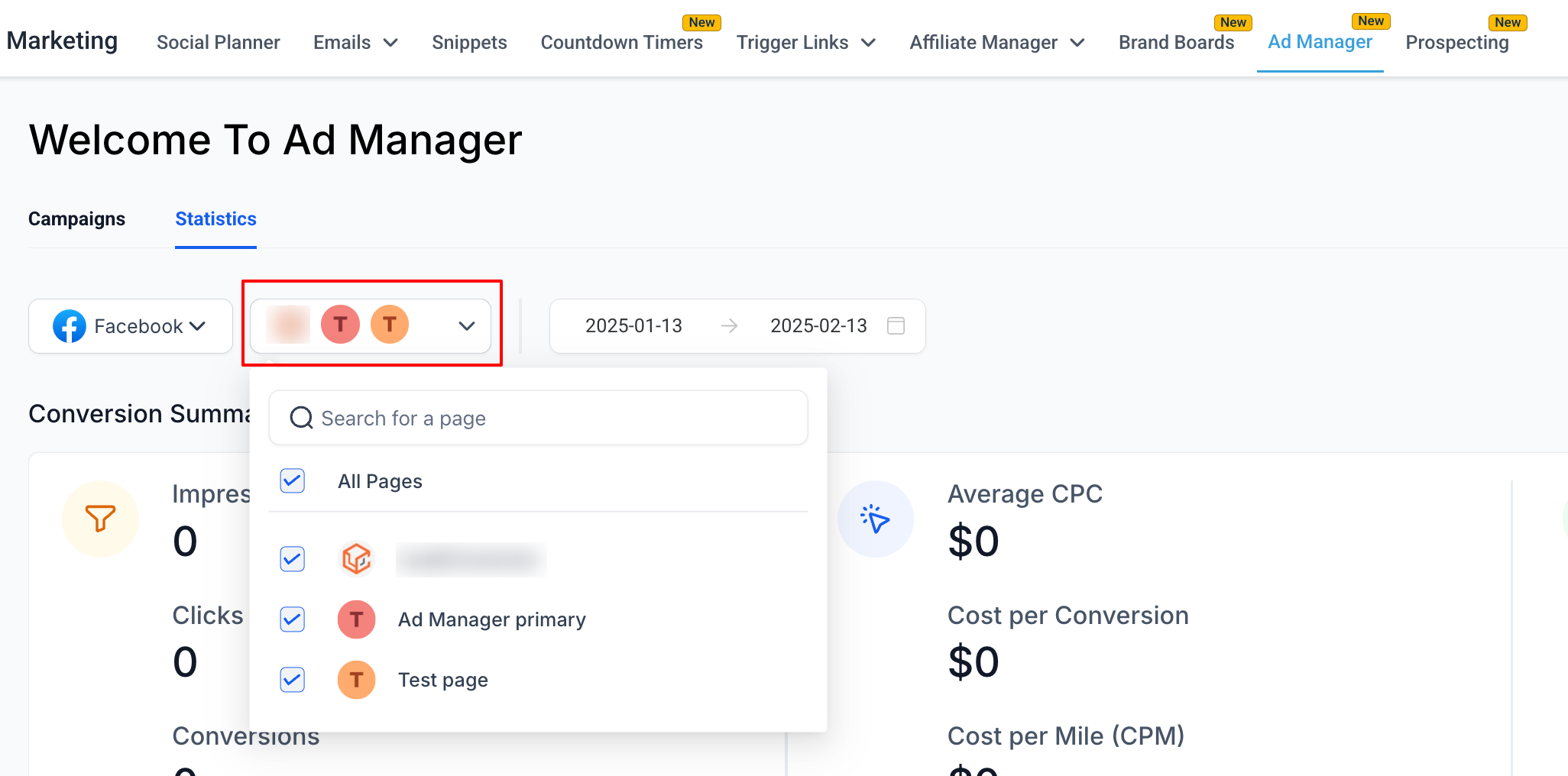
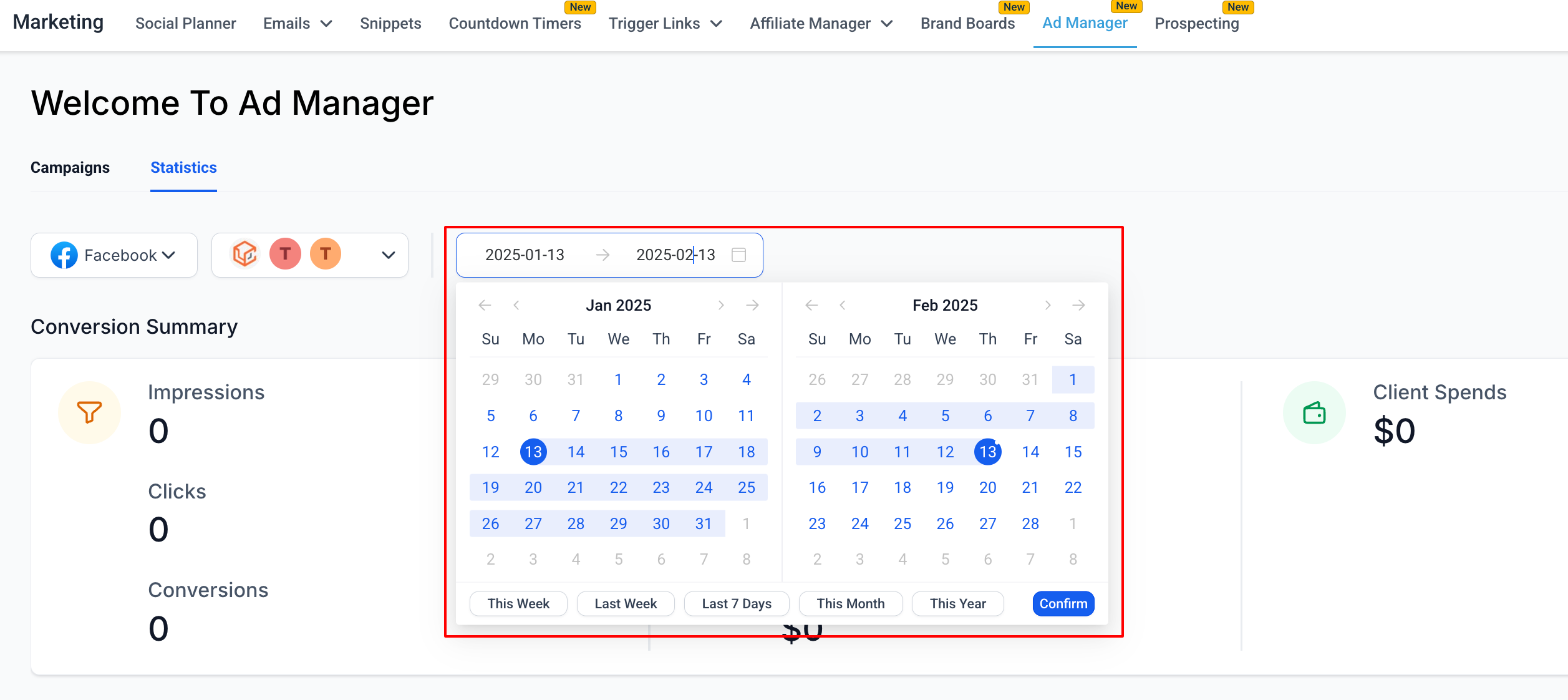
The page offers platform filters for Google or Facebook, optional page selectors for Facebook, and a date range picker to narrow the data window. Columns in the table can be toggled on or off, letting users display only the metrics they need. For Meta campaigns, users can drill deeper into ad set and individual ad performance.
Leads and sales values that are greater than zero display an icon. Clicking the icon opens a modal with detailed lead or opportunity information and a button to export that data as a CSV file.
03How businesses use statistics of ad campaigns
- Real estate agency. The agency opens the Statistics tab, filters the view to Facebook campaigns, and reviews the leads column to see which property ads generated inquiries. It then exports the leads list as a CSV to import into its follow up workflow.
- Fitness studio. The studio selects the date filter to see performance for the last month, customizes the columns to show ROI% and CPC, and analyses the data to decide which ad sets to increase spend on.
- Ecommerce retailer. The retailer drills into a specific Meta campaign, navigates to the ad set level, and checks the sales and CPS metrics to identify the most profitable creatives before exporting the sales data for accounting.
04The numbers and rules that matter
- Metrics include Clicks, Revenue, ROI%, CPC, CTR, Sales, CPS, Leads, Results, CPL, Impressions, Spend, Reach, Frequency.
05How to set up and use statistics of ad campaigns in HighLevel
View overall statistics for all campaigns
- Click the Statistics tab on the Ad Manager home screen.
- Observe the table that lists metrics for all published and paused campaigns.
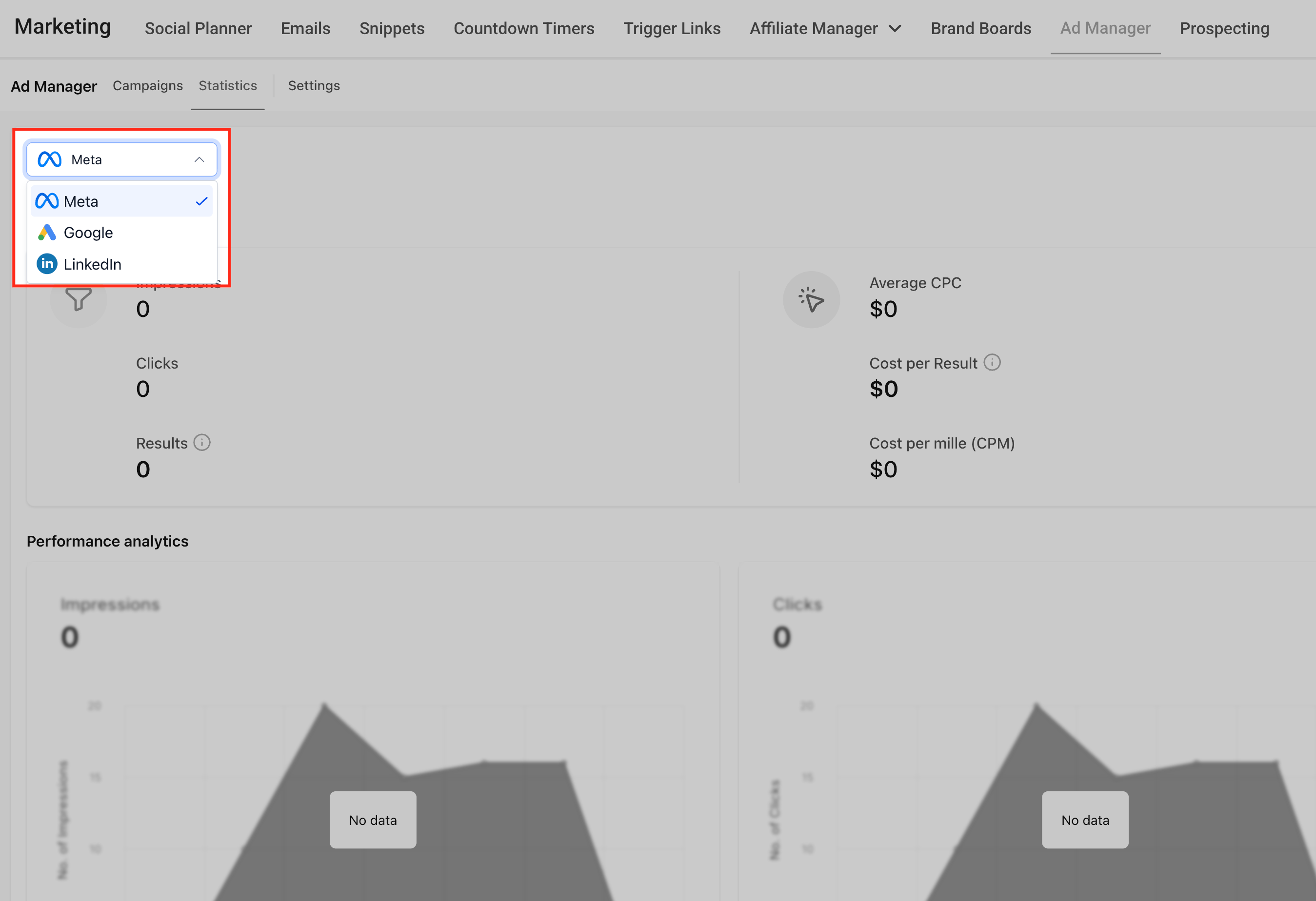
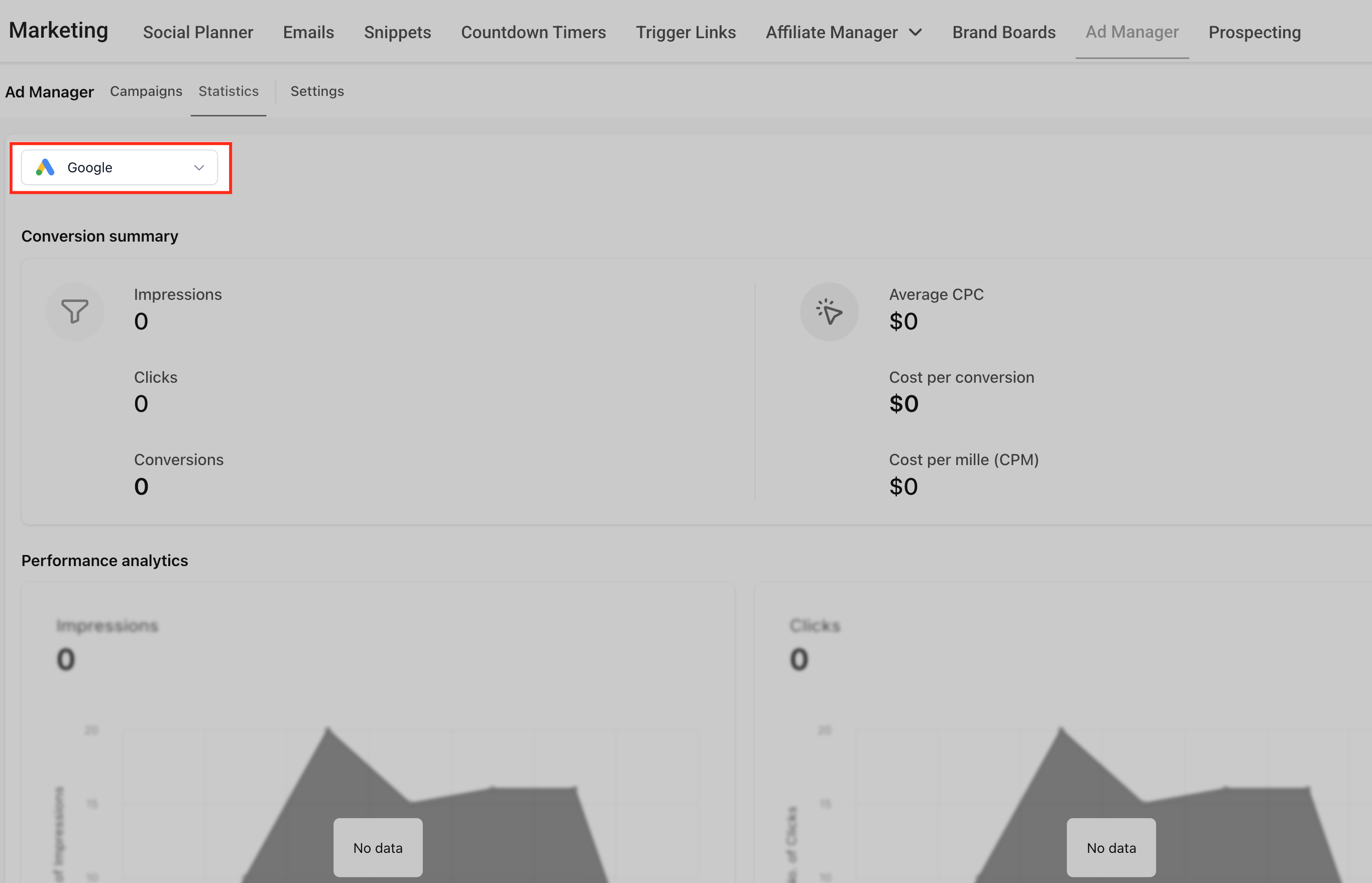
- Select the platform filter at the top left to choose Google or Facebook.
- If viewing Facebook, choose a page from the page selector dropdown to narrow results.
- Apply a date range using the date filter to limit the data period.
- Adjust the visible columns by selecting or deselecting the desired metric checkboxes.
View statistics for an individual campaign
- In the Statistics tab, locate the table row for the desired campaign.
- Click the campaign name to open its dedicated statistics page.
- Review the campaign specific metrics displayed on the new page.
- Customize the column view by selecting which metric columns to show.
- For Meta campaigns, drill down to ad set and then to individual ad performance if needed.
- Use the date filter to show stats for the chosen time window.
Export leads or sales data from a campaign
- Find the leads or sales icon next to a non zero value in the statistics table.
- Click the icon to open a modal showing detailed leads or opportunities closed.
- Press the Export button in the modal to download the data as a CSV file.
06What it looks like in HighLevel
07Settings that matter
- Platform filter. Lets you restrict the displayed metrics to either Google or Facebook campaigns.
- Page filter. Allows selection of a specific Facebook page so only campaigns attached to that page appear.
- Date filter. Defines a custom date range to limit the statistics shown for all campaigns or for a single campaign.
- Column selector. Enables you to choose which metric columns are visible in the statistics tables.
08Things to know before you rely on it
- Leads and sales export icons appear only when the corresponding count is greater than zero.
- Metrics update in real time, reflecting the latest ad performance.
09If something goes wrong
- Data discrepancies appear in the statistics view.. Check the currently applied filtering settings such as platform, page, and date range.
10How it connects to the rest of HighLevel
- Create Facebook ad campaigns in HighLevel Create Facebook ads
- Use ad manager templates to launch campaigns quickly Ad manager templates
- Set up custom audiences for better targeting Custom audiences
Michael's take

I find the statistics view helpful for monitoring campaign performance and making data driven adjustments.