
01Who this is for
- Founders who want a single place to launch conversation driving ads and keep messaging under control.
- Small businesses that rely on direct chats to answer customer questions and capture leads.
- Marketing teams that need to align ad spend with real time messaging engagement.
02Meta engagement ads with messaging apps, explained
A Meta Engagement ad with Messaging Apps is a campaign type that moves a viewer from the ad into a supported Meta messaging channel such as Facebook Messenger, Instagram Direct, or WhatsApp. The ad uses the Engagement objective and can include a Conversation Form that greets the user, offers quick replies, and provides automated responses.
The entire setup lives in HighLevel’s Ad Manager. You create the campaign, choose the Facebook page and any linked Instagram account, select the messaging apps, build the Conversation Form, define placements, creative, budget, audience and then publish. After publishing, performance data appears in the Ad Manager Statistics view.
03How businesses use Meta engagement ads with messaging apps
- Real estate agency. The agency selects Messenger and Instagram Direct, builds a Conversation Form with property type quick replies, and publishes the ad. Prospects click the ad and are taken straight to a chat where the form greets them and offers FAQ answers.
- Fitness studio. The studio adds a WhatsApp number to its Facebook page, creates a Conversation Form that lists class schedules, and runs an Engagement ad. When users tap the ad, they start a WhatsApp chat that automatically receives the studio’s greeting and schedule options.
- Ecommerce store. The store enables all three messaging apps, crafts a Conversation Form with product category quick replies, and launches the ad. Shoppers who click are routed to the most suitable app, receive an automated welcome, and can ask about offers directly in the chat.
04Before you start
- Onboarding for the subaccount must be finished.
- A Facebook page must be connected to the HighLevel account.
- If Instagram Direct is desired, an Instagram account must be linked to that Facebook page.
- If WhatsApp is selected, WhatsApp numbers must be added to the Facebook page.
05How to set up and use Meta engagement ads with messaging apps in HighLevel
Access Ad Manager
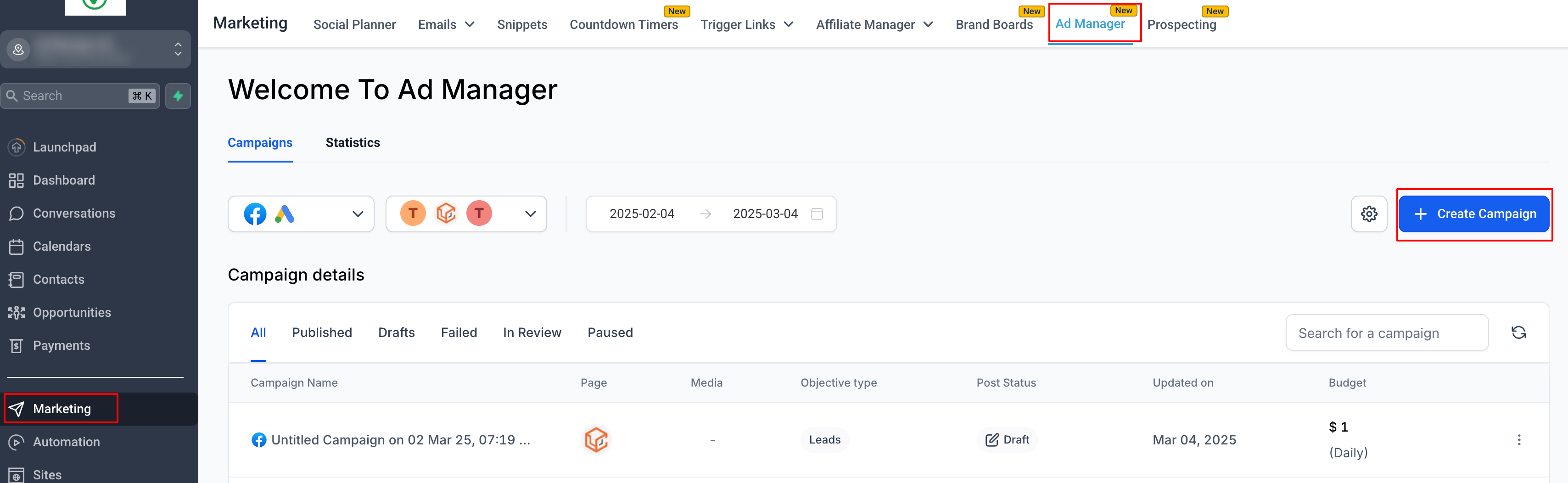
- Open subaccount > Marketing > Ad Manager.
- Click + Create Campaign.
- Select Facebook Campaign and start from scratch.
Choose Facebook page and Instagram account
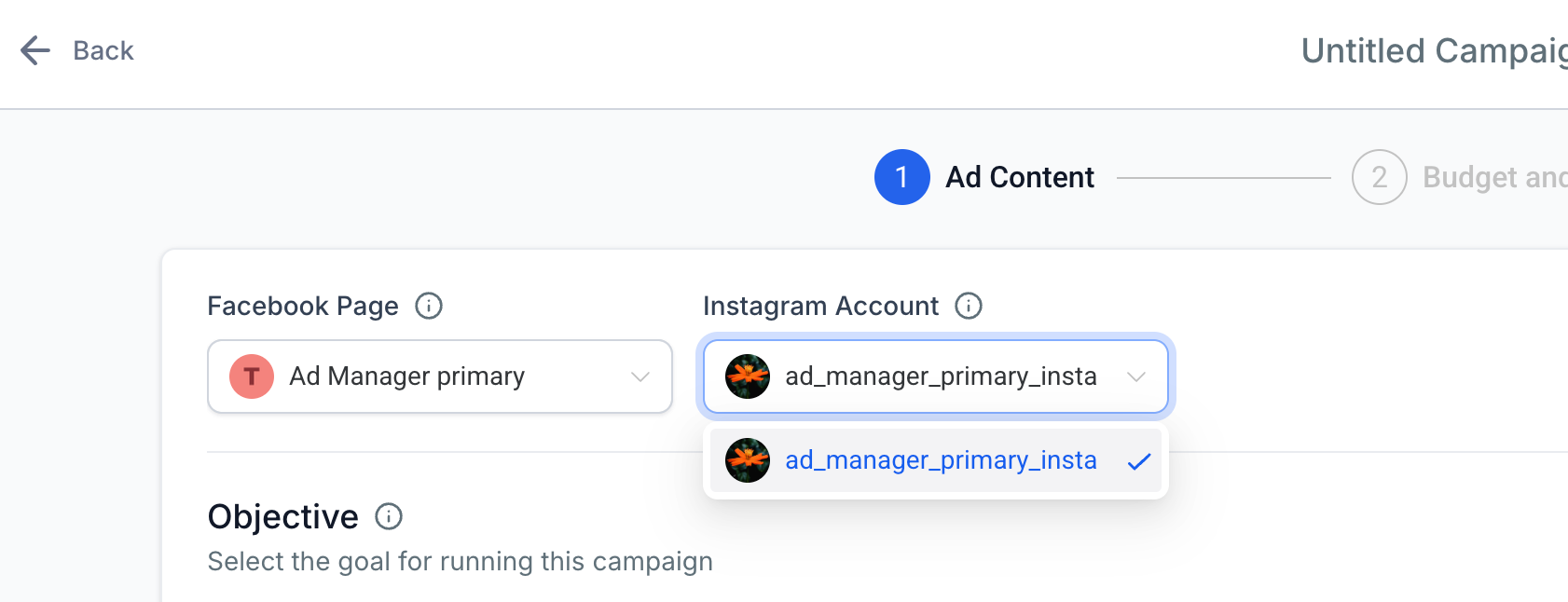
- Pick the Facebook page to associate with the ad.
- Select a linked Instagram account or keep the Facebook page for Instagram placement.
Choose the ad objective
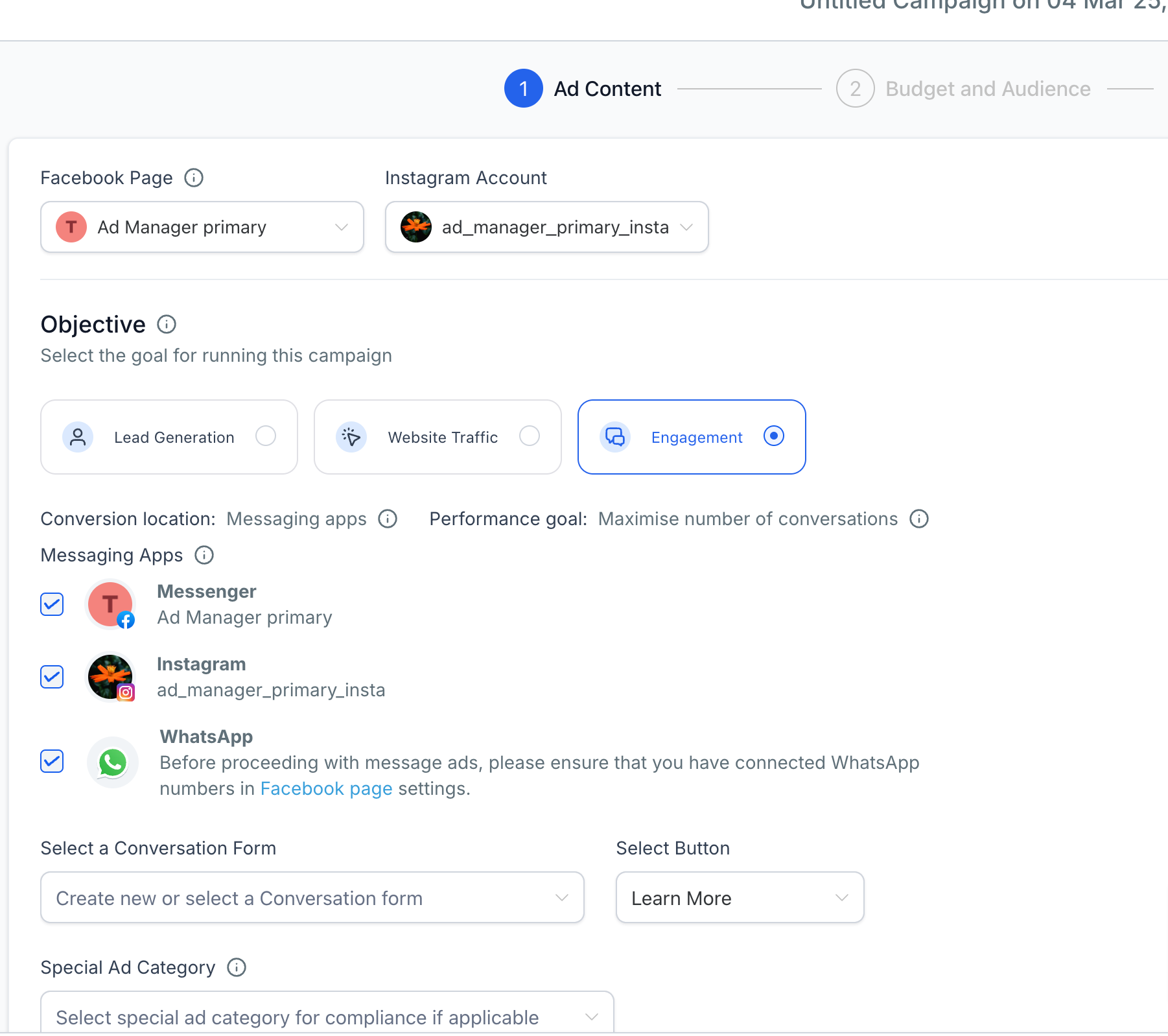
- Set the objective to Engagement.
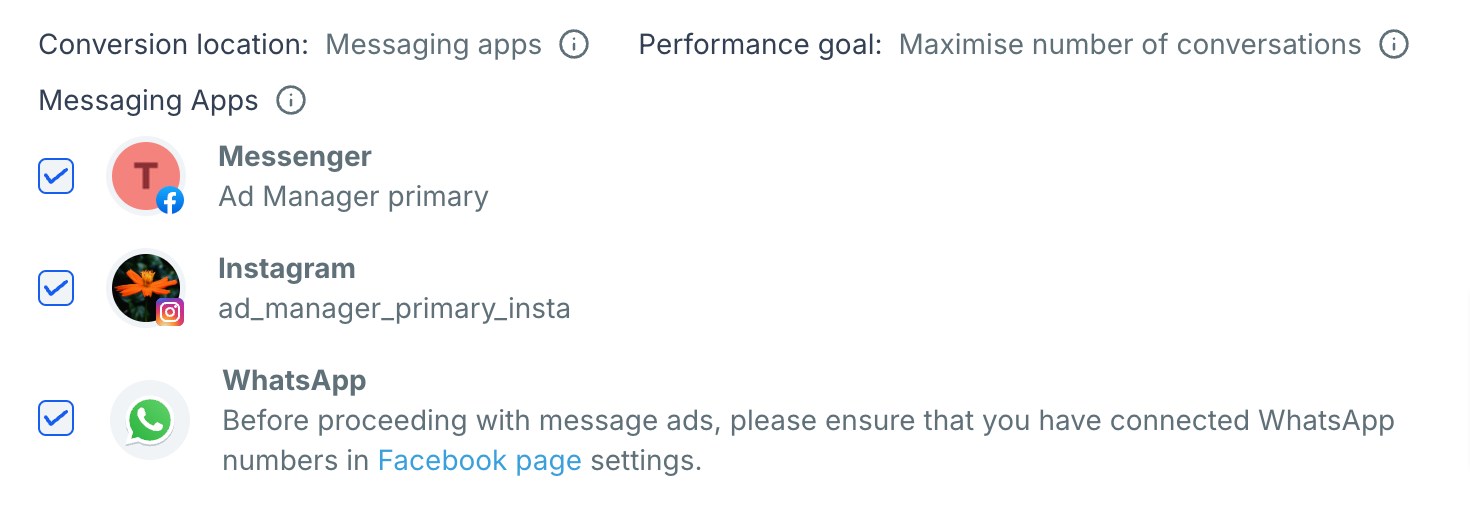
- Confirm Conversion Location shows Messaging Apps.
- Verify Performance goal is Maximise number of conversations.
Choose messaging apps for conversations
- Check the box for Facebook Messenger.
- Check Instagram Direct if the page has an Instagram account linked.
- Check WhatsApp if the page has WhatsApp numbers added.
Create or use a Conversation form
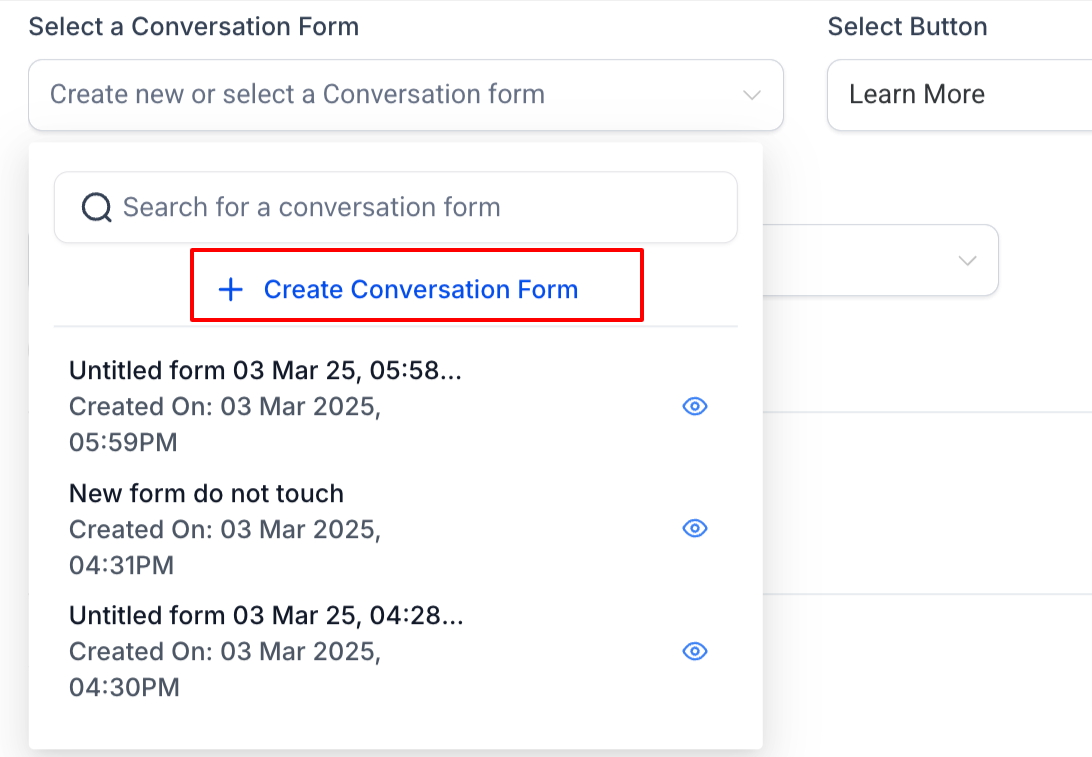
- Open the Conversation Form dropdown and choose Create Conversation Form.
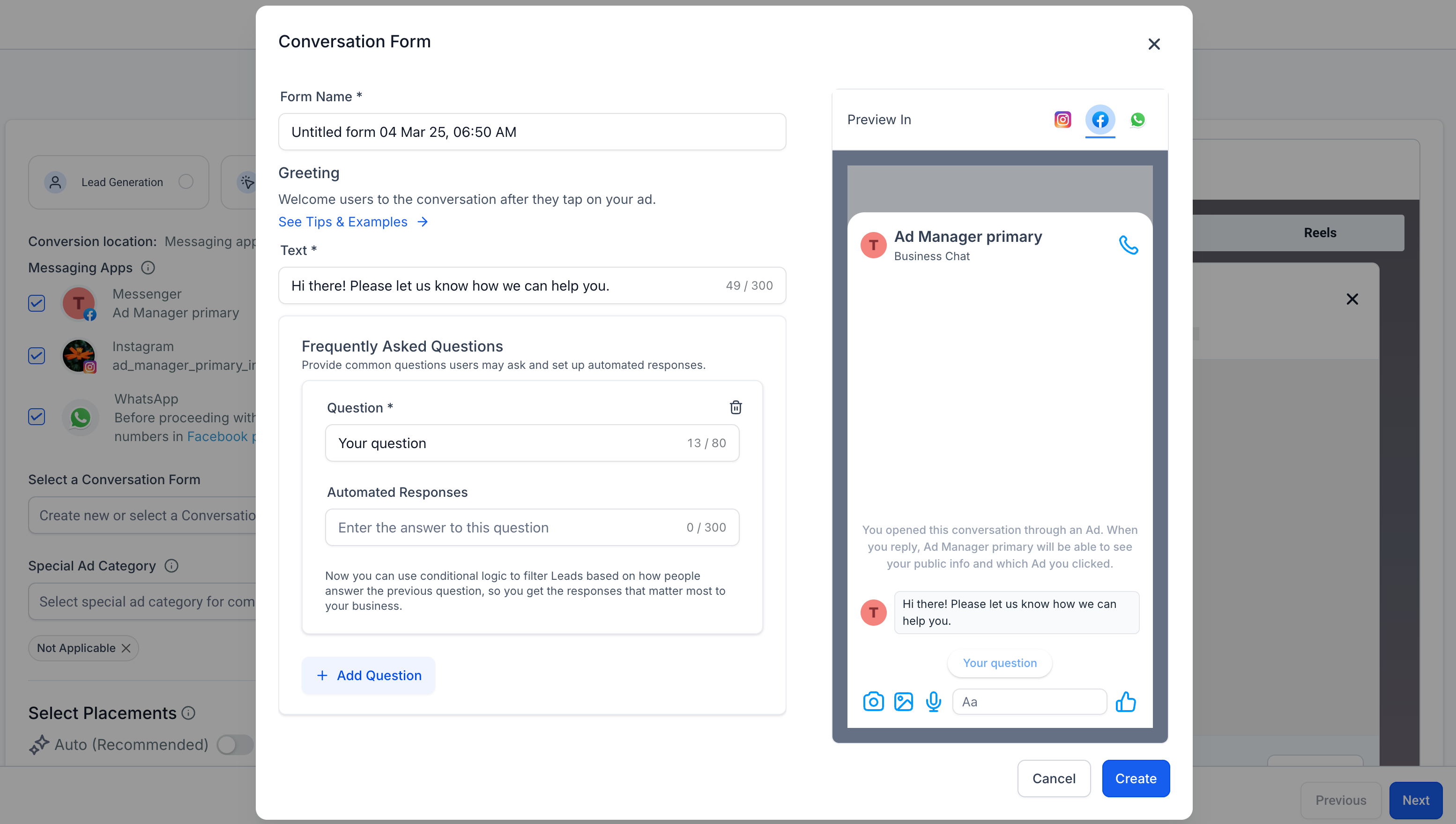
- Enter a name for the form.
- Write a welcome greeting message.
- Add three to five common questions or quick reply options.
- Define automated responses for each FAQ.
- Click Create to save and attach the form to the ad.
Select placements
- Choose the default placement option to let Meta select eligible spots.
- Enable Manual Placements to pick eligible placements individually.
Create your ad
- Select an ad format: Single Image/Video or Carousel.
- Write concise ad copy with a strong call to action.
- Set the CTA button to Send Message.
Set budget and schedule
- Choose Daily or Lifetime budget.
- Enter the budget amount.
- Configure start and end dates as needed.
Set up the audience
- Define targeting by location, age, gender, and detailed criteria.
- Add a Custom Audience or Lookalike Audience if desired.
Review and publish
- Verify all settings are correct.
- Click Publish to launch the campaign.
- Monitor performance in Ad Manager Statistics.
06What it looks like in HighLevel
07Settings that matter
- Messaging Apps. Controls which Meta messaging channels (Messenger, Instagram Direct, WhatsApp) receive messages from the ad.
- Conversation Form. Defines the greeting, quick replies, FAQs and automated responses shown to users after they click the ad.
- Ad Objective. Sets the campaign goal to Engagement, which directs delivery toward conversation initiation.
- Conversion Location. Defaults to Messaging Apps for this objective, indicating where clicks are sent.
- Performance goal. Defaults to Maximise number of conversations, guiding Meta’s optimization.
- Placements. Determines whether Meta selects eligible ad placements automatically or you choose them manually.
- Ad Format. Specifies the visual style of the ad, such as Single Image/Video or Carousel.
- Call to Action. Sets the button label to Send Message, linking the ad to the chosen messaging apps.
08Things to know before you rely on it
- Instagram Direct can be used only if the selected Facebook page has a linked Instagram account.
- WhatsApp is available only when WhatsApp numbers are added to the selected Facebook page.
- If none of the three messaging apps are connected, the ad cannot be created under the Engagement objective.
- The preview of the Conversation Form shows only the apps that are selected for the campaign.
09How it connects to the rest of HighLevel
- Create Facebook ad campaigns in HighLevel Ad campaign guide
- Build custom audiences for targeting Custom audiences
- View performance metrics after publishing Ad statistics
Michael's take

Most people assume they can launch a messaging ad without first checking which apps are actually linked to their Facebook Page. That mistake can lead to an ad that can’t be created or only runs on a single platform, wasting budget. I would confirm the page has a connected Instagram account and any needed WhatsApp numbers before starting the build.
Once the assets are verified, I would set up a simple Conversation Form with a warm greeting and a few quick reply options.