
01Who this is for
- Marketing teams in agencies that run multiple client ad accounts benefit from a shared library of pre built campaign structures.
- Ad operators who manage both Google and Meta placements gain consistency by applying the same template across platforms.
02Ad manager templates, explained
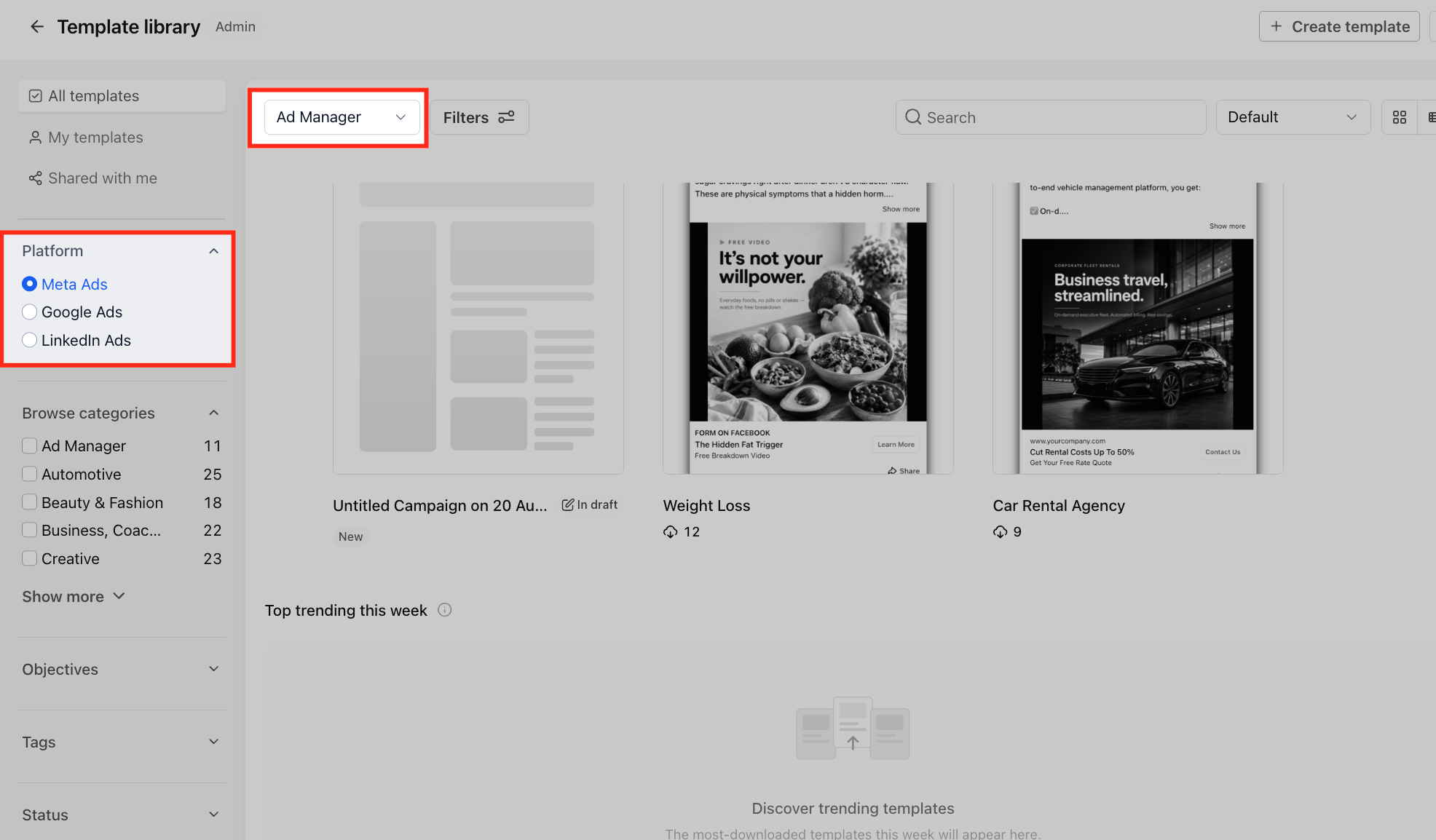
The template feature lives inside the Template Library when you are in Agency view. Inside the library you will see an Ad Manager section that holds reusable configurations for Google, Meta and LinkedIn. Each entry contains the settings that the platform supports, such as ad set type, budgeting, and placement defaults.
When you start a new campaign, you can pick one of these saved configurations instead of building everything from scratch. After the template loads, the system requires you to supply items that are not stored in the template, like the landing page or the specific lead generation form. You then edit any copy, creative assets, URLs, or targeting parameters before publishing the ad.
Templates can also be created from an existing campaign. By selecting the campaign’s ellipsis menu and choosing Upload to Template Library, the campaign’s settings are copied into a draft template that can be edited, kept as a draft, or published for other subaccounts to use.
03How businesses use ad manager templates
- Digital marketing agency. The agency opens the Template Library, selects an ad manager template that matches a client’s objective, and launches a new Google display campaign. After the template loads, the team swaps in the client’s branding and finalizes the targeting before publishing.
- Real estate brokerage. A broker creates a Meta lead generation campaign, then uploads it as a template. Future agents can pull that template, replace the property photos and URLs, and run the same lead gen flow without rebuilding the ad set.
- Fitness studio. The studio selects a LinkedIn awareness template from the library, reviews the preview, and updates the headline and call to action text to promote a new class schedule before launching the ad.
04The numbers and rules that matter
- Supported platforms: Google, Meta, LinkedIn.
05Before you start
- The subaccount must have access to the Template Library; otherwise the template selection step is hidden.
- An existing Google Demand Gen or LinkedIn campaign must be eligible before it can be uploaded as a template.
06How to set up and use ad manager templates in HighLevel
Create a campaign using a template
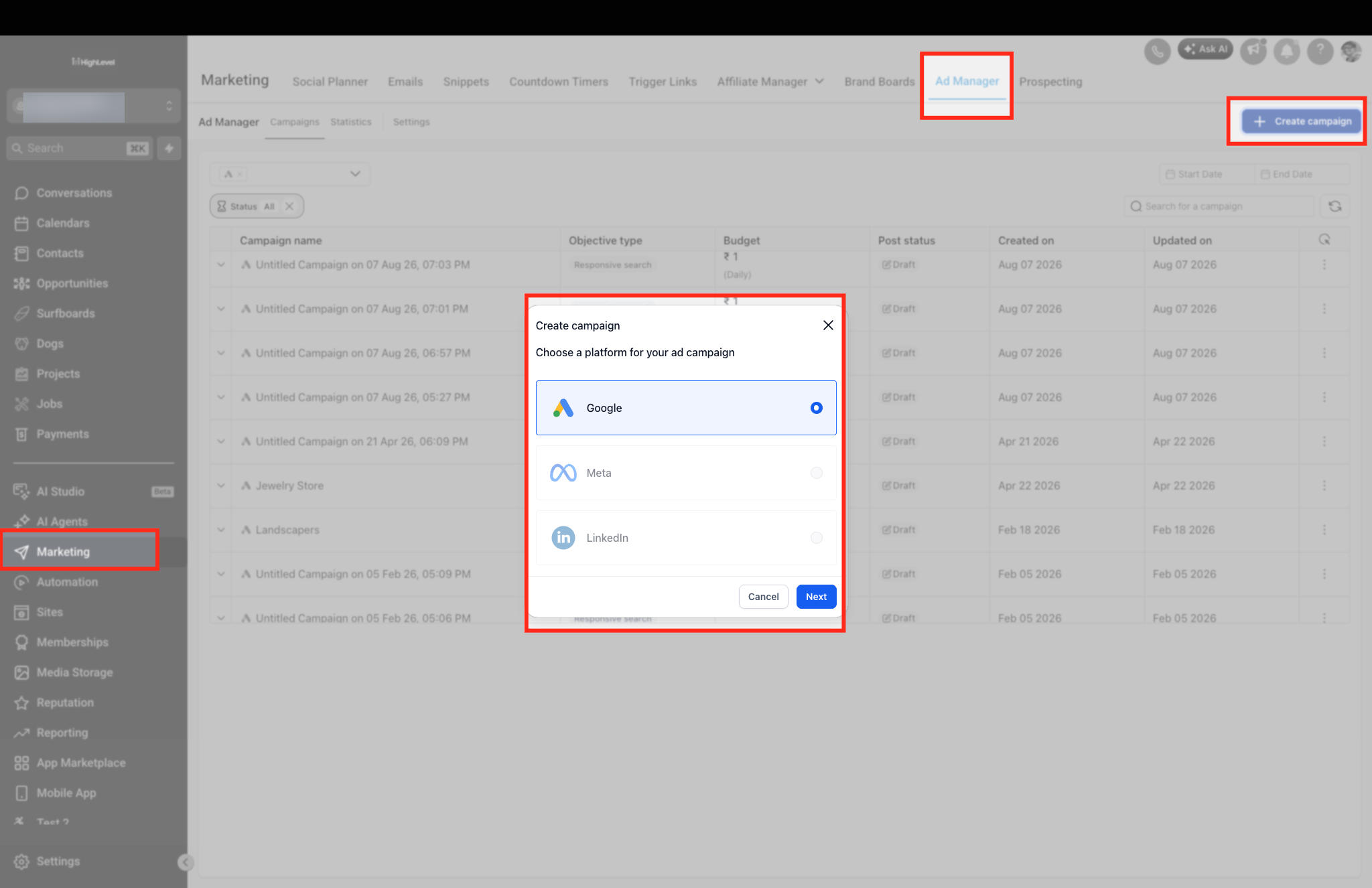
- Open Ad Manager by navigating to Marketing, choosing Ad Manager, and clicking the + Create Campaign button.
- Pick the advertising platform, Google, Meta, or LinkedIn, and proceed.
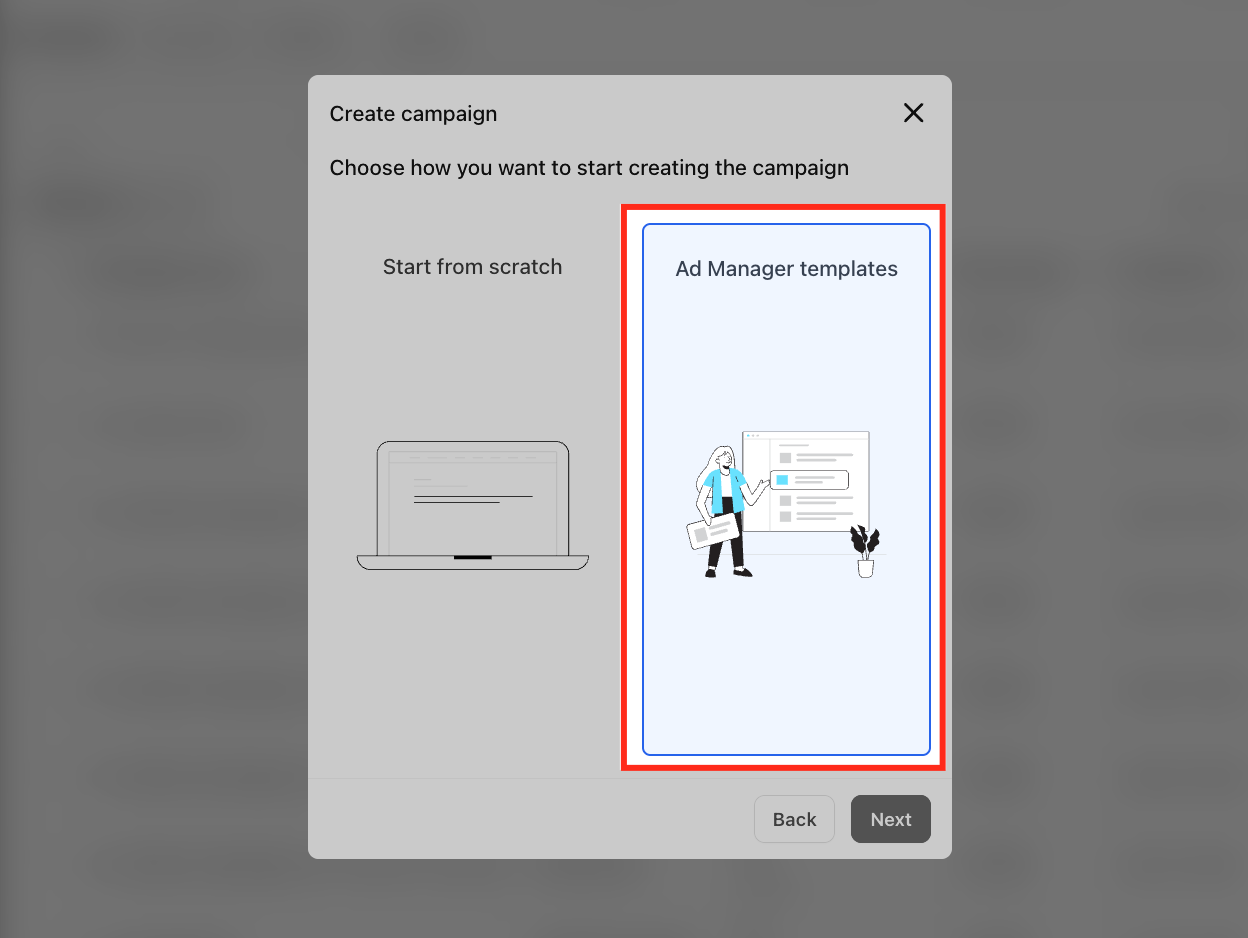
- Choose the option to start the campaign with Ad Manager Templates.
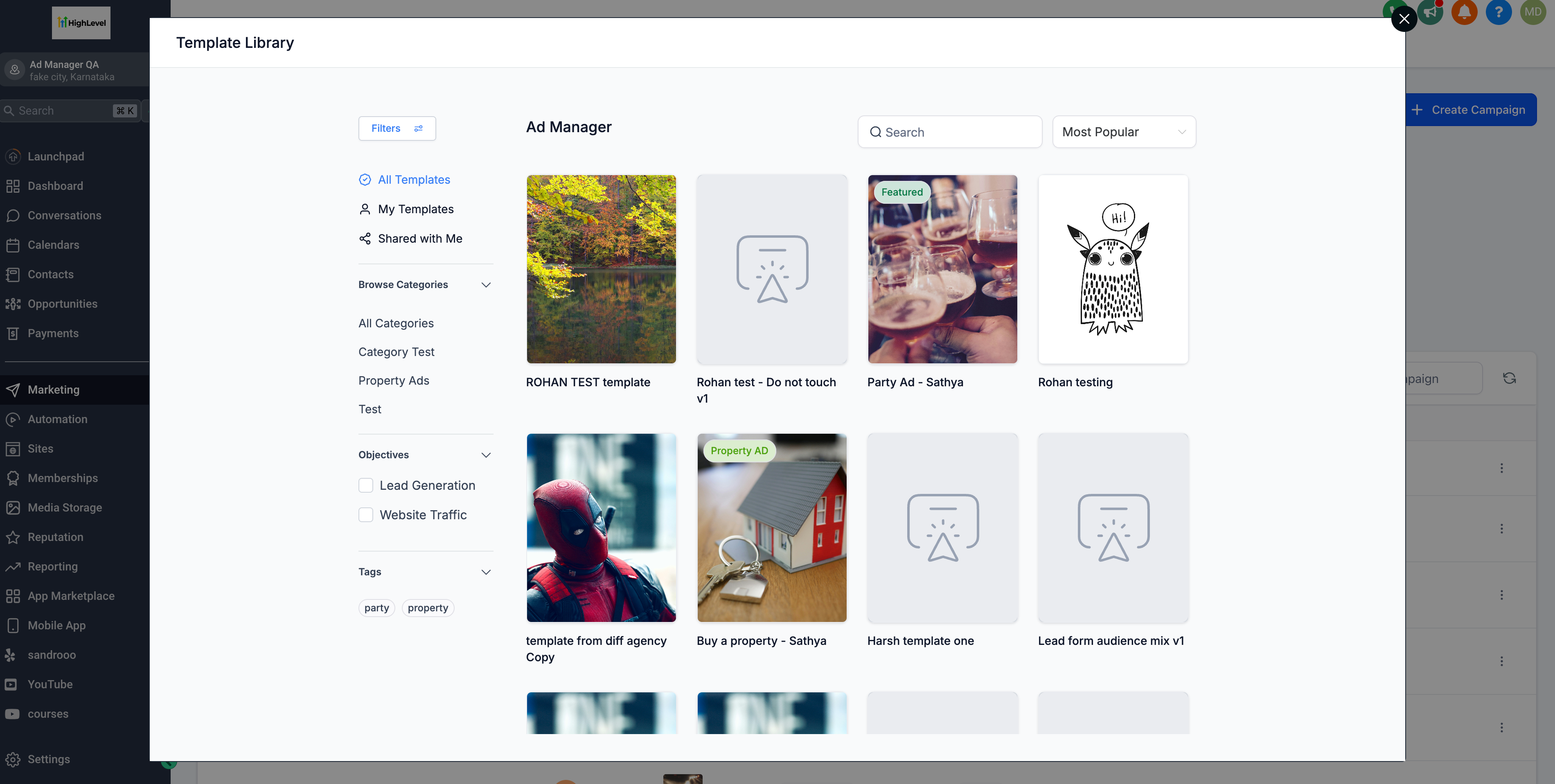
- Browse the library, using filters such as category, objective, or tag to locate a suitable template.
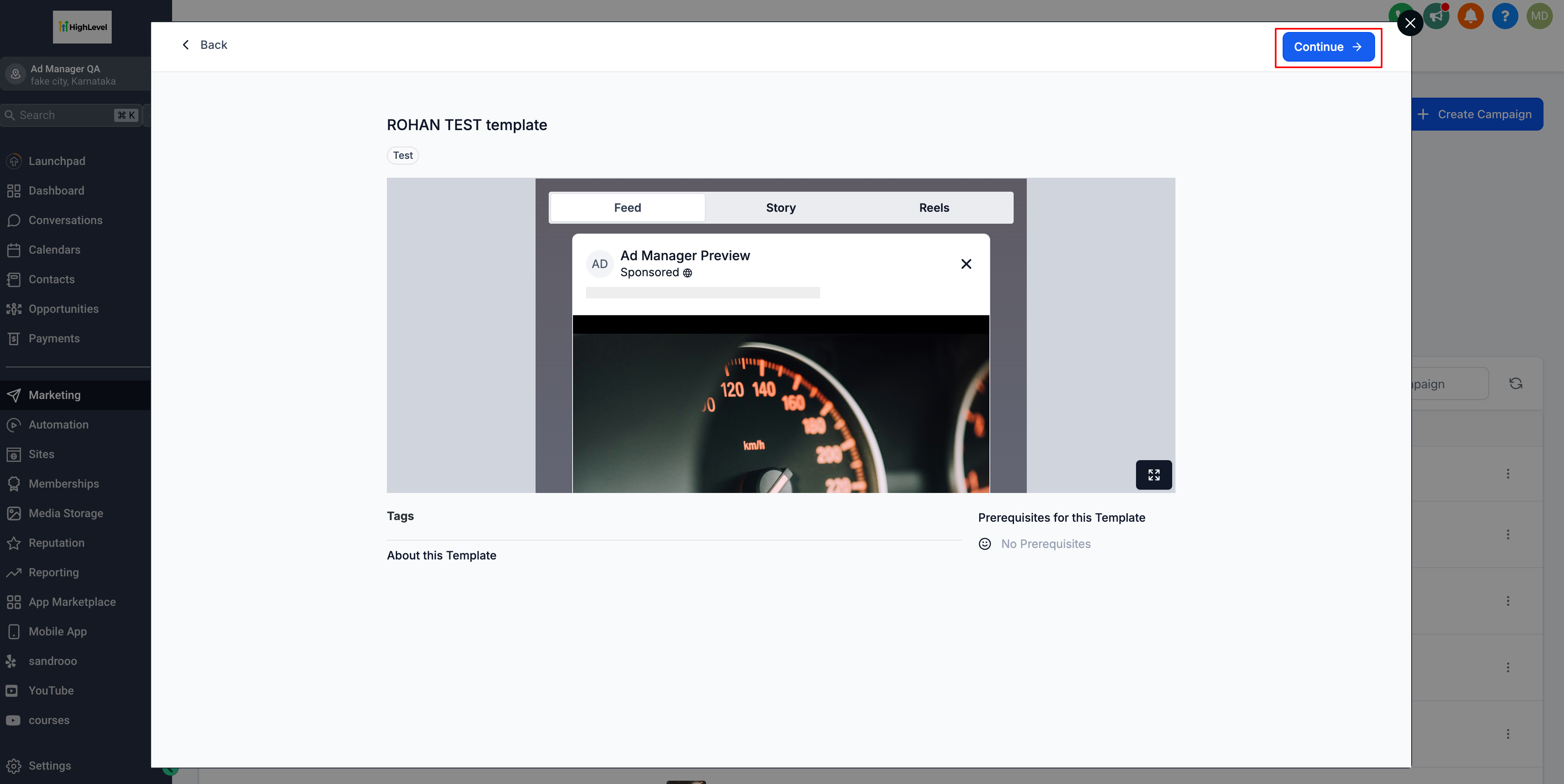
- Select the eye icon to view how the template will appear in supported placements.
- Confirm the template, review its details, and click Continue to load it into the campaign builder.
- Supply required items like the landing page and lead form, then adjust copy, creative, URLs and targeting before publishing.
Upload an existing campaign as a template
- In the campaign list, find the desired LinkedIn or Google campaign, open its ellipsis menu, and select Upload to Template Library.
- Enter a name for the template and choose a category, then confirm by clicking Upload.
- The system saves the entry as a draft template that can be edited or left unchanged.
- When ready, publish the draft so it becomes available for other users in the Template Library.
07What it looks like in HighLevel
08Settings that matter
- Categories. Filters templates by the purpose of the campaign, such as lead generation or web traffic.
- Objectives. Narrow down templates based on the advertising goal like sales or engagement.
- Tags. Allows additional labeling of templates for quick identification.
- Template name. Identifies the newly uploaded template in the library.
- Template category. Groups the uploaded template with similar ones for easier discovery.
09Things to know before you rely on it
- Only Google, Meta and LinkedIn campaigns are supported for template creation and reuse.
- A template does not carry every possible setting; review all fields after applying it.
- Subaccounts without Template Library permission will not see the template option and must start campaigns from scratch.
- Uploaded campaigns are stored as draft templates until an agency admin publishes them.
10If something goes wrong
- Ad Manager Templates do not appear when creating a campaign. Confirm that the Subaccount has Template Library access; without it the option is omitted.
- Missing landing page or lead form after using a template. Manually assign a default page and select the appropriate lead generation form before publishing.
11How it connects to the rest of HighLevel
- Create custom audiences to pair with your template campaigns Custom audiences guide
- Set up Instagram ads that can also use templates Instagram ads overview
- Learn how to build a Facebook lead form for template use Facebook lead form guide
Michael's take

Templates let you pull a finished structure out of the library, swap in the new headline, image or URL, and launch faster. The first setting I would lock down is the correct category for the template. It’s the key to surfacing the right options for every subaccount.
Once the category is solid, I’d give the draft a quick run through to make sure the default page and lead gen form are set, because those pieces never copy over automatically. A short sanity check saves a lot of back and forth when the campaign goes live.