
01Who this is for
- Agency owners who need to launch multiple client campaigns quickly, because the hierarchy keeps tests organized.
- Small business Founders who want to run Facebook lead generation ads without using separate Meta tools.
02Facebook ad campaigns, explained
Creating a Facebook campaign in HighLevel starts with the Ad Manager home screen. You click a button, pick Facebook as the platform, and decide whether to start from scratch or use a template. The interface then walks you through the three Meta levels, campaign, ad set and ad, while mirroring Meta’s settings.
The campaign level holds the objective and any special ad category. The ad set level defines the page, Instagram account, placement, budget and audience. Finally, the ad level lets you add text, headline, description, a call to action button and media. After reviewing, you publish and the campaign is sent to the connected Meta ad account for review.
All created elements stay inside HighLevel, so you can pause, duplicate or edit them later via the ellipsis menus at each hierarchy level.
03How businesses use Facebook ad campaigns
- Real estate agency. The agency creates a campaign with a Lead Generation objective, selects a Facebook form for property inquiries, and names each ad set after a target city. It uploads carousel images of listings, sets a daily budget, and publishes to attract leads.
- Fitness studio. The studio builds a campaign to drive website traffic, picks its Instagram account for placement, adds a video showcasing a class, and selects a "Learn More" button. Budget is set as a lifetime amount covering a promotional period.
- SaaS startup. The startup launches an engagement campaign, chooses Conversation Form as the destination, writes brief primary text, uploads a single image, and enables automatic placements. It uses the ad set name to test different audience regions.
04The numbers and rules that matter
- Up to 10 ad sets per campaign.
- Up to 10 ads per ad set.
- Images are allowed up to 8 MB.
- Videos are allowed up to 1 GB.
- Primary text is optional, recommended 125 characters.
- Headline is required, recommended 40 characters.
- Description is optional, recommended 30 characters.
- Age defaults to 18 to 65+ and cannot be edited for Special Ad Category ads.
05Before you start
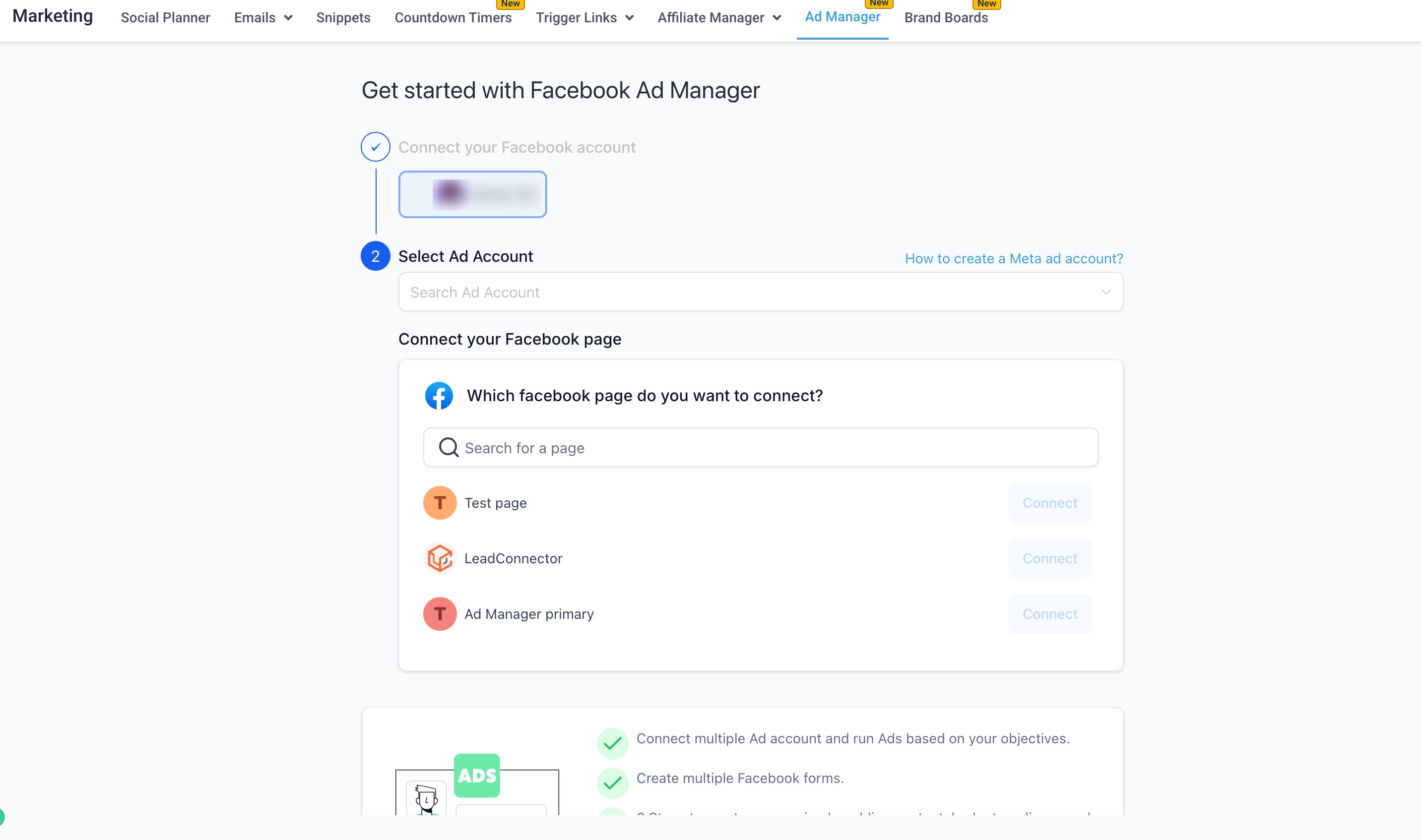
- Connect your Facebook account to HighLevel Ad Manager.
- Create or have access to a Meta Business Portfolio, a Meta ads account and a Facebook Page.
- Select a pricing model from Agency view > Reselling and enable Ad Manager for the subaccount.
- Turn on Ad Manager permissions for staff members if required.
06How to set up and use Facebook ad campaigns in HighLevel
Create a campaign
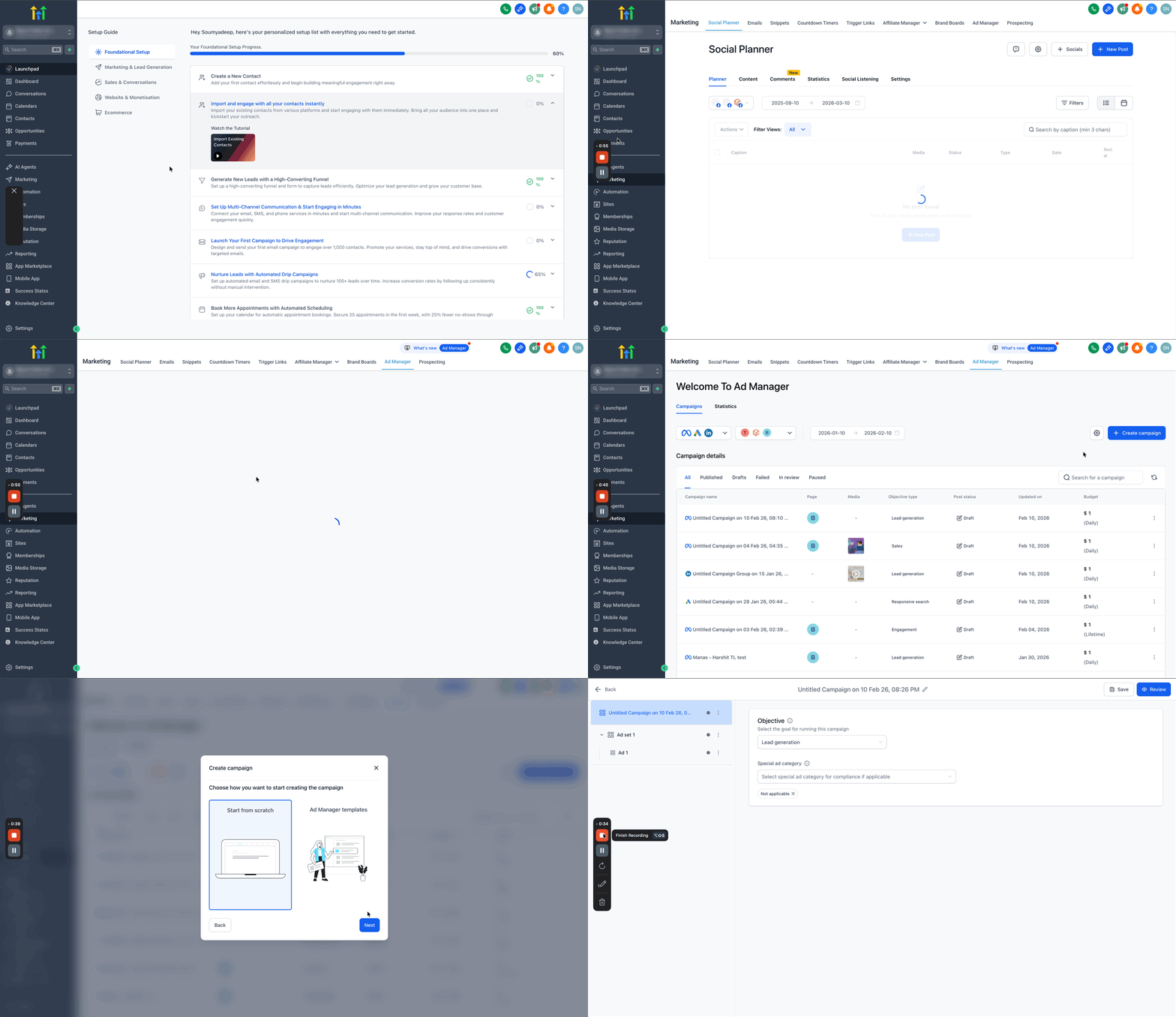
- Open Marketing > Ad Manager.
- Click the + Create Campaign button.
- Select Facebook as the platform to publish the campaign.
- Press Next to continue.
- Choose either Start from Scratch or a template from the library.
- Press Next again to begin defining the campaign details.
Select campaign objective & special ad category
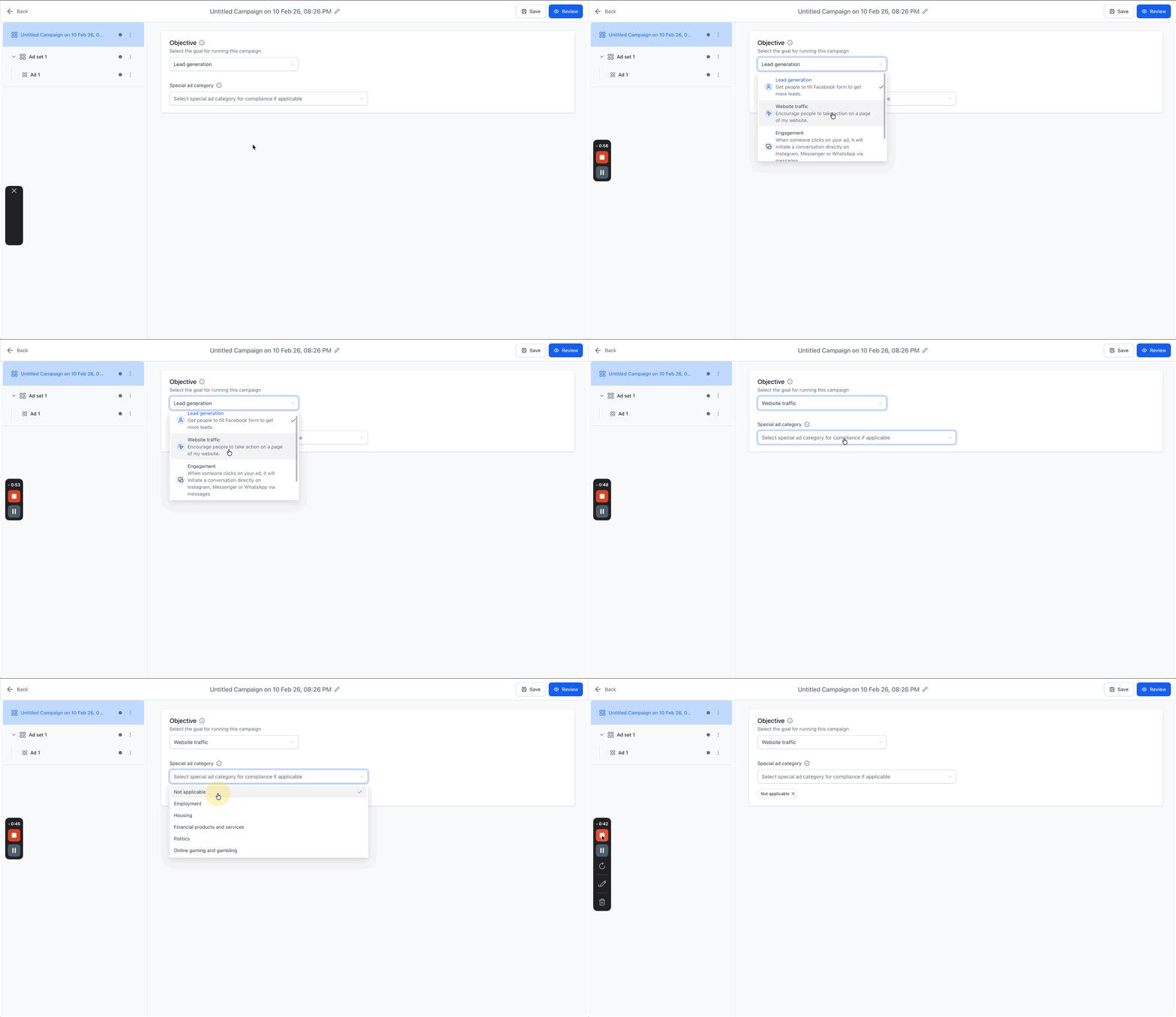
- Pick the campaign objective that matches the goal, such as Lead Generation.
- If the objective is Lead Generation, create a new Facebook form or select an existing one.
- Select a Special Ad Category from the list, or choose NOT APPLICABLE if none applies.
- Acknowledge any restrictions that the chosen special category imposes.
Configure ad set level details
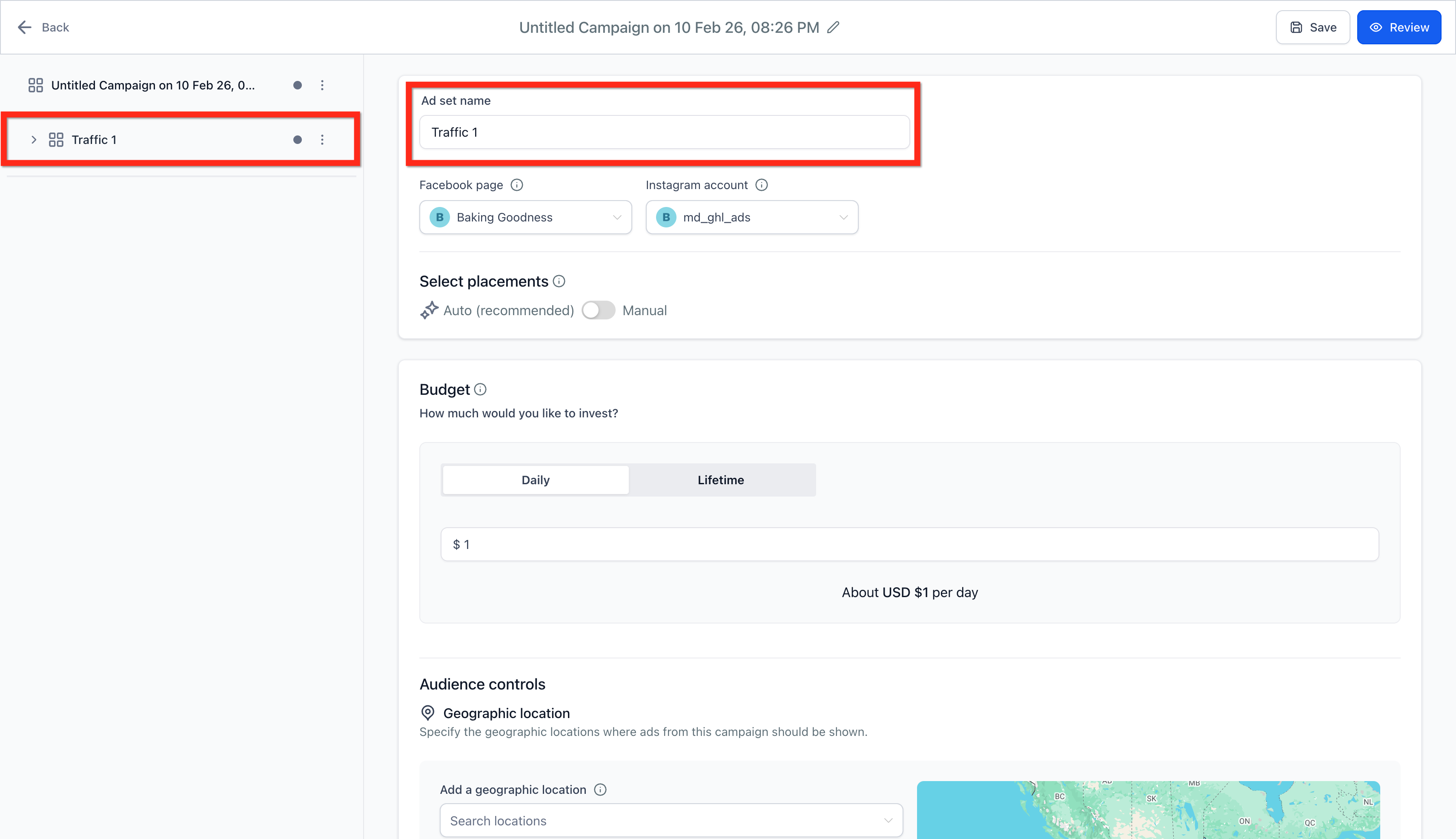
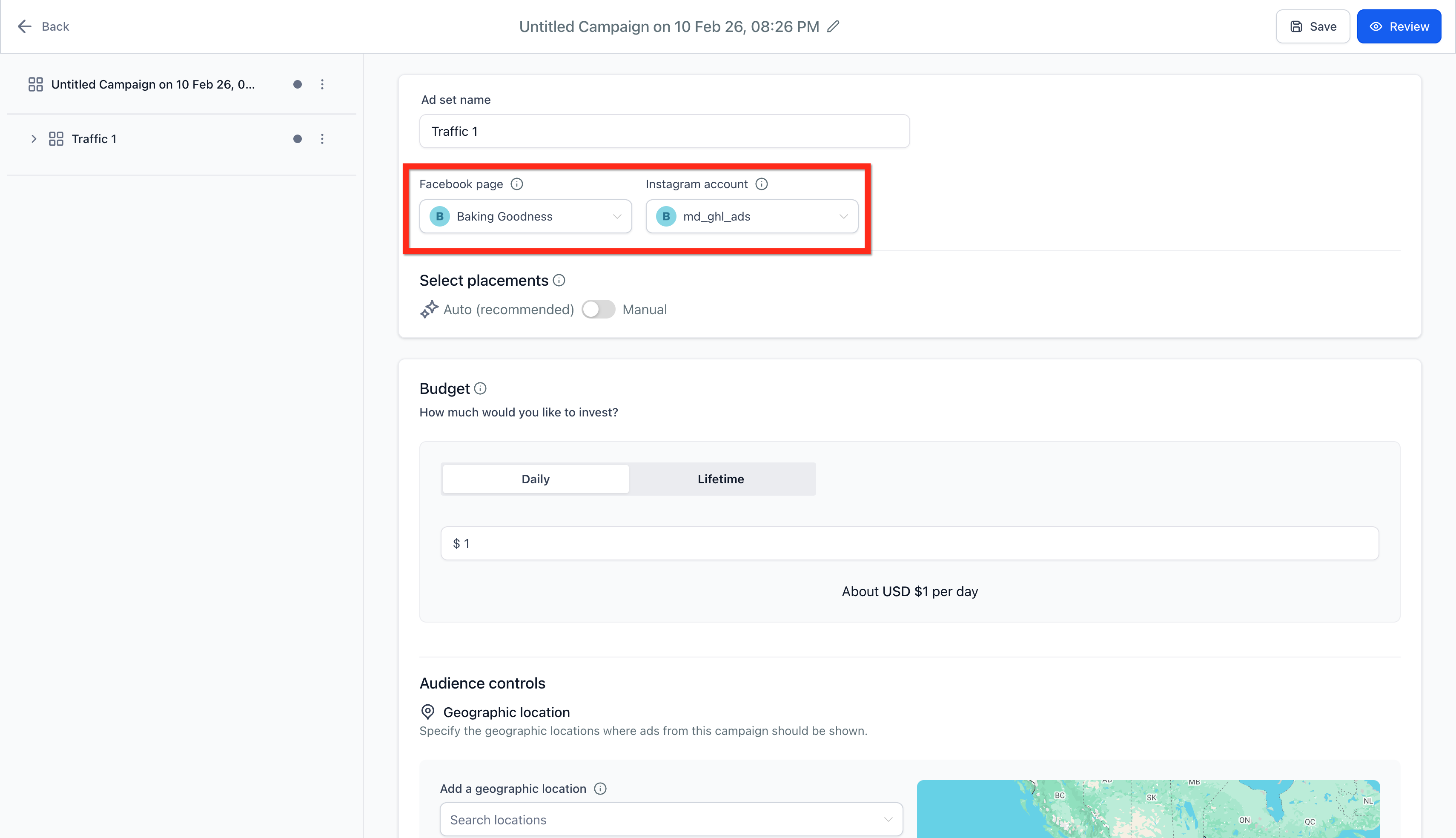
- Enter a name for the ad set.
- Select the Facebook Page that will represent the business.
- Choose an Instagram account; if none is connected, the ad will use the Facebook Page details.
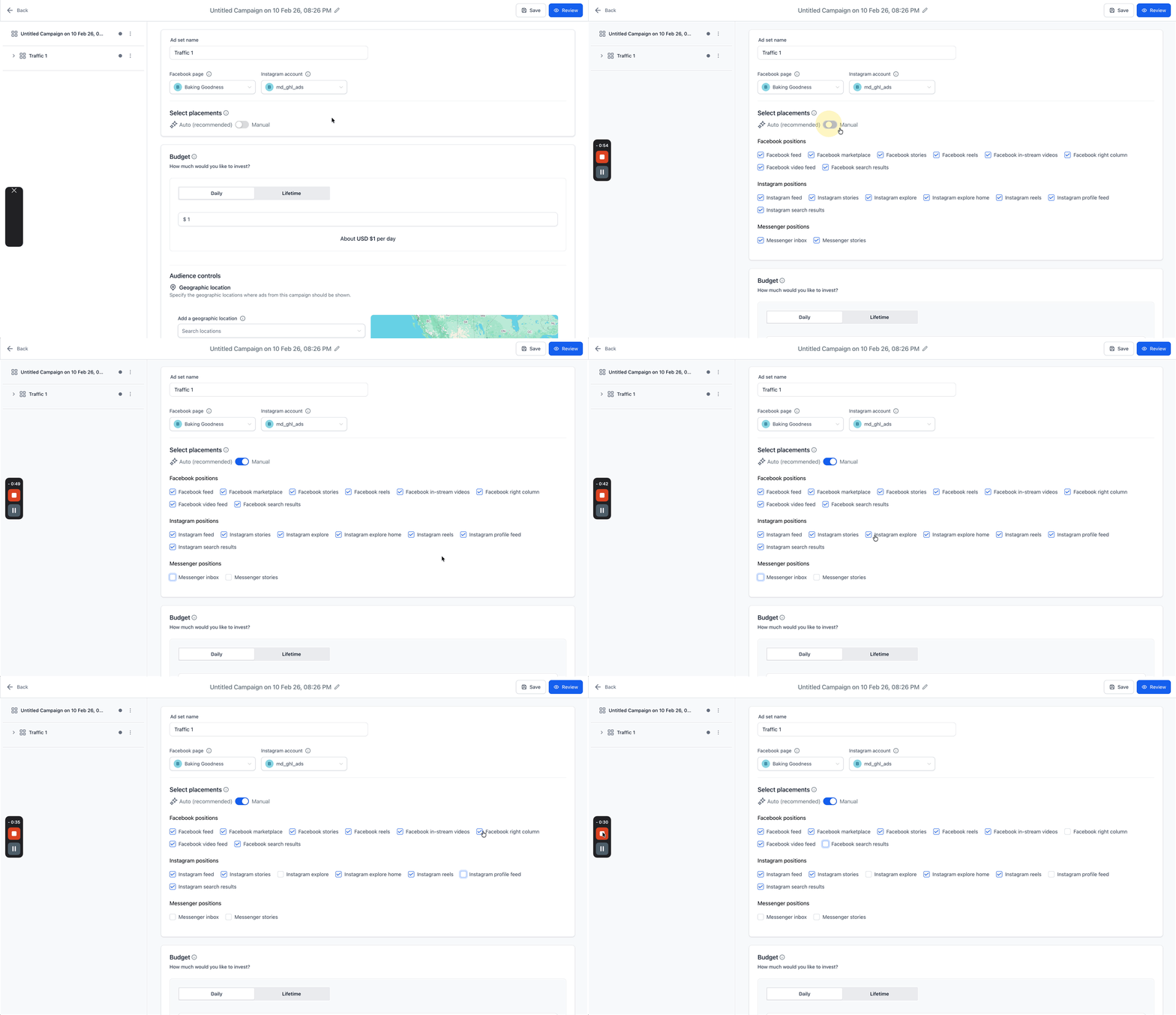
- Pick Placement, enable automatic placements or toggle manual placement to choose specific locations.
- Set the budget type (daily or lifetime), amount, and optional start and end dates.
Configure ad level details
- Enter a name for the ad.
- Choose the destination type, Website URL, Facebook Lead Form, or Conversation Form, based on the campaign objective.
- Add primary text (optional) and a headline (required).
- Provide a description if desired.
- Select a Call To Action button such as Learn More or Buy Now.
- Upload a single image, a carousel of images, or a video, respecting size limits.
Review and publish
- Click the Review button to verify all settings.
- Click the Publish Campaign Now button.
- Confirm the publication in the dialog that appears.
07What it looks like in HighLevel
08Settings that matter
- Campaign Objective. Determines the primary goal of the campaign, such as Lead Generation or Website Traffic.
- Special Ad Category. Specifies whether the ad belongs to a regulated category and applies targeting restrictions.
- Ad Set Name. Identifies the ad set within the campaign.
- Facebook Page. Selects the Page that will appear as the advertiser in the ad.
- Instagram Account. Links an Instagram profile to the ad; if missing, Facebook Page details are used.
- Placement. Controls where the ad is shown, either automatically across all placements or manually chosen ones.
- Budget. Sets the amount to spend, either as a daily spend or a lifetime total with optional dates.
- Audience Controls. Defines geographic and demographic targeting for the ad set.
- Ad Name. Labels the individual ad inside the ad set.
- Destination (Website URL, Facebook Lead Form, Conversation Form). Determines where users are taken after clicking the ad, based on the campaign objective.
- Primary Text. Optional copy that appears above the headline in the ad.
- Headline. Required short text that appears below the primary text.
09Things to know before you rely on it
- A maximum of 10 ad sets can be added to a single campaign.
- A maximum of 10 ads can be added to each ad set.
- Manual placements no longer include Instagram Explore Feed; the option is removed automatically for saved drafts.
- Images may not exceed 8 MB and videos may not exceed 1 GB.
- Special Ad Category ads cannot use Lookalike audiences, saved audiences, or zip code targeting, and they lock age to 18 to 65+ and gender to all.
10If something goes wrong
- Ad is rejected. Check the Special Ad Category selection, ensure content complies with policies, and verify the destination URL or form quality.
11How it connects to the rest of HighLevel
- Create a Facebook Lead Form to use with lead generation campaigns Create Facebook Lead Form
- Use pre built templates to speed up campaign creation Ad Manager templates
- Set up Instagram ads that run alongside Facebook ads Instagram ads overview
Michael's take

If the Meta Business Portfolio, pricing model, or Ad Manager toggle isn’t set up correctly, you’ll be blocked from creating campaigns.
Ensuring those prerequisites are in place lets you move through the guided workflow without interruption.