
01Who this is for
- Marketing managers can automate alerts when a post fails, removing the need for manual checks.
- Agency owners can set separate workflows for each client account, keeping actions scoped to the right brand.
- Content creators can trigger follow up tasks after a post is approved, ensuring publishing stays on schedule.
02Social Planner posts, explained
The Social Planner Posts trigger starts a workflow when a Social Planner post matches selected conditions. You can choose the post status, such as Approval Requested, Approved, Scheduled, Published or Failed, and limit the trigger by content category, platform, post type, specific social account or tags.
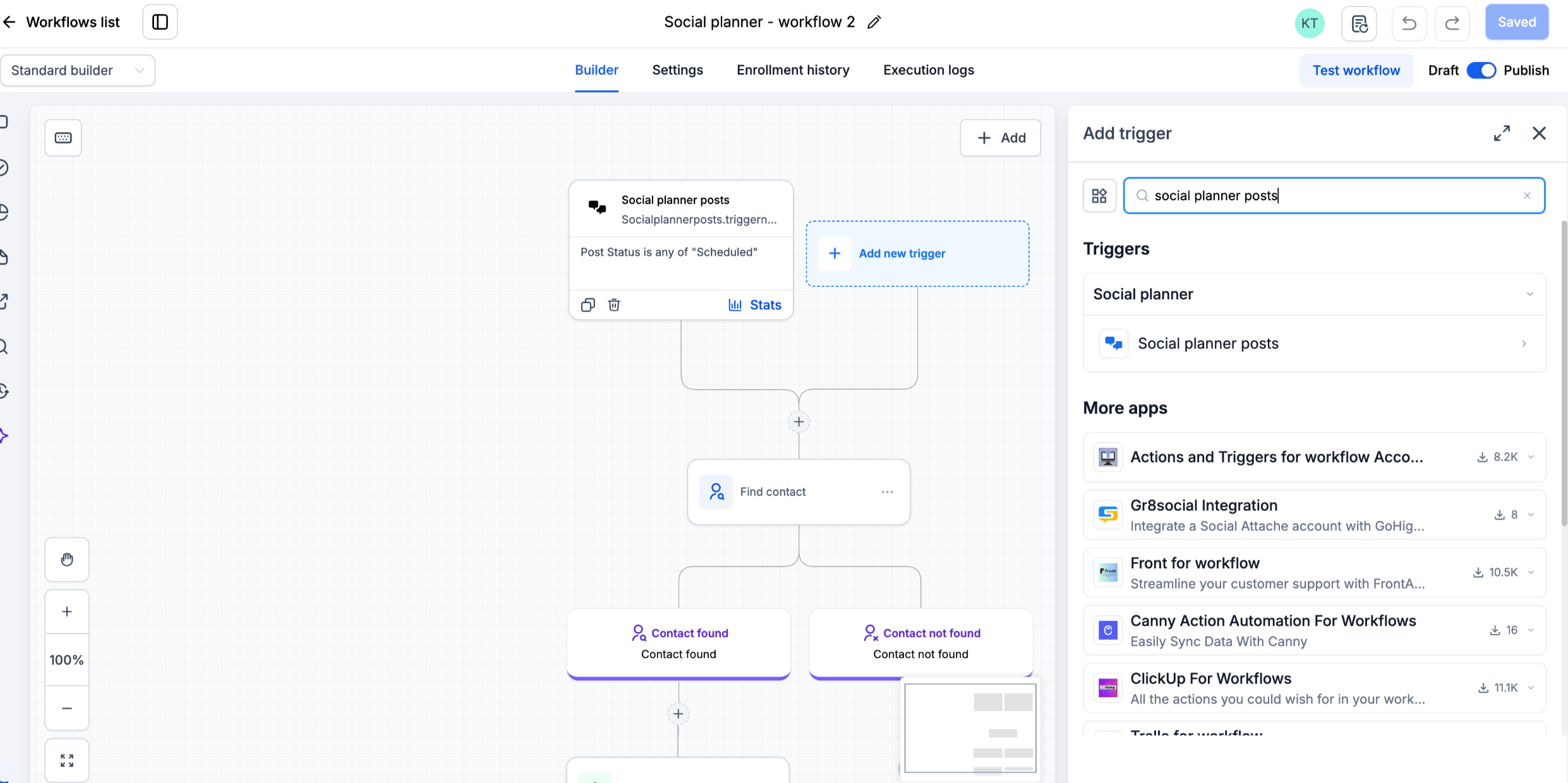
The trigger is added inside Automation > Workflows. After selecting the trigger, you configure the filters, add any workflow actions you need, then save and publish the workflow to make it active.
03How businesses use Social Planner posts
- Marketing agency. Create a workflow that watches posts for each client account. Use the Social Account filter to target a specific client, set the status to Failed, and add an internal notification action so the agency team knows when a post does not publish.
- Ecommerce store. Set up a workflow that triggers when a promotional post is Approved. Filter by the Promotional content category and add an action that sends a Slack message to the sales team, keeping them informed of upcoming offers.
- Real estate firm. Build a workflow that runs when a new property video post is Published on YouTube. Use the Platform filter for YouTube and the Post Type filter for Shorts, then add an email action to notify the listings manager.
04The numbers and rules that matter
- Supported platforms: Facebook, Instagram, Bluesky, Google Business Profile (GBP), LinkedIn, Pinterest, Threads, TikTok, YouTube.
05Before you start
- Access to Automation > Workflows.
- Social accounts must be connected through Social Planner.
- Categories and tags you plan to use as filters should be created beforehand.
06How to set up and use Social Planner posts in HighLevel
Create a workflow that reacts to Social Planner post events
- Go to Automation > Workflows.
- Click Create Workflow or open an existing workflow you want to edit.
- Click Add New Trigger, search for and select Social Planner Posts.
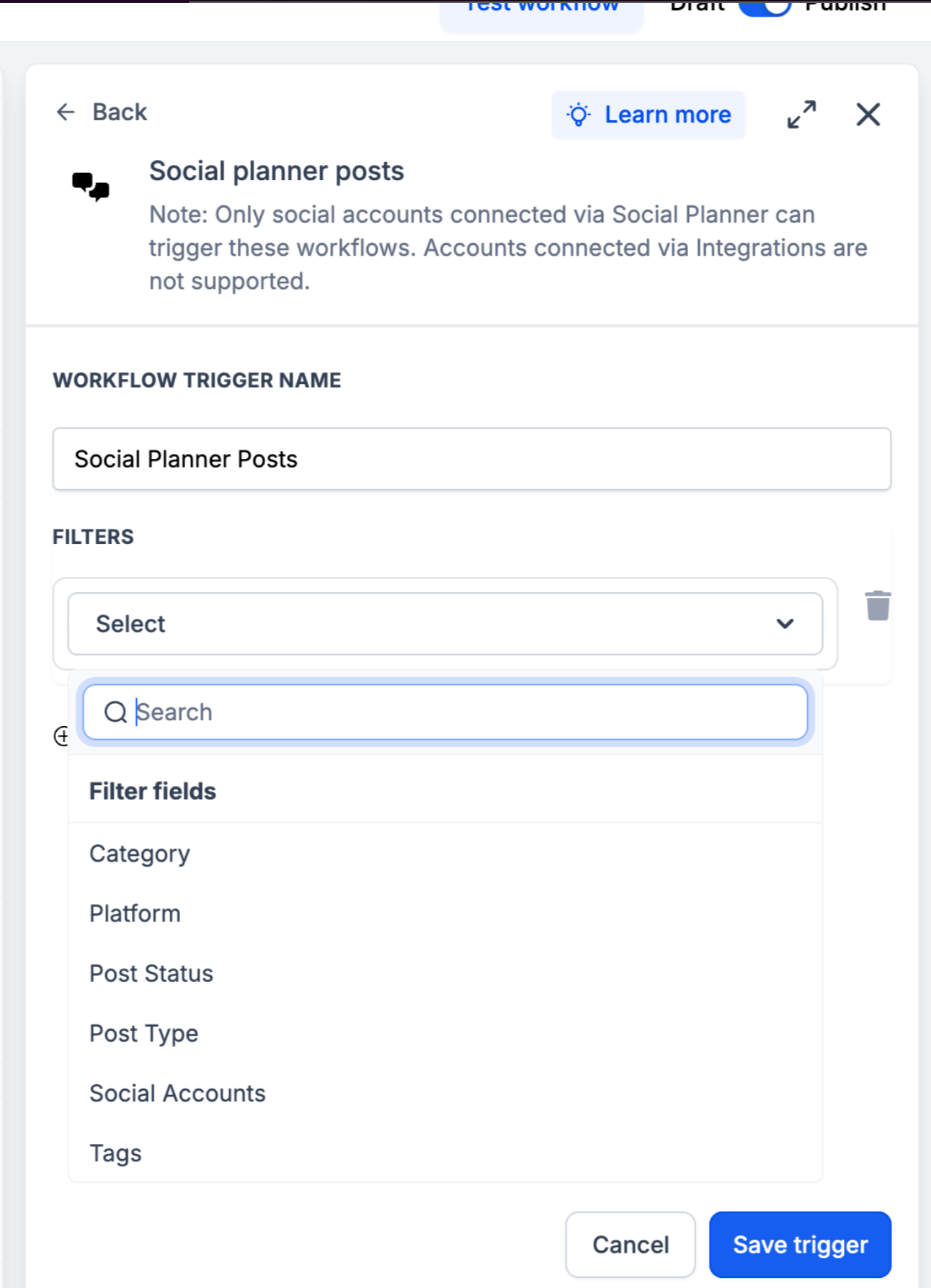
- Set the desired post status and any filters such as category, platform, post type, social account or tags.
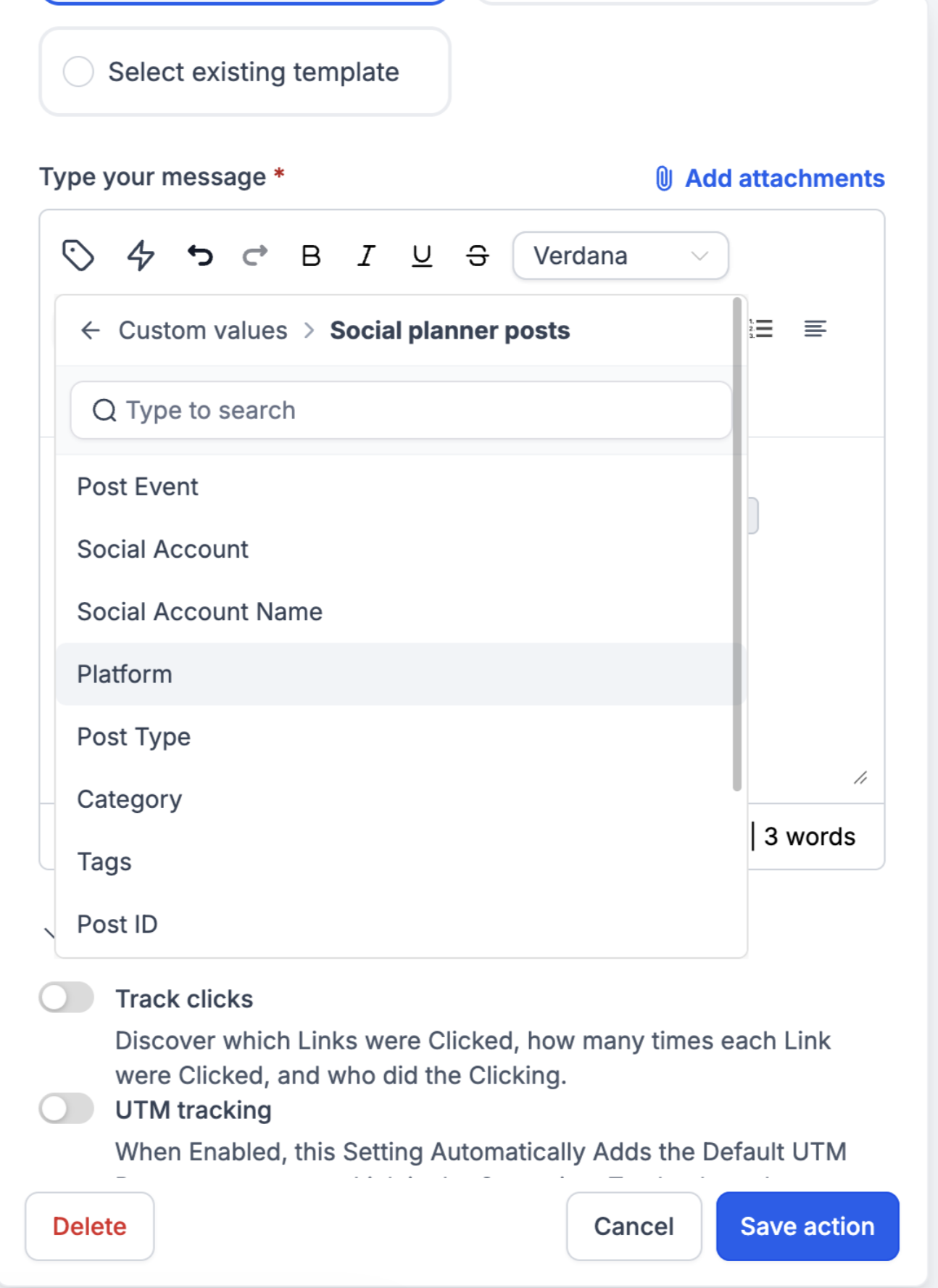
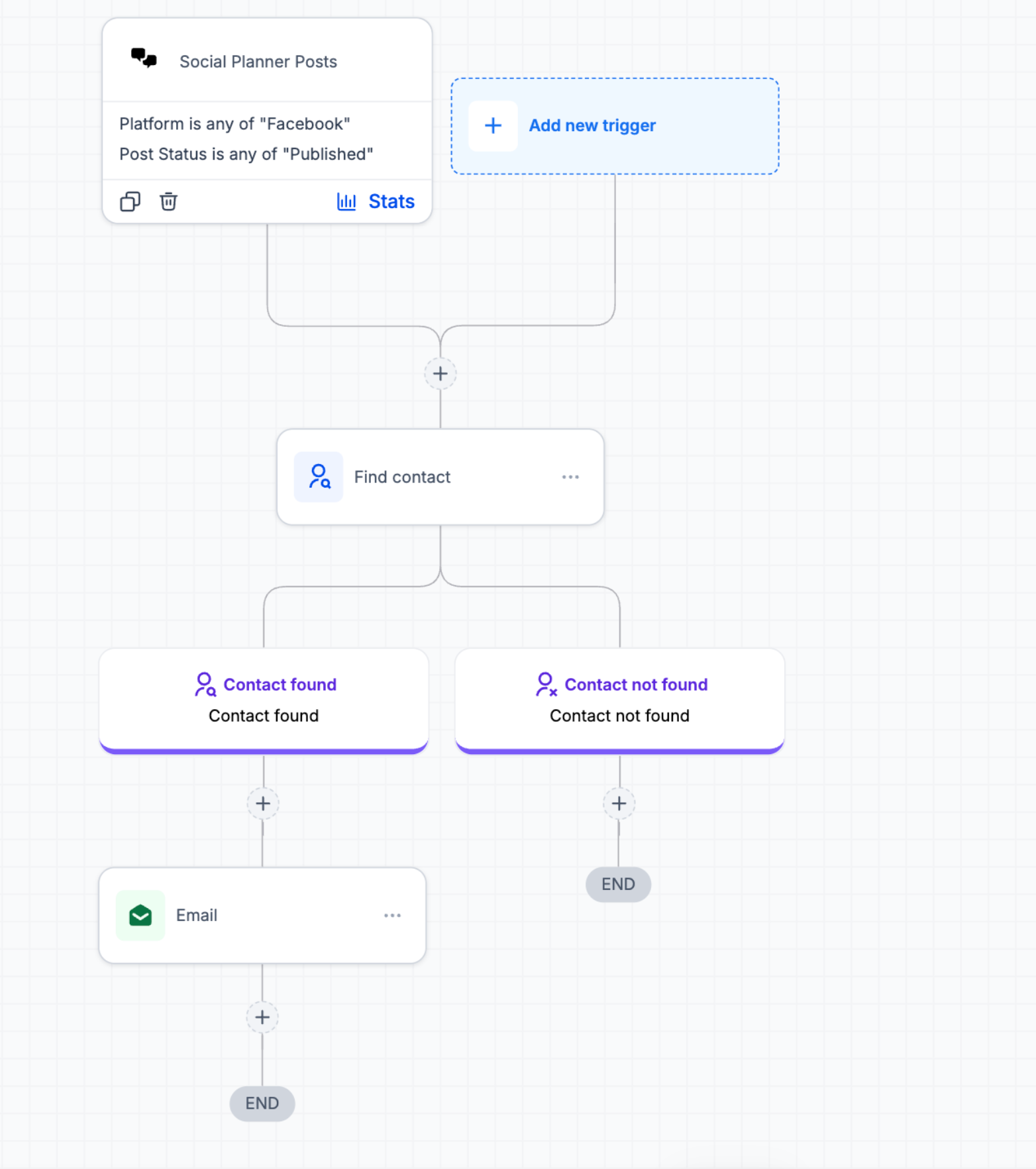
- Add the actions the workflow should perform, for example sending an internal notification.
- Save the workflow and then publish it to activate the automation.
07What it looks like in HighLevel
08Settings that matter
- Post Status. determines which publishing event, Approval Requested, Approved, Approval Rejected, Scheduled, Published, or Failed, will start the workflow.
- Category. limits the trigger to posts that belong to selected content categories.
- Platform. restricts the workflow to posts on specific social networks such as Facebook, Instagram, TikTok, etc.
- Post Type. filters by the format of the content, like Carousels, Posts, Reels, Shorts or Stories.
- Social Account. targets posts associated with particular connected Social Planner accounts.
- Tags. uses existing tags on posts to create more precise workflow conditions.
09Things to know before you rely on it
- Only social accounts connected through Social Planner are supported; accounts linked through Integrations are not supported yet.
- Supported platforms include Facebook, Instagram, Bluesky, Google Business Profile, LinkedIn, Pinterest, Threads, TikTok, and YouTube.
10How it connects to the rest of HighLevel
- Learn how to link Facebook pages for use with Social Planner. Connect Facebook
- Find guidance on adding @mentions and tagging profiles in Social Planner posts. Mentions and tags
- Explore how to set up post approvals that can be used as workflow triggers. Post approvals
Michael's take

Wondering if the Social Planner Posts trigger is worth the effort for your team? It lets you tie any change in a social post. Like a failure to publish or an approval. To a HighLevel workflow, so you can automatically send alerts, create tasks, or kick off other processes without watching each platform manually.