
01Who this is for
- Digital marketers who want to expand campaign reach based on their current customer base.
- Ecommerce owners looking to target new shoppers who resemble past buyers.
- Coaches and consultants aiming to attract leads similar to existing clients.
02Lookalike audiences, explained
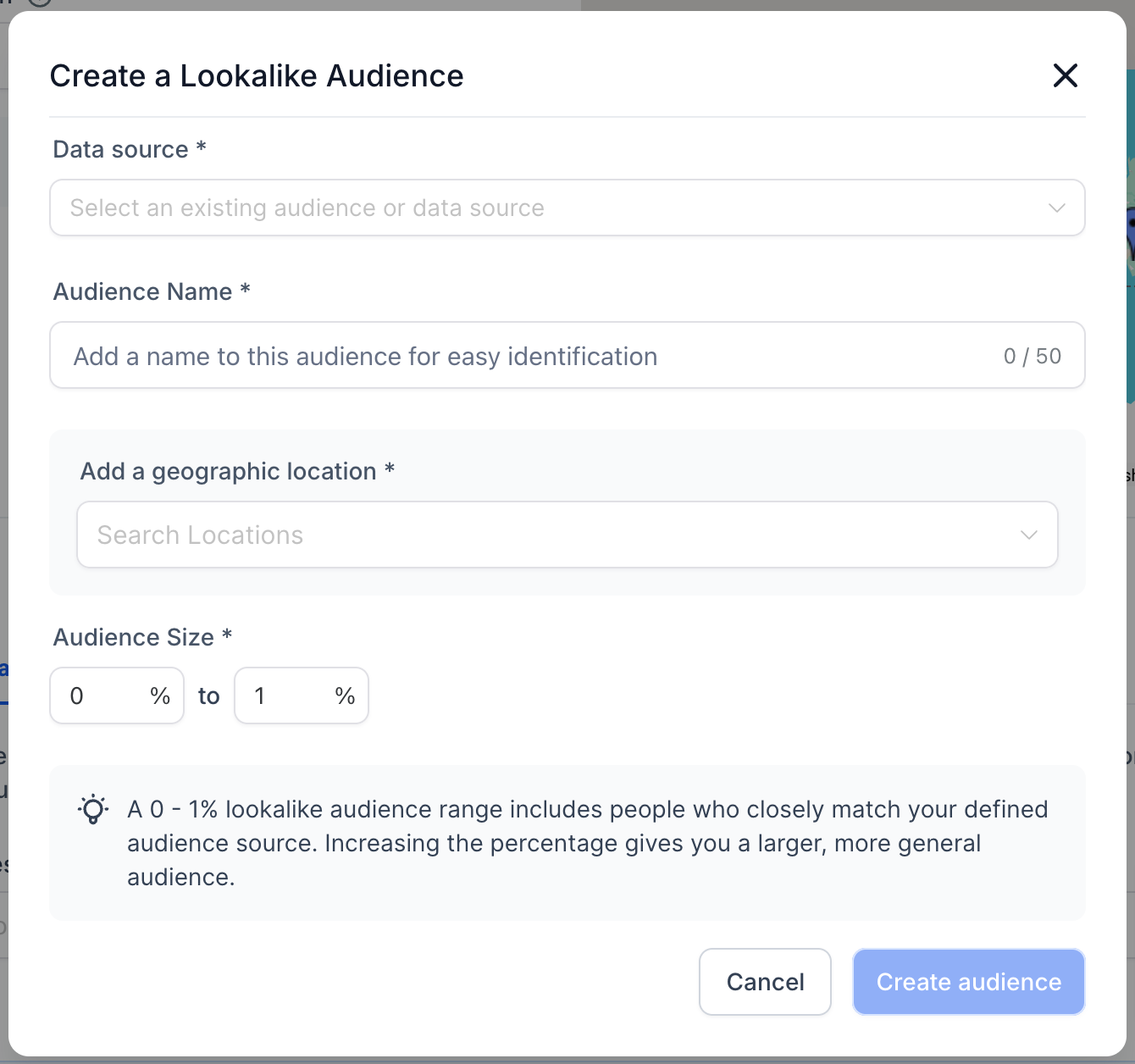
The feature lets you generate a lookalike audience by selecting an existing custom audience or a connected Facebook page as the source. HighLevel opens a dialog where you define the audience name, the country where Facebook should search for similar people, and the size percentage from 0 to 10%.
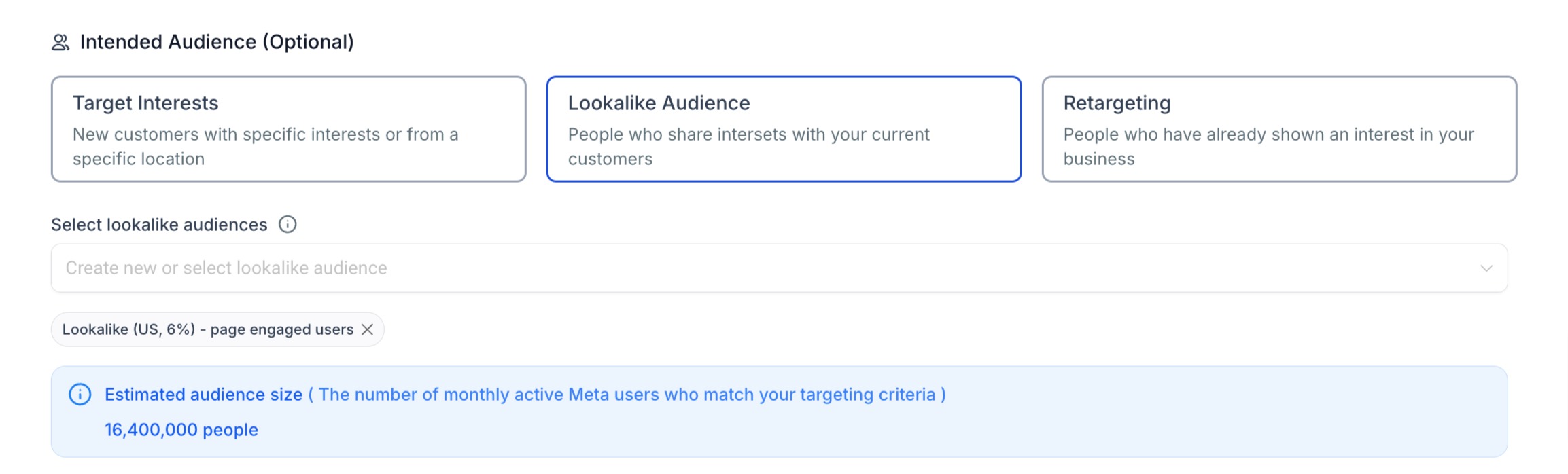
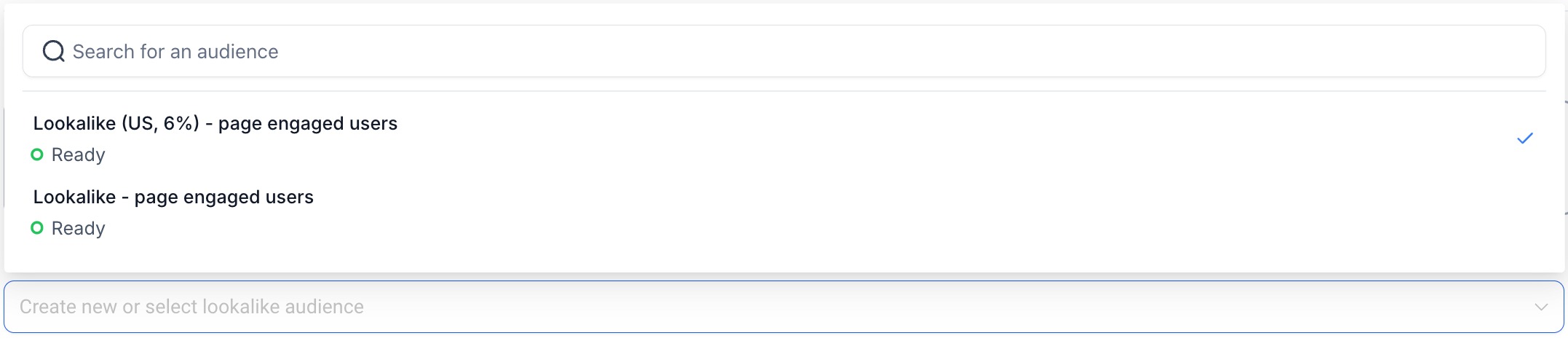
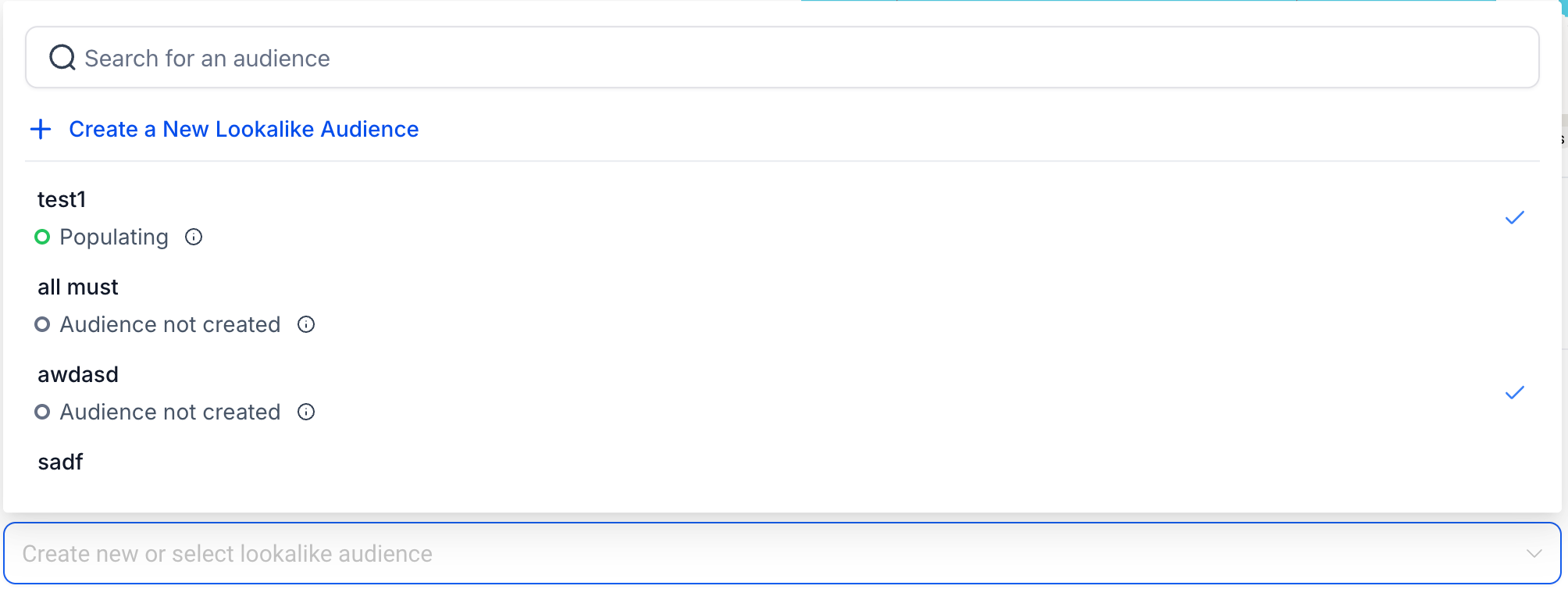
The audience is created in the background; its status shows as Populating for six to twenty four hours and then switches to Ready. Once Ready, you can select it in the Lookalike Audience dropdown while building a campaign.
You find the creation option in the Campaign creation flow, step two, Budget and Audience, under the Audience Controls panel.
03How businesses use lookalike audiences
- Ecommerce store. Select a custom audience of past purchasers as the source, choose the United States as the country, set the audience size to 2 %, and create the lookalike. After it becomes Ready, use it to target ads for a new product launch.
- Fitness studio. Pick the studio’s Facebook page as the data source, name the audience “FitClub Lookalike”, choose Canada, set a 1 % size, and create it. When Ready, apply it to a membership promotion campaign.
- SaaS startup. Use an existing custom audience of trial sign ups, define the audience name, select United Kingdom, choose a 5 % size, and generate the lookalike. Once Ready, the audience can be used for lead generation ads.
04The numbers and rules that matter
- Audience size range: 0 to 10%.
- Populating takes between six and 24 hours.
- Audience refreshes every 3 to 7 days while in use.
05Before you start
- Be in the Ad Manager campaign creation flow, second step, Budget and Audience.
- Have at least one Facebook page connected to HighLevel or an existing custom audience to serve as the source.
06How to set up and use lookalike audiences in HighLevel
Create a lookalike audience for ad targeting
- Open the campaign creation flow and go to the Budget and Audience step.
- In the Audience Controls panel, locate the Intended Audience section and open the Lookalike Audience tab.
- Click the dropdown labeled Create new or select lookalike audience and choose Create a Lookalike Audience.
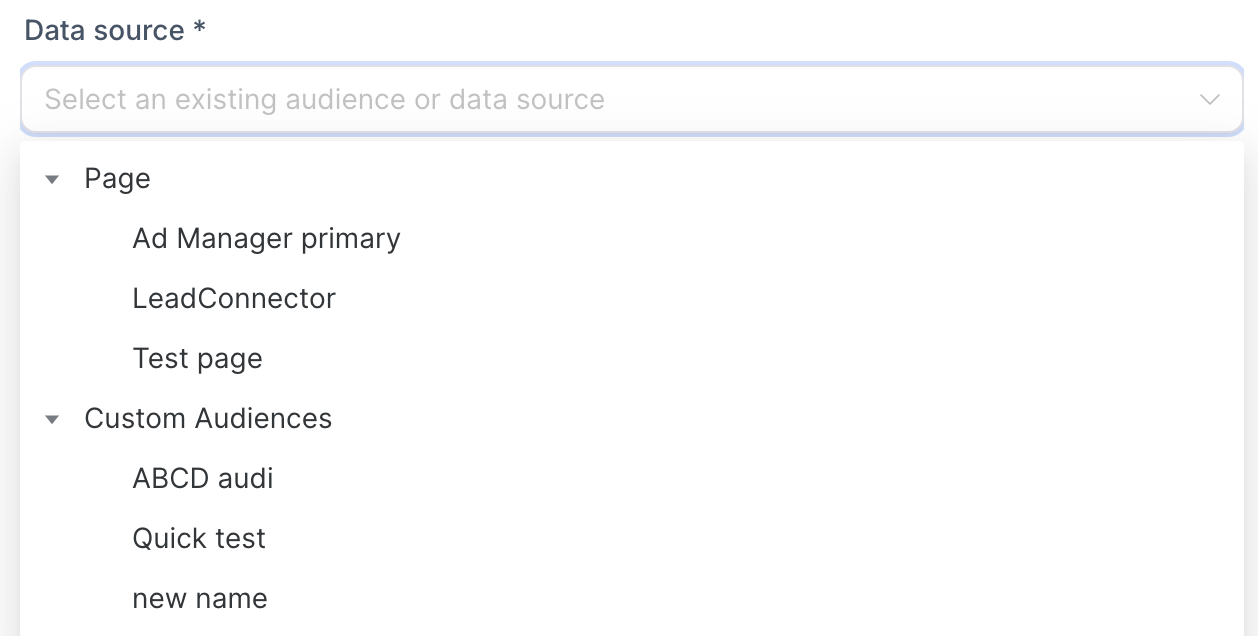
- In the modal that appears, open the Data source dropdown and select either a connected Page or an existing Custom Audience.
- Enter a descriptive name for the new audience.
- Select the country (or countries) where the lookalike audience should be generated.
- Set the Audience Size percentage between 0 and 10 %.
- Press Create audience to finish the setup.
07What it looks like in HighLevel
08Settings that matter
- Data source. Determines whether the lookalike audience is built from a Facebook page or from an existing custom audience.
- Audience Name. Provides an identifier for easy selection of the lookalike audience later.
- Geographic location. Specifies the country or countries where Facebook will search for people similar to the source audience.
- Audience Size. Sets the range of the lookalike audience as a percentage of the total population in the chosen country, from 0 % to 10 %.
09Things to know before you rely on it
- Only countries can be selected for geographic location; cities, neighborhoods and provinces are not supported.
- Audience size is limited to a range of 0 to 10 % of the total population in the selected country.
- Populating the audience takes between six and twenty four hours, after which it becomes Ready.
- The audience refreshes every three to seven days while it is being used in campaigns.
- If the source audience is too small, the lookalike audience may not be created.
10If something goes wrong
- Audience not created. Create a new source audience that contains a larger number of contacts and try again.
11How it connects to the rest of HighLevel
- Learn how to create custom audiences that can serve as lookalike sources Create custom audiences
- Explore audience controls for geographic and demographic targeting Audience controls guide
- Start a 30 day trial to test lookalike audiences in your campaigns 30 day trial
Michael's take

Lookalike audiences are a decent way to stretch your ad spend toward people who resemble your best customers.
If you don’t have a solid custom audience to base them on, you can skip this feature.