
01Who this is for
- Ecommerce owners can showcase several products in one ad, giving shoppers multiple options without creating separate campaigns.
- SaaS marketers can highlight distinct features of their software across cards, telling a step by step story in a single placement.
- Real estate agents can present multiple property photos or virtual tours in a swipeable format to capture mobile viewers.
02Carousel ads, explained
Carousel ads are a format that lets a single advertisement contain several creative cards. Each card may hold an image or video, a headline, a description and a destination link. Users swipe through the cards, seeing a new visual with every swipe.
In HighLevel Ad Manager the carousel is set up at the ad level, after you have defined the campaign and ad set. The media library supplies the images or videos, and the platform provides a preview so you can see how the cards will appear before the ad goes live. After publishing, the ad text and media remain editable while the campaign is under review or already running.
03How businesses use carousel ads
- Ecommerce store. Upload up to ten product images, add a headline for each, and arrange the order to guide shoppers through a collection. Preview the carousel, then publish the ad to reach mobile shoppers. If a product changes, edit the card’s headline or image without rebuilding the campaign.
- SaaS company. Select short videos that demonstrate key features, assign a headline and description to each, and choose thumbnail images for video cards. Use the preview to confirm the flow, then launch the ad. When a new feature is released, replace the relevant card’s media and headline.
- Real estate broker. Add photos of several listings, write a headline for each property, and reorder the cards to prioritize top listings. Review the swipeable preview, publish the ad, and later adjust a card’s image or headline if a property’s status changes.
04The numbers and rules that matter
- Up to 10 cards can be added to a Meta Carousel Ad.
05Before you start
- A campaign and ad set must be created and saved before adding carousel media.
- All images or videos intended for the carousel should be uploaded to the Media Library.
06How to set up and use carousel ads in HighLevel
Create carousel ad
- Open the campaign creation flow and reach the Ad Content step.
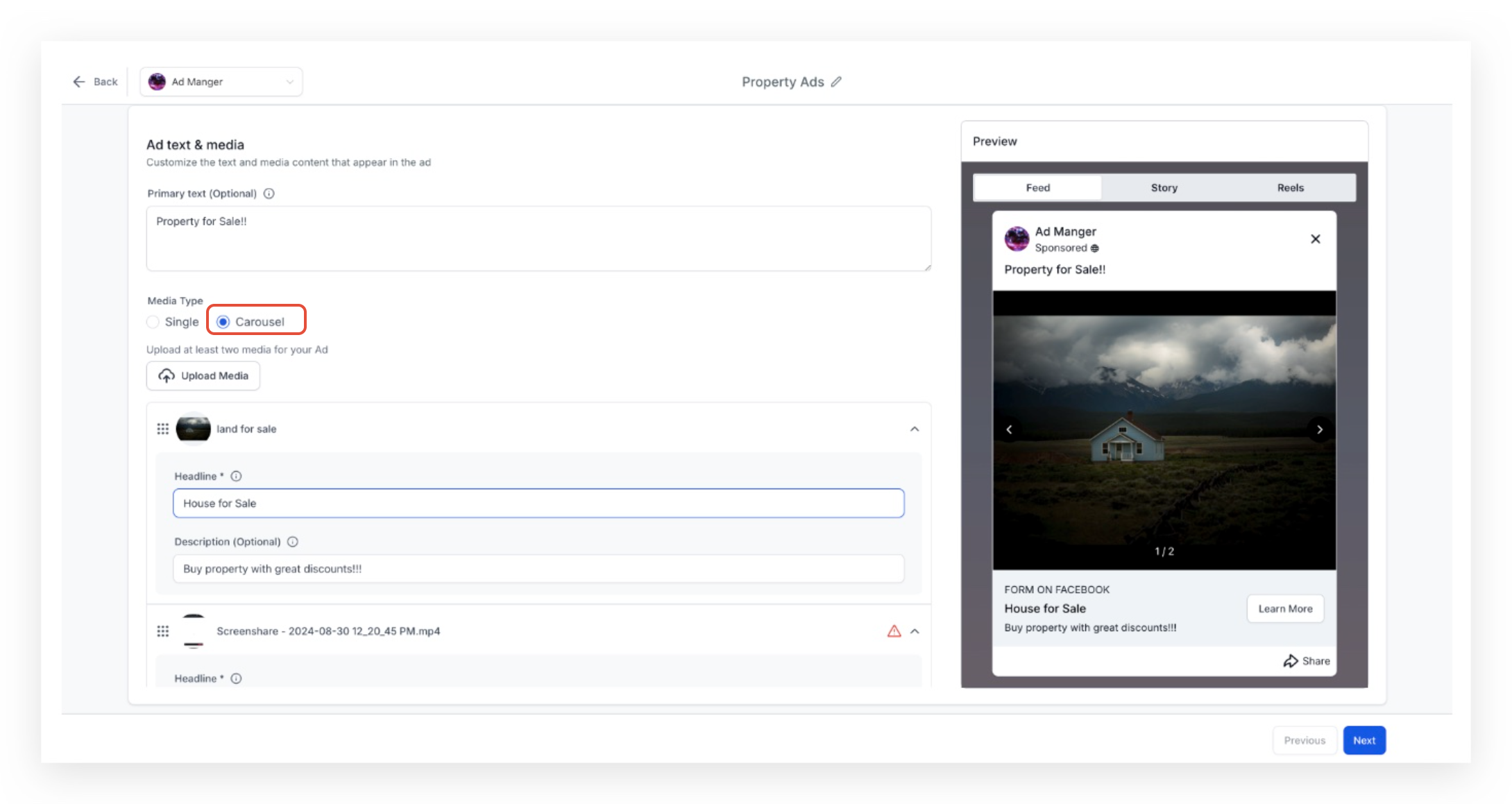
- Select the “Carousel” radio button in the media type sub section.
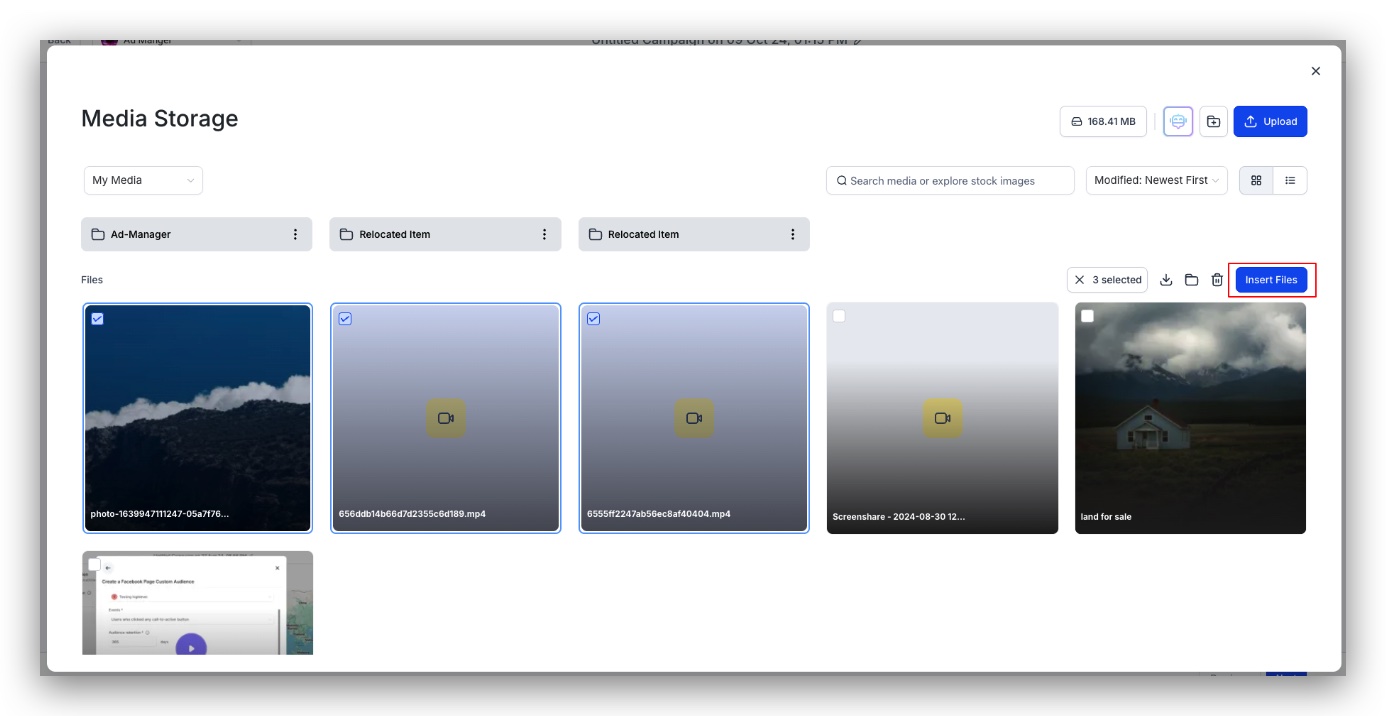
- Click the “Upload media” button to open the Media Library.
- In the library, multi select up to ten images or videos and click “Insert Files”.
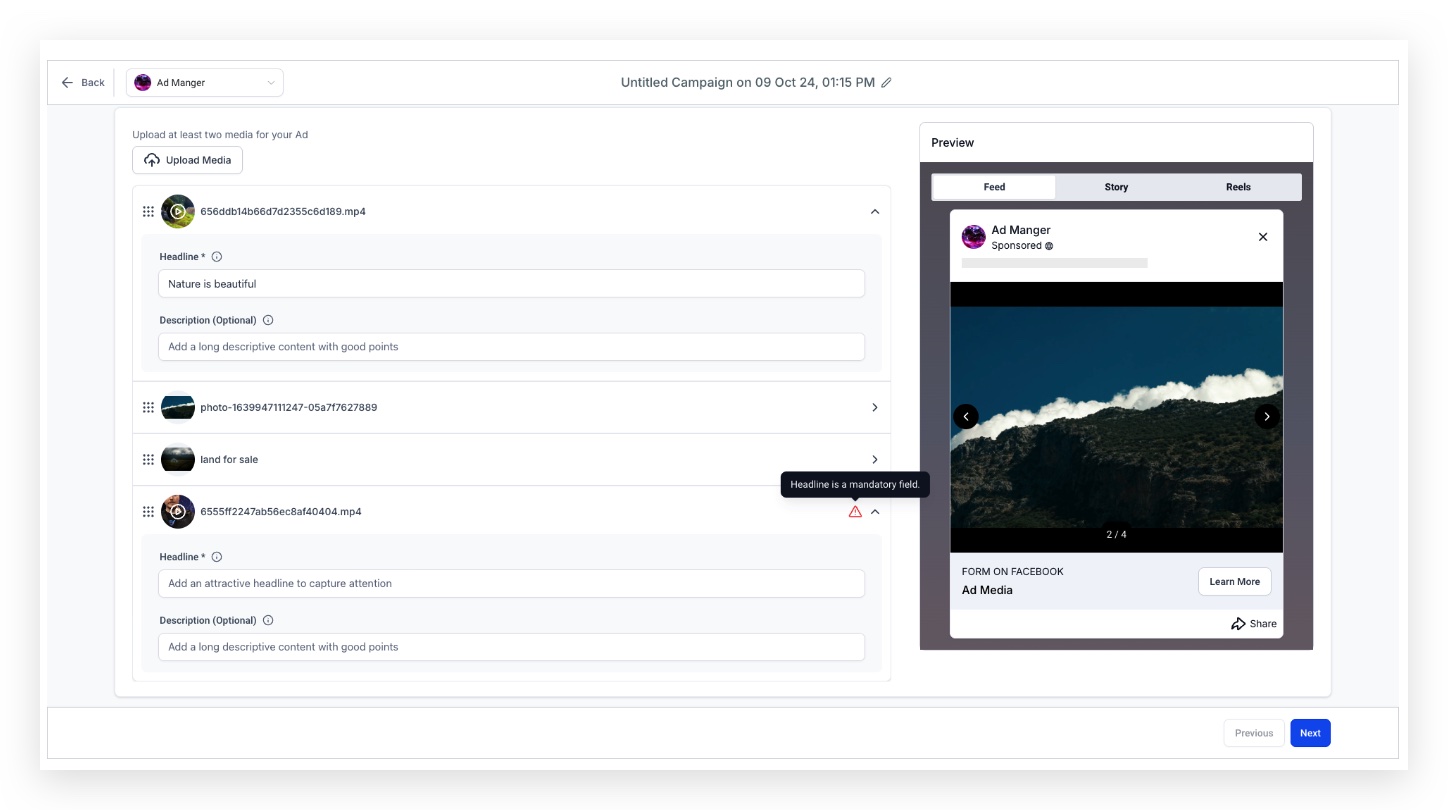
- Enter a headline for each uploaded card; optionally add a description and reorder the cards.
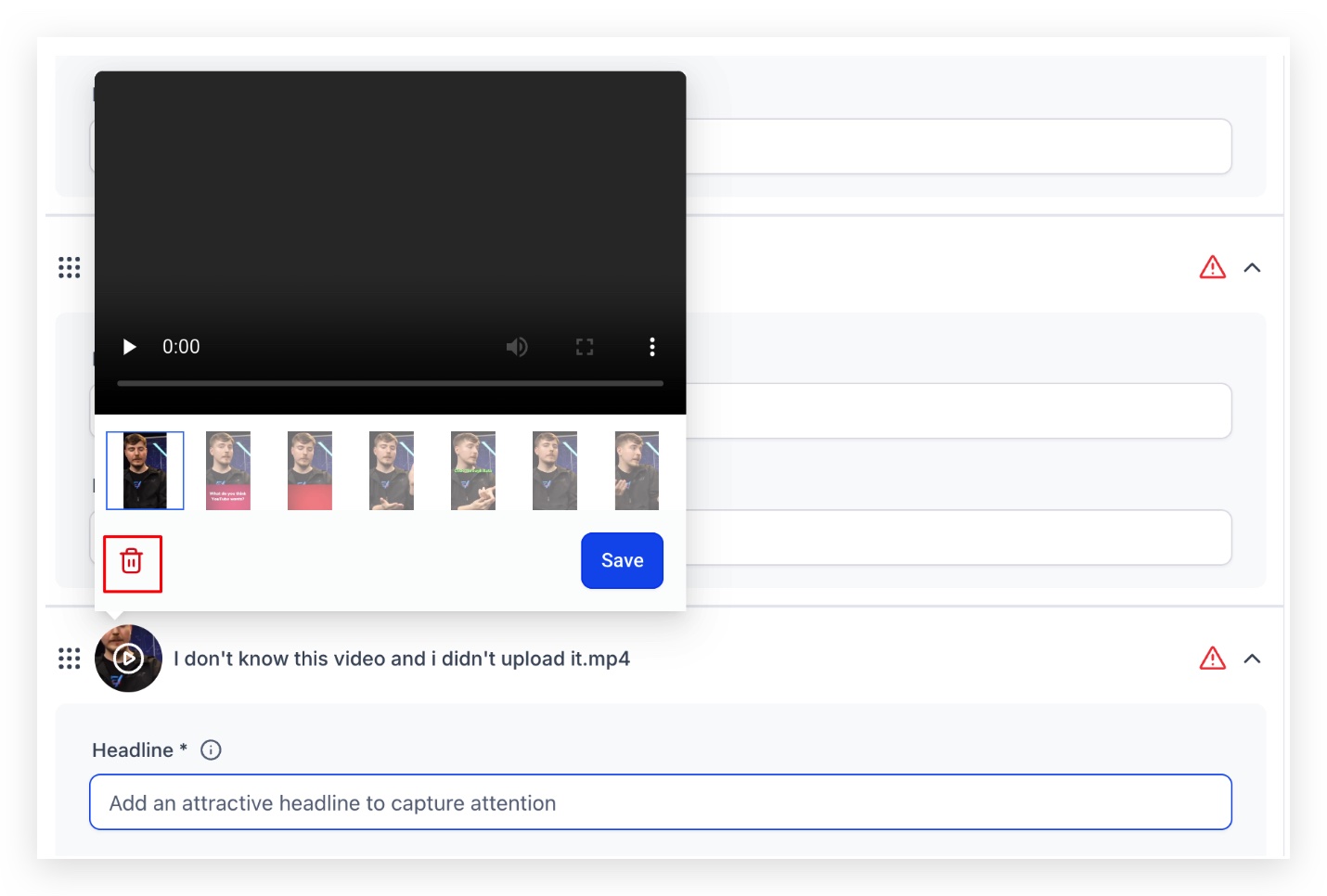
- If a video is used, click the video thumbnail area and choose a new thumbnail image.
- To remove a media item, click its icon then click the dustbin icon.
- Look at the preview section to see how the carousel will appear to users.
- In the “Review and Publish” area, confirm that all cards appear under ad content > media.
- Publish the campaign, ensuring no errors such as missing headlines remain.
07What it looks like in HighLevel
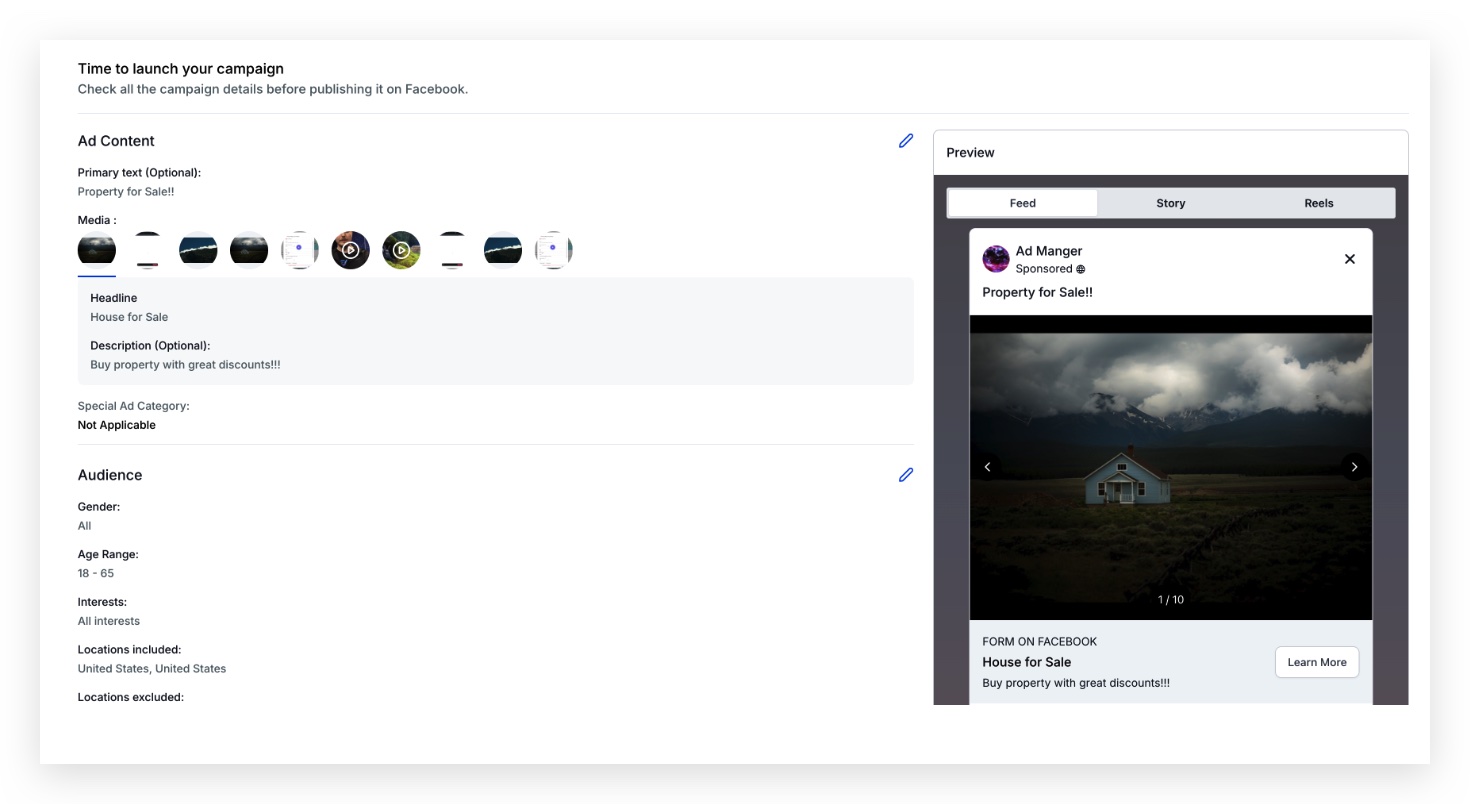
08Settings that matter
- Carousel (radio button). Switches the ad format from single to carousel, enabling multiple cards.
- Upload media. Opens the Media Library where images or videos can be selected for the carousel.
- Headline. Required text for each card that appears above the description.
- Description. Optional supporting text displayed under the headline on each card.
- Thumbnail selection. Lets you pick a still image to represent an uploaded video card.
09Things to know before you rely on it
- A maximum of ten cards can be added to a carousel ad.
- Each card must have a headline; the campaign cannot be published if any headline is missing.
- Only the ad text and media fields are editable after the campaign is published or under review.
10If something goes wrong
- Campaign shows errors because a card is missing a headline.. Enter a headline for the card that is missing one, then try publishing again.
11How it connects to the rest of HighLevel
- Start a new Facebook ad campaign in HighLevel Create Facebook ad
- View and export statistics for your carousel campaigns Ad statistics
- Use the template library to quickly set up carousel ad content Template library
Michael's take

Carousel ads can be a cost effective way to showcase several products or tell a story, and may lead to higher engagement and click through rates.
Missing a headline on any card will block the ad from publishing, so double check that every card has a headline.