
01Who this is for
- Email marketers who need eye catching visuals can use GIFs to make messages stand out.
- Small business owners looking to showcase product demos can replace static video thumbnails with animated GIFs.
- Design teams that maintain brand consistency can reuse GIFs stored in the Media Library across multiple campaigns.
02GIFs in emails, explained
The feature lets you insert animated GIF files into an email either through an Image element or as the thumbnail for a Video element. When you choose a GIF, the platform pulls it from the Media Library, where you can also upload new files.
GIFs behave like regular images in the editor; they play automatically when the recipient opens the email. For video elements, the selected GIF replaces the default static thumbnail, giving a preview of motion before the video plays. All GIFs must be 10 MB or smaller.
You access this capability inside the Email Builder, which is reached via Marketing > Emails. The editor’s Elements panel provides the Image and Video elements that you drag onto the canvas and then configure with GIFs.
03How businesses use GIFs in emails
- Ecommerce store. A store owner drags an Image element into a promotional email, selects a product related GIF from the Media Library, and inserts it to highlight a new arrival. The GIF plays when customers view the email, adding visual interest.
- Online fitness coach. The coach adds a Video element to a newsletter, opens the thumbnail settings, and picks a short workout move GIF as the thumbnail. The animated preview encourages recipients to click and watch the full video.
- Real estate agency. An agent uploads a GIF showing a quick interior walkthrough, then uses the Video element with that GIF as the thumbnail in a property listing email, giving prospects a dynamic preview before they watch the full tour.
04The numbers and rules that matter
- GIF files used in the Email Builder should not exceed 10 MB.
05How to set up and use GIFs in emails in HighLevel
Add a GIF as an Image
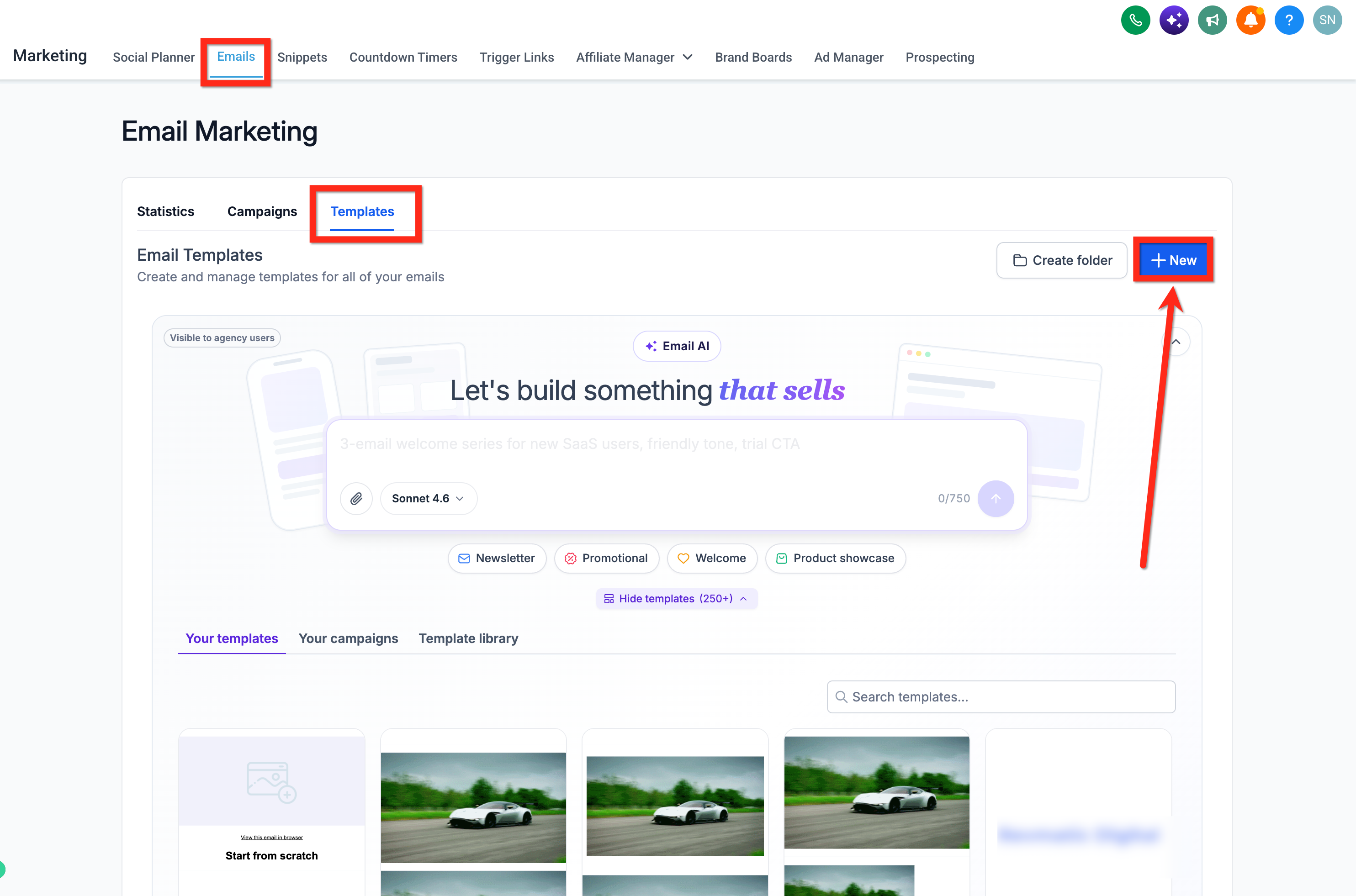
- Open Marketing > Emails.
- Start a new email or edit an existing one.
- Launch the email in the editor.
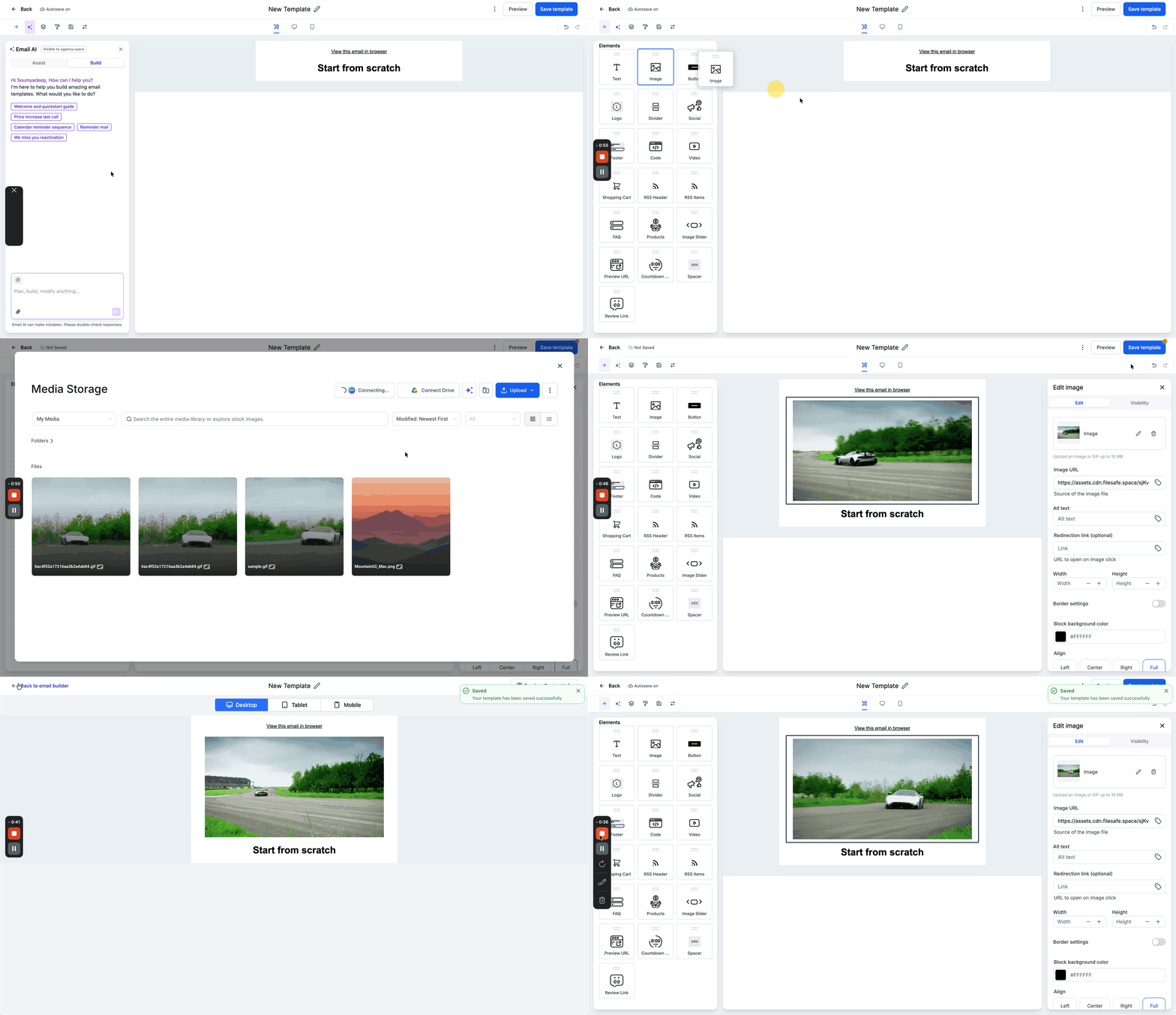
- Drag an Image element from the Elements panel onto the canvas.
- Click the placed Image element to select it.
- Tap the pencil icon to edit the image.
- Choose to upload a new file or pick one from the Media Library.
- Select an existing GIF or upload a new GIF file.
- Press Insert Media to embed the GIF.
- Save the email and preview it before sending.
Use a GIF as a Video Thumbnail
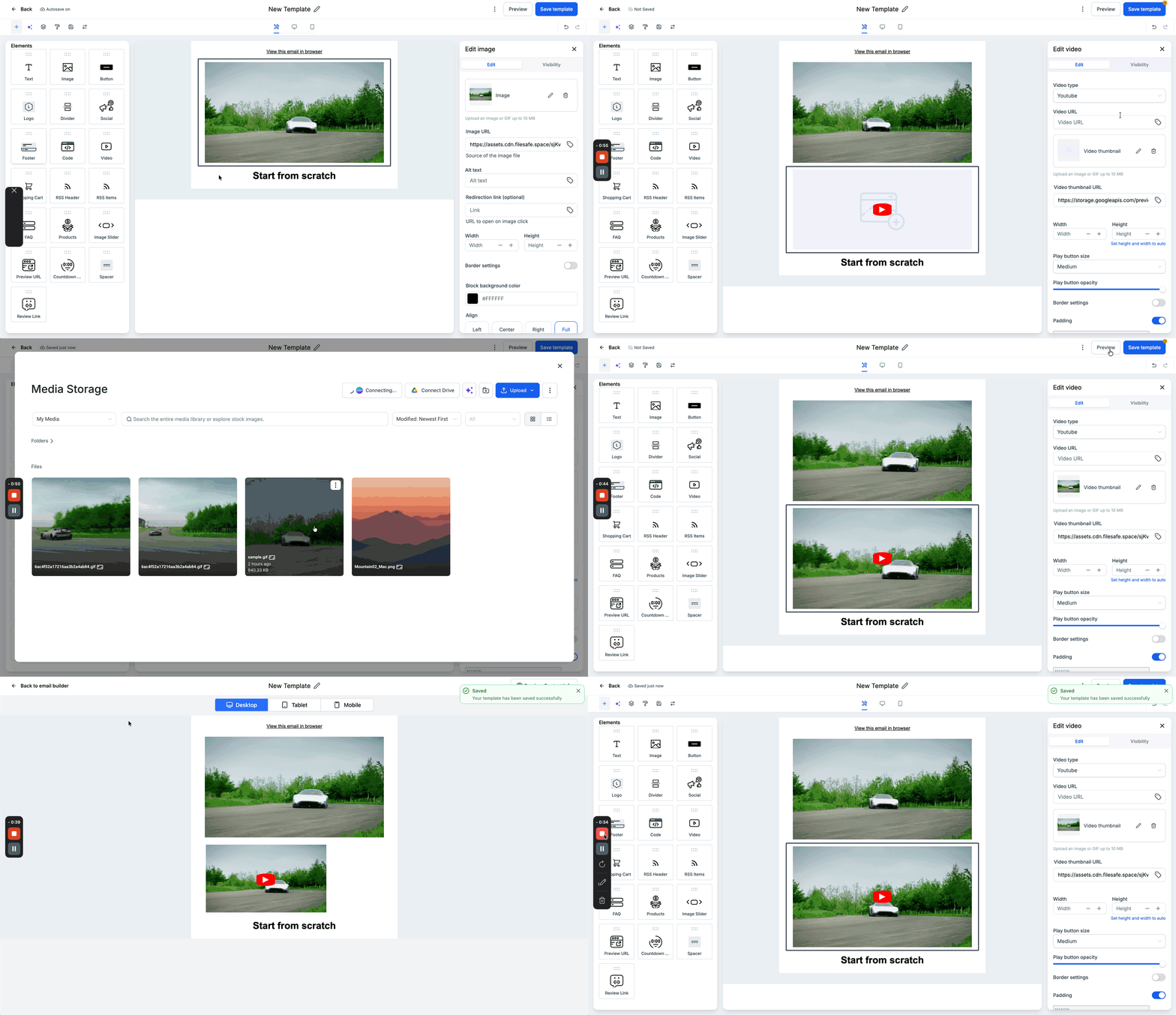
- Drag a Video element from the Elements panel into the email layout.
- Click the Video element to open its settings.
- Find the thumbnail area and click the pencil icon.
- Open the Media Library window.
- Select an existing GIF or upload a new GIF file.
- Click Insert Media to set the GIF as the video thumbnail.
- Save the email and preview it.
06What it looks like in HighLevel
07Things to know before you rely on it
- GIF files used in the Email Builder must not be larger than 10 MB.
- Only GIFs stored in the Media Library can be inserted; other file types are not supported for this feature.
08How it connects to the rest of HighLevel
- Learn how to add and configure the Video element in the email builder. Video element guide
- Explore custom fonts you can use alongside GIFs in email designs. Custom fonts
- Send or schedule the email after adding your GIFs. Send or schedule email
Michael's take

I would first pick a simple, on brand animation that supports the email’s purpose and then test it in the preview to make sure it loads quickly and stays within the 10 MB limit before sending.
If I were setting up a new campaign, I’d add the GIF to a single element, preview on both desktop and mobile, and send a small test batch. That way I can confirm the animation plays as intended before rolling it out to the full list.