
01Who this is for
- Social media managers appreciate a single place to plan and publish Pinterest content, keeping workflow consistent.
- Ecommerce owners can showcase product images on multiple boards without re creating posts, saving time.
- Marketing teams that need approval flows can route pins through the platform’s post approval feature.
02Pinterest pins, explained
The feature adds Pinterest as a channel inside the Social Planner. Once a business account is linked, the composer lets you attach one image or one video, write a title, description and link, and pick the boards where the pin will appear. You can publish the pin immediately, schedule it for later, set it as recurring, or send it for approval.
Pins are generated separately for each board you select. The platform supports up to 25 boards per pin, and each board receives its own published pin, so analytics stay distinct. A preview shows how the pin will look before you finalize it.
All actions happen inside HighLevel, eliminating the need to switch to the native Pinterest site. Media must meet Pinterest’s file size, format, duration and aspect ratio rules, otherwise the pin may fail to publish.
03How businesses use Pinterest pins
- Boutique fashion retailer. The retailer links its Pinterest business account, uploads product photos that follow the 10 MB image limit, and selects several style boards. The pins are scheduled to align with new arrivals, keeping the brand visible across multiple collections.
- Home improvement contractor. The contractor adds a short video tour of a recent remodel, ensuring the file is under 1 GB and between 4 seconds and 5 minutes. After entering a title and link to the project page, the pin is sent for manager approval before going live.
- Food blog publisher. The publisher creates a recipe pin, uploads a JPEG image under 10 MB, and picks both a “Desserts” board and a new “Summer Treats” board created on the spot. The pin is set to post now, reaching two audiences right away.
04The numbers and rules that matter
- Up to 25 boards can be selected per pin.
- Image file size: 10 MB or less; formats: PNG, JPG.
- Video file size: 1 GB or less; formats: MOV, MP4, WEBP; duration: Minimum 4 seconds, maximum 5 minutes.
- Recommended video aspect ratios: 9:16, 1:2, 2:3, 3:4, 4:5, 1:1.
- Video encoding: H.264 or H.265.
05Before you start
- A Pinterest business account must exist.
- You must be an admin of the Pinterest account you intend to connect.
- At least one board should be present in the connected account, or you must be prepared to create one during pin creation.
06How to set up and use Pinterest pins in HighLevel
Connect a Pinterest account
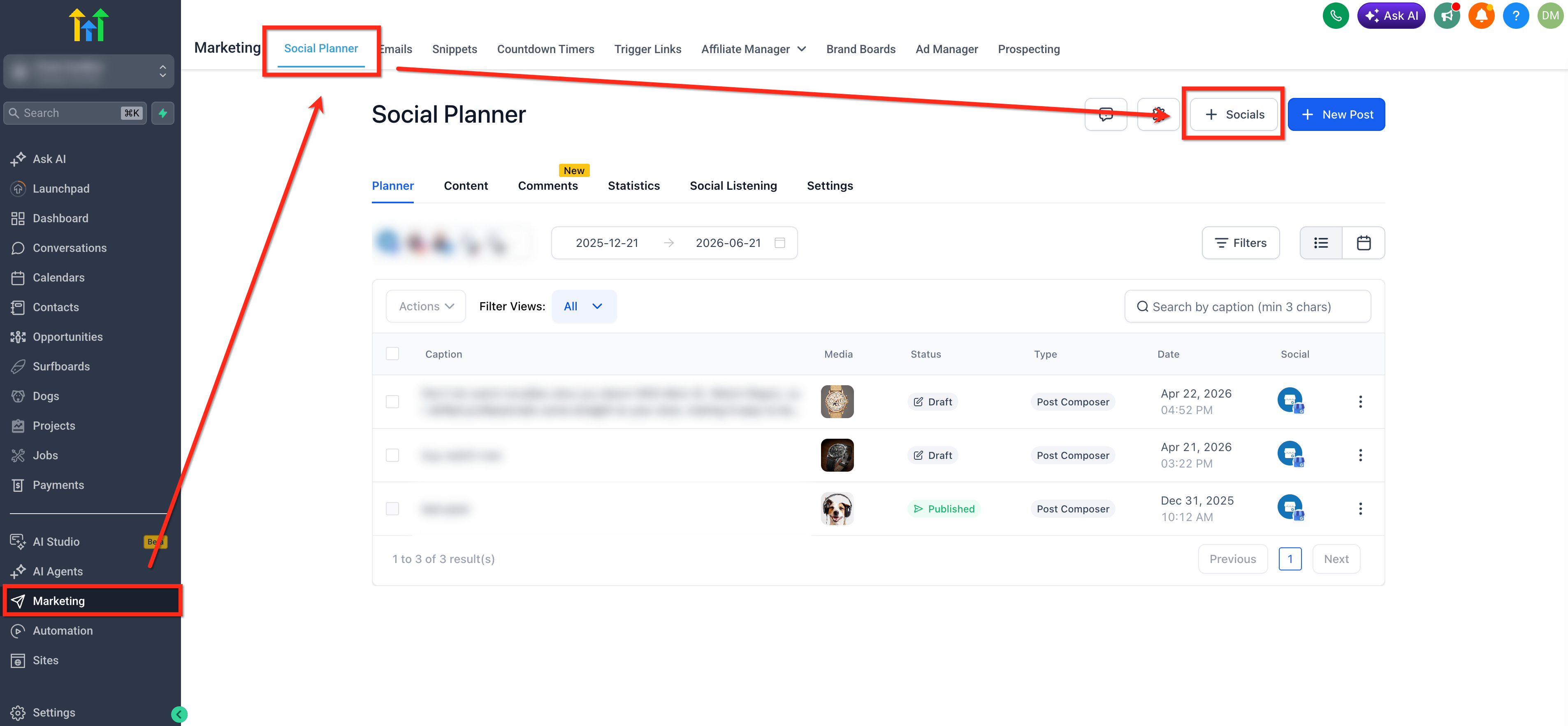
- Navigate to Marketing > Social Planner > + Socials.
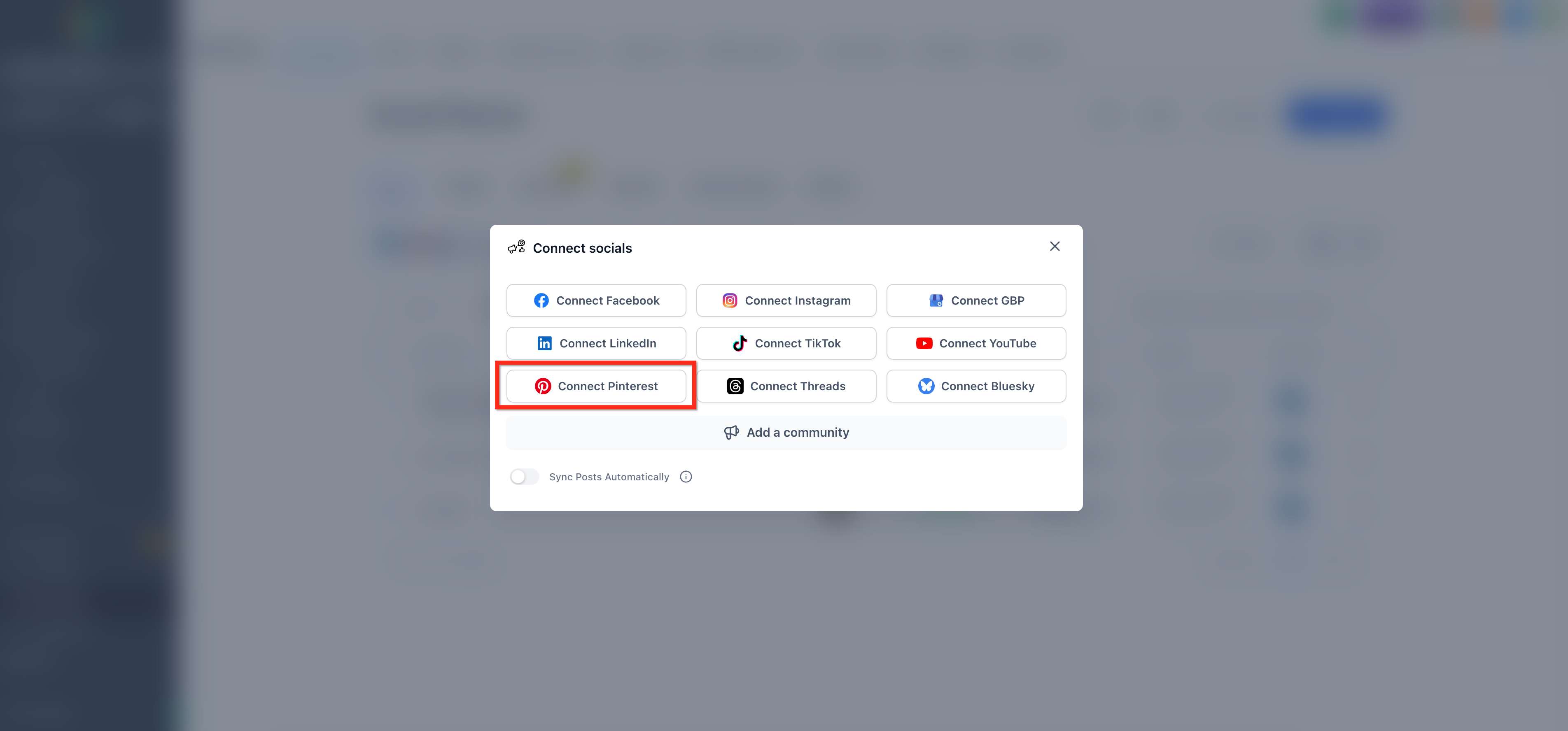
- Click Connect Pintrest.
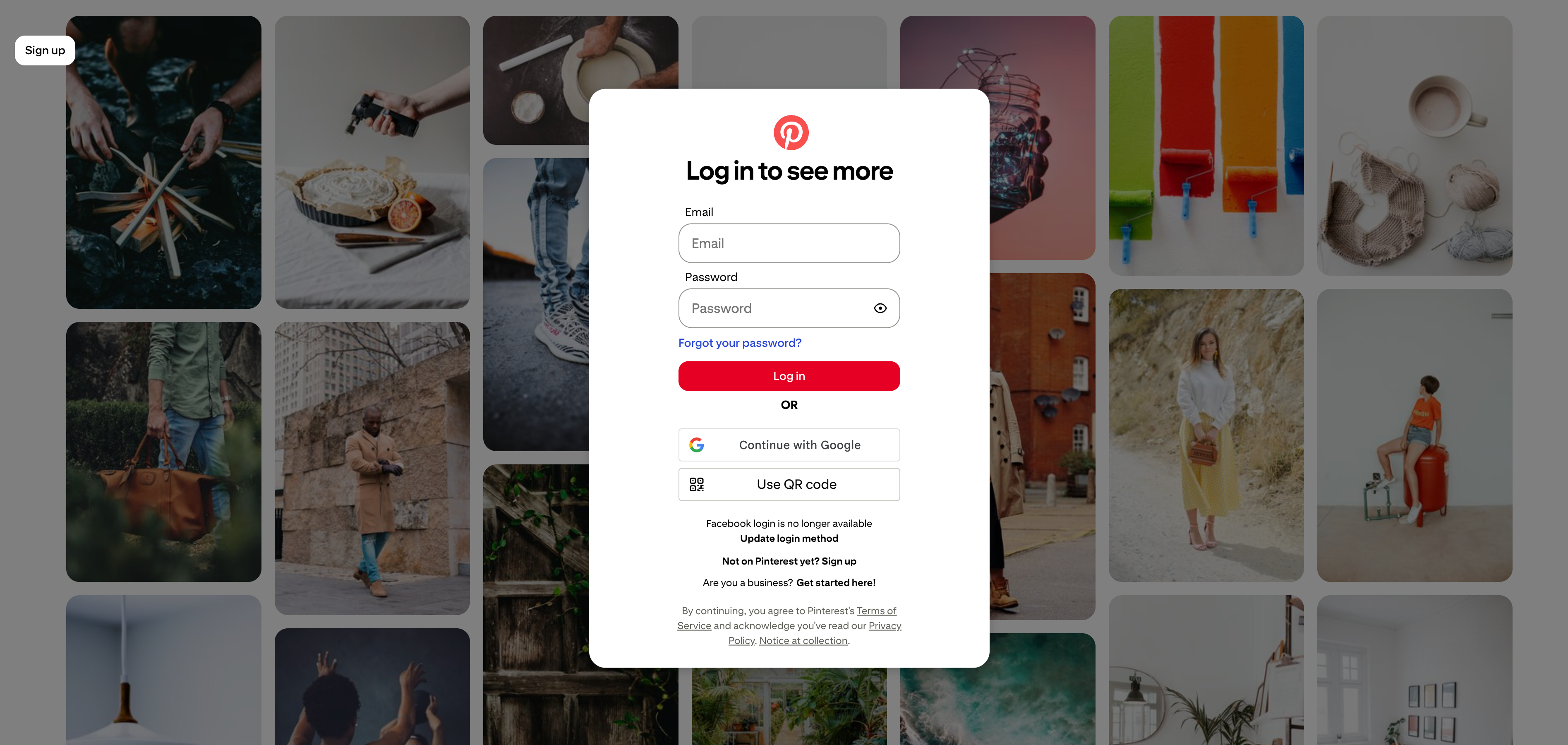
- Log in to the Pinterest account and verify admin access.
Create and post pins
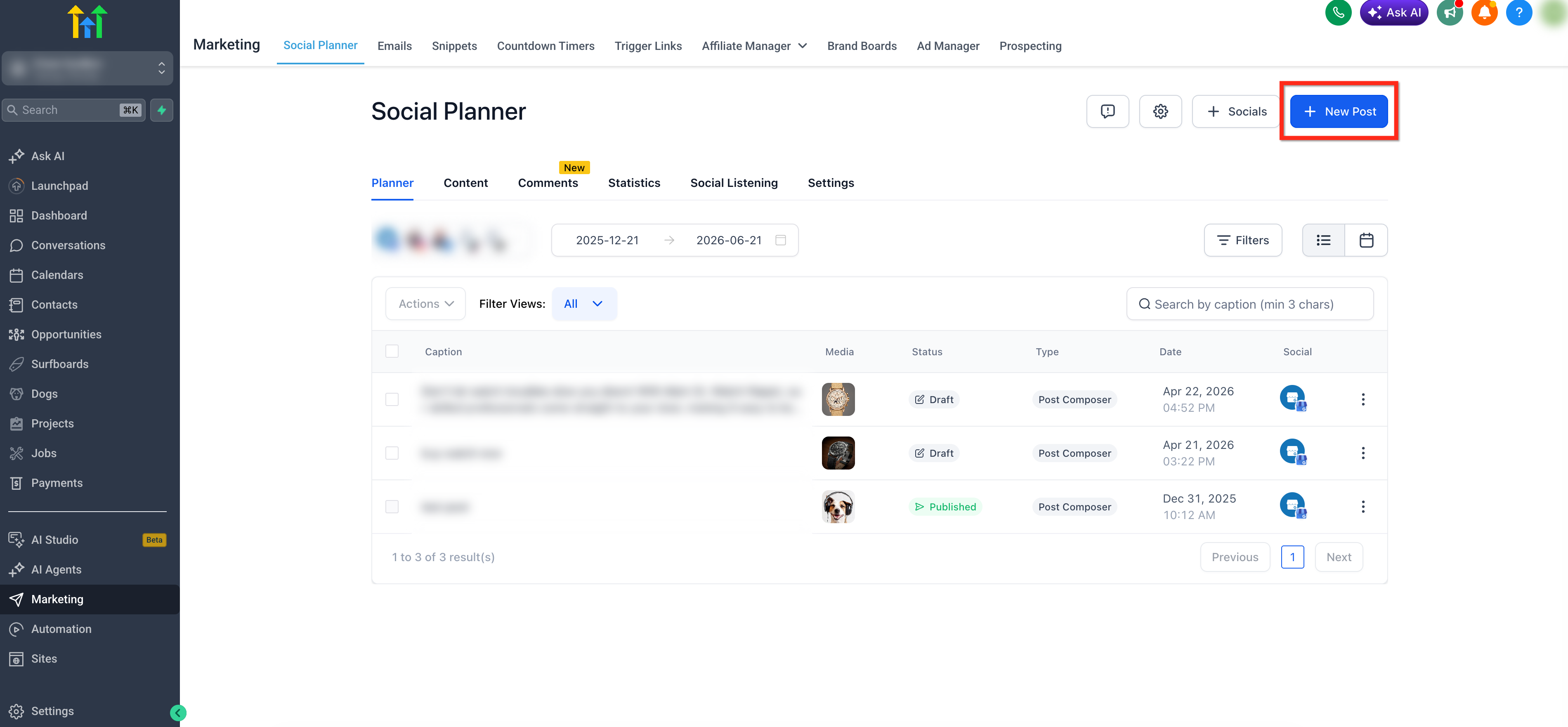
- From the Social Planner, click + New Post.
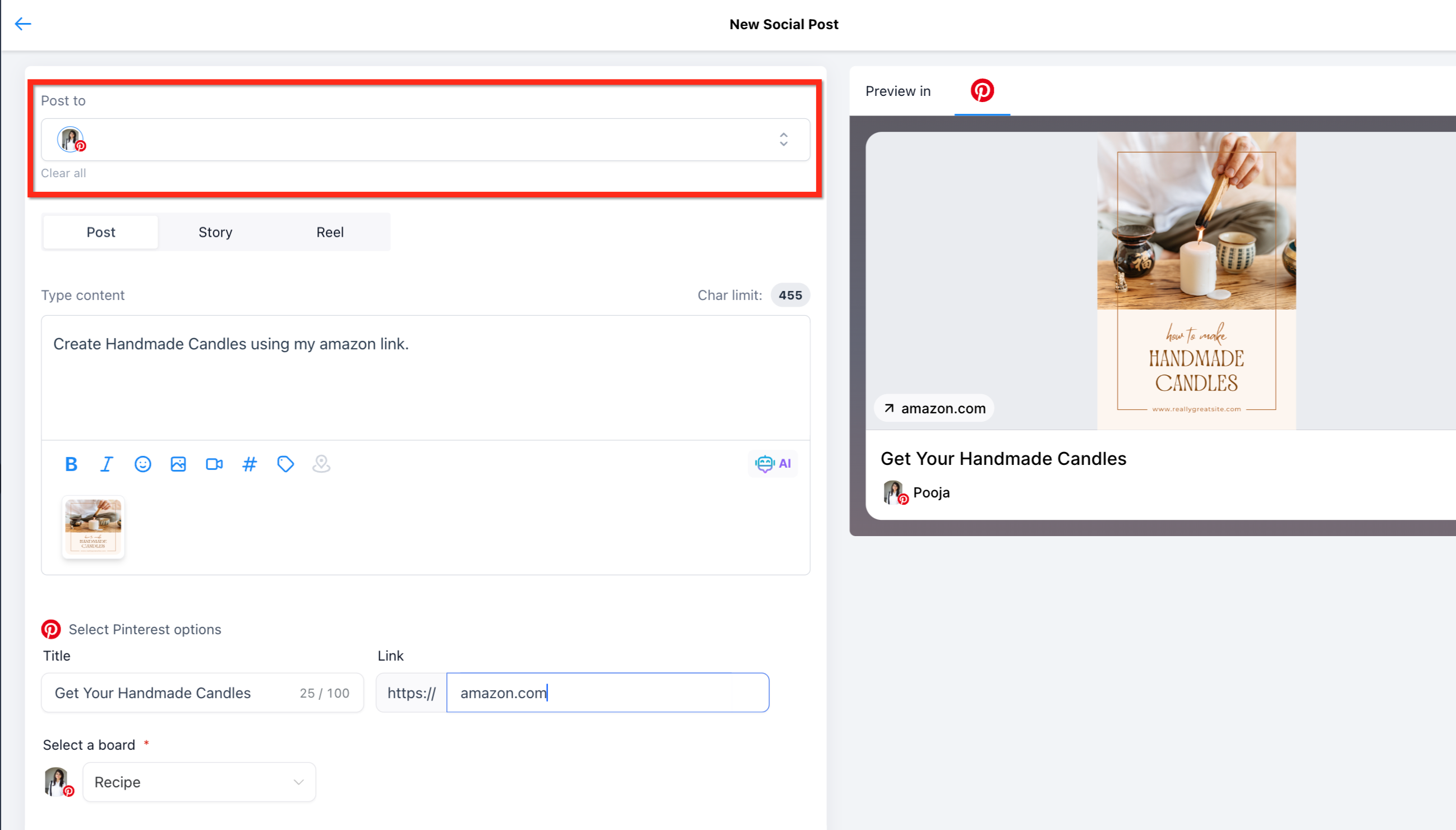
- Choose the connected Pinterest account in the Post to field.
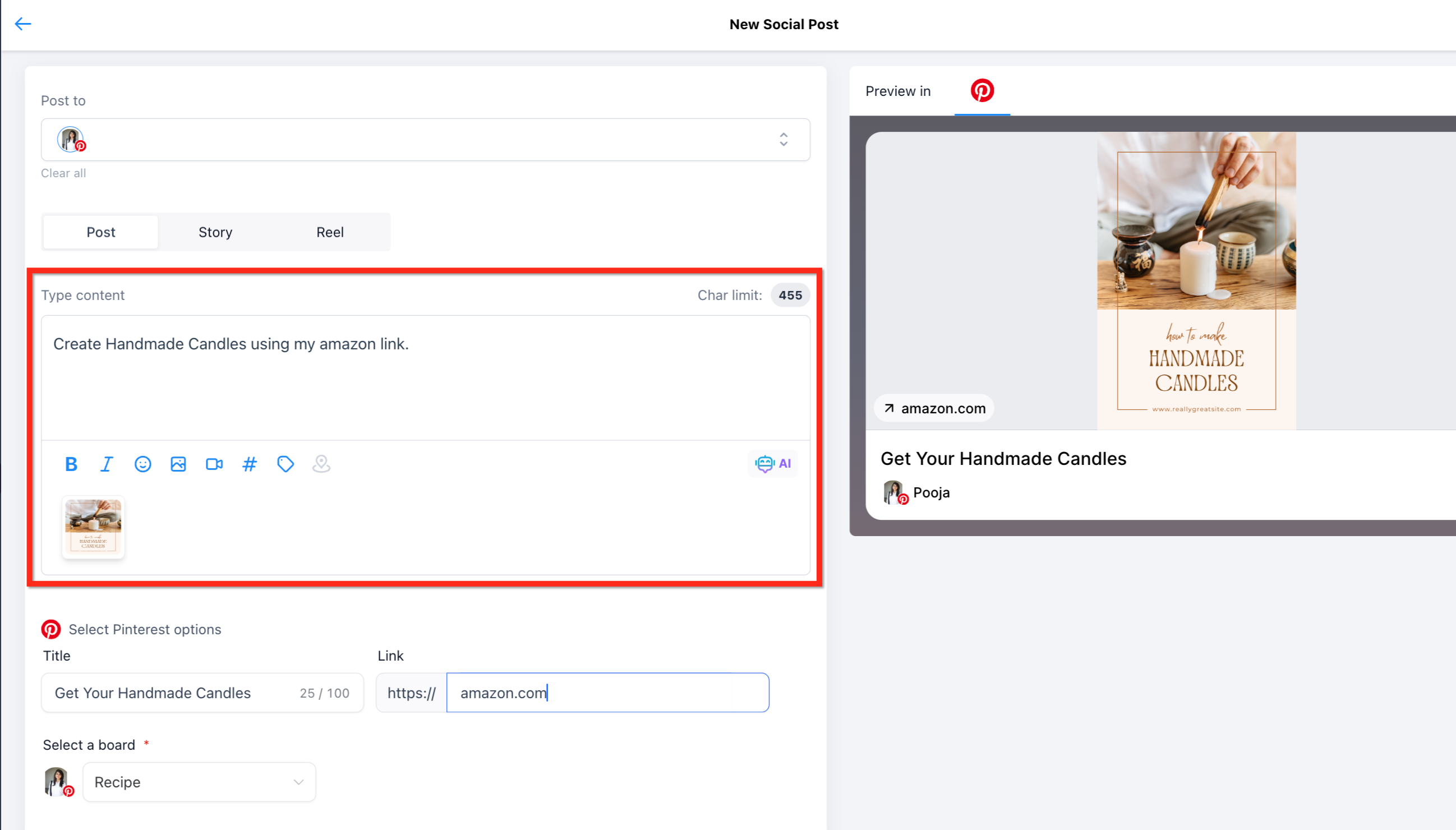
- Enter the pin description and upload a supported image or video.
- Provide a pin title and the destination link.
- Select at least one board (up to 25). Use the Add board option to create a new board if needed.
- Choose a publishing action such as Save for later, Post now, Schedule post, Recurring post, or Send for approval.
07What it looks like in HighLevel
08Things to know before you rely on it
- Each pin must contain exactly one image or one video.
- Image files may not exceed 10 MB and must be PNG or JPG.
- Video files may not exceed 1 GB, must be MOV, MP4 or WEBP, and run between 4 seconds and 5 minutes.
- Supported video aspect ratios include 9:16, 1:2, 2:3, 3:4, 4:5, and 1:1.
- A maximum of 25 boards can be selected for a single pin.
- At least one board must be selected before a pin can be posted, scheduled, saved, or sent for approval.
- If publishing fails on one board, pins on other selected boards continue to process.
09If something goes wrong
- Pinterest board does not appear in the selection list. Confirm the correct business account is connected, that you have admin rights, and that the board exists in Pinterest. Reconnect or refresh the social account if needed.
- Media file is rejected. Check that the file type, size, duration and aspect ratio match Pinterest requirements and adjust the file before attempting to publish.
10How it connects to the rest of HighLevel
- Review image and video specifications for Social Planner content Content guidelines
- Learn how to add @mentions and tag profiles in Social Planner posts @mentions guide
- Set up post approvals to control pin publishing Post approvals
Michael's take

Wondering if you really need another place to post Pinterest content? The Social Planner lets you handle Pinterest pins right alongside your other socials, so your team can stay on schedule without juggling separate tools.
If I were setting up a new campaign, I’d connect the business account first, then draft a pin that works for several boards. That way the same creative can reach multiple audiences with a single effort.