
01Who this is for
- Founders building funnel pages can add visual cues without leaving the editor, keeping design work fast.
- Marketers creating email campaigns benefit from inline icons to make calls to action clearer.
- Ecommerce store owners can upload brand specific illustrations to personalize product pages.
02Graphic Library, explained
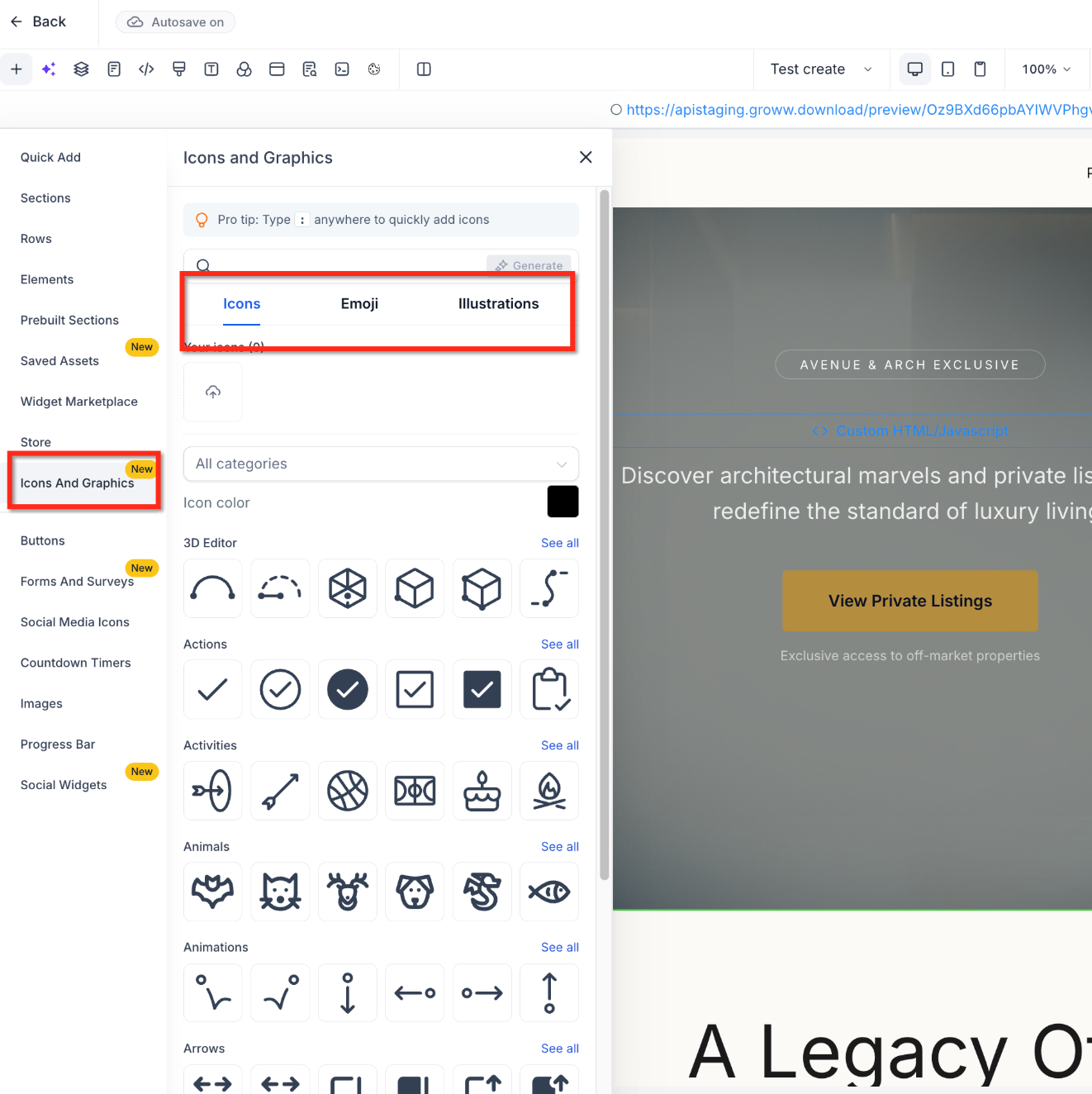
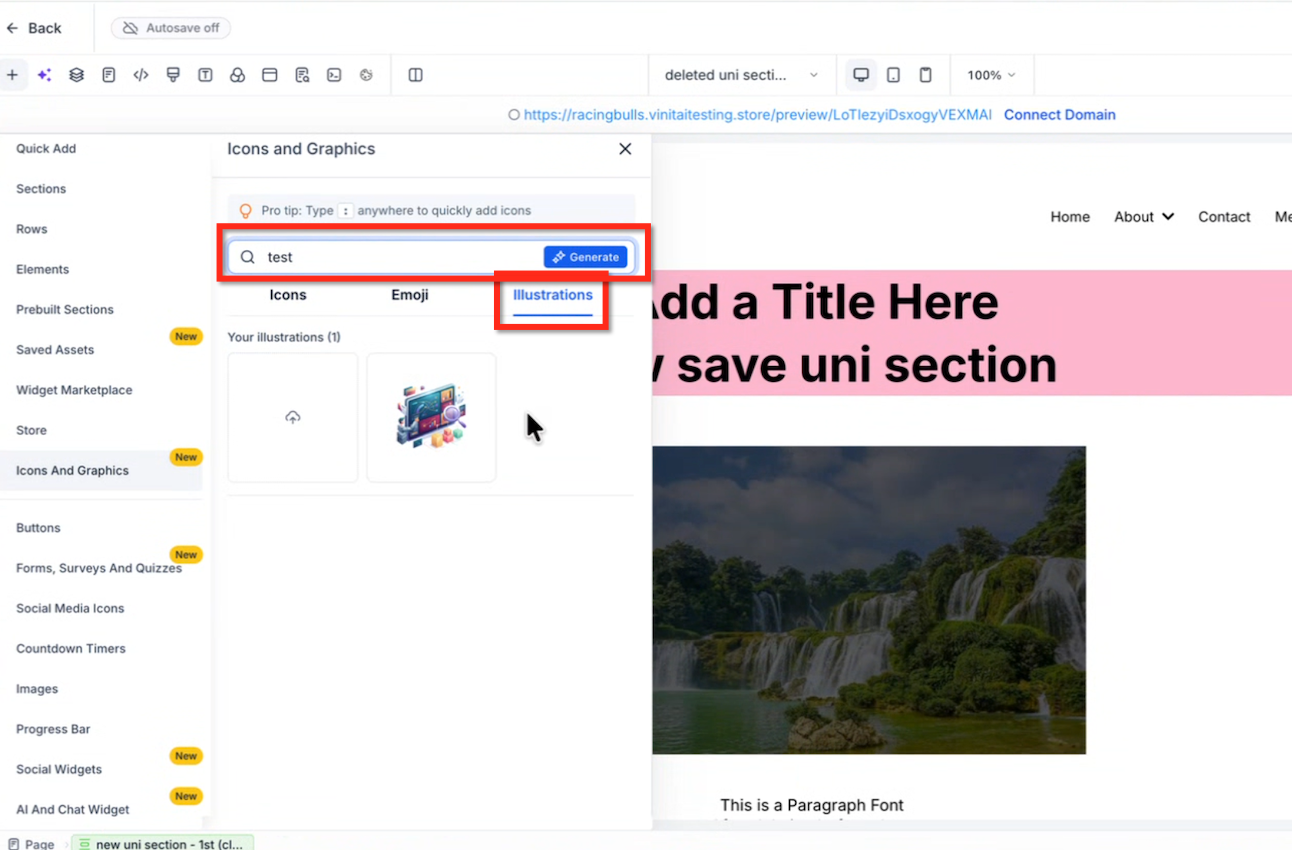
The Graphic Library is a built in collection of over 11,000 icons and emojis plus illustration options. It appears in the Icons & Graphics panel of supported HighLevel builders such as Funnels, Websites, Stores, Webinar pages, and the new Email Builder. Users can search, browse categories, and drag graphics onto the canvas.
Icons can be colored to match brand palettes, emojis add expressive flair, and illustrations can be chosen from built in art, generated with AI, or uploaded from a device. Icons also work inline within headings, paragraphs, and button text, expanding visual communication possibilities across page types.
03How businesses use the Graphic Library
- Coaching business. A coach can open the Icons & Graphics panel while building a landing page, select an icon that represents a video module, customize its color to match the brand, and place it beside the call to action button. This creates a cohesive visual cue without using external design tools.
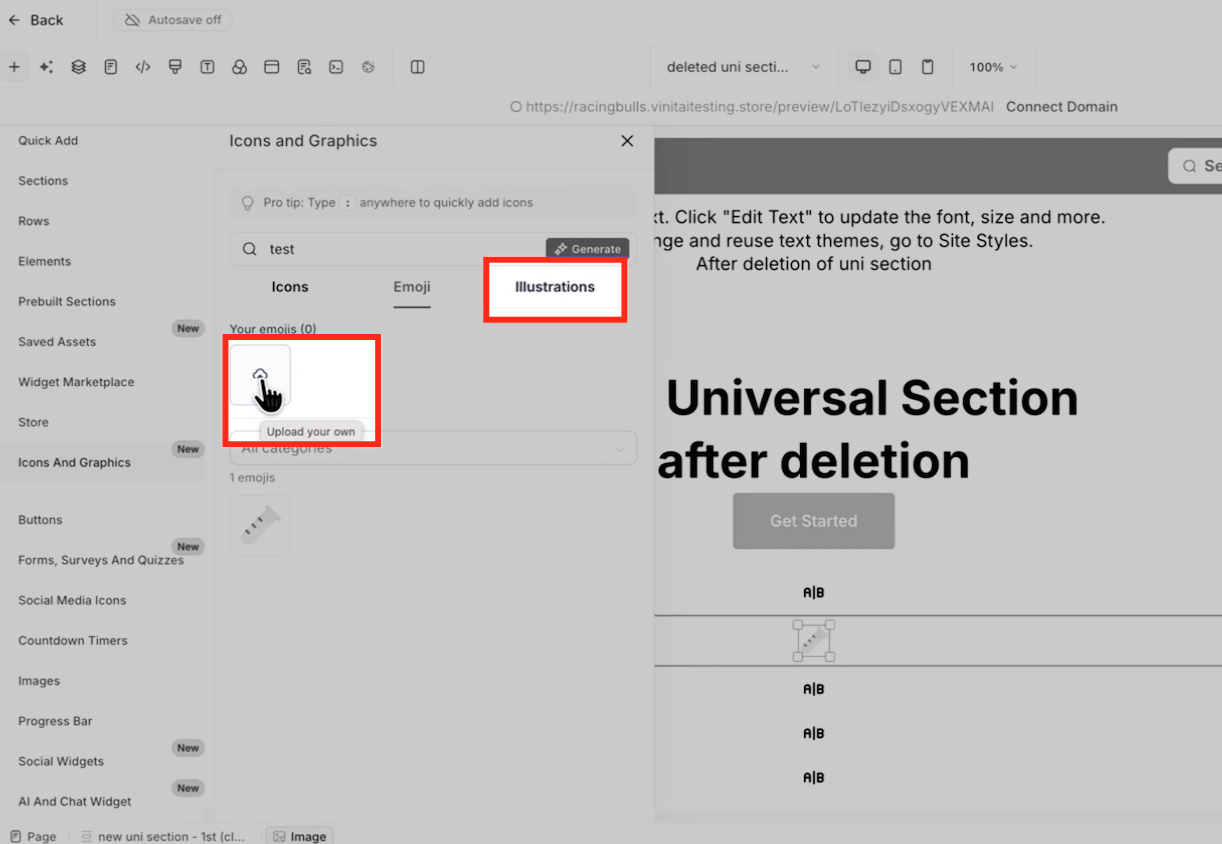
- Online retailer. An ecommerce owner can upload a custom illustration of a new product line through the upload control, then drag the graphic onto a store page. The illustration appears alongside product descriptions, reinforcing the brand’s visual identity.
- SaaS company. A SaaS Founder can generate an AI illustration that reflects a unique data analytics concept, review the generated image, and insert it into a webinar landing page. The custom artwork helps explain the service without needing a designer.
04The numbers and rules that matter
- Over 11,000 icons and emojis available.
05Before you start
- Open a supported HighLevel builder (Funnel, Website, Store, Webinar, or Email Builder) where the Icons & Graphics panel is available.
06How to set up and use the Graphic Library in HighLevel
Add an icon
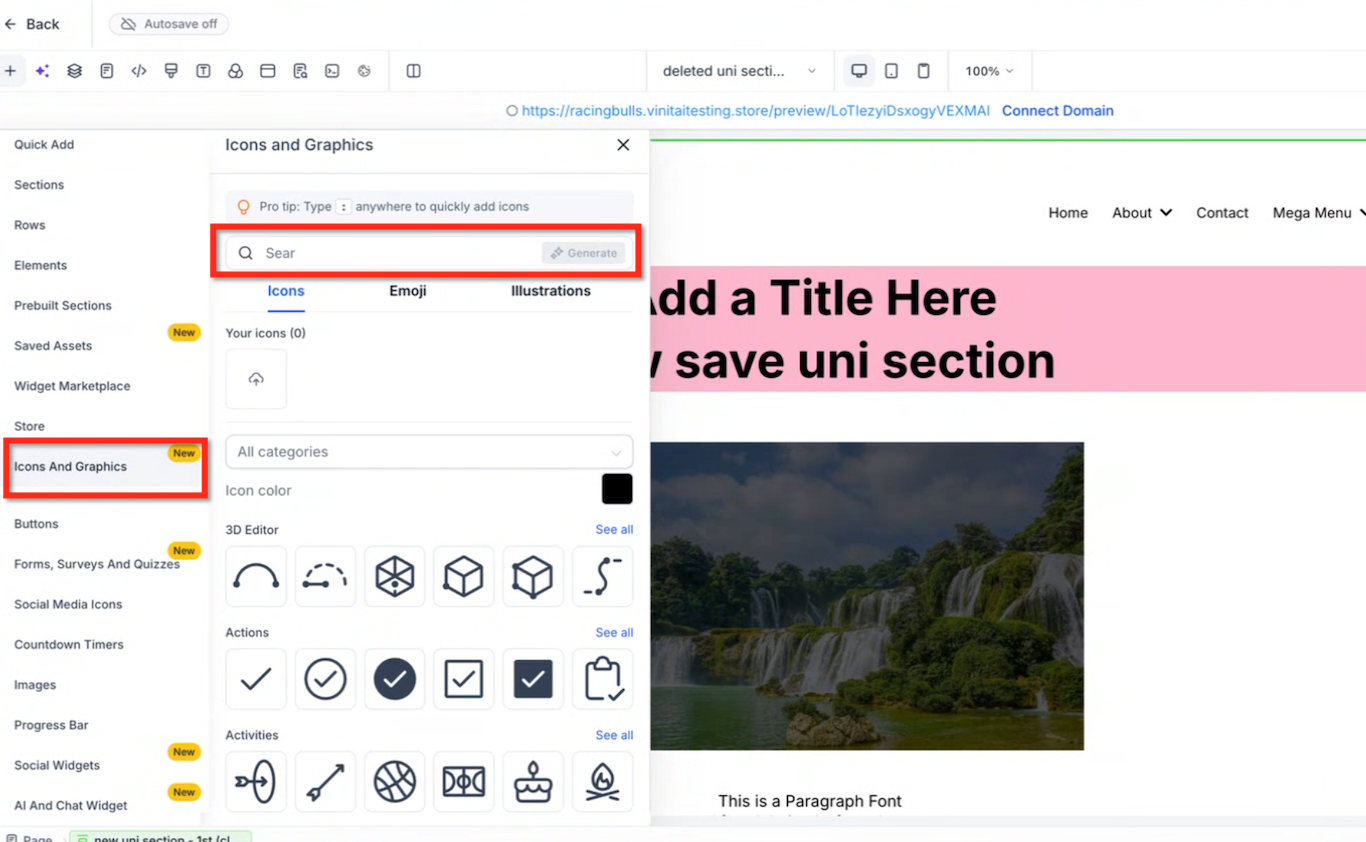
- Open the Icons & Graphics panel from the left sidebar of a supported builder.
- Click the Icons tab.
- Browse the categories or type a keyword in the Search field.
- Click the desired icon.
- Drag the icon onto the page canvas or confirm its placement.
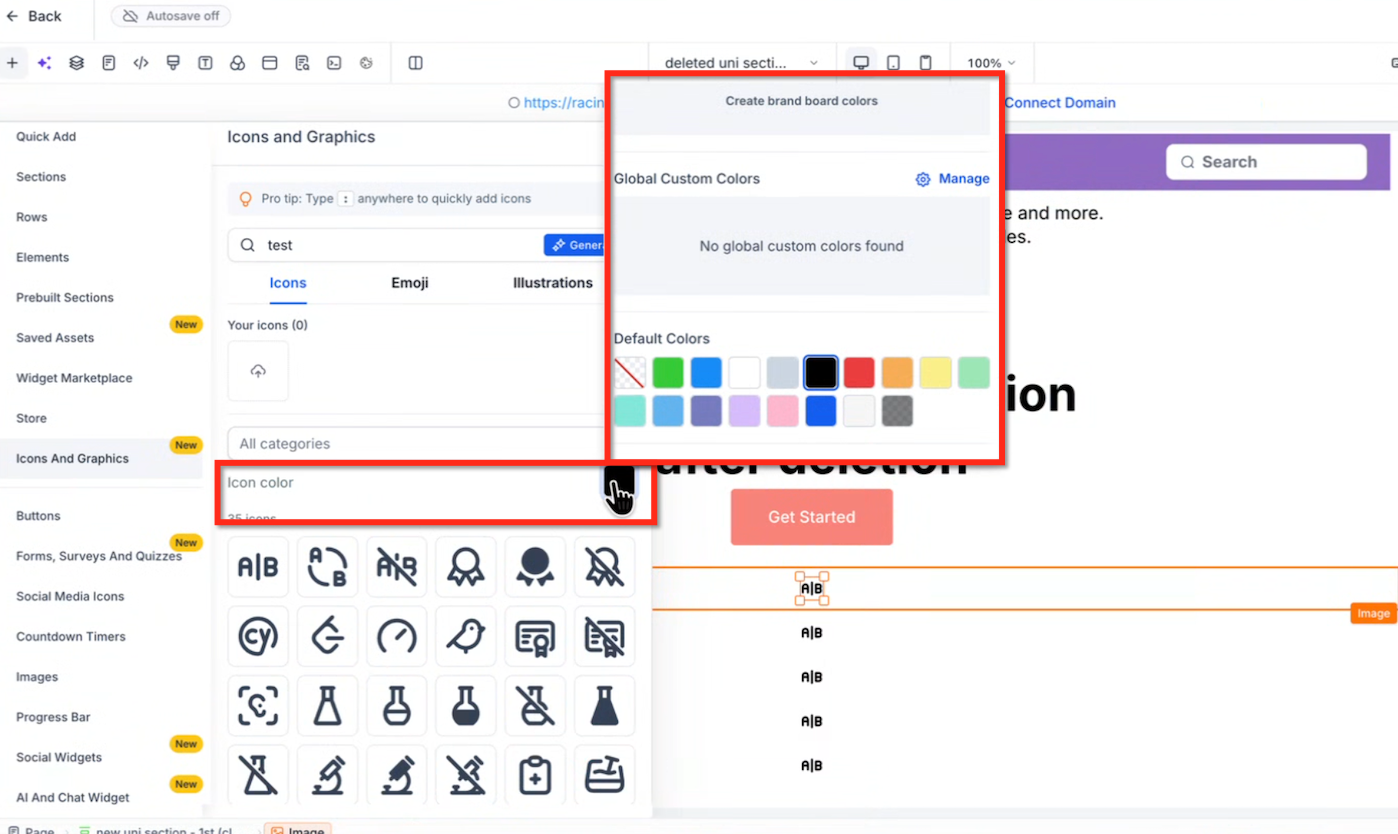
Customize icon color
- Open the Icons tab in the Graphic Library.
- Locate the Icon Color selector.
- Choose a color from the palette.
- Click the chosen icon to place it on the canvas.
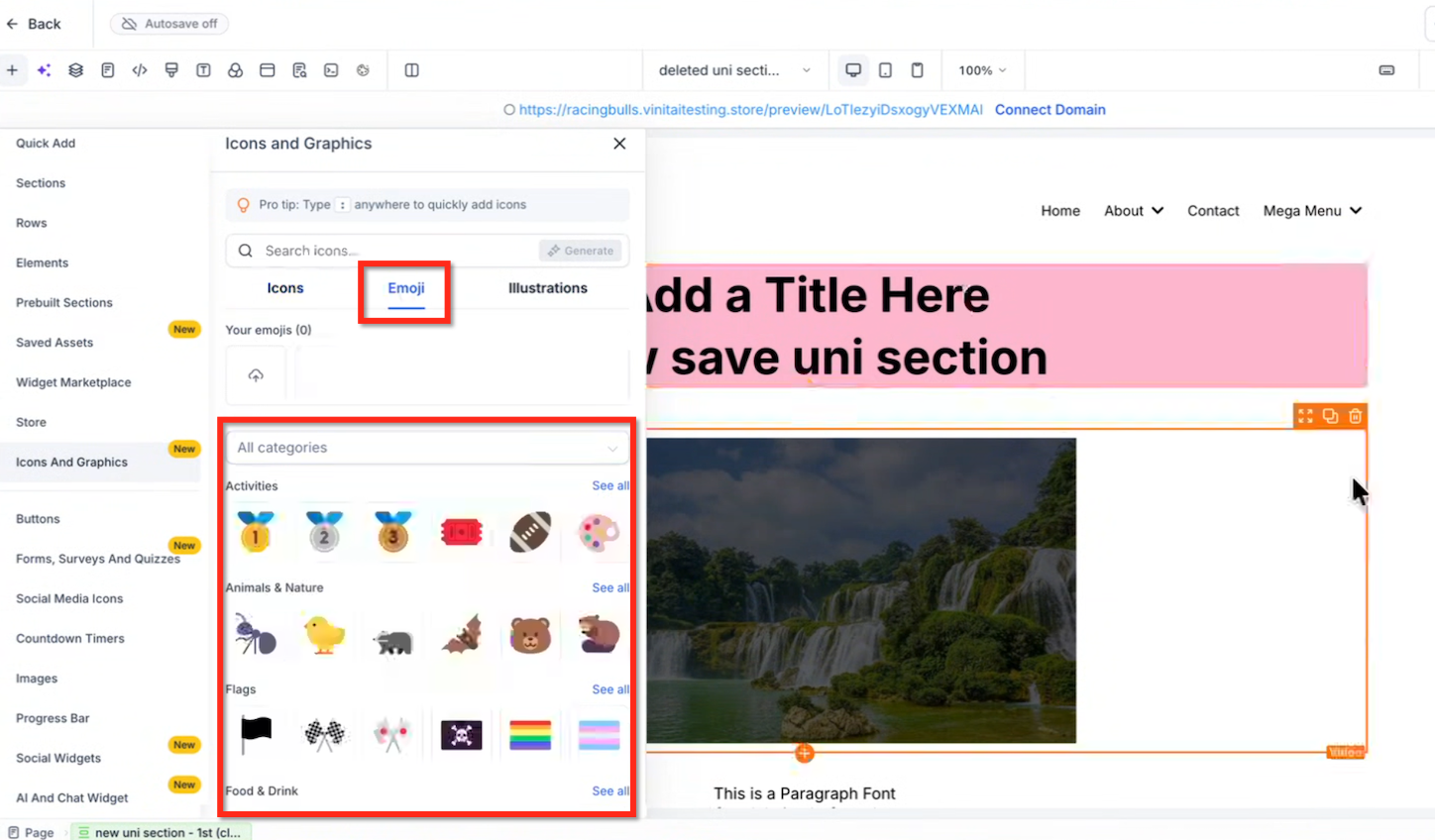
Add an emoji
- Open Icons & Graphics from the builder’s left sidebar.
- Select the Emoji tab.
- Browse or search for an emoji.
- Click or drag the emoji onto the canvas.
Insert a built in illustration
- Open the Icons & Graphics panel.
- Choose the Illustrations tab.
- Browse the built in illustrations.
- Click the illustration you want.
- Drag it onto the canvas or confirm placement.
Generate an illustration with AI
- Open the Graphic Library.
- Click the Generate option for illustrations.
- Follow the AI prompts to describe the desired artwork.
- Review the generated image and select it.
- Add the chosen illustration to the page.
Upload a custom illustration
- Open Icons & Graphics.
- Navigate to the illustration upload area.
- Click the Upload control.
- Choose a file from your computer.
- Select the uploaded graphic to place it on the canvas.
07What it looks like in HighLevel
08Settings that matter
- Icon Color. Controls the hue applied to an icon when it is added to a page, allowing it to match brand colors or other design elements.
09Things to know before you rely on it
- The library contains more than 11,000 icons and emojis.
- Feature availability depends on product rollout and account access; the Icons & Graphics option may not appear for every user.
- AI illustration generation is offered when built in artwork does not meet the design need.
- Inline icon support is limited to specific builders such as Funnels, Websites, Stores, Webinars, and the new Email Builder.
10If something goes wrong
- Icons & Graphics option not visible in the builder.. The Graphic Library may not be enabled for the account; check rollout status or contact the account administrator.
11How it connects to the rest of HighLevel
- Learn how to upload and manage files for custom illustrations. Media storage guide
- Explore all LevelUp 2026 features, including the Graphic Library. LevelUp 2026 overview
- Review plan options to ensure access to the Graphic Library. Pricing and plans
Michael's take

“Can I really design a page without leaving HighLevel?” Absolutely. The Graphic Library gives you a huge stash of icons, emojis, and illustrations right inside the builder, so you can often avoid hunting down external assets. Pick a symbol, match its color to your brand, or fire off an AI prompt for a custom illustration. Then drop it straight onto your funnel or site. If I were setting up a new landing page, the first step would be to pull a check mark icon into the headline and a custom illustration that speaks to the offer. I’d also test the AI generator with a quick prompt to see how well it matches my brand style before committing a graphic to the final design.