
01Who this is for
- Users of Agent Studio who need visibility into how their chatbot handled each interaction.
- Voice AI operators who want to trace call handling and identify delays.
02Agent logs, explained
Agent Logs aggregates logs and traces for AI agents that run inside HighLevel. It is live for Agent Studio and Voice AI, with additional AI products planned. The feature offers three diagnostic layers: a high level overview of recent activity, a detailed conversation view with an execution timeline, and a granular step view showing inputs, outputs, latency and technical metadata.
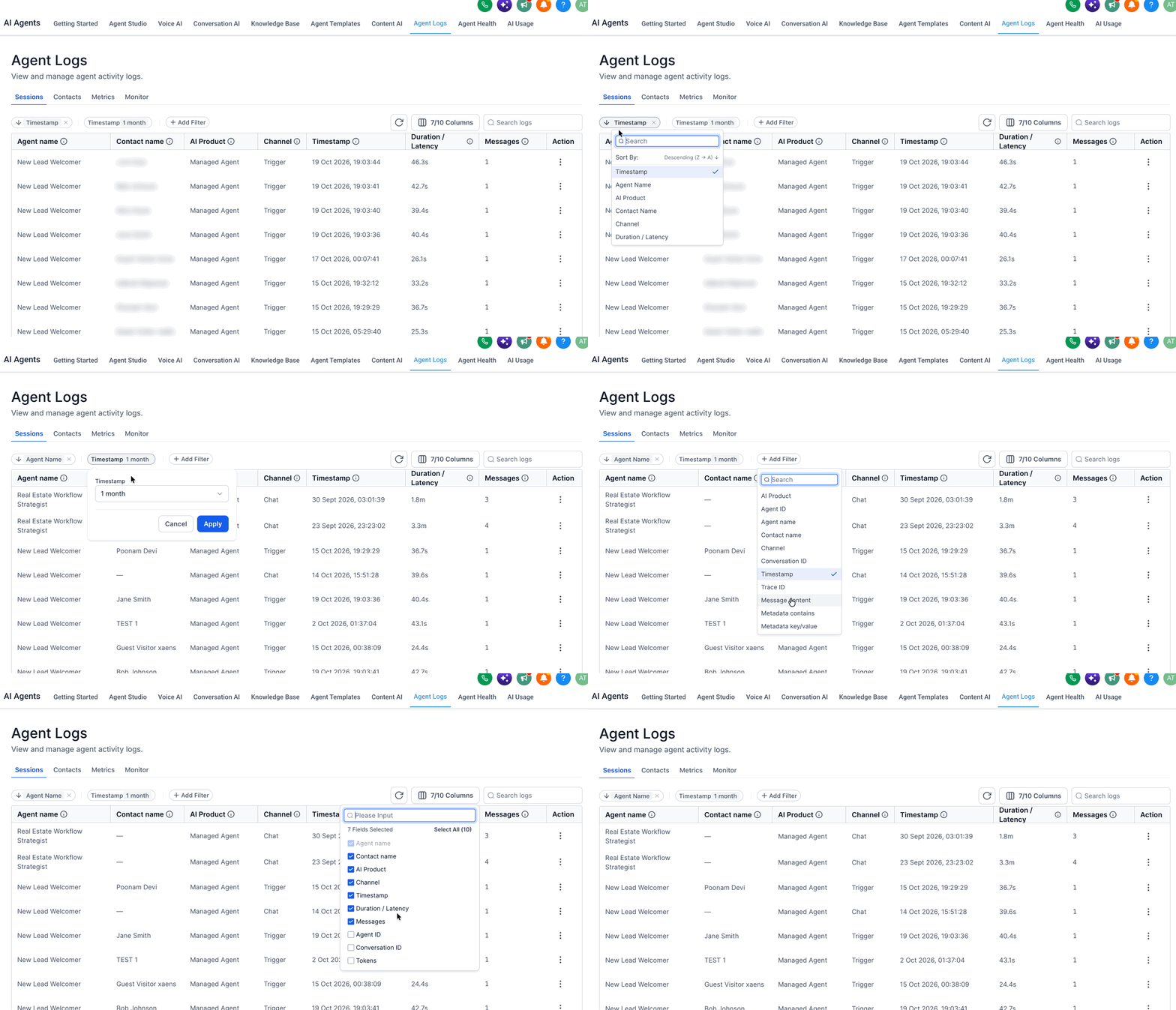
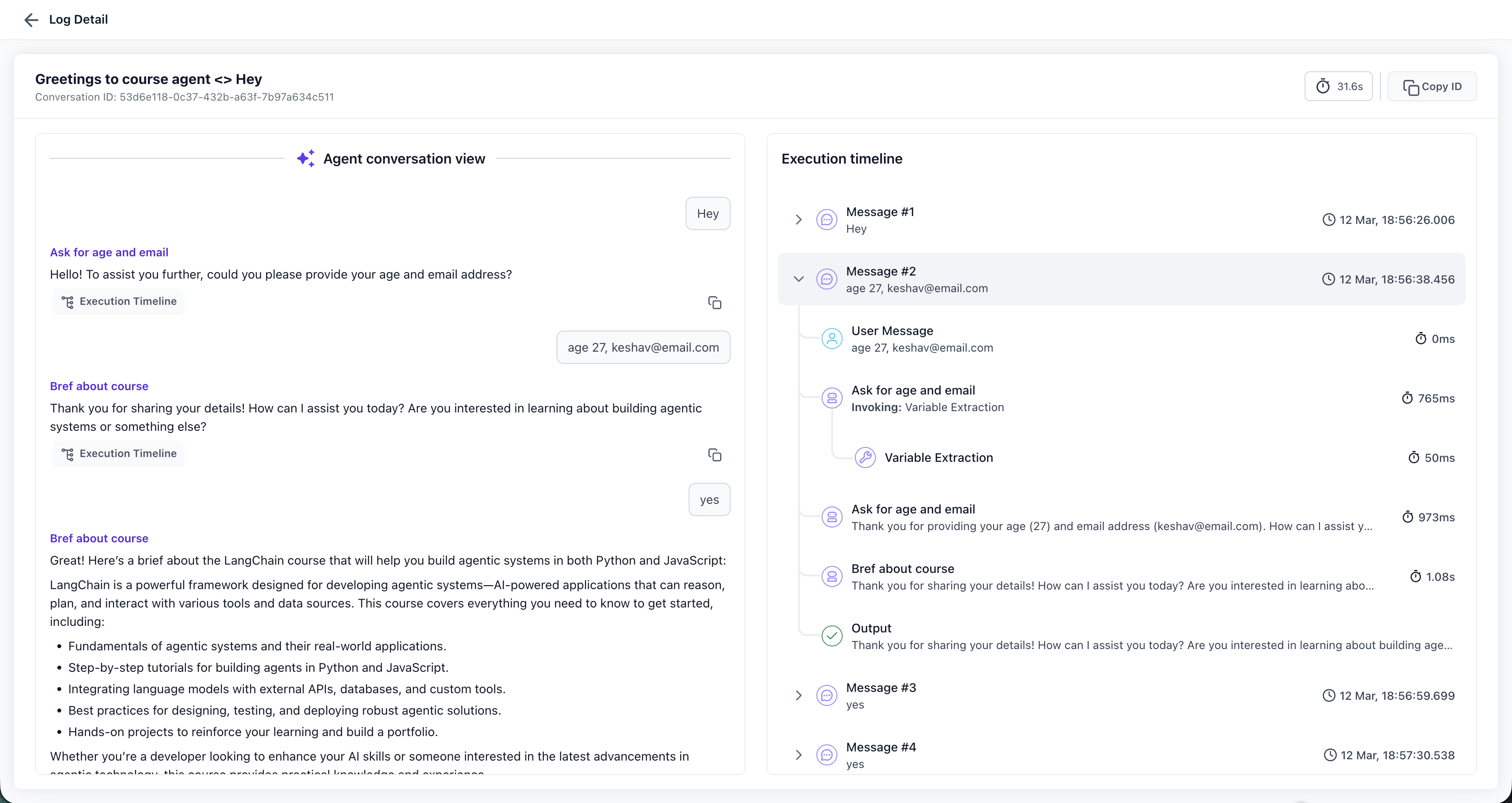
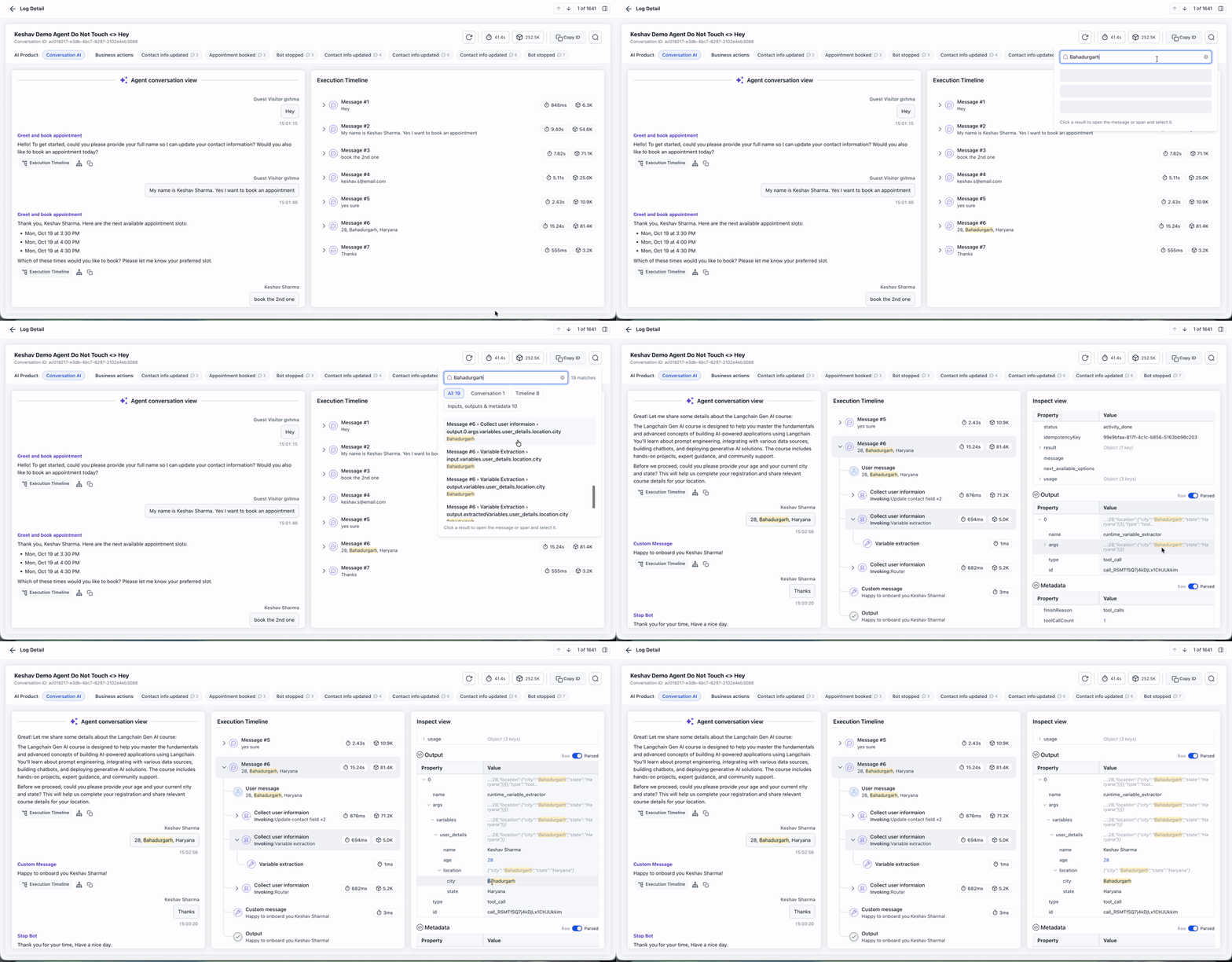
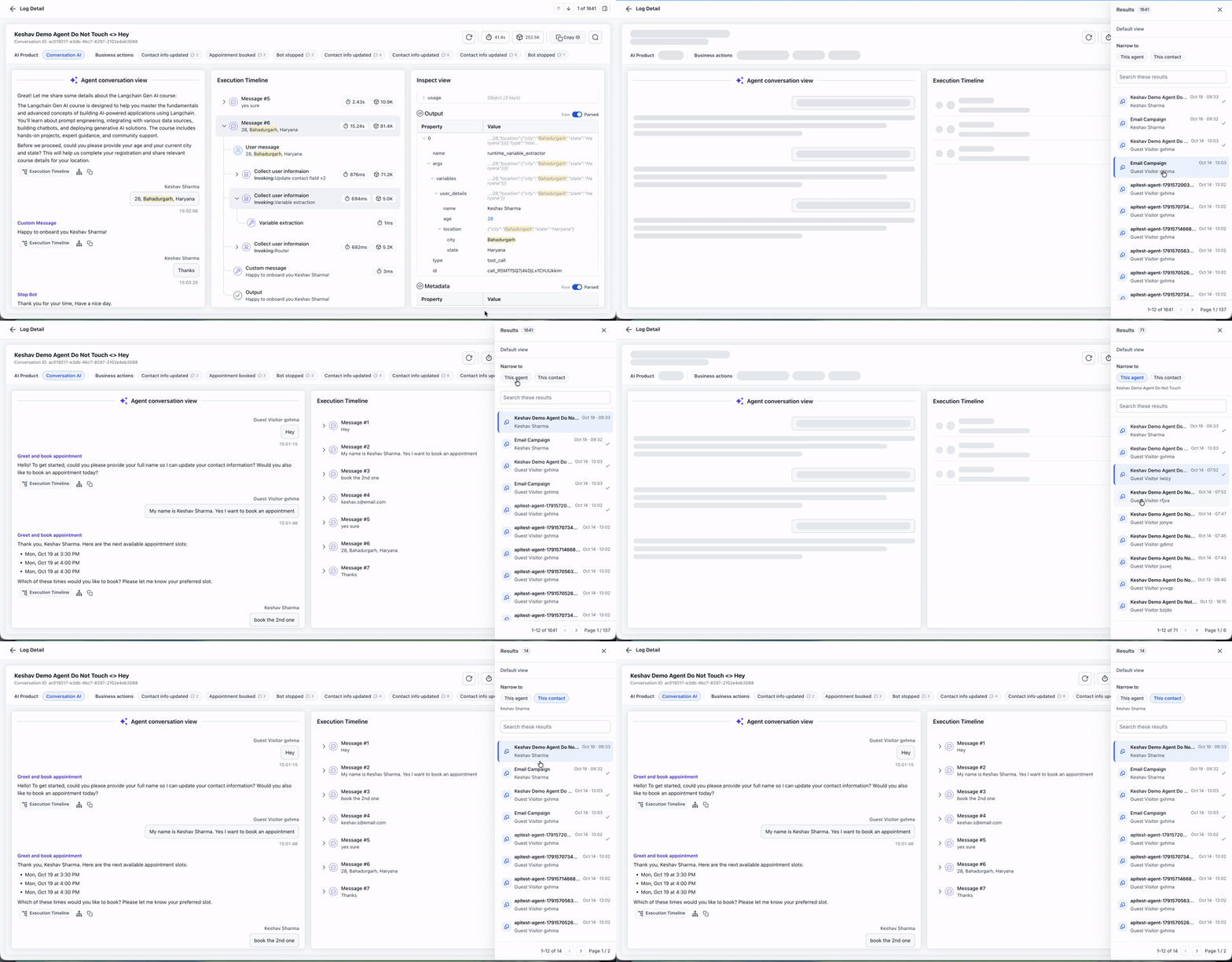
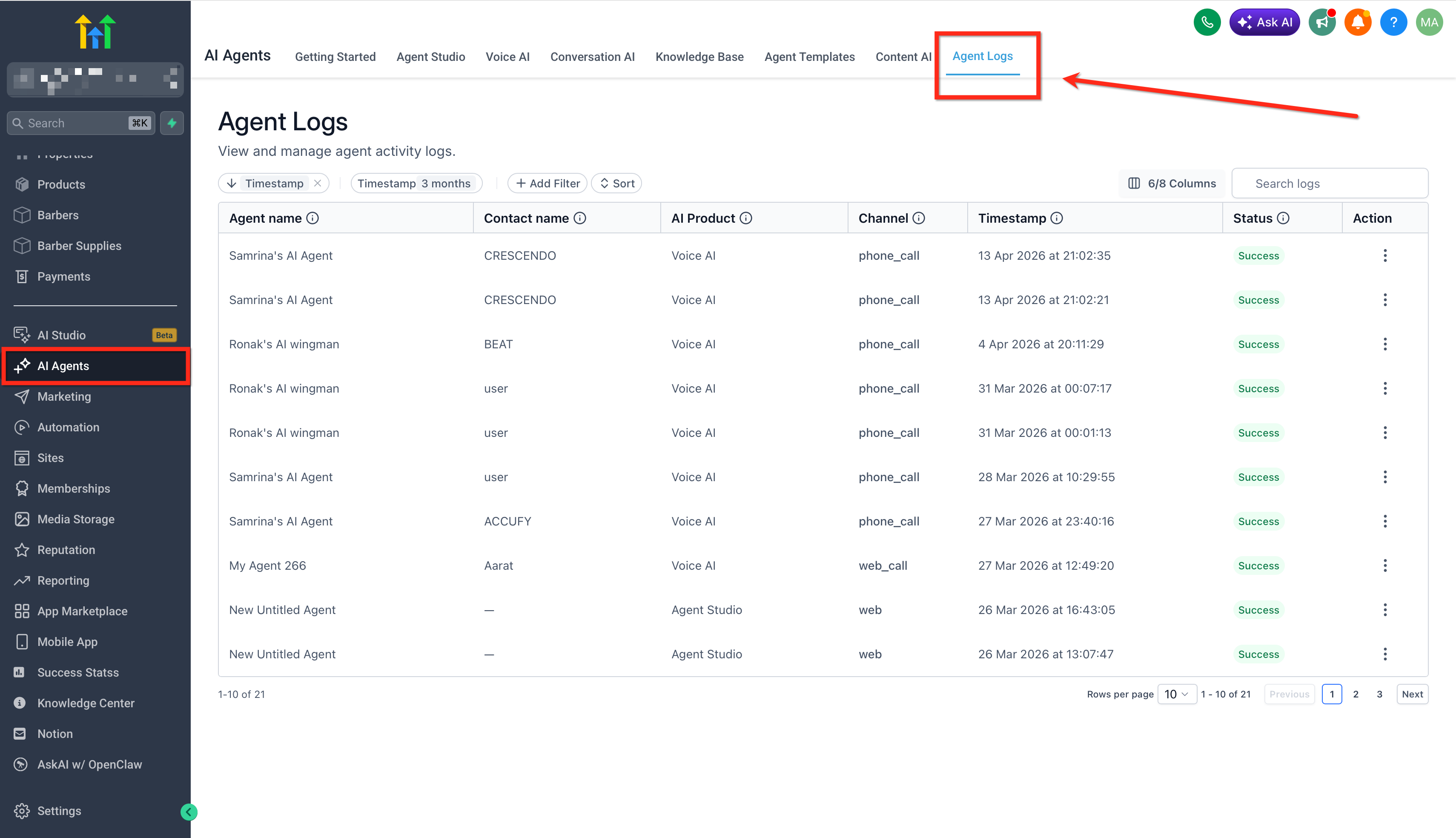
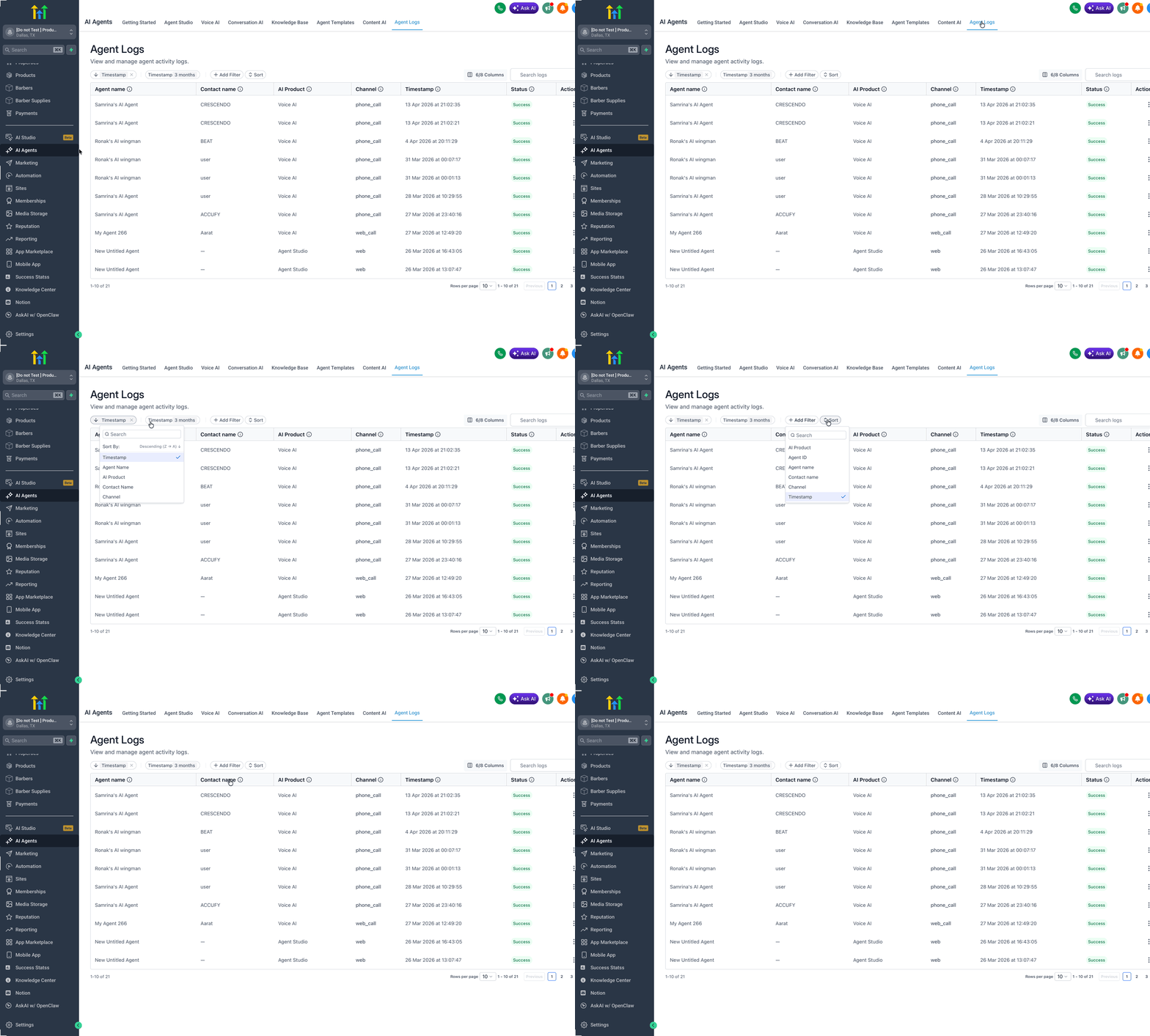
You reach the logs by navigating to AI Agents > Agent Logs. The first screen lists recent executions with columns such as timestamp, agent name, AI product, channel, and status. Filters let you narrow the list by product, agent name, contact or status, and you can sort the results. Selecting a row opens a detail page where the conversation, timeline and step data appear together. Header controls let you jump to a completed business action, switch between sessions, or search the entire log for keywords.
03How businesses use agent logs
- Investigate a specific interaction. Open the Agent Logs list, filter to locate the interaction, and examine the conversation alongside the execution timeline to see why the agent responded as it did.
- Debug a slow step. Select a step in the timeline to view its latency and technical metadata, then adjust the agent logic in Agent Studio based on the insight.
- Verify a completed business action. Find the business action in the log header, click it, and the view jumps to the execution step that performed the action.
04The numbers and rules that matter
- Metrics widgets track conversations handled, AI messages, average messages per conversation, average response time, top agents, top actions, average execution latency, busiest hours, and channel activity over time.
05Before you start
- Create or run AI agents in a supported product (Agent Studio or Voice AI) so that activity is recorded.
06How to set up and use agent logs in HighLevel
Use Agent Logs
- Navigate to AI Agents > Agent Logs inside HighLevel.
- Review the activity list and apply filters such as Agent Name, AI Product, Channel, or Status to locate the interaction you want.
- Click the chosen interaction to open its conversation view and execution timeline.
- Pick a message or step in the view to reveal more detailed execution information.
- Select a specific step to examine its input, output, timing and any additional metadata.
- Find a completed business action in the header and click it to jump to the related execution step.
- Click the search icon in the header, type a keyword, and select a result to go directly to the matching part of the log.
- Open the session side panel from the header and choose a different session to view its log.
07What it looks like in HighLevel
08Settings that matter
- Edit Layout. Allows you to add, remove, move, resize, and save widget arrangements on the Metrics dashboard.
09Things to know before you rely on it
- Agent Logs is currently active only for Agent Studio and Voice AI; other AI products will be added later.
- No separate installation is required, but logs appear only for interactions that occur in supported experiences.
10How it connects to the rest of HighLevel
- Voice AI creates call summaries and suggestions and its logs appear in Agent Logs. Voice intelligence
- Appointment bookings made by Conversation AI can be inspected directly from the log header. Appointment booking
- See all LevelUp 2026 features, including upcoming AI products that will integrate with Agent Logs. LevelUp 2026 overview
Michael's take

I start by opening a log, then jump to a step that looks odd, checking its input, output, and latency before moving back to the broader timeline.
After reviewing a step, I might adjust the agent’s prompt or logic and retest, then look at the new execution in Agent Logs.