
01Who this is for
- Sales managers who want automatic call notes and scoring to streamline post call work.
- Customer support leaders who need suggested contact updates and dispositions to keep records accurate.
- Operations directors who prefer a single place to review AI generated call details across web, mobile and desk phone channels.
02Voice intelligence, explained
Voice Intelligence runs on every recorded call that uses a LeadConnector phone number. After the call ends, the platform generates a transcript, a concise summary, a QA scorecard, suggested field values and a disposition suggestion. The results are attached to the call record and can be viewed in the Conversations view or directly in the dialer.
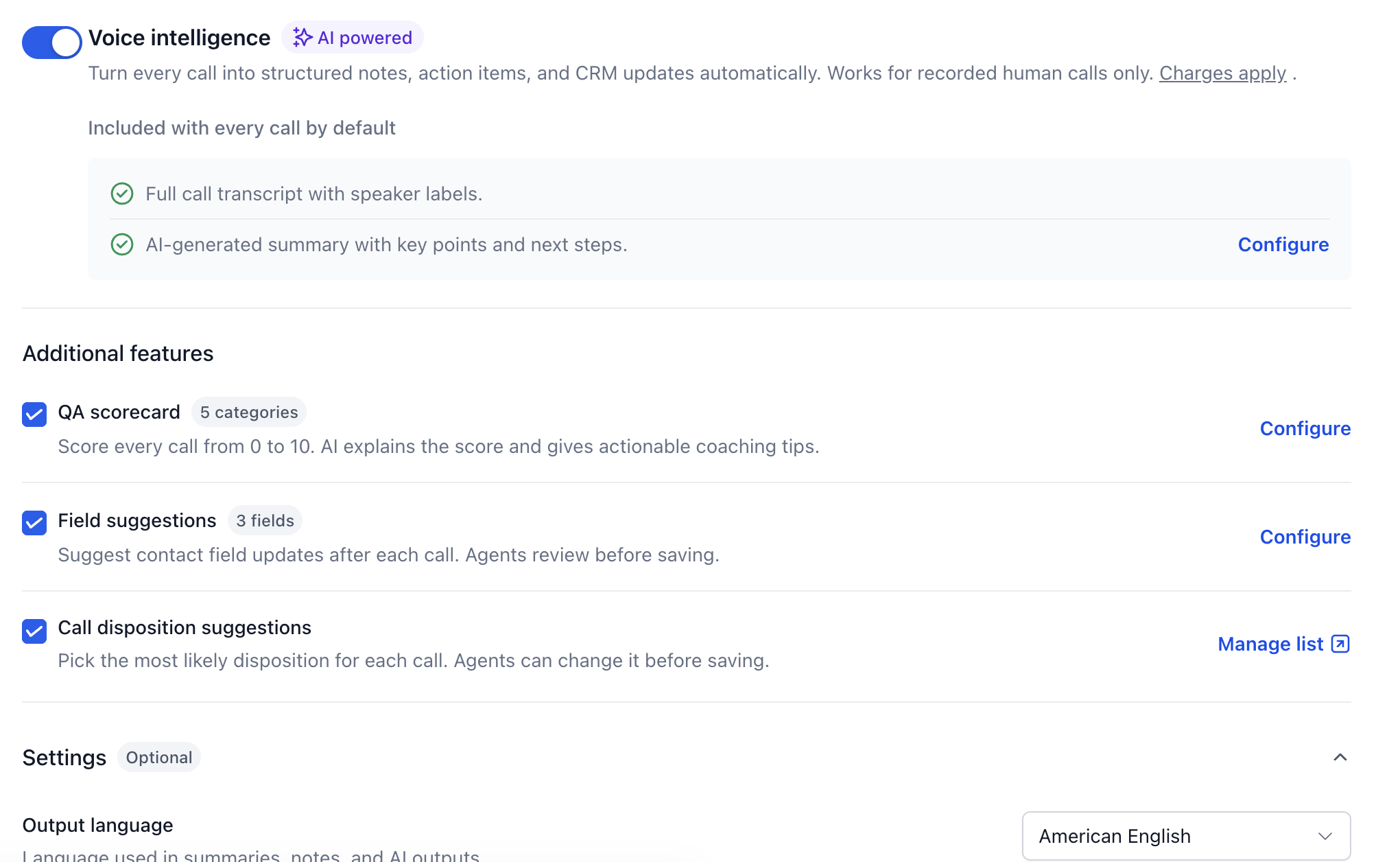
The feature lives under Settings > Phone System > Voice > Call Recording & Transcription. Turning the Voice Intelligence switch on activates the core transcript and summary; optional boxes enable the QA scorecard, field suggestions and disposition suggestions. Admins configure the content of each output once, and the settings apply only to calls made after the changes.
03How businesses use voice intelligence
- Real estate team. Agents enable Voice Intelligence, then adjust the summary sections to capture property details, next steps, and buyer objections. After each call, the agent reviews the suggested fields for email and phone, approves the disposition, and saves the updates without typing notes.
- Medical clinic. Front desk staff configure field suggestions to include patient name, email and insurance information. When a call is recorded, the AI proposes those values; staff confirm the suggestions in the conversation view and save them to the patient contact.
- Software SaaS provider. The manager tailors the QA scorecard to match the demo script, adding categories for technical clarity and onboarding steps. After each demo call, the scorecard appears, allowing the manager to review performance and provide coaching.
04The numbers and rules that matter
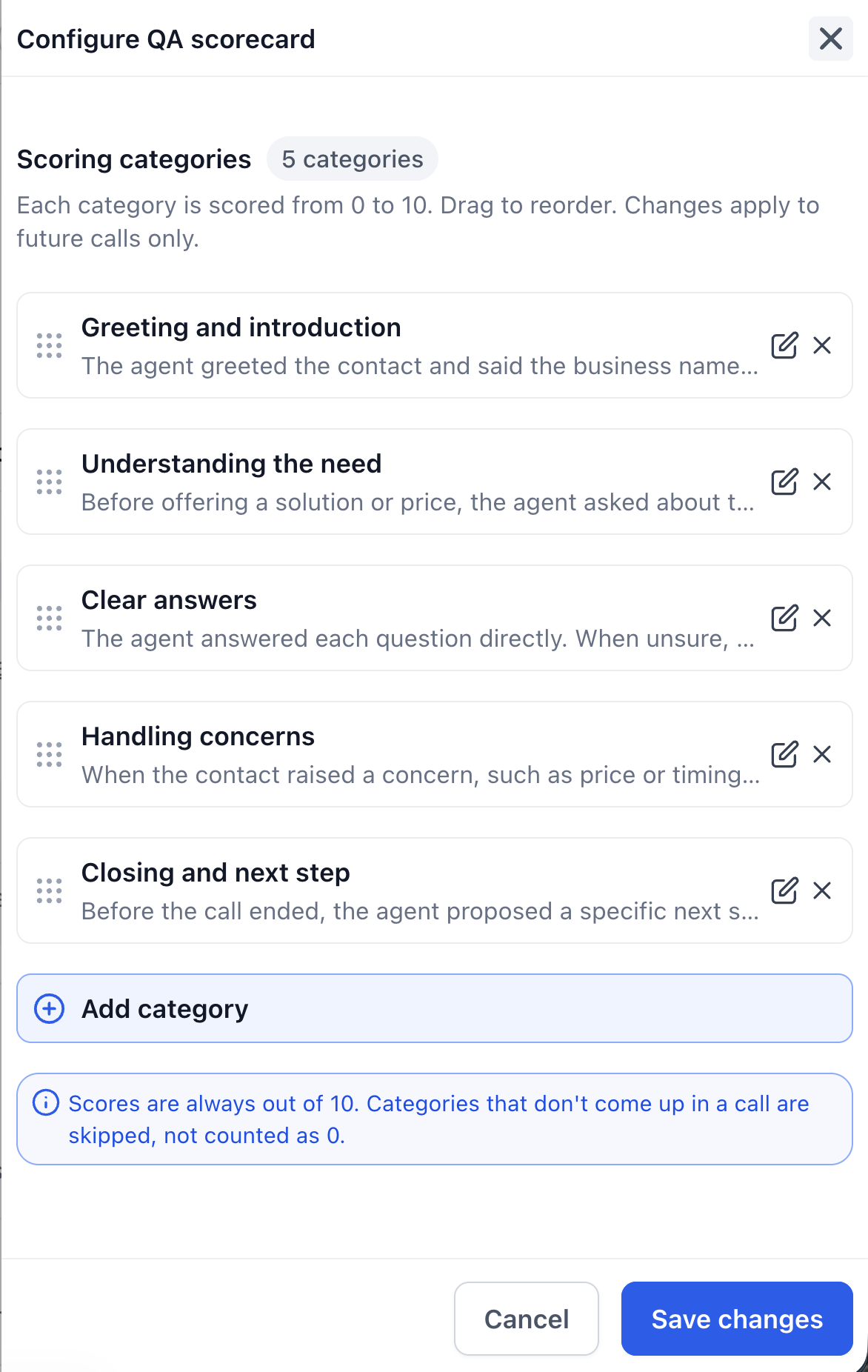
- Each QA category receives a score from 0 to 10; the overall score is the average.
- If a category does not appear in a call it is skipped, not counted as 0.
05Before you start
- Voice Intelligence must be enabled for the account in Labs.
- Call recording must be active for the phone number used.
- Calls must use a LeadConnector phone number.
- The call must be answered and contain enough content; very short or unanswered calls are ignored.
- There is no extra charge beyond the standard call transcription fee.
06How to set up and use voice intelligence in HighLevel
Turn on Voice Intelligence
- Open Settings and select Phone System.
- Choose the Voice tab and open Call Recording & Transcription.
- Pick Voice Intelligence from the left hand menu.
- Flip the Voice intelligence switch on and tick any additional feature boxes you want.
Customize call summary sections
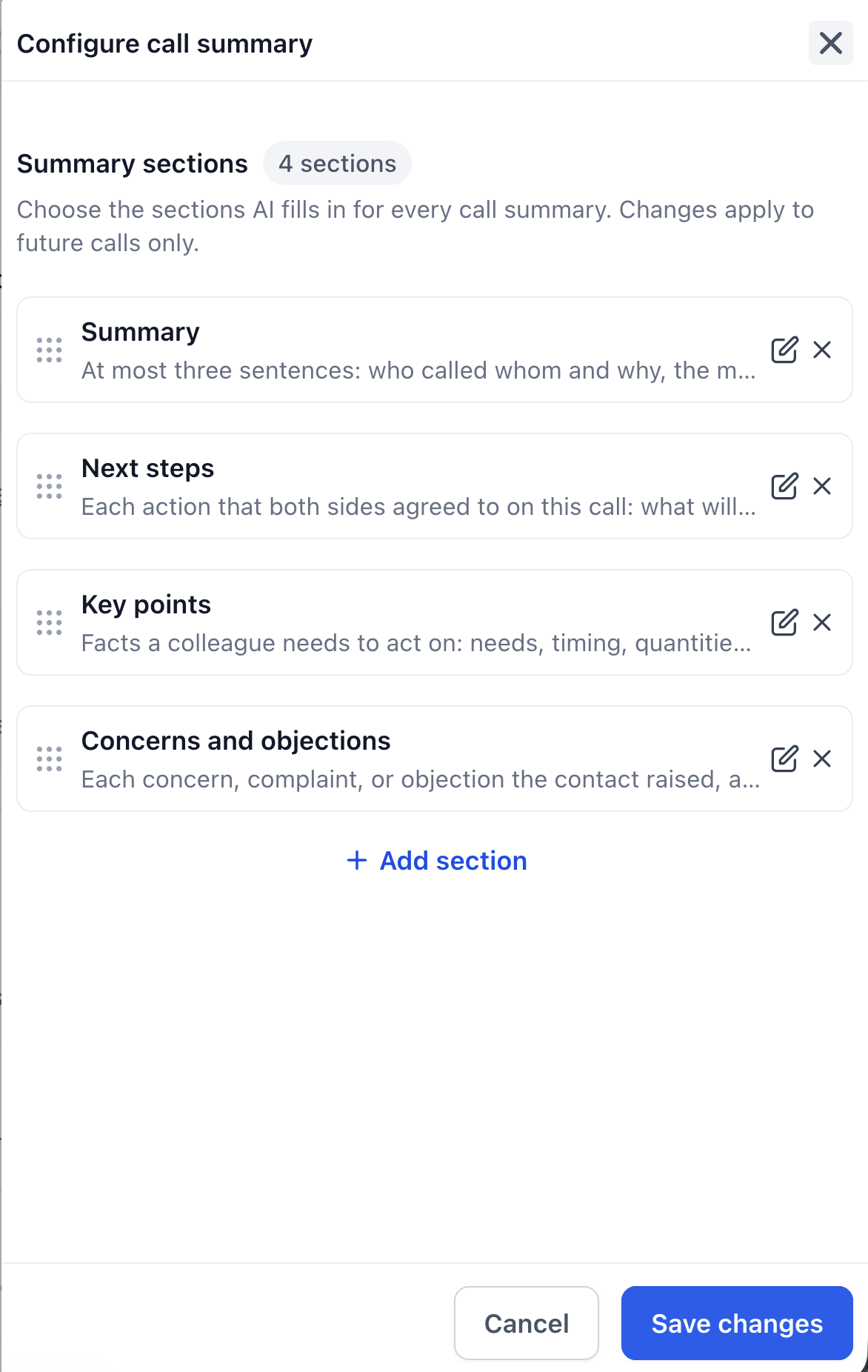
- Next to the summary line, click Configure.
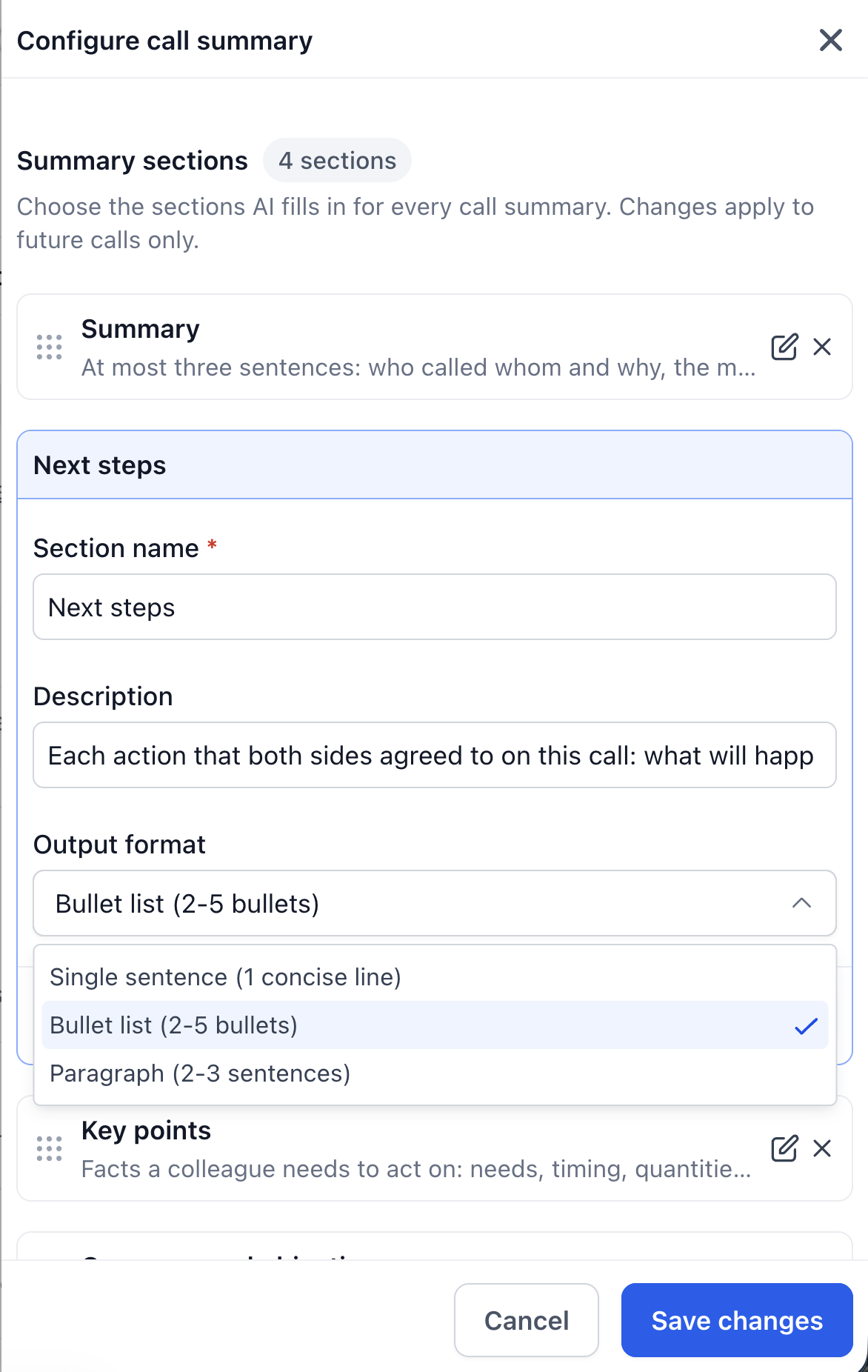
- Edit a section by selecting the edit icon and change its name, description and format.
- Add a new section with Add section or remove one with the X button.
- Drag sections to reorder them, then click Save changes.
Customize QA scorecard
- Next to QA scorecard, click Configure.
- Edit a category’s name or description to match your script.
- Add a new category using Add category or delete one with the X button.
- Drag categories to set the order you prefer and click Save changes.
Customize field suggestions
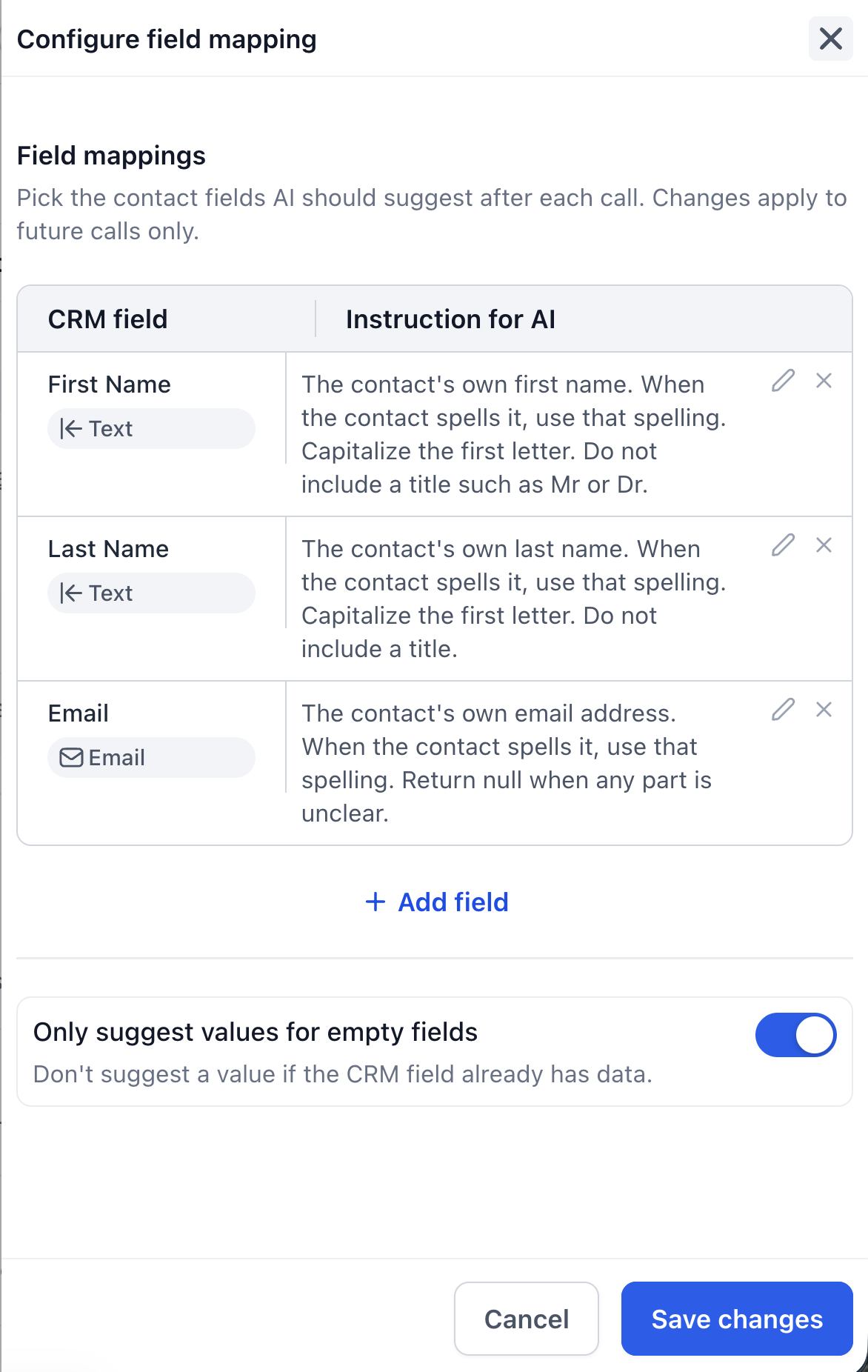
- Next to Field suggestions, click Configure.
- Select Add field, choose any contact field (including custom fields), and write a brief instruction.
- Toggle Only suggest values for empty fields if you never want to overwrite existing data.
- Click Save changes.
Review results in Conversations
- Open the contact’s conversation and locate the call card.
- Click View full details to open the result tabs.
- Switch among Summary, Field suggestion, QA scorecard and Recording & transcript; the top shows disposition and overall score.
- In the Field suggestion tab, check the values you want, edit if needed, and press Save Updates.
Review results in the dialer
- When a call ends in the dialer, the Review & update tab appears beside the call summary.
- Confirm the suggested disposition or pick a different one from the list.
- Check the suggested field values, edit any items you wish to keep, and select Save Updates.
- Use the other tabs to view the QA scorecard, Summary and Recording & transcript.
07What it looks like in HighLevel

08Settings that matter
- Voice Intelligence. Activates the automatic transcript, summary and optional AI generated outputs for recorded calls.
- QA scorecard. Enables a list of scoring categories that receive a 0 to 10 rating and an overall average.
- Field suggestions. Shows AI identified values for contact fields such as name or email, ready for approval.
- Call disposition suggestions. Suggests a call outcome drawn from your custom disposition list.
- Output language. Sets the language used for summaries, notes and other AI generated text.
- Only suggest values for empty fields. Prevents the AI from proposing changes to fields that already contain data.
09Things to know before you rely on it
- Voice Intelligence is a Labs feature and may change as it is improved.
- It only processes calls recorded through a LeadConnector number; personal phones or third party providers are excluded.
- Unanswered calls, very short calls and calls without recording are ignored.
- All additional features (QA scorecard, field suggestions, disposition suggestions) are enabled by default but can be unchecked.
- New settings affect only future calls; past call results remain unchanged.
10If something goes wrong
- A call did not produce any Voice Intelligence results.. Verify that call recording was enabled for the number, that the call used a LeadConnector phone number, that Voice Intelligence was active at the time, and that the call was answered and long enough. Refresh the page after a few seconds and try again.
11How it connects to the rest of HighLevel
- Browse all LevelUp 2026 features All LevelUp 2026 features
- Review HighLevel pricing and plans Pricing
- Start a 30 day HighLevel trial Free trial
Michael's take

In my experience, having the call summary and suggested fields ready for review can streamline the postcall workflow.
If a team already has a solid manual process for logging calls, the extra step of reviewing and approving suggestions may feel unnecessary.