
01Who this is for
- Agency owners who need an integrated video call solution for client consultations, eliminating the need for third party platforms.
- Teams within an agency that run internal trainings or meetings and want instant start, screen sharing and co host controls.
- Service based businesses on the Founder Plan that want to embed reusable meeting links in calendars, community events, or courses.
02Meeting Rooms, explained
Meeting Room adds native video conferencing to the HighLevel platform. Users can host live calls, share screens, chat, and use interactive tools such as reactions, hand raising and different layouts, all without leaving the system.
Each subaccount contains three sections: My room for a personal, permanent link; Team rooms for colleagues’ links; and Integrations for connecting the feature to calendars, Communities, Courses, Events and Webinars. Security options include waiting rooms, passcodes and optional guest access. Hosts can assign co hosts, control audio/video devices and enable adaptive background adjustments.
Recordings are stored within the platform for later playback. Transcripts are labeled with speaker names and timestamps, and an AI assistant can answer questions or generate summaries from the transcript during or after the meeting.
03How businesses use Meeting Room
- Digital marketing agency. The agency creates a personal Meeting Room, shares the permanent link with clients for strategy sessions, and uses the guest access option so clients can join without a HighLevel account. Screen sharing and chat help present campaign results in real time.
- Coaching business. A coach sets up a personal room, enables waiting rooms and a passcode for privacy, then starts instant meetings with clients on demand. Recordings are saved for clients to review, and transcripts are turned on to capture session notes.
- Online course provider. The provider adds live meeting sessions to course modules by generating unique Meeting Room links for each scheduled class. Participants join through the link, and the instructor uses picture in picture on Chrome to keep an eye on multiple attendees while presenting.
04The numbers and rules that matter
- The Meeting Room feature is exclusive to Agencies subscribed to the Founder Plan ($497). It is not available to users on the $97 or $297 plans (per HighLevel's help center, checked November 2026).
- Mixed Languages supports 10 languages, including Dutch, Hindi, Russian and Japanese.
- Live transcription uses Deepgram Nova 3 and offers nine individual language options plus Mixed Languages mode.
05Before you start
- The agency must be subscribed to the Founder Plan ($497) (per HighLevel's help center, checked November 2026) to access Meeting Room.
06How to set up and use Meeting Room in HighLevel
Create your personal Meeting Room
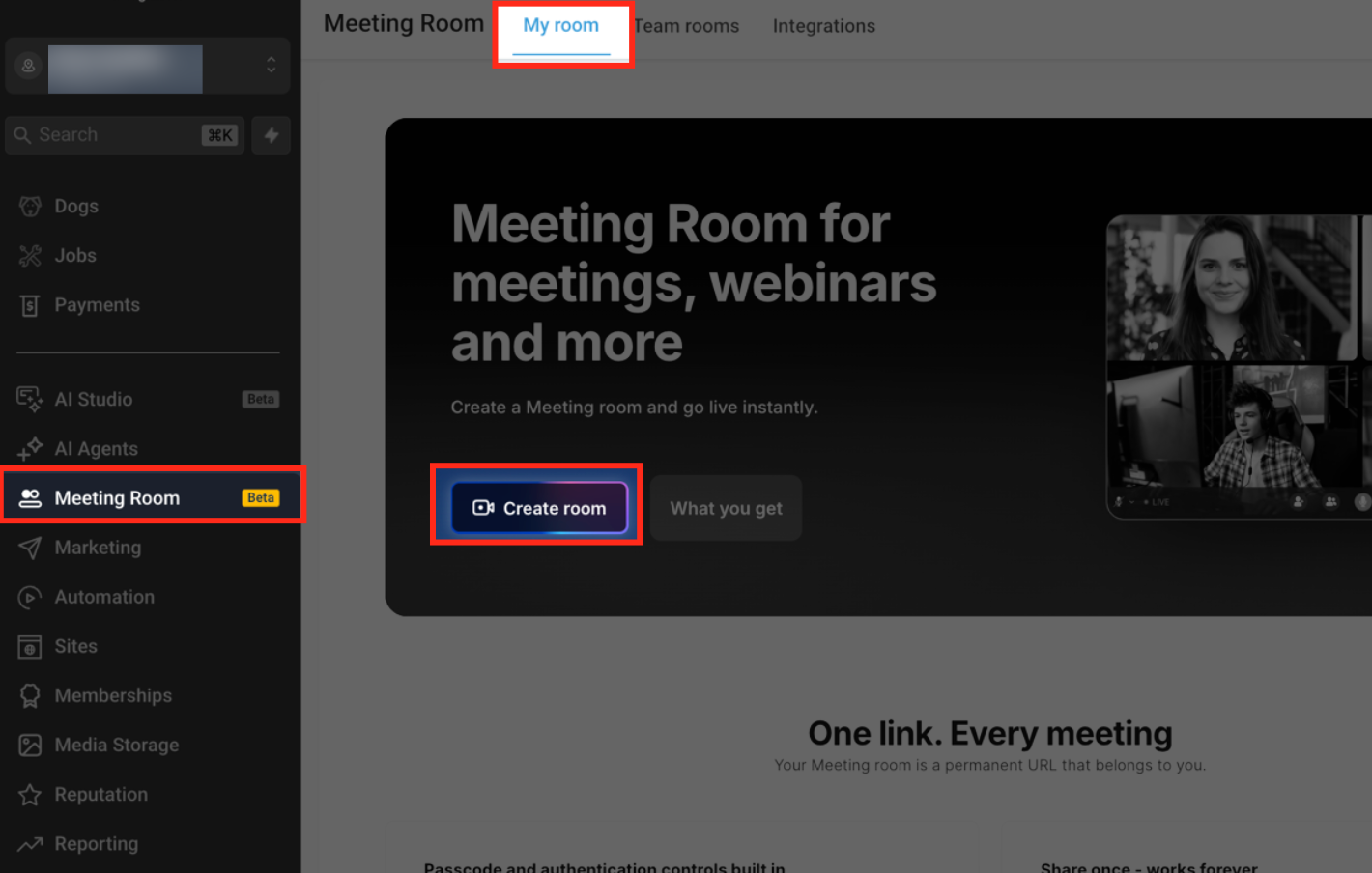
- Open your HighLevel subaccount and navigate to Meeting Room > My room.
- Click the Create room button.
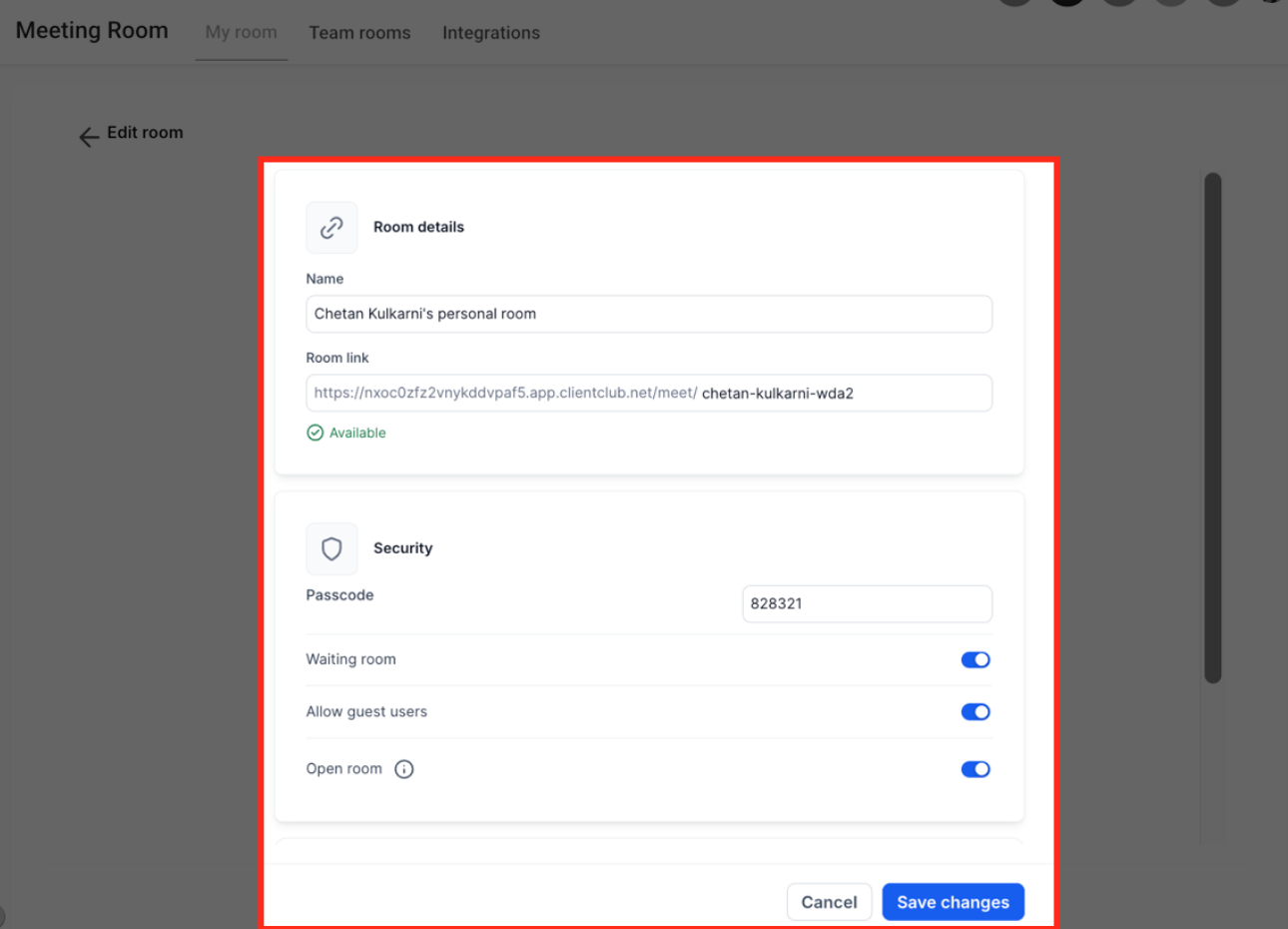
- Enter a Name and a permanent Room link in the Room details section.
- Under Security, set a passcode, enable a waiting room, configure guest access and define room availability as needed.
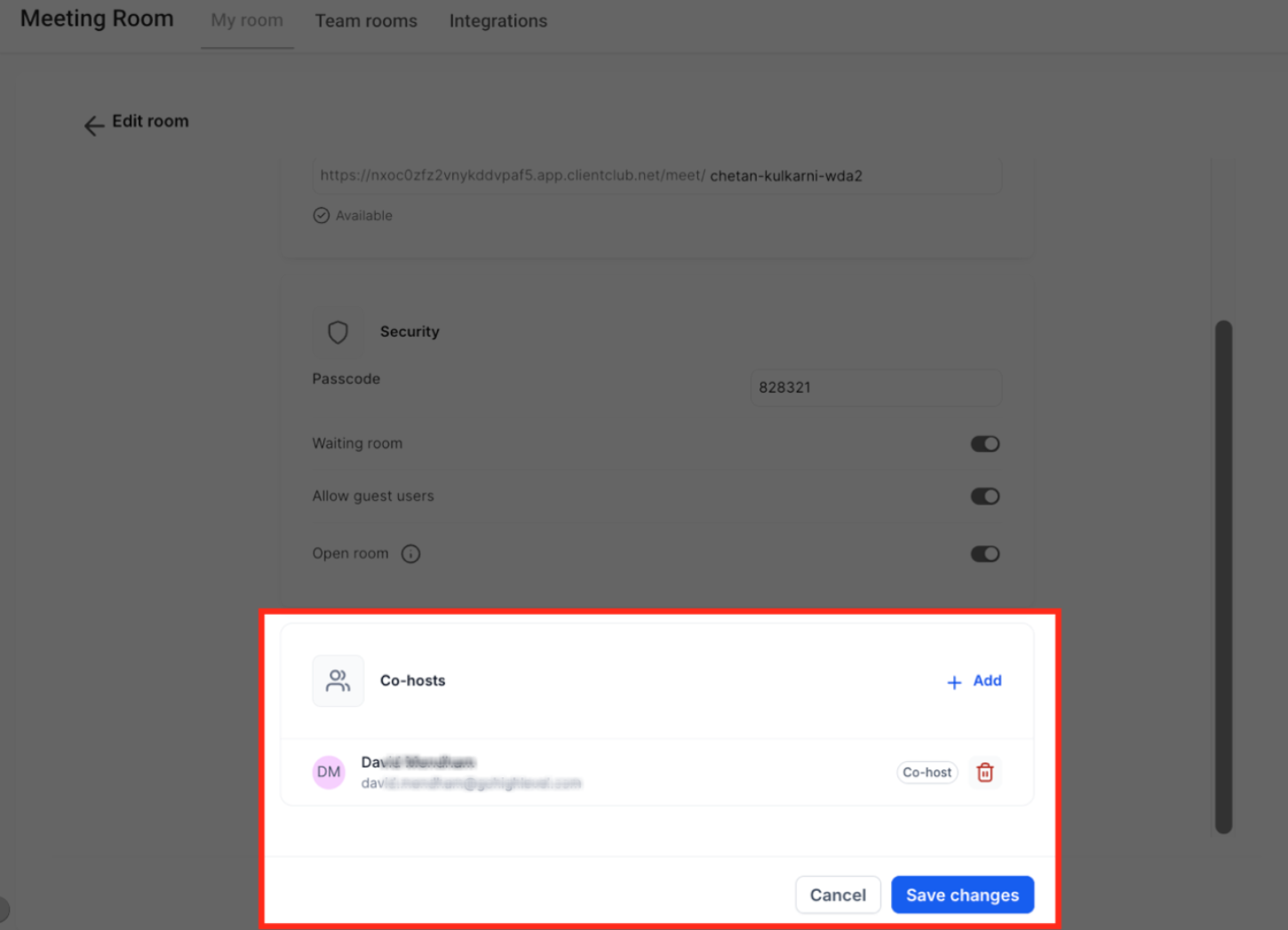
- Optionally add a co host in the Co hosts area.
- Select Save changes to finalize the personal room.
Start an instant meeting
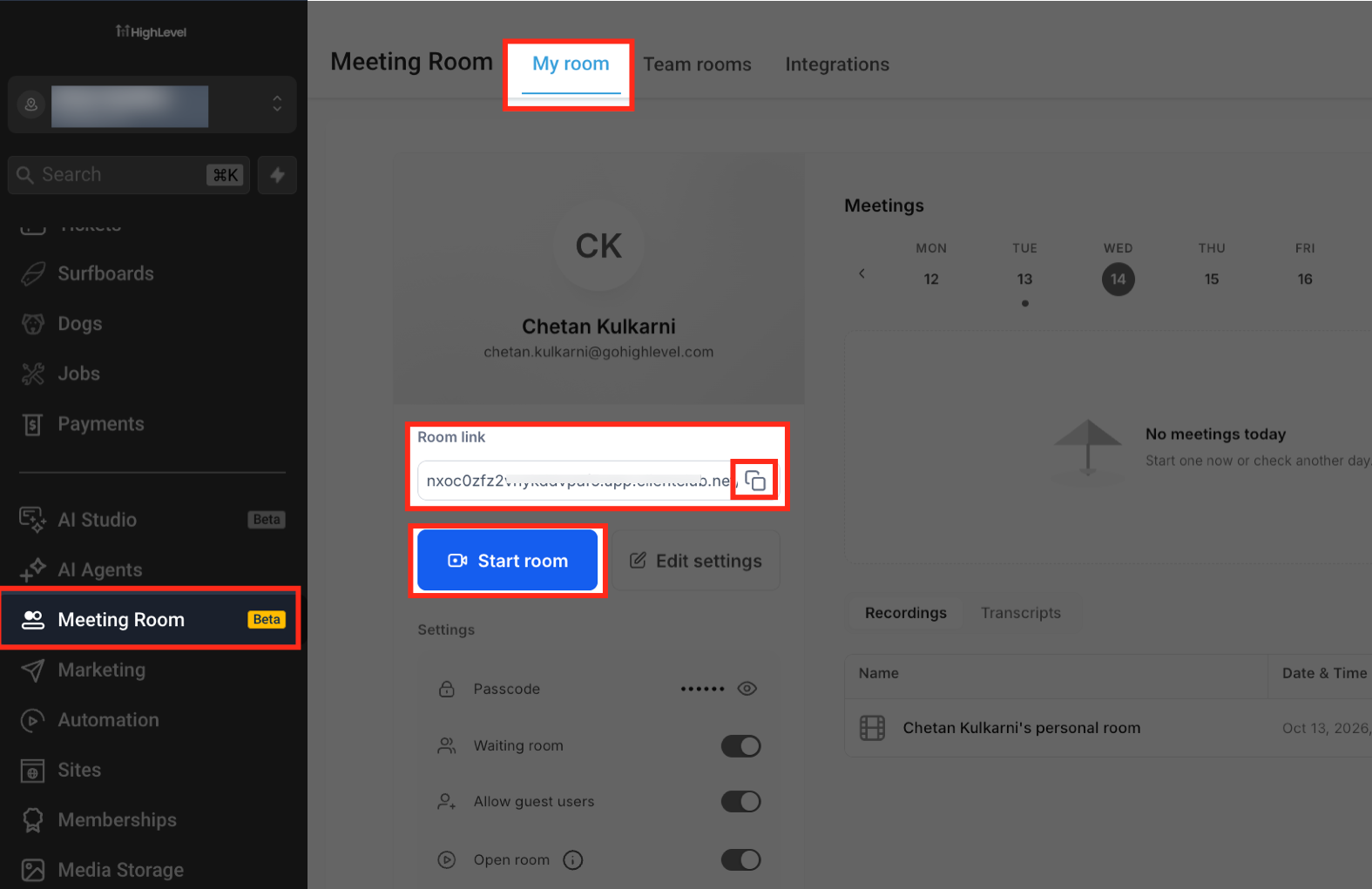
- Go to Meeting Room > My room.
- Click the Start room button.
- Review your microphone, speaker and camera selections.
- Press Start now to launch the video call.
07What it looks like in HighLevel
08Settings that matter
- Passcode. Requires participants to enter a code before they can join the meeting.
- Waiting room. Places attendees in a hold area until the host admits them.
- Guest access. Allows people without a HighLevel account to join using the meeting link.
- Room availability. Controls when the personal Meeting Room can be used.
- Co, hosts. Designates additional users who share host privileges during a meeting.
- Microphone. Selects which microphone device supplies audio input.
- Speaker. Selects the output device for meeting audio.
- Camera. Chooses the video source shown to participants.
- System default. Automatically switches to a newly connected headset for microphone and speaker when selected.
- Adaptive background effects. Reduces background blur and effects when device performance drops, keeping the call smoother.
- Picture in Picture. Displays up to four participants (or six without a presenter) in a small overlay while you browse other tabs, supported in Chrome on desktop.
09Things to know before you rely on it
- Meeting Room is only available to Agencies on the Founder Plan; it is not offered on the $97 or $297 plans (per HighLevel's help center, checked November 2026).
- Custom background uploads are limited to logged in users.
- Recording a meeting does not automatically produce a transcript; transcription must be enabled during the call.
- Enhanced Picture in Picture works only in Chrome on desktop computers.
- System default audio selection is supported only in Chrome.
- Mixed Languages live transcription can detect up to 10 supported languages, including Dutch, Hindi, Russian and Japanese.
10How it connects to the rest of HighLevel
- Use Meeting Room links for calendar appointments to let clients join directly from a scheduled event. Appointment booking
- Add a Meeting Room widget to your website so visitors can start a video call from the chat interface. Chat widget
- Review pricing and plan eligibility for accessing Meeting Room. Pricing
Michael's take

People often assume they can use Meeting Room on any HighLevel plan and waste time trying to enable it. The feature only lives behind the Founder Plan, so the first thing to check is that your agency is on that plan before you invest any effort.
If I were setting up a new agency, I’d create a single permanent room for myself, enable guest access, and then share that link in all client appointment confirmations. That gives me an instant meeting button without the overhead of scheduling separate video conference tools.