
01Who this is for
- AI support teams gain a single view of agent workload and response speed, helping them spot bottlenecks quickly.
- Customer experience managers can compare activity across channels and identify peak usage periods for better staffing.
02Agent logs metrics, explained
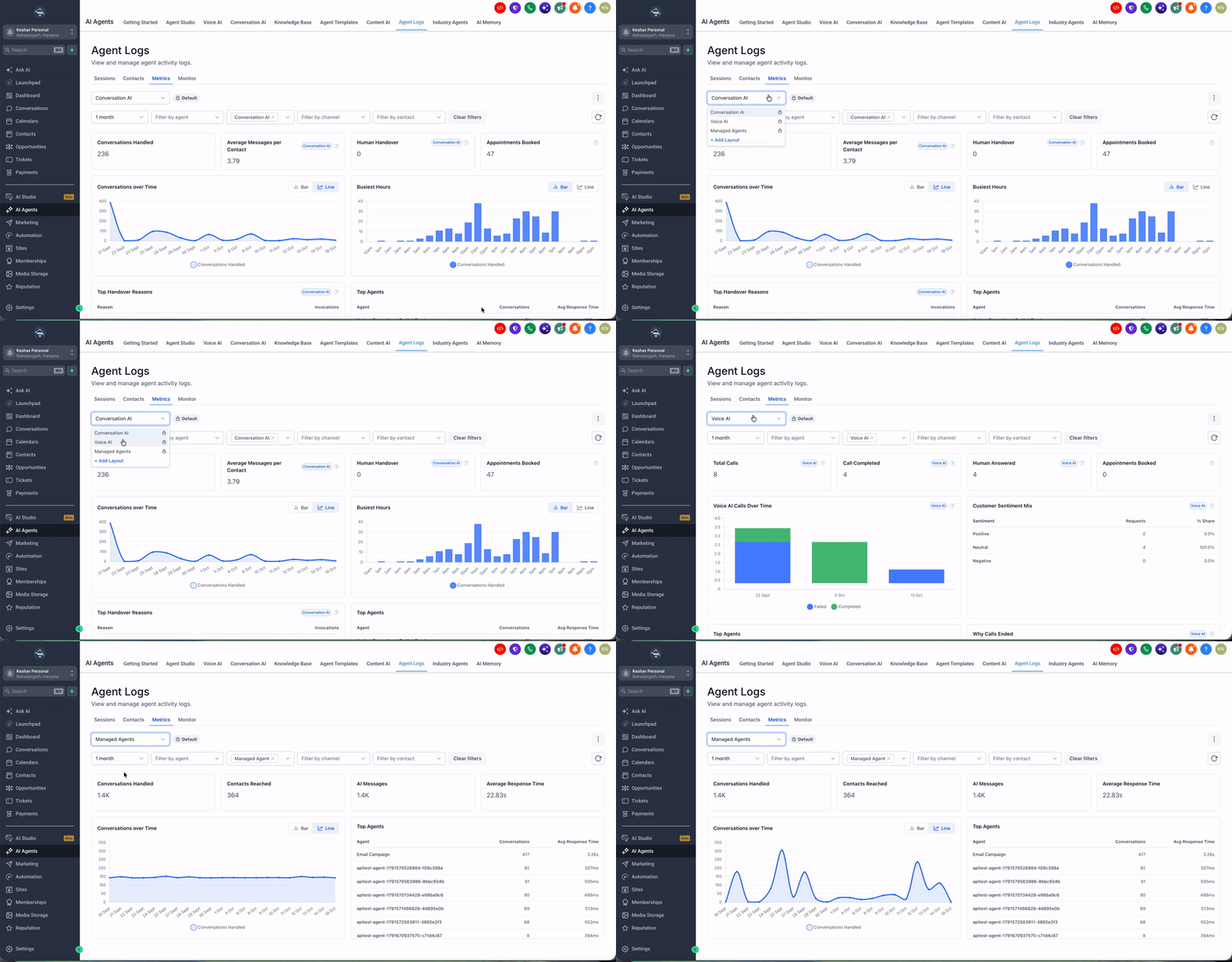
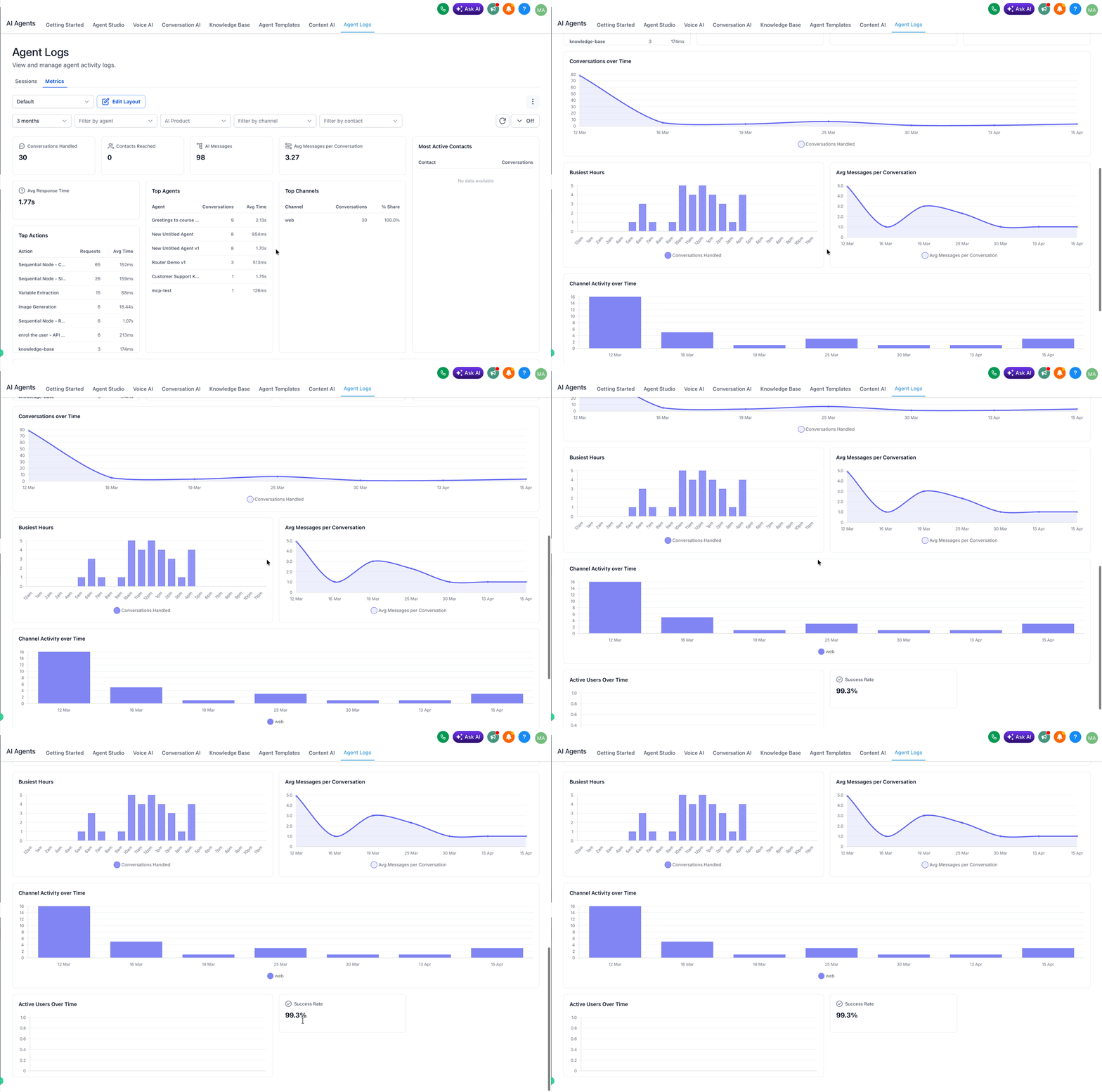
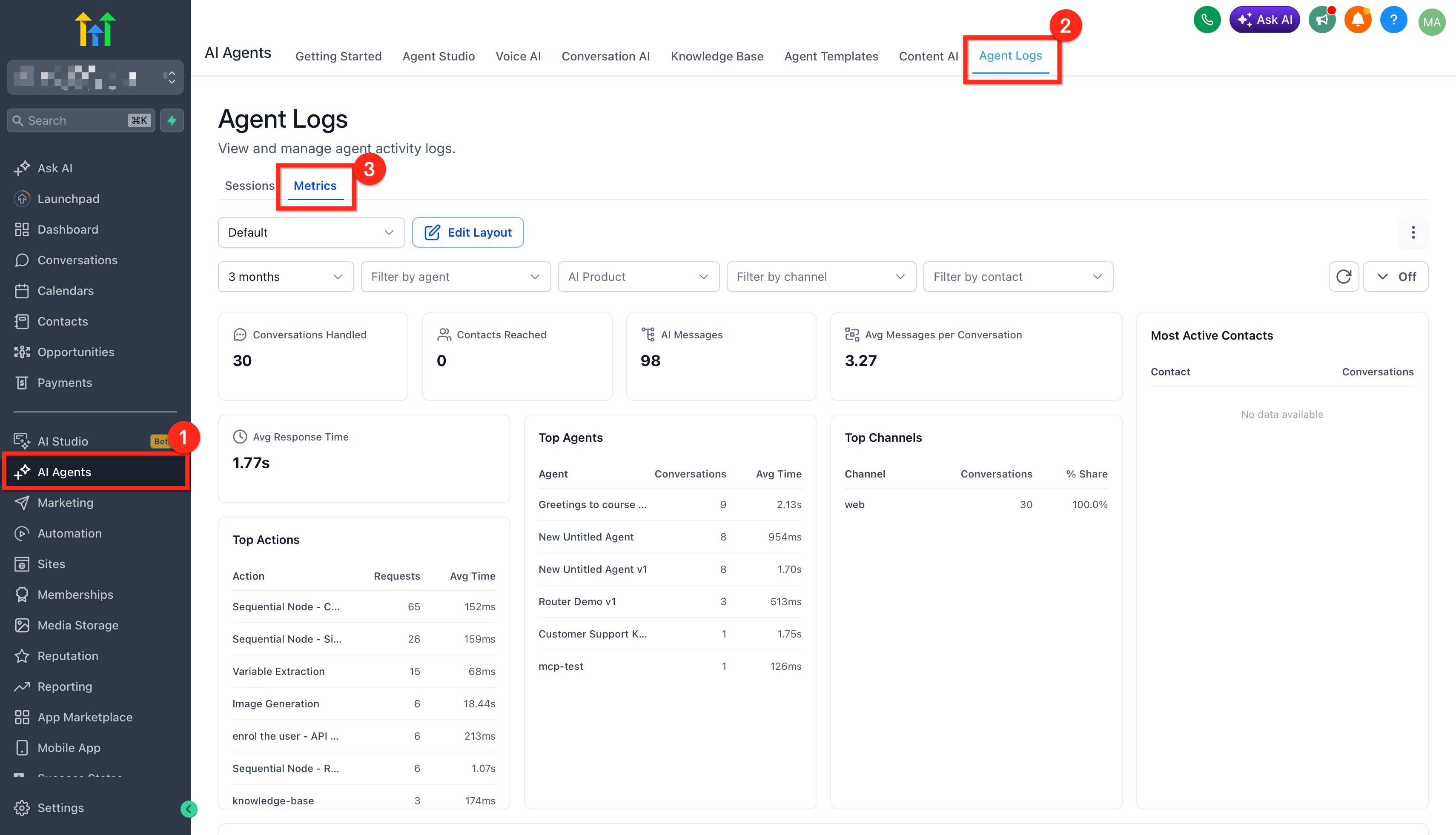
Agent Logs Metrics lives inside the Agent Logs section of HighLevel. Selecting the Metrics tab opens a dashboard that displays widgets such as total conversations, AI messages, average response time and busiest hours. The dashboard can show data for specific time ranges, agents, AI products, channels or contacts, providing a high level view of AI operations.
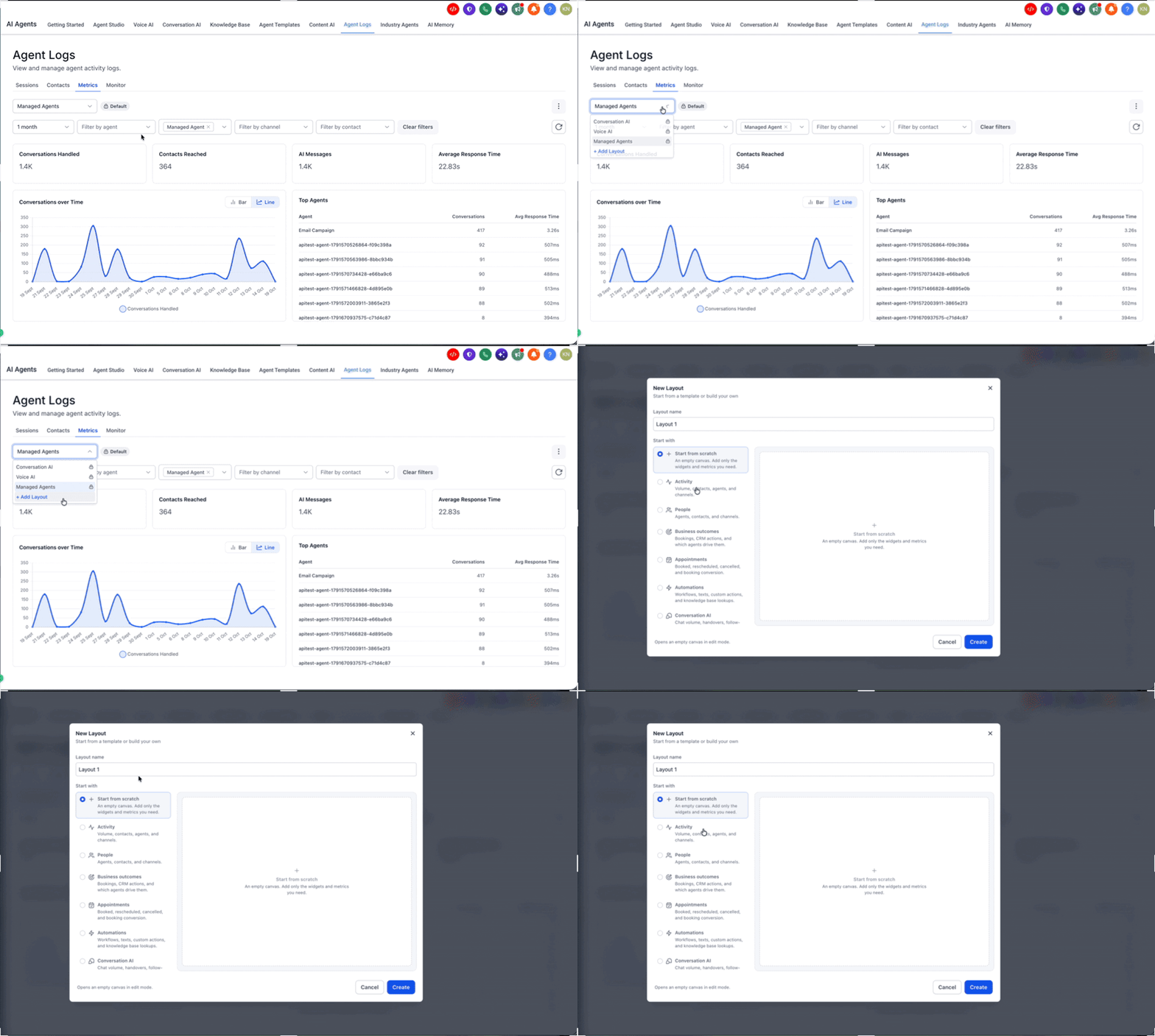
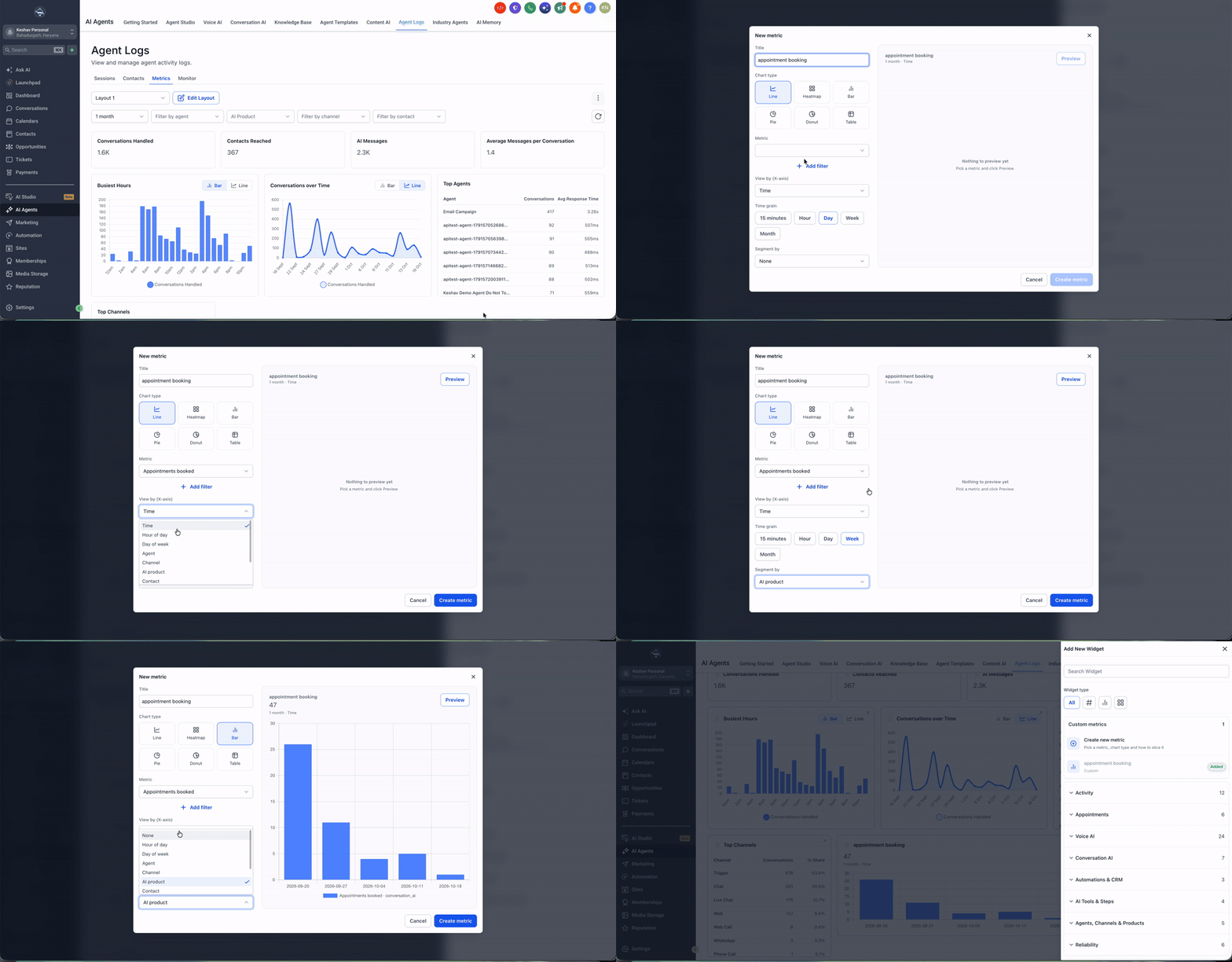
Users can work with three read only default layouts, Conversation AI, Voice AI and Managed Agents, or create their own custom layouts. Custom layouts let you add, move, resize or delete widgets, choose chart types and save the arrangement for repeated use. An auto refresh feature keeps the dashboard current while you monitor live activity.
03How businesses use agent logs metrics
- Customer support center. The center creates a custom layout that includes total conversations and average response time widgets. Filters are set to show only the support agents and the live chat channel. The dashboard auto refreshes every minute, allowing supervisors to watch real time performance.
- Sales outreach agency. The agency builds a layout from a template, adds a chart showing AI messages per conversation, and filters by the outbound AI product. Saved views let the team switch between daily and weekly snapshots to evaluate outreach efficiency.
- AI operations team. The team adds widgets for Top Agents, Busiest Hours and Channel Activity, then filters the view to specific AI products. Auto refresh is set to 30 seconds so the team can detect latency spikes right away and open Sessions for deeper investigation.
04The numbers and rules that matter
- Autorefresh intervals: 30 seconds, 1 minute, 5 minutes, 15 minutes.
- Filters available: Time Range, Agents, AI Products, Channels, Contacts.
05How to set up and use agent logs metrics in HighLevel
Set up Agent Logs Metrics
- Open Agent Logs and click the Metrics tab.
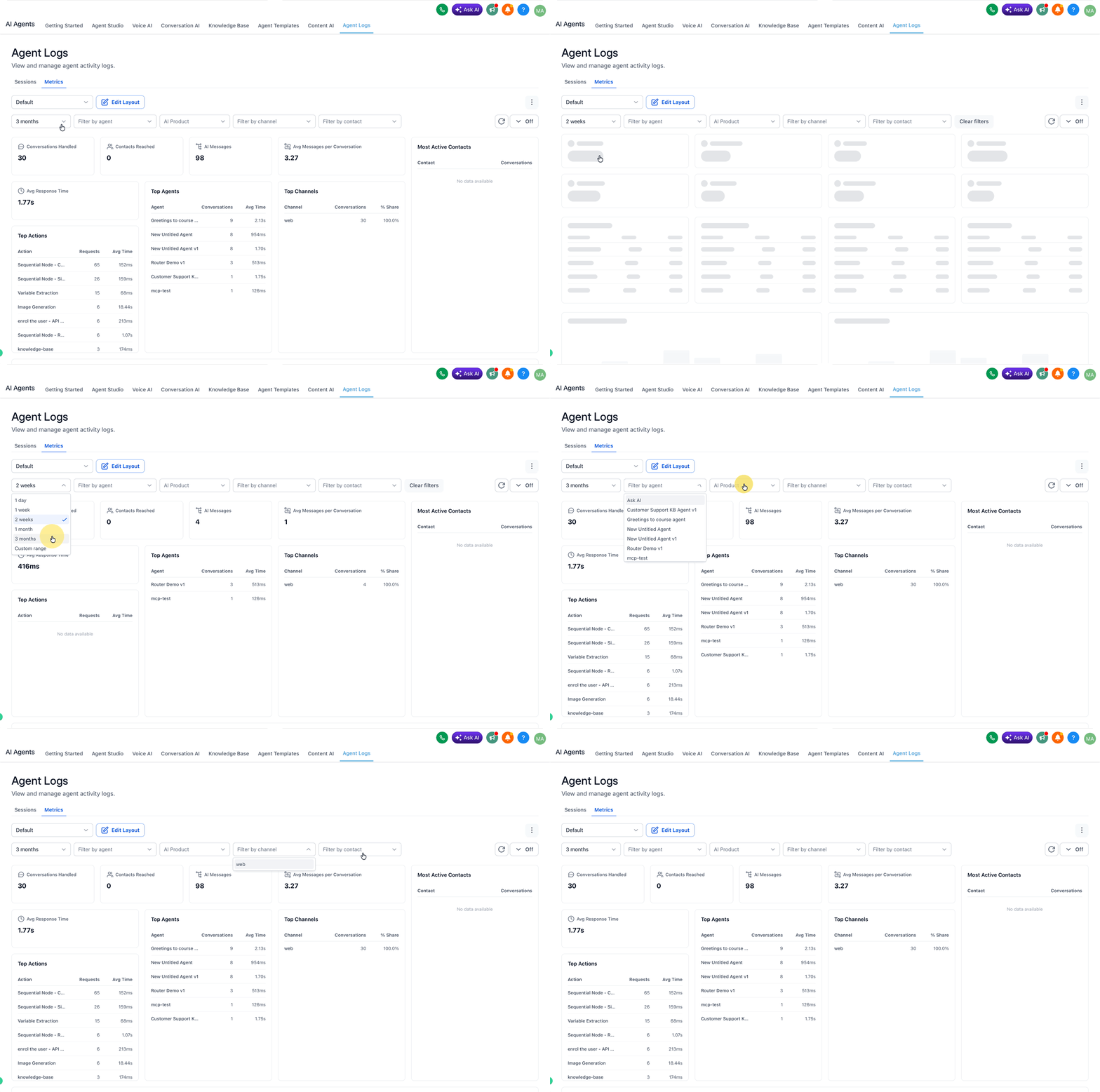
- Select filter values for Time Range, Agents, AI Products, Channels, and Contacts.
- Open the layout dropdown and choose Add Layout; pick a template or start from a blank canvas.
- Edit the new layout, add or remove widgets, drag and drop to arrange, resize as needed, then save the layout.
- Choose an auto refresh interval of 30 seconds, 1 minute, 5 minutes, or 15 minutes, or click the refresh icon for a manual update.
- If a trend needs deeper review, open Agent Logs > Sessions to examine the underlying conversation.
06What it looks like in HighLevel
07Settings that matter
- Time Range. Limits the data displayed to a selected period such as today, last 7 days, or a custom range.
- Agents. Filters the dashboard to show activity only for the chosen AI agents.
- AI Products. Restricts metrics to the selected AI product, such as Conversation AI or Voice AI.
- Channels. Shows activity for specific communication channels like chat, SMS or voice.
- Contacts. Narrows the view to interactions involving particular contacts.
- Auto, refresh interval. Controls how often the dashboard updates automatically; options are 30 seconds, 1 minute, 5 minutes, or 15 minutes.
08Things to know before you rely on it
- The three default layouts, Conversation AI, Voice AI, Managed Agents, are read only and cannot be edited or deleted.
- Auto refresh can only be set to the listed intervals; other frequencies are not available.
09If something goes wrong
- Performance issue appears in Metrics. Identify the trend on the dashboard, then open the related logs or debugging tools for a deeper investigation.
10How it connects to the rest of HighLevel
- Explore voice call analytics with Voice Intelligence Voice Intelligence
- Set up a chat widget to feed Conversation AI metrics Chat widget setup
- Review pricing and plan options for accessing Agent Logs Pricing
Michael's take

Agent logs metrics is useful but not essential for every team.
If you rely on detailed logs for most decisions, you can skip this feature.