
01Who this is for
- Affiliate managers benefit because they can control when commissions are paid, matching refund windows.
- Finance teams gain visibility into pending, approved, and paid payouts across campaigns.
- Founders of subscription businesses use payout terms to protect against chargebacks before payouts are issued.
02Affiliate payouts, explained
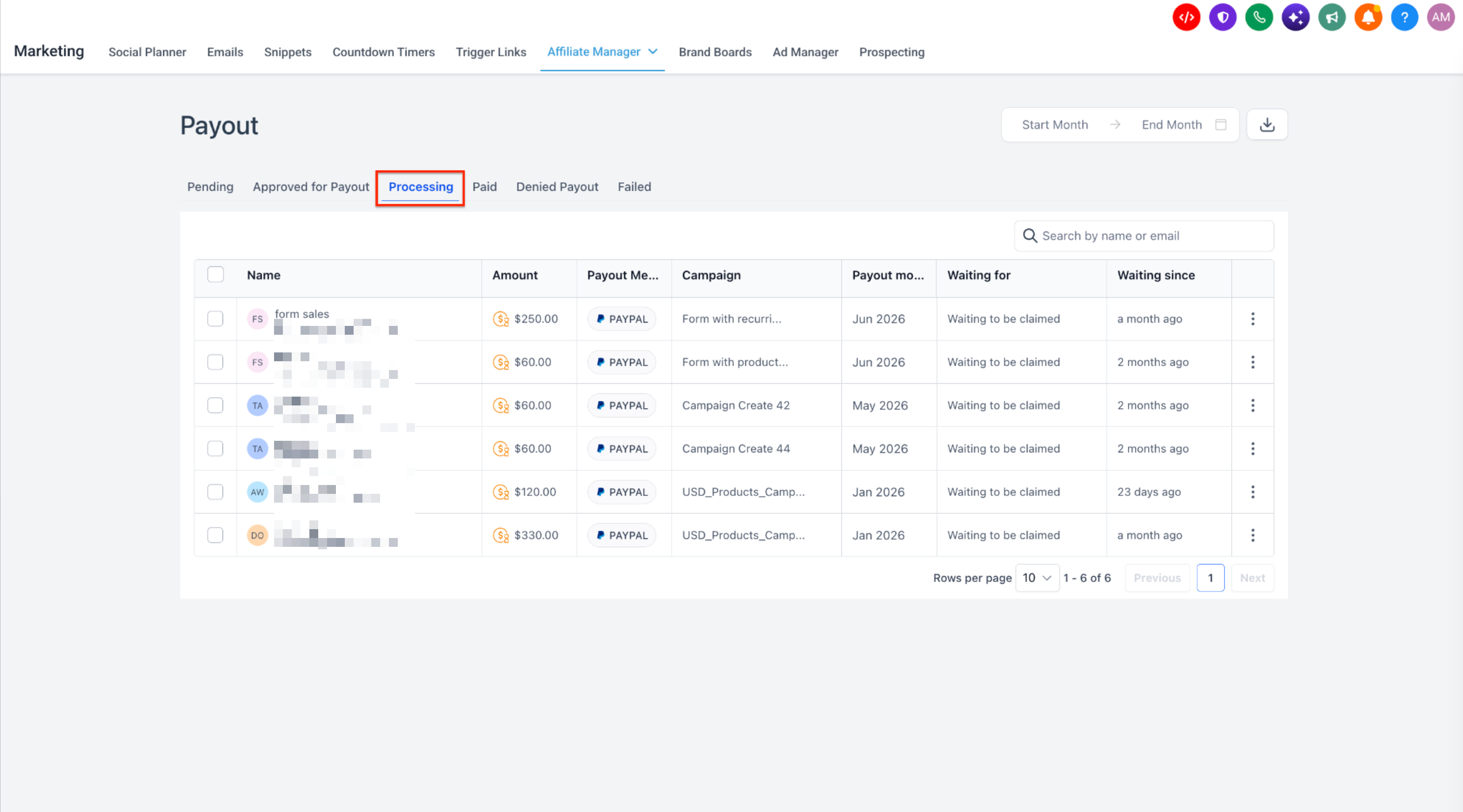
The Affiliate Manager records commissions for each sale processed via Stripe. Commissions may be one time or recurring, and discounts reduce the commission amount. Payout terms create a delay, such as NET 30, between the month end and the date the commission becomes payable. The Payouts tab shows five main stages: Pending, Approved for Payout, Processing, Paid, plus Denied and Failed tabs when relevant.
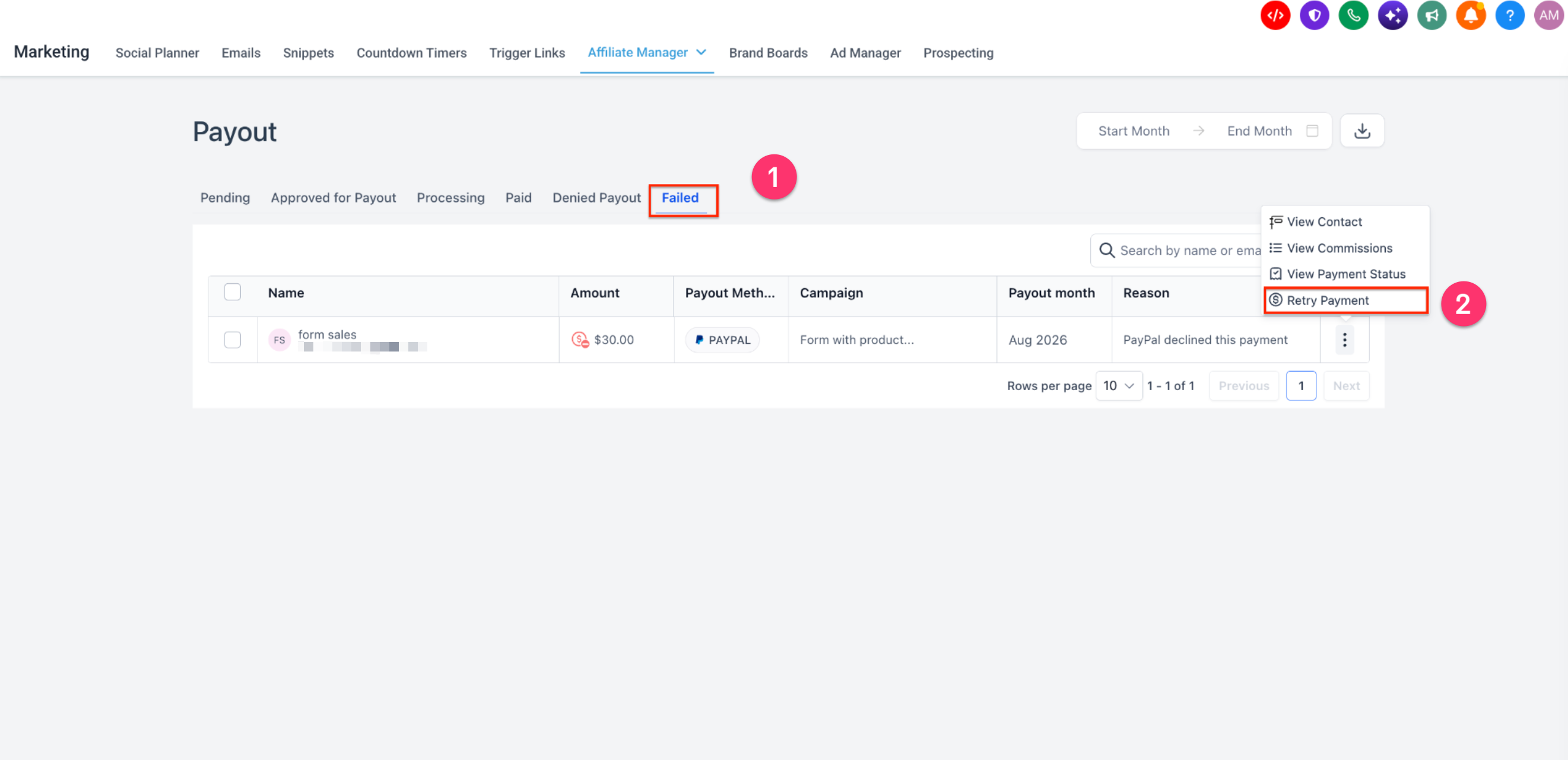
Users with the Pay Affiliate Manager Payout permission can move payouts through these stages. Pending payouts appear on the first of every month, showing a due date based on the selected payout term. Approvals move entries to the Approved for Payout stage, where they can be paid via PayPal Auto Payouts or a manual method. Failed PayPal attempts can be retried, which returns the payout to the Approved stage.
03How businesses use affiliate payouts
- SaaS subscription service. The owner selects a NET 30 payout term to align with a 30 day refund window. When a sale occurs, the commission is recorded and paid after the term expires, reducing risk from chargebacks.
- Online course provider. A marketer applies a discount code at checkout; the platform calculates the affiliate commission on the reduced sale amount. The affiliate sees the payout term in their portal and receives payment after the configured delay.
- Ecommerce store. The store manager uses the Pending tab to review monthly affiliate earnings, approves eligible payouts, and processes manual bank transfers, marking each as Paid once the transfer is complete.
04The numbers and rules that matter
- Supported payout terms: NET 7, NET 15, NET 30, NET 45, NET 60, NET 90.
- Payouts are generated in the Pending tab on the 1st of every month.
05How to set up and use affiliate payouts in HighLevel
Configure payout term
- Open the campaign you want to edit.
- Navigate to Additional Settings or Global Settings.
- Select a payout term such as NET 30 and save the changes.
Approve pending payouts
- Go to the Payouts screen and open the Pending tab.
- Click the three dot menu on a pending entry to view its details.
- Choose Approve Payout to move the entry to Approved for Payout.
Process approved payouts
- Open the Approved for Payout tab.
- Select PayPal Auto Payouts or record a manual payment method.
- After completing payment, click Mark as Paid to finalize the payout.
Retry a failed payout
- Open the Failed tab in the Payouts screen.
- Click the Retry Payment button for the failed payout.
- Confirm the payout returns to the Approved for Payout tab.
Handle denied payouts
- From the Pending or Approved for Payout tabs, select Deny Payout when a payout is not applicable.
- The denied payout will appear in the Denied Payouts tab.
06What it looks like in HighLevel
07Settings that matter
- Payout term. Sets the delay, in days after month end, before a commission becomes payable.
- Pay Affiliate Manager Payout permission. Controls which users can view and act on payout actions such as approve, process, or retry.
08Things to know before you rely on it
- Supported payout terms are NET 7, NET 15, NET 30, NET 45, NET 60, and NET 90.
- Commission tracking does not automatically record refunds for one time products or subscriptions.
- Processing and Failed tabs appear only when at least one payout exists in those statuses.
- Retry Payment moves the payout back to Approved for Payout but does not immediately resend the payment.
- The Processing tab is visible only while PayPal payouts are still being processed by the provider.
09How it connects to the rest of HighLevel
- Explore all LevelUp 2026 features for additional affiliate tools. LevelUp 2026 features
- Review pricing and plan options that include Affiliate Manager access. HighLevel pricing
- Consider the Founder Plan for unlimited affiliate management capabilities. Founder Plan
Michael's take

In my experience, the payout scheduling helps align commission payments with refund windows, which can simplify accounting and reduce the risk of paying commissions on refunded orders.