
01Who this is for
- Founders who run multiple Facebook ad campaigns and need a fast way to keep lead syncing working.
- Marketing managers responsible for mapping Facebook lead forms across several client pages.
- Agencies that manage subaccounts for multiple businesses and must ensure permissions stay current.
02Troubleshoot CTA, explained
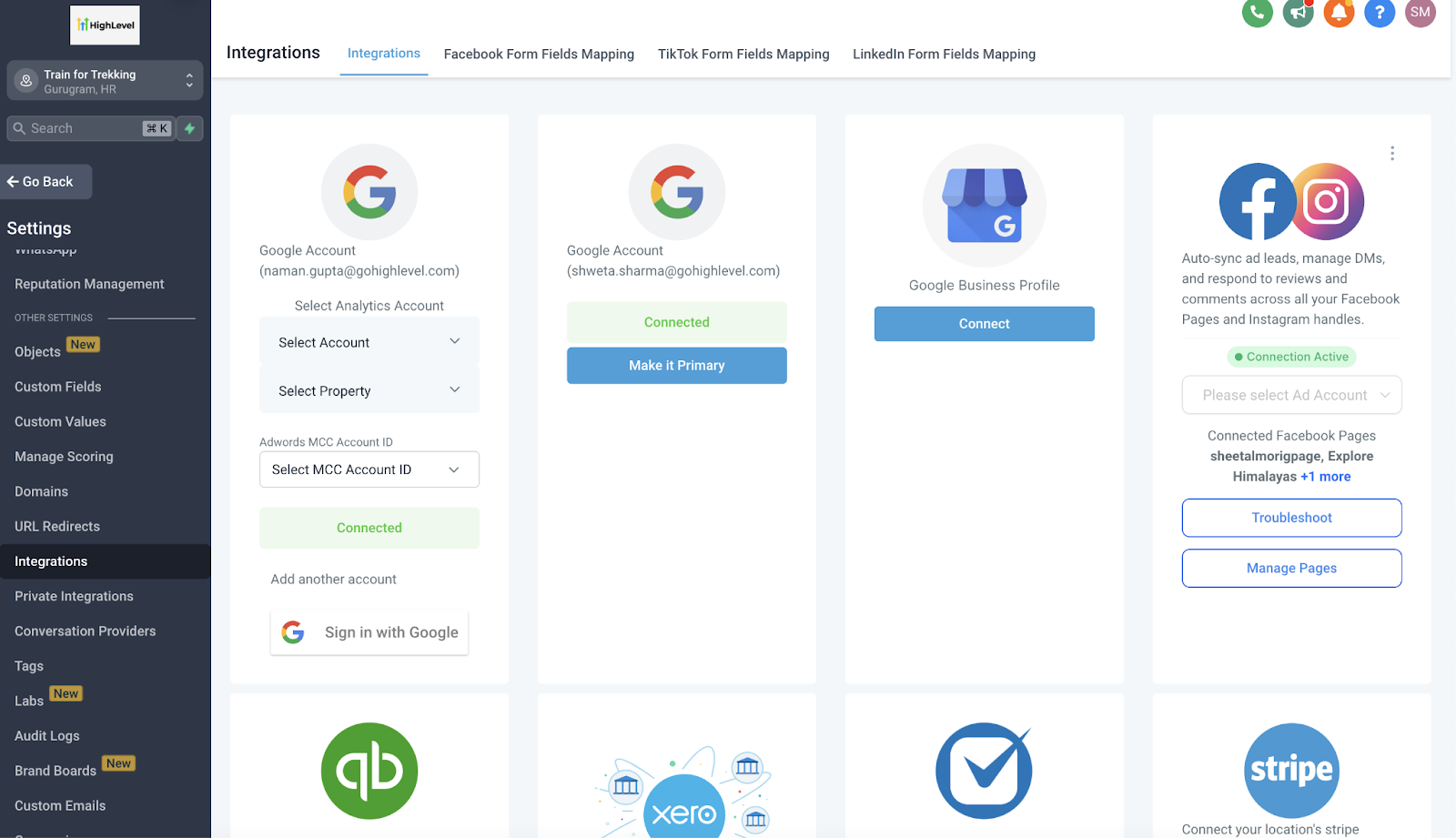
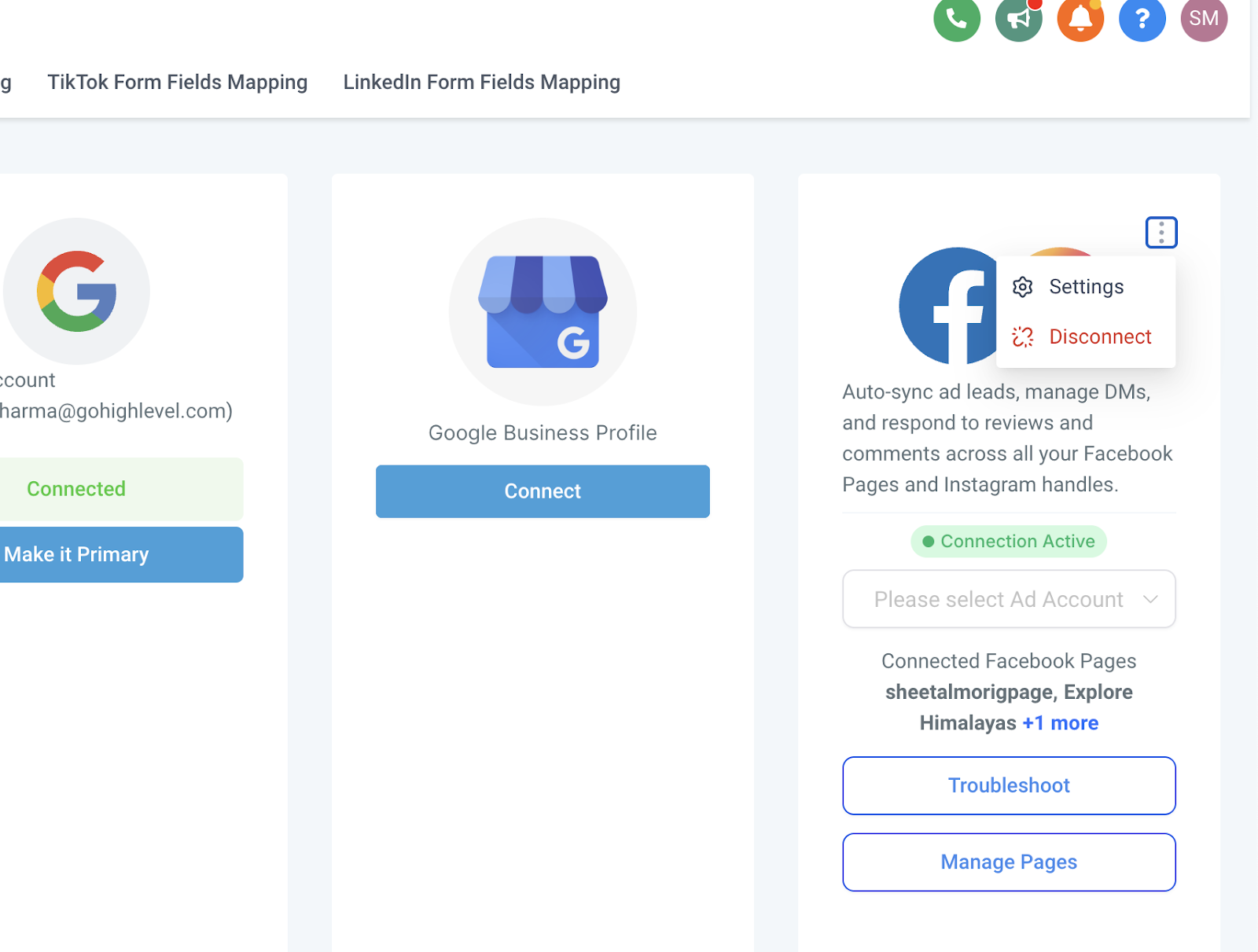
The Troubleshoot CTA appears on the Facebook Integration Card. The card now hides Settings and Disconnect behind a three dot menu, giving a cleaner view. When the system detects missing permissions or unmapped forms, a warning icon shows next to the issue.
Clicking a warning icon opens the relevant helper, either the Facebook Form Field Mapping screen or a prompt to troubleshoot the connection. Inside the guided flow you can review the highlighted problems and, if needed, launch the Sync Leads option to process any leads that have not synced automatically. The sync runs for all mapped forms on every Facebook page linked to the subaccount.
The feature lives in the Integration section of the platform, accessible from any subaccount that has Facebook pages connected.
03How businesses use troubleshoot CTA
- Digital marketing agency. The agency opens the Facebook Integration Card, clicks the warning icon for unmapped forms, follows the link to map fields, then uses the Sync Leads option to pull in any missed leads from all client pages at once.
- Ecommerce brand. The brand’s Founder checks the Integration Card for a permission warning, selects the troubleshoot prompt, resolves the missing permission, and confirms that new leads appear automatically without further action.
- Local service business. The manager spots a warning about form mapping, clicks the icon to reach the field mapping screen, updates the mappings, and runs a quick Sync Leads for the past 7 days to capture any leads that were delayed.
04How to set up and use troubleshoot CTA in HighLevel
Use Troubleshoot CTA to fix Facebook integration issues
- Open the Facebook Integration Card in your account.
- Find the three dot menu where Settings and Disconnect now reside.
- If a Facebook form is not mapped, a warning icon appears next to it.
- Click that warning icon to open the Facebook Form Field Mapping screen.
- If permissions are missing, a different warning icon appears.
- Click the permission warning icon to launch the troubleshoot prompt.
- Select the Troubleshoot button to start the guided flow.
- Review any highlighted permission or mapping warnings shown.
- When unprocessed leads need handling, activate the Sync Leads option.
- Select a time range from the dropdown list (for example, past 7 days or 30 days).
- Press Confirm to begin syncing leads for all mapped forms across all linked pages.
- After syncing, verify that the Facebook leads appear in the platform as expected.
05What it looks like in HighLevel
06Settings that matter
- Sync Leads option. Controls whether unprocessed leads are pulled in for all mapped forms during a troubleshooting session.
- Facebook Form Field Mapping. Opens the screen where you match Facebook form fields to HighLevel fields.
07Things to know before you rely on it
- Sync Leads now works for every mapped form on every page in the subaccount; it cannot be limited to a single page.
- The feature is intended only when automatic syncing fails, to avoid unnecessary manual syncs.
- Warning icons direct you to the specific issue, reducing the need for external support.
08How it connects to the rest of HighLevel
- Step by step guide to Facebook integration in HighLevel Facebook integration guide
- How to add and manage multiple Facebook pages in a subaccount Multiple pages connection
- HighLevel guide to Facebook Lead Ads integration and management Lead ads integration
Michael's take

When your Facebook lead ads are critical to your funnel, the Troubleshoot CTA saves time by reducing support tickets and catching missed leads before they vanish. The guided flow and one click Sync Leads keep the data pipeline moving without you having to chase permissions or mapping errors manually.
If your Facebook integrations are rarely used or you already have a robust process for handling permissions and mapping, the extra steps may feel unnecessary. In those cases the feature adds little value beyond the occasional safety net, and you might be fine sticking with the automatic sync alone.