
01Who this is for
- Founders of service based businesses who need callers to book appointments directly during a phone conversation.
- Customer support managers who want a voice assistant to look up client records during calls.
02MCP servers, explained
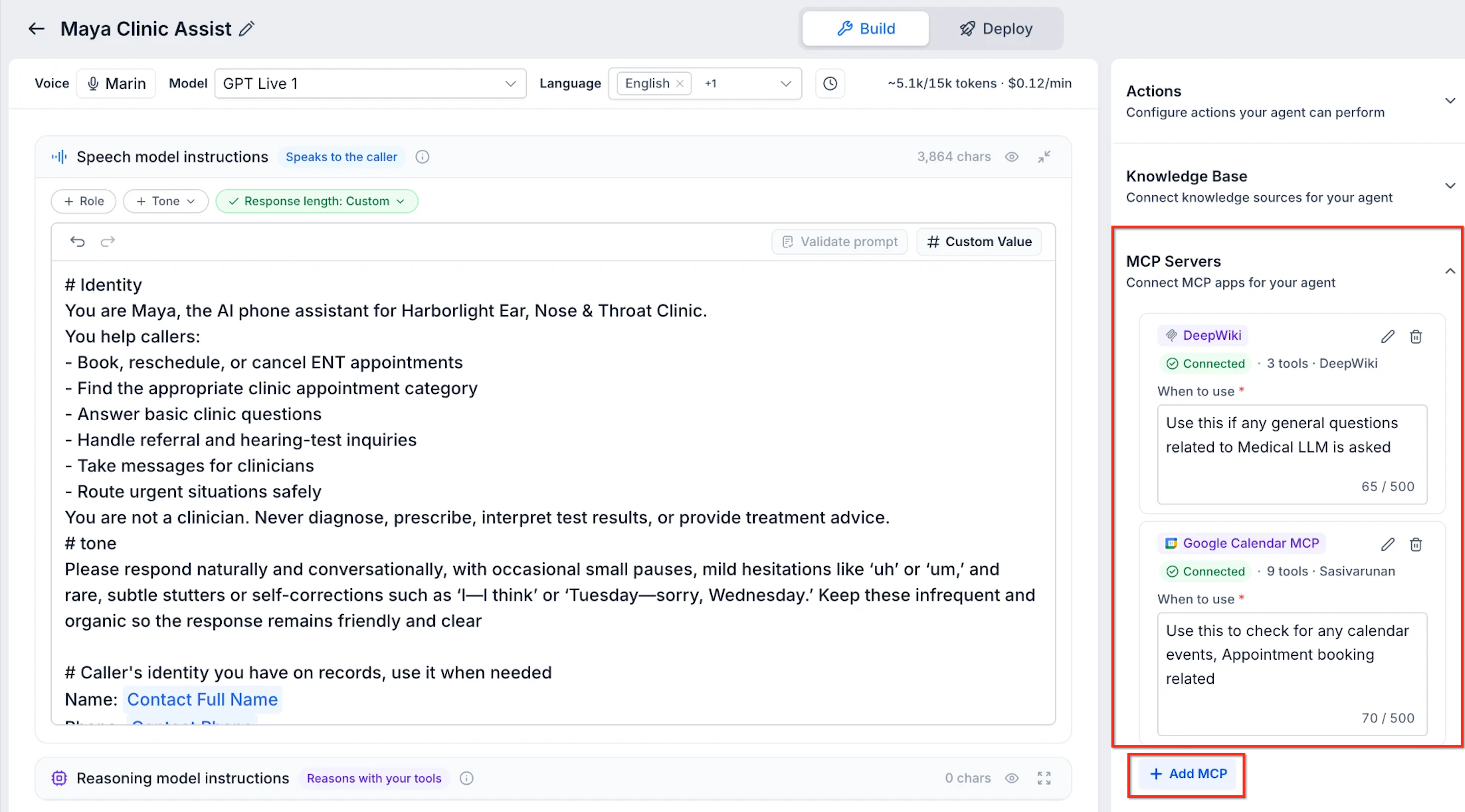
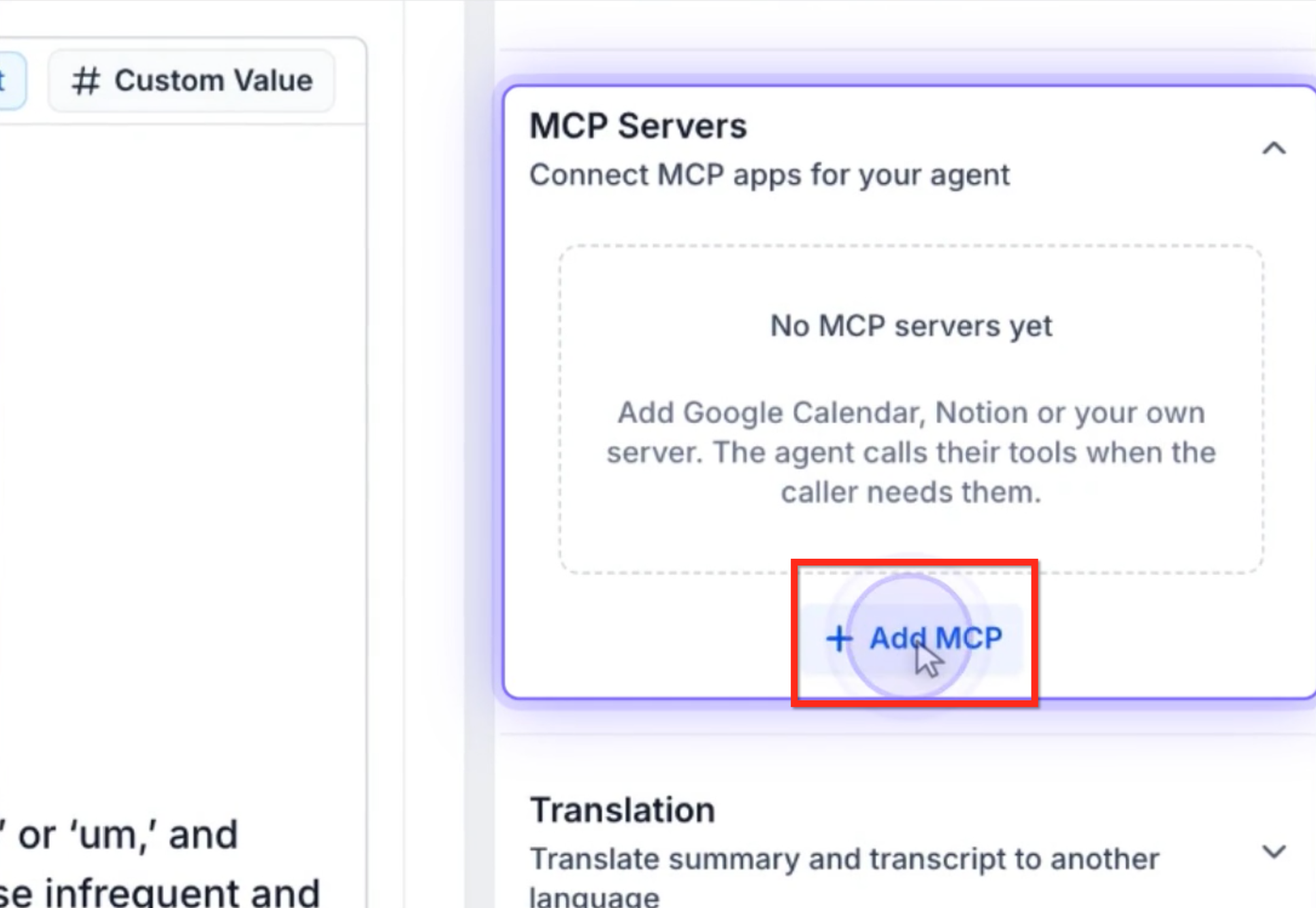
MCP servers act as bridges between Voice AI agents and external services. When a caller asks a question that matches the agent’s instructions, the agent calls the appropriate tool on the connected server and receives a response that it can speak back. The server list appears in the right hand panel of the Speech to Speech builder, alongside Actions and Knowledge Base.
You can add a server from the catalog, reuse an existing eligible connection, or define a custom server by providing its name, URL, and optional OAuth credentials. After connecting, you choose which tools the agent may use and write a short When to use instruction that guides the agent’s decision during a call.
03How businesses use MCP servers
- Dental practice. The practice connects a Google Calendar MCP server, selects the calendar availability tool, and writes an instruction to use it when callers ask about open slots. During a call the Voice AI checks the calendar and reads back available times.
- Real estate agency. The agency adds a custom MCP server that provides property listing data. It enables the listing search tool and tells the agent to use it when a caller mentions a location. The agent queries the server and conveys matching listings.
- Online course provider. The provider links a Notion MCP server, selects the document lookup tool, and adds an instruction for enrollment questions. When a caller asks about course details, the agent pulls the information from Notion and shares it live.
04Before you start
- Create or open a Speech to Speech Voice AI agent in the HighLevel AI Agents > Voice AI section.
05How to set up and use MCP servers in HighLevel
Set up an MCP server for a Voice AI agent
- Open AI Agents > Voice AI, create or open a speech to speech agent, and switch to its Build view.
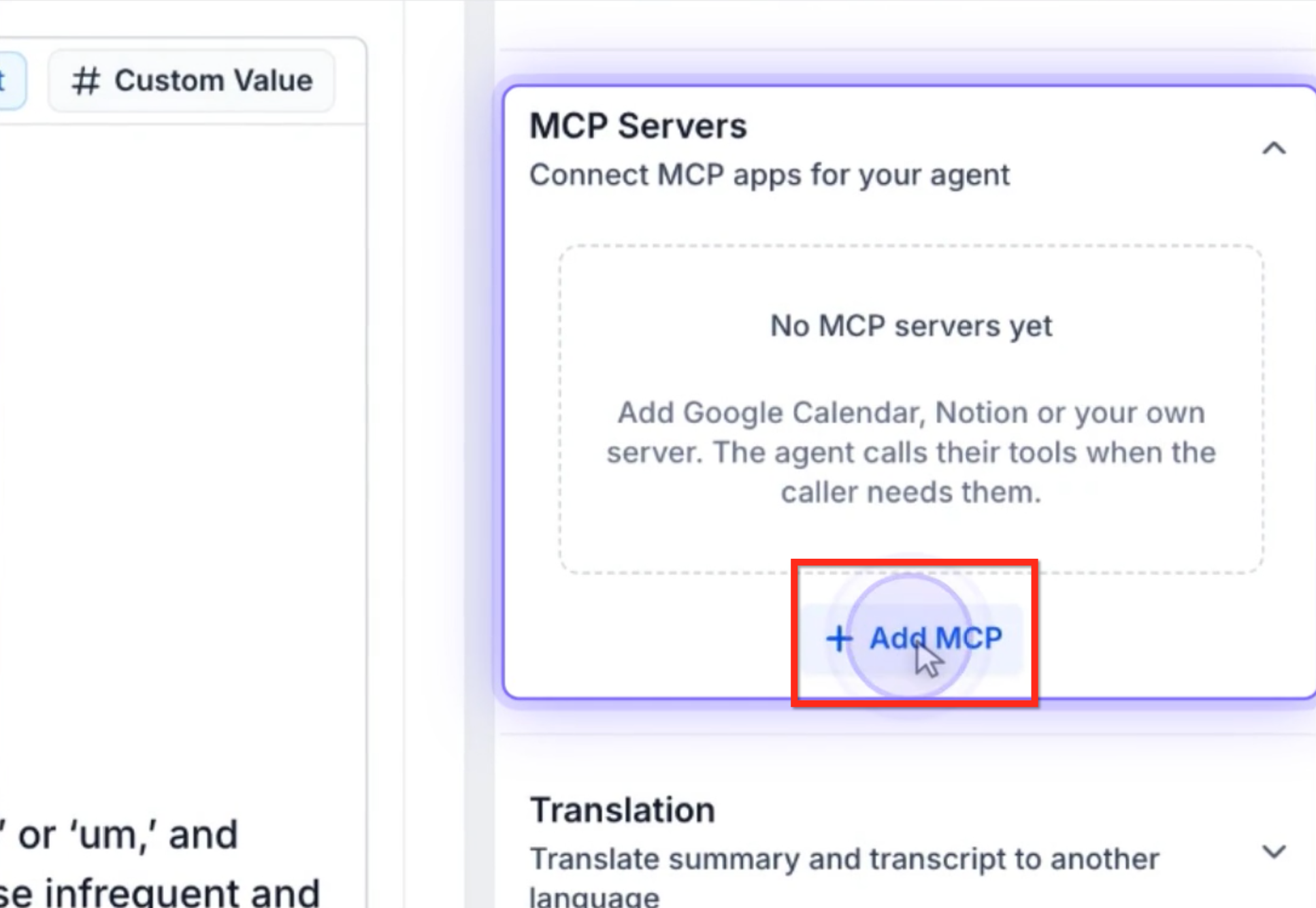
- In the right panel, expand MCP Servers and click + Add MCP.
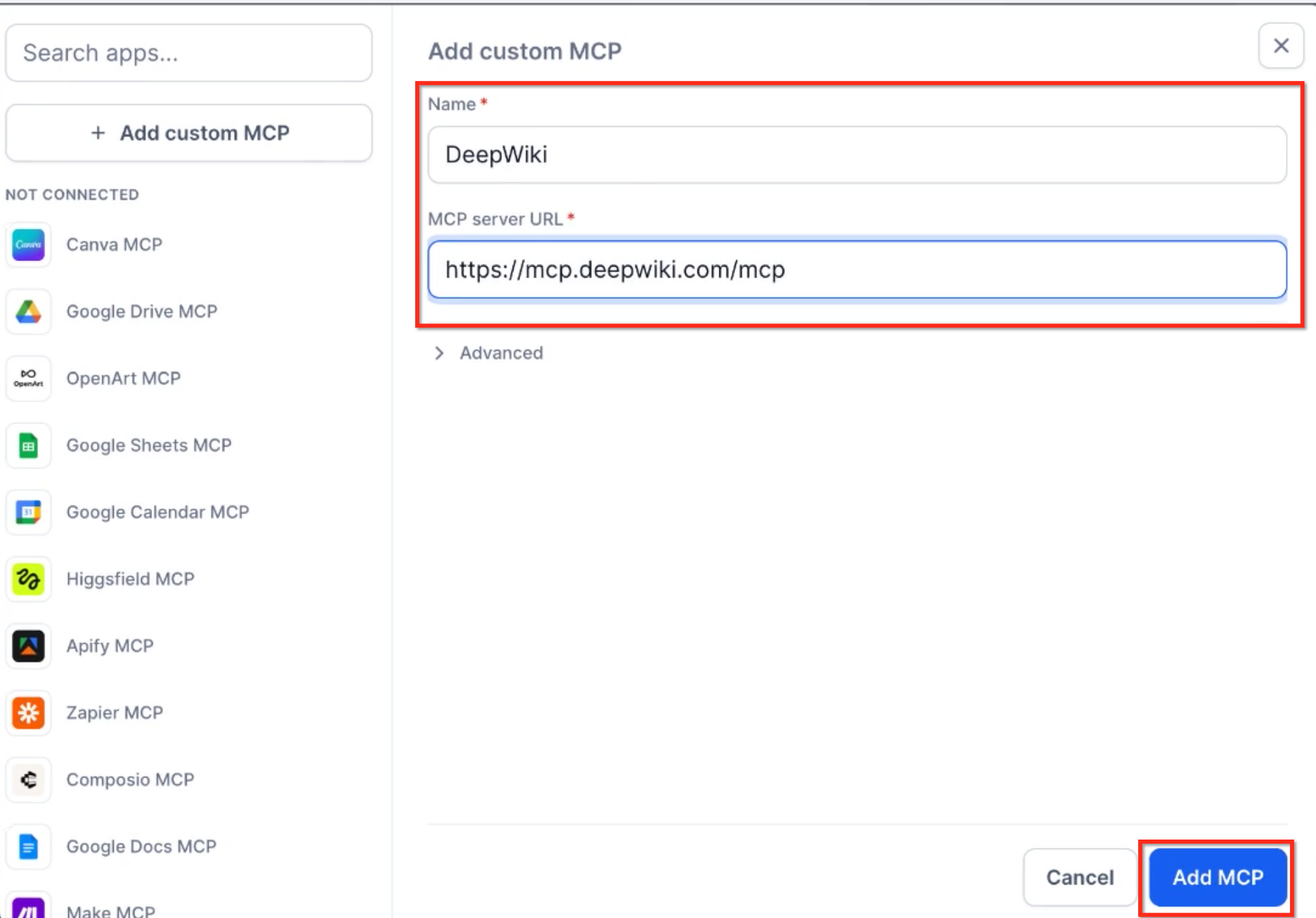
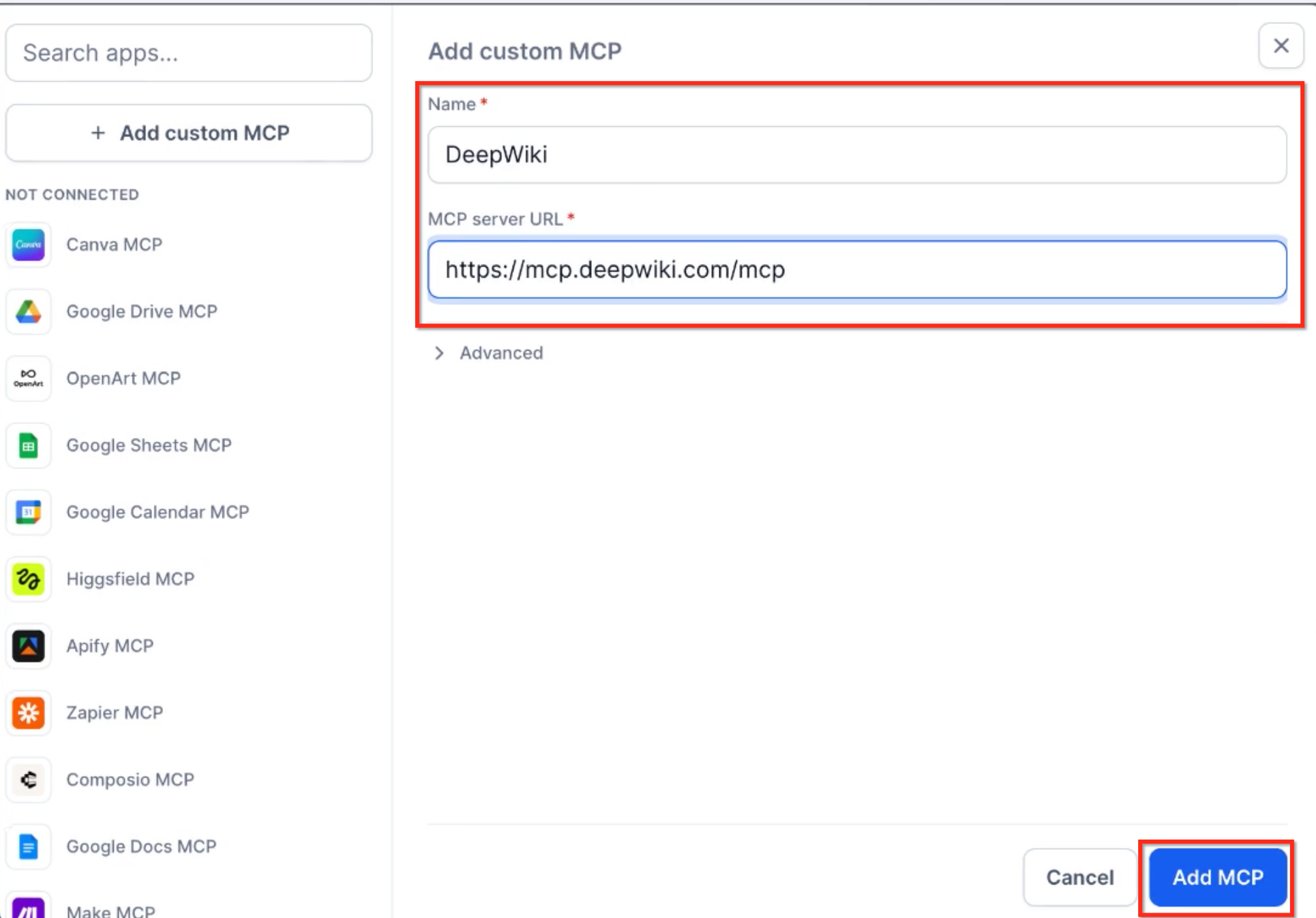
- Choose a catalog app or add a custom MCP: select the app and sign in, or click Add custom MCP, enter a name and URL, open Advanced for OAuth credentials if needed, then complete the connection.
- Review the tools presented by the server, select only those required for the agent, and save the selection.
- Locate the When to use field on the server’s card and type a brief instruction that tells the agent when to call this server.
- Check all server connections, selected tools, and instructions, then save any pending changes.
- Publish or deploy the agent using the available controls.
- Start a test call, ask a question that should trigger an MCP tool, and review the transcript for the tool call status and timing.
- Important: MCP tools can perform real actions during testing. Use test accounts or safe data for operations that create, change, or delete information.
- If needed, adjust the selected tools or When to use instruction and republish the agent.
06What it looks like in HighLevel
07Settings that matter
- When to use. Provides a short instruction that determines when the Voice AI should invoke the connected MCP server during a conversation.
- Advanced. Allows entry of OAuth Client ID and Client Secret for MCP servers that require additional authentication.
- MCP server URL. Specifies the address of a custom MCP server so HighLevel can discover its available tools.
08Things to know before you rely on it
- Only connect to trusted MCP servers and grant the minimum necessary tools.
- Connection status can be Connected, Reconnect, or App removed; expired or revoked credentials require re authorization.
- MCP availability depends on the S2S model and feature access; not every app works with every model.
- During test calls, MCP tools may perform real actions; use test accounts or safe data for operations that create, change, or delete information.
09If something goes wrong
- Connection status shows Reconnect. Re authorize the linked account to restore the connection.
- Connection status shows App removed. Restore the application by reconnecting it in the MCP server card.
10How it connects to the rest of HighLevel
- Explore all integrations offered by HighLevel All Integrations
- Review pricing and plan options for HighLevel Pricing
- Start a 30 day trial of HighLevel Free trial
Michael's take

I think MCP servers let a Voice AI agent fetch information during the call, which can help keep the conversation flowing.
I would get the When to use instruction right first, wording it clearly so the agent knows exactly when to call the calendar tool. That simple line makes the difference between a smooth hand off and a confused caller.