
01Who this is for
- Agency admins who manage multiple subaccounts and need a single install for all clients.
- Field service companies using Jobber who want their client information reflected in HighLevel for marketing automation.
02Jobber integration, explained
The integration creates a two way sync of client and contact records between Jobber and HighLevel. Names, emails, phone numbers, addresses, lead source, Jobber client URL, creation date and tags flow automatically in both directions. The system matches records by the unique Jobber client ID, so updates to email or phone do not break the link.
After installation, agencies can push a snapshot containing pre built workflows and message templates into each selected subaccount. Once a subaccount connects, historic client data is imported from the start date you choose, then new clients sync continuously. All of this lives inside the HighLevel App Marketplace under the Jobber app.
03How businesses use Jobber integration
- Marketing agency. The agency admin installs the Jobber app from the marketplace, selects all client subaccounts, and pushes the snapshot. Each subaccount then connects to its own Jobber account, allowing the agency to run campaigns using up to date client data without manual entry.
- Plumbing service company. The operations manager opens the Jobber app in the subaccount, clicks Connect, and authorizes the link. Client addresses and phone numbers entered in Jobber automatically appear in HighLevel for follow up reminders and email sequences.
- Landscaping business. The owner chooses a historic start date in the Sync Data tab, triggers the import, and lets the integration bring past client records into HighLevel. Ongoing jobs created in Jobber keep their contact information synchronized for future marketing pushes.
04The numbers and rules that matter
- Two way client sync includes First Name, Last Name, Email, Phone Number, Address, Lead Source, Jobber Client URL, Jobber Created Date, Tags.
- Jobber allows syncing about 2500 records for every 5 minutes.
05Before you start
- You must be logged in as an Agency Admin to see and install the Jobber app.
06How to set up and use Jobber integration in HighLevel
Agency Level Installation & Bulk Deploy
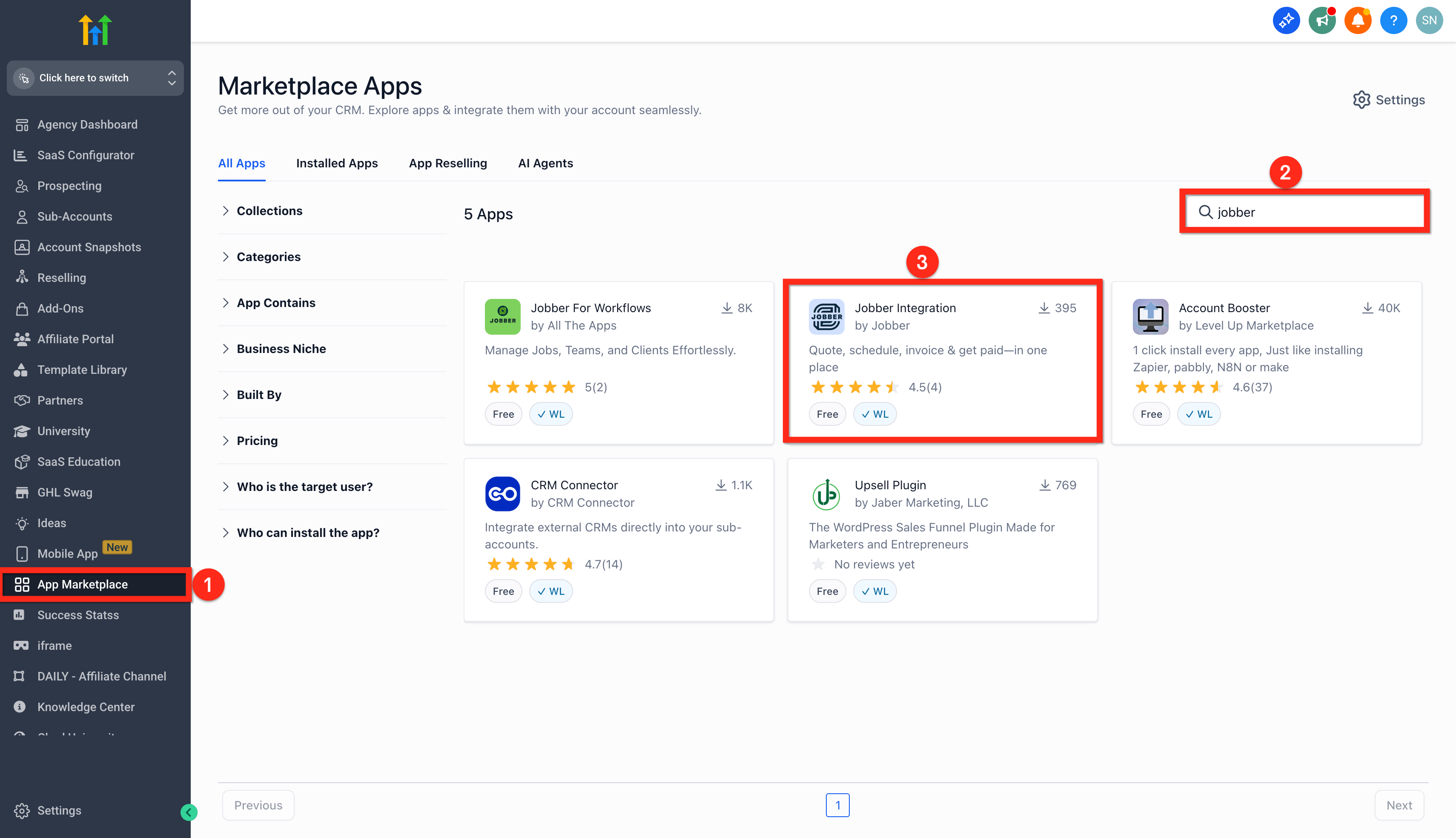
- Open the App Marketplace while viewing the agency dashboard.
- Search the marketplace for “Jobber”.
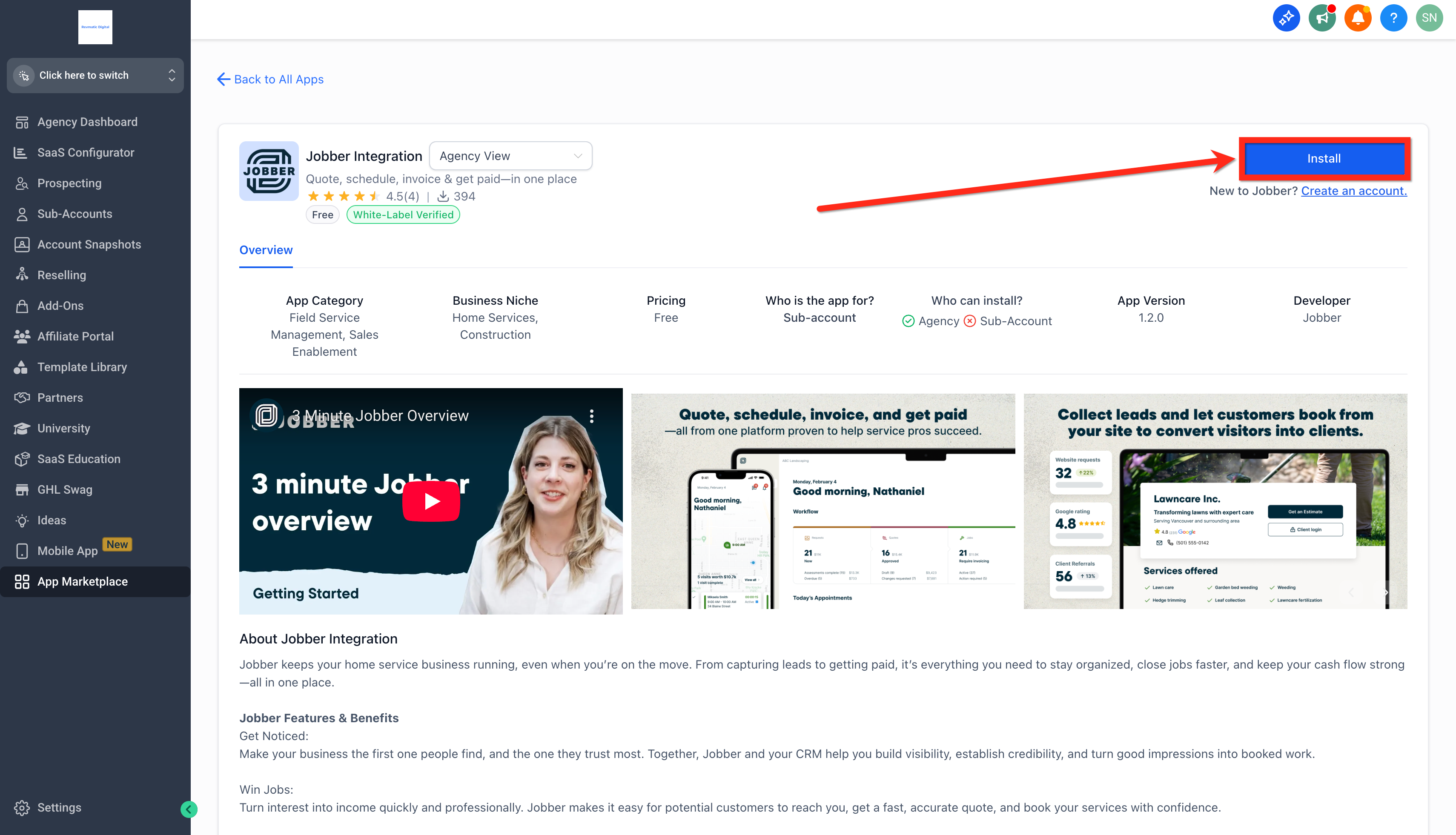
- Select the Jobber Integration app from the results.
- Press the Install button.
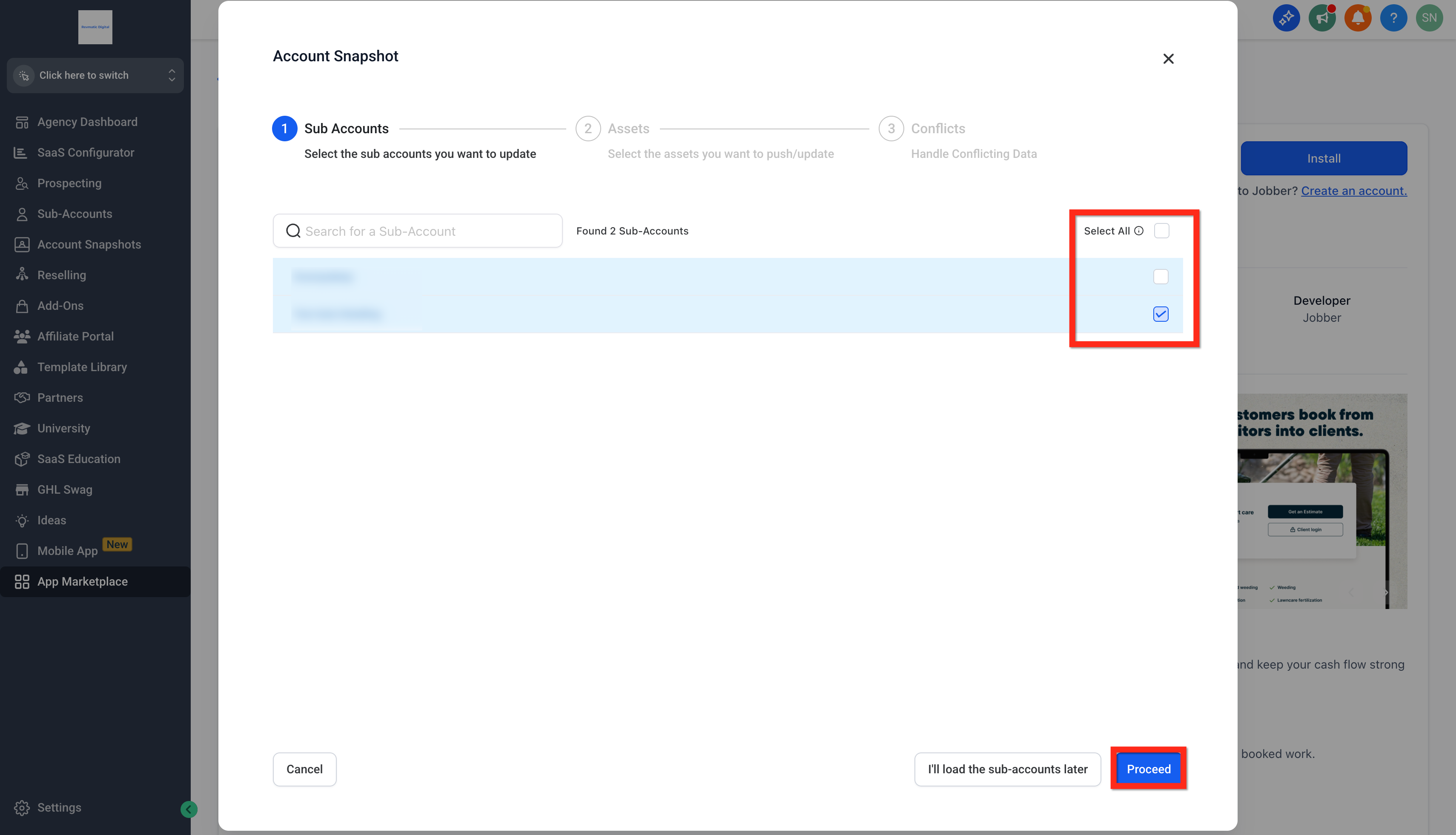
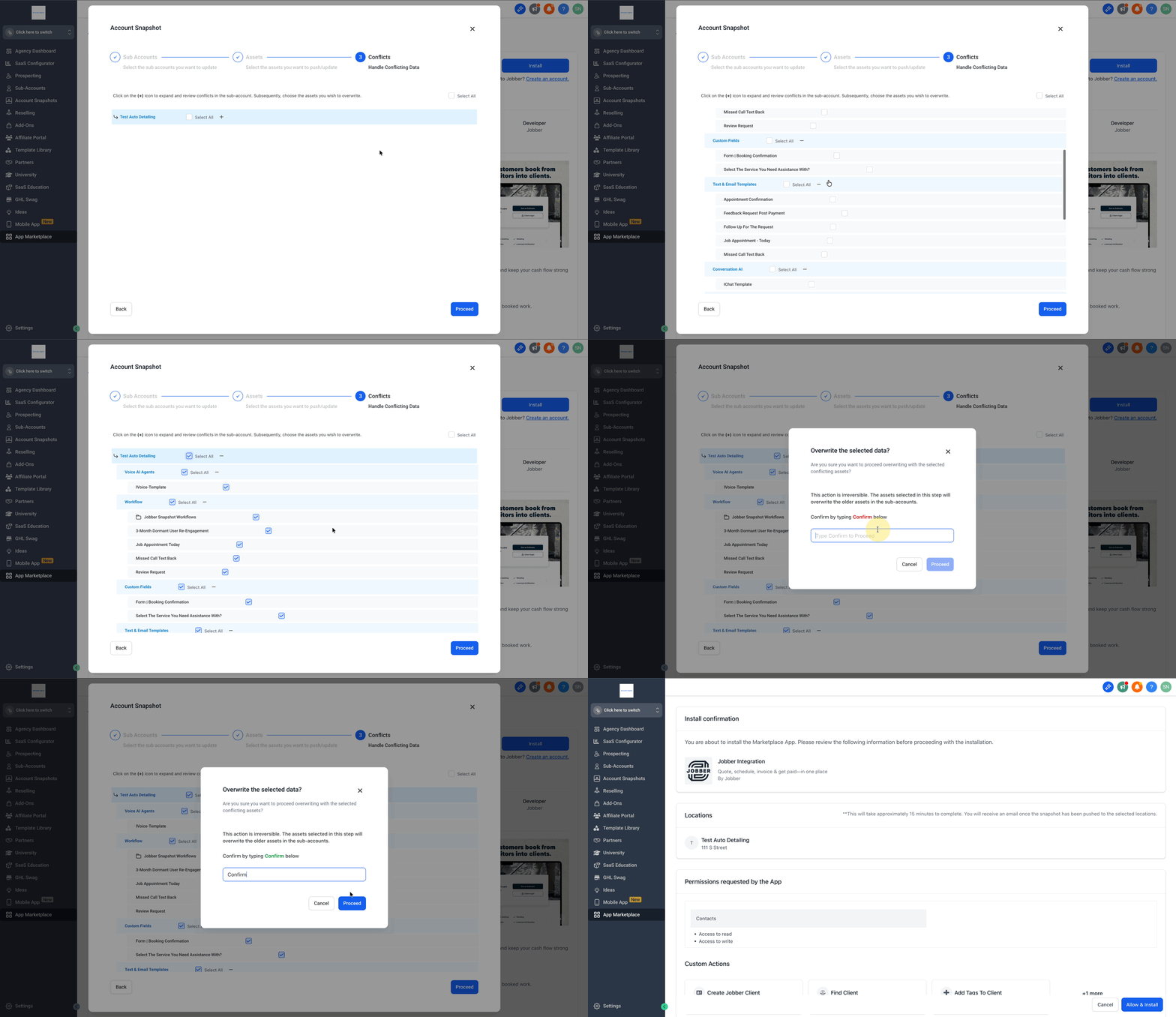
- Choose the subaccounts that should receive the integration.
- Click the Proceed button.
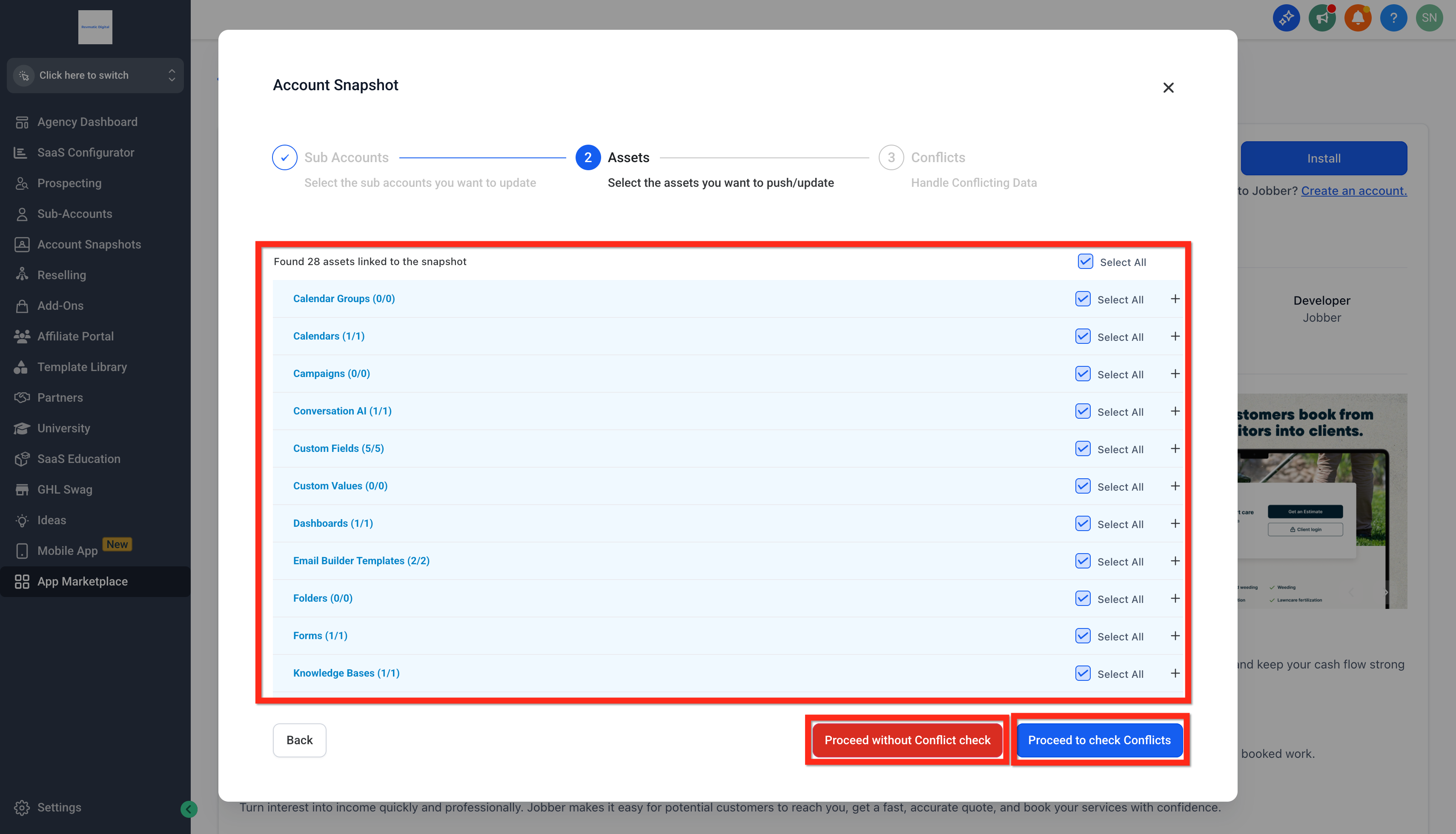
- Pick the snapshot assets you wish to push or update.
- Decide whether to skip conflict checking or to run a conflict check.
- If checking conflicts, click the plus icon, review each conflict, and select assets to overwrite.
- Press Proceed again.
- Type the word Confirm in the confirmation field and click Proceed.
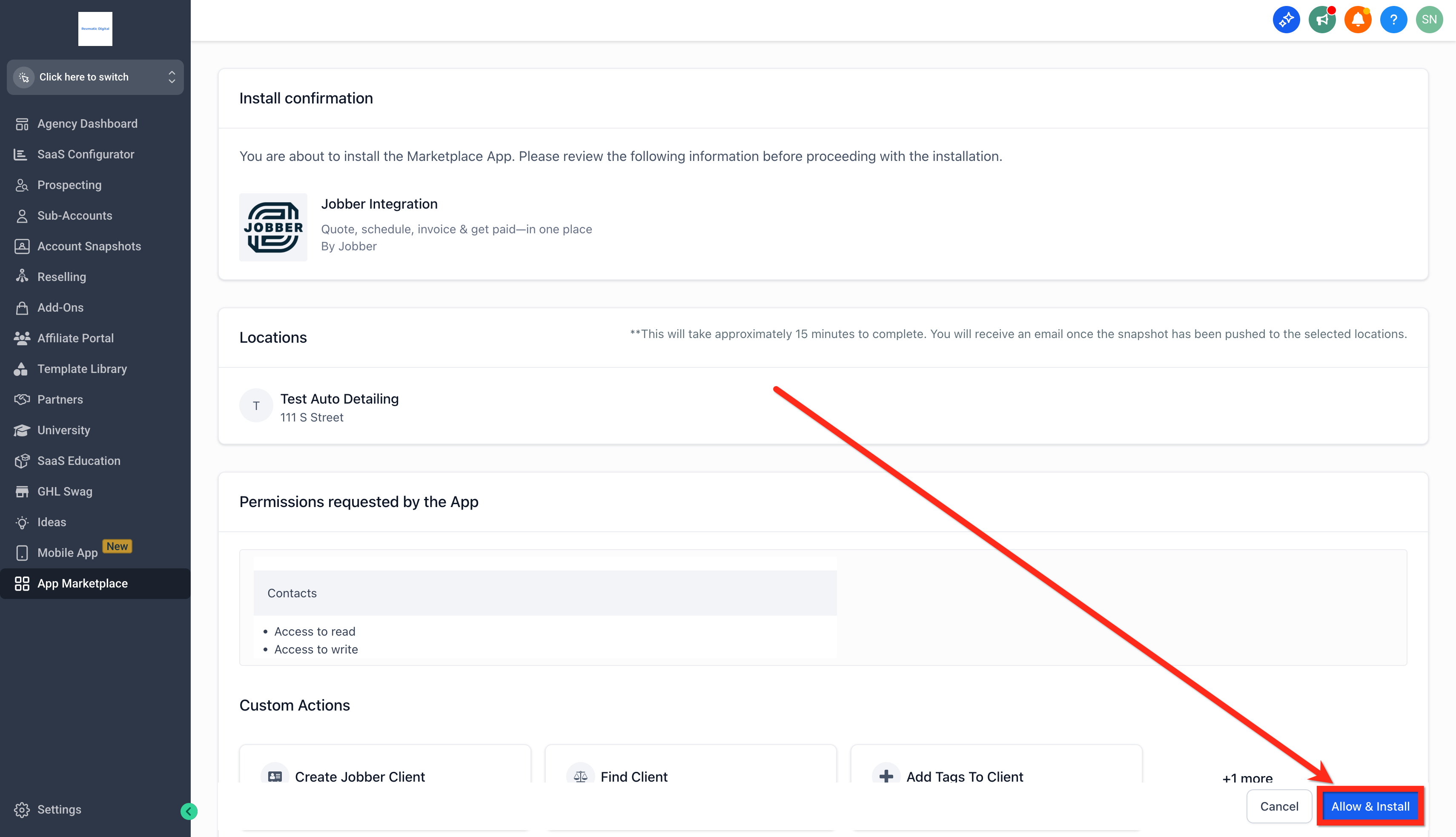
- Select Allow & Install to complete the deployment.
Subaccount Connection
- Switch the view to the target subaccount.
- Navigate to App Marketplace > Installed Apps > Jobber.
- Click Connect and follow the authorization prompts.
07What it looks like in HighLevel
08Settings that matter
- Sync Data. Sets the start date for importing historic client records from Jobber into HighLevel.
09Things to know before you rely on it
- Only one HighLevel subaccount can be linked to a single Jobber account at a time.
- Jobber syncs roughly 2,500 records every five minutes, so large historic imports may take time.
- The two way sync cannot be paused; to stop it you must disconnect the app.
- The historic start date can be set only during the initial sync and cannot be changed afterward.
- Sync logs are not provided, and custom fields, notes, and attachments from Jobber are not transferred.
10If something goes wrong
- Unable to see the Jobber app in the marketplace. Confirm you are logged in as an Agency Admin; the app is hidden from subaccounts until the agency installs it.
11How it connects to the rest of HighLevel
- Explore all integration options available in HighLevel All Integrations
- Review HighLevel pricing and plan details Pricing
- Start a free trial to test the Jobber integration 30 day trial
Michael's take

Wondering if the Jobber integration is worth the effort for your service business? It bridges the gap between the job management side and the marketing side, so you don’t have to copy a client’s details from one system to the other.
If I were setting it up, I’d start with the agency level bulk deployment, push the snapshot, and then test a few client updates to make sure the ID based matching holds. Once the data flows smoothly, the real value shows up in consistent reporting and fewer manual steps.