
01Who this is for
- Coaches benefit because each client session receives its own secure Zoom link without manual setup.
- Healthcare providers offering tele medicine appointments gain automatic, unique meeting URLs that reduce administrative steps.
- Real estate teams can host virtual showings with a fresh Zoom link for each prospect, keeping client communication organized.
02Zoom integration, explained
The integration connects a user's Zoom account to their HighLevel profile. Once linked, selecting Zoom as the meeting location in a calendar automatically creates a new Zoom meeting and embeds its unique link into the event. The link is unique per appointment, adding security and simplifying the invitation process.
Dynamic Zoom links are generated only when the meeting location setting points to Zoom on a Group Calendar. Meetings created, rescheduled, or cancelled update the Zoom side in real time, and the platform records all Zoom events for reporting.
All settings for the integration live under the Calendars section. Users manage the Zoom connection via Calendars > Settings > Connections > Video Conferencing, and they set the default meeting location in User Profile > Default Meeting Location or Calendar Settings > Meeting Location.
03How businesses use Zoom integration
- Coaching business. The coach connects their Zoom account in the User Profile, sets Zoom as the default meeting location, and creates appointment reminder workflows. Each client booking receives a personalized Zoom link in the confirmation email.
- Tele medicine clinic. Medical staff link a shared Zoom account across locations, configure the calendar to use Zoom for appointments, and build a workflow that sends patients the unique meeting link before their visit, ensuring secure virtual consultations.
- Real estate agency. Agents attach a Zoom account to their profile, set Zoom as the location for property showing calendars, and automate reminder messages that contain the individual Zoom link for each showing, keeping the scheduling process smooth.
04The numbers and rules that matter
- A single user may only use up to 100 requests per day (UTC) to create, update, or delete meetings; this limit resets at 00:00 UTC.
- A user can connect one Zoom account per location.
05Before you start
- Any user must have a Zoom account they can connect to their HighLevel profile.
- Dynamic Zoom links work only with Personal, Round Robin and Collective calendars.
06How to set up and use Zoom integration in HighLevel
Install the Zoom integration
- Open your User Profile and go to Integrations > Zoom.
- In the pop up, click Connect to Zoom.
- Enter your Zoom credentials and click Sign in.
- Click Allow to grant HighLevel access to your Zoom account.
- Confirm that Zoom now appears under User Profile Integrations.
- Navigate to User Profile > Default Meeting Location, choose Zoom, and click Connect.
- Save the selection and confirm the dialog about applying Zoom to other calendars.
- Open Settings > Calendar Settings, select the user, and edit Meeting Location.
- Select Zoom from the dropdown menu and save to enable Zoom links for bookings.
- You must be logged in as the user to complete these steps; if the Profile option is missing, edit the user's role from the agency level Team settings.
Set up appointment reminder workflow with Zoom location
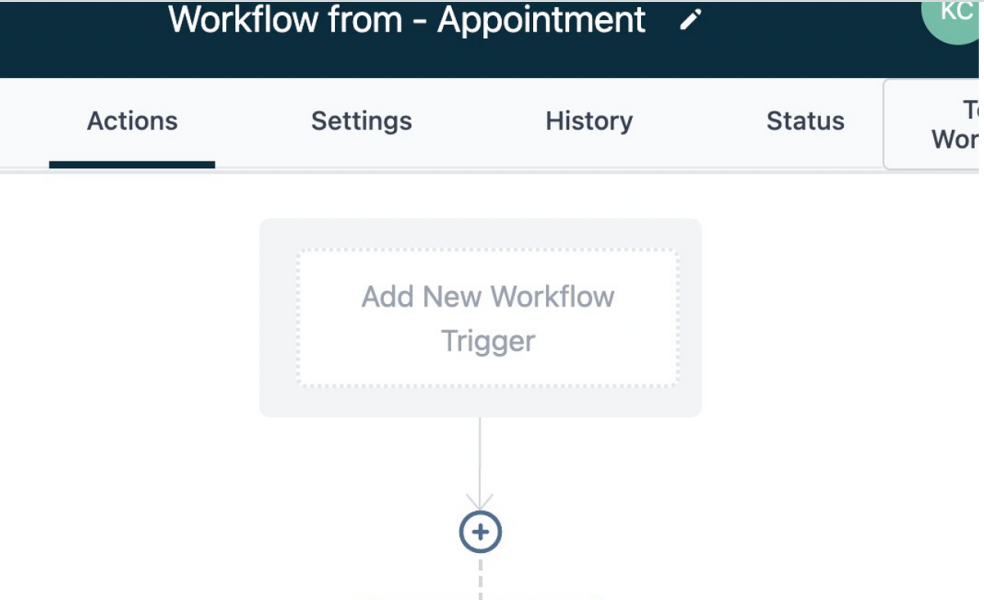
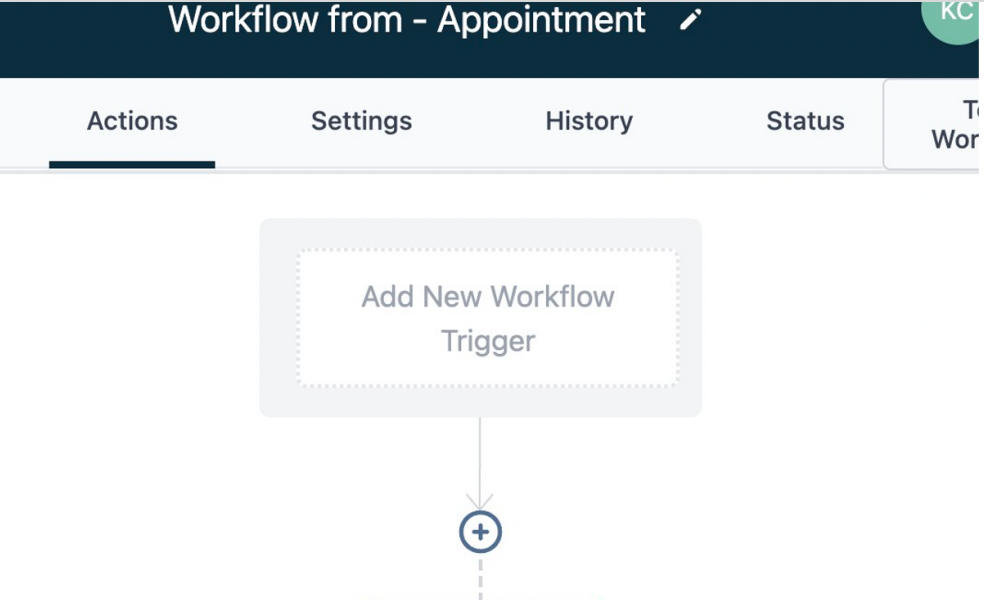
- Open Workflow Builder and click Add New Workflow Trigger.
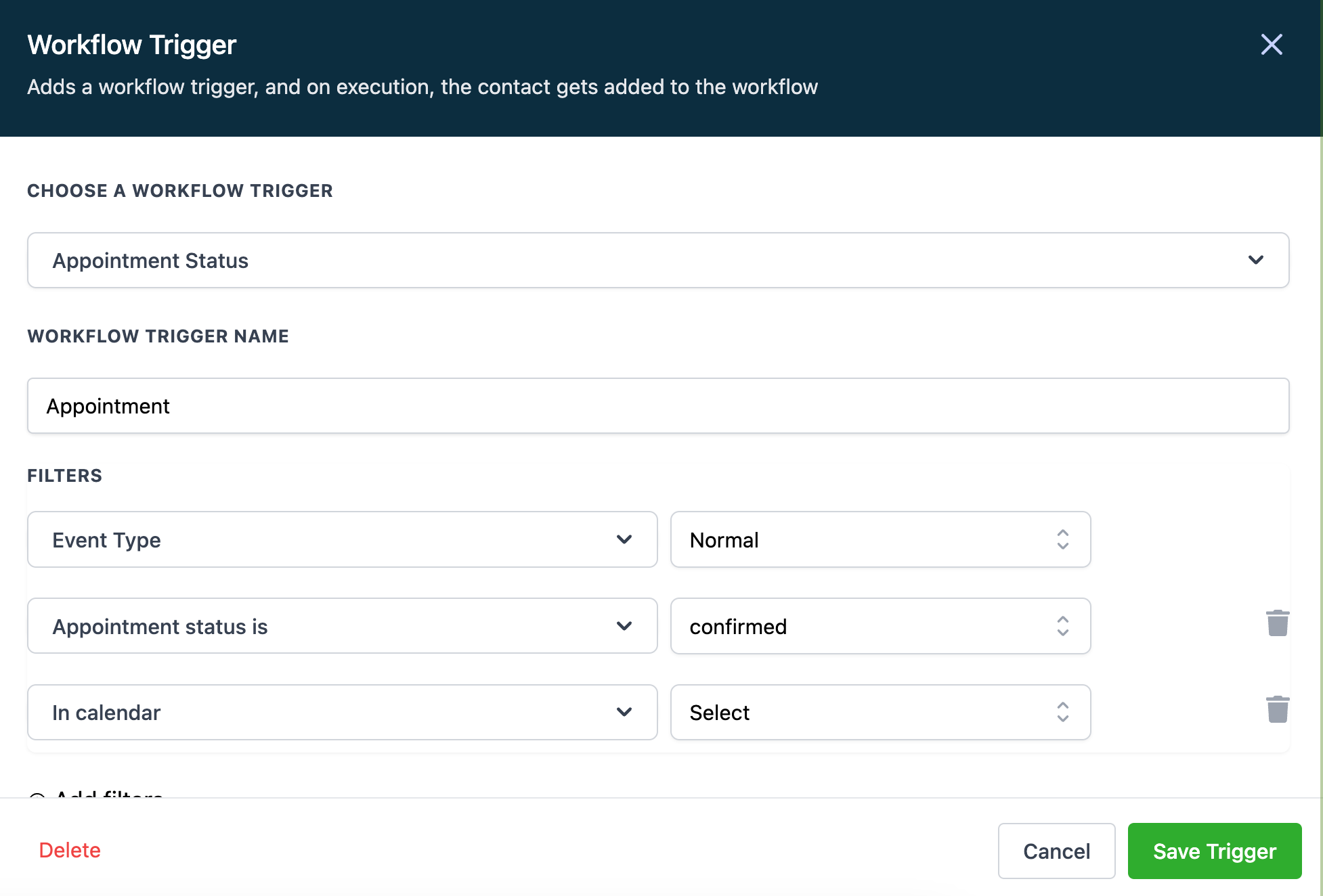
- Choose Appointment Status as the trigger.
- Add a filter for Event Type (one time, recurring, or either).
- Add a filter for Appointment Status (set to auto confirm).
- Optionally add an In Calendar filter to target specific calendars or users.
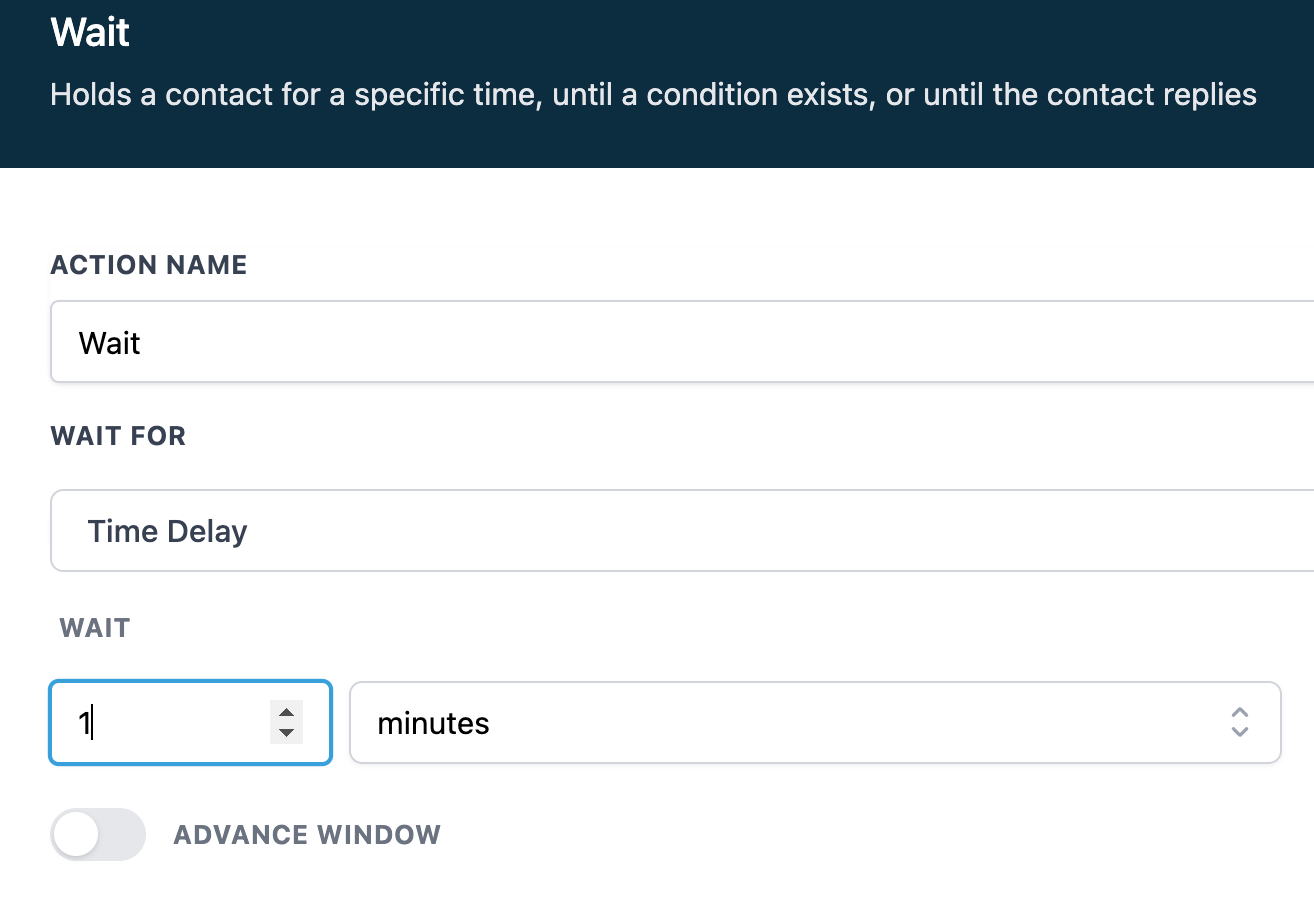
- Click Add your first Action and insert a one minute Wait step.
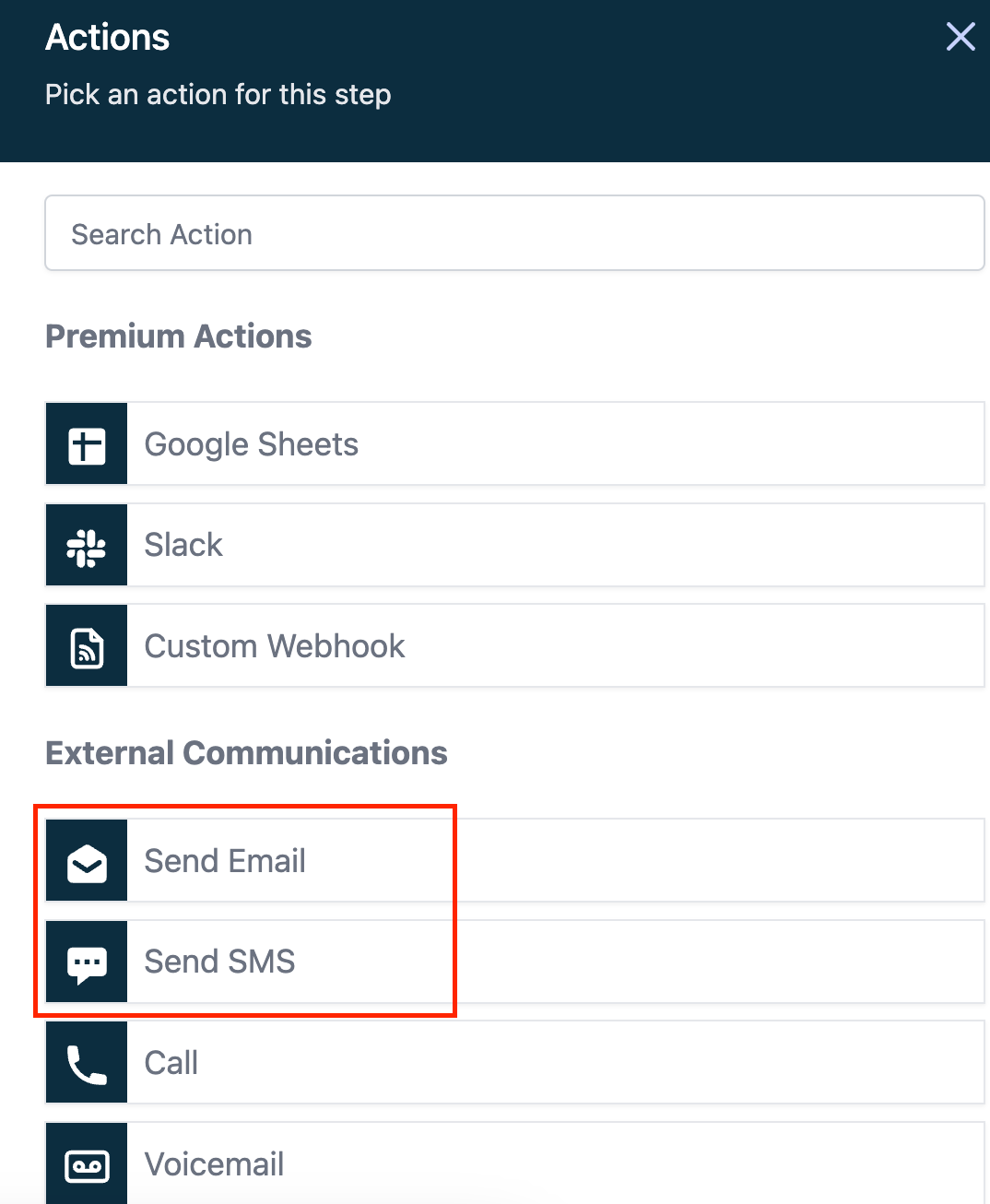
- Add a Send Email/SMS action and include the {{appointment.meeting_location}} merge field.
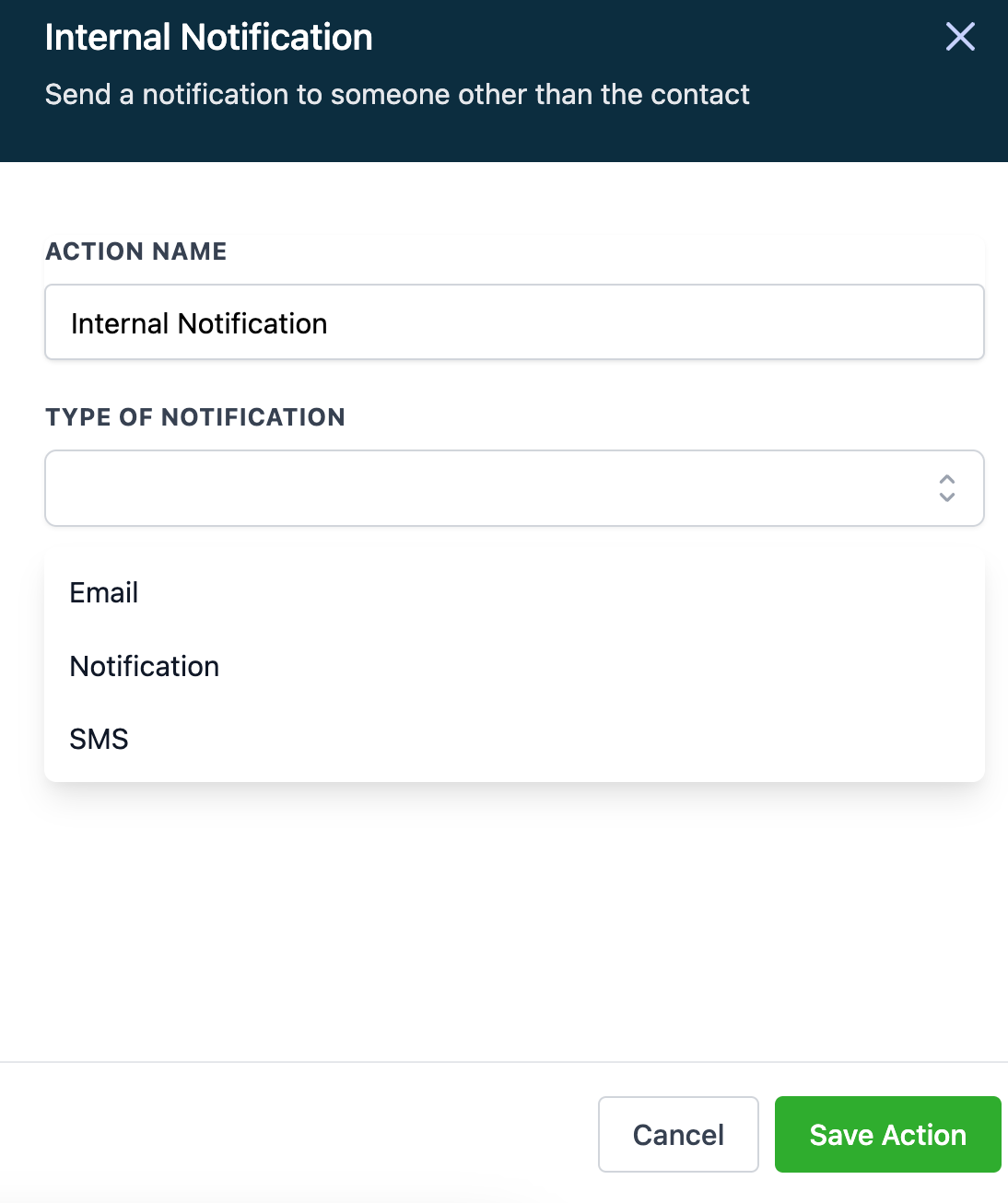
- Optionally add an Internal Notification action for staff alerts.
- Add another Wait step using Event/Appointment Time to set the reminder interval (e.g., 24 hours).
- Add a final Send Email/SMS or Internal Notification action that fires after the wait.
07What it looks like in HighLevel
08Settings that matter
- Calendars → Settings → Meeting Location. Determines which video conferencing service is used for appointments; selecting Zoom enables dynamic link creation.
- Calendars → Settings → Connections → Video Conferencing. Controls which Zoom account is linked to the user or location and allows removal or switching of that account.
09Things to know before you rely on it
- Dynamic Zoom links are available only with Personal, Round Robin, and Collective calendars.
- A single user may use up to 100 Zoom request actions (create, update, delete) per day, resetting at 00:00 UTC.
- The integration works only with Group Calendars; unassigned calendars can use static Zoom links only.
- Zoom integration does not import existing Zoom events into the HighLevel calendar.
10If something goes wrong
- Profile tab missing on sidebar. Add yourself as a user to the subaccount via My Staff > + Add Employee, then switch to the subaccount profile.
- Meeting link unchanged after editing the meeting time. If the date and time stay the same, the original Zoom link continues to work.
- Meeting link persists after meeting is deleted. Deleted appointments drop the Zoom link permanently unless another meeting occupies the same slot.
- New link not created after rescheduling. A new Zoom link is generated for a rescheduled meeting unless another appointment already uses that time slot.
- Multiple meetings share the same Zoom link. When calendar settings allow multiple appointments per slot, the platform re uses the same Zoom link for all meetings in that slot.
- Zoom events created outside HighLevel do not appear in the calendar. The integration only tracks meetings scheduled through HighLevel; it does not import external Zoom events.
11How it connects to the rest of HighLevel
- Set up two way Gmail sync to keep contacts in sync Gmail sync
- Enable Outlook two way email sync for calendar invites Outlook sync
- Start a 30 day HighLevel trial to test the Zoom integration 30 day trial
- View HighLevel pricing and plans for access details Pricing
- Learn about the Founder Plan for unlimited integrations Founder Plan
Michael's take

If you run any kind of online appointment. Whether it’s a client call, a class, or a real estate showing. The automatic link creation saves you from manually copying URLs and adds a layer of security. The real time sync and built in reminders also keep your team and customers on the same page without juggling multiple tools.
If I were setting it up, I’d first connect a single Zoom account to a test user, verify that a unique link appears on a booked appointment, and then run a quick reminder workflow to make sure the link lands in the email. Once that works, I’d roll it out to the rest of the team, watching the 100 request per day limit during the first week.