
01Who this is for
- Founders who manage client communication need a single view of email threads across Gmail and HighLevel.
- Service agencies that work from a subaccount can keep team members’ Gmail conversations synced with client records.
02Gmail two way sync, explained
The feature links a Gmail address to a HighLevel subaccount. When the connection is active, any email you send from HighLevel appears in the Gmail Sent folder, and replies received in Gmail show up as new messages in the contact’s conversation tab.
Synchronization works in real time. It captures inbound and outbound messages, along with attachments up to 25 MB. The link is only active inside the subaccount where it was configured, ensuring data stays in the correct workspace.
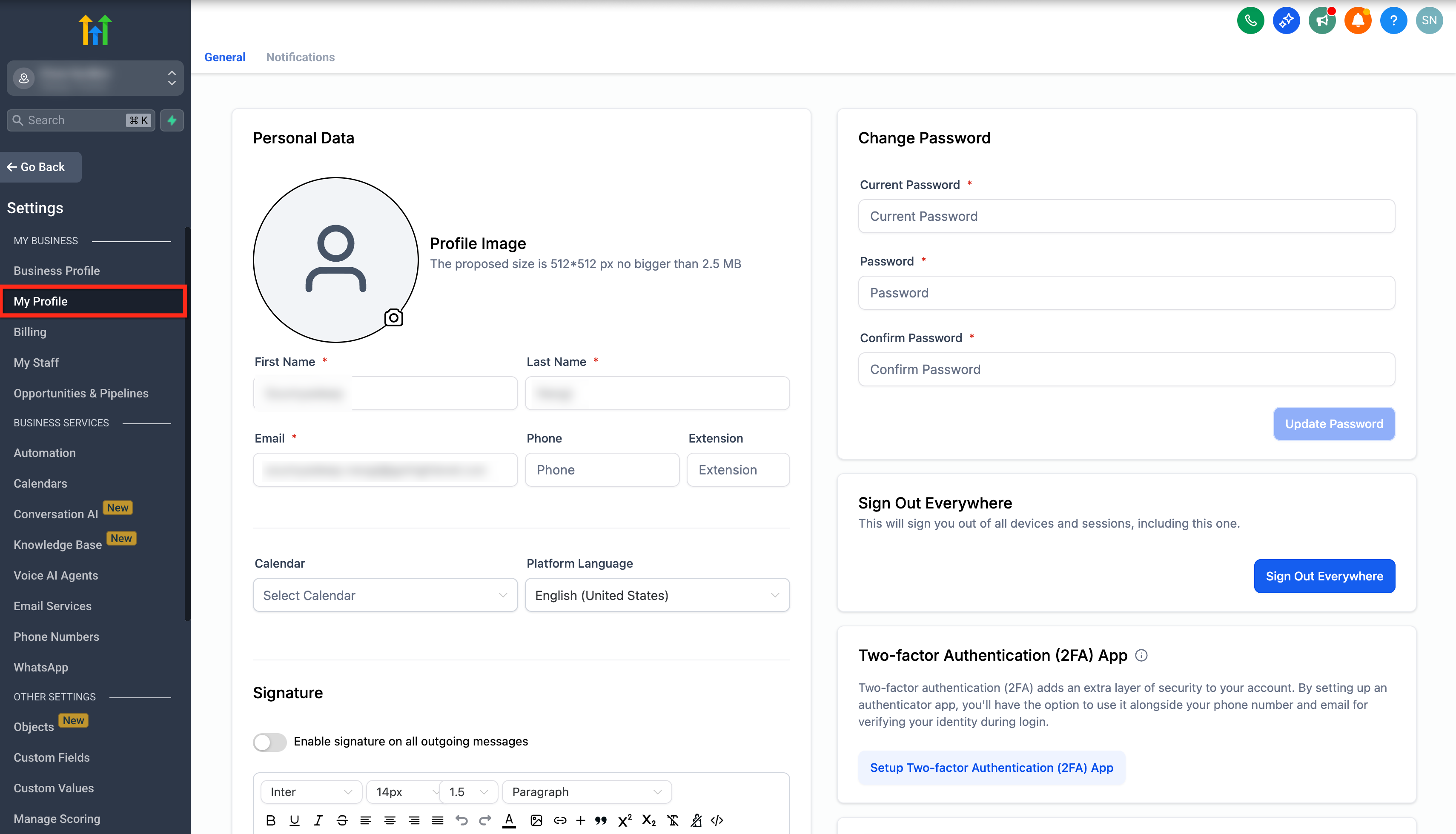
You find the settings under Settings > My Profile in the subaccount. The Email (2 way Sync) section lets you choose Gmail, connect the account, update or disconnect it later, and use a BCC address to add contacts automatically.
03How businesses use Gmail two way sync
- Coaching practice. The coach logs into their client subaccount, opens My Profile and connects their Gmail. When a client replies to a coaching email, the response appears in the client’s conversation record, letting the coach track all messages without leaving the platform.
- Real estate brokerage. An agent accesses the brokerage subaccount, syncs their Gmail, and sends property updates from HighLevel. Each email sent is logged in Gmail and the buyer’s contact record, ensuring the agent sees the full history when reviewing deals.
- Digital marketing agency. The agency’s account manager logs into the client subaccount, connects the client’s Gmail, and uses the BCC address when emailing prospects. The prospect’s contact and conversation are automatically created in HighLevel, keeping outreach organized.
04The numbers and rules that matter
- Gmail supports only ~500 emails per day.
- Attachment size limit for Gmail Two way sync is 25 MB.
05Before you start
- You must be inside a subaccount, either by logging directly or using the Login As feature from the agency view.
- Your user must have access to the My Profile tab of that subaccount.
- Emails from contacts who are also subaccount users are not synced to protect confidential information.
06How to set up and use Gmail two way sync in HighLevel
Set up Gmail twoway sync
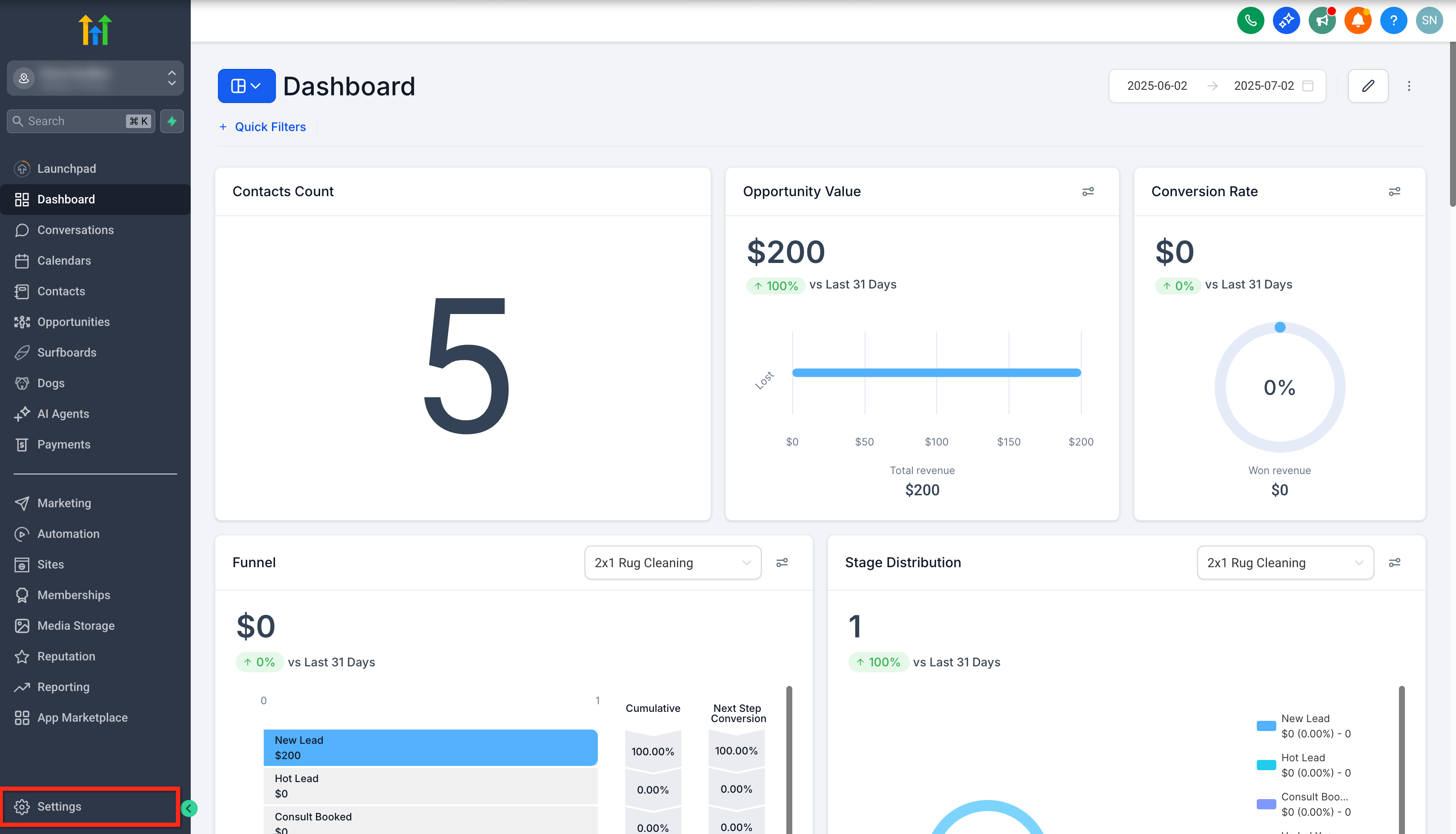
- Open Settings in the chosen subaccount.
- Select the My Profile tab.
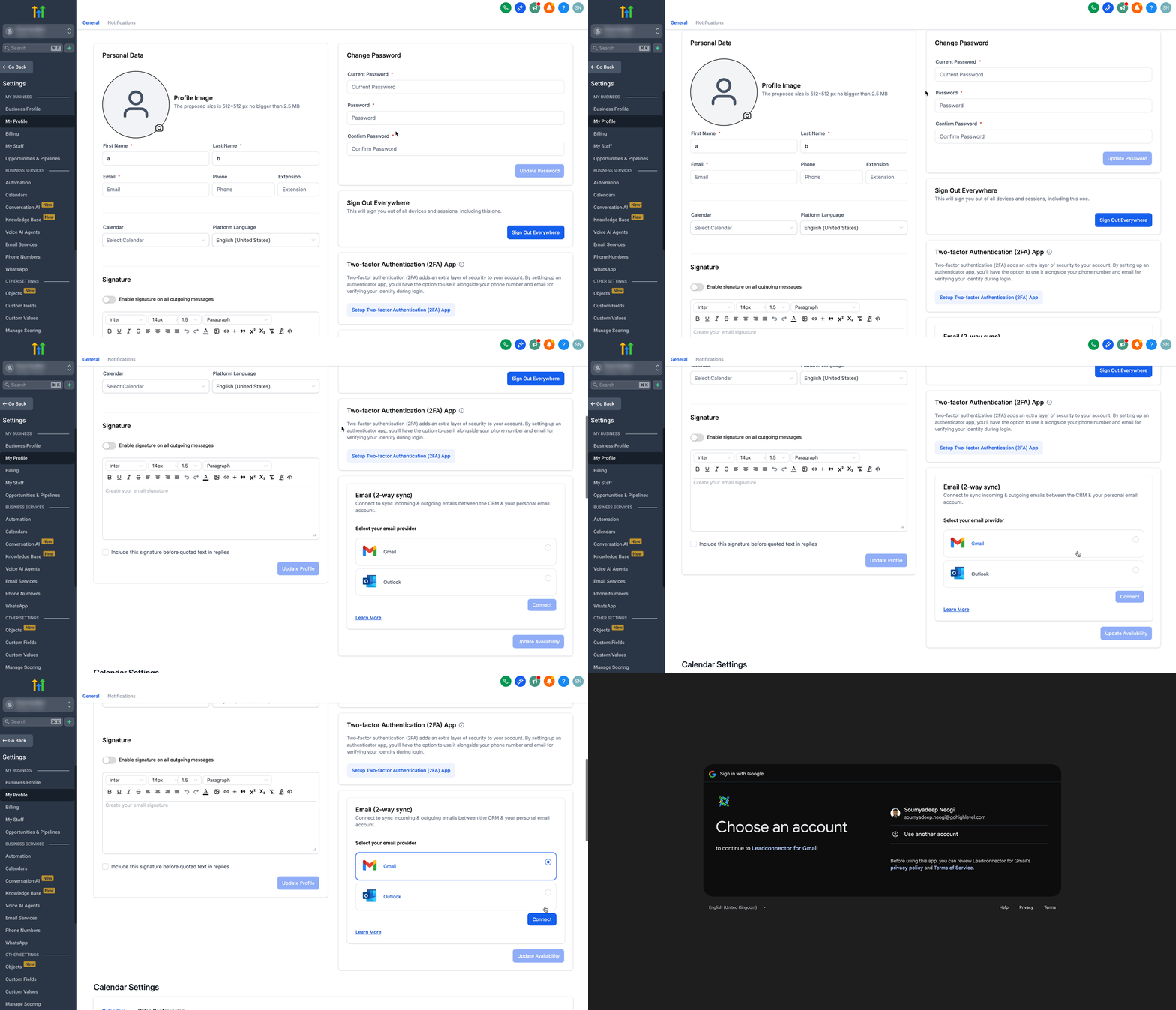
- Scroll to the Email (2 way Sync) section.
- Choose Gmail and click the Connect button.
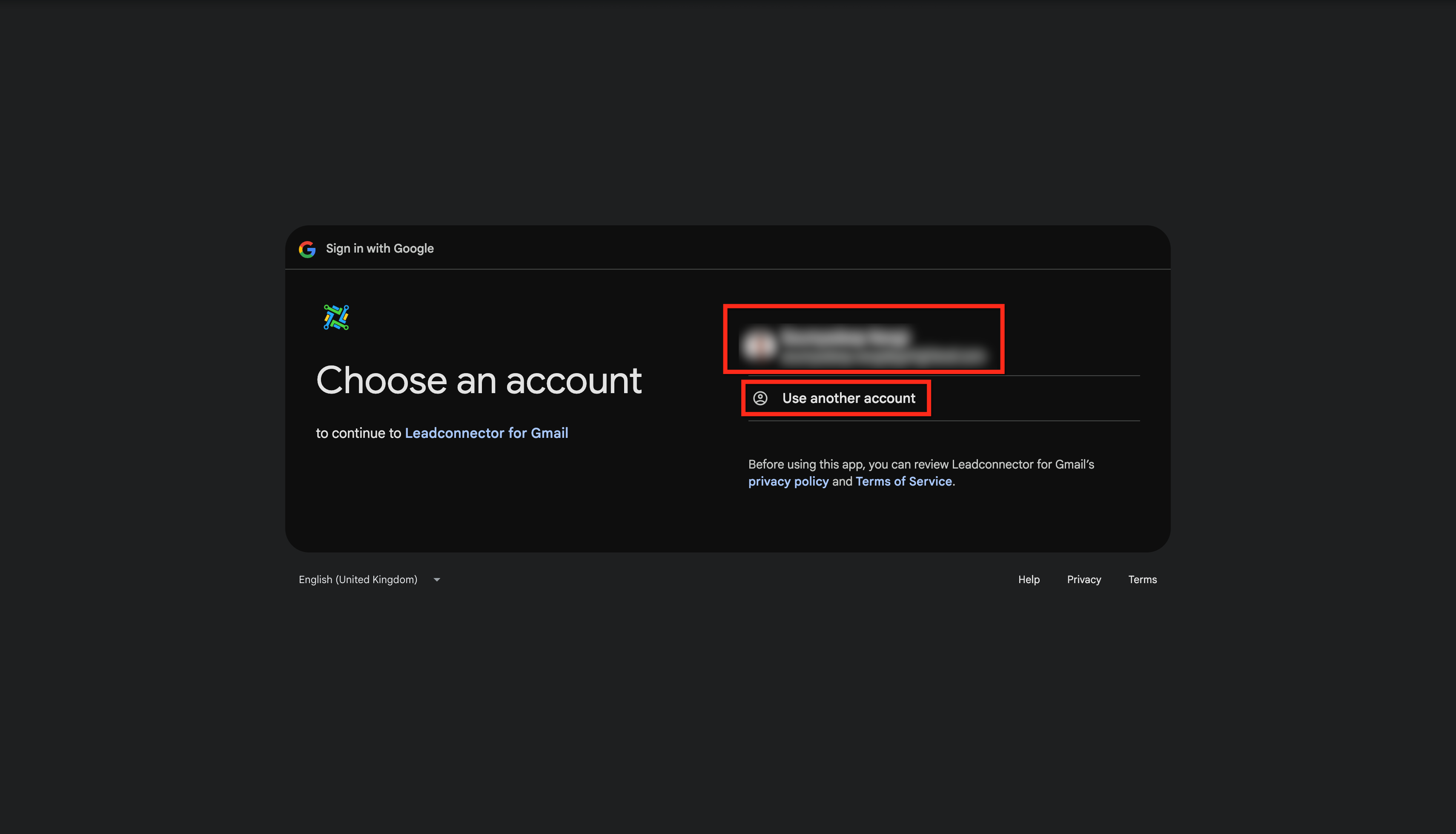
- When prompted, pick an existing Gmail account or add a new one.
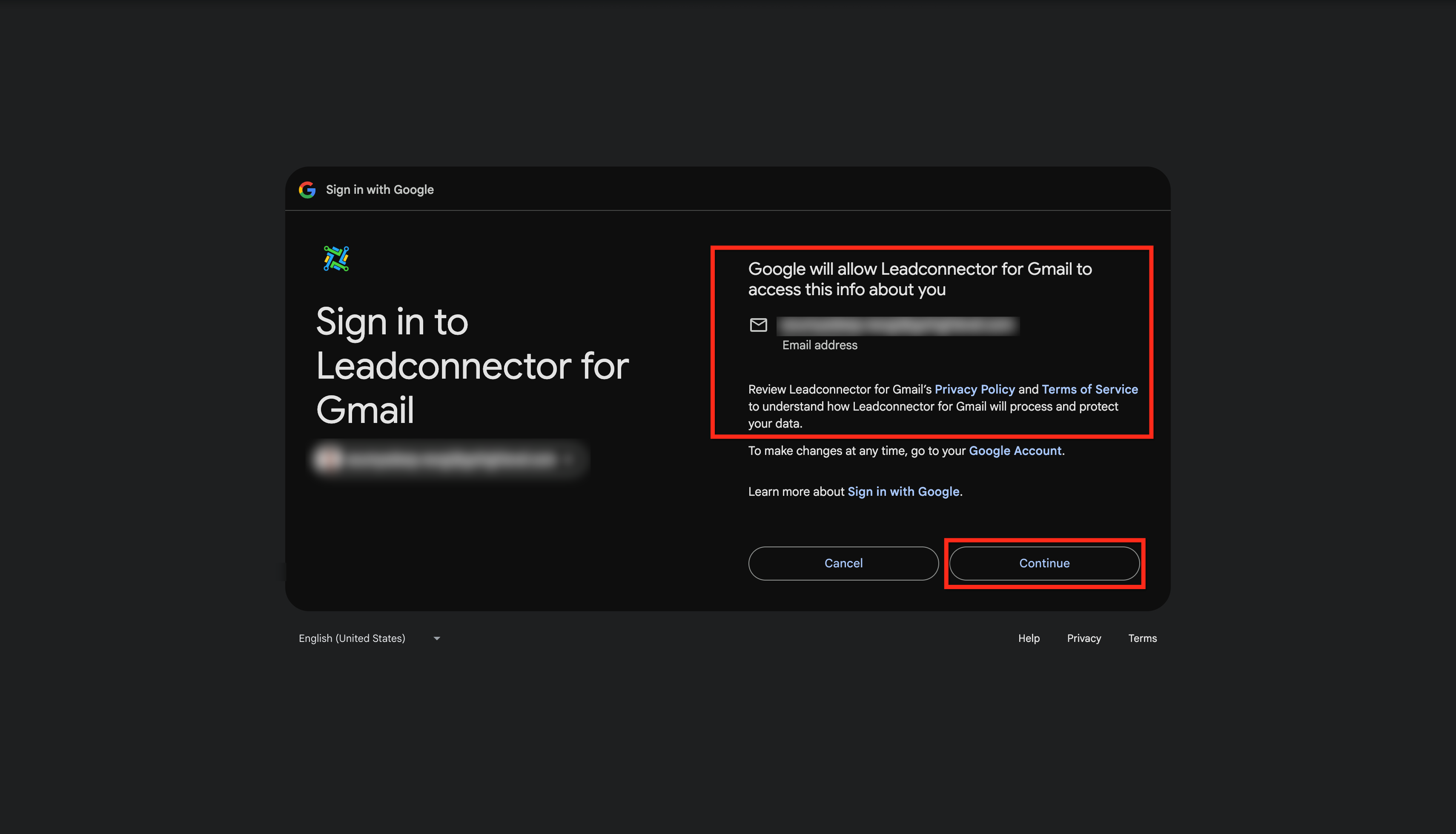
- Click Continue to accept the permission request.
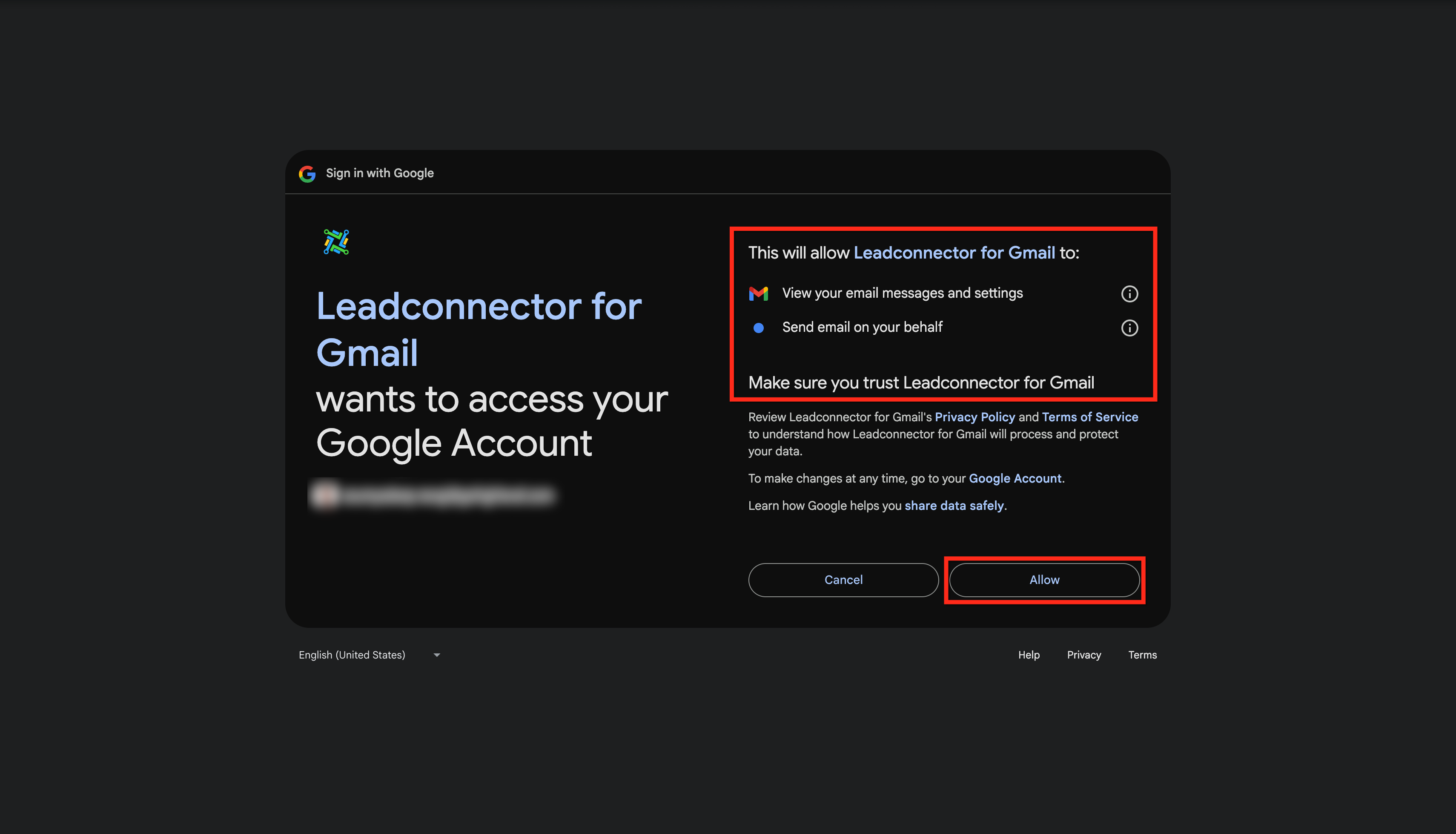
- Click Allow to finalize the connection.
07What it looks like in HighLevel
08Settings that matter
- Email (2, way Sync). Controls which Gmail address is linked to the subaccount and enables bidirectional email flow.
- Update Email. Lets you change the connected Gmail address without breaking existing conversation threads.
- Disconnect Email. Stops all synchronization between the selected Gmail account and the subaccount.
- BCC Address. When added to the CC or BCC fields, automatically creates contacts and logs the conversation in HighLevel.
09Things to know before you rely on it
- Gmail allows about 500 emails per day; messages beyond that limit will not be sent.
- Attachments larger than 25 MB are not synced.
- Using a BCC address may generate a "Delivery incomplete" notice from Gmail, though the email can still be logged.
10If something goes wrong
- Delivery incomplete error when using BCC address. Ignore the error; the email is still posted to HighLevel. No further action is required.
11How it connects to the rest of HighLevel
- Set up two way email sync for Outlook Outlook sync guide
- Explore all integration options in HighLevel Integrations overview
- Review HighLevel pricing and plan details Pricing page
Michael's take

Skip Gmail two way sync if you never need email visibility inside HighLevel.