
01Who this is for
- B2B SaaS Founders who run LinkedIn ad campaigns and need leads in their contact list for follow up.
- Recruitment agencies that capture candidate information via LinkedIn forms and want it stored in HighLevel contacts.
- Digital marketing agencies managing multiple client ad accounts and requiring a single place to view all LinkedIn leads.
02LinkedIn lead ads integration, explained
The integration fetches leads generated by LinkedIn ads and creates contact records inside HighLevel. You start the connection from the Integrations page under Settings, link one or more LinkedIn ad accounts, and decide whether to import all recent leads or only new ones.
After the accounts are linked, you map each LinkedIn form field to a HighLevel field using the Map Fields button. Saving the mapping enables inbound leads to appear as contacts. A test lead can be sent from LinkedIn to confirm the setup.
All controls for this feature reside in the LinkedIn integration section of the Integrations page. Field mapping lives on a dedicated tab at the top of that section.
03How businesses use LinkedIn lead ads integration
- SaaS startup. The startup connects its LinkedIn ad account, selects the All leads sync option to capture recent sign up interest, maps the email and company fields to HighLevel contacts, and runs a test lead to ensure the data lands correctly.
- Recruitment firm. The firm links the ad account tied to its LinkedIn company page, chooses New leads only to avoid duplicate candidates, aligns the candidate name and resume fields with HighLevel fields, and disables any form that is no longer in use.
- Marketing agency. The agency attaches multiple client ad accounts, picks the appropriate sync time for each, maps custom form fields for each client’s campaign, and verifies each integration by sending a test lead from LinkedIn.
04The numbers and rules that matter
- No limit to the number of ad accounts you can connect to your subaccount.
- Sync options: All leads (past 90 days + new leads) or New leads only.
05Before you start
- A LinkedIn ad account must be linked to a LinkedIn page.
- You need a HighLevel subaccount where the ad accounts will be attached.
06How to set up and use LinkedIn lead ads integration in HighLevel
Initiate LinkedIn integration
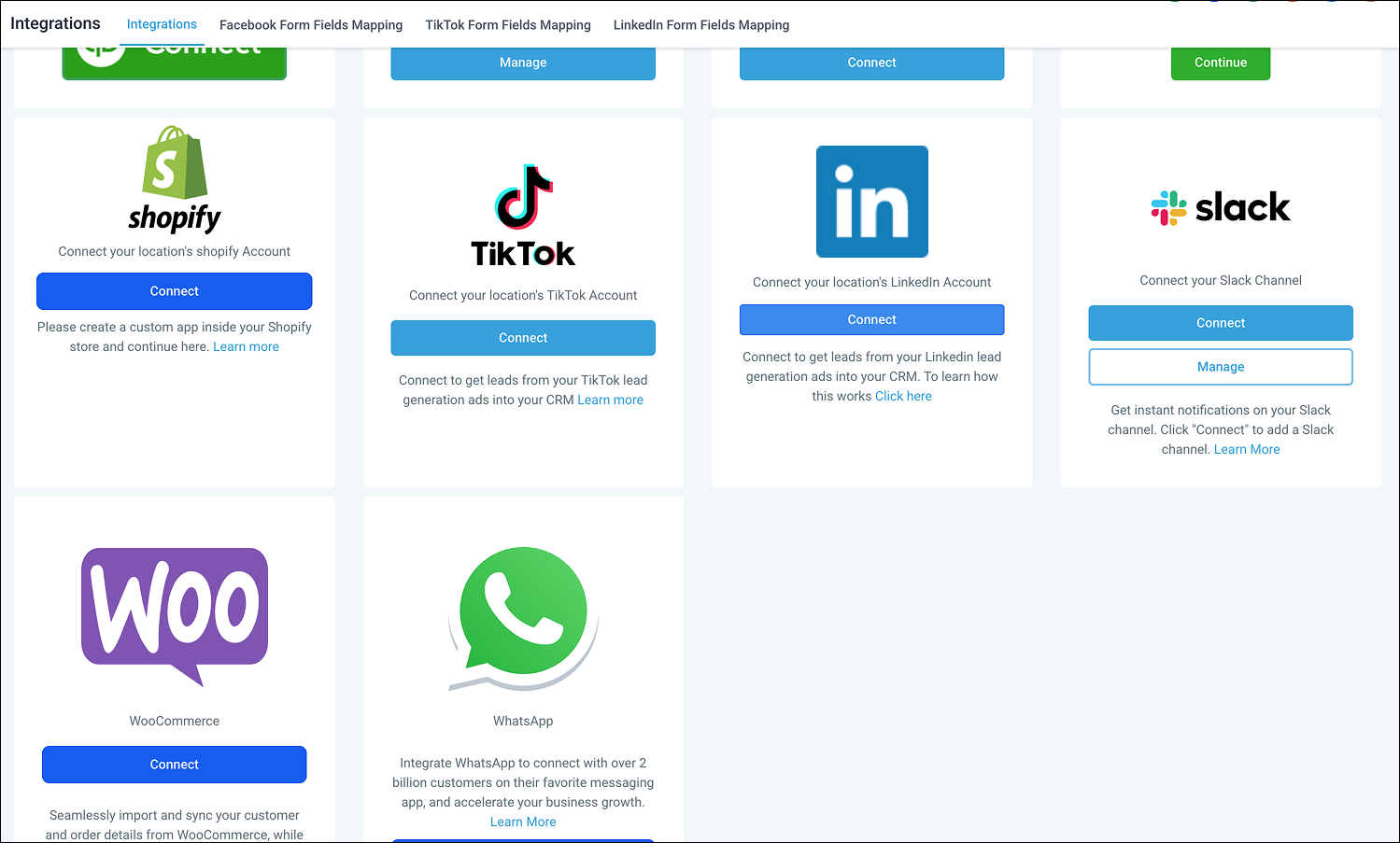
- Open Settings and go to the Integrations page.
- Find the entry for LinkedIn integration.
- Click Connect to start the linking process.
- Log in to LinkedIn when prompted.
- Grant all requested permissions.
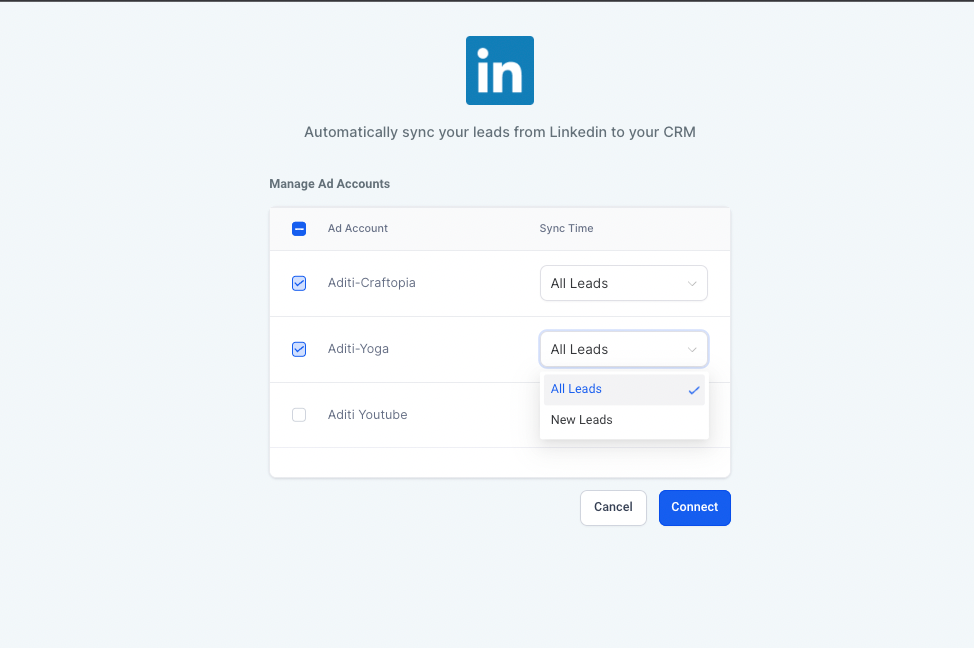
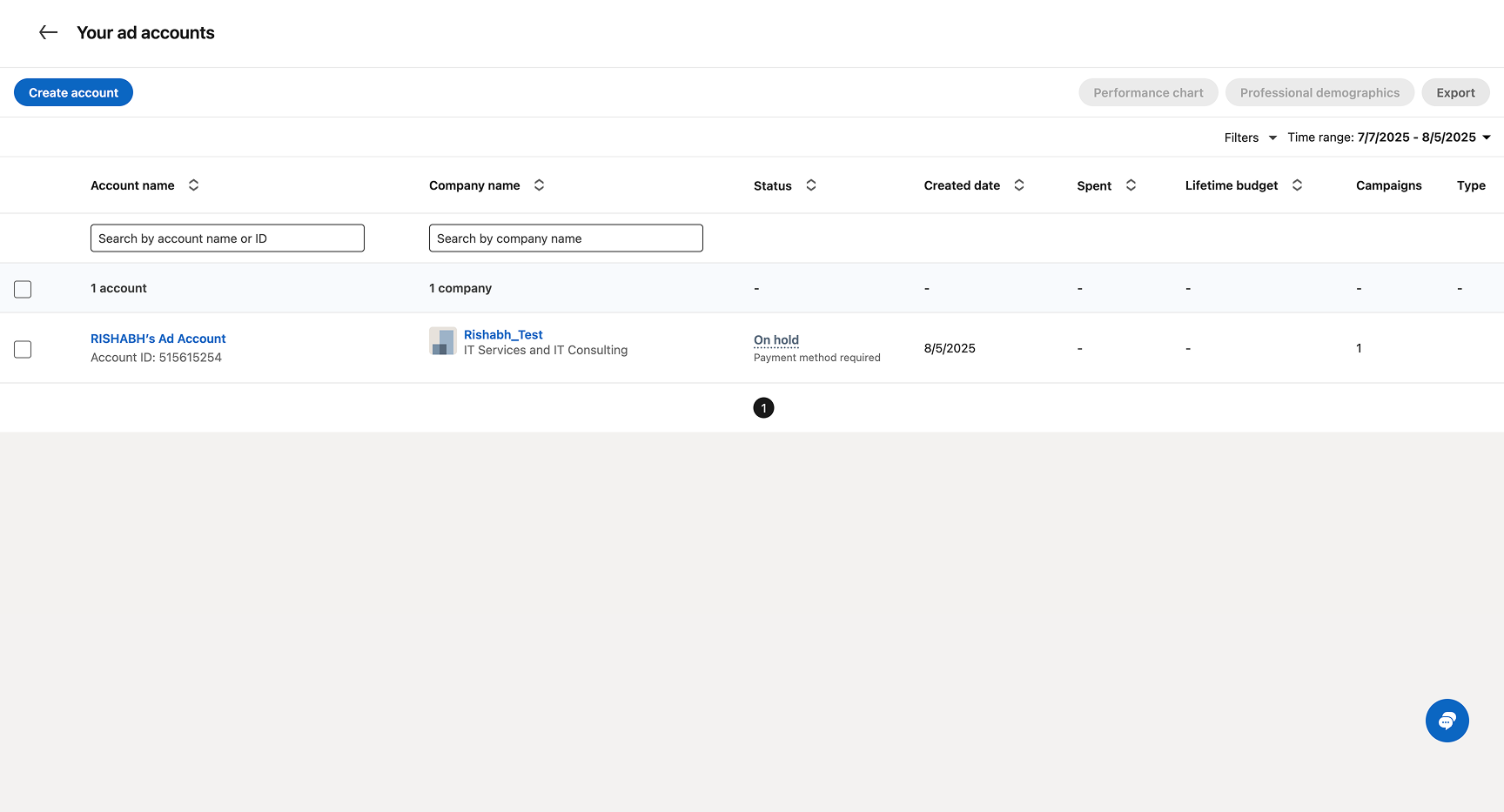
- Select one or more ad accounts to attach to the subaccount.
- Confirm each chosen ad account has a linked LinkedIn page; otherwise the link fails.
- Choose a sync option, All leads for the past 90 days and new leads, or New leads only, and click Connect again.
Configure form field mapping
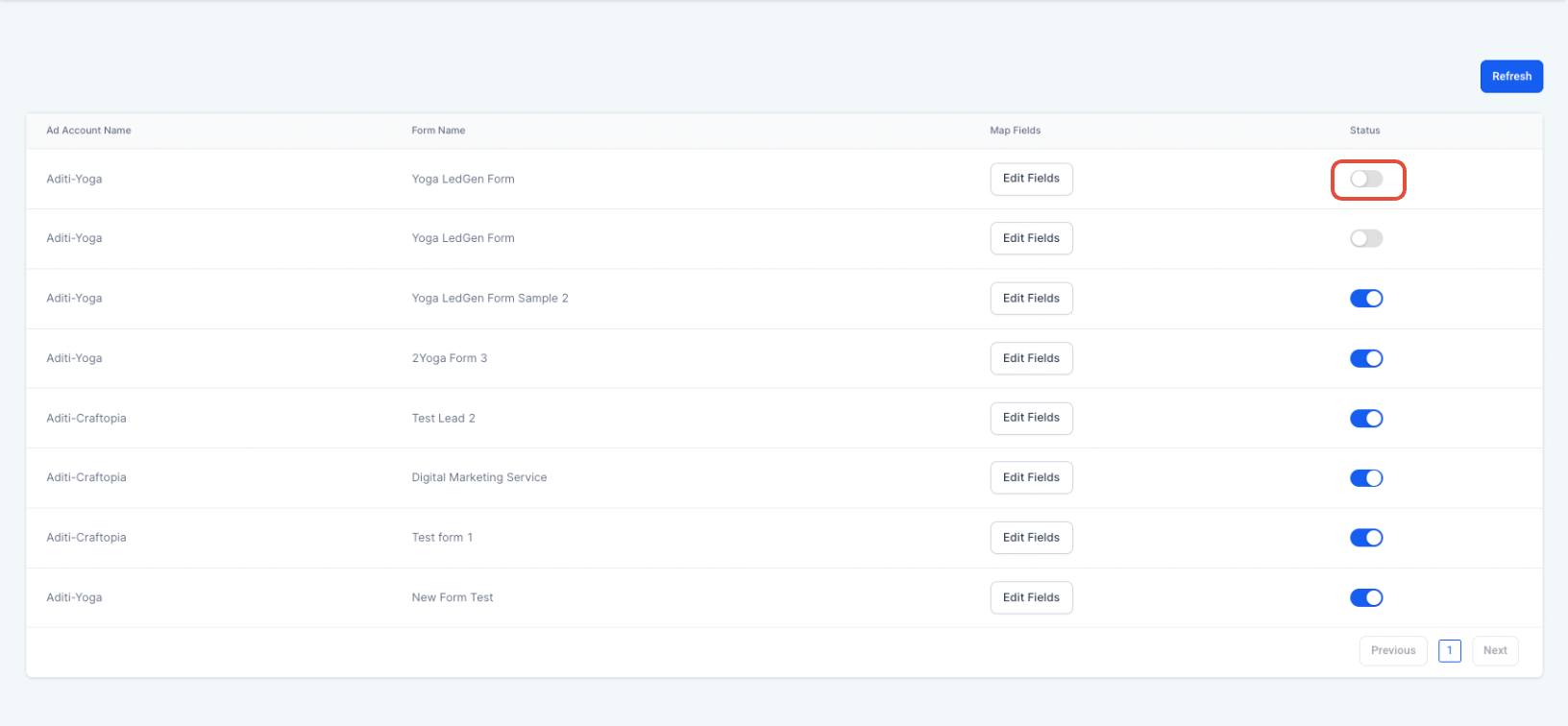
- Open the LinkedIn form field mapping tab at the top or click Configure form field mapping.
- Press the Map Fields button.
- Match each LinkedIn form field with the corresponding HighLevel field.
- Click Confirm to save the mapping.
- If needed, toggle the status off to stop inbound leads from a specific form.
Test the connection
- Log into LinkedIn and navigate to Advertise.
- Select the ad account you want to test.
- Pick the campaign group and the ad that will send a test lead.
- Open the lead form by clicking the ad name.
- Send a test lead while ensuring the form is enabled and mapped.
- Open the Contacts page in HighLevel and verify the test lead appears.
07What it looks like in HighLevel

08Settings that matter
- LinkedIn integration. Enables HighLevel to pull lead data from linked LinkedIn ad accounts.
- Map Fields button. Opens the field matching interface to align LinkedIn form fields with HighLevel contact fields.
- Confirm. Saves the field mapping configuration and completes the setup.
- toggle the status. Turns inbound lead flow from a specific LinkedIn form on or off.
09Things to know before you rely on it
- There is no limit to the number of LinkedIn ad accounts you can connect to a subaccount.
- An ad account must have a linked LinkedIn page; otherwise the integration will not succeed.
- Sync time options are limited to All leads (past 90 days plus new) or New leads only.
10How it connects to the rest of HighLevel
- Explore other integration options available within HighLevel. All Integrations features
- Review pricing and plan details to ensure your subscription includes integrations. HighLevel pricing and plans
- Start a free trial to test the LinkedIn integration before committing. Start a 30 day HighLevel trial
Michael's take

This integration is a quick way for a small business to pull LinkedIn leads straight into its HighLevel without manual entry.
Don’t forget to link a LinkedIn page to the ad account, or the connection will never work.