
01Who this is for
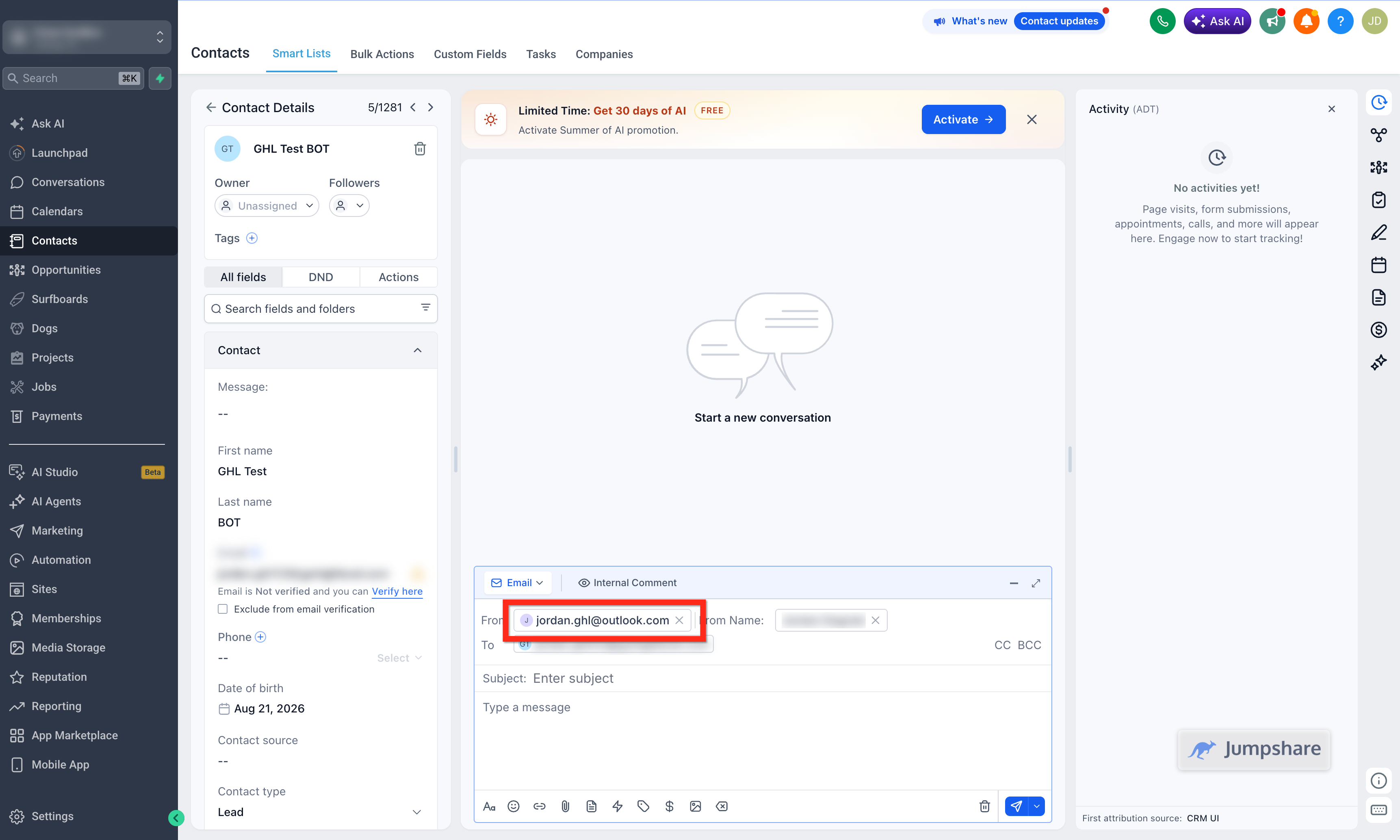
- Founders who prefer a single inbox for client conversations can keep Outlook as their sending identity while tracking history in HighLevel.
- Small agencies that manage multiple client subaccounts benefit from synchronized individual emails without switching platforms.
02Outlook two way email sync, explained
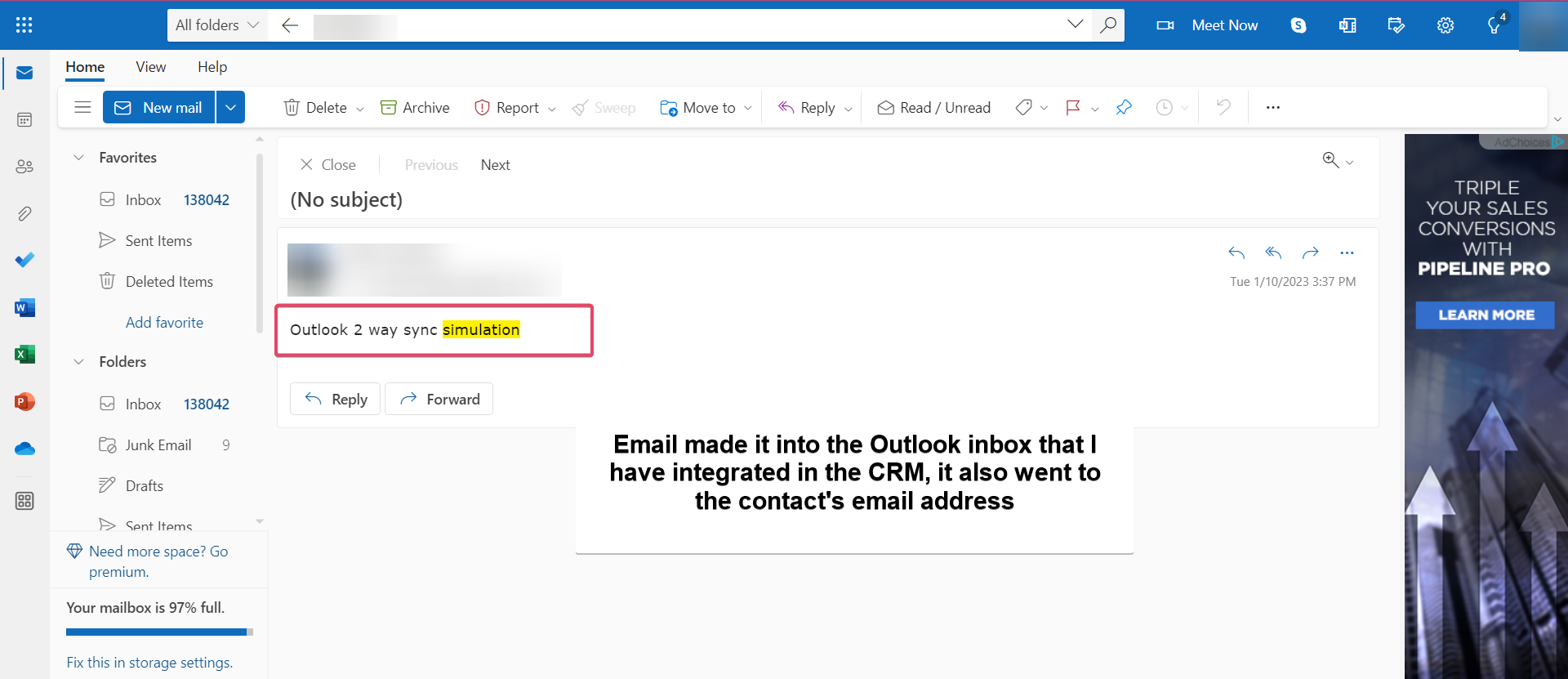
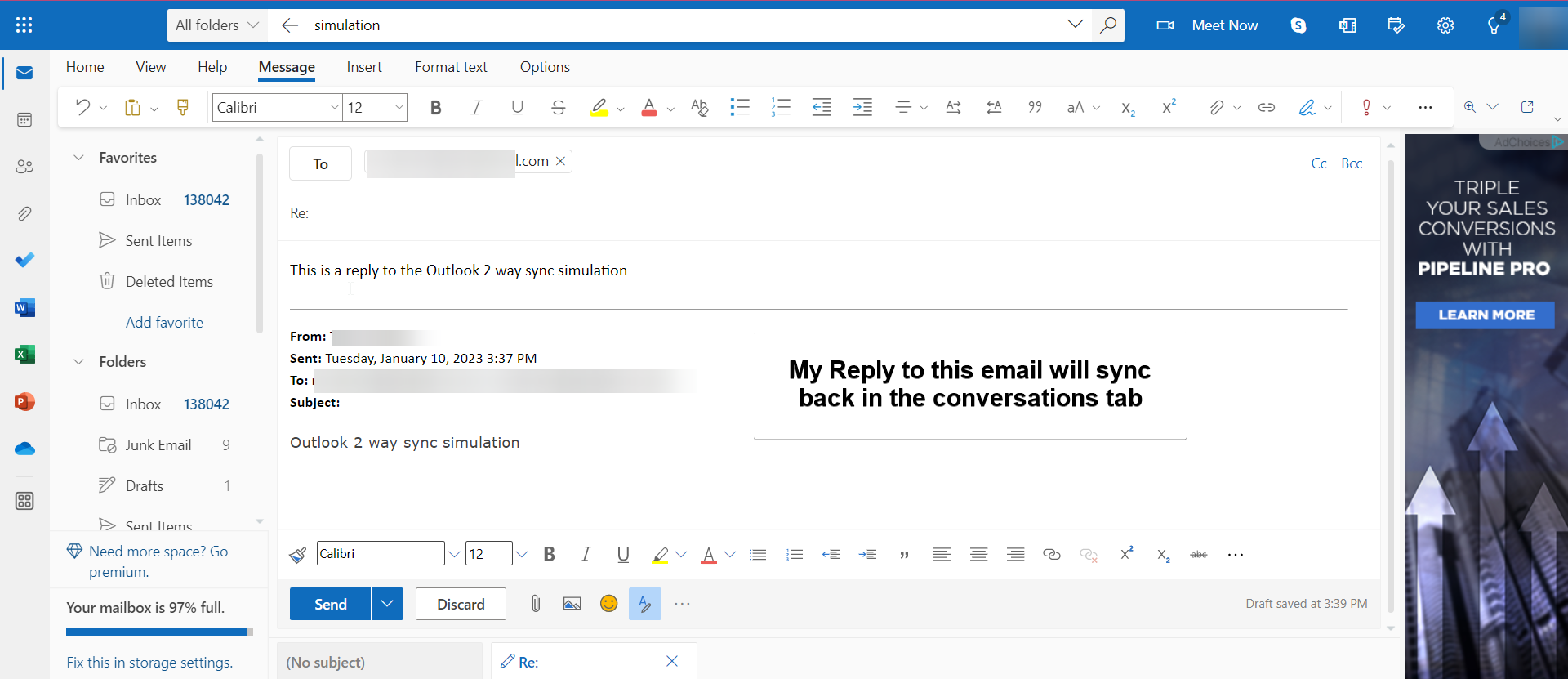
The feature creates a bidirectional link between a user’s Outlook inbox and HighLevel. When an email is sent from HighLevel using the connected Outlook account, the thread stays visible in both places. Replies from contacts already stored in HighLevel also flow back into the platform, keeping the conversation complete.
The setting lives under Settings > My Profile inside the chosen subaccount. In the Email (2 way sync) section you choose Outlook, connect the Microsoft account, and confirm the address appears as connected. Attachments up to 3 MB in supported formats sync; larger files are ignored.
03How businesses use Outlook two way email sync
- Consulting firm. A consultant connects their Outlook account, sends proposals directly from HighLevel, and sees client replies appear in both Outlook and the contact’s Conversation record. New prospects are added by BCC ing the HighLevel address when first emailing them.
- Real estate agency. Agents link Outlook, then use HighLevel to follow up on property inquiries. Responses from existing leads automatically populate the lead’s Conversation, letting the team view all communication without leaving Outlook.
- Digital marketing boutique. The boutique routes one to one client emails through Outlook while logging them in HighLevel. Bulk newsletters and automation remain unaffected, preserving the separation between personal and campaign messages.
04The numbers and rules that matter
- Attachments up to 3 MB sync; larger attachments do not sync.
- Supported file types: JPG,JPEG,PNG,MP4,MPEG,ZIP,RAR,PDF,DOC,DOCX,TXT.
05How to set up and use Outlook two way email sync in HighLevel
Connect Outlook Two Way Email sync
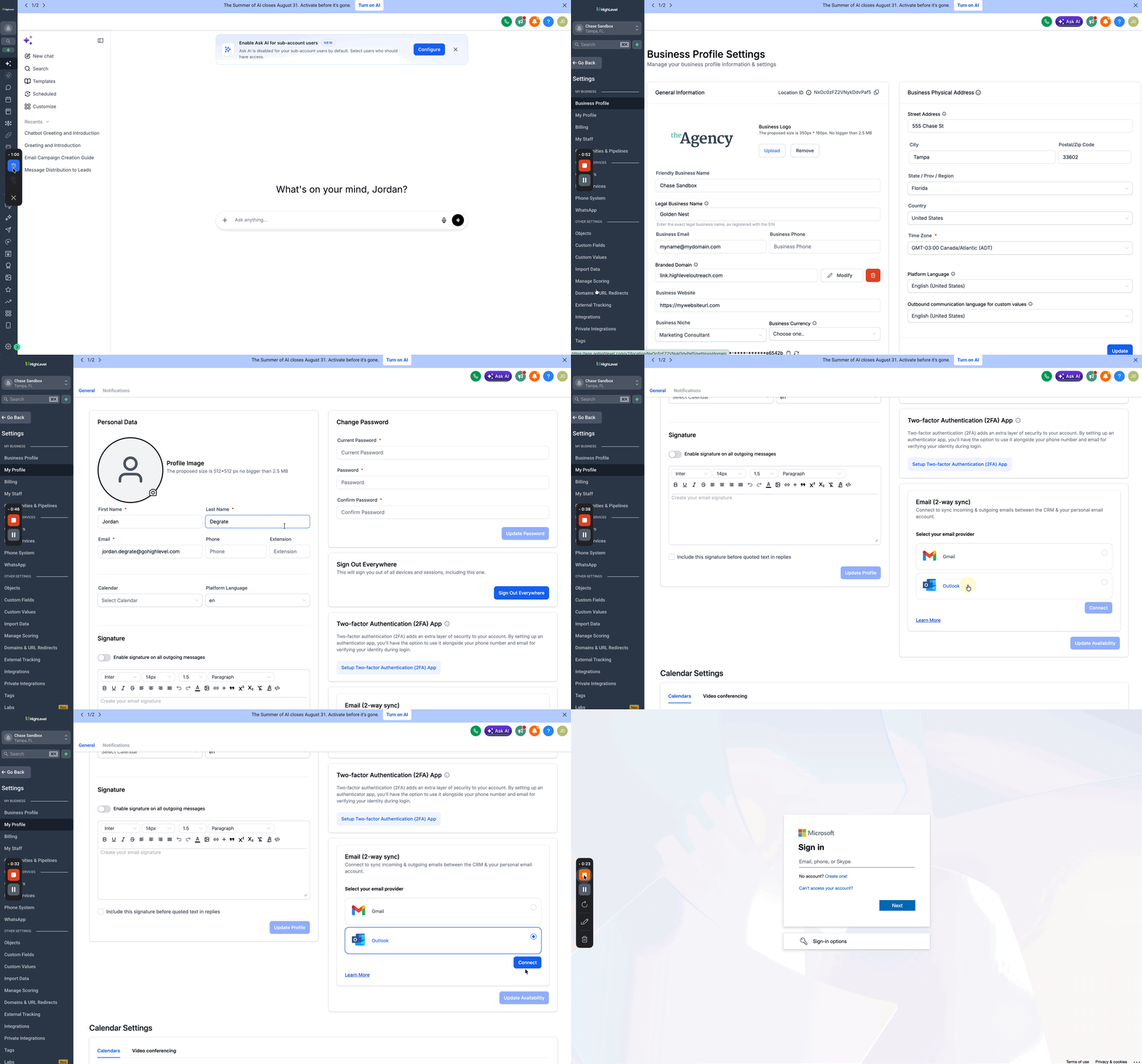
- Open the desired subaccount and navigate to Settings > My Profile.
- Scroll to the Email (2 way sync) section, select Outlook, and click Connect.
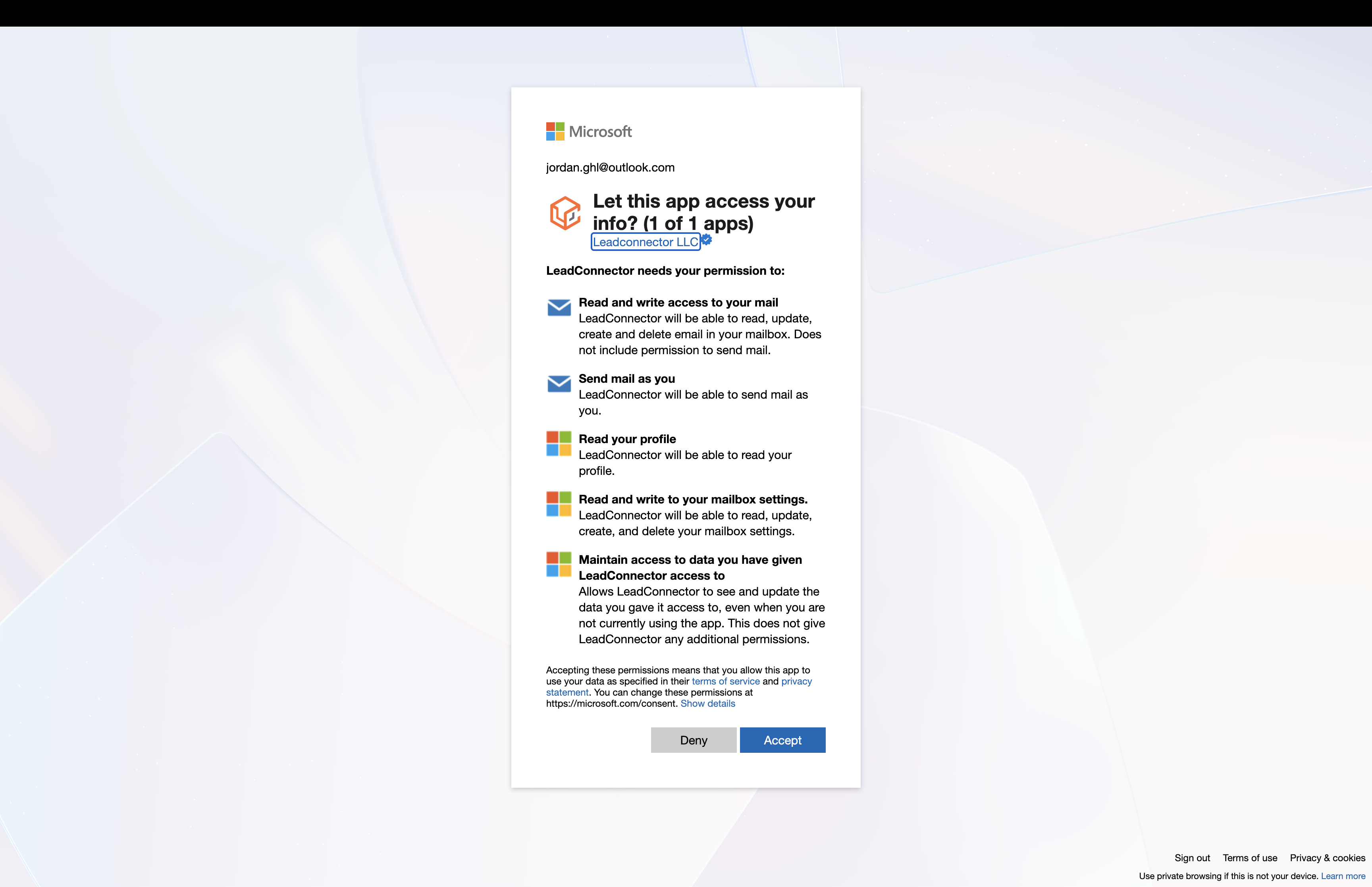
- Sign in with the Outlook or Microsoft 365 account you want to use and approve the requested permissions.
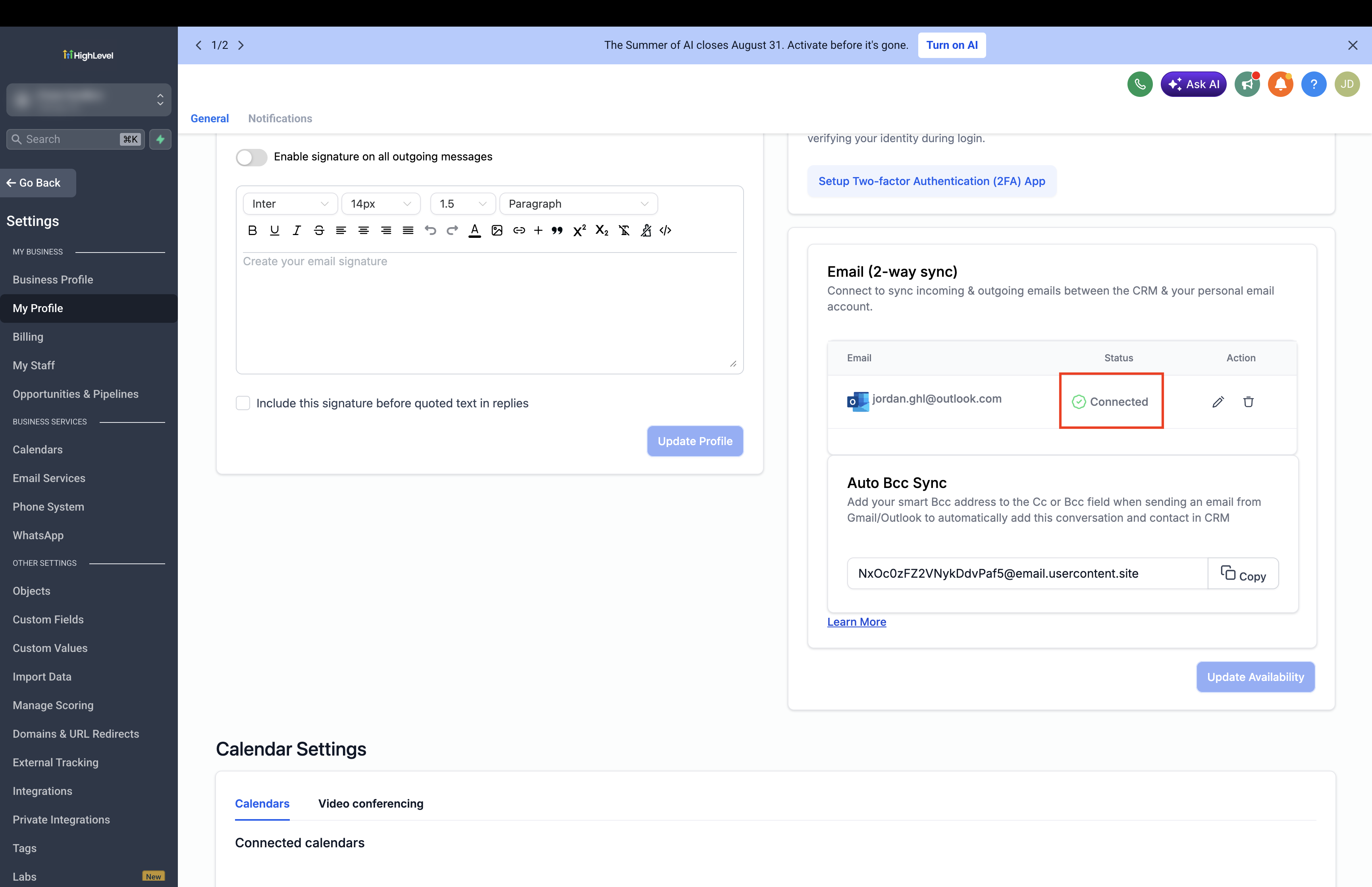
- Return to Settings > My Profile > Email (2 way sync) and verify that the Outlook address is listed as connected.
06What it looks like in HighLevel
07Settings that matter
- Email (2, way sync). Controls which personal email provider (Outlook) is linked for bidirectional syncing of individual email conversations.
- Update Email. Lets a user change the connected Outlook address without first disconnecting the existing link.
- Disconnect Email. Stops the synchronization between the selected Outlook account and HighLevel, halting future sync while preserving already synced messages.
08Things to know before you rely on it
- Only one to one email threads are synchronized; bulk, workflow or automation messages use the subaccount email provider and do not sync.
- Emails from contacts who are also subaccount users are excluded from sync to protect confidential user to user communication.
- Attachments larger than 3 MB are ignored; supported formats are JPG, JPEG, PNG, MP4, MPEG, ZIP, RAR, PDF, DOC, DOCX, and TXT.
- Historical messages that existed before the Outlook connection are not backfilled into HighLevel.
- Cold inbound or outbound emails involving unknown contacts are not reliably captured unless the HighLevel BCC address is used.
09If something goes wrong
- My Profile tab is missing. Make sure you are inside the correct subaccount rather than the agency view, and confirm that your user has been added to that subaccount. If needed, use Login As for a user in that subaccount and then check Settings again.
- Reconnect option does not appear. Verify you are in the correct subaccount and that the Outlook mailbox shows under Settings > Email Services. If the mailbox is present but reconnect is still missing, contact HighLevel Support.
10How it connects to the rest of HighLevel
- Set up Gmail two way sync Gmail two way sync guide
- Email failure: insufficient permission for 2 way sync Permission error help
- Explore all integrations Integration overview
Michael's take

When a team already spends a lot of time in Outlook and needs every one to one email to show up in HighLevel, the sync can be valuable. It reduces the need to copy information between the inbox and HighLevel and keeps contact history intact.
If your workflow relies on bulk campaigns, automated workflows, or you need to pull in years of legacy mail, this feature adds little value. The sync only works for individual threads after the connection is made, so you may be better off using a dedicated email service for those needs.