
01Who this is for
- Founders of local service businesses benefit by centralizing Google reviews and messages with other client communications.
- Marketing managers at multi location retailers can monitor each location’s reputation from a single dashboard.
- Customer support teams in agencies can respond to Google inquiries alongside email and SMS in real time.
02Google Business Profile integration, explained
The integration syncs a verified Google Business Profile with HighLevel. New Google reviews automatically appear in the Conversations feed and replies sent from HighLevel are posted back to Google. Messages that Google permits, such as WhatsApp or text numbers attached to a profile, also flow into HighLevel.
The feature lives inside each Subaccount under Settings > Integrations. After connecting a Google account with Owner or Manager rights, you select the specific profile location, optionally enable call tracking, and finalize the link. A green Connected icon confirms the status, and you can manage pages or disconnect at any time.
All synced data appears in the Reputation tab for quick overview and in Conversations for direct interaction, keeping Google interactions alongside SMS, email, Facebook and other channel communications.
03How businesses use Google Business Profile integration
- Restaurant chain. The owner links each restaurant’s Google Business Profile, enables call tracking, and then replies to new reviews in the Conversations view. This keeps guest feedback visible without opening separate Google accounts.
- Dental practice. The office connects its verified profile, watches incoming patient messages in HighLevel, and answers them through HighLevel’s messaging channel, ensuring all patient communication is recorded together.
- Home repair service. Technicians’ calls from Google listings are captured via the call tracking toggle, allowing the manager to view call details inside HighLevel and associate them with jobs in the pipeline.
04The numbers and rules that matter
- Google messaging has been deprecated in Jul 2024.
05Before you start
- A verified Google Business Profile must exist.
- You must log in with a Google account that holds Owner or Manager access to the desired profile.
06How to set up and use Google Business Profile integration in HighLevel
Set up Google Business Profile integration
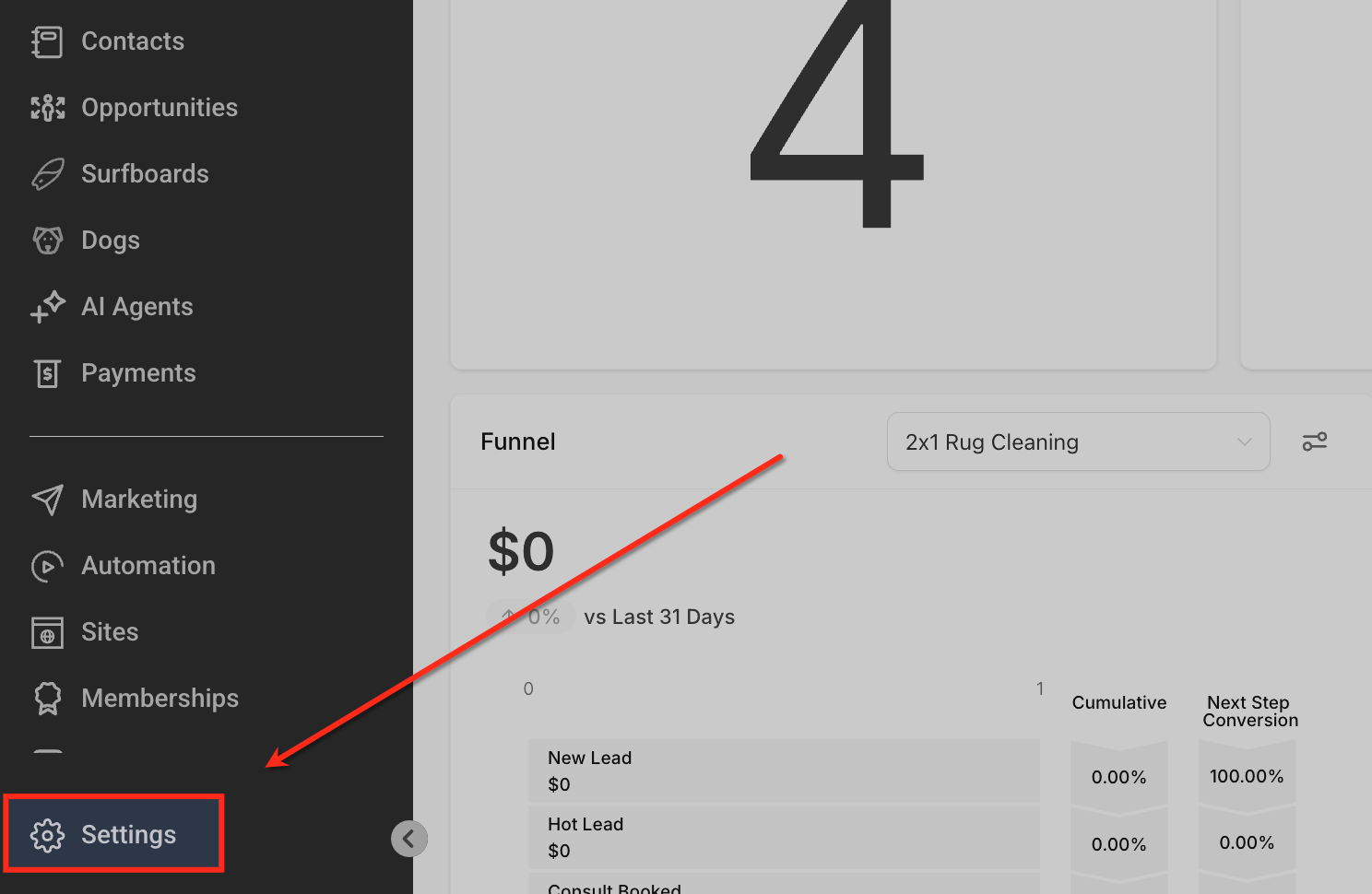
- Open Settings from the left hand menu of the Subaccount dashboard.
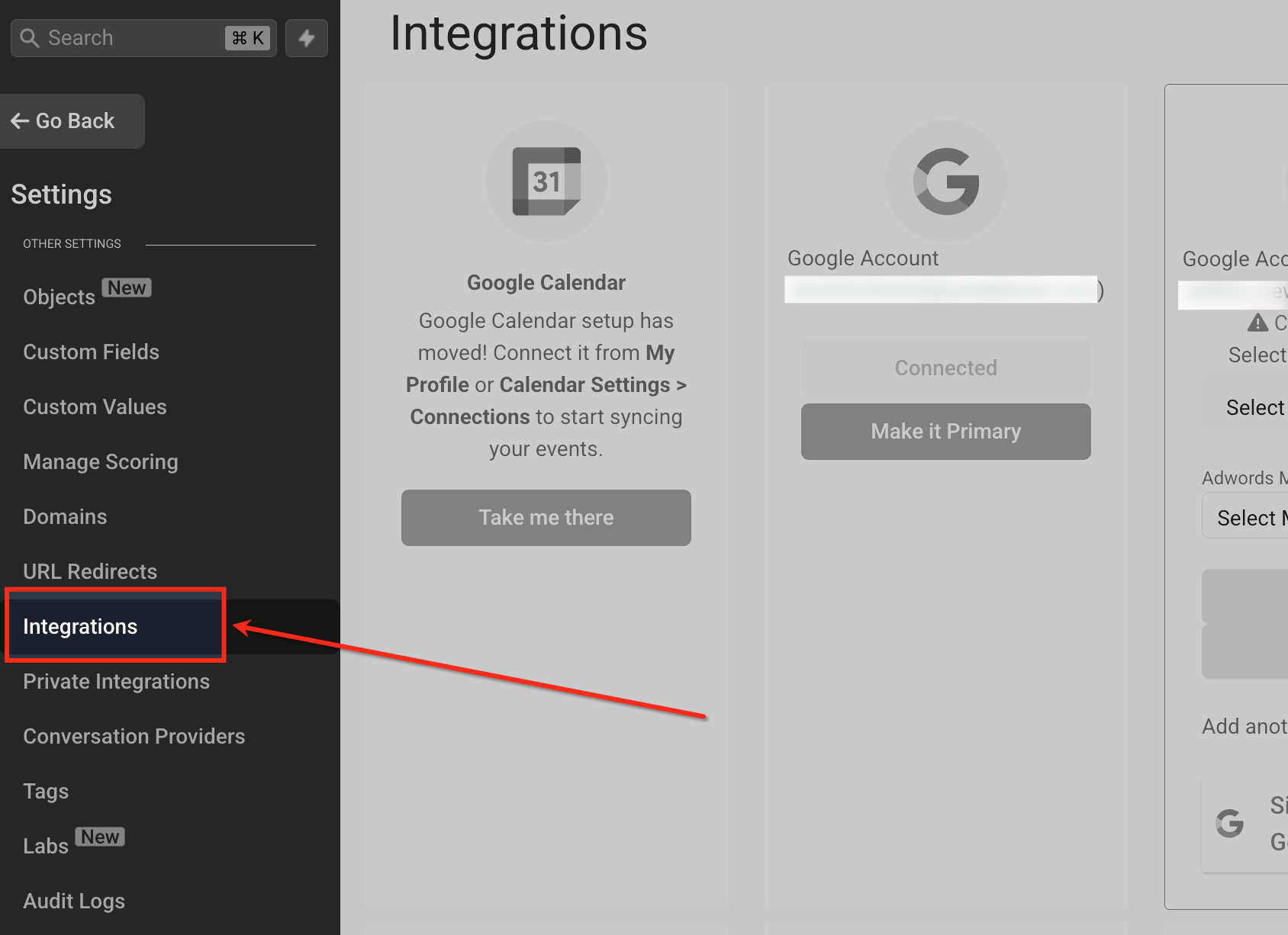
- Select Integrations within the Settings menu.
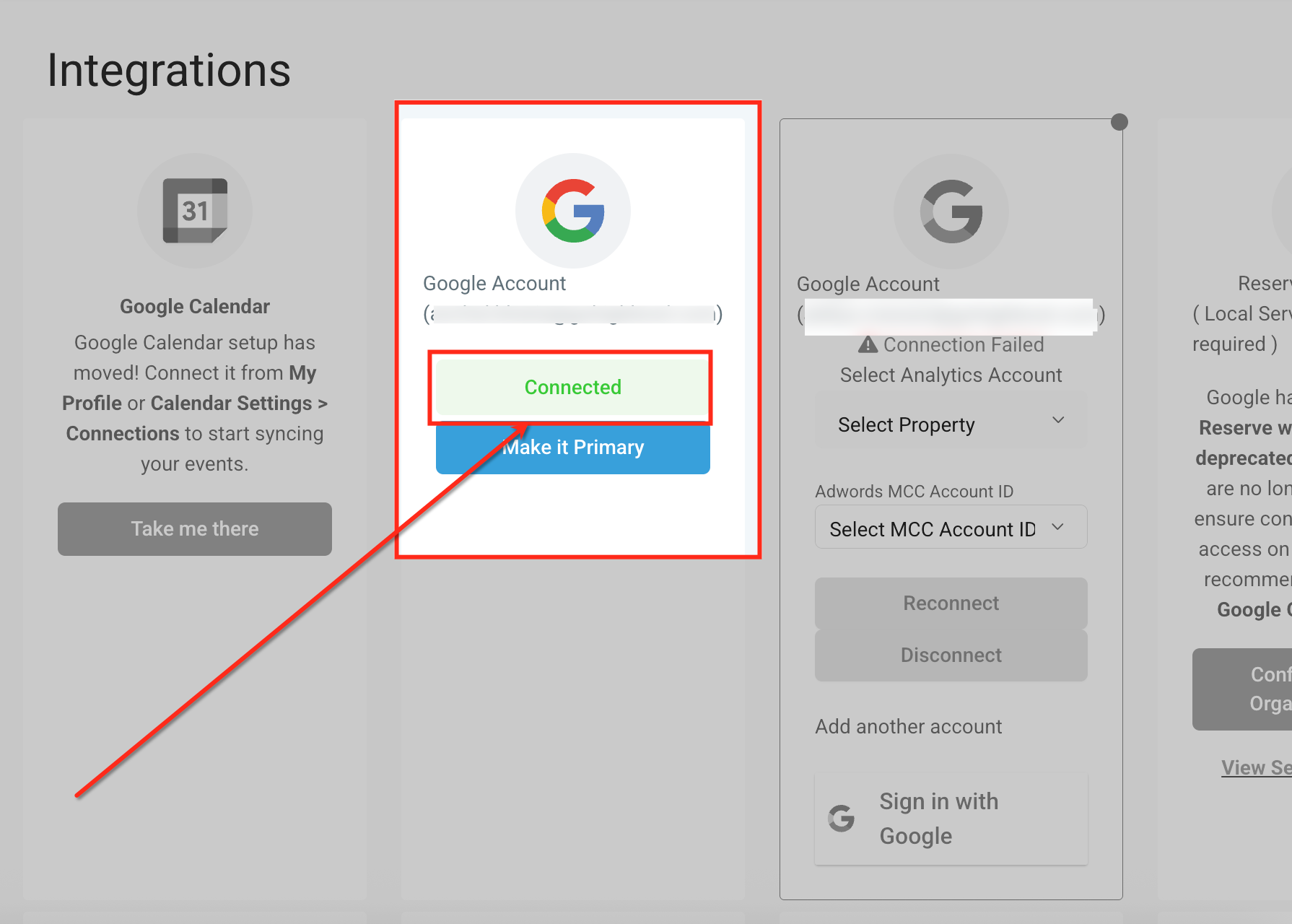
- Click Connect Google Account, sign in, and grant the requested permissions.
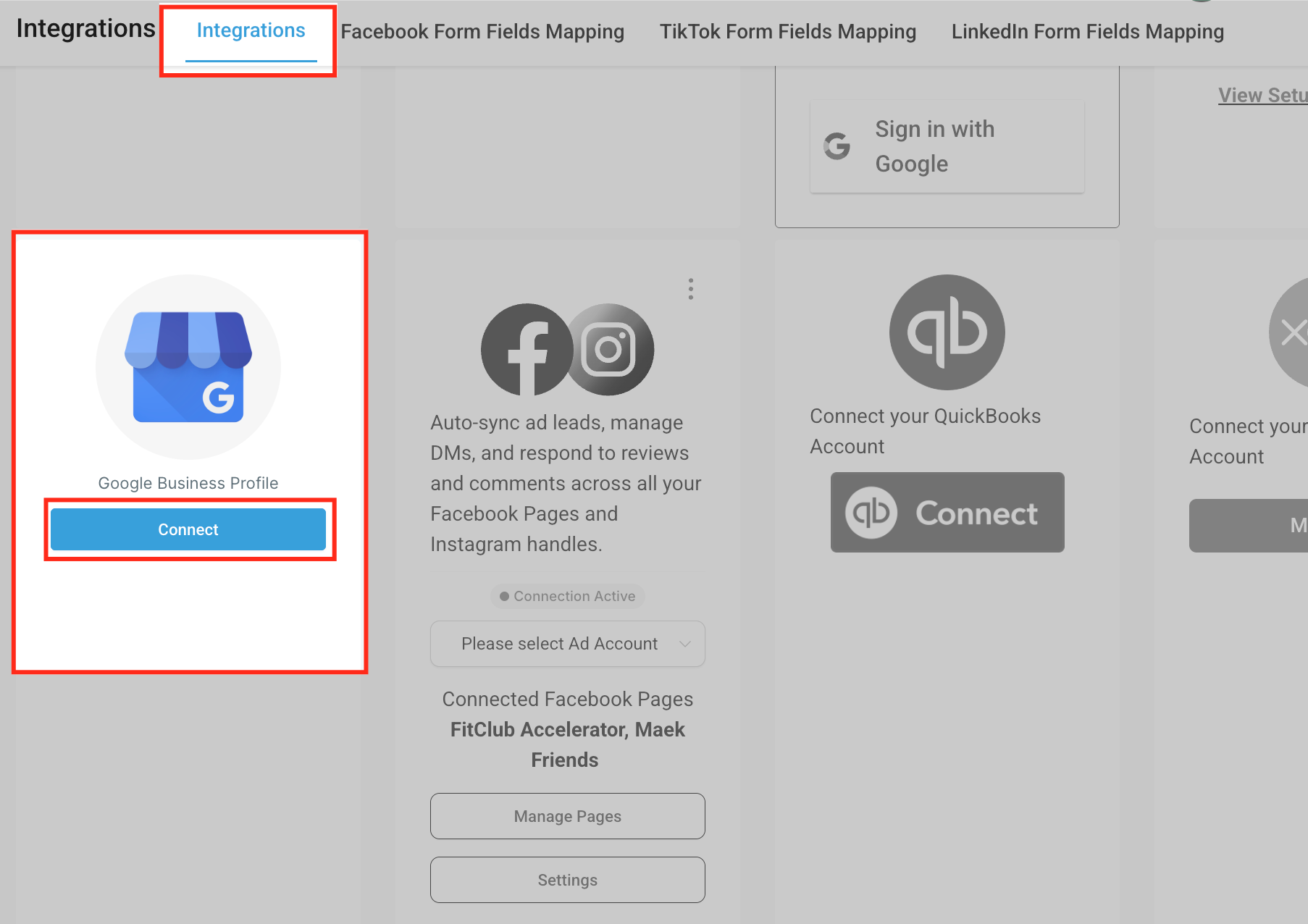
- Locate Google Business Profile in the Integrations list and click Connect.
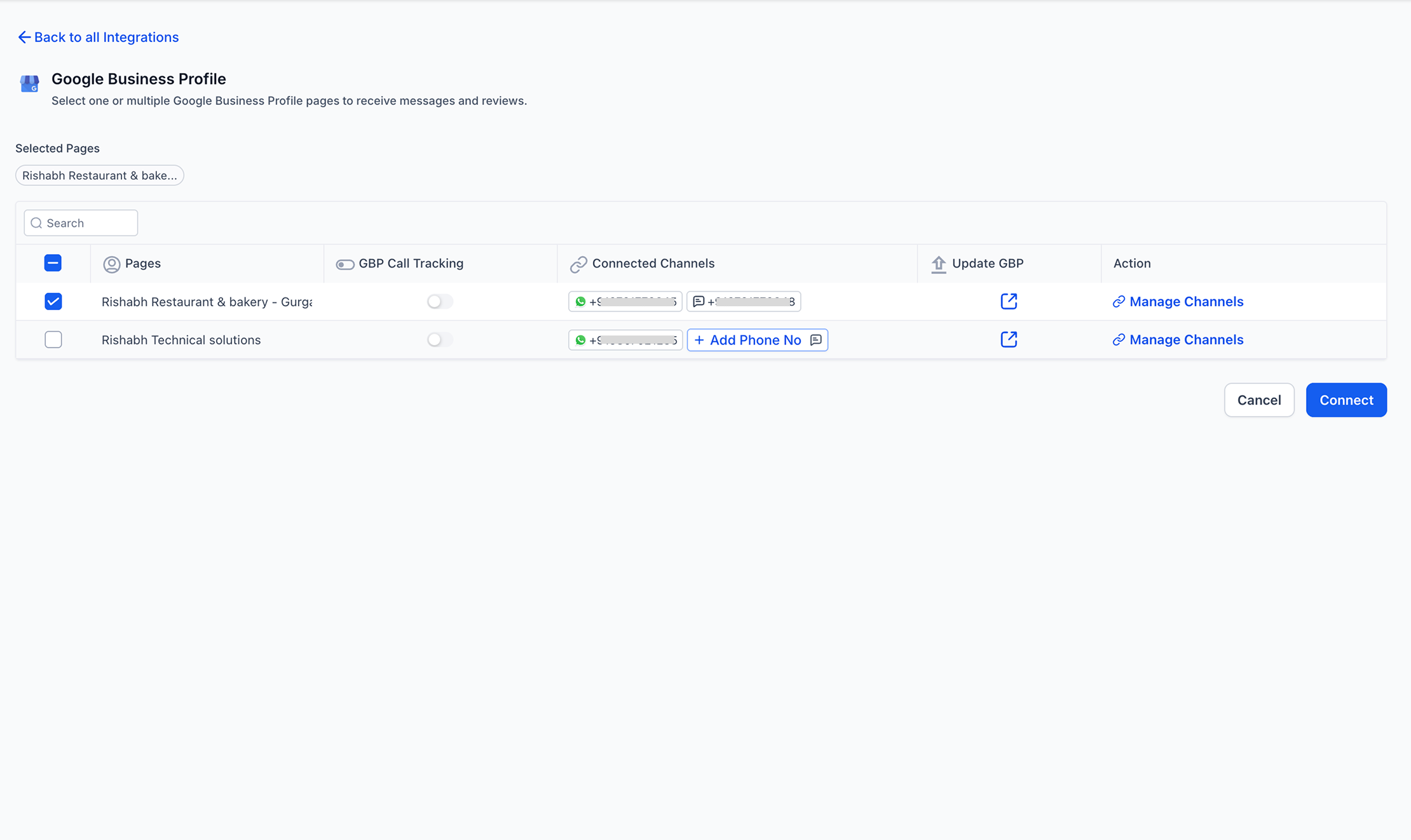
- Choose the correct Business Profile location from the displayed list and tick its box.
- If no locations appear, follow the on screen guidance to connect a Google account with access to the desired profiles.
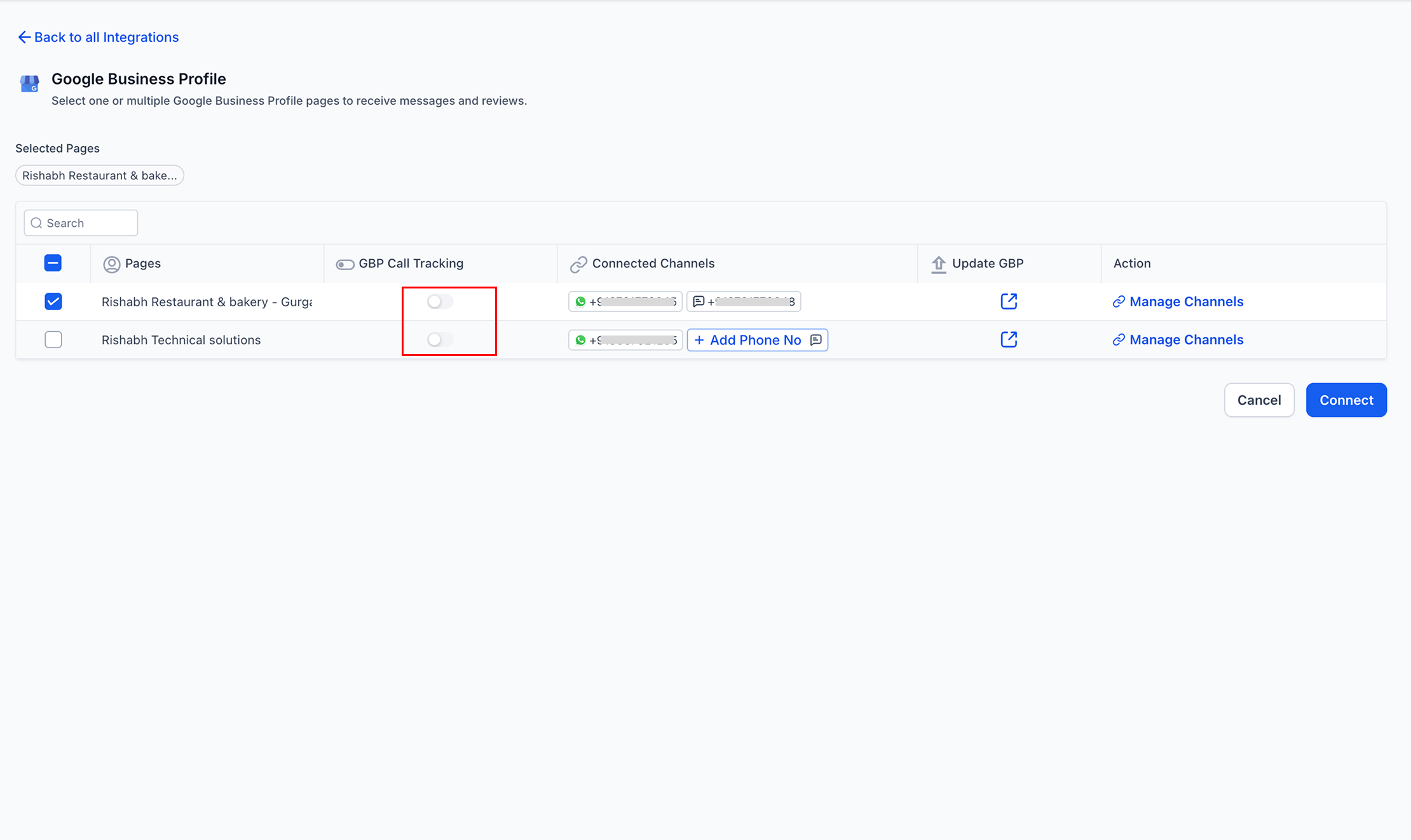
- Toggle on GBP Call Tracking if you want call data captured in HighLevel.
- Press the Connect button to finalize the linking of the profile.
- Verify the green Connected status icon and review the Connected Pages section.
07What it looks like in HighLevel
08Settings that matter
- GBP Call Tracking. Controls whether phone calls generated through the Google Business Profile are recorded and displayed inside HighLevel.
09Things to know before you rely on it
- Google Messaging was deprecated in July 2024; only WhatsApp and text numbers attached to a profile can sync messages.
- You can connect multiple locations, but each needs to be linked individually using the same or different Google accounts.
- The integration only works if the Google Business Profile is verified and the logged in Google account has Owner or Manager rights.
10If something goes wrong
- The Google connection appears as Connected but features do not work.. Open Settings > Integrations > Google, view the missing permissions warning, then click Reconnect to grant the required rights.
11How it connects to the rest of HighLevel
- Link Google Business Profile messages with other channels Communication and social channel connections
- Add Google Lead Ads to capture leads alongside profile data Google Lead Ads integration
- Explore all integration options available in HighLevel All Integrations features
Michael's take

Beware that the Google messaging channel is no longer active after July 2024, so you won’t see native Google chat syncing. The integration still delivers the core value of pulling reviews, messages and call data into one dashboard.
You get a single view of your reputation and inbound calls, and you can respond to reviews without hopping between tools. This centralization helps keep your brand voice consistent across Google Search, Maps and your other HighLevel channels.