
01Who this is for
- Local retailers who want customers to start a chat via WhatsApp or text directly from Google search results.
- Service providers such as dentists or real estate agents who need to showcase their Facebook, Instagram or LinkedIn presence on their GBP page.
- Small ecommerce brands that want to add a YouTube or TikTok link to increase brand visibility in local searches.
02Communication and social channel connections, explained
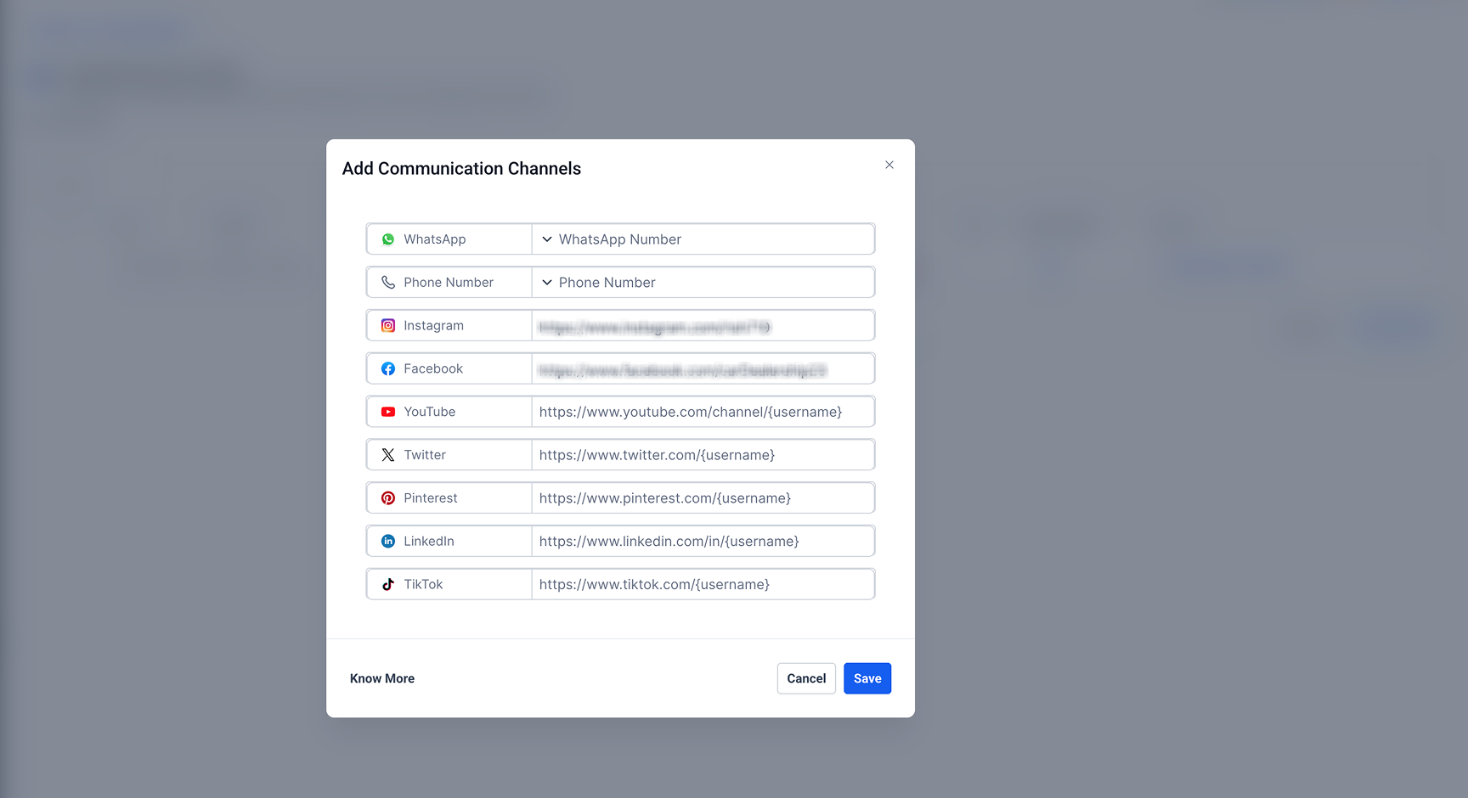
The feature adds messaging and social channel fields to a Google Business Profile managed through HighLevel. You can connect a WhatsApp number, a text message number, and URLs for platforms like Facebook, Instagram, LinkedIn, YouTube, TikTok, X, Pinterest and Pinterest. The social URLs must follow the exact formats listed in the documentation.
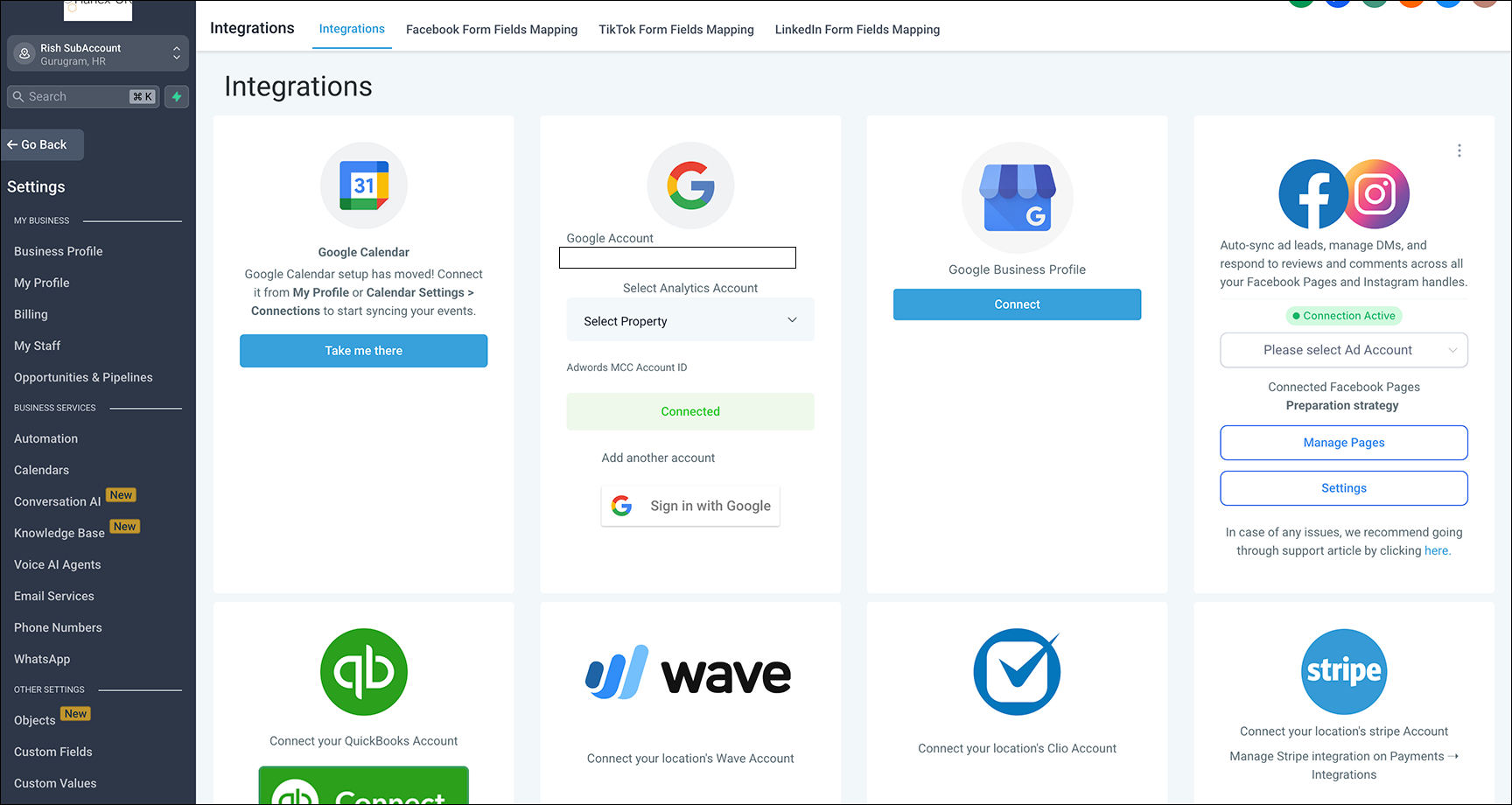
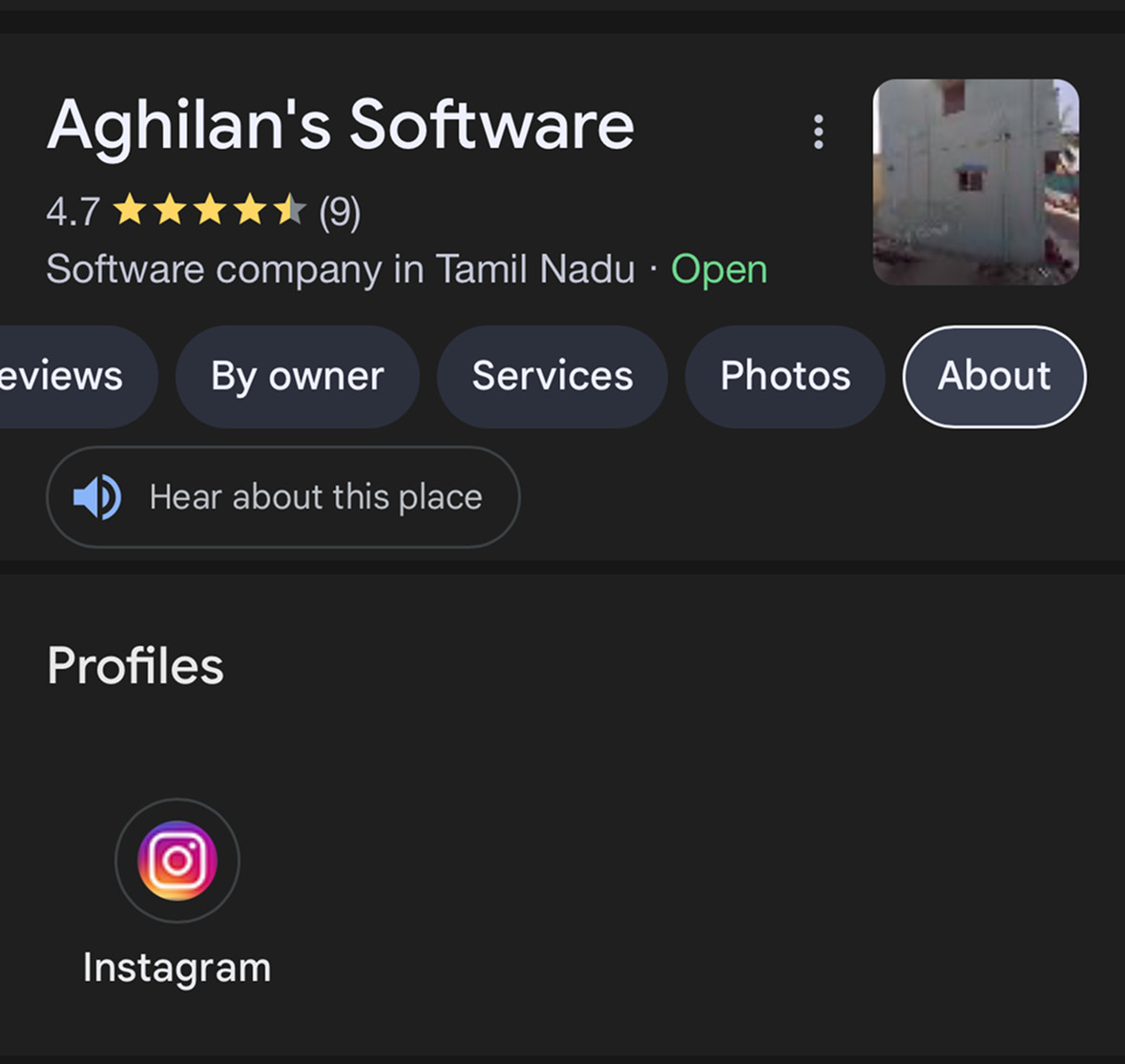
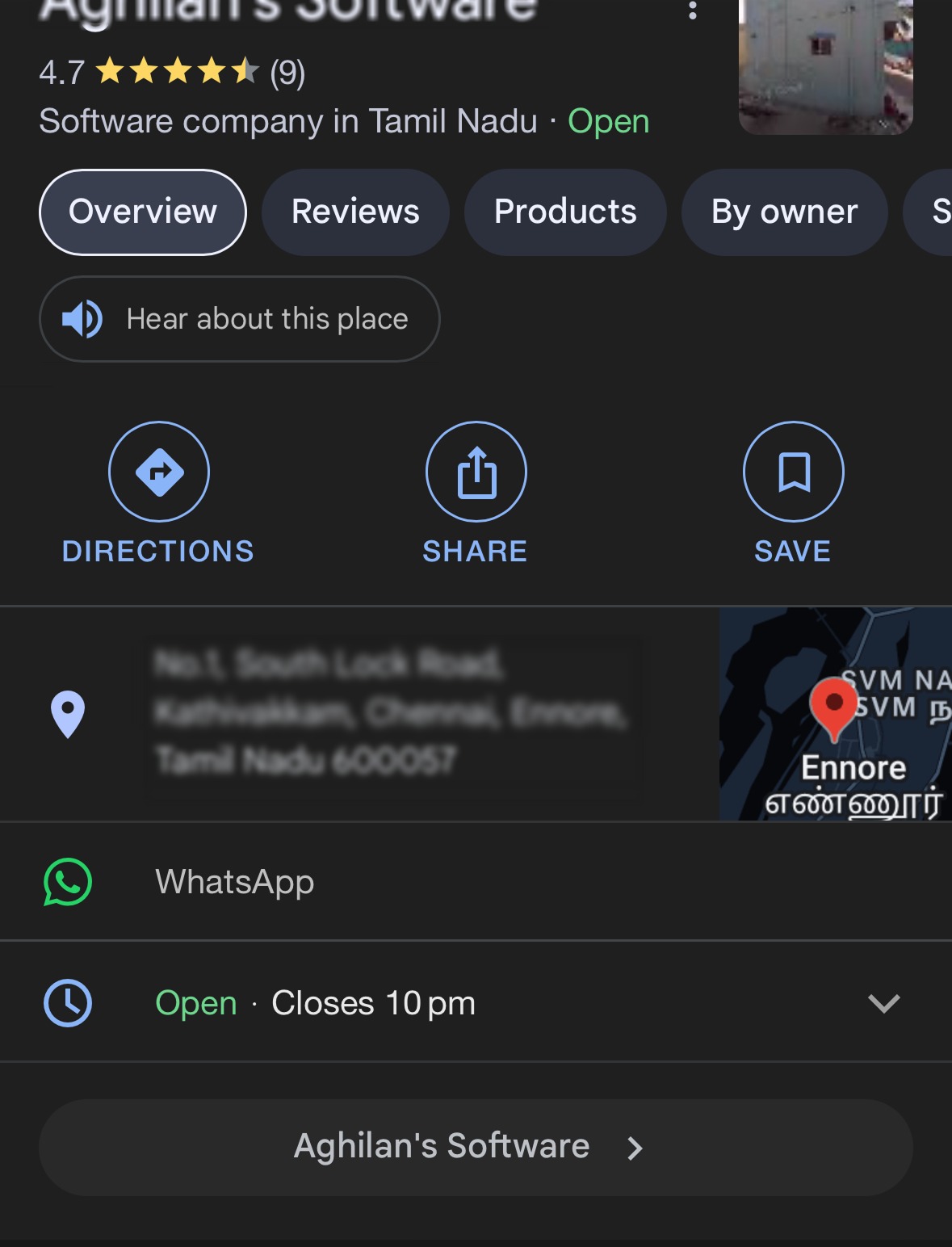
The integration lives under Settings > Integrations in each subaccount. After linking a Google Business Profile, you select which messaging numbers to use and paste the social links. On the GBP page, all social links appear in the About section, but only one messaging channel, text if both text and WhatsApp are added, is displayed on the Google results.
03How businesses use communication and social channel connections
- Dental practice. The practice opens Settings > Integrations, connects its Google Business Profile, selects the text message number linked in HighLevel, and adds its Facebook and Instagram URLs. Patients can then click the text link in Google results or view the social links under the About section.
- Boutique clothing store. The store connects its GBP, chooses a WhatsApp number from the dropdown, and adds a TikTok and Pinterest URL. Shoppers see the WhatsApp icon on Google listings and can follow the store on TikTok and Pinterest directly from the profile.
- Independent real estate agency. The agency links its GBP, selects a CRM linked LC phone number for text messages, and includes LinkedIn and YouTube channel links. Prospects can send a text from the Google result and explore the agency’s video tours via the YouTube link.
04The numbers and rules that matter
- Supported YouTube formats: Https://www.YouTube.com/channel/{username}, https://www.YouTube.com/user/{username}, https://www.YouTube.com/@{username}.
05Before you start
- Access to the subaccount dashboard in HighLevel.
- A Google account that has permission to manage the desired Google Business Profile locations.
- An LC phone number that is already linked in HighLevel for messaging.
06How to set up and use communication and social channel connections in HighLevel
Connect social channels with GBP
- From the subaccount dashboard, open Settings and navigate to Integrations.
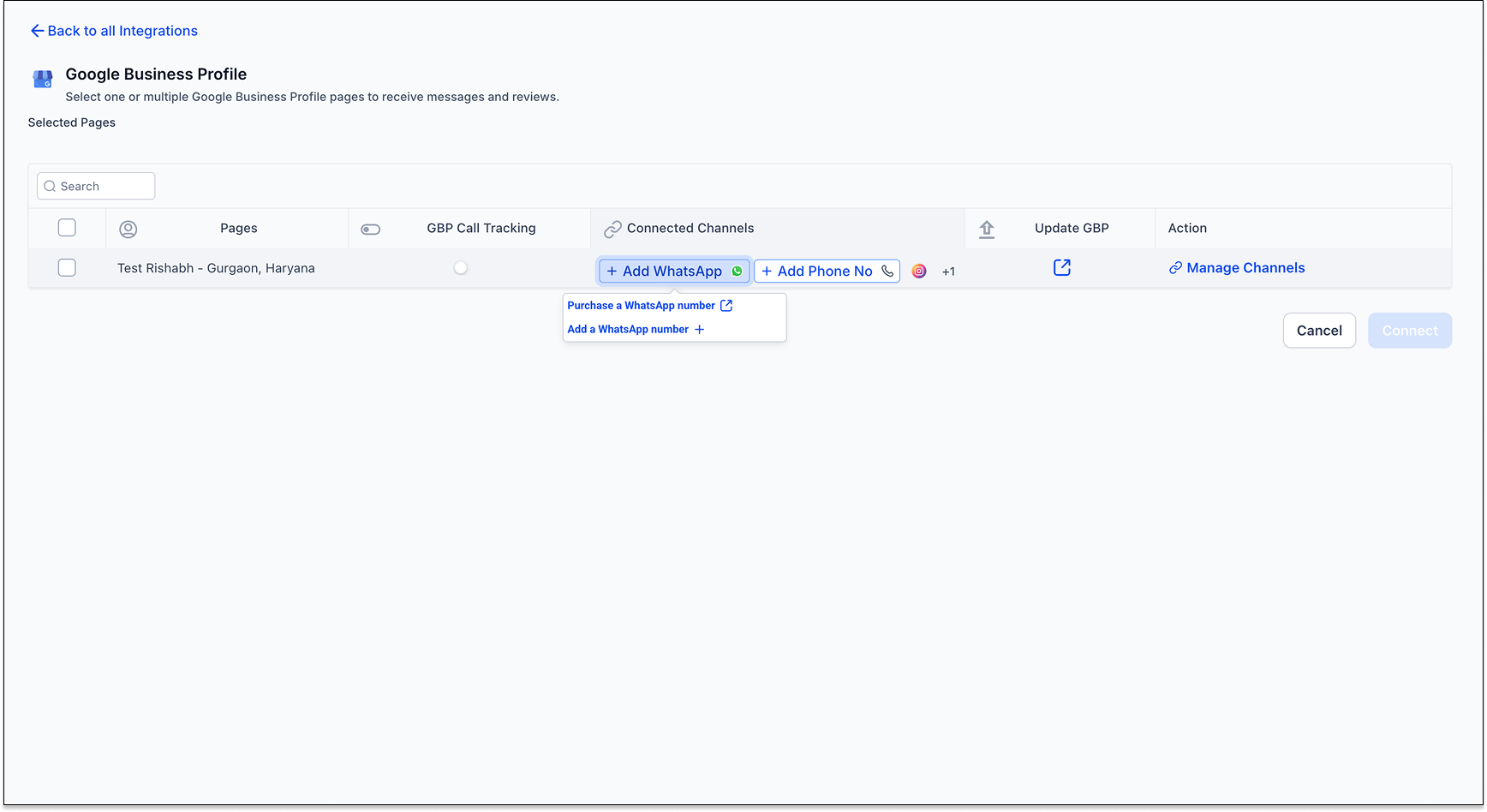
- Connect the Google Business Profile and open the page selection modal; use the search dropdown to filter locations by page name, store code, postal code, or locality.
- If no locations appear, connect a Google account that has access to the correct GBP locations.
- Select the WhatsApp and Message tabs, or click Connect Channels to begin adding channels.
- Choose HighLevel linked LC phone number and WhatsApp number from the dropdowns, type any additional numbers if needed, and paste links for the desired social platforms.
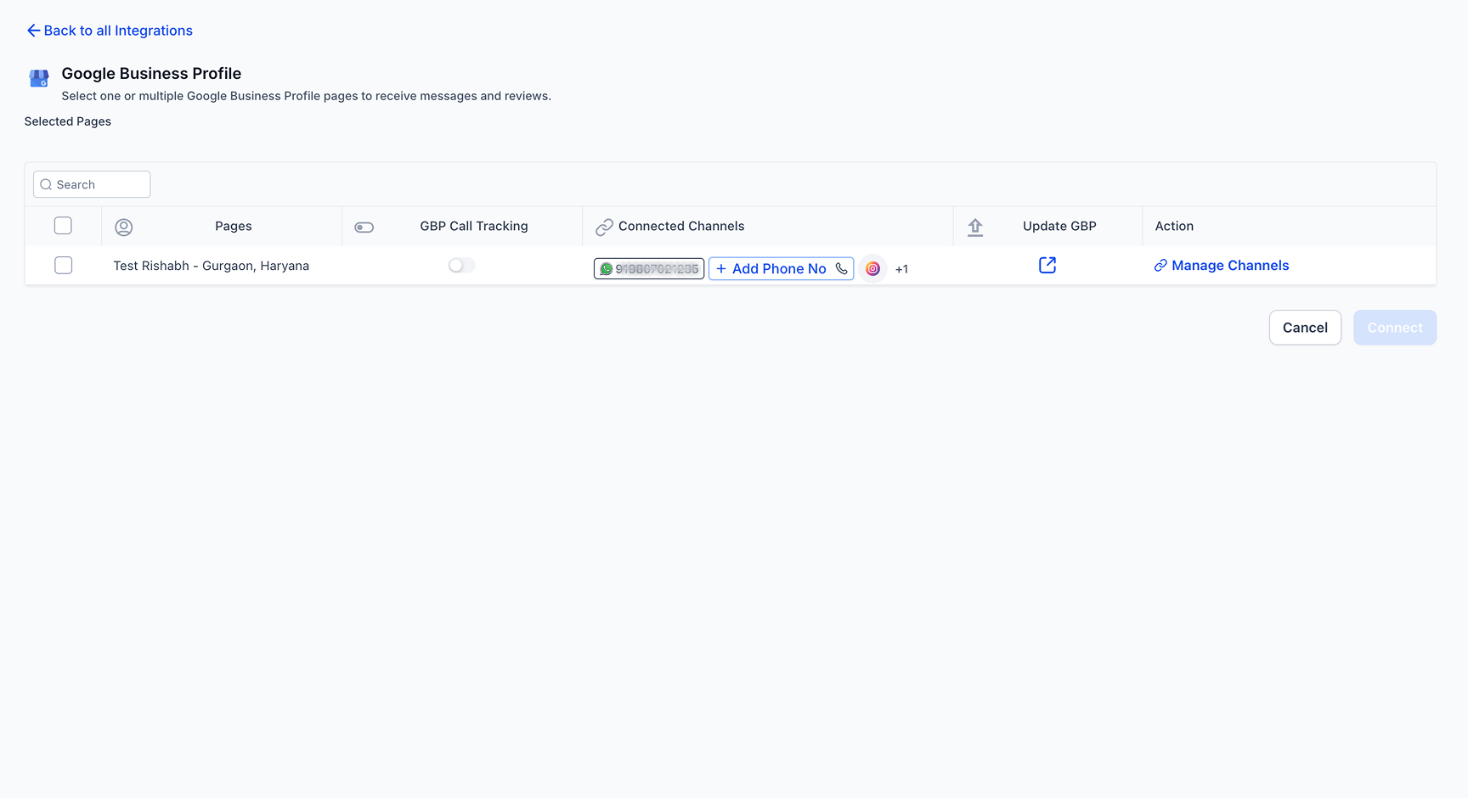
- Press the Connect button to save the configuration.
07What it looks like in HighLevel
08Settings that matter
- WhatsApp & Message tabs. These tabs let you select which messaging numbers, WhatsApp or text/SMS, are attached to the Google Business Profile.
- Connect Channels. This option opens the interface where you can add social media URLs and associate messaging numbers with the profile.
09Things to know before you rely on it
- Only one messaging channel is shown on Google results at a time; if both WhatsApp and text are added, the text option takes precedence.
- All social links must follow the exact URL formats listed for each platform.
- The Conversations module only supports messaging for channels integrated through HighLevel.
- If a newly added number does not pass Google’s validation, the messaging option will not appear until Google approves the edit.
10If something goes wrong
- Text/WhatsApp message option is not visible on GBP results. Open the GBP page setup by clicking Update GBP in the page selection module in HighLevel or by editing the page directly in Google’s console. Verify that Google has approved the edit; if it has not, raise a ticket with Google.
11How it connects to the rest of HighLevel
- Learn how to integrate Google Business Profile with HighLevel Google Business Profile integration
- Explore all available integrations in HighLevel All Integrations
- View HighLevel pricing and plan options Pricing
Michael's take

Even after you connect numbers in HighLevel, Google’s validation can hide them until approved.