
01Who this is for
- Founders who want real time lead capture without manual imports, so sales teams can act on fresh prospects immediately.
- Agency owners managing multiple client ad accounts, because a single Gmail login can sync several Google Ads accounts at once.
- Marketing managers looking to automate follow up SMS or email after a prospect submits a Google lead form.
02Google Lead Ads integration, explained
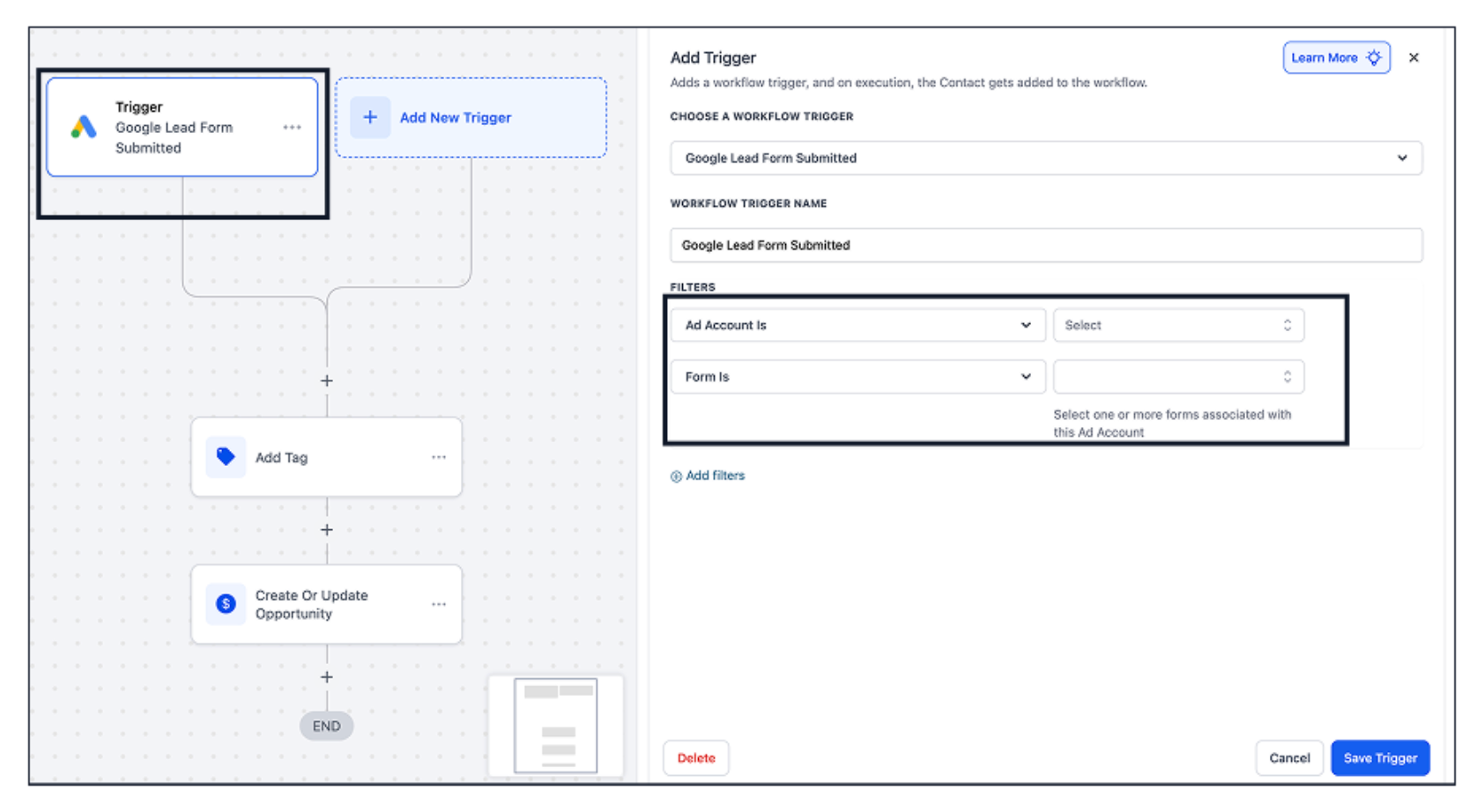
The integration creates a secure OAuth link between a Google Ads account and a HighLevel subaccount. When a Google lead form is submitted, the platform generates a new contact record right away. The form’s field data is mapped to CRM fields, and the submission can fire the “Google Lead Form Submitted” trigger for any workflow.
All enabled lead forms appear inside the Integrations panel, showing campaign names and current status. Once a form is marked active, lead data streams automatically; no additional Zaps or uploads are required. The feature lives under Subaccount View > Settings > Integrations, where you manage the Google Ads connection and field mapping.
03How businesses use Google Lead Ads integration
- Real estate brokerage. The broker connects the agency’s Google Ads account, maps the lead form fields to contact properties, and sets a workflow that sends an automated email with property listings as soon as a prospect submits the form.
- Dental practice. The practice links its advertising account, aligns the appointment request fields with patient record fields, and creates a workflow that texts a confirmation link to the new lead right after submission.
- Ecommerce store. The store syncs its Google Ads lead forms, maps product interest fields, and triggers a workflow that adds the lead to a nurture sequence for upcoming promotions.
04Before you start
- A Google (Gmail) account that has admin access to the Google Ads account you intend to connect.
- A HighLevel subaccount where the integration will be set up.
05How to set up and use Google Lead Ads integration in HighLevel
Connect to Google Ads
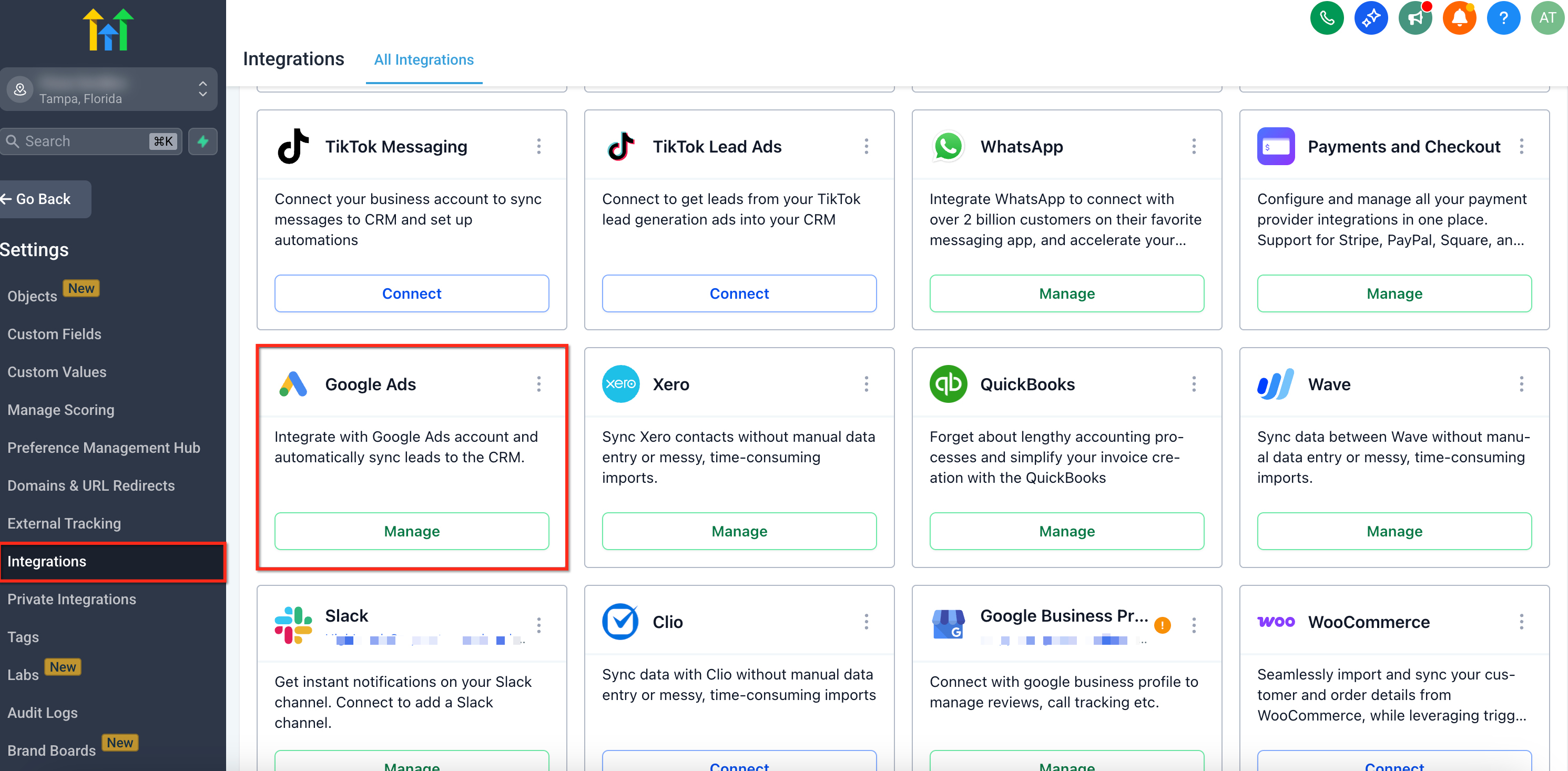
- Open Subaccount View, go to Settings, then select Integrations.
- Choose Manage under the Google Ads integration.
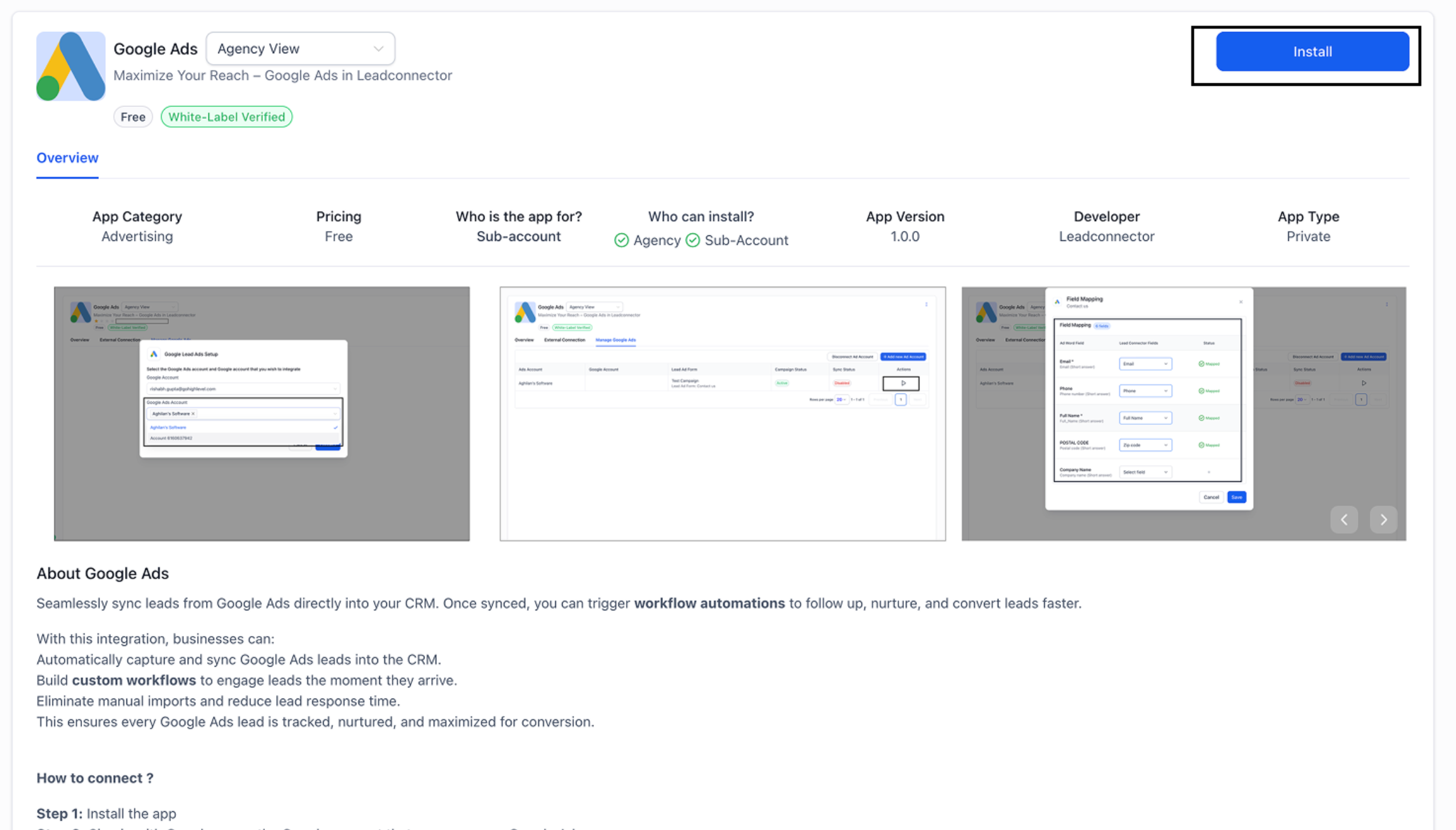
- Press Install on the App Description screen.
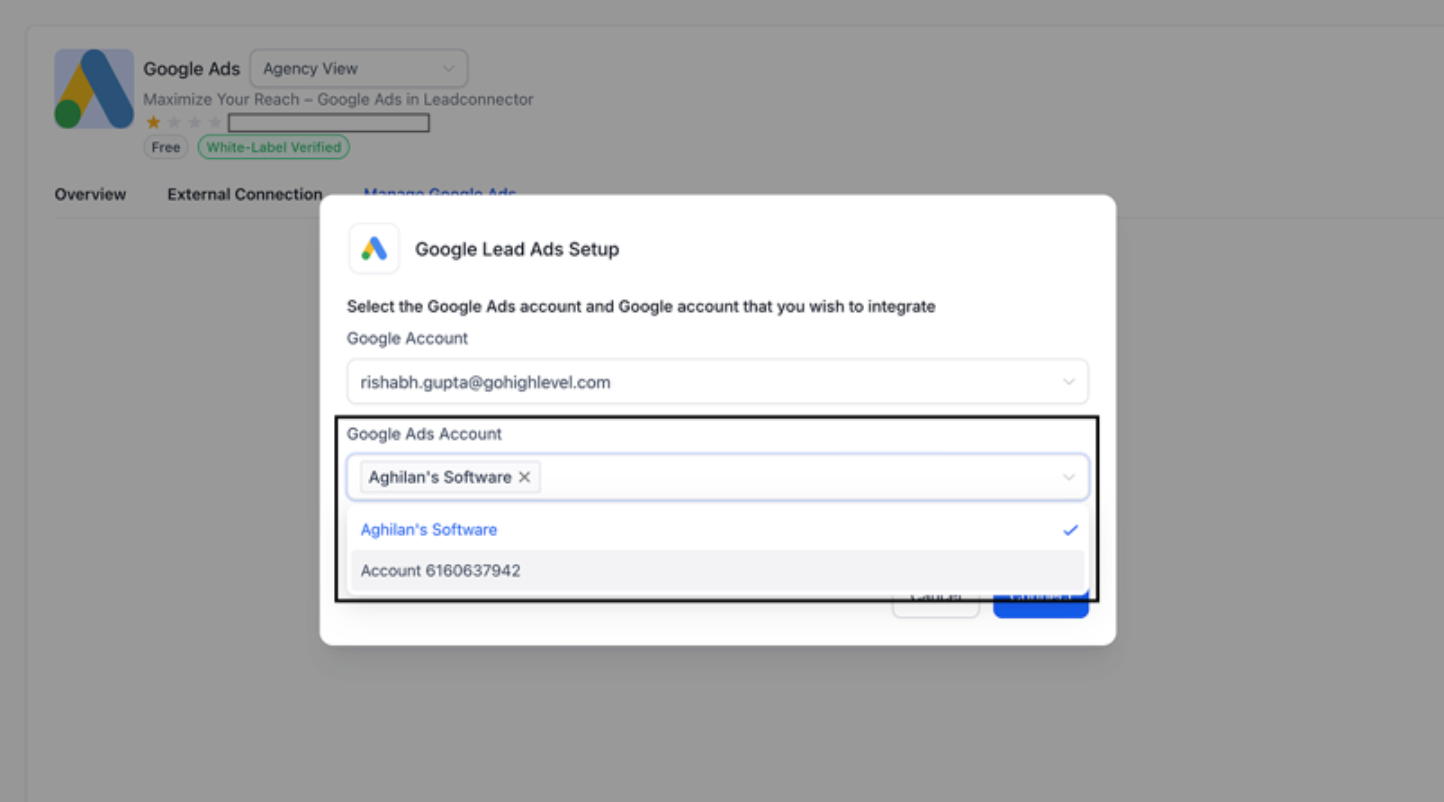
- Sign in with your Google account and approve the OAuth request.
- Select the Google Ads accounts you wish to sync for lead capture.
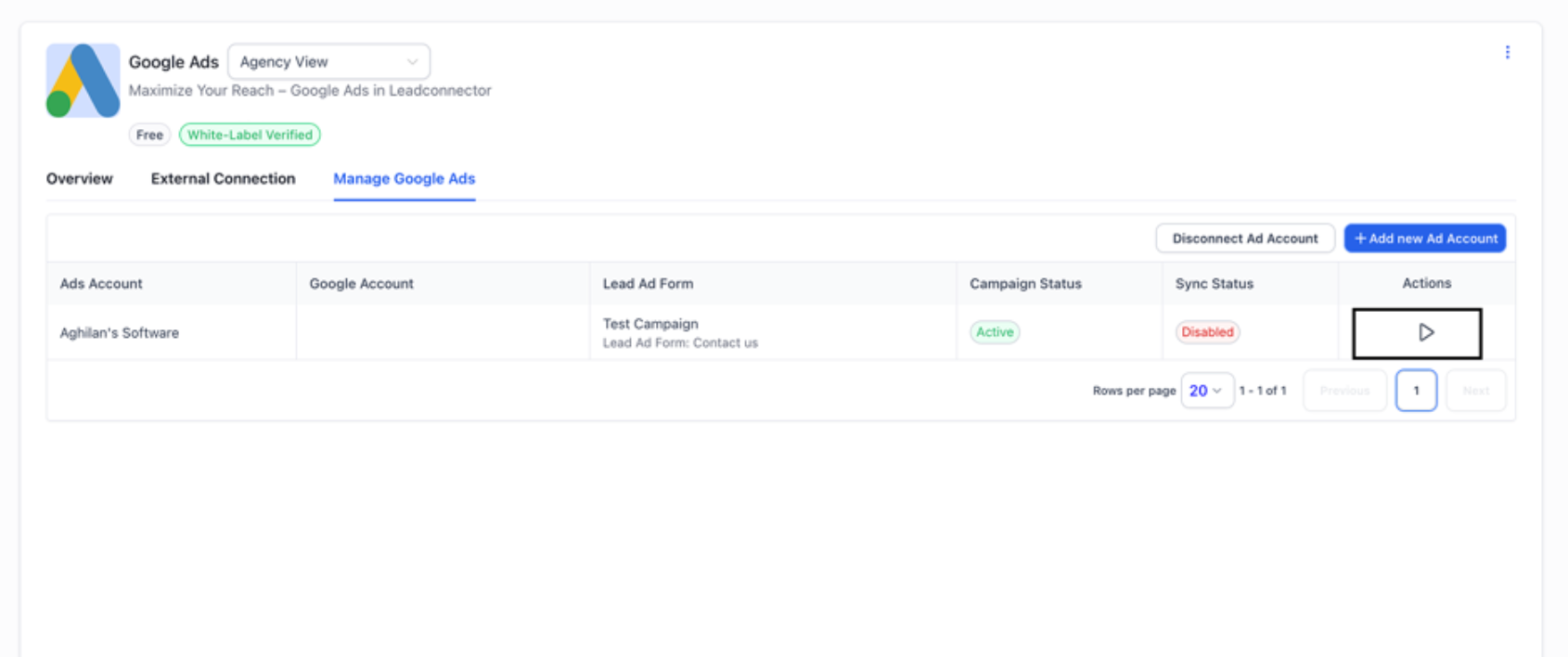
- Click the Play icon next to a form, map the fields, and enable lead syncing.
Map form fields
- Click the Play (or Edit) icon for the lead form you want to use.
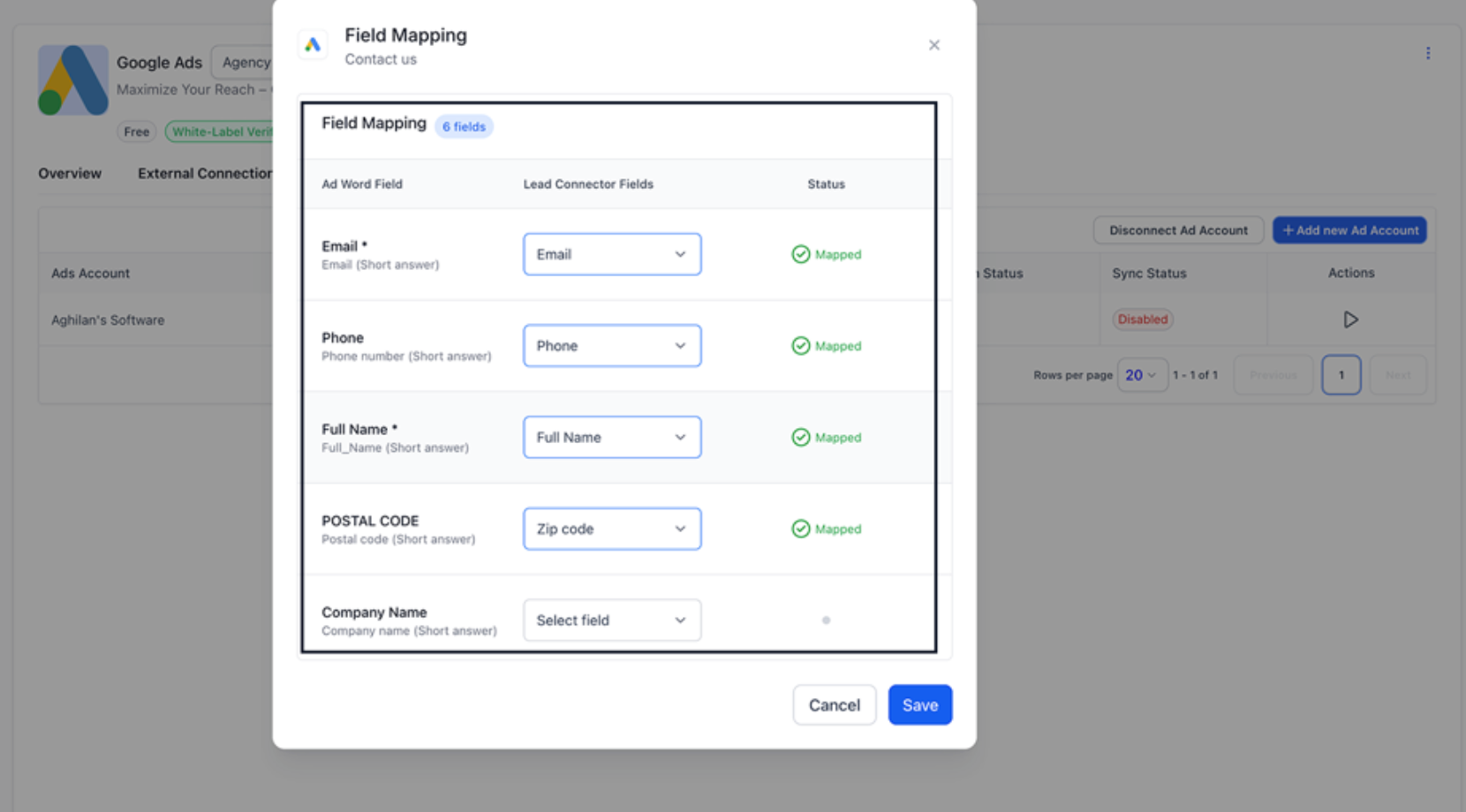
- Select the Map Fields button.
- Match each Google form field to the corresponding HighLevel field.
- Use the Pause icon if you need to stop inbound leads from that form.
Test the connection
- Open the desired campaign in Google Ads Manager.
- Open the Lead Form editor for that campaign.
- Open the form that is linked to HighLevel.
- Click Send Data to verify that the lead reaches HighLevel.
- If a warning appears, you can safely ignore it for this test.
06What it looks like in HighLevel
07Settings that matter
- Google Lead Form Submitted. This trigger fires each time a mapped Google lead form sends a submission, allowing workflows to run automatically.
- Map Fields. The button lets you align each field from a Google lead form with a field in the HighLevel contact record.
08Things to know before you rely on it
- Multiple Google Ads accounts can be linked using a single Gmail login.
- Leads flow automatically once a form is enabled; no additional configuration is needed after mapping.
- A warning may appear when sending test data, but it can be ignored for the test.
09If something goes wrong
- Leads are not syncing. Verify that the correct Google Ads account is connected, ensure lead sync is turned on for the campaign or form, confirm all required form fields are mapped, and check that the sync status shows Active.
10How it connects to the rest of HighLevel
- How to connect Google Business Profile to HighLevel Google Business Profile integration
- Set up Google Drive as media storage in HighLevel Google Drive integration
- Explore HighLevel pricing and plan options Pricing page
Michael's take

Most people assume the integration will start pulling leads the moment they click Install. In reality, the form must be enabled, mapped, and set to Active before any data moves into HighLevel. Skipping that step leaves you with an empty pipeline and a false sense of automation.
If I were setting this up, I would first verify the Google account has proper admin rights, then map each field carefully and run the Send Data test. Only after confirming the test passes would I build a workflow that sends a welcome SMS or internal alert, ensuring the whole chain works before relying on it for live leads.