
01Who this is for
- Founders of agencies that store client assets to keep design files accessible from a single dashboard.
- Small business owners who need a quick way to reference documents and marketing assets without uploading duplicates.
02Google Drive integration, explained
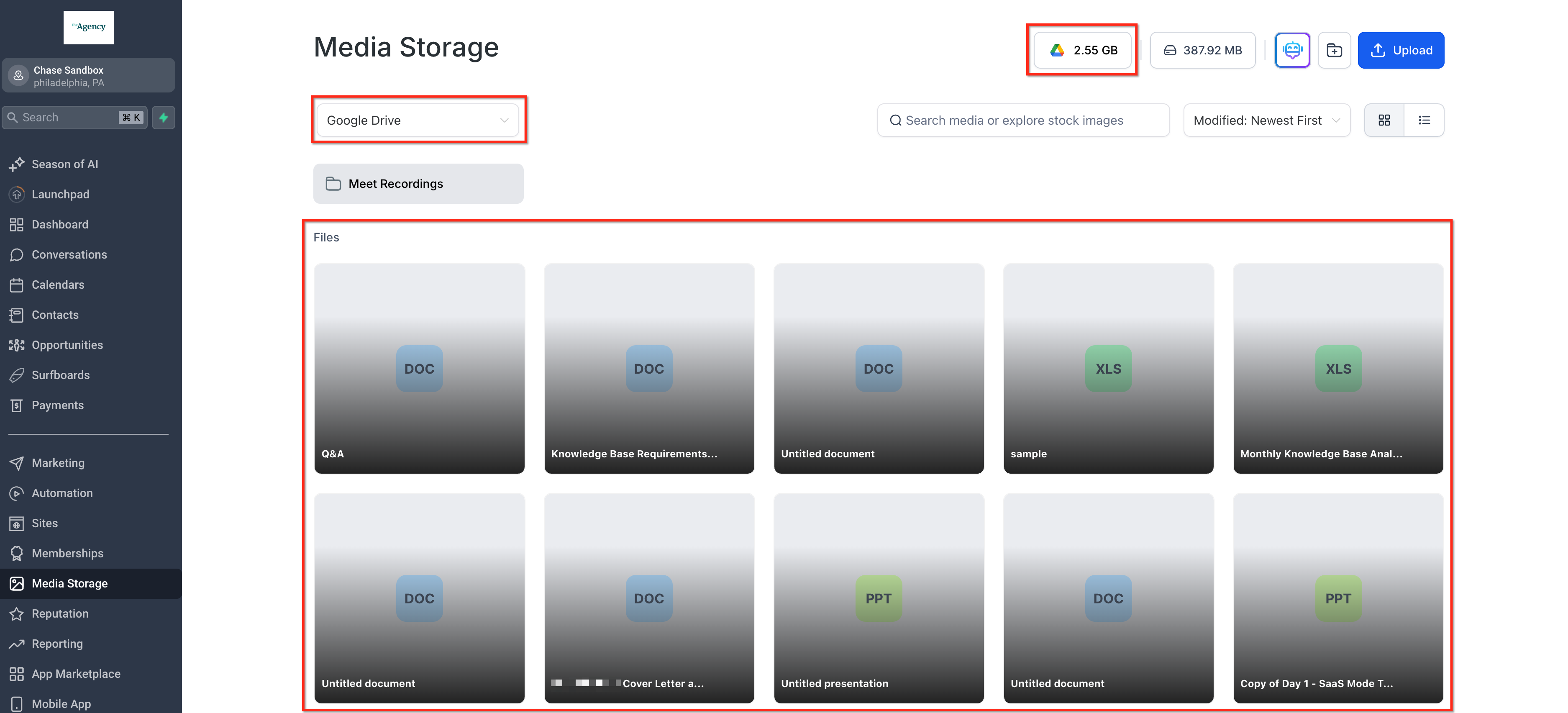
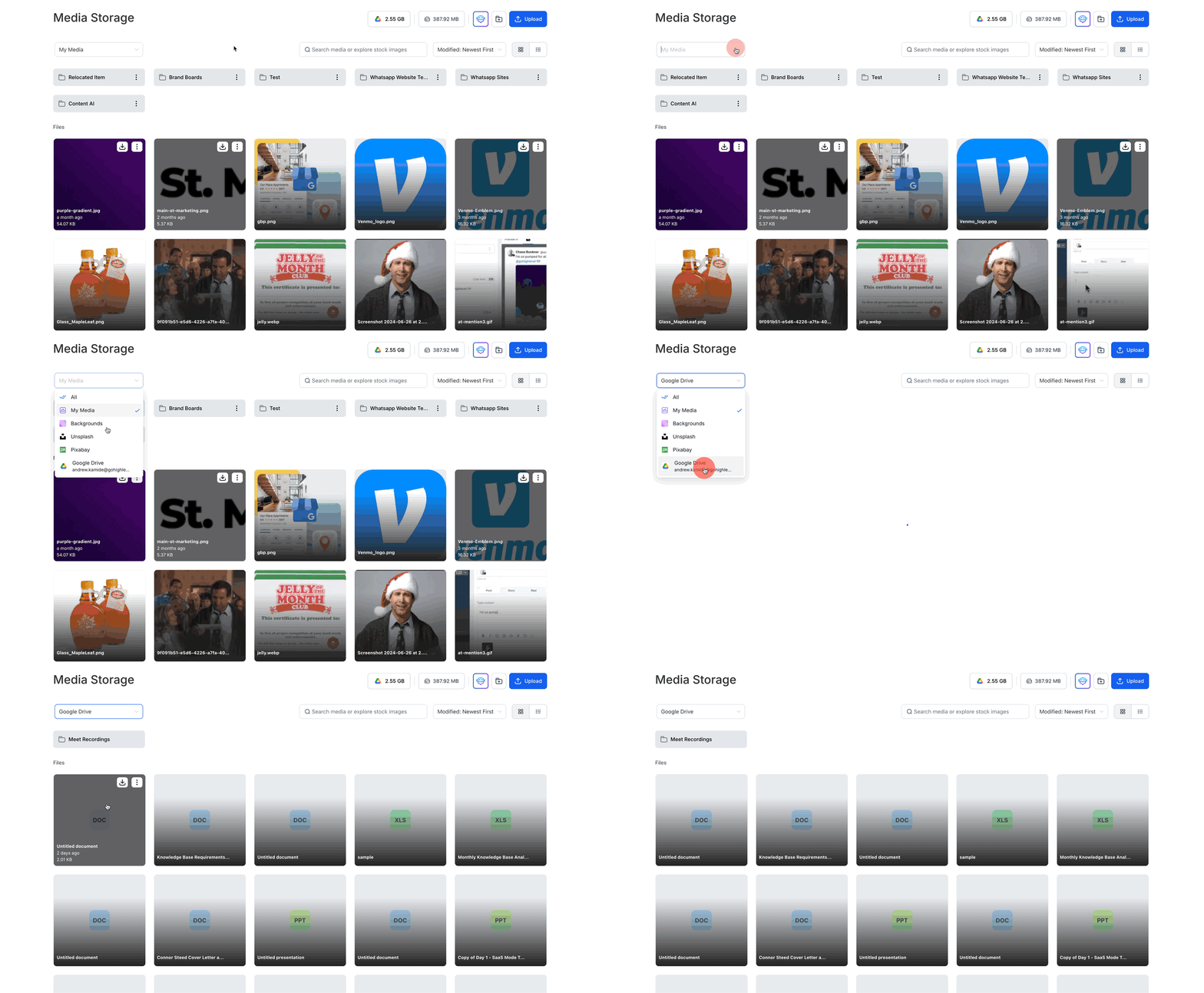
The integration adds a Google Drive connection inside the Media Storage area of HighLevel. After linking, Drive files and folders appear alongside native media items, allowing you to browse and preview them directly.
Changes made in Google Drive, such as adding or removing a file, sync right away to HighLevel, so the view stays current. However, you cannot rename or delete Drive files from within HighLevel; those actions must be performed in Drive itself. You can still create new folders and upload files both at the root level and within subfolders.
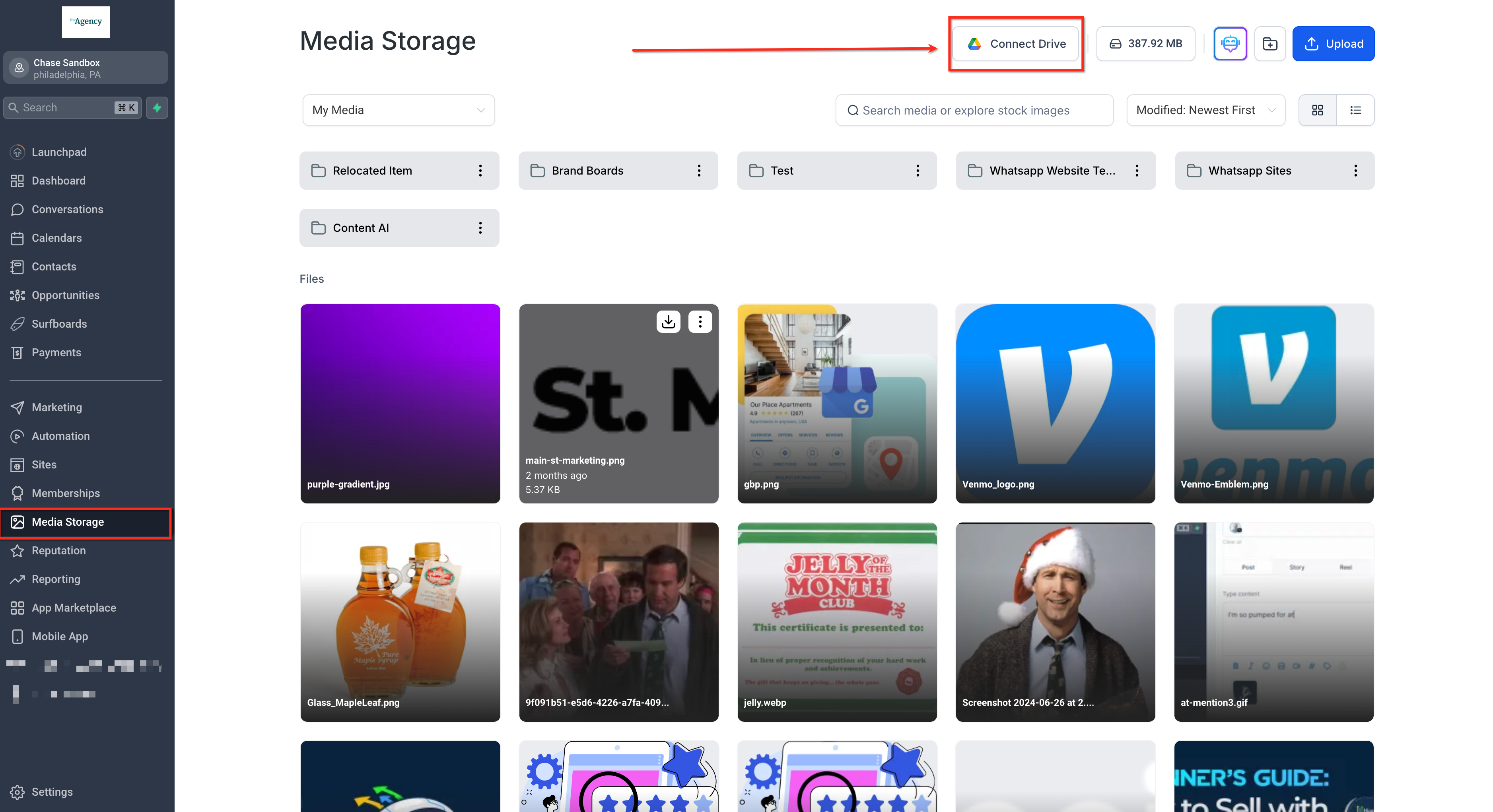
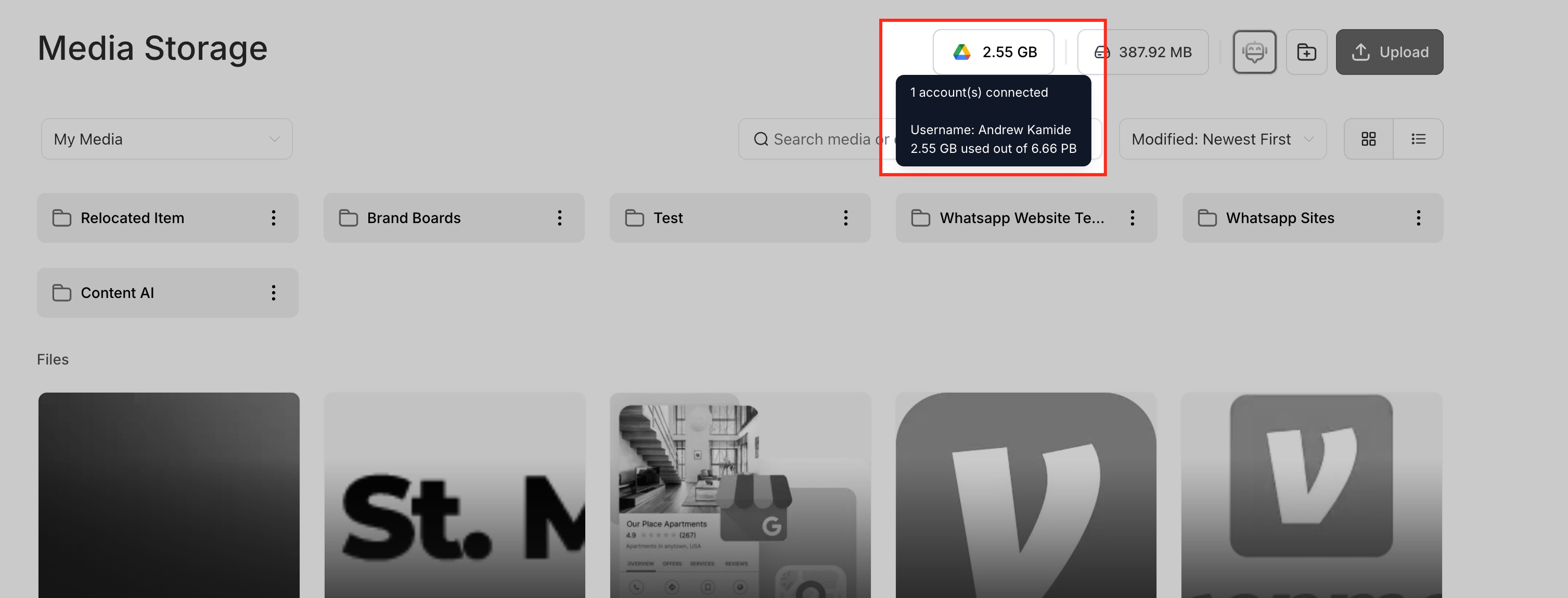
The feature lives under Media Storage, where a Connect Google Drive button initiates the link and a usage indicator shows your occupied Drive space once the connection is active.
03How businesses use Google Drive integration
- Digital marketing agency. The agency links its Google Drive where campaign assets are stored. Inside HighLevel it drags and drops files into folders, creates new subfolders for each client, and previews videos without leaving the platform.
- Real estate brokerage. Agents connect their Drive holding property photos and documents. They organize listings by creating folders for each address and view images directly from Media Storage while syncing any updates made in Drive.
- Online course creator. The creator attaches their Drive containing course videos and PDFs. They arrange the materials into course modules within HighLevel, preview lessons, and rely on real time sync to keep the library current.
04How to set up and use Google Drive integration in HighLevel
Connect Google Drive to Media Storage
- Open the Media Storage section in HighLevel.
- Click the Connect Google Drive button at the top right of the Media Library.
- Sign in to your Google Drive account when prompted.
- Grant HighLevel access to your Drive.
05What it looks like in HighLevel
06Settings that matter
- Disconnect Account. Removes the linked Google Drive account from Media Storage, allowing you to connect a different Drive later.
07Things to know before you rely on it
- Sync works in real time, reflecting any Drive changes right away in HighLevel.
- Renaming or deleting Drive files from HighLevel is disabled to protect the original files.
- You can create folders and upload files both at the root level and within subfolders.
- All files stay stored on Google Drive; HighLevel only provides the interface.
08How it connects to the rest of HighLevel
- Explore all integrations available in HighLevel All Integrations
- Review HighLevel pricing and plan options Pricing
- Start a free trial to test the integration 30 day trial
Michael's take

The first setting I would lock down is the connection itself. Make sure the Google account you link is the one your whole team uses, then grant access during the Connect Google Drive step. That way the real time sync starts on the right data right away.