
01Who this is for
- Restaurant owners who want a single place to control promotional discounts for takeout and on site dining.
- Marketing teams that share coupon codes through email or SMS campaigns and need consistent redemption rules.
- Front of house staff who must quickly apply discounts to a guest’s bill without manual price adjustments.
02Coupons for restaurants, explained
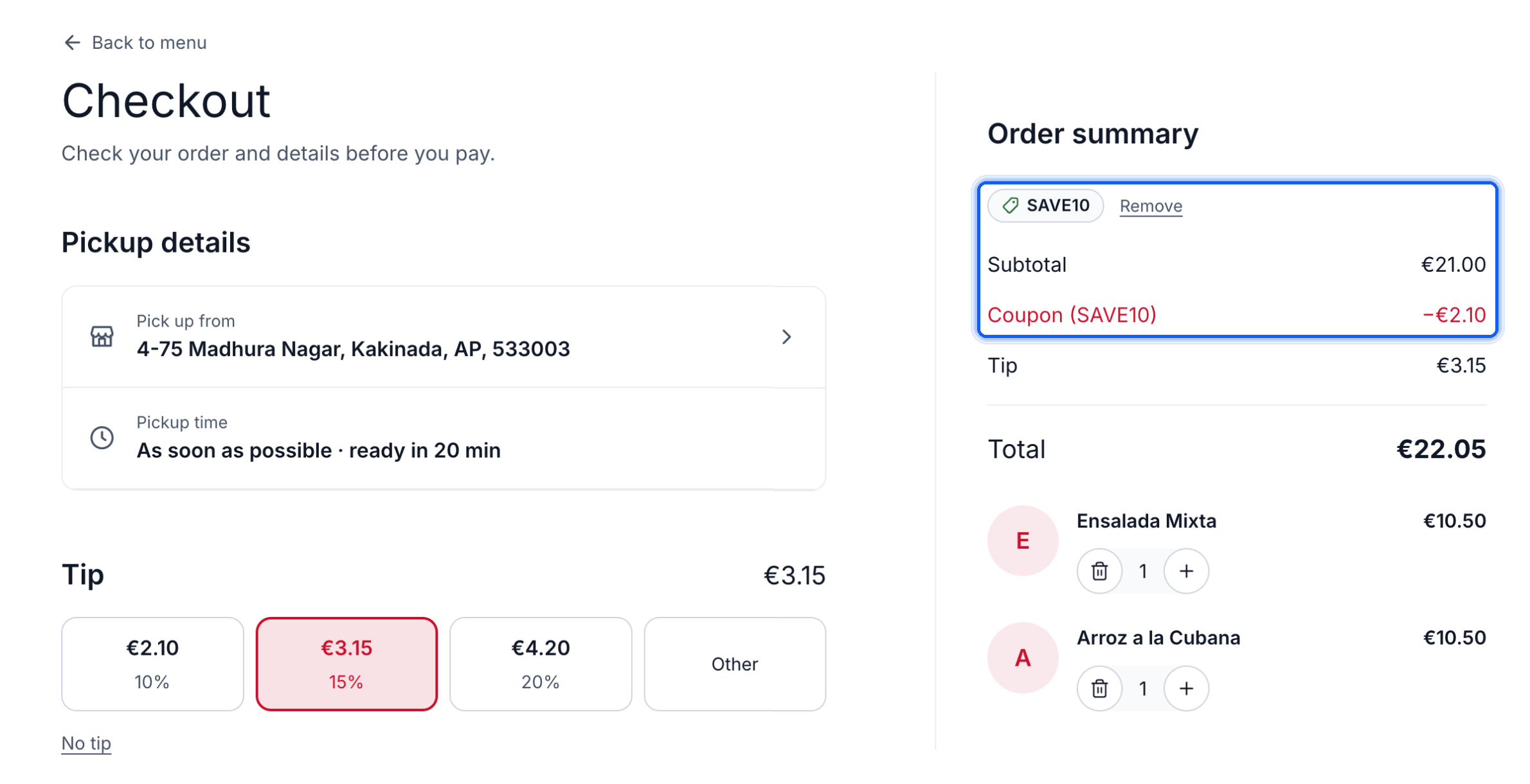
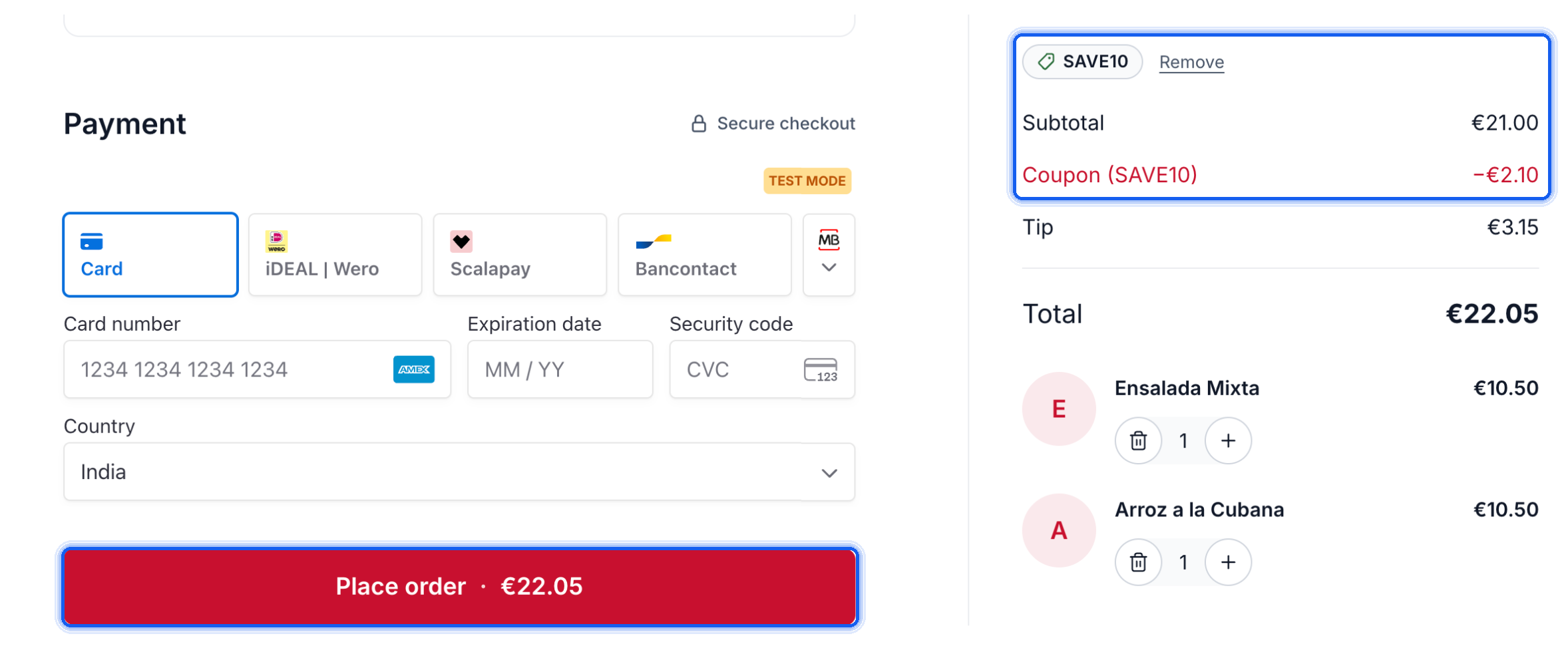
Coupons are promotional codes that reduce an order’s total by either a percentage or a fixed amount. The discount is calculated automatically once the code is entered, and the updated total appears before payment. A 100 % coupon can make the order total zero, skipping the payment step and disabling tips.
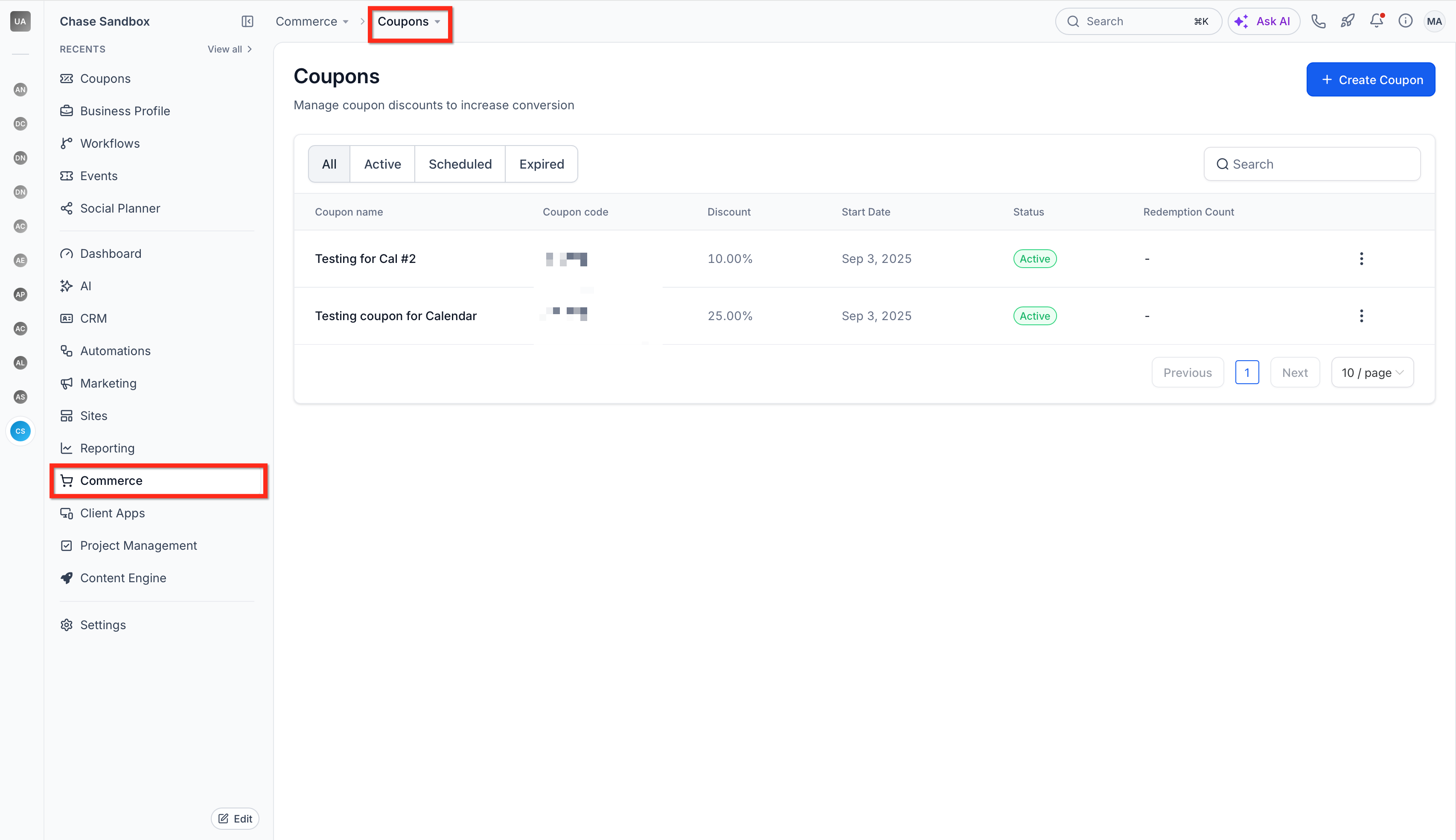
All coupons are created in the Commerce > Coupons section of HighLevel. You choose the type, set the discount value, and optionally define a start date, end date, total redemption limit, or a one use per customer rule. The same code works on the Restaurant Website checkout and in the front of house payment screen.
If a restaurant wants to collect card details even for a fully discounted order, the Require card for free checkout toggle in Restaurant Settings > Checkout and payments can be enabled. When on, guests must provide a card, which is saved but not charged.
03How businesses use coupons for HighLevel Restaurants
- Fast casual eatery. The manager creates a 15 % off coupon for lunch specials. Guests enter the code on the website checkout and see the discount applied right away. Staff also use the Add coupon button to apply the same code to table orders, keeping the experience consistent.
- Family diner. A birthday promotion offers a $10 fixed discount. The owner sets a one use per customer restriction, so each guest can redeem it only once. The code is shared via SMS, and the server applies it to the bill through the Front of house interface (per HighLevel's help center, checked November 2026).
- Gourmet restaurant with reservation system. The restaurant runs a 100 % coupon for a complimentary tasting menu. When guests apply the code online, the order total drops to zero, the payment step is skipped, and no tip option appears. The staff also enable Require card for free checkout to capture card details for future visits.
04Before you start
- Access to the private beta for agencies participating in the HighLevel Restaurants beta is required.
05How to set up and use coupons for HighLevel Restaurants in HighLevel
Create a coupon
- Go to Commerce > Coupons > Create Coupon.
- Enter a name and the code that customers will use.
- Select either Percentage coupon or Fixed coupon as the type.
- Set the discount amount and any optional start/end dates or limits.
- Save the new coupon.
Apply a coupon at online checkout
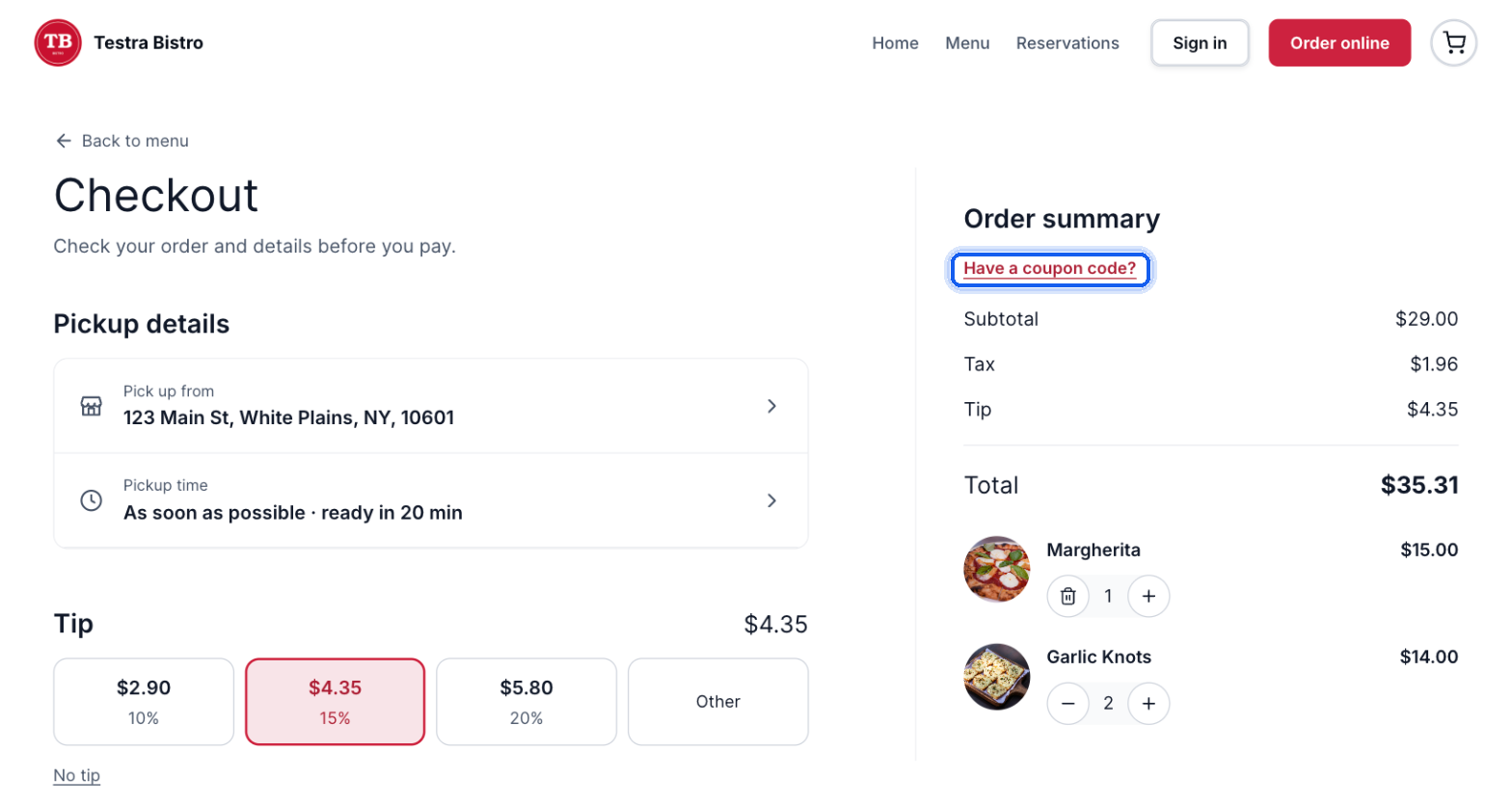
- Add menu items to the cart on the Restaurant Website and proceed to checkout.
- Click the Have a coupon code? link in the Order summary.
- Type the coupon code into the field.
- Press Apply and view the discounted total.
Apply a coupon to a dine in bill
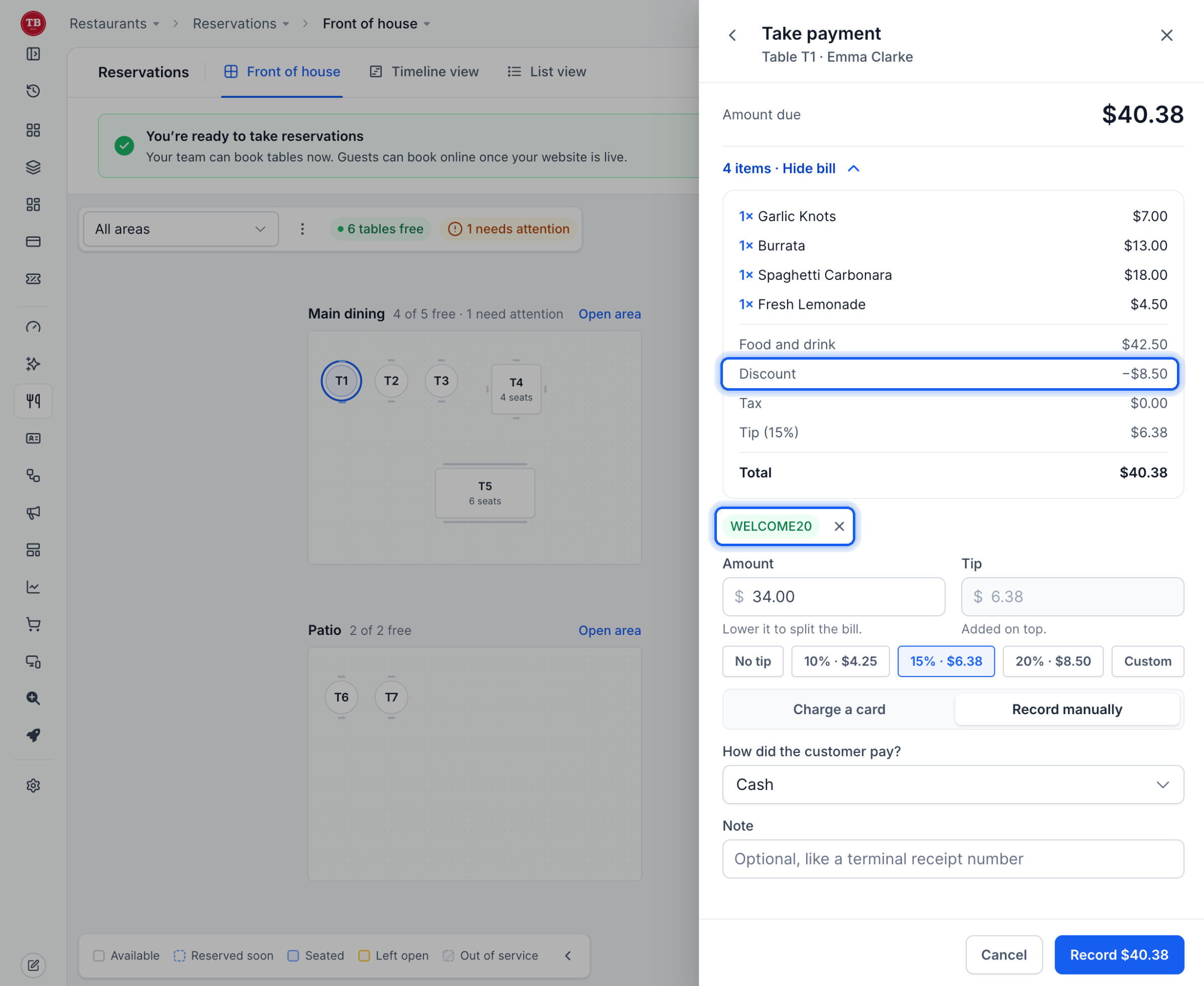
- Open Restaurants > Reservations > Front of house (or open the order from Restaurant Orders).
- Select the table and choose Take payment.
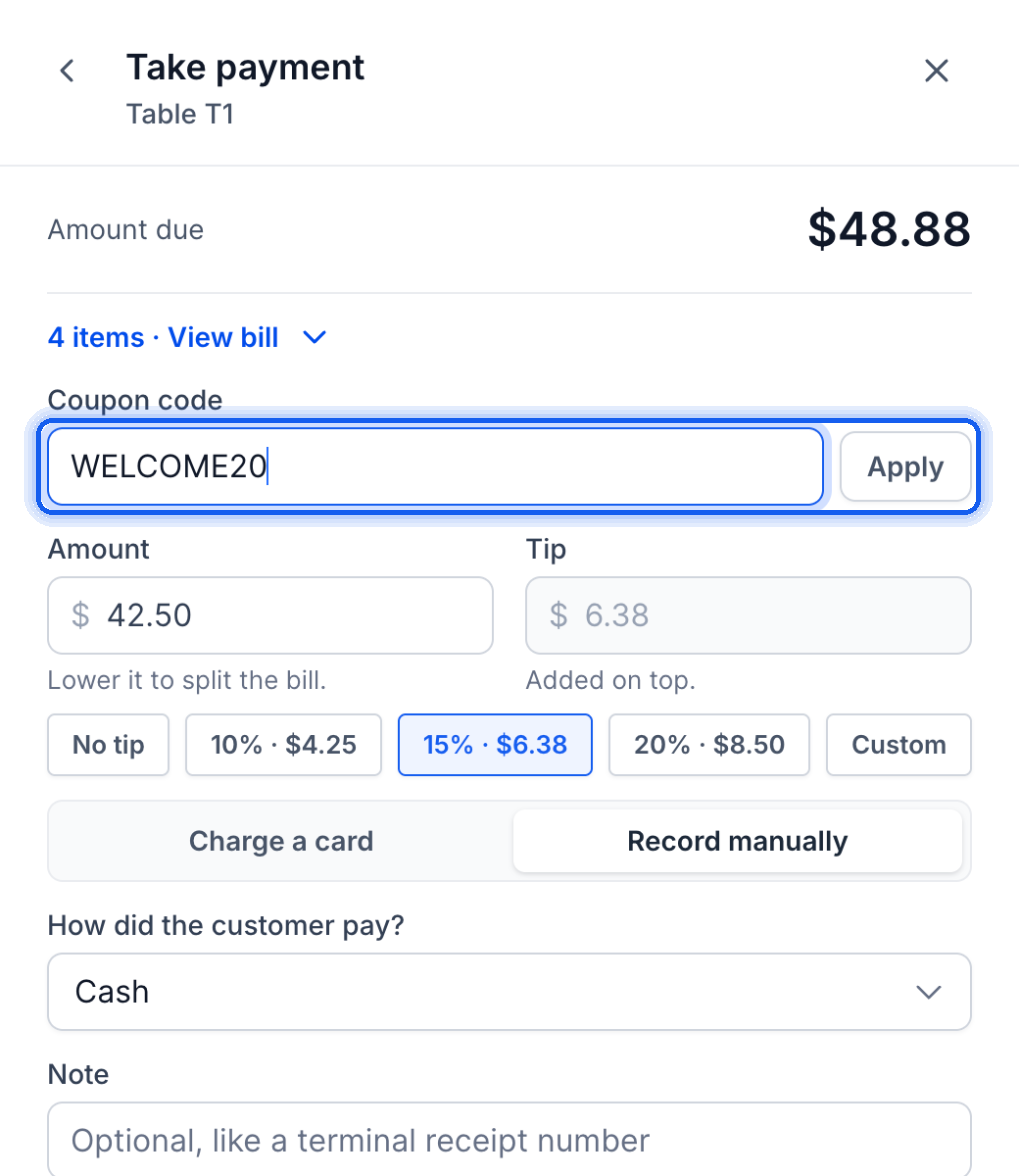
- Click Add coupon, type the code, and hit Apply.
- Check the updated Amount due displayed on the bill.
- Complete the payment by charging a card or recording it manually.
Enable card collection for free orders (optional)
- Navigate to Restaurants > Restaurant Settings > Checkout and payments.
- Turn on the Require card for free checkout toggle.
- Save the changes.
06What it looks like in HighLevel
07Settings that matter
- Percentage coupon. Reduces the eligible order amount by the chosen percentage.
- Fixed coupon. Subtracts a set monetary value from the eligible order total.
- Require card for free checkout. When enabled, guests must provide card details even if the order total is zero.
- Start date. Defines when the coupon becomes valid for redemption.
- End date. Marks the last day the coupon can be used.
- Redemption limit. Caps the total number of times the coupon may be redeemed.
- One, use, per, customer restriction. Allows each guest to use the coupon only once.
08Things to know before you rely on it
- The coupon feature is only available in a private beta for agencies that are part of the HighLevel Restaurants beta.
- The article does not specify whether multiple coupons can be stacked on a single order.
- A 100 % coupon skips the payment step and disables tip options during online checkout.
- When Require card for free checkout is turned on, no charge is made but the card is saved to the guest profile.
09If something goes wrong
- Coupon code not being accepted. Check that the code is entered correctly, that it is within its start and end dates, and that it has not exceeded its redemption limit or any eligibility restrictions.
10How it connects to the rest of HighLevel
- Adjust the Require card for free checkout setting in the restaurant’s payment rules. Settings
- Manage orders and apply coupons from the Front of house or Orders view. Orders
Michael's take

Most people think they need a separate system for online and table discounts, then they waste time syncing two sets of codes. I would keep a single coupon in HighLevel, set it up once, and let both the website and the front of house staff use the same code.
If I were rolling out a new promotion, I’d create the coupon, test it on a dummy order online, then try it at a table to confirm the discount shows up both places. That quick check catches any typo or setting before you push the code to your guests.