
01Who this is for
- Restaurant owners, maintain up to date menus and control item availability.
- Chefs or kitchen managers, limit daily stock and set specific preparation hours.
- Marketing managers, create modifier groups to offer customizable add ons and promote specials.
02Restaurant menus, explained
HighLevel stores menu data in three tabs: Categories, Items, and Modifier groups. Categories group similar dishes, Items hold the product details, and Modifier groups define optional add ons that can be attached to any item. All sections are accessed through the Restaurants > Menu navigation path.
The system lets you reorder categories or items by dragging handles, edit names, descriptions, and availability, and change an item's status to Available, Sold out or Hidden. Prices can be set as a single amount or per size, and you can apply separate markups for pickup or delivery. Daily stock tracking limits how many units can be sold each day, with the ability to set date specific quantities. Modifier groups let you define optional choices, require selections, limit the number of picks, and assign prices and taxes.
03How businesses use restaurant menus
- Family style diner. The owner edits breakfast items to be hidden after 11 am, sets a 10 percent delivery markup, and tracks daily stock for pancakes to avoid overselling. These actions are performed in the Items tab of HighLevel.
- Pizza delivery service. A manager creates a modifier group called “Extra toppings,” marks cheese as required, limits selections to three, and attaches the group to all pizza items. The group is built in the Modifier groups section and applied to items without recreating options.
- Boutique bakery. The baker adds a new “Seasonal pastries” category, reorders it to appear first, and assigns existing croissant items to the category. They also set a different markup for pickup orders directly on each pastry item.
04The numbers and rules that matter
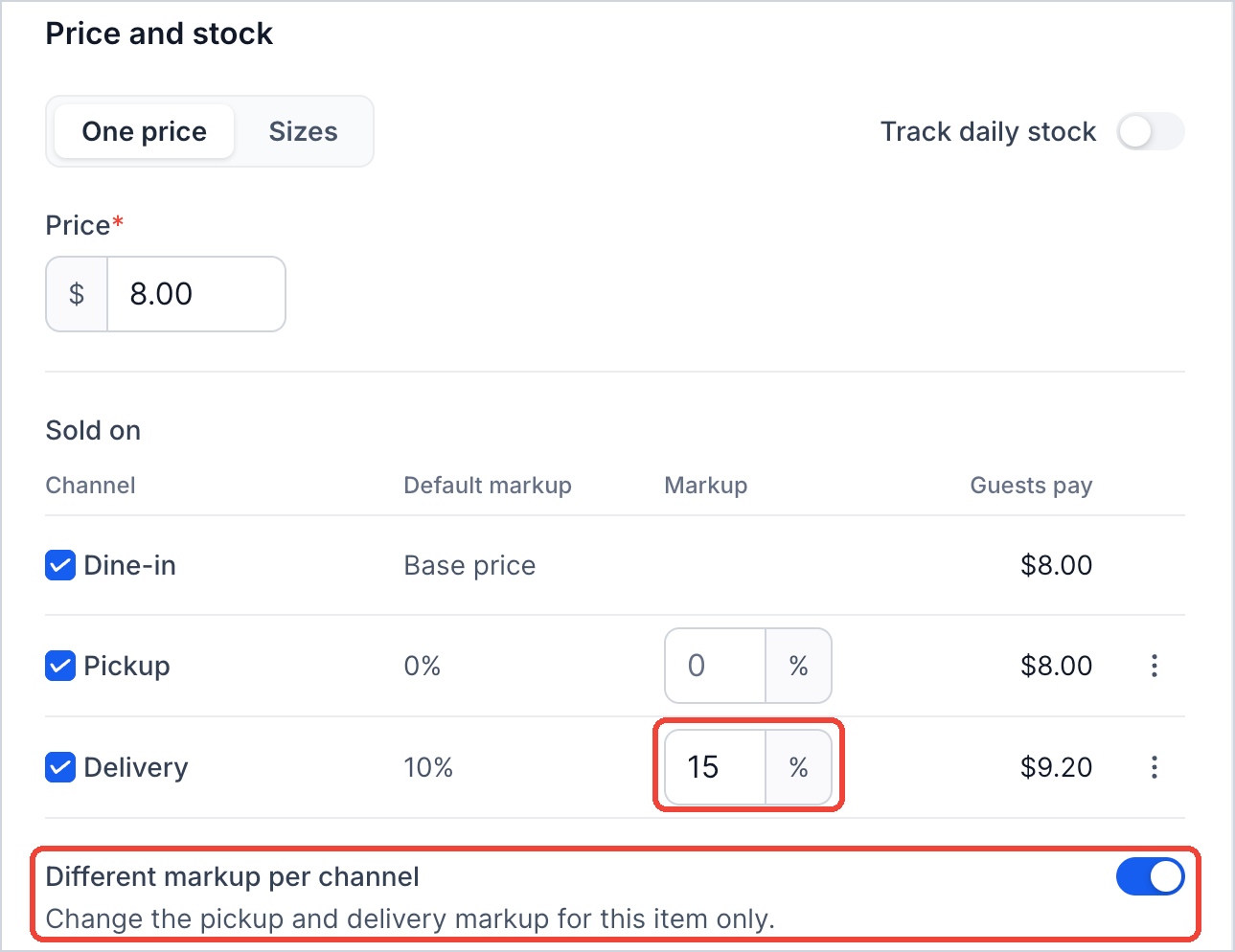
- Turn on Different markup per channel to set a specific markup for an item.
- Enable Limit how many options guests can choose and set the limit.
05Before you start
- Create the initial restaurant menu using the How to Create a Restaurant Menu in HighLevel guide.
06How to set up and use restaurant menus in HighLevel
Manage menu categories
- Navigate to Restaurants > Menu > Categories.
- Expand the desired category, use Expand all or the search bar to locate a specific entry.
- Drag the handle next to a category or item to change its order.
- Click the three dot menu beside a category, choose Edit category, adjust name, description, ordering channels or availability hours, then save.
- Use the three dot menu next to an item within the category to Edit item, Duplicate, or Remove from the category.
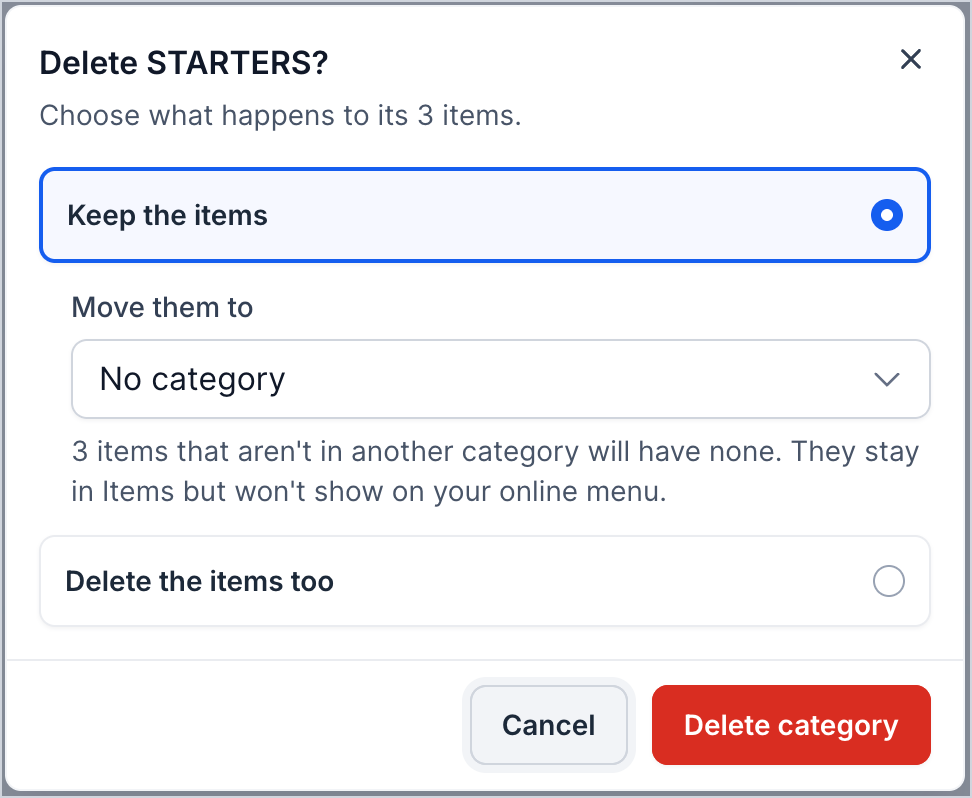
- To delete a category, click its three dot menu, select Delete category, decide whether to keep or delete its items, and confirm.
Manage and edit menu items
- Open Restaurants > Menu > Items to view the full list of items.
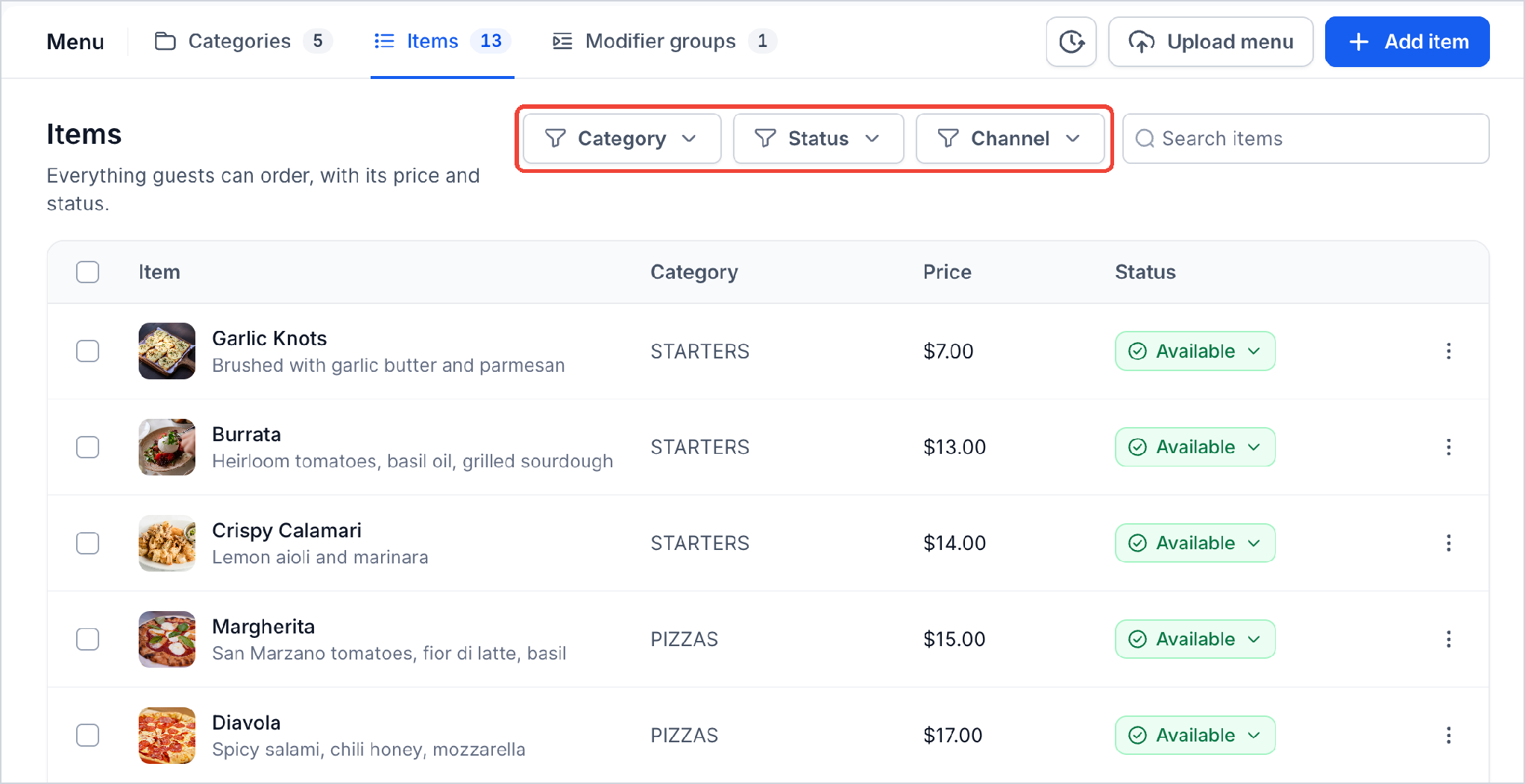
- Search or filter by Category, Status, or Channel to find a specific item.
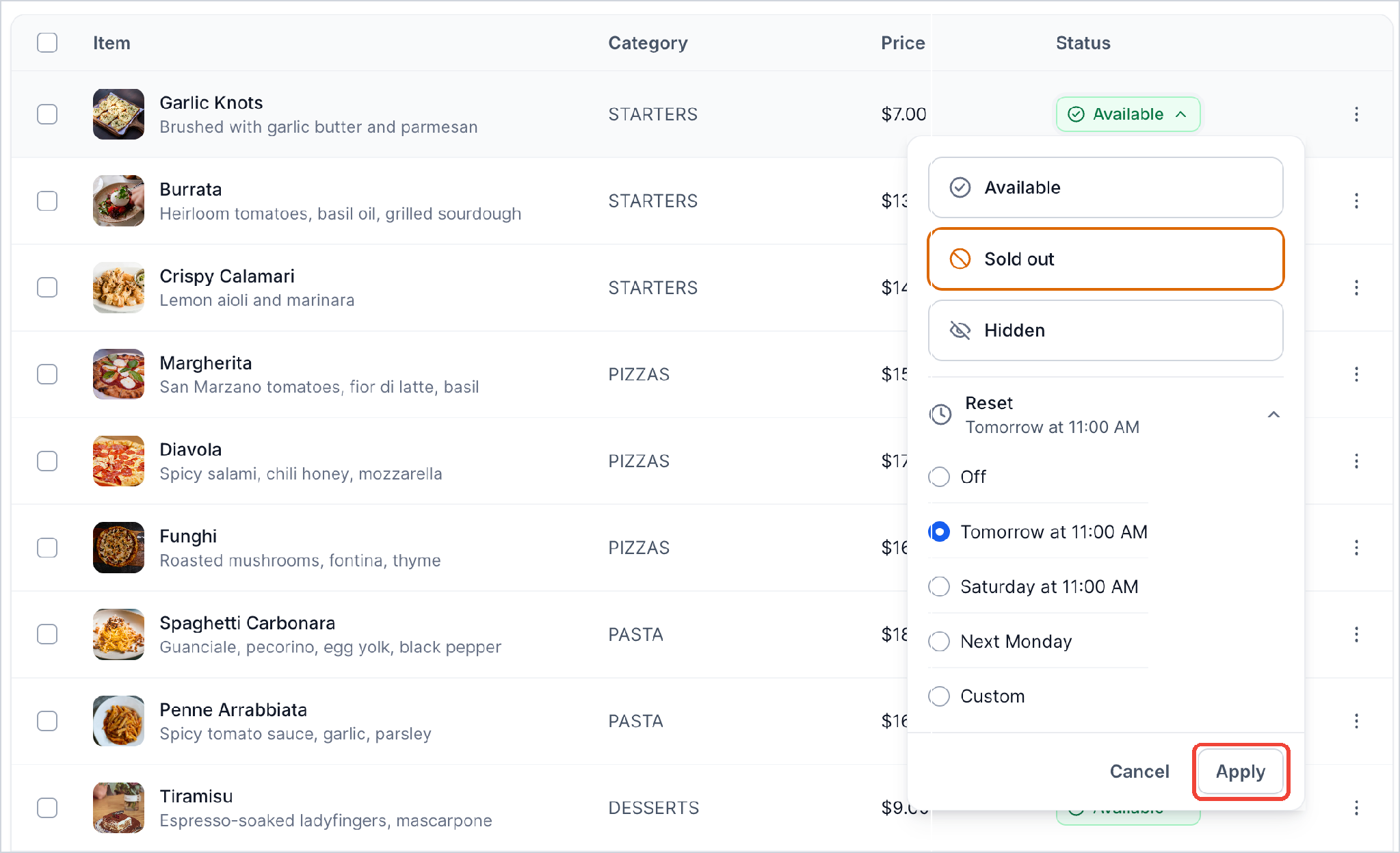
- Click the item's status label and select Available, Sold out, or Hidden, then apply the change.
- Tip: you can also change an item's status next to its name when editing the item.
- Click the three dot menu next to an item and choose Edit; make updates and save.
- Select Duplicate from the same three dot menu to create a copy of the item.
- Choose Delete from the three dot menu to remove the item and confirm.
- If you try to leave the editor with unsaved changes, HighLevel asks you to confirm. Choose Keep editing to return or Discard changes to leave without saving.
Set prices and sizes
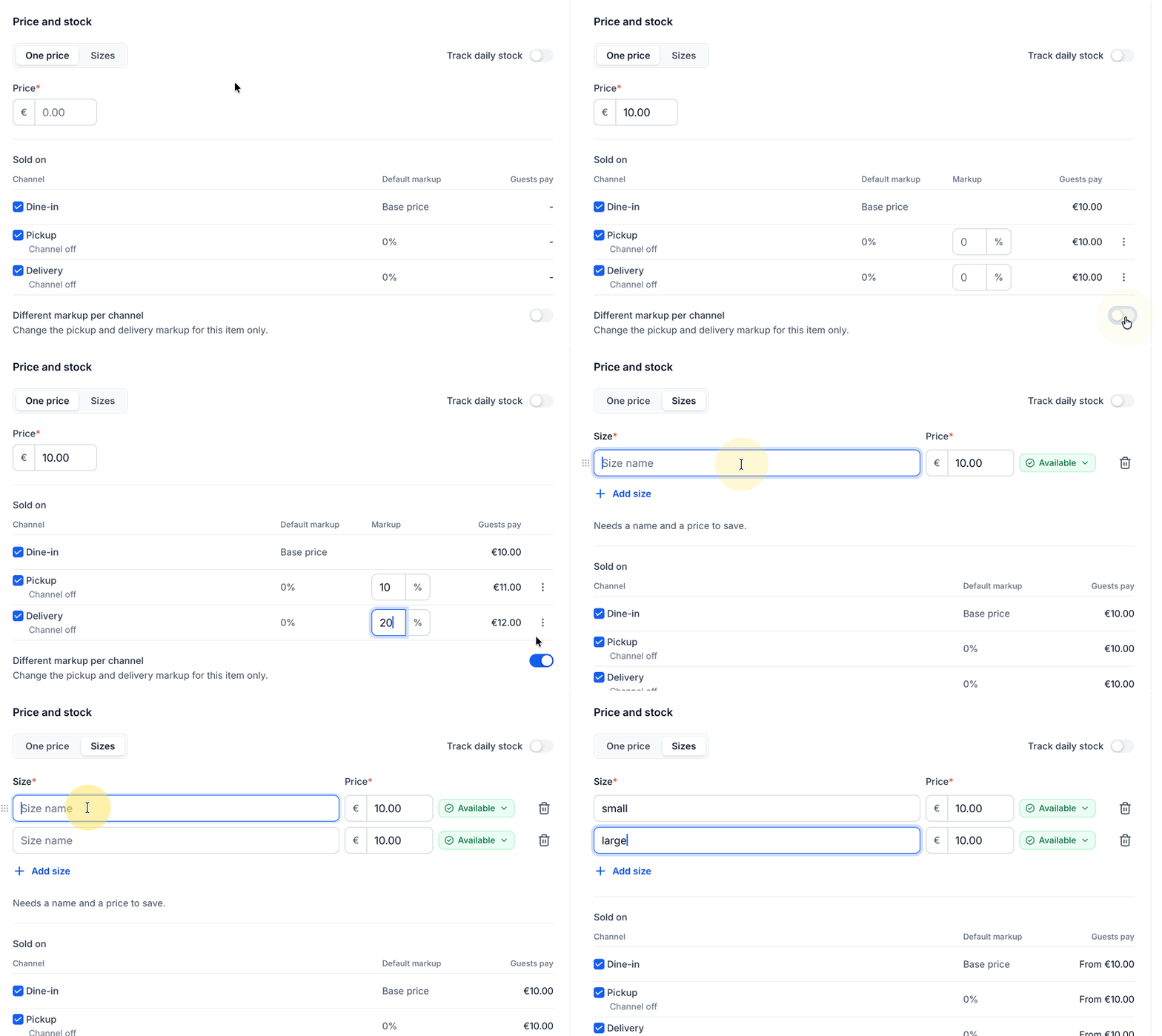
- Open the item editor and type a single amount in the Price field for a fixed price.
- If the item has multiple sizes, click Sizes, then enter each size name and its price.
- Click Add size for each additional size, ensuring every size includes a name and a price.
Set channel specific markup
- Open the item for editing.
- Toggle on Different markup per channel.
- Enter the desired markup percentage for Pickup and/or Delivery.
- Save the changes.
Manage daily stock
- Edit the item and enable Track daily stock.
- Enter the total units available in the Daily stock field.
- Add date specific quantities using Add a date under Different daily stock on some dates, then save.
Create a modifier group
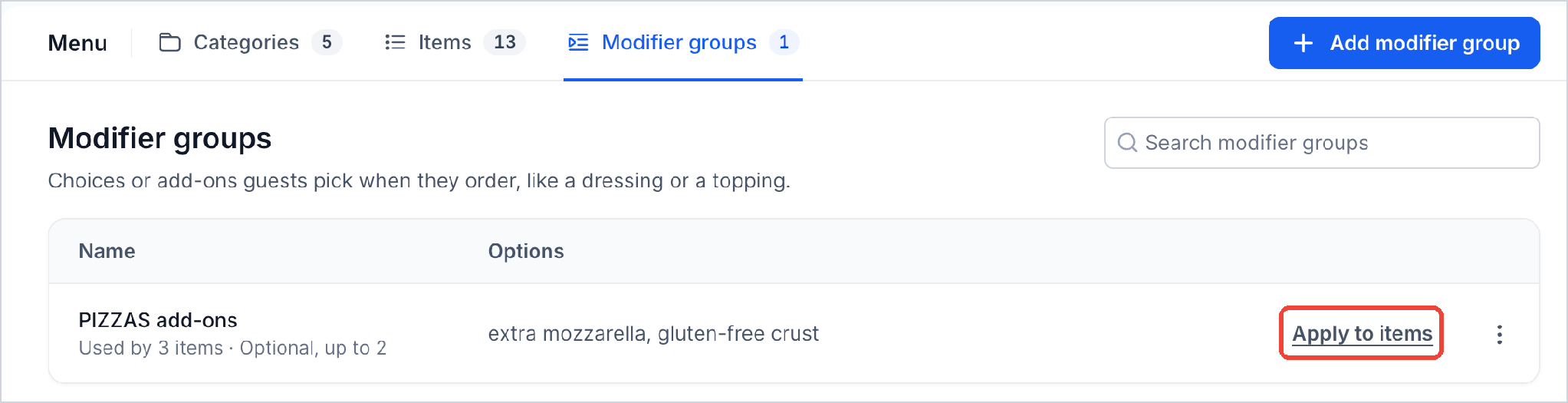
- Go to Restaurants > Menu > Modifier groups.
- Click Add modifier group.
- Enter a recognizable Name for the group.
- Turn on Required if a selection must be made.
- Enable Limit how many options guests can choose and set the numeric limit.
- Under Options, type a choice name and price, then click Add option for each additional choice.
- Switch off Available for any option that is temporarily out of stock.
- Optionally enable Ask the same follow up to collect extra details.
- Select applicable taxes in the Taxes section.
- Click Add modifier group to save the new group.
07What it looks like in HighLevel
08Settings that matter
- Price. Controls the base amount charged for an item that has a single price.
- Sizes. Enables multiple size entries, each with its own name and price.
- Different markup per channel. Allows a separate percentage markup to be applied for Pickup and Delivery orders.
- Markup for Pickup. Specifies the additional percentage added to the base price for pickup orders.
- Markup for Delivery. Specifies the additional percentage added to the base price for delivery orders.
- Track daily stock. Activates a limit on how many units of an item can be sold each day.
- Daily stock. Defines the quantity of units available for the current day.
- Different daily stock on some dates. Sets a specific stock quantity for a particular date.
- Required. Makes a selection from a modifier group mandatory for the guest.
- Limit how many options guests can choose. Caps the number of choices a guest may select within a modifier group.
- Available. Controls whether an individual modifier option is offered to guests.
- Ask the same follow up after every option. Prompts for additional information after each selected modifier option.
09Things to know before you rely on it
- Each size entry must include both a name and a price.
- Removing an item from a category does not delete the item itself.
- Items without a category stay in the Items tab but are hidden from the online menu until assigned.
- When deleting a category, you can keep its items and move them to another category or delete them entirely.
10How it connects to the rest of HighLevel
- Learn how to initially create a restaurant menu before managing it. Create restaurant menu
- Explore how to manage orders and payments linked to the menu items. Restaurant orders
- Set up pickup and delivery markups that affect channel specific pricing. Restaurant settings
Michael's take

I find it useful to keep the menu up to date in HighLevel.
Don’t forget to assign every item to a category, or it won’t show up online.