
01Who this is for
- Restaurant managers need a unified view of all order types to keep service running smoothly.
- Front of house staff use the tool to create and send dine in rounds and record guest payments.
- Kitchen staff rely on status updates to know which items are ready to prepare.
02Restaurant orders, explained
Restaurant Orders lives in the Restaurants section of a HighLevel subaccount. It groups orders by tabs such as Active, Scheduled, Completed and Canceled, allowing teams to focus on current work. Filters let users narrow the list by date, type, status, payment or running late flag.
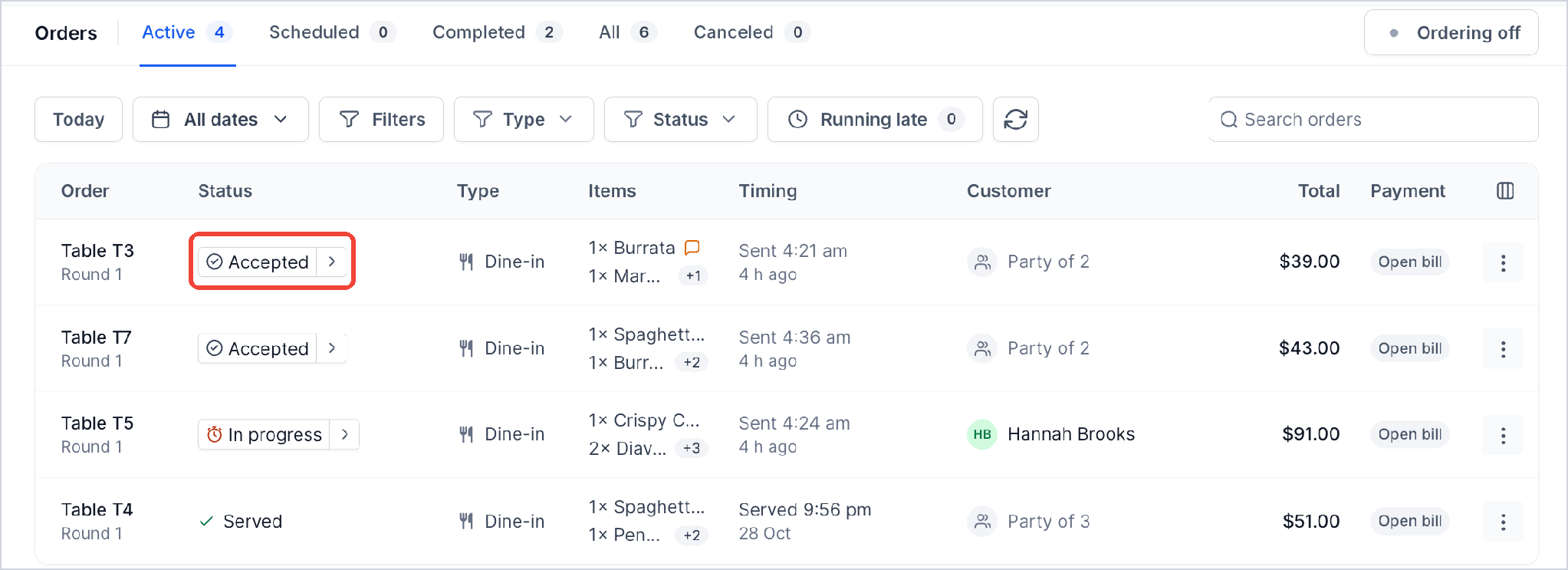
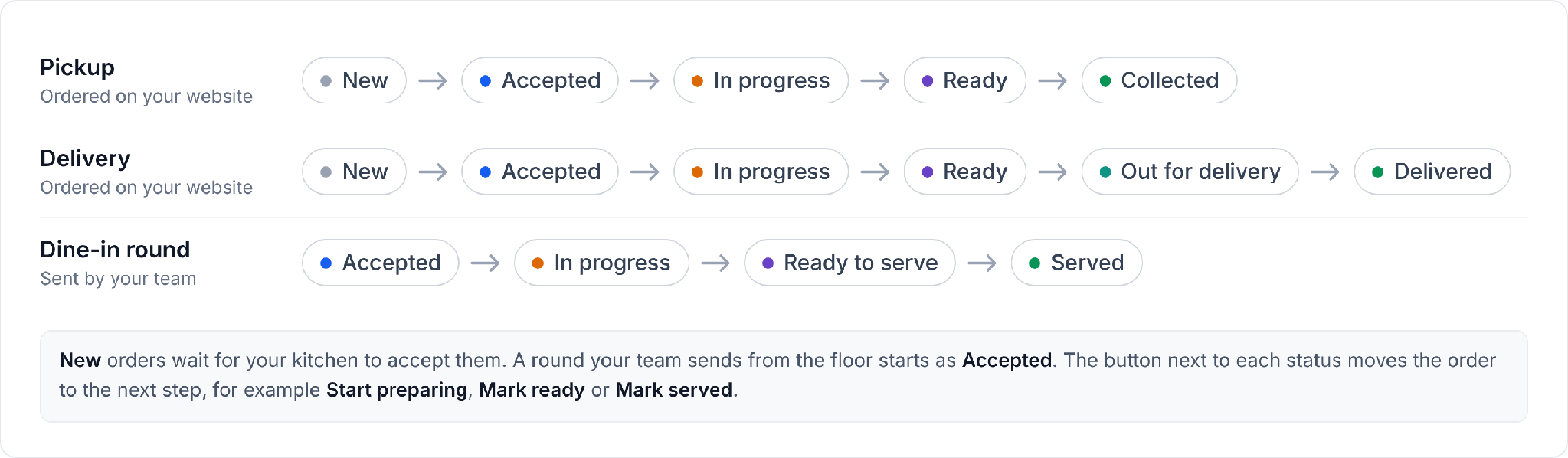
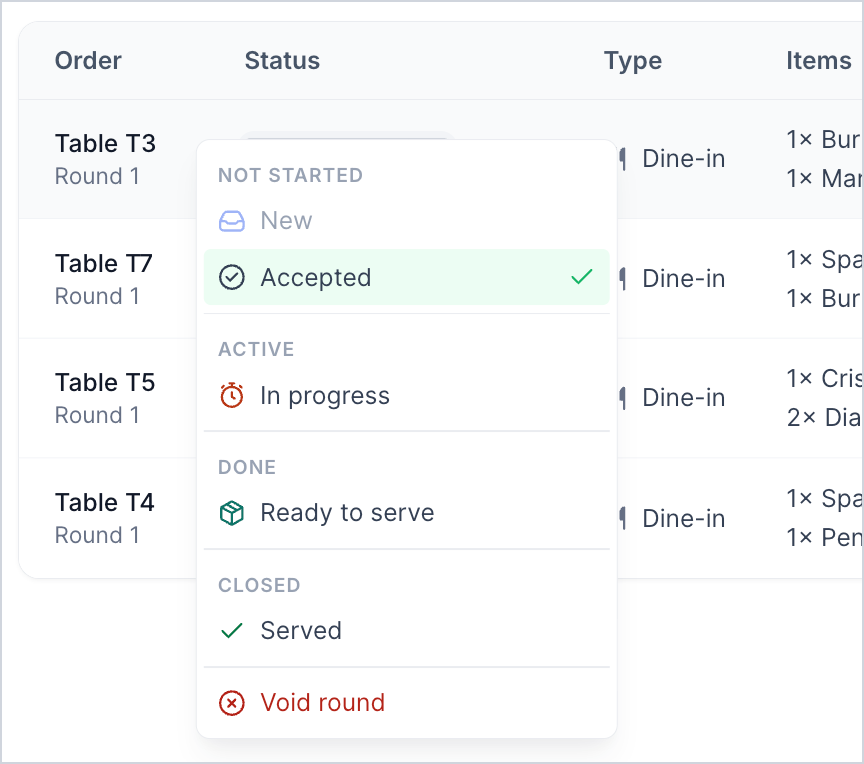
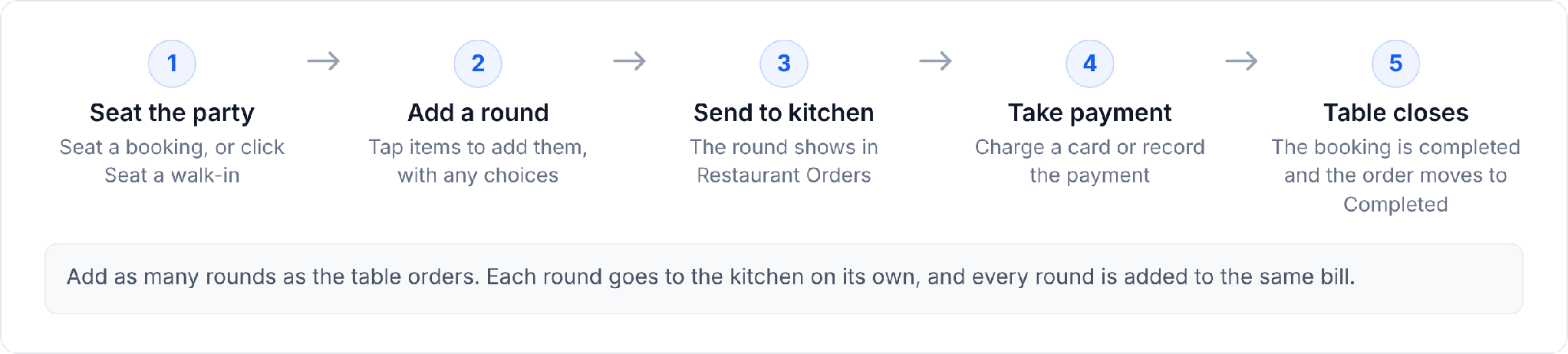
Each order shows its type, items, timing, customer info, total amount and payment status. Orders move through predefined stages, New, Accepted, In progress, Ready, Served, etc., and a single click advances them. Dine in orders consist of separate rounds that are sent to the kitchen and later combined on the table’s bill for payment.
03How businesses use restaurant orders
- Family restaurant. The host opens a seated table in Reservations, adds a round of dishes, and sends it to the kitchen. When the round is ready, the staff marks it as Ready to serve and later records the guest’s cash payment in Restaurant Orders.
- Fast food takeout location. The manager watches the Active tab for new online pickup orders, clicks the action button to move each order from Accepted to In progress to Ready to collect, and then marks it Collected once the customer picks it up.
- Catering service with scheduled deliveries. The team reviews the Scheduled tab for future delivery orders, accepts each one, updates the status to In progress, and later changes it to Ready for delivery, On its way, and Delivered as the driver completes the route.
04Before you start
- Add menu items in the restaurant menu so staff and customers can select them.
- Publish the restaurant website to enable online ordering; otherwise the Orders page may show Ordering off.
- Connect a supported payment provider to accept card payments.
- Set up the floor layout and tables in Reservations before creating dine in orders.
05How to set up and use restaurant orders in HighLevel
Open restaurant orders
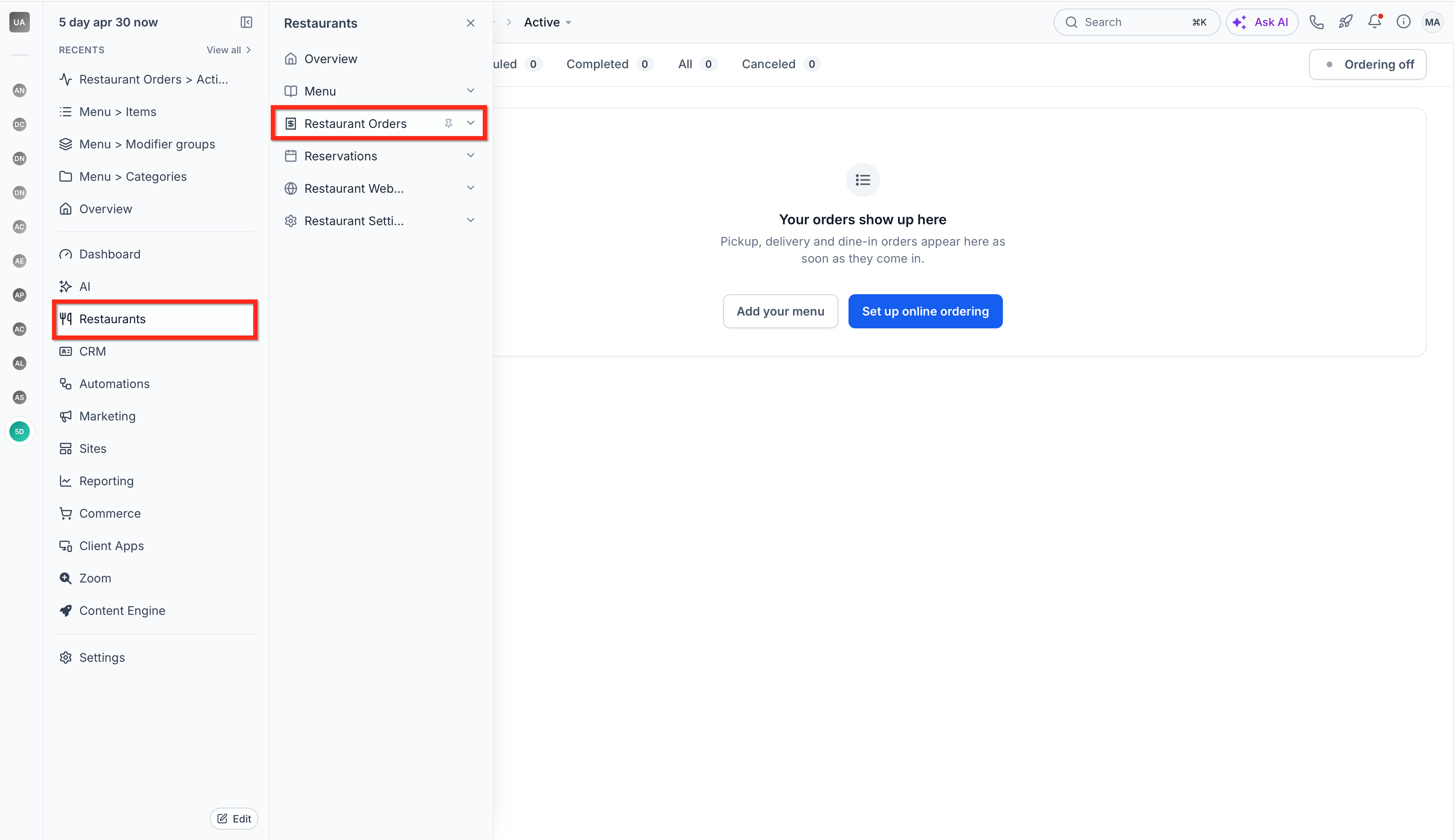
- In your HighLevel subaccount, click Restaurants in the left navigation.
- Select Restaurant Orders.
- The Active tab opens displaying orders that are currently being processed.
Move an order to the next status
- Open Restaurants > Restaurant Orders.
- Locate the order you want to update in the Active tab.
- Click the action button next to its current status to advance it to the next stage.
Create and send a dine in order
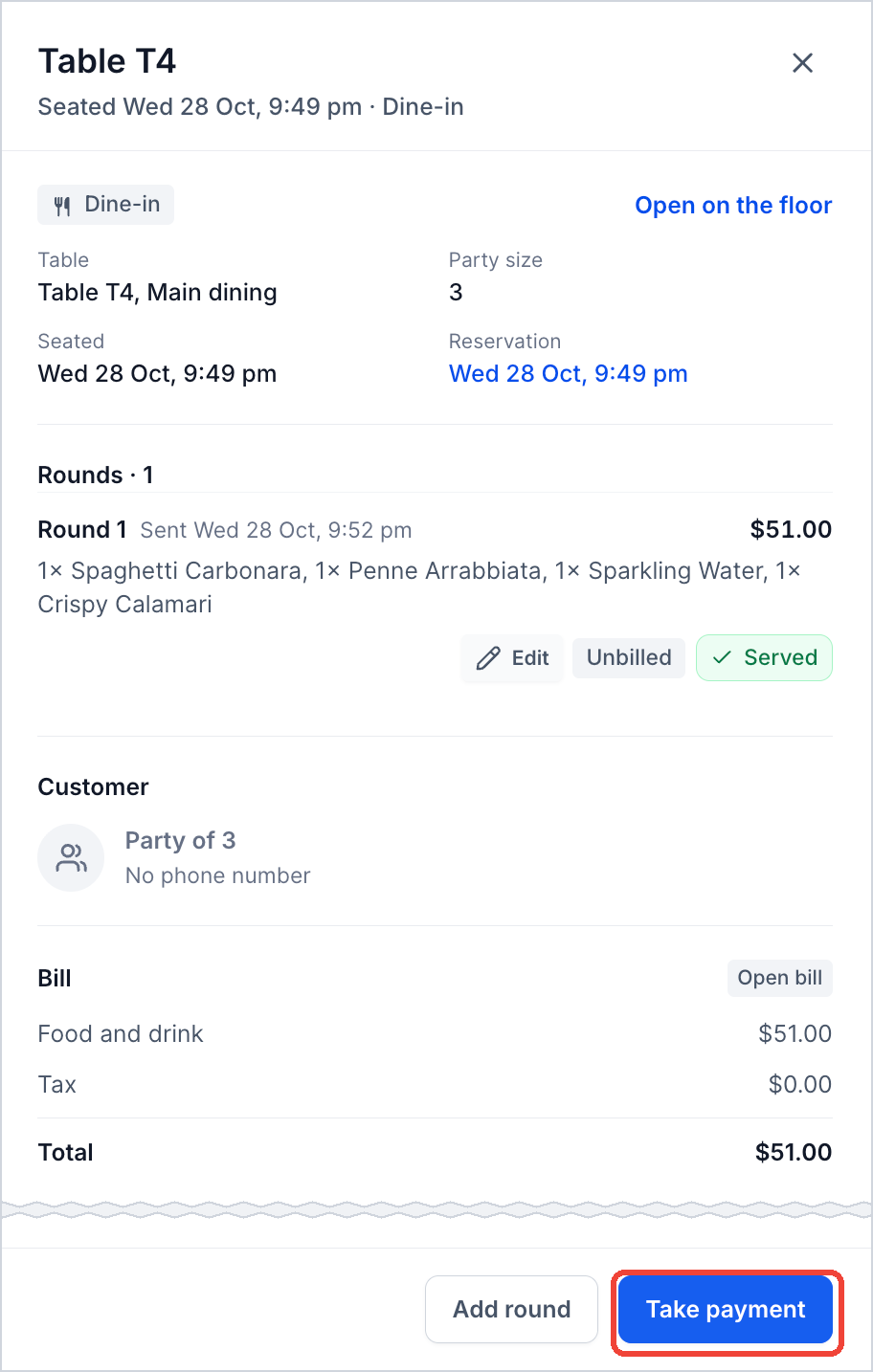
- In Reservations, open a seated table and go to Order.
- Tap Add round, choose each menu item, set any choices, add a kitchen note and specify the quantity.
- Click Send to kitchen; the round appears in Restaurant Orders with an Accepted status.
Collect payment for a dine in table
- Click the three dot menu beside the order and choose Take payment, or press Take payment inside the order details.
- Review the Amount due and click View bill to see each item on the table’s charge.
- Select a tip option, No tip, a suggested percentage, or a custom amount.
- Search for the guest or add a new guest with a phone number or email address.
- Choose how the guest pays, set any note if recording manually, and then click Charge or Record to finalize the payment.
06What it looks like in HighLevel
07Settings that matter
- Prep time. Defines the estimated preparation duration used to calculate when an order should be ready.
- Pickup and Delivery. Controls ordering availability, operating hours, scheduled orders, price markup, delivery zones, fees and downtime.
- Checkout and payments. Manages payment provider configuration, live payment mode and the tip options shown to guests.
- Notifications → Internal. Sets on screen alerts, sounds and other staff notifications for new orders.
- Notifications → Customer. Determines the messages customers receive as their pickup or delivery order progresses.
08Things to know before you rely on it
- If the restaurant website is not published, the Orders page may display Ordering off.
- Card payments can only be processed when a supported payment provider is connected; otherwise the system shows No payment provider found.
- A dine in order stays in the Active tab until the table’s full bill is paid, even after all rounds are served.
09If something goes wrong
- Ordering off displayed on the Orders page. Publish the restaurant website and ensure online ordering settings are configured.
- Served dine in order still appears as Active. Verify that the table’s bill has been fully paid; the order will move to Completed once payment is recorded.
- No payment provider found when trying to charge a card. Connect a supported payment provider in Checkout and payments settings.
10How it connects to the rest of HighLevel
- Create a restaurant menu in HighLevel Create menu
- Restaurant setup guide for online ordering and reservations Setup guide
- Manage bookings, tables and guests with Restaurant Reservations Reservations
- Customize and publish your restaurant website Website
- HighLevel pricing and plans Pricing
Michael's take

Restaurant orders are a solid addition for any eatery that wants a single view of all its sales channels.
If your operation runs solely on phone in orders or you already have a dedicated POS, you can skip this feature.