
01Who this is for
- Restaurant owners, reduce checkout time by charging returning guests with their saved cards.
- Front of house staff, can process payments, add tips, apply coupons, or split bills without navigating away from the order screen.
- Managers of multi location restaurants, keep a consistent payment workflow across all sites.
02Saved card payments, explained
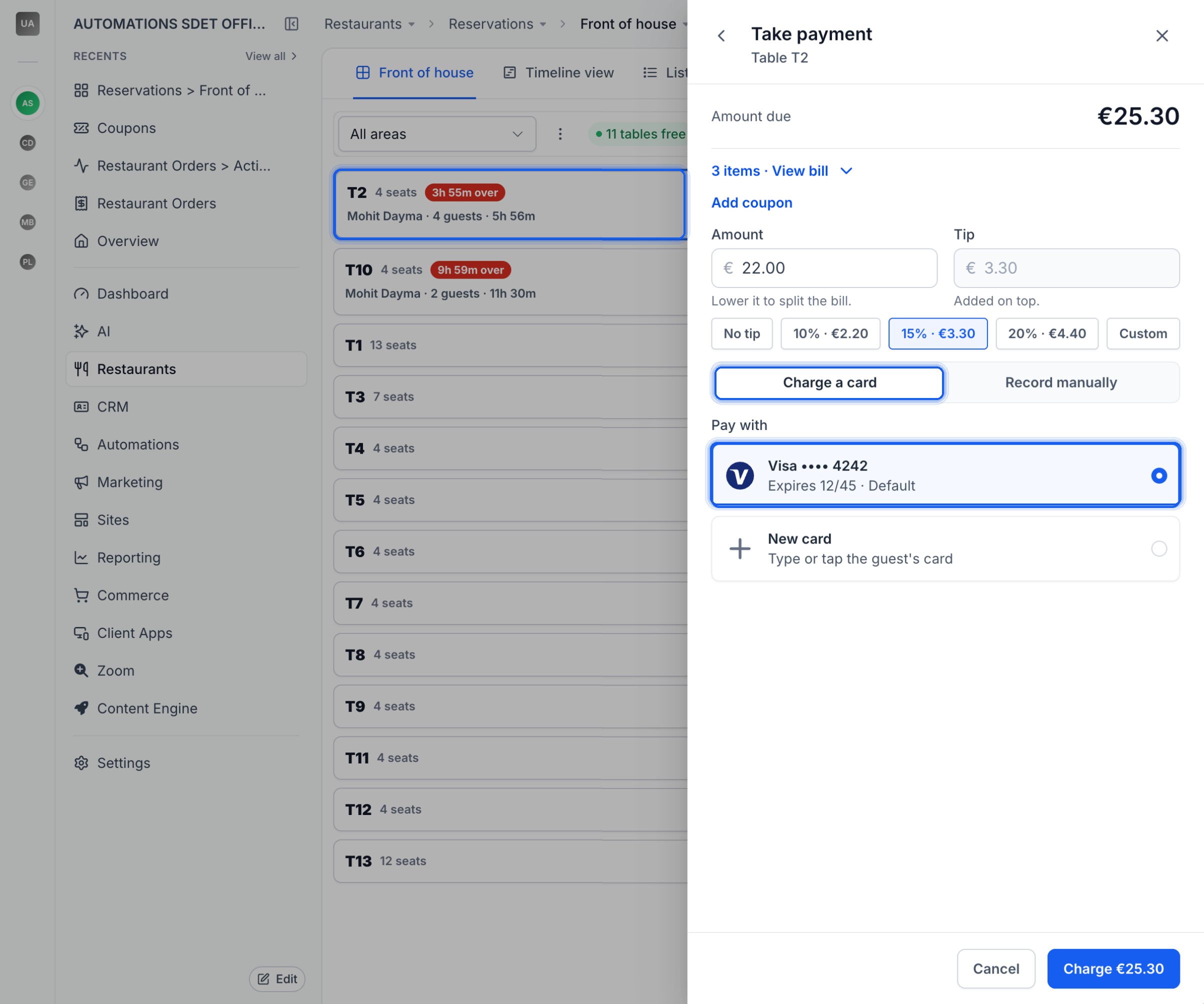
Saved card payments enable staff to charge a guest’s previously stored payment method directly from the Take payment drawer. When a guest has a saved card, it shows under the Pay with section and the default card is pre selected. Staff may keep that card, choose another saved card, or select New card to enter a different method.
The feature works in both Front of house and Restaurant Orders screens. Before charging, staff can adjust the amount, add a tip, apply an eligible coupon, or split the bill. The charge is processed through the restaurant’s connected payment provider, and the payment status updates in real time.
03How businesses use saved card payments
- Family style diner. When regular customers return, the server opens the table in Front of house, sees the guest’s saved card under Pay with, and clicks Charge. The server can add a tip or split the check for a large party before completing the payment.
- Fine dining restaurant. During a reservation checkout, the host selects the order, reviews the bill, and applies a promotional coupon. The guest’s default saved card is used automatically, but the host may pick a different saved card if requested before charging.
- Fast casual café. At the point of sale, an employee uses the Restaurant Orders view to charge a repeat guest. If the saved card is unavailable, the employee selects New card, enters the details, and processes the payment without leaving the drawer.
04Before you start
- A payment provider must be connected in Restaurant Settings > Checkout and payments.
- The order must be opened for the correct guest so saved payment methods appear.
- The agency must be enrolled in the HighLevel Restaurants private beta.
05How to set up and use saved card payments in HighLevel
Charge a saved card using the Take payment drawer
- Open the guest’s table in Restaurants > Reservations > Front of house, or locate the dine in order in Restaurant Orders.
- Press Take payment and choose Charge a card to bring up the payment options.
- Check the Amount due, click View bill, and optionally add a coupon, adjust the amount for a split, or select a tip.
- In the Pay with area, view the displayed saved cards; keep the default, pick another saved card, or choose New card to enter a different method.
- Verify the selected payment method and the total shown on the Charge button, then click Charge.
- Confirm the payment status; if the bill is fully paid, mark the table as complete, otherwise collect any remaining balance.
- If no payment provider is connected, HighLevel shows No payment provider found; connect one via Restaurant Settings > Checkout and payments or choose Record manually for cash.
06What it looks like in HighLevel
07Settings that matter
- Restaurant Settings → Checkout and payments. Defines which payment provider is linked to the restaurant and enables card charging through the Take payment drawer.
08Things to know before you rely on it
- The feature is only available in a private beta for agencies participating in the HighLevel Restaurants beta.
- Card tapping may not be available depending on the payment setup.
- Saving a new card during payment does not automatically set it as the default card for future use.
- If no payment provider is connected, card charging cannot be performed.
09If something goes wrong
- Saved cards are not appearing for a returning guest. Ensure the correct guest contact is selected and that the connected payment provider has an eligible saved payment method. If none appear, use New card.
- No payment provider connected. Open Restaurant Settings > Checkout and payments and select a supported provider to enable card charging.
- Card payment fails or status is unclear. Review the booking’s payment information and the transaction records in the connected provider before attempting another charge.
10How it connects to the rest of HighLevel
- Set up or change your payment provider in the restaurant settings. Restaurant Settings
- Manage and edit restaurant orders and payments, including saved card usage. Restaurant Orders
- Explore pricing and plan options for accessing restaurant features. Pricing
Michael's take

Saved card payments give a small restaurant a way to collect money from repeat guests without pulling out a separate terminal or asking for card details each visit.
Don’t forget to confirm the guest is linked to the correct contact record before charging.