
01Who this is for
- Community managers can keep member conversations inside the platform, reducing the need for separate messaging apps.
- Online course creators can answer student questions directly within their course community.
- Coaches and consultants can follow up with clients in a private chat tied to the relevant community.
02GoKollab chats, explained
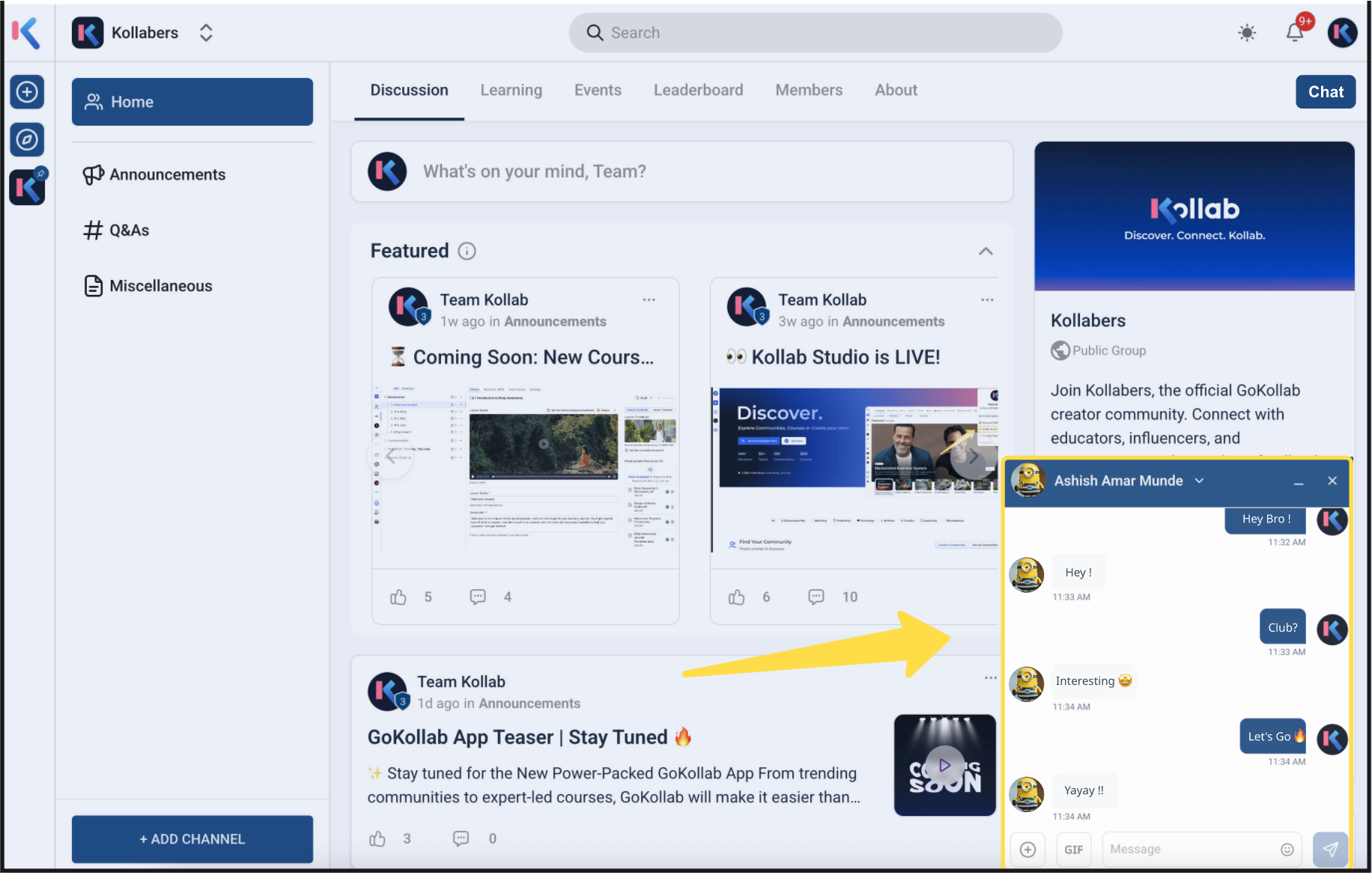
GoKollab Chats provide a built in direct messaging channel for members who belong to the same community. A user opens a private conversation from the community discussion page, and the exchange lives inside HighLevel. All chats appear in a single inbox where they can be searched and reviewed.
The feature shows in app notifications whenever a new message arrives, ensuring members see updates promptly. Chats are only available between members who share a community and are separate from team focused Internal Chat or website Chat Widget.
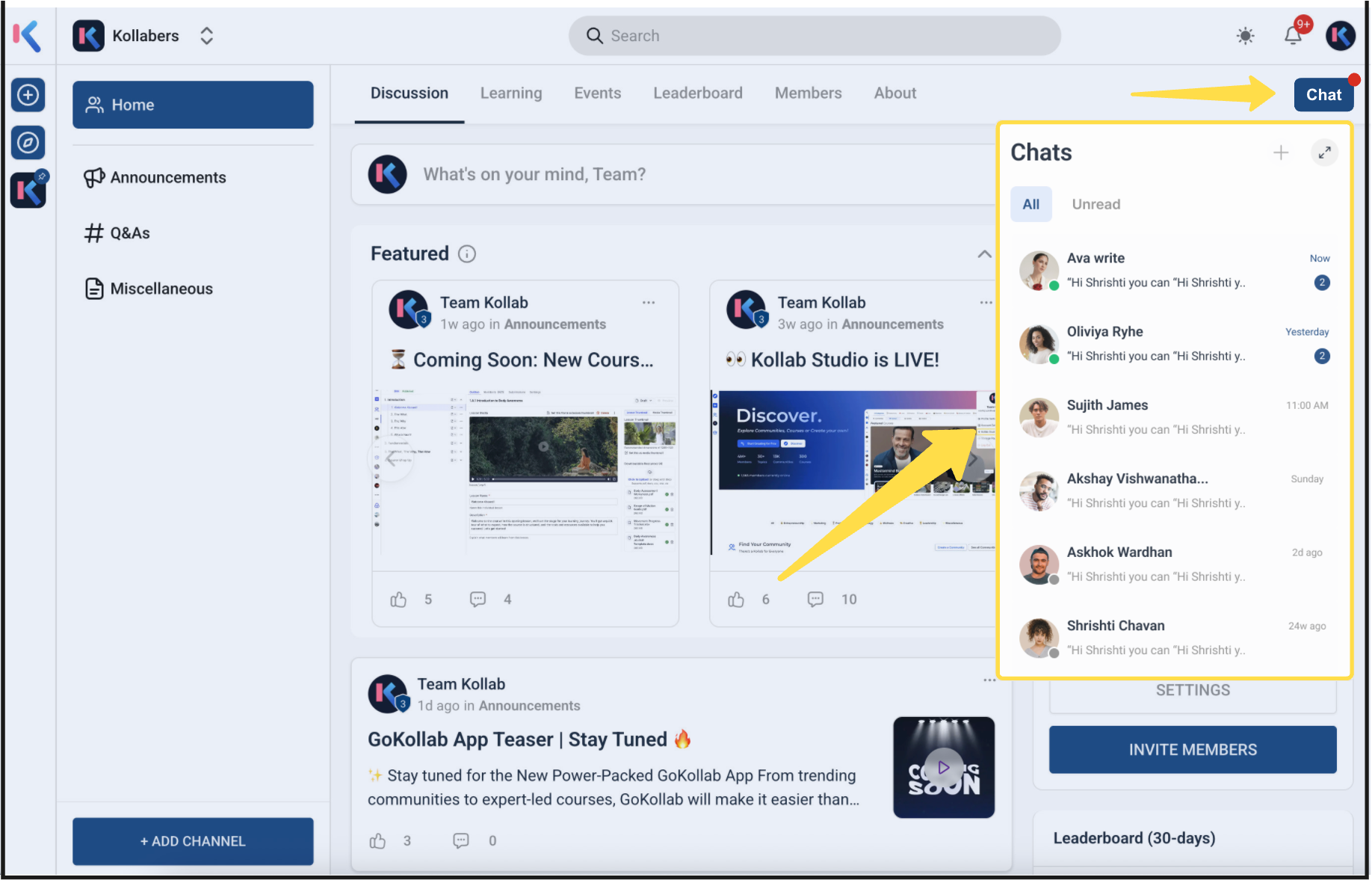
Chats are accessed either from the community discussion header or from the Chats inbox list. The design stays lightweight, making it easy for any member to begin a private exchange without leaving the community environment.
03How businesses use GoKollab chats
- Online education platform. An instructor opens GoKollab, navigates to a course discussion, clicks the Chat button, and starts a private conversation with a student to clarify a question. The chat appears in the instructor's inbox for later reference.
- Fitness coaching community. A coach launches GoKollab, goes to a member’s post, selects the Chat option, and sends a direct message offering personalized workout advice. The coach later searches the inbox for the conversation history.
- Professional networking group. A member signs in to GoKollab, clicks the Chat icon on a discussion thread, and starts a one to one chat with another member to arrange a virtual meeting. Notifications alert both parties to new messages.
04Before you start
- Have an active HighLevel account.
- Be a member of a GoKollab community.
05How to set up and use GoKollab chats in HighLevel
Start a private chat with another community member
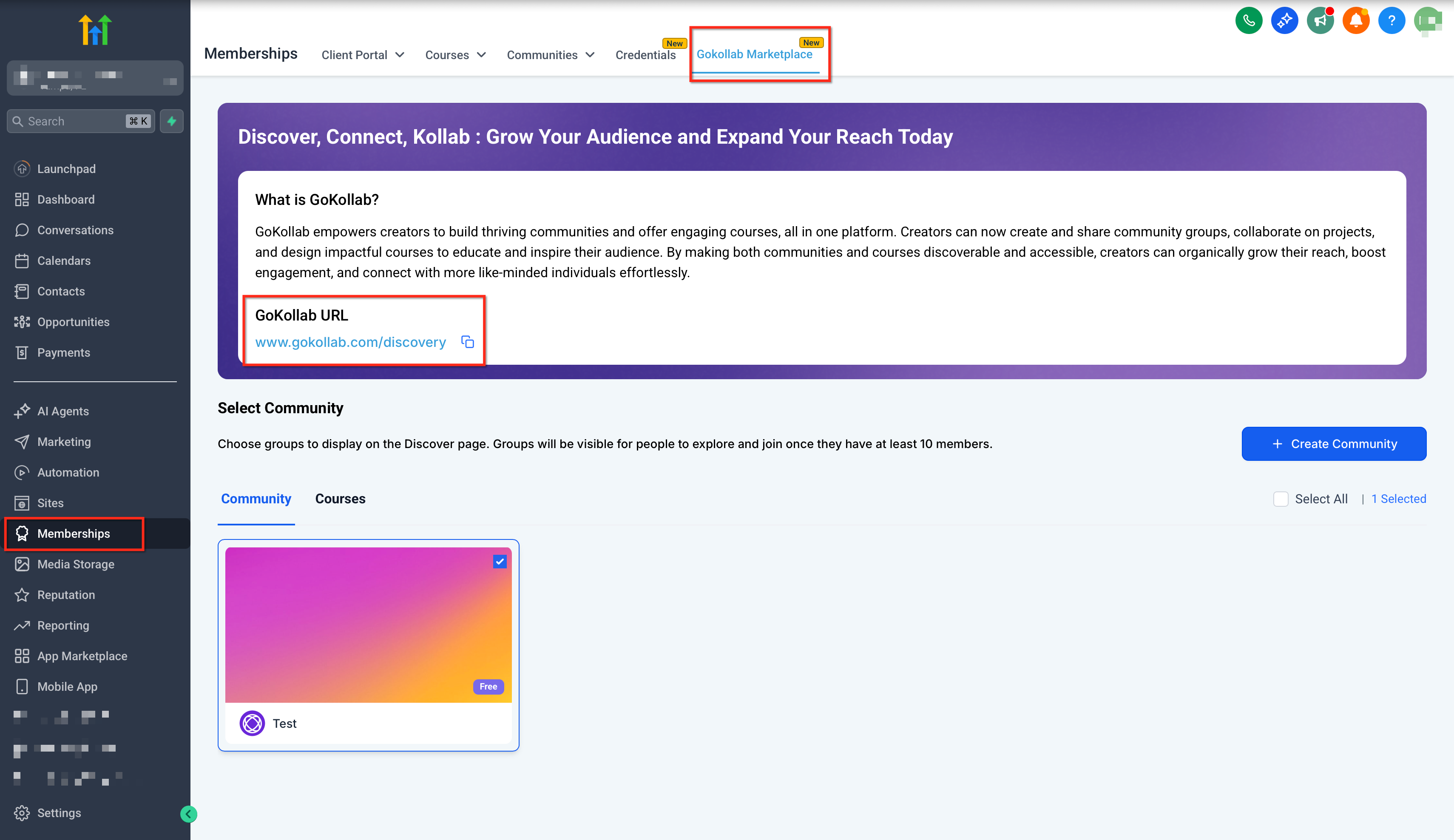
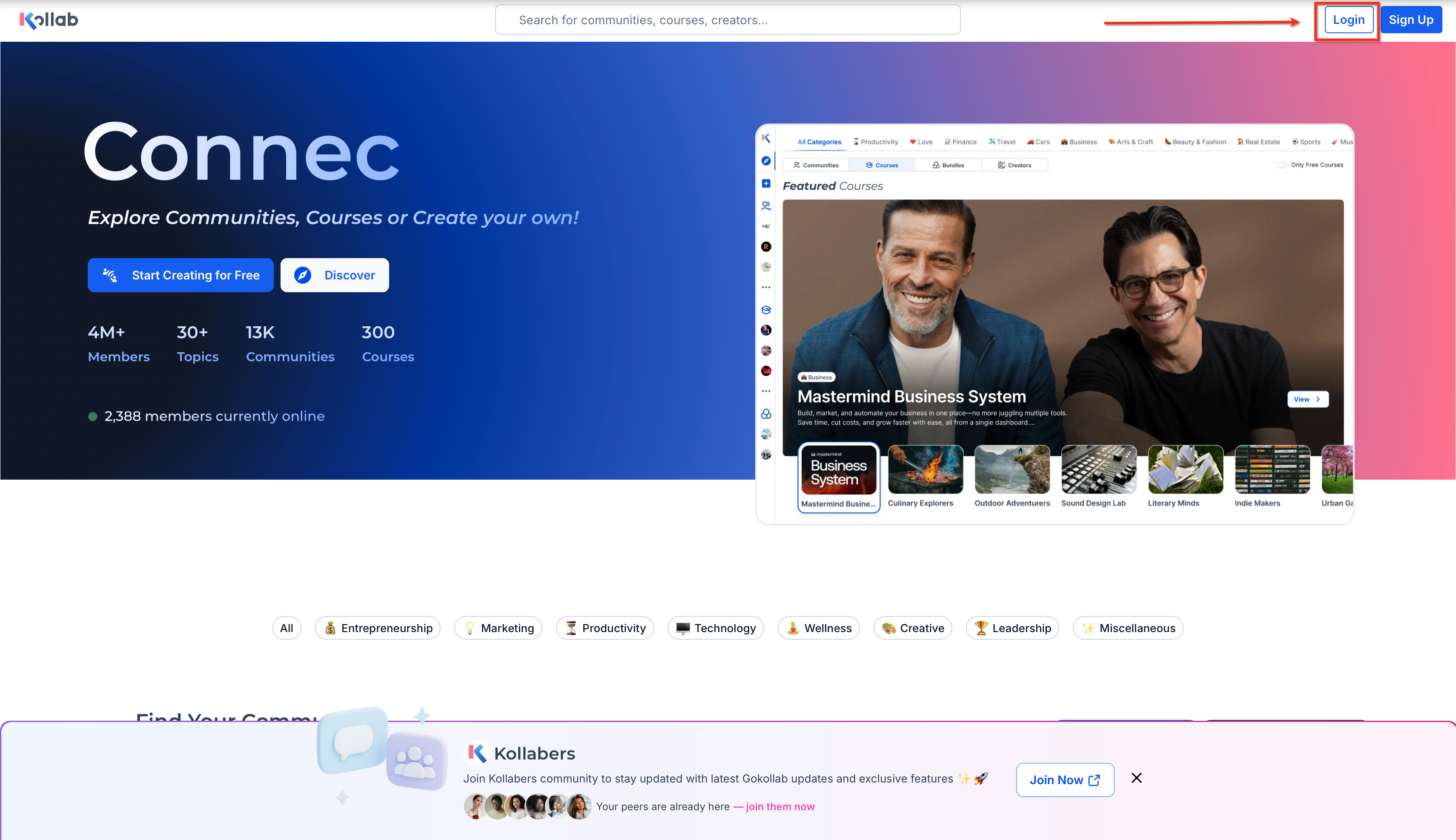
- Sign in to HighLevel and open GoKollab.
- Or log in directly from the GoKollab website.
- Navigate to your community discussion page.
- Click the Chat button at the top right and begin a conversation with any community member.
- Open your Chats inbox to view, search, and continue the conversation.
- Confirm that in app notifications are turned on so you receive alerts for new messages.
06What it looks like in HighLevel
07Things to know before you rely on it
- Chats are only available to members who share the same GoKollab community.
- Group chats are not supported; only one to one messaging is allowed.
- Mobile chat experience may vary depending on the app version.
08How it connects to the rest of HighLevel
- Use GoKollab chats for direct messages in communities GoKollab chats guide
- Pin your favorite groups for quick navigation Pin groups
- Access GoKollab on mobile devices Mobile app
Michael's take

Wondering if you really need another chat tool inside your community? GoKollab chats let members keep private conversations where the discussion started, so nothing gets lost between a forum post and a messenger app.
If I were setting up a new community, I’d make sure everyone knows the Chat button is right there on the discussion page and that notifications are turned on. That way the team can stay in the flow without juggling external apps.